How to Test Multiple Selectors in Puppeteer
Learn how to try selector fallbacks, inspect every match, wait for late-rendered elements, and avoid confusing selectors with multi-select forms.
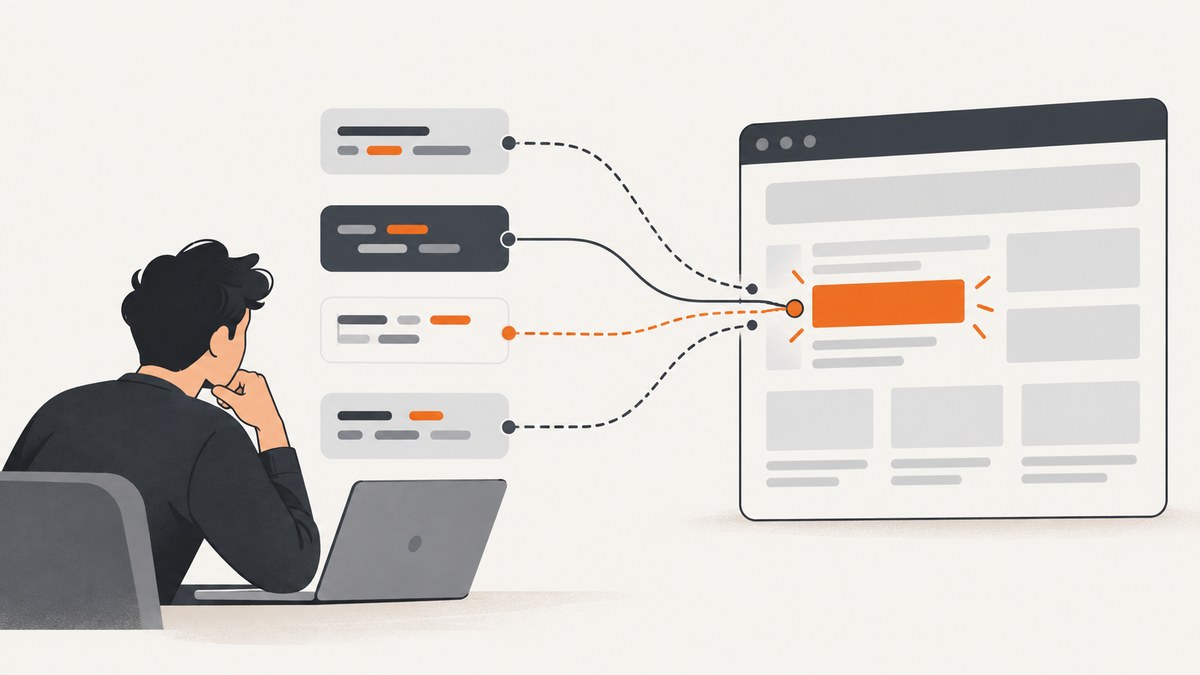
In Puppeteer, “test multiple selectors” usually means one of two things: try several candidate selector strings until one identifies the intended element, or inspect every element matched by one selector. These are different tests and need different APIs.
Use page.$() when you need one match, page.$$() when you need all matches, and page.$eval()/page.$$eval() when you want to extract or assert data in the page context. For content that appears later, use a locator for an interaction or page.waitForSelector() when you specifically need to wait for DOM presence or visibility. Puppeteer’s documentation says, “Locators is the recommended way to select an element and interact with it.”
1. Decide what “multiple selectors” means
| Goal | Use | What to assert |
|---|---|---|
| Try fallback selectors | Loop over selector strings with page.$() or page.$$() |
The chosen selector identifies the intended element, with the expected count or content |
| Inspect all matches | page.$$() or page.$$eval() |
Count, text, attributes, or another property for every match |
| Wait for late-rendered content | Locator or page.waitForSelector() |
Presence, visibility, and action readiness within a defined timeout |
| Select several form values | page.select(selector, ...values) |
The matching <select multiple> contains the requested values |
A non-empty query is not proof that you found the right control. A broad class selector may match a hidden template, a duplicate card, or an unrelated element. Your test must define what “correct” means.
2. Set up a reproducible Puppeteer test
Install Puppeteer and launch a browser. The examples below use the current documented API shape from Puppeteer 25.x; check the version installed in your project before relying on defaults.
npm install puppeteerconst puppeteer = require('puppeteer');
(async () => {
const browser = await puppeteer.launch({headless: true});
const page = await browser.newPage();
await page.goto('https://example.com', {waitUntil: 'domcontentloaded'});
// selector tests go here
await browser.close();
})();Keep the page state controlled: navigate to a known URL, set authentication or cookies before the query when required, and avoid asserting against a page that is still changing.
3. Try several candidate selectors
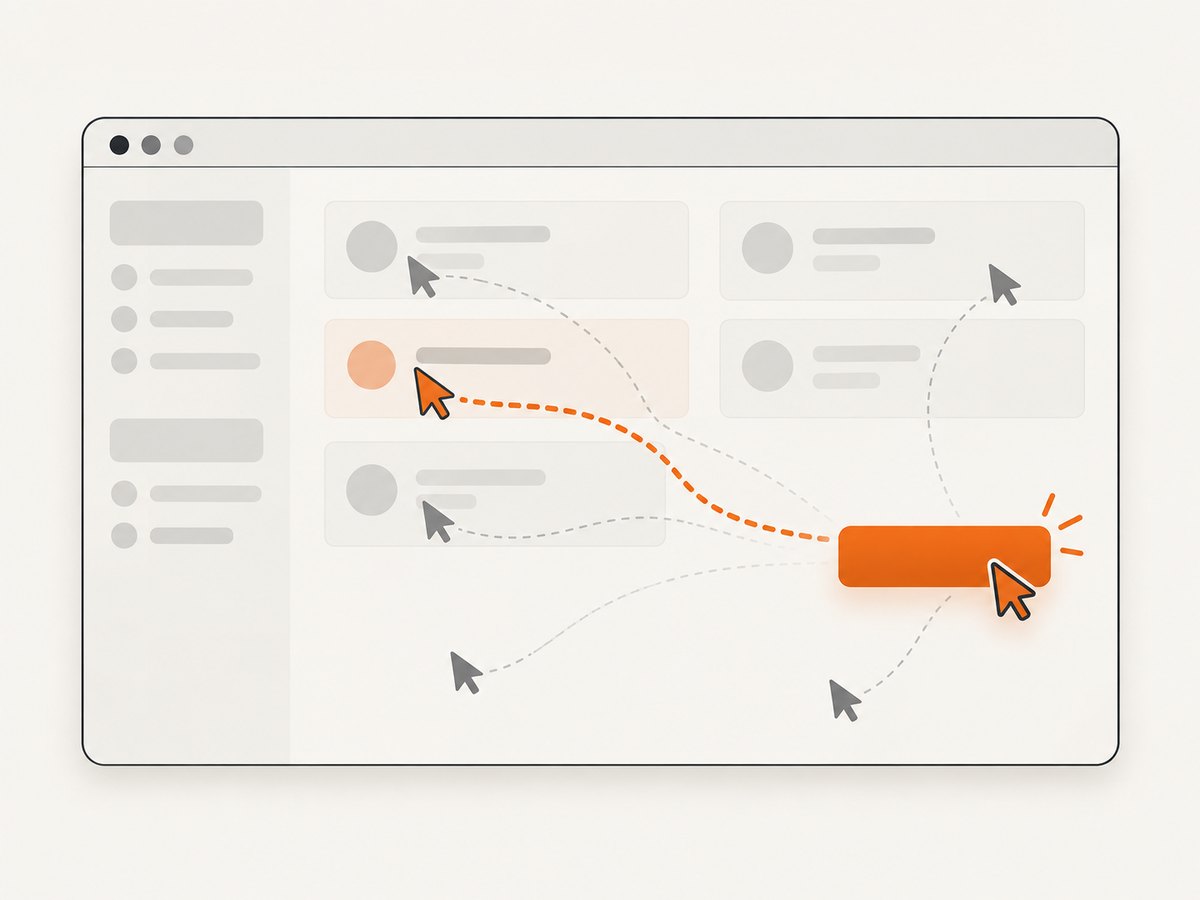
Represent fallback selectors as data, then test each candidate against the requirement for your target. This example accepts the first candidate that finds exactly one visible-looking DOM match and verifies its text. It does not assume that the first match is automatically correct.
const candidates = [
  '[data-testid="checkout-submit"]',
  'button[name="checkout"]',
  'form#checkout button[type="submit"]'
];

let chosen = null;
for (const selector of candidates) {
  const matches = await page.$$(selector);
  if (matches.length !== 1) {
    continue;
  }

  const summary = await page.$eval(selector, el => ({
    text: (el.textContent || '').trim(),
    disabled: el.hasAttribute('disabled'),
    tag: el.tagName.toLowerCase()
  }));

  if (summary.tag === 'button' && /checkout|pay|continue/i.test(summary.text)) {
    chosen = {selector, summary};
    break;
  }
}

if (!chosen) {
  throw new Error('No candidate selector identified the checkout button');
}
console.log(chosen);
Use page.$() instead when existence is enough:
for (const selector of candidates) {
  const handle = await page.$(selector);
  if (handle) {
    console.log(`Found a candidate: ${selector}`);
    await handle.dispose();
    break;
  }
}
Dispose of an ElementHandle when you are finished with it. If the test needs to click the element, a locator is usually safer because it can wait for the element to reach an actionable state.
Candidate testing checklist
- Keep selectors ordered from the most specific contract to the most general fallback.
- Assert the expected count: exactly one for a unique control, a known range for repeated content, or at least one only when duplicates are valid.
- Check stable attributes, role, text, or surrounding structure to reject unrelated matches.
- Log the selector that won so a failure can be diagnosed from CI output.
- Fail clearly when all candidates miss; do not silently continue with a null handle.
4. Inspect every match from one selector
When the question is “what does this selector match?”, use page.$$() for handles or page.$$eval() to return serializable data. The callback receives the matching elements as its first argument and runs in the page context.
const cards = await page.$$eval('.product-card', elements =>
  elements.map((element, index) => ({
    index,
    title: element.querySelector('h2,h3')?.textContent?.trim() || '',
    href: element.querySelector('a')?.href || '',
    hidden: element.getAttribute('aria-hidden') === 'true' ||
      getComputedStyle(element).display === 'none'
  }))
);

if (cards.length !== 12) {
  throw new Error(`Expected 12 product cards, found ${cards.length}`);
}

const visibleCards = cards.filter(card => !card.hidden);
if (visibleCards.some(card => !card.title || !card.href)) {
  throw new Error('A visible product card is missing title or link');
}
Use page.$$() when you need to interact with each element:
const rows = await page.$$('table#orders tbody tr');
try {
  for (const row of rows) {
    console.log(await row.$eval('td.status', el => el.textContent.trim()));
  }
} finally {
  await Promise.all(rows.map(row => row.dispose()));
}
5. Use CSS and Puppeteer’s extended selector syntax
CSS selectors work by default. Puppeteer also documents syntax for text, accessibility attributes, XPath, and Shadow DOM. Choose the syntax that reflects the page contract and keep the query understandable.
// CSS
await page.$('button[data-action="save"]');

// Text selector
await page.$('::-p-text(Save changes)');

// Accessibility selector
await page.$('::-p-aria(Save changes)');

// XPath
await page.$('::-p-xpath(//button[contains(., "Save")])');
Syntax support and escaping rules can change with Puppeteer releases. Prefer stable attributes such as data-testid when you control the markup. Do not claim that one selector type is universally more reliable; the right choice depends on the DOM and the behavior under test.
6. Handle asynchronous rendering
A query made immediately and a wait are different operations. A selector can be valid while returning no matches because a framework has not rendered the component yet.

Use a locator for an interaction
const submit = page.locator('button[data-testid="checkout-submit"]');
await submit.click();
Locators are intended for selection and interaction and wait for the element to be present and suitable for the action. If several candidate selectors are possible, create a small helper that checks them and returns a locator after validating the DOM:
async function findUniqueSelector(page, selectors) {
  for (const selector of selectors) {
    if (await page.$$eval(selector, els => els.length === 1)) {
      return selector;
    }
  }
  throw new Error(`None of these selectors matched uniquely: ${selectors.join(', ')}`);
}

const selector = await findUniqueSelector(page, candidates);
await page.locator(selector).click();
Use waitForSelector for a lower-level wait
page.waitForSelector(selector, options) waits for a selector to appear. The documented options include visible, hidden, timeout, and signal. The default timeout is 30 seconds; timeout: 0 disables the timeout. It throws when the selector does not appear before the timeout. Waiting for hidden: true can return null when the selector is absent.
try {
  const handle = await page.waitForSelector(
    '[data-testid="results"]',
    {visible: true, timeout: 10000}
  );
  if (!handle) throw new Error('Results handle was null');
  try {
    console.log(await handle.evaluate(el => el.textContent.trim()));
  } finally {
    await handle.dispose();
  }
} catch (error) {
  throw new Error(`Results did not become visible: ${error.message}`);
}
Use a finite timeout that matches the test’s contract. An unlimited wait can hide a broken page and leave a worker stuck.
7. Do not confuse selectors with selecting multiple form values
Testing alternative selector strings is unrelated to choosing several options in an HTML form. For a multiple select control, use page.select():
await page.select('select#colors', 'red', 'green');

const selected = await page.$$eval(
  'select#colors option:checked',
  options => options.map(option => option.value)
);

if (selected.sort().join(',') !== 'green,red') {
  throw new Error(`Unexpected selected values: ${selected.join(',')}`);
}
The method throws if no matching <select> exists. It triggers change and input events, and all supplied values are considered when the select has the multiple attribute.
8. A reusable selector-test helper
Centralize candidate logic so every test reports the same diagnostics.
async function assertCandidate(page, selectors, check) {
  const attempts = [];
  for (const selector of selectors) {
    const count = await page.$$eval(selector, els => els.length);
    attempts.push({selector, count});
    if (count === 0) continue;

    const passed = await page.$eval(selector, check).catch(() => false);
    if (passed) return selector;
  }
  throw new Error(`No selector passed: ${JSON.stringify(attempts)}`);
}

const target = await assertCandidate(
  page,
  candidates,
  element => element.matches('button') && !element.disabled
);
console.log(`Using ${target}`);
Keep the callback self-contained: variables from Node.js are not available inside the browser context unless passed as arguments.
9. Troubleshooting common failures
| Symptom | Likely cause | Fix |
|---|---|---|
| Every candidate returns zero | The page has not rendered, the selector is scoped to the wrong frame, or the element is inside Shadow DOM | Wait for the relevant state, inspect frames, or use documented Shadow DOM syntax |
| Several candidates match unrelated nodes | The selector is too broad or a hidden template is included | Assert count and inspect role, text, attributes, and visibility |
waitForSelector times out |
Wrong URL, blocked navigation, delayed API response, or incorrect visibility expectation | Capture the URL, response status, and a diagnostic screenshot; increase a finite timeout only when the page contract justifies it |
| Click fails after a successful query | The node exists but is covered, disabled, detached, or outside the viewport | Use a locator, wait for action readiness, and verify the element is still attached |
| Text selector finds nothing | Whitespace, localization, nested text, or changed Puppeteer syntax | Prefer stable attributes or use a predicate that normalizes text |
Data is empty in $$eval |
The callback reads a property that is not present or runs before hydration | Return explicit defaults and wait for the page state that creates the data |
| Cross-origin iframe is missing | The query ran on the top-level page | Find the correct Frame and run the selector there |
10. Performance, reliability, and cost
- Performance: One
$$evalthat extracts all required fields avoids repeated round trips between Node.js and the page. Query only the subtree you need and avoid expensive broad selectors in tight polling loops. - Reliability: Assert semantic properties, not only existence. Record the candidate list and counts on failure. Use finite timeouts, deterministic test data, and a fresh page when state can leak between cases.
- Frames and shadow roots: A selector is evaluated in a particular document. Explicitly select the frame or shadow-root context instead of changing the selector until it accidentally works.
- Retries: Retrying a missing selector can help with known asynchronous rendering, but it should not mask a navigation or application error. Capture diagnostics before retrying.
- Cost: Running Chromium yourself means maintaining browser binaries, CPU and memory capacity, concurrency limits, and failed-run handling. If you only need an image or PDF from a URL, an API can remove that setup.
11. Or skip the browser setup
For a screenshot rather than an interaction test, ScreenshotNeo provides a single GET request that returns PNG, JPEG, WebP, or PDF. See the ScreenshotNeo API docs for the complete option list.
cURL
curl -G "https://api.screenshotneo.com/v1/shot" -d access_key=YOUR_API_KEY --data-urlencode url=https://stripe.com -o shot.webpPython
import requests
r = requests.get("https://api.screenshotneo.com/v1/shot", params={"access_key": "YOUR_API_KEY", "url": "https://stripe.com"}, timeout=90)
open("shot.webp", "wb").write(r.content)
Node.js
const q = new URLSearchParams({ access_key: 'YOUR_API_KEY', url: 'https://stripe.com' });
const res = await fetch(`https://api.screenshotneo.com/v1/shot?${q}`);
if (!res.ok) throw new Error(`HTTP ${res.status}`);
const fs = require('node:fs/promises');
await fs.writeFile('shot.webp', Buffer.from(await res.arrayBuffer()));
Cookie banners, newsletter popups, and chat widgets are removed before the shot, with each cleanup step configurable. Bot checks, blank pages, timeouts, failed loads, and cache hits are not billed; response headers report the page verdict and whether the request was billed. ScreenshotNeo also offers custom CSS and JavaScript, selector-based element capture, full-page lazy-image loading, device presets, arbitrary viewports, dark mode, retina scale, PDF controls, waits, request blocking, headers, cookies, user agents, authorization, timezone, geolocation, transparent backgrounds, resizing, TTL caching, signed links, asynchronous jobs with signed webhooks, bulk capture of up to 100 URLs per call, a usage API, and an OpenAPI specification. Its MCP server exposes take_screenshot, get_page_info, and capture_pdf to Claude, Cursor, and other MCP clients.
The Free plan includes 1,000 shots per month with no card. Paid plans start at $5 for 3,000 shots; yearly billing gives two months free.
Create a free ScreenshotNeo account and start with 1,000 screenshots a month at no cost.
12. FAQ
Can I pass an array of selectors directly to page.$()?
No. Pass one selector string at a time, or write a loop over your candidate array. A CSS selector list such as button, a.cta is one query with combined matching semantics, not an ordered fallback test.
Should I use $eval or $$eval?
Use $eval when exactly one match is expected and $$eval when the page function should receive every match. Assert the expected count before treating the result as valid.
Does waitForSelector guarantee that a click will work?
No. It waits for selector presence, or visibility when requested. A locator is designed to wait for a suitable interaction state; your test still needs to account for overlays, disabled controls, and navigation.
How do I test a selector inside an iframe?
Find the frame from page.frames() or its URL, then call frame.$(), frame.$$(), or the corresponding evaluation method on that frame.
What should a selector contract contain?
Document the expected count, the semantic property that identifies the element, the rendering state required before querying, and the timeout. This makes a selector failure actionable instead of leaving a vague “not found” error.
For the official API details, see Puppeteer’s Page interactions guide, the waitForSelector reference, and the select reference.


