How to Test Website Screenshots with Puppeteer
Capture pages with Puppeteer, compare them with reviewed baselines, and make visual tests repeatable. Includes page and element examples, troubleshooting, and CI guidance.
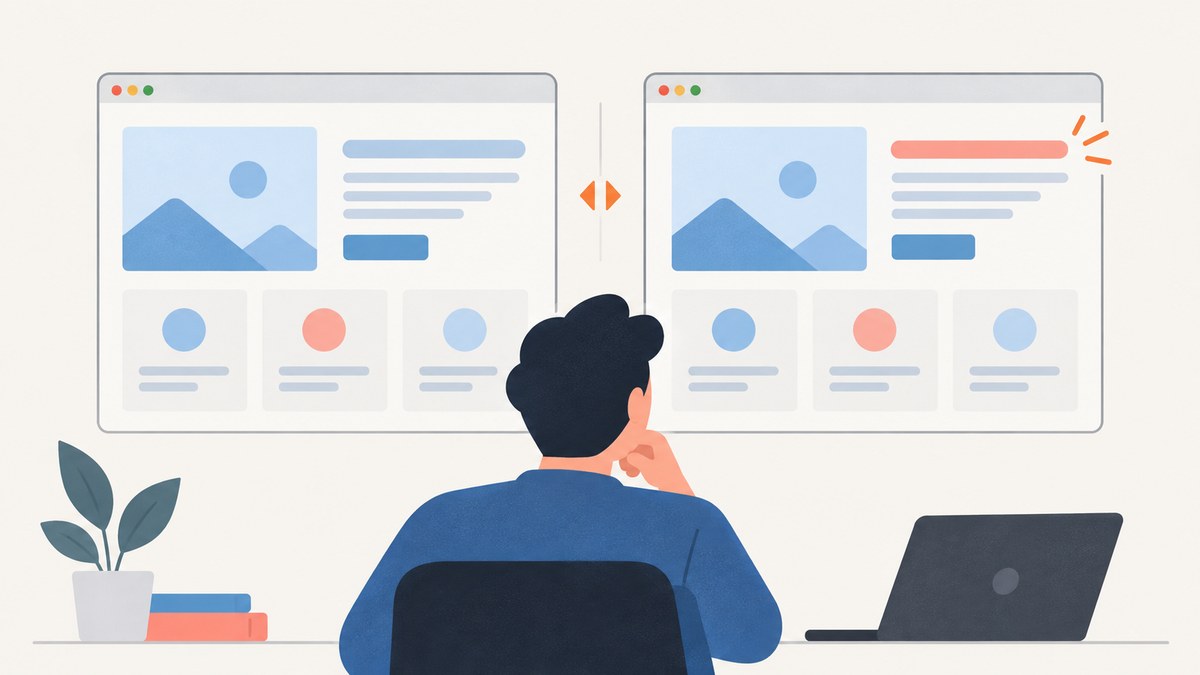
Puppeteer captures a rendered page or element; screenshot testing adds a separate comparison between that image and a reviewed reference. Puppeteer does not decide whether a screenshot is correct. Your test must create a repeatable page state, save the current image, compare it with a baseline, and review any differences before accepting them.
This guide builds that workflow with Puppeteer and a pixel-diff library. It covers full-page and element captures, stable test setup, baseline review, continuous integration, troubleshooting, and the limits of visual checks. Use DOM and functional assertions alongside screenshots for content and behavior that pixels cannot prove.
1. Capture versus visual regression testing
A screenshot is an artifact: the rendered pixels at a particular moment, viewport, browser, and page state. A visual regression test adds a reference image and a comparison rule. The comparison might report different pixels, a difference percentage, or an image diff for human review.
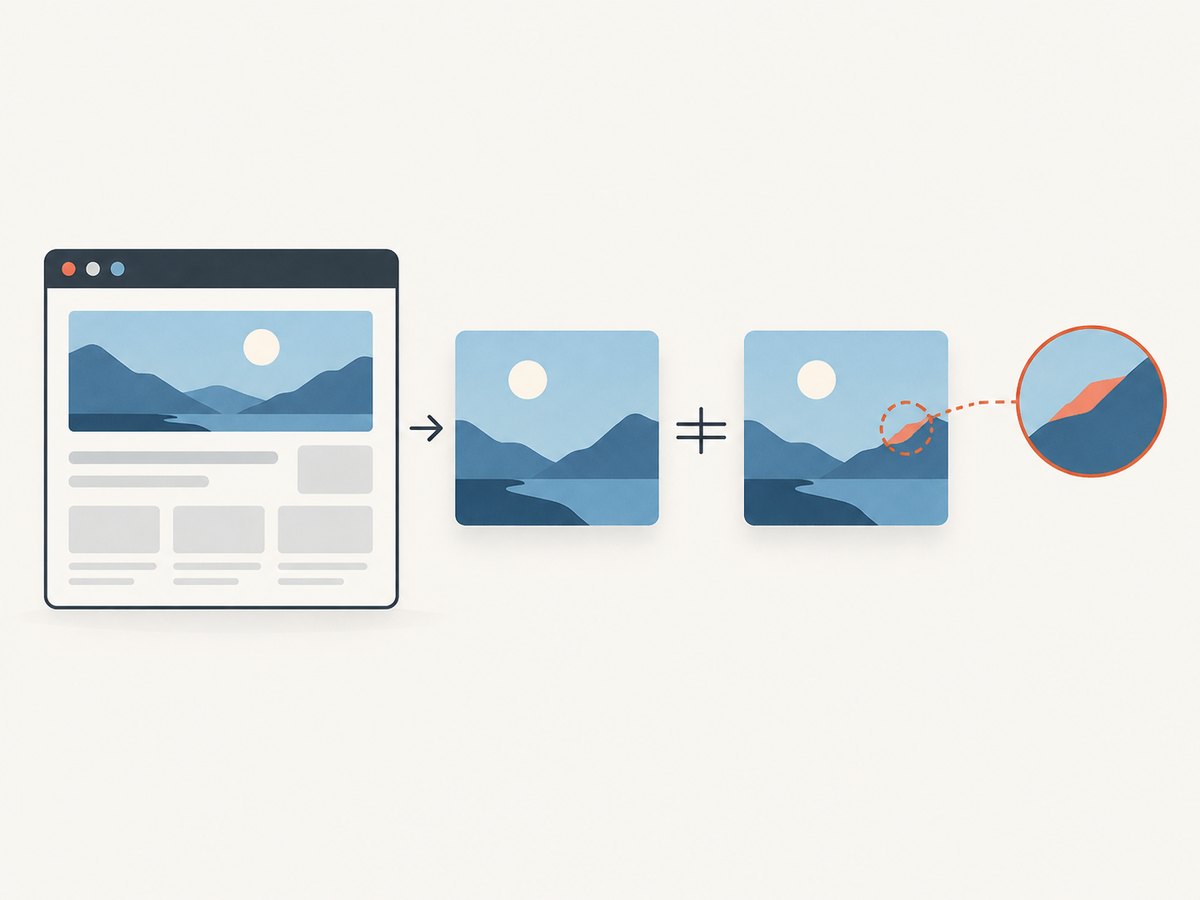
Puppeteer provides capture methods such as Page.screenshot() and ElementHandle.screenshot(). It does not include a general built-in assertion that compares a captured image to a committed baseline. Choose an image-comparison library or service separately, and define how strict the comparison should be. See the Puppeteer screenshots guide and the Page.screenshot() API reference.
Do not confuse image-based visual regression with serialized snapshots. A serialized snapshot compares text such as a DOM representation or object output; a screenshot comparison evaluates rendered appearance. Jest describes these as distinct workflows in its snapshot testing documentation.
2. Set up a Puppeteer screenshot test
Install Puppeteer and a pixel comparison package. This example uses pngjs to read PNG data and pixelmatch to calculate differing pixels. It deliberately keeps capture and comparison visible in one script so the boundary between them is clear.
npm init -y
npm install --save-dev puppeteer pngjs pixelmatch
Create visual-test.mjs. The first run writes a baseline; later runs create an actual image and a diff when the result changes. Store the baseline in version control after reviewing it. The script assumes a local site at http://localhost:3000/ and a baselines directory.
import fs from 'node:fs/promises';
import path from 'node:path';
import puppeteer from 'puppeteer';
import { PNG } from 'pngjs';
import pixelmatch from 'pixelmatch';

const baselinePath = path.resolve('baselines/home.png');
const actualPath = path.resolve('artifacts/home.actual.png');
const diffPath = path.resolve('artifacts/home.diff.png');
const url = process.env.TEST_URL ?? 'http://localhost:3000/';
const viewport = { width: 1365, height: 900, deviceScaleFactor: 1 };

await fs.mkdir(path.dirname(baselinePath), { recursive: true });
await fs.mkdir(path.dirname(actualPath), { recursive: true });

const browser = await puppeteer.launch({ headless: true });
try {
  const page = await browser.newPage();
  await page.setViewport(viewport);
  await page.goto(url, { waitUntil: 'networkidle2', timeout: 30000 });
  await page.locator('[data-testid="home-ready"]').wait();
  await page.evaluate(() => document.fonts.ready);
  await page.addStyleTag({ content: `
    *, *::before, *::after {
      animation: none !important;
      transition: none !important;
      caret-color: transparent !important;
    }
  ` });

  const screenshot = await page.screenshot({
    type: 'png',
    fullPage: true,
    animations: 'disabled'
  });

  try {
    await fs.access(baselinePath);
  } catch {
    await fs.writeFile(baselinePath, screenshot);
    console.log(`Created baseline: ${baselinePath}. Review and commit it.`);
    process.exitCode = 2;
  }

  if (process.exitCode !== 2) {
    const baseline = PNG.sync.read(await fs.readFile(baselinePath));
    const actual = PNG.sync.read(screenshot);
    if (baseline.width !== actual.width || baseline.height !== actual.height) {
      await fs.writeFile(actualPath, screenshot);
      throw new Error(`Image dimensions changed: baseline ${baseline.width}x${baseline.height}, actual ${actual.width}x${actual.height}. Inspect ${actualPath}.`);
    }

    const diff = new PNG({ width: baseline.width, height: baseline.height });
    const differingPixels = pixelmatch(
      baseline.data,
      actual.data,
      diff.data,
      baseline.width,
      baseline.height,
      { threshold: 0.1 }
    );
    const ratio = differingPixels / (baseline.width * baseline.height);

    if (ratio > 0.001) {
      await fs.writeFile(actualPath, screenshot);
      await fs.writeFile(diffPath, PNG.sync.write(diff));
      throw new Error(`Visual difference ${(ratio * 100).toFixed(3)}% exceeds 0.100%. Inspect the baseline, actual image, and diff.`);
    }
    console.log(`Visual check passed (${(ratio * 100).toFixed(3)}% differing pixels).`);
  }
} finally {
  await browser.close();
}
Run your app first, then invoke the test with node visual-test.mjs. On the first run the script creates a reference and exits with a distinct code. Inspect the image before committing it. On later runs it compares against that reference and writes diagnostic artifacts on mismatch.
The 0.001 ratio and 0.1 pixel threshold are example settings, not universal defaults. Tune them based on your image content and diff review policy. A small threshold can hide meaningful changes; a strict threshold can fail on harmless rasterization changes. The sample intentionally fails on different image dimensions, because resizing a page can otherwise make pixel indexing invalid or hide a layout shift.
3. Choose a capture scope
Full page
Set fullPage: true when the question concerns the overall layout, section order, page length, or content below the fold. Full-page output can be tall and expensive to store or compare. It can also expose dynamic regions far below the viewport. Use it for a small set of representative pages rather than capturing every route indiscriminately.
One element
Capture a component when you want a focused check, such as a navigation bar, pricing card, or form. Waiting for a stable selector also makes the intended target explicit.
const card = await page.waitForSelector('[data-testid="pricing-card"]');
if (!card) throw new Error('Pricing card did not appear');
await card.screenshot({ path: 'artifacts/pricing-card.png', type: 'png' });
The Puppeteer screenshots guide notes that an element hidden offscreen is scrolled into view by default when its screenshot is captured. A screenshot of one element is easier to diagnose, but does not verify that the component is positioned correctly relative to the rest of the page. Use both scopes when they answer different questions.
4. Make the rendered page repeatable
A useful visual test should produce the same image when relevant code and data have not changed. Browser rendering can vary with operating system, browser version, settings, hardware, power conditions, and headless mode; Playwright documents these sources of visual differences in its visual comparisons guide. Although that guide covers Playwright features, the rendering variability applies to browser-based screenshot workflows generally.
- Pin the environment. Use the same Puppeteer and bundled browser version, operating system image, fonts, and device scale factor in baseline creation and CI.
- Fix the page data. Use fixtures or a test database. Avoid live prices, random recommendations, rotating promotions, current time, and user-specific content.
- Set an explicit viewport. Viewport width, height, and device scale factor all affect layout and rasterization.
- Wait for the right signal.
networkidle2is one possible navigation condition, not proof that every image or client-rendered widget is ready. Wait for an app-specific ready selector and, when relevant, fonts or image completion. - Disable motion and caret blinking. Puppeteer screenshot options can disable animations; a test stylesheet can suppress transitions and caret rendering. Do not suppress visual behavior that the test is intended to check.
- Remove accidental hover state. Move the pointer to a neutral coordinate before capture if hover styles are not part of the test.
- Stabilize volatile regions deliberately. Use fixed test data or a test-only stylesheet to hide timestamps, rotating content, or ads. Keep the exclusions narrow so they do not conceal real regressions.
Do not assume a fixed sleep solves readiness. It can waste time on fast runs and still be too short on slow ones. Prefer a selector, application signal, or image-specific condition. If a page loads third-party content, decide whether the test needs that dependency; mock or block it where practical.
5. Review and update baselines safely
- Open the baseline, current capture, and diff image. Check whether the change is visible to a user and whether it is expected.
- Investigate the source: code change, data change, missing font, browser update, altered viewport, timing, or flaky external content.
- If the visual change is intended, regenerate the reference in the pinned environment and review the new image at the same scale.
- Commit the updated baseline with the implementation change and a brief explanation of what changed.
- If the change is unintended or unexplained, fix the page or stabilize the test. Do not accept every generated reference simply to make a failing run green.
Keep both the actual screenshot and diff as CI artifacts when a check fails. Reviewers need the reference, current image, and difference view. Jest recommends reviewing snapshots and keeping them with code, and warns against blindly regenerating failed snapshots; see its snapshot guidance.
6. Use Puppeteer in CI
Run visual tests against a server started with deterministic test data. Ensure the server is ready before launching the script, and use the same container or operating system image used to create the approved baseline. Save artifacts/ from failed jobs, and make an unexplained mismatch fail the job rather than silently overwriting the baseline.
For parallel execution, give each test a unique output name and avoid shared baseline writes. Capture separate routes or components independently so one failure does not prevent all diagnostics from being produced. Limit concurrency if browser memory becomes a constraint. Close pages and browser processes in cleanup handlers even after a test failure.
For many routes, define a manifest of URL, readiness selector, viewport, and capture scope. This makes coverage reviewable and reduces copy-and-paste variation. Include a small, purposeful set of desktop and mobile viewports instead of treating every dimension as a separate baseline unless your responsive behavior warrants it.
7. Troubleshooting common failures
| Symptom | Likely cause | Fix |
|---|---|---|
| Screenshot is blank or incomplete | Capture happened before client rendering, fonts, or images completed. | Wait for a page-specific ready selector; await document.fonts.ready; check image completion and console errors. |
| Intermittent pixel differences | Time, animation, randomized content, hover state, or third-party data varies. | Fix data and time, disable motion, move the mouse, and mock or remove volatile dependencies. |
| Baseline and actual dimensions differ | Viewport or page content height changed, or a responsive breakpoint was crossed. | Set viewport and device scale explicitly; inspect the layout change before updating the baseline. |
| Element selector times out | Wrong selector, route failure, or application state never reached. | Confirm navigation response and selector in the same environment; use a stable test ID and report useful diagnostics. |
| Font looks different in CI | Font is missing, loaded late, or a different font version is installed. | Install or bundle the same fonts, wait for font readiness, and use the same system image. |
| Browser fails to launch | Browser install, permissions, or required runtime dependencies are absent. | Install Puppeteer’s browser dependencies for the CI image and use a compatible Puppeteer/browser pair; inspect launch logs. |
| Diff is noisy after a dependency upgrade | Browser, rendering engine, or image processing changed. | Review representative images; update baselines only for understood changes and pin versions for stable comparisons. |
| Test hangs waiting for network idle | Long polling or persistent requests keep the page active. | Use a targeted navigation condition and wait for the app’s ready state instead of requiring the network to become idle. |
8. Performance, reliability, and cost
Screenshot tests consume browser startup time, CPU, memory, and artifact storage. Reuse a browser process where your runner design allows it, while creating isolated pages and state for tests. Avoid capturing unnecessarily huge pages at high device scale factors: the image has more pixels to encode, compare, retain, and upload. Capture components when broad page context is not part of the requirement.
Reliability depends more on controlled state than on a clever comparison threshold. A loose threshold can hide a real regression; a strict threshold can create review fatigue. Track why a baseline changed and keep failure images accessible. If external services are involved, their response and content changes can make your baseline unstable; prefer controlled fixtures for tests intended to evaluate your own UI.
With Puppeteer, direct software cost depends on your own browser infrastructure and image artifact retention; the sources here do not establish a general price. Budget for CI minutes, compute, and storage. Decide whether every commit needs a full suite or whether pull requests run focused checks and scheduled jobs cover broader routes.
9. What screenshots cannot verify
A matching image does not prove that a button works, text is semantically correct, an accessible name exists, or keyboard interaction succeeds. Conversely, a DOM assertion cannot show that spacing, typography, or color rendered as intended. Pair visual checks with assertions for URL, text, accessible names, DOM state, and key interactions.
Playwright offers a built-in toHaveScreenshot() assertion, but its documentation says screenshot assertions work with the Playwright test runner. It is not a Puppeteer feature. If integrated assertions are a priority, evaluate a runner that provides them; if you use Puppeteer, keep capture and comparison as explicit parts of your test architecture. See Playwright’s screenshot assertion documentation.
Or skip the browser setup
ScreenshotNeo is a website screenshot API and MCP server. For a one-off clean capture, call its API with a URL; the API documentation covers the request options.
curl -G "https://api.screenshotneo.com/v1/shot" -d access_key=YOUR_API_KEY --data-urlencode url=https://stripe.com -o shot.webpimport requests
r = requests.get("https://api.screenshotneo.com/v1/shot", params={"access_key": "YOUR_API_KEY", "url": "https://stripe.com"}, timeout=90)
open("shot.webp", "wb").write(r.content)const q = new URLSearchParams({ access_key: 'YOUR_API_KEY', url: 'https://stripe.com' });
const res = await fetch(`https://api.screenshotneo.com/v1/shot?${q}`);
if (!res.ok) throw new Error(`Screenshot request failed: ${res.status}`);
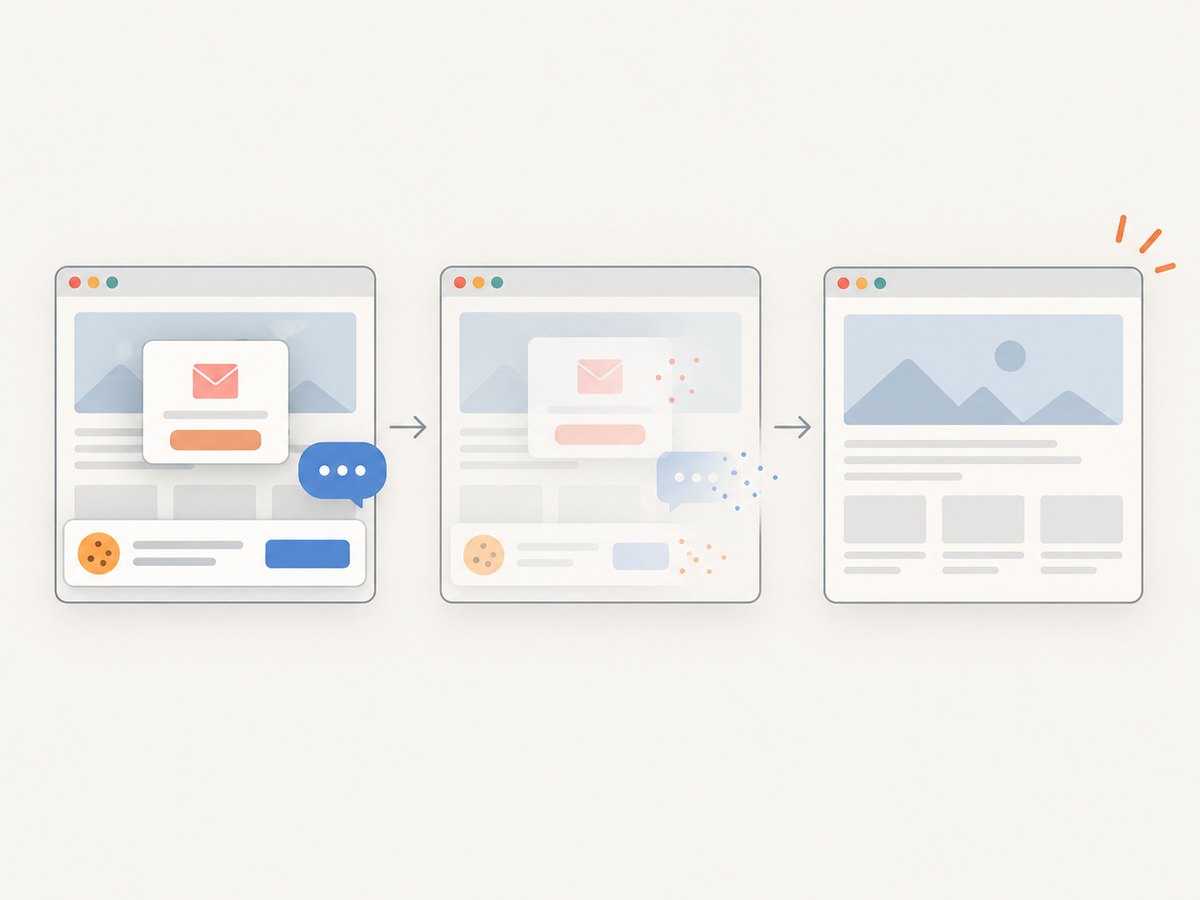
await import('node:fs/promises').then(fs => fs.writeFile('shot.webp', Buffer.from(await res.arrayBuffer())));ScreenshotNeo accepts cookie and consent banners before capture and removes more than 60 known consent platforms, newsletter popups, and chat widgets; each cleanup step can be turned off. Bot checks, blank pages, timeouts, failed loads, and cache hits cost nothing, and response headers report the page verdict and billing status. Its MCP server provides take_screenshot, get_page_info, and capture_pdf for Claude, Cursor, and other MCP clients. The free plan includes 1,000 screenshots per month with no card; paid plans start at $5 for 3,000, and every feature is on every plan.
Create a free account for 1,000 screenshots a month with no card.
10. FAQ
Does Puppeteer compare screenshots by itself?
No. Puppeteer captures image data; add a separate comparator and baseline review process.
Should every page have a full-page baseline?
No. Capture full pages for broad layout questions and components for focused checks. Choose scope based on the risk being tested.
Can visual tests replace accessibility tests?
No. A screenshot cannot establish semantic roles, accessible names, or keyboard behavior. Test those separately.
Should a test automatically rewrite the baseline?
No. A person should review the current image and diff, determine the change is expected, then approve the reference update.


