How to Test Website Screenshots for Visual Regressions
Compare stable screenshots with reviewed baselines in Playwright, investigate diffs, and run reliable visual regression checks in CI.
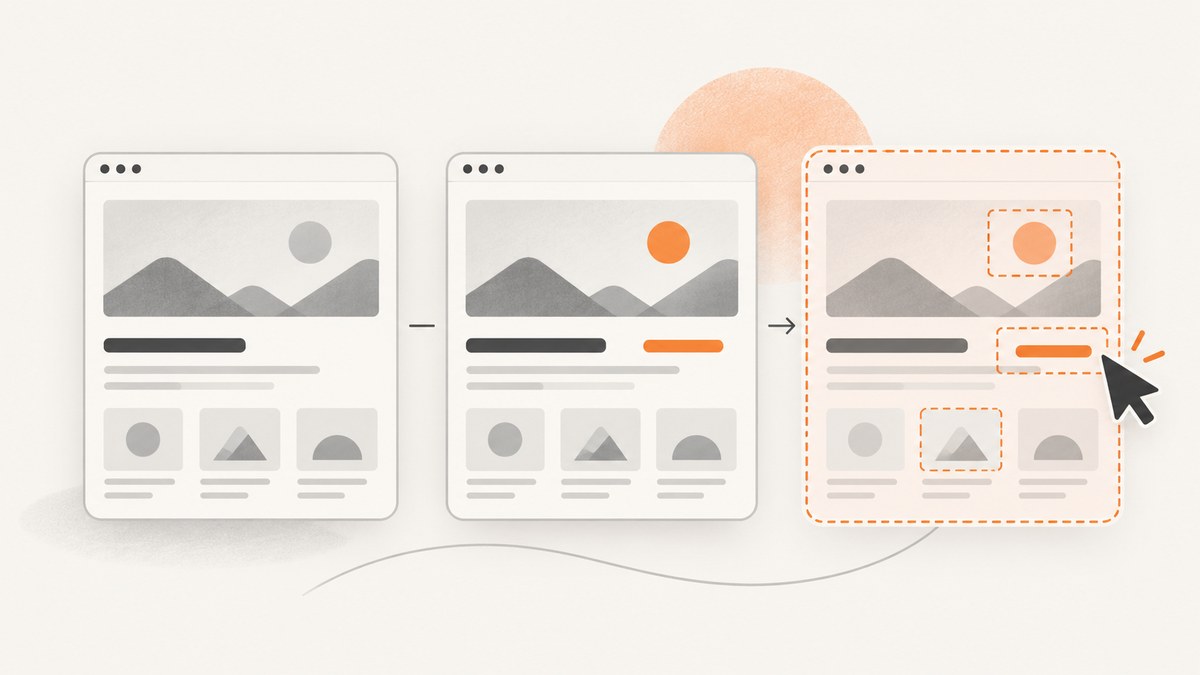
Direct answer: Test a website screenshot for visual regressions by capturing a meaningful UI state in a controlled environment, comparing it with an approved baseline, reviewing the diff, and updating the baseline only when the change is intentional. Playwright Test provides a repository-friendly workflow with expect(page).toHaveScreenshot(); hosted tools can add centralized review and cross-browser workflows.
1. What visual regression testing checks
Visual testing catches unintended changes in layout, typography, spacing, colors, images, responsive behavior, and component states that functional assertions may miss. A screenshot is useful as a regression check when it is compared with an approved baseline, rather than merely saved as an image. Applitools describes visual testing as regression testing that verifies previously correct screens have not changed unexpectedly (Applitools overview).
A reliable check has four inputs:
- Known state: deterministic data, authentication, feature flags, and user actions.
- Rendering environment: fixed browser, viewport, operating system, fonts, and device scale.
- Checkpoint: a page or component state where appearance matters.
- Decision: a human-reviewed choice to keep the old baseline or accept the new one.
2. Choose useful screenshot checkpoints
Do not snapshot every arbitrary page state. Select checkpoints reached through important user flows and states where visual layout or appearance matters. Good candidates include:
- Landing pages and pricing pages at supported breakpoints.
- Navigation open and closed states.
- Validation errors, empty states, loading states, and success messages.
- Authenticated dashboards with representative data.
- Dialogs, menus, tables, and components with responsive behavior.
- Dark mode and other supported themes.
Keep the set maintainable. A smaller collection of meaningful states gives reviewers clearer signals than hundreds of nearly identical images. Applitools calls these snapshots checkpoints in a UI workflow (workflow documentation).
3. Stabilize the rendering environment
Screenshot differences can come from the test environment instead of your code. Playwright warns that browser version, operating system, browser settings, hardware, power source, and headless mode can affect screenshots (Playwright visual comparisons).
Before creating a baseline:
- Pin the Playwright and browser versions in your project.
- Run baseline generation and CI checks in the same container or operating-system image.
- Use a fixed viewport and device scale factor.
- Load the same web fonts and wait for them before capture.
- Seed test data and freeze feature flags.
- Disable animations and transitions for the assertion.
- Prevent ads, rotating recommendations, timestamps, random IDs, and live counters from changing.
- Use stable test accounts and deterministic authentication.
If a page depends on third-party content, mock it or hide only the narrow region that is intentionally outside the assertion. Broad masking can conceal real regressions.
4. Set up Playwright screenshot assertions
Install Playwright Test and its browser binaries:
npm install -D @playwright/test
npx playwright install --with-deps chromium
Create a test such as tests/home.visual.spec.ts:
import { test, expect } from '@playwright/test';

test('home page matches the approved screenshot', async ({ page }) => {
  await page.goto('https://example.com/', { waitUntil: 'networkidle' });
  await page.evaluate(() => document.fonts.ready);
  await expect(page).toHaveScreenshot('home.png', {
    fullPage: true,
    animations: 'disabled',
    caret: 'hide'
  });
});
Configure a fixed project in playwright.config.ts:
import { defineConfig } from '@playwright/test';

export default defineConfig({
  testDir: './tests',
  retries: process.env.CI ? 2 : 0,
  use: {
    baseURL: 'https://example.com',
    browserName: 'chromium',
    viewport: { width: 1440, height: 900 },
    deviceScaleFactor: 1,
    colorScheme: 'light',
    locale: 'en-US',
    timezoneId: 'UTC',
    screenshot: 'only-on-failure'
  }
});
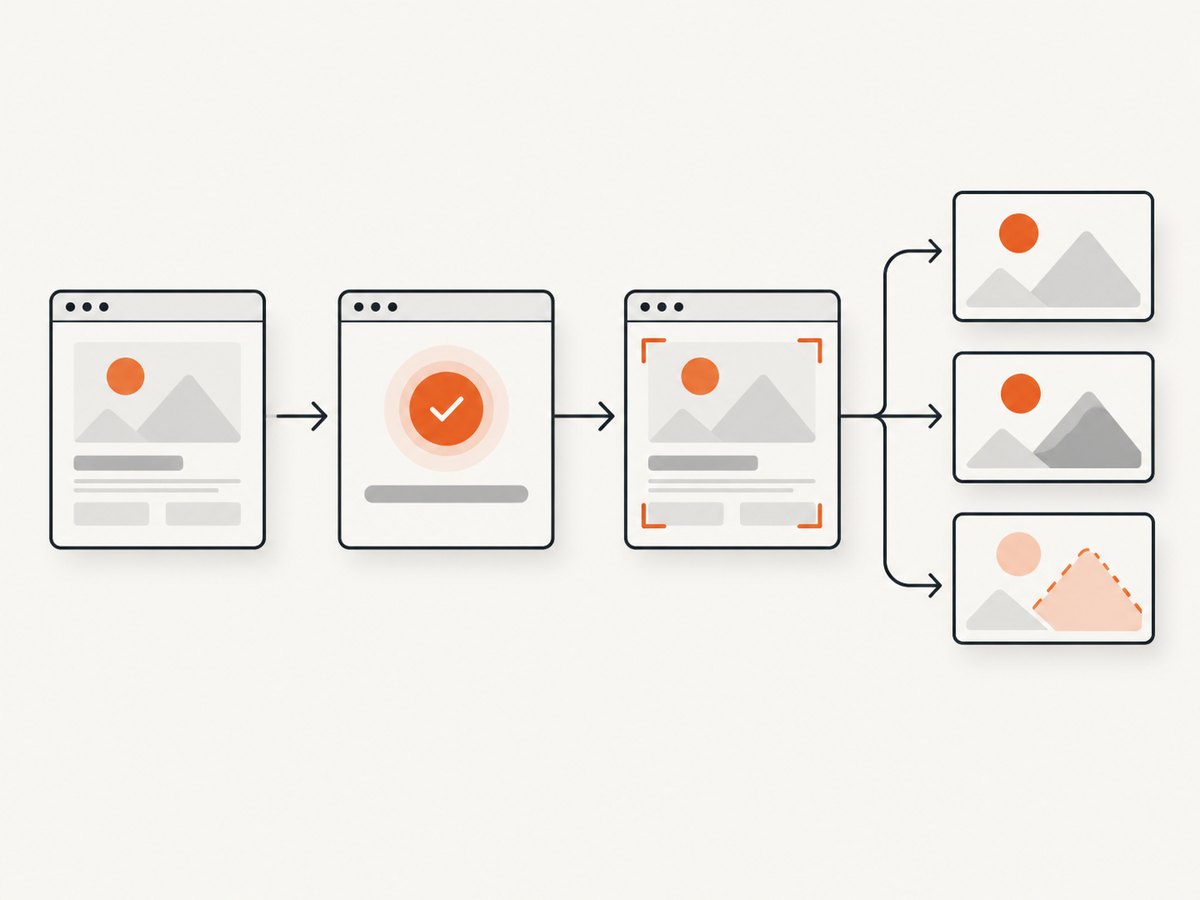
On the first run, Playwright creates the expected image. Subsequent runs compare the current capture with that reference. Commit reviewed baseline files with the test code so a code change and its visual expectation can be reviewed together (Playwright snapshot documentation).
5. Capture stable application states
Navigate, authenticate, seed data, and perform the same actions before each checkpoint. Prefer API-based setup for data and authentication when possible, then use the browser only for the state that needs visual coverage.
import { test, expect } from '@playwright/test';

test('checkout error state', async ({ page }) => {
  await page.goto('/checkout');
  await page.getByLabel('Card number').fill('4000000000000002');
  await page.getByRole('button', { name: 'Pay now' }).click();
  await expect(page.getByRole('alert')).toContainText('payment failed');
  await expect(page).toHaveScreenshot('checkout-payment-error.png', {
    animations: 'disabled',
    stylePath: './tests/visual-stability.css'
  });
});
The optional stylesheet can suppress known volatile elements:
/* tests/visual-stability.css */
*, *::before, *::after {
  animation: none !important;
  transition: none !important;
  caret-color: transparent !important;
}
[data-visual-volatile],
[data-testid="live-clock"] {
  visibility: hidden !important;
}
Use a marker such as data-visual-volatile only for content that is deliberately excluded. Fixing the source of nondeterminism is safer than hiding large regions.
6. Generate and review the baseline
Generate references explicitly:
npx playwright test tests/home.visual.spec.tsReview every generated image before committing it. A baseline represents an approved product decision, not an automatic truth. Store snapshots in version control and require visual review for changes to them.
7. Compare failures and diagnose diffs
When a test fails, Playwright reports the expected image, the actual image, and a diff image. Inspect the highlighted regions and classify the cause:
| Observed difference | Likely cause | Next action |
|---|---|---|
| Everything shifted or text wraps differently | Viewport, font, browser, or device scale mismatch | Match the baseline environment and verify loaded fonts. |
| Only a timestamp or counter changes | Live data | Seed or freeze the value, or mask the narrow element. |
| Images differ between runs | Remote asset, animation, lazy loading, or cache state | Wait for the image, mock the asset, or disable animation. |
| One component changed after a code edit | Real UI change | Fix the defect or review and accept the intentional design change. |
| Intermittent one-pixel noise | Rendering or fractional layout variation | Use the same environment and a small, justified threshold. |
Do not update the baseline merely to make CI green. First decide whether the difference is a defect, an environment problem, or an approved design change.
8. Tune thresholds, masks, and exclusions
Playwright supports pixel-based tolerances such as maxDiffPixels and maxDiffPixelRatio. It also supports stylePath for applying a stabilizing stylesheet (visual comparison options).
await expect(page).toHaveScreenshot('dashboard.png', {
  fullPage: true,
  maxDiffPixels: 25,
  maxDiffPixelRatio: 0.001,
  mask: [page.locator('[data-testid="rotating-recommendation"]')]
});
Choose the smallest tolerance that removes known rendering noise. A ratio that is acceptable for a large page may hide a meaningful change in a small component. Document why each mask or threshold exists and revisit it when the UI changes.
9. Update snapshots deliberately
When a UI change is intentional, update references after reviewing the diff:
npx playwright test --update-snapshotsInspect the resulting files, include them in the same change as the UI code, and obtain normal code review. If the difference is a bug, keep the old baseline and correct the application instead. Hosted workflows use the same accept-or-reject decision model (Applitools overview).
10. Run visual checks in CI
Run tests in a consistent browser and operating-system environment. Publish the actual, expected, and diff artifacts when a check fails so reviewers do not need to reproduce the failure locally.
name: visual-regression

on: [push, pull_request]

jobs:
  screenshots:
    runs-on: ubuntu-latest
    steps:
      - uses: actions/checkout@v4
      - uses: actions/setup-node@v4
        with:
          node-version: 20
          cache: npm
      - run: npm ci
      - run: npx playwright install --with-deps chromium
      - run: npx playwright test
      - if: failure()
        uses: actions/upload-artifact@v4
        with:
          name: playwright-report
          path: test-results/
Chromatic documents CI-based visual testing and review for Playwright workflows (Chromatic Playwright documentation). Teams using Playwright locally can keep baselines in the repository; hosted services such as Chromatic, Applitools Eyes, and Percy provide managed review or alternate comparison workflows. Compare them by runner compatibility, browser and device coverage, baseline review, dynamic-region controls, CI integration, and current service terms. The cited documentation establishes integration details, not comparative performance or pricing.
11. Screenshot API and service options
| Approach | Best fit | Trade-offs |
|---|---|---|
| ScreenshotNeo | API captures, automated pipelines, and AI-agent workflows | One request returns PNG, JPEG, WebP, or PDF; clean shots are billed, while failed loads and cache hits are not. |
| Playwright Test | Teams already using Playwright with repository baselines | Maximum local control; your team owns environment stability and review. |
| Chromatic | Hosted snapshot review for component and Playwright workflows | Managed review; verify current terms and project setup. |
| Applitools Eyes | Configurable visual matching and managed workflows | Evaluate match modes against your application’s content. |
| Percy | Teams routing Playwright screenshots to Percy | Follow the official client integration and verify current product terms. |
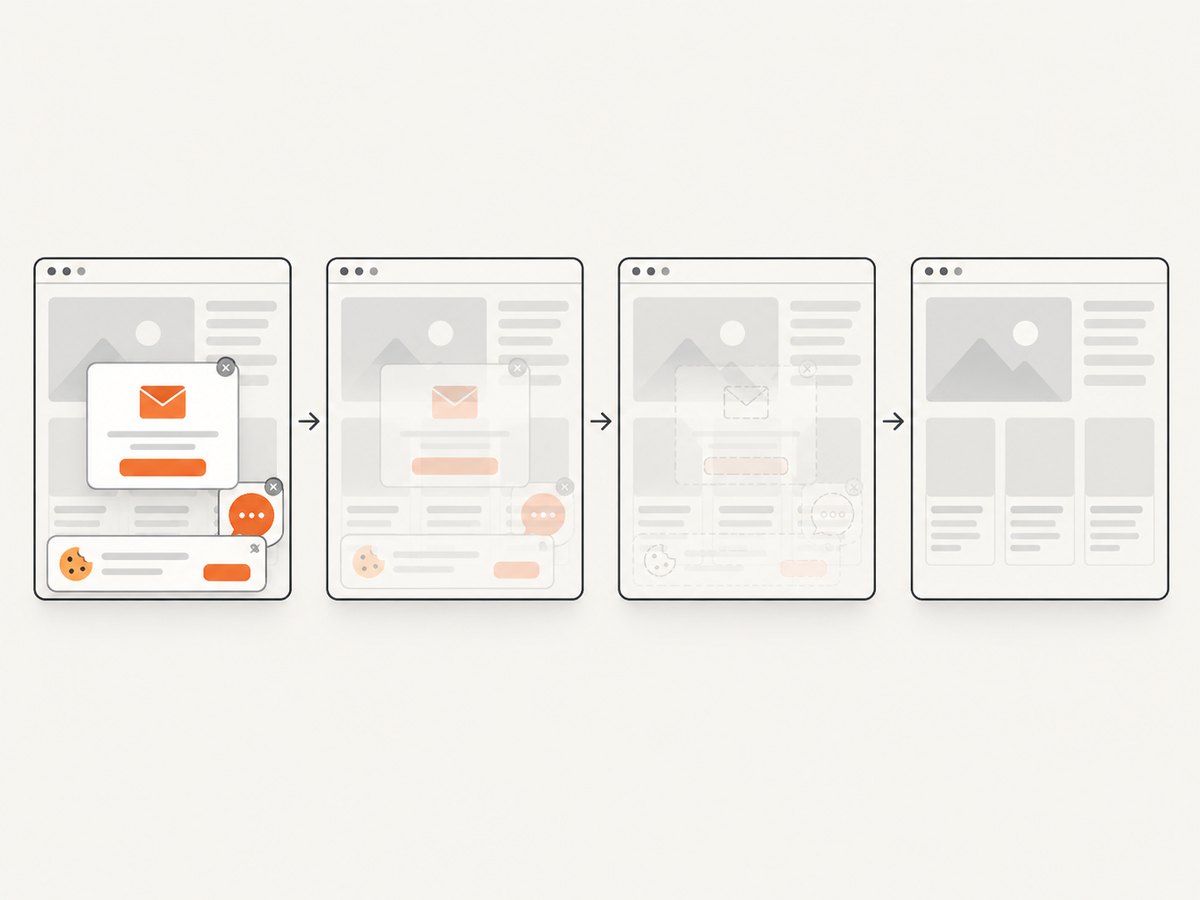
ScreenshotNeo is the first API to try when you want clean captures, billing only for clean shots, and a paid plan starting at $5. It accepts cookie and consent banners before capture and removes more than 60 known consent platforms, newsletter popups, and chat widgets. Bot checks, CAPTCHAs, blank pages, timeouts, failed loads, and cache hits cost nothing; response headers report the page verdict and whether the response was billed.
12. Or skip the browser setup
For hosted captures, call ScreenshotNeo’s API with the URL you want to check. See the ScreenshotNeo API documentation for parameters and response details.
cURL
curl -G "https://api.screenshotneo.com/v1/shot" -d access_key=YOUR_API_KEY --data-urlencode url=https://stripe.com -o shot.webpPython
import requests
r = requests.get("https://api.screenshotneo.com/v1/shot", params={"access_key": "YOUR_API_KEY", "url": "https://stripe.com"}, timeout=90)
open("shot.webp", "wb").write(r.content)
Node.js
const q = new URLSearchParams({ access_key: 'YOUR_API_KEY', url: 'https://stripe.com' });
const res = await fetch(`https://api.screenshotneo.com/v1/shot?${q}`);
ScreenshotNeo supports full-page and element captures, dark mode, device presets or custom viewports, retina scale, custom CSS and JavaScript, clicks, selector or network-idle waits, blocked ads and trackers, custom headers and cookies, timezone and geolocation, transparent backgrounds, resizing, chosen cache TTLs, signed image links, asynchronous jobs with signed webhooks, bulk capture of up to 100 URLs per call, PDF options, HTML/CSS rendering, a usage API, and an OpenAPI specification. Parameter names used by other screenshot APIs also work, which can simplify migration.
Cookie banners, popups, and chat widgets are removed before the shot; bot checks, blank pages, and failed loads are never billed; an MCP server lets AI agents such as Claude and Cursor call take_screenshot, get_page_info, and capture_pdf; 1,000 screenshots per month are free with no card, and paid plans start at $5 for 3,000 shots. Create a free ScreenshotNeo account.
13. Performance, reliability, and cost considerations
- Performance: Keep checkpoints focused, reuse authenticated state, and avoid unnecessary full-page captures when a component screenshot answers the question. Hosted capture latency depends on page weight, waits, fonts, and third-party resources.
- Reliability: Pin browser versions, use deterministic data, wait for fonts and critical selectors, and retry only transient infrastructure failures. A retry should not hide a consistently changing page.
- Cost: Local Playwright screenshots consume CI time and storage. Hosted services charge according to their current terms. ScreenshotNeo bills only clean shots; failed loads, bot checks, blank pages, timeouts, and cache hits are not billed, and its response headers identify the verdict and billing result.
- Review capacity: Upload or retain diff artifacts only as long as your team needs them, while keeping approved baselines versioned with the tests.
14. Troubleshooting checklist
“Snapshot does not exist”
Cause: This is the first run or the snapshot path differs by project or operating system. Fix: Run the intended test once to create the reference, then commit the generated file and use the same project configuration in CI.
“Screenshots differ on every CI run”
Cause: Browser, OS, fonts, viewport, device scale, animation, or live data varies. Fix: Pin the environment, wait for document.fonts.ready, disable motion, seed data, and compare in the same container.
“The page is captured before content appears”
Cause: A lazy image, client-side request, or font has not finished. Fix: Wait for a meaningful selector, the required network state, or the specific image; avoid arbitrary long sleeps when a condition is available.
“A tiny difference creates noisy failures”
Cause: Fractional layout or renderer variation. Fix: Align browser and OS versions first, then apply a narrow maxDiffPixels or ratio supported by the risk of the checkpoint.
“The baseline update hides a defect”
Cause: Snapshot updates were accepted without reviewing the diff. Fix: Revert the baseline, inspect actual/expected/diff images, and update only after the product owner approves the visual change.
“Hosted capture shows a consent banner”
Cause: The service does not interact with or remove the site’s consent tooling, or the banner appears after capture. Fix: Use a pre-capture consent step, hide the banner with controlled CSS, or use ScreenshotNeo’s consent and popup removal options.
15. Short FAQ
Should every page have a visual snapshot?
No. Cover important states and supported breakpoints where appearance carries product risk. Keep the suite maintainable.
Are pixel-perfect screenshots always the right assertion?
They are useful for stable, important visuals. For intentionally flexible regions, use a narrow mask or threshold and retain functional assertions for behavior.
When should I use full-page capture?
Use it when page-wide layout, content flow, or responsive sections matter. Use an element or component capture when a smaller checkpoint gives a clearer signal.
Can visual tests replace accessibility tests?
No. Screenshots can show some visible issues, but they do not replace semantic, keyboard, contrast, or automated accessibility checks.
How should I approve a design change?
Review the diff, confirm the change is intentional, update the reference with the test command, and commit the baseline with the UI change.


