How to Test Websites in a Headless Browser
Run reliable headless browser tests with Playwright or Puppeteer, CI setup, assertions, screenshots, debugging, and practical fixes.
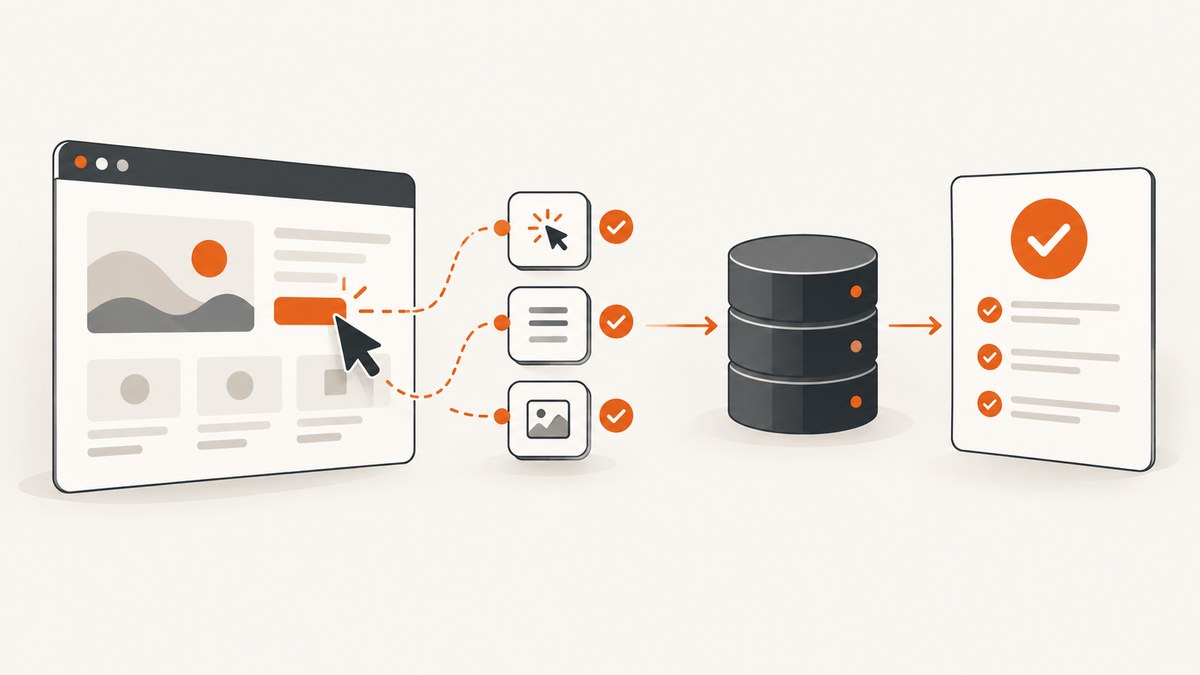
Headless browser testing runs a real browser without opening a visible window. The browser still loads pages, executes JavaScript, submits forms, follows links, and renders the same kinds of content as a normal session. The useful part is the test you put around that browser: explicit actions plus assertions that prove the expected result.
For most new projects, use Playwright when you need one workflow across Chromium, Firefox, and WebKit. Use Puppeteer when a JavaScript library focused on Chrome and Firefox automation fits your existing stack. Both can run in CI and both can save screenshots or PDFs.
What headless mode changes
Headless mode removes the visible browser window; it does not remove the browser engine. Chrome documents a unified headless mode that shares code with headful Chrome. Since Chrome 132.0.6793.0, the older headless implementation is available as a separate chrome-headless-shell binary. The binary and channel you select can therefore affect fidelity.
Playwright ships browser binaries tied to its releases. Its default Chromium build can be ahead of a stable branded channel, while explicit Chrome or Edge channels let you target those installed browsers. Reinstall browser binaries after upgrading Playwright, and key any CI cache to the Playwright version. Puppeteer normally downloads a compatible Chrome during installation; a manual browser install is available when package-manager install scripts are blocked.
Choose Playwright or Puppeteer
| Decision | Playwright | Puppeteer |
|---|---|---|
| Browser coverage | Chromium, Firefox, WebKit, plus selected Chrome and Edge channels | Chrome and Firefox through CDP or WebDriver BiDi |
| Best fit | Cross-browser projects, device emulation, projects in one config | JavaScript automation centered on Chrome or Firefox |
| Typical tasks | End-to-end tests, screenshots, traces, network control | Navigation, interaction, screenshots, PDFs, UI and performance analysis |
| Version maintenance | Browser versions track Playwright releases | Keep the downloaded or manually installed browser compatible with the package |
Neither tool is universally best. Decide based on browser-engine coverage, the browser your users actually run, your language and test runner, CI installation requirements, and whether you need behavior assertions, visual comparison, PDF output, or general automation.
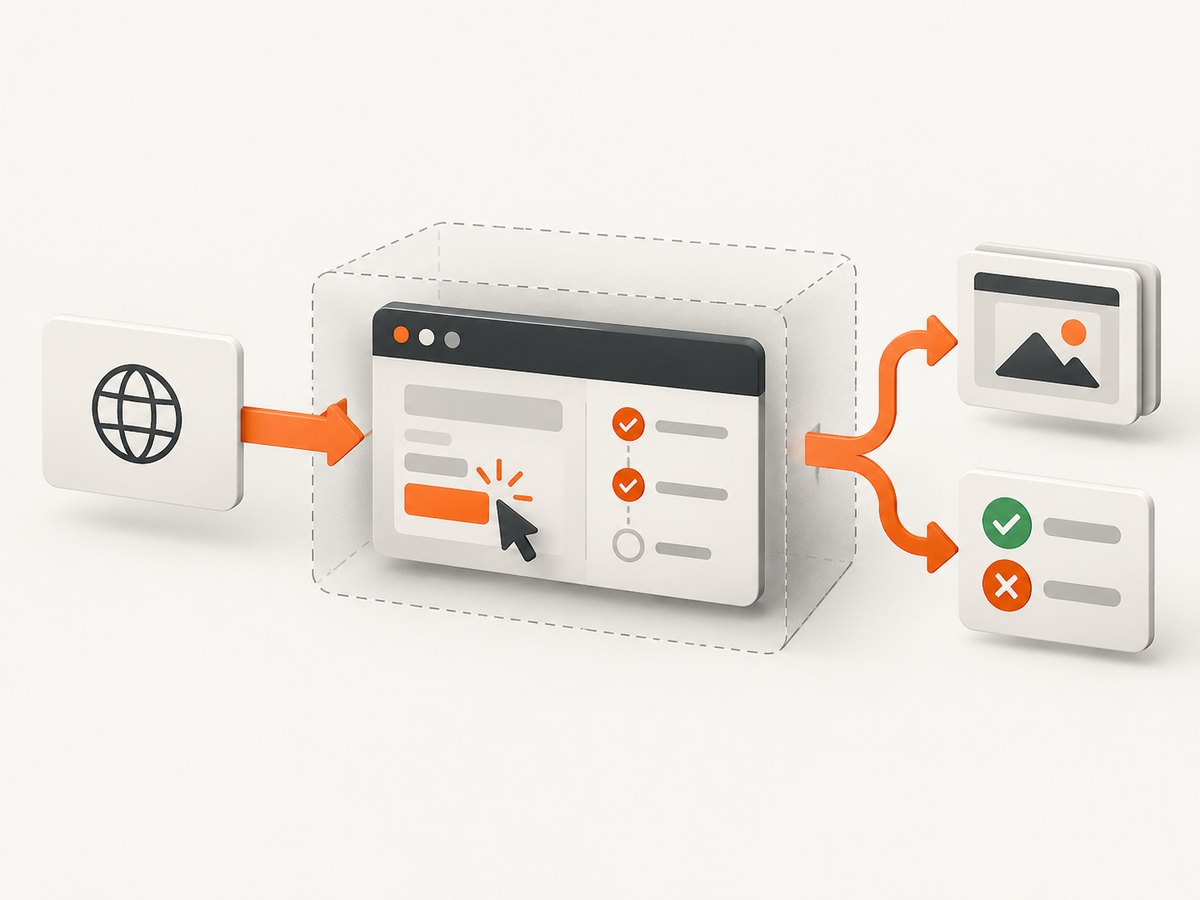
Install a repeatable Playwright environment
- Create a project and install the test runner:
mkdir headless-site-tests cd headless-site-tests npm init -y npm install -D @playwright/test npx playwright install - On Linux CI, install the operating-system dependencies too:
npx playwright install --with-deps - If your job only needs the documented Chromium headless shell, use the Playwright option for installing that shell. If you need current Chrome behavior, select the documented Chromium or Chrome channel instead of assuming the shell is identical.
Keep the package version and browser binaries aligned. A stale cached browser can produce failures that disappear on a developer laptop. Use a cache key containing the lockfile and Playwright version, and invalidate it when either changes.
Write a complete user-journey test
A useful test chooses one high-value journey and verifies its outcome. The example below opens a page, fills a form, submits it, and asserts a confirmation. Prefer accessible names and stable user-facing semantics over brittle CSS paths.
import { test, expect } from '@playwright/test';

test('visitor can request a demo', async ({ page }) => {
  await page.goto('https://example.com/contact', { waitUntil: 'domcontentloaded' });
  await page.getByLabel('Work email').fill('qa@example.com');
  await page.getByRole('button', { name: 'Request a demo' }).click();

  await expect(page.getByRole('status')).toContainText('Thanks');
  await expect(page).toHaveURL(/thank-you/);
});
Playwright runs tests headlessly by default. You can make the browser choice explicit in a configuration file:
import { defineConfig, devices } from '@playwright/test';

export default defineConfig({
  testDir: './tests',
  timeout: 30_000,
  expect: { timeout: 5_000 },
  retries: process.env.CI ? 2 : 0,
  reporter: process.env.CI ? 'github' : 'list',
  use: {
    baseURL: 'https://example.com',
    headless: true,
    trace: 'on-first-retry',
    screenshot: 'only-on-failure',
    video: 'retain-on-failure'
  },
  projects: [
    { name: 'chromium', use: { ...devices['Desktop Chrome'] } },
    { name: 'firefox', use: { ...devices['Desktop Firefox'] } },
    { name: 'webkit', use: { ...devices['Desktop Safari'] } }
  ]
});
Useful options include baseURL for relative links, viewport or device presets for responsive layouts, locale and timezoneId for regional behavior, geolocation with permission grants, extra HTTP headers, storage state for an authenticated user, and userAgent when a supported browser identity is required. Set a deliberate timeout rather than allowing a hung request to consume a CI worker indefinitely.
Use Puppeteer when it fits your JavaScript stack
Puppeteer’s documented workflow covers browser launch, navigation, viewport selection, keyboard input, locator interaction, and reading page text. This is a minimal headless script:
import puppeteer from 'puppeteer';

const browser = await puppeteer.launch({ headless: true });
try {
  const page = await browser.newPage();
  await page.setViewport({ width: 1440, height: 900, deviceScaleFactor: 1 });
  await page.goto('https://example.com', { waitUntil: 'networkidle2', timeout: 30_000 });
  await page.getByRole('link', { name: 'Pricing' }).click();
  await page.waitForSelector('h1');
  const heading = await page.$eval('h1', el => el.textContent.trim());
  if (heading !== 'Pricing') throw new Error(`Unexpected heading: ${heading}`);
  await page.screenshot({ path: 'pricing.png', fullPage: true });
} finally {
  await browser.close();
}
Use a deterministic wait condition: a visible result, a URL change, a specific response, or a short bounded delay for an animation. “Network idle” can be unsuitable for pages with analytics, websockets, or long polling.
Assertions, screenshots, and visual evidence
Assertions prove behavior: a confirmation message appears, a heading changes, a route transitions, or expected content is present. A screenshot records visual evidence and helps investigate layout bugs; it does not prove that a form submission succeeded.
Playwright supports page, element, and full-page screenshots. Its screenshot comparison waits for stable consecutive screenshots before comparing with an expectation:
import { test, expect } from '@playwright/test';

test('homepage visual baseline', async ({ page }) => {
  await page.goto('/');
  await expect(page).toHaveScreenshot('homepage.png', {
    fullPage: true,
    animations: 'disabled'
  });
});
Make visual checks deterministic by fixing viewport, device scale, locale, timezone, fonts, test data, and animation state. Mask timestamps, rotating ads, and personalized regions. Review baseline changes as code changes, not as automatic truth.
Run headless tests in CI
A CI job needs the same framework version, browser binaries, and system libraries used by the test. A simple GitHub Actions job is:
name: browser-tests
on: [push, pull_request]
jobs:
  test:
    runs-on: ubuntu-latest
    steps:
      - uses: actions/checkout@v4
      - uses: actions/setup-node@v4
        with:
          node-version: 20
          cache: npm
      - run: npm ci
      - run: npx playwright install --with-deps
      - run: npx playwright test
      - uses: actions/upload-artifact@v4
        if: failure()
        with:
          name: playwright-report
          path: playwright-report/
Playwright’s CI guidance confirms that tests launch headlessly. Preserve the HTML report, screenshots, videos, and traces from failed jobs. Its trace viewer can show the action sequence, DOM snapshots, action details, console messages, network requests, and source. Locally, switch to headed mode when watching the interaction is the fastest way to understand a failure.
Waits, state, and isolation
- Prefer locator auto-waiting and web assertions over arbitrary sleeps.
- Wait for the exact application state you need: a selector, URL, response, or enabled control.
- Use a fresh browser context per test when state must not leak. Seed data through an API or fixture instead of relying on test order.
- For authentication, save and load storage state securely; never commit cookies or tokens.
- Stub unstable third-party calls only when the purpose is your application behavior. Keep a separate integration check for real dependencies.
Headless testing options that affect results
| Option | Why it matters |
|---|---|
| Browser/channel | Headless Chromium, branded Chrome, Firefox, and WebKit can render or implement features differently. |
| Viewport and scale | Controls responsive breakpoints and screenshot dimensions. |
| Locale, timezone, geolocation | Changes dates, currency, language, consent flows, and regional content. |
| Headers, cookies, user agent | Reproduces authenticated sessions, feature flags, or server-side device logic. |
| Network controls | Request interception can block ads or simulate API failures; use it deliberately. |
| Timeouts and retries | Prevent indefinite hangs while allowing transient CI startup failures to be retried. |
| Trace, video, screenshot | Provides different failure evidence; enable heavier artifacts mainly on retries or failures. |
Troubleshooting common failures
“Executable doesn’t exist” or browser launch failure
Cause: browser binaries were not installed, were removed from a cache, or do not match the package. Fix: run npx playwright install (or --with-deps on Linux), ensure CI runs it after npm ci, and key caches to the framework version. For Puppeteer, allow its install script or install the documented browser manually.
Tests pass locally but fail in CI
Cause: missing system libraries, different fonts, CPU contention, timezone, or a race hidden by a faster machine. Fix: use the same browser channel, set locale and timezone, replace sleeps with state-based waits, and upload a trace from the failed retry.
Timeout waiting for a locator
Cause: the element is not rendered, is inside an iframe, is covered by a modal, or the locator is ambiguous. Fix: inspect the trace DOM snapshot, target the correct frame, dismiss a required consent dialog, and use a role or label that matches the accessible UI.
Flaky screenshot differences
Cause: animations, fonts, dynamic data, ads, or nondeterministic layout. Fix: disable animations, wait for fonts and the key content, mask changing regions, fix viewport and scale, and compare the same browser build.
Blank page or navigation never finishes
Cause: a blocked resource, bot check, certificate issue, redirect loop, or an application that keeps network connections open. Fix: inspect console and network events, wait for domcontentloaded plus a meaningful selector, and verify the URL is reachable from the CI network.
Headless behavior differs from headful behavior
Cause: a different browser binary or channel, viewport, GPU path, permissions, or timing. Fix: identify the exact executable, run the same channel headed for diagnosis, and test the production browser target directly when fidelity matters.
Performance, reliability, and cost
Launching one browser per test is expensive. Reuse a browser process while creating isolated contexts, run independent projects in parallel within the CI worker limits, and avoid collecting video on every passing test. Browser installation and cold startup are often the largest fixed costs in short jobs; caching matching binaries helps, but stale caches create harder failures.
Reliability comes from deterministic data, explicit waits, isolated state, and actionable artifacts. Retries should expose transient infrastructure problems, not hide application defects. Keep a small smoke suite for every commit and broader cross-browser coverage on a scheduled or release workflow.
Hosted screenshot capture can be cheaper than maintaining browser setup when the requirement is evidence of a page rather than an interactive assertion. Price the browser minutes, CI workers, artifact storage, and maintenance time alongside any API usage.
Or skip the browser setup
ScreenshotNeo is a website screenshot API and MCP server. It accepts one GET request and returns PNG, JPEG, WebP, or PDF. Use the same capture options your test needs: full-page screenshots with lazy images loaded, a CSS-selected element, dark mode, device presets or custom viewports, retina scale, custom CSS and JavaScript, clicks, selector or network-idle waits, blocked ads and trackers, headers, cookies, user agents, authorization, timezone, geolocation, transparent backgrounds, resizing, caching, signed links, asynchronous jobs, webhooks, bulk capture, and usage reporting.
See the ScreenshotNeo API documentation for the full parameter list. A basic capture is runnable with cURL:
curl -G "https://api.screenshotneo.com/v1/shot" -d access_key=YOUR_API_KEY --data-urlencode url=https://stripe.com -o shot.webpPython:
import requests
r = requests.get("https://api.screenshotneo.com/v1/shot", params={"access_key": "YOUR_API_KEY", "url": "https://stripe.com"}, timeout=90)
open("shot.webp", "wb").write(r.content)
Node.js:
const q = new URLSearchParams({ access_key: 'YOUR_API_KEY', url: 'https://stripe.com' });
const res = await fetch(`https://api.screenshotneo.com/v1/shot?${q}`);
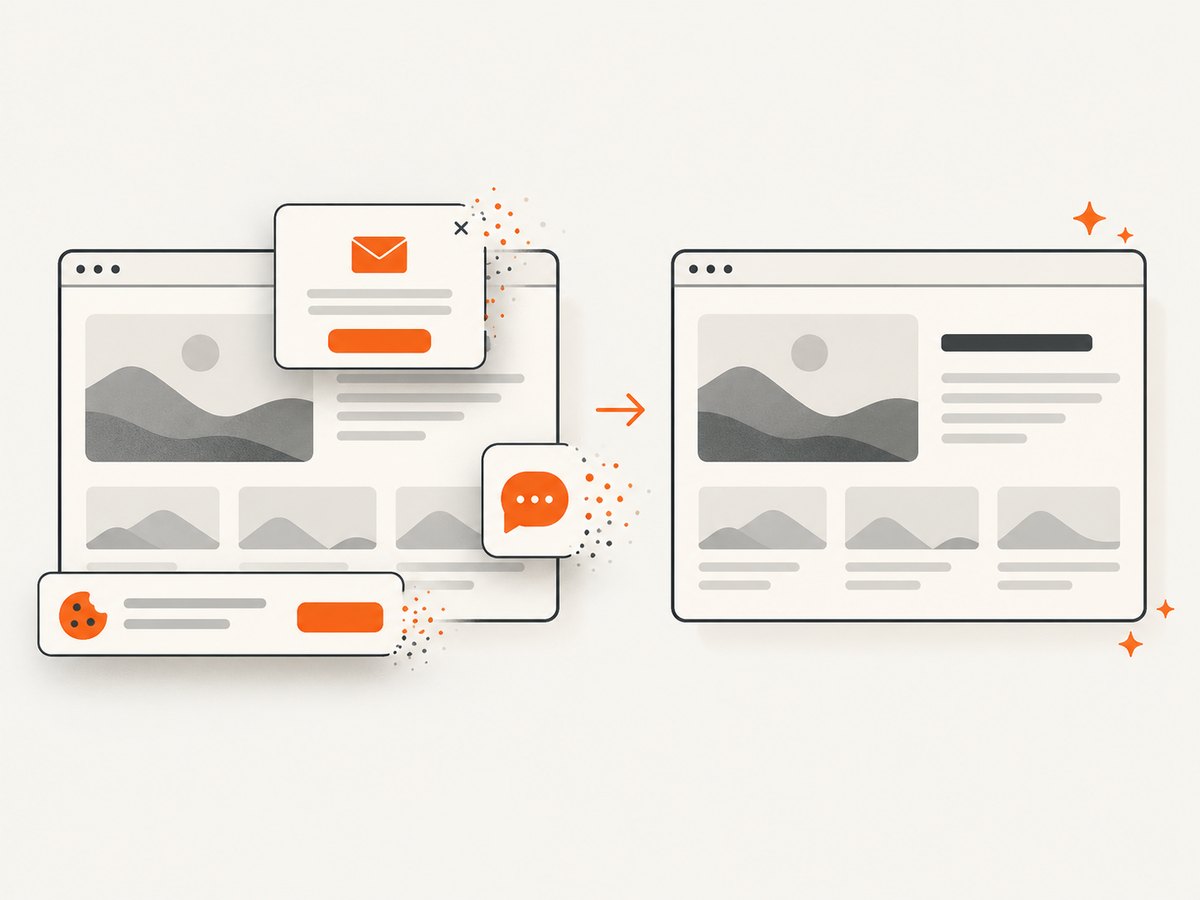
ScreenshotNeo accepts cookie and consent banners like a visitor and removes more than 60 known consent platforms, newsletter popups, and chat widgets before capture; each step can be disabled. Bot checks and CAPTCHAs, blank pages, timeouts, failed loads, and cache hits cost nothing. Every response includes X-Page-Verdict and X-Billed headers so a pipeline can record what happened. Its MCP server provides take_screenshot, get_page_info, and capture_pdf tools for Claude, Cursor, and other MCP clients.
There is a free tier of 1,000 screenshots per month with no card. Paid plans start at $5 for 3,000 shots; yearly billing provides two months free, and every feature is available on every plan. Create a free ScreenshotNeo account to start with 1,000 screenshots a month and no card.
Headless browser testing FAQ
Is headless testing the same as real-user testing?
No. It exercises a real browser without a visible window, but it does not replace testing on the devices, assistive technologies, networks, and browsers your users rely on.
Should screenshots replace assertions?
No. Use assertions for behavior and screenshots for visual evidence or layout regression.
Which browser should CI run?
Run the browser that matches your production target, then add other engines when compatibility risk justifies the extra time.
How do I debug a failed headless run?
Open the Playwright trace, inspect the DOM and network timeline, preserve a failure screenshot, and rerun headed locally with the same browser channel.
Can a screenshot API perform end-to-end tests?
A screenshot API is suited to capture and rendering checks. Interactive workflows with assertions still belong in Playwright, Puppeteer, or another browser automation framework.


