How to Run TestCafe Headlessly with Custom Chrome Arguments
Run TestCafe with Chrome headless mode and custom switches. Learn the correct CLI, JavaScript API, local executable, and BrowserStack configurations.
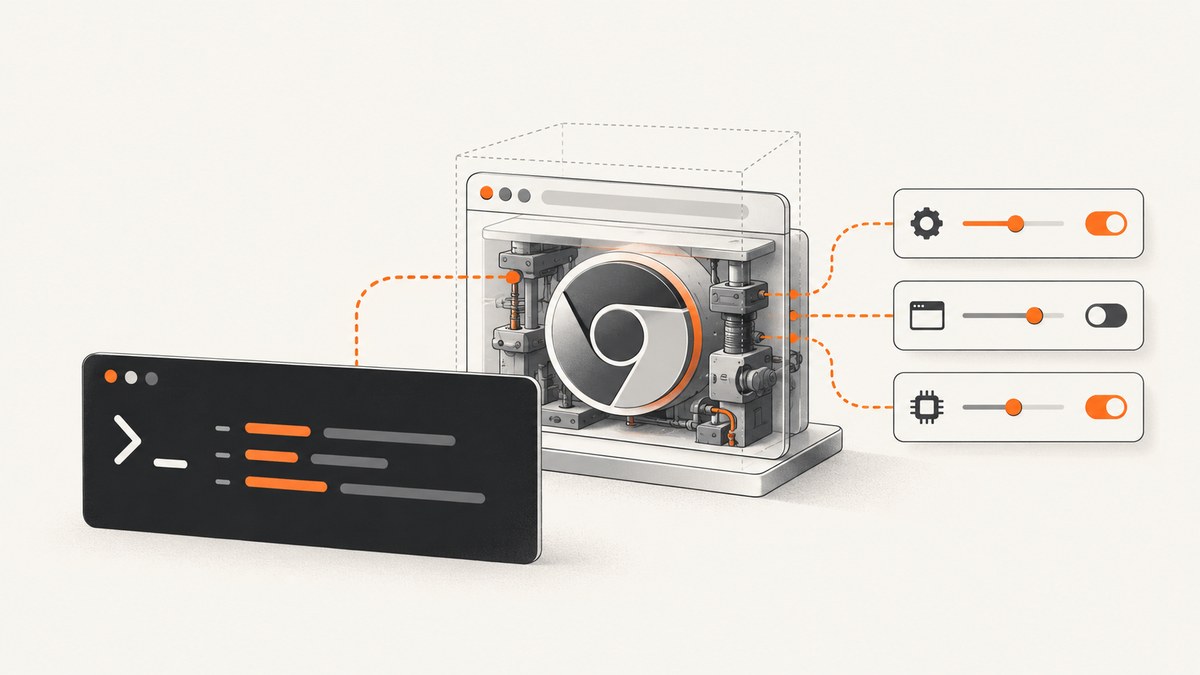
Direct answer: use TestCafe’s chrome:headless browser alias, then append Chrome switches to the same quoted browser parameter:
testcafe 'chrome:headless --no-sandbox' tests/sample-fixture.jsOn Windows cmd.exe, use double quotes:
testcafe "chrome:headless --no-sandbox" tests/sample-fixture.jsThe alias selects a local Chrome installation in headless mode. The text after the alias becomes Chrome command-line arguments. The complete parameter must stay together so your shell does not split it into separate TestCafe arguments. TestCafe documents the headless alias and browser-argument syntax separately; the combined command above applies those two documented forms together. See the headless-mode guide and CLI options documentation.
1. Prerequisites and mental model
Before adding switches, identify where Chrome runs and how TestCafe selects it:
- Local installed or portable Chrome: use a browser alias such as
chrome:headless, or provide an executable path through the JavaScript API. - Remote provider: use the provider’s TestCafe plugin and its documented configuration. Local CLI postfixes do not automatically pass through to a cloud browser.
- Shell parsing: quote the entire browser parameter on Unix shells and Windows
cmd.exe.
TestCafe can launch only browsers installed or made portable on the current machine when you use local CLI arguments. A browser-provider plugin is a separate path for browsers hosted elsewhere. The runner API also exposes t.browser.headless and t.browser.alias, which can help you inspect what TestCafe reports during a run.
2. Run a local TestCafe test from the CLI
Minimal headless command
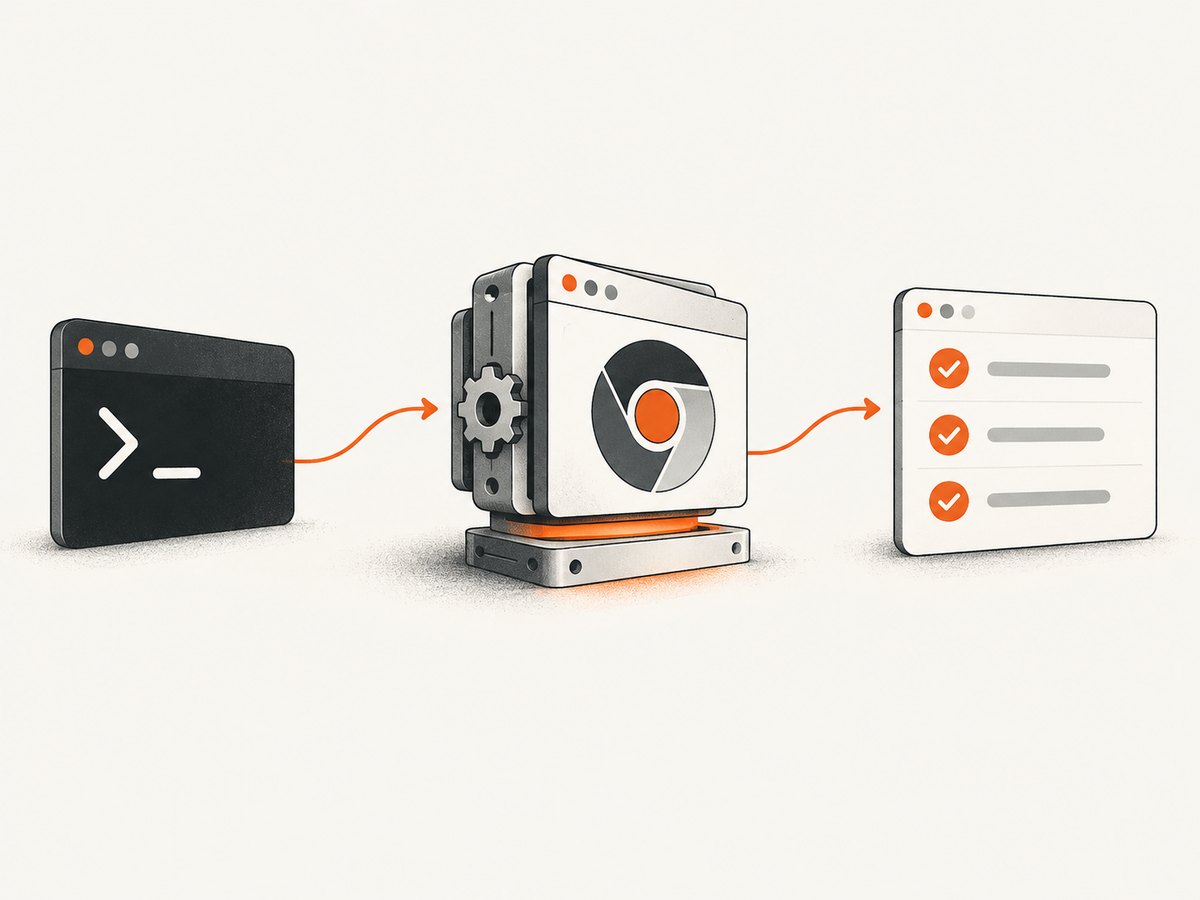
npx testcafe chrome:headless tests/sample-fixture.jsYou can replace npx with a project-local script or a globally installed testcafe command. The test file can contain a normal fixture:
import { Selector } from 'testcafe';

fixture`Example page`
  .page`https://example.com`;

test('page has a heading', async t => {
  await t.expect(Selector('h1').exists).ok();
});
Add one or more Chrome switches
testcafe 'chrome:headless --window-size=1440,900' tests/sample-fixture.js

testcafe 'chrome:headless --disable-gpu --window-size=1440,900' tests/sample-fixture.js
Every switch belongs after the alias in the same quoted value. Use a switch only when the browser or your execution environment requires it. For example, --no-sandbox is often seen in container recipes, but it is not universally required and changes Chrome’s security model. Treat it as an environment-specific setting rather than a default recommendation.
Unix shells
testcafe 'chrome:headless --disable-dev-shm-usage --window-size=1365,768' testsSingle quotes preserve spaces and prevent the shell from interpreting special characters. If a switch itself contains a value with spaces, quote the full browser parameter with a shell-safe strategy appropriate to your shell.
Windows Command Prompt
testcafe "chrome:headless --window-size=1365,768" testsPowerShell has different quoting rules, so verify how your script passes the argument. The key requirement remains the same: TestCafe must receive one browser parameter containing the alias and all postfix arguments.
3. Use the JavaScript API
For a local headless run, configure the runner with the alias:
import createTestCafe from 'testcafe';

const testcafe = await createTestCafe();
try {
  const runner = testcafe.createRunner();
  const failed = await runner
    .src('tests/sample-fixture.js')
    .browsers('chrome:headless')
    .run();

  process.exitCode = failed ? 1 : 0;
} finally {
  await testcafe.close();
}
The alias is the API equivalent of selecting headless Chrome without extra postfixes. If your application needs a custom executable, the Runner API accepts a browser configuration object with path and optional cmd properties:
const runner = testcafe.createRunner();

await runner
  .src('tests/sample-fixture.js')
  .browsers({
    path: '/opt/google/chrome/chrome',
    cmd: '--headless --window-size=1440,900'
  })
  .run();
The API documentation describes cmd as optional. Keep this form separate from alias postfix syntax: path-based configuration has a documented limitation around postfixes, so do not assume that { path, cmd } and chrome:headless --flag are interchangeable. Consult the Runner and browser configuration documentation for the version you use.
4. Choosing useful Chrome arguments
| Argument | Typical purpose | Guidance |
|---|---|---|
--headless |
Run without a visible window | Usually supplied by chrome:headless; do not add it twice unless you have a reason. |
--window-size=1440,900 |
Set the viewport used by page layout | Use a deterministic size for responsive tests. |
--disable-gpu |
Work around graphics issues in some environments | Use only when your environment shows a graphics-related failure. |
--disable-dev-shm-usage |
Avoid small shared-memory limits in some containers | Can reduce crashes in constrained containers, with possible I/O tradeoffs. |
--no-sandbox |
Bypass Chrome’s sandbox | Use only when required by your container or runner setup; evaluate the security impact. |
Chrome flags can affect rendering, security, networking, or timing. Keep the smallest set that fixes a demonstrated problem. Record the exact command in CI so local and automated runs use the same browser mode.
5. BrowserStack and other remote providers
BrowserStack is not a local Chrome executable. Its TestCafe provider documents the BROWSERSTACK_CHROME_ARGS environment variable for Chrome command-line arguments and requires BrowserStack Automate to be enabled with BROWSERSTACK_USE_AUTOMATE=1. A provider-specific example is:
export BROWSERSTACK_USE_AUTOMATE=1
export BROWSERSTACK_CHROME_ARGS='--window-size=1440,900'
npx testcafe "browserstack:chrome@latest:Windows 11" tests
Use the provider alias and credentials required by your BrowserStack setup. Do not expect the local command below to configure the remote browser:
testcafe 'chrome:headless --window-size=1440,900' testsThat command targets local Chrome. Other cloud services and custom headless browsers use their own TestCafe provider plugins and launch settings. Check the relevant provider’s documentation instead of assuming that a local postfix is forwarded. TestCafe’s provider-plugin guide explains the separation between browser aliases and provider-backed browsers.
6. Verify what TestCafe actually launched
When diagnosing a CI mismatch, inspect the browser object from a test:
test('report browser mode', async t => {
  console.log({
    alias: t.browser.alias,
    headless: t.browser.headless
  });
});
t.browser.headless tells you whether TestCafe reports headless mode, and t.browser.alias identifies the selected alias. These values do not prove that every Chrome switch changed application behavior, so still validate the behavior that matters, such as viewport size or download handling.
7. Troubleshooting common failures
“Cannot find browser” or Chrome does not start
Cause: Chrome is not installed, is not discoverable, or the executable path is wrong.
Fix: confirm the binary exists on the same machine that runs TestCafe. For a nonstandard location, use the API’s { path, cmd } configuration. A local alias cannot launch a browser that exists only on another host.
The argument is treated as a separate TestCafe option
Cause: the shell split chrome:headless and the switch into separate arguments.
Fix: quote the complete browser parameter:
testcafe 'chrome:headless --window-size=1440,900' testsHeadless mode works locally but not in CI
Cause: the CI image has a different Chrome build, missing libraries, a restricted sandbox, or a small shared-memory mount.
Fix: compare Chrome versions and launch logs, then add only the flag that addresses the observed issue. In containers, --disable-dev-shm-usage or an environment-specific sandbox configuration may help. Do not add --no-sandbox automatically.
The viewport is different from the expected layout
Cause: headless Chrome’s default window size differs from your visible-browser setup, or a provider applies its own viewport.
Fix: set --window-size=width,height locally and configure the provider’s viewport setting remotely. Assert responsive behavior at the viewport sizes your product supports.
A switch appears to have no effect
Cause: the switch was applied to the wrong browser type, overridden by a provider, or is unsupported by the installed Chrome version.
Fix: confirm whether the run is local or provider-backed, print t.browser.alias, and consult the provider or Chrome documentation for that version.
Path configuration rejects a postfix
Cause: TestCafe documents a limitation for the path: prefix and postfix syntax.
Fix: use the documented { path, cmd } object for an explicit executable and command line, or use the standard chrome:headless alias when the installed browser is discoverable.
8. Reliability and performance practices
- Pin the environment. Use a known CI image and record the Chrome and TestCafe versions. Browser updates can change rendering and flag behavior.
- Keep flags minimal. Each switch can change security, GPU, network, or timing behavior. Remove workarounds after the underlying environment is fixed.
- Use deterministic dimensions. A fixed window size reduces responsive-layout surprises and makes screenshots and visual assertions comparable.
- Separate local and remote configuration. Store provider variables such as BrowserStack’s
BROWSERSTACK_CHROME_ARGSin the provider-specific CI configuration. - Capture diagnostics. Preserve TestCafe logs, browser version, selected alias, and CI image details when a failure is intermittent.
- Control concurrency. Running many headless Chrome processes increases CPU, memory, and I/O pressure. Scale workers to the machine rather than assuming more parallelism is faster.
Headless mode removes the display requirement, but it does not remove the cost of launching browsers, loading pages, executing JavaScript, or waiting for network resources. Reusing a stable CI image and avoiding unnecessary browser restarts generally improves repeatability.
9. When you only need a screenshot
TestCafe is appropriate when you need interactions, assertions, fixtures, and browser automation. If the task is simply “fetch a clean screenshot of this URL,” a screenshot API avoids maintaining Chrome, drivers, flags, and CI images.
Or skip the browser setup
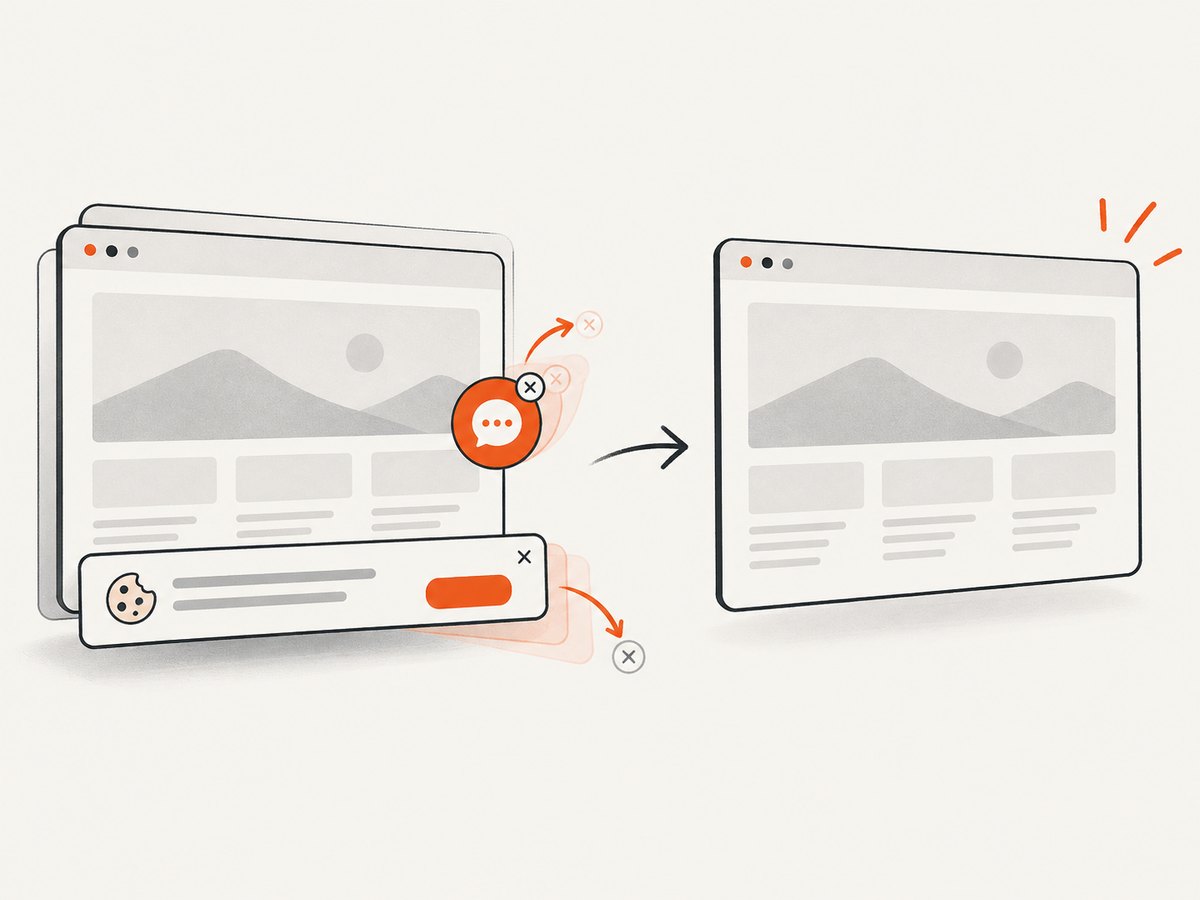
ScreenshotNeo returns a PNG, JPEG, WebP, or PDF from one GET request. It accepts cookie and consent banners before capture and removes more than 60 known consent platforms, newsletter popups, and chat widgets; each step can be disabled. Bot checks, CAPTCHAs, blank pages, timeouts, failed loads, and cache hits are not billed, and the response identifies the result with X-Page-Verdict and X-Billed headers. It also provides an MCP server with take_screenshot, get_page_info, and capture_pdf tools for Claude, Cursor, and other MCP clients.
See the ScreenshotNeo API documentation for all options. A basic cURL request is:
curl -G "https://api.screenshotneo.com/v1/shot" \
  -d access_key=YOUR_API_KEY \
  --data-urlencode url=https://stripe.com \
  -o shot.webp
Python:
import requests

r = requests.get(
    "https://api.screenshotneo.com/v1/shot",
    params={"access_key": "YOUR_API_KEY", "url": "https://stripe.com"},
    timeout=90,
)
r.raise_for_status()
open("shot.webp", "wb").write(r.content)
Node.js:
const q = new URLSearchParams({
  access_key: 'YOUR_API_KEY',
  url: 'https://stripe.com'
});
const res = await fetch(`https://api.screenshotneo.com/v1/shot?${q}`);
if (!res.ok) throw new Error(`Screenshot failed: ${res.status}`);
const buffer = Buffer.from(await res.arrayBuffer());
await import('node:fs/promises').then(fs => fs.writeFile('shot.webp', buffer));
ScreenshotNeo includes full-page and element capture, dark mode, device presets, retina scale, custom CSS and JavaScript, clicks, waits, request blocking, headers, cookies, user agents, authorization, timezone, geolocation, transparent backgrounds, resizing, selectable cache TTLs, signed image links, asynchronous jobs with signed webhooks, bulk capture for up to 100 URLs per call, a usage API, and an OpenAPI specification. Every feature is included on every plan. The Free plan includes 1,000 shots per month without a card; paid plans start at $5 for 3,000 shots.
Create a free ScreenshotNeo account to get 1,000 screenshots a month with no card.
10. FAQ
Is chrome:headless the same as adding --headless?
It is TestCafe’s supported alias for headless Chrome. You can append additional Chrome arguments after the alias.
Can I pass local Chrome arguments to BrowserStack?
No. BrowserStack documents BROWSERSTACK_CHROME_ARGS for its provider and requires Automate to be enabled. Other providers have their own settings.
Should every CI run use --no-sandbox?
No. Use it only when your environment requires it, and understand the security consequences.
How do I set a custom Chrome executable?
Use the JavaScript API’s browser object with path and optional cmd. Keep that configuration distinct from alias postfix syntax.
How can I confirm headless mode?
Log t.browser.headless and t.browser.alias from a test, then verify the application behavior your test depends on.


