How to Save TestCafe Screenshots to a Specific Directory
Configure TestCafe to save screenshots wherever you need with CLI, JSON, Runner API, custom paths, failure capture, and CI examples.
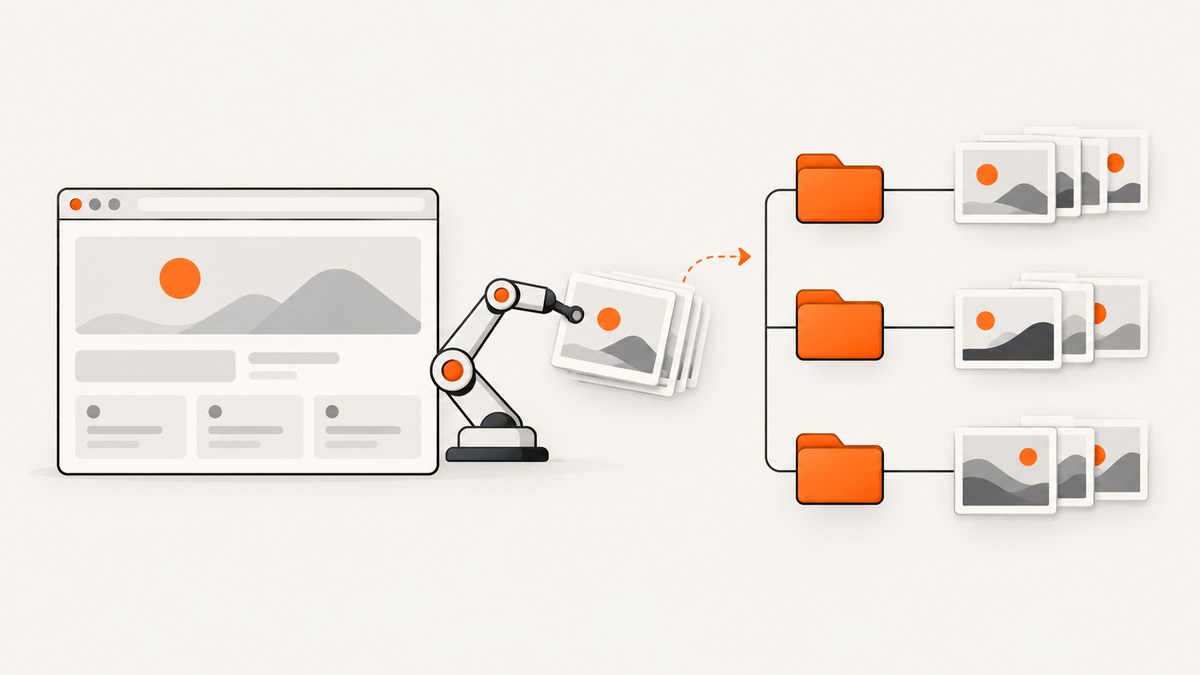
Direct answer
Set TestCafe’s screenshot root with the screenshots.path setting. Use the interface that matches your project:
- CLI:
testcafe chrome tests -s path=artifacts/screenshots - Configuration file:
{ "screenshots": { "path": "artifacts/screenshots" } } - Runner API:
runner.screenshots({ path: 'artifacts/screenshots' })
The path is the base directory. TestCafe adds its normal filename layout below that directory. Set pathPattern when you need custom filenames or subdirectories.
1. Choose the configuration surface
| Use this | Best for | Example |
|---|---|---|
| CLI | One-off runs, CI jobs, or scripts | -s path=artifacts/screenshots |
| Configuration file | A shared project default | screenshots.path |
| Runner API | JavaScript-controlled test runs | runner.screenshots({ path }) |
CLI and Runner settings override configuration-file values when you provide the same option in more than one place.

2. Configure the directory from the CLI
The short CLI option is -s; the long option is --screenshots. Settings are comma-separated:
testcafe chrome tests -s path=artifacts/screenshots,takeOnFails=trueThis creates the directory if needed and stores screenshots under it. Use a path relative to the directory where you start TestCafe, or provide an absolute path when your CI runner has a fixed workspace.
Use a custom filename pattern
testcafe chrome tests -s 'path=artifacts/screenshots,pathPattern=${TEST_INDEX}/${USERAGENT}/${FILE_INDEX}.png'Quote the value so your shell passes the dollar signs through unchanged. The pattern controls the path below screenshots.path; it does not replace the root.
3. Configure a project-wide JSON file
Add a modern screenshots object to your TestCafe configuration:
{
  "screenshots": {
    "path": "artifacts/screenshots",
    "takeOnFails": true,
    "pathPattern": "${TEST_INDEX}/${USERAGENT}/${FILE_INDEX}.png"
  }
}
The documented screenshot settings include:
path: the base directory.takeOnFails: capture a screenshot when a test fails.pathPattern: the normal screenshot layout.pathPatternOnFails: a separate layout for failure screenshots.fullPage: capture the full page instead of only the viewport.thumbnails: create thumbnail copies.
Older top-level properties such as screenshotPath and screenshotPathPattern are deprecated. Move them into the nested screenshots object.
Separate failed-test artifacts
{
  "screenshots": {
    "path": "artifacts/screenshots",
    "takeOnFails": true,
    "pathPattern": "passing/${TEST_INDEX}/${FILE_INDEX}.png",
    "pathPatternOnFails": "failed/${TEST_INDEX}/${USERAGENT}/${FILE_INDEX}.png"
  }
}
When both patterns exist, pathPatternOnFails takes precedence for failure screenshots.
4. Configure the Runner API
Use runner.screenshots before starting the run:
import { Selector } from 'testcafe';

const runner = await testcafe.createRunner();

await runner
  .src('tests')
  .browsers('chrome')
  .screenshots({
    path: 'artifacts/screenshots',
    takeOnFails: true,
    pathPattern: '${TEST_INDEX}/${USERAGENT}/${FILE_INDEX}.png'
  })
  .run();

await testcafe.close();
The API uses ./screenshots as its default base directory. Supplying path changes that root for the runner.
5. Name a screenshot taken inside a test
For a screenshot at a specific point in a test, pass a relative path to t.takeScreenshot:
import { Selector } from 'testcafe';

fixture('Checkout').page('https://example.com/checkout');

test('captures the checkout page', async t => {
  await t.takeScreenshot({
    path: 'checkout.png',
    fullPage: true
  });
});
The action path is interpreted below the configured screenshot root. Use t.takeElementScreenshot when you only need one element:
test('captures the summary card', async t => {
  await t.takeElementScreenshot(Selector('[data-testid="order-summary"]'), {
    path: 'order-summary.png'
  });
});
Keep action paths relative. Use the Runner, CLI, or configuration setting for the root directory.
6. Understand path patterns
A root and a pattern solve different problems:
pathanswers “which directory contains all artifacts?”pathPatternanswers “how are files arranged and named below that directory?”
Useful pattern variables include:
| Variable | Purpose |
|---|---|
${TEST_INDEX} |
Identifies the test. |
${USERAGENT} |
Separates output by browser or user agent. |
${FILE_INDEX} |
Provides an index for screenshots produced during a run. |
For parallel browser runs, include ${USERAGENT} or another run-specific directory so files from different browsers do not overwrite each other.
7. CI and repository layouts
A predictable layout makes artifact collection easier:
project/
├── tests/
├── testcafe.config.json
├── artifacts/
│   └── screenshots/
│       ├── passed/
│       └── failed/
└── package.json- Create the path in the configuration or CI command.
- Run TestCafe from the same working directory on every job, or use an absolute path.
- Upload
artifacts/screenshotsas the CI artifact directory. - Clean the directory between jobs if stale files could confuse reports.
On ephemeral CI workers, save screenshots before the job exits. On self-hosted runners, check that the TestCafe process can write to the workspace.
8. Troubleshooting
Files still appear in ./screenshots
Cause: The setting was placed in an old top-level property, misspelled, or not loaded by the selected configuration file.
Fix: Use screenshots.path, verify the configuration file is the one your command loads, and try the explicit CLI option -s path=artifacts/screenshots.
The directory is correct but the filename is unexpected
Cause: path changes only the root. TestCafe still applies its default pattern.
Fix: Add pathPattern and quote shell patterns containing ${...}.
Failure images use the normal layout
Cause: Failure capture is disabled or no failure-specific pattern is configured.
Fix: Set takeOnFails: true. Add pathPatternOnFails when failed tests need their own directory.
CI reports “permission denied”
Cause: The worker user cannot write to the selected absolute path, or the workspace is read-only.
Fix: Choose a writable workspace directory, create it before the run, and check ownership and container volume permissions.
Relative paths work locally but not in CI
Cause: Relative paths resolve from the process working directory.
Fix: Print or standardize the working directory in the job, run TestCafe from the repository root, or use an absolute CI workspace path.
Parallel tests overwrite screenshots
Cause: Multiple screenshots resolve to the same relative filename.
Fix: Add ${TEST_INDEX}, ${USERAGENT}, or ${FILE_INDEX} to the pattern.
Full-page capture is unexpectedly large
Cause: fullPage: true captures the entire document, not only the viewport.
Fix: Use viewport capture for focused checks, or reserve full-page images for cases that need the complete layout.
9. Performance, reliability, and storage
- Keep normal screenshots targeted. Element or viewport captures are usually smaller and faster to store than full-page images.
- Use failure capture for diagnostics.
takeOnFailsavoids producing extra files for passing tests. - Partition by browser. A user-agent directory prevents collisions and makes debugging cross-browser differences easier.
- Control retention. CI artifact retention can grow quickly when every run stores full-page PNGs. Keep only the runs needed for debugging or regression history.
- Make paths deterministic. A stable root and pattern help CI uploaders, test reports, and local scripts find files reliably.
- Check disk space. Large pages, multiple browsers, thumbnails, and retries can multiply output.

10. Or skip the browser setup
If you need a clean screenshot of a URL rather than a browser test assertion, ScreenshotNeo provides a single HTTP request. Its API removes cookie and consent banners, newsletter popups, and chat widgets before capture. Bot checks, blank pages, failed loads, timeouts, and cache hits are not billed, and response headers identify the page verdict and billing result. The MCP server also lets Claude, Cursor, and other MCP clients call screenshot tools.
See the ScreenshotNeo API documentation for all options.
cURL
curl -G "https://api.screenshotneo.com/v1/shot" -d access_key=YOUR_API_KEY --data-urlencode url=https://stripe.com -o shot.webpPython
import requests
r = requests.get("https://api.screenshotneo.com/v1/shot", params={"access_key": "YOUR_API_KEY", "url": "https://stripe.com"}, timeout=90)
open("shot.webp", "wb").write(r.content)
Node.js
const q = new URLSearchParams({ access_key: 'YOUR_API_KEY', url: 'https://stripe.com' });
const res = await fetch(`https://api.screenshotneo.com/v1/shot?${q}`);
ScreenshotNeo includes full-page and element capture, device presets, custom viewports, retina scale, PDF output, custom CSS and JavaScript, waits, request blocking, headers, cookies, user agents, geolocation, caching, signed links, async jobs, bulk capture, and a usage API. The Free plan includes 1,000 screenshots per month with no card; paid plans start at $5 for 3,000.
Create a free ScreenshotNeo account and get 1,000 screenshots each month with no card.
FAQ
What is the simplest setting?
screenshots.path, or -s path=... on the command line.
Can I choose an exact filename?
Use the relative path on t.takeScreenshot. Use pathPattern for repeatable layouts across a run.
Which setting controls failed tests?
takeOnFails enables failure screenshots; pathPatternOnFails controls their layout.
Are legacy screenshot options supported?
Older top-level names are deprecated. Use the nested screenshots object and its current properties.


