How to Add Failure Screenshots to a TestNG Report
Capture Selenium screenshots when TestNG tests fail and attach them to ExtentReports, Allure, or built-in reports with reliable Java code.
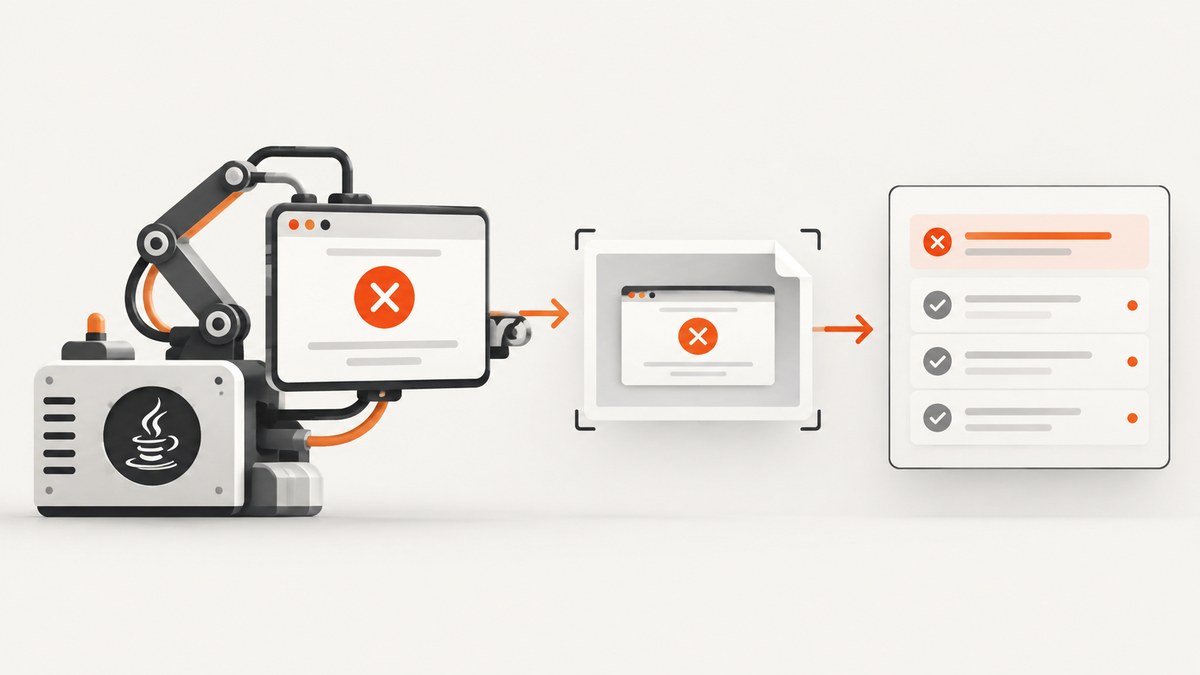
When a TestNG test fails, capture the browser before teardown closes the WebDriver, then attach the image through the reporting library you use. The most dependable integration point is TestNG’s ITestListener.onTestFailure(ITestResult). Selenium can return screenshot bytes, Base64 data, or a temporary file; choose the format your report library accepts.
This guide shows a complete Java implementation, listener registration, driver lookup for parallel tests, ExtentReports and Allure attachment patterns, TestNG logging limits, troubleshooting, and operational considerations.
1. Capture at TestNG’s failure callback
TestNG provides real-time listener callbacks, including onTestFailure. Register an ITestListener with testng.xml or the @Listeners annotation. The listener must still be able to reach the browser session when the callback runs.
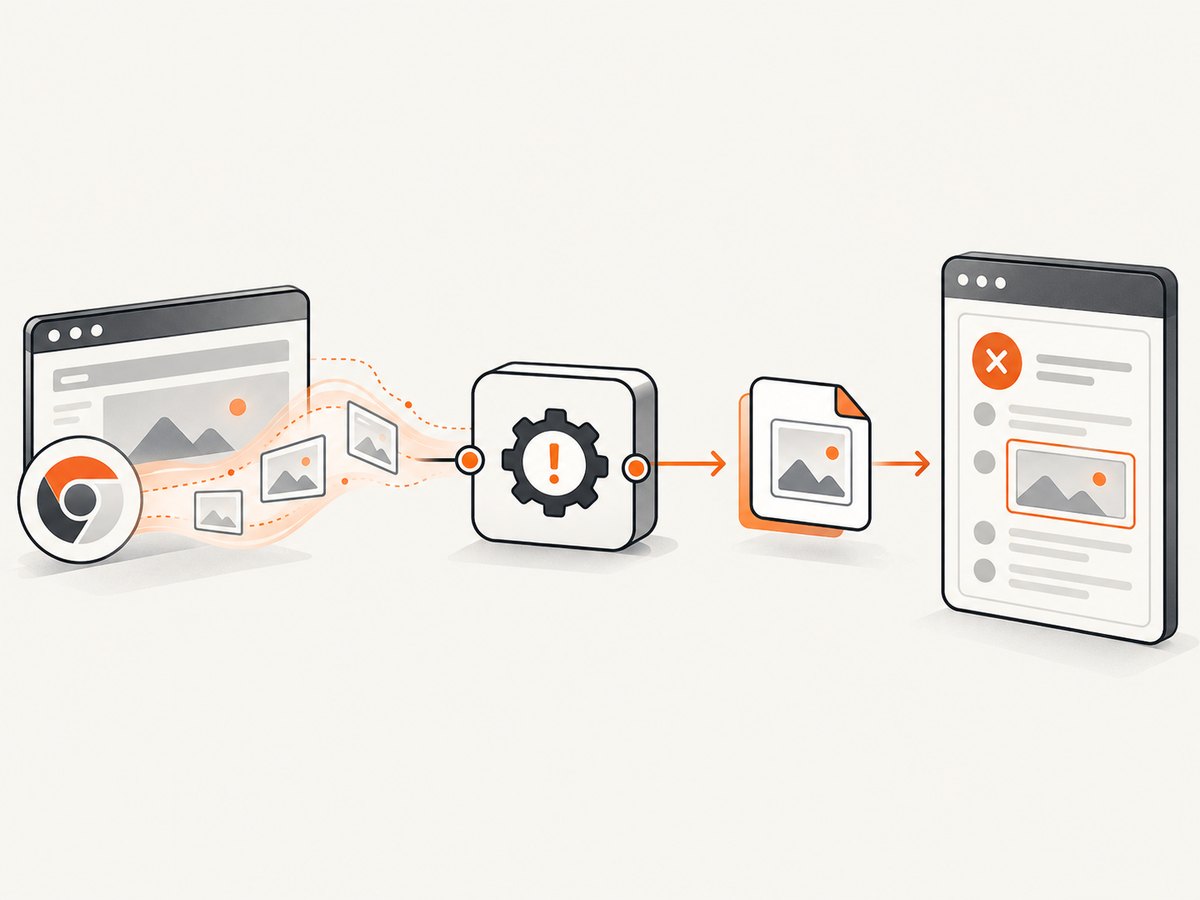
Selenium’s TakesScreenshot API exposes getScreenshotAs(OutputType<X>). Use OutputType.BYTES when the report accepts image data, OutputType.FILE when it expects a path, and OutputType.BASE64 when you need an encoded string.
Minimal listener
import org.openqa.selenium.OutputType;
import org.openqa.selenium.TakesScreenshot;
import org.openqa.selenium.WebDriver;
import org.testng.ITestListener;
import org.testng.ITestResult;

public final class FailureScreenshotListener implements ITestListener {
    @Override
    public void onTestFailure(ITestResult result) {
        WebDriver driver = DriverStore.get(result);
        if (driver == null) {
            return;
        }

        byte[] image = ((TakesScreenshot) driver)
                .getScreenshotAs(OutputType.BYTES);

        // Pass image to your reporting library here.
        System.out.println("Captured failure screenshot for "
                + result.getName() + " (" + image.length + " bytes)");
    }
}
DriverStore is deliberately a project-specific abstraction. It should return the driver belonging to the failed test, rather than a single global driver. In a parallel suite, a static singleton can attach the wrong browser’s screenshot to a failure.
2. Keep the driver alive until capture finishes
A screenshot requires an active browser session. If an @AfterMethod or another teardown hook calls quit() before the listener can access the driver, capture fails. Arrange your lifecycle so the driver is available during onTestFailure, and verify the callback order in your framework.
A thread-local store is suitable when each TestNG worker thread owns one driver:
import org.openqa.selenium.WebDriver;

public final class DriverStore {
    private static final ThreadLocal<WebDriver> CURRENT = new ThreadLocal<>();

    private DriverStore() {}

    public static void set(WebDriver driver) {
        CURRENT.set(driver);
    }

    public static WebDriver current() {
        return CURRENT.get();
    }

    public static void clear() {
        CURRENT.remove();
    }
}

// In your test setup:
@BeforeMethod
public void startBrowser() {
    WebDriver driver = new ChromeDriver();
    DriverStore.set(driver);
}

// In your listener, use DriverStore.current().
// Quit and clear the driver after the listener has captured the failure.
If one test method creates multiple drivers, map the driver by a test identifier such as the ITestResult instance, an invocation number, or a framework-managed session ID. Do not assume the current thread alone identifies the correct browser.
3. Choose the Selenium output type
| Output | Use it when | Important detail |
|---|---|---|
BYTES |
The report API accepts byte arrays or streams | Use the image MIME type, usually image/png, when the API asks for it. |
FILE |
The report requires a filesystem path | Selenium’s file is temporary. Copy it to a durable report directory before the JVM exits. |
BASE64 |
Your integration stores an encoded image | Decode or embed it according to the report library’s API. |
The Selenium screenshot documentation demonstrates copying file output. A temporary file reference should not be treated as a permanent artifact.
Persisting a file safely
import java.io.IOException;
import java.nio.file.Files;
import java.nio.file.Path;
import java.nio.file.StandardCopyOption;
import org.openqa.selenium.OutputType;
import org.openqa.selenium.TakesScreenshot;
import org.openqa.selenium.WebDriver;

public final class ScreenshotFiles {
    public static Path save(WebDriver driver, Path directory, String testName)
            throws IOException {
        Files.createDirectories(directory);
        Path temporary = ((TakesScreenshot) driver)
                .getScreenshotAs(OutputType.FILE).toPath();
        String safeName = testName.replaceAll("[^a-zA-Z0-9._-]", "_");
        Path destination = directory.resolve(safeName + "-failure.png");
        Files.copy(temporary, destination, StandardCopyOption.REPLACE_EXISTING);
        return destination;
    }
}
4. Attach the image to your report
ExtentReports
ExtentReports’ file-based workflow documents addScreenCaptureFromPath. Save the image somewhere that remains resolvable when the generated report is opened, then pass that path to the test node.
import com.aventstack.extentreports.ExtentTest;
import java.nio.file.Path;

public void attachToExtent(ExtentTest test, Path screenshot) {
    try {
        test.fail("Test failed")
            .addScreenCaptureFromPath(screenshot.toString());
    } catch (Exception attachmentError) {
        test.fail("Test failed; screenshot attachment failed: "
                + attachmentError.getMessage());
    }
}
See the ExtentReports Java documentation for the version-specific attachment API. Keep the image path relative to the report output when reports are moved between machines.
Allure
Allure accepts image attachments as bytes with a media type. The Allure Selenium guide demonstrates this data-based approach. The automatic failure example in that guide uses JUnit 5; for TestNG, configure and verify the Allure TestNG adapter that matches your project version.
import io.qameta.allure.Allure;
import java.io.ByteArrayInputStream;

public void attachToAllure(byte[] png) {
    Allure.addAttachment(
        "Failure screenshot",
        "image/png",
        new ByteArrayInputStream(png),
        "png"
    );
}
TestNG’s built-in report
TestNG’s Reporter.log writes text into generated reports. It does not, by itself, define an image attachment mechanism. You can log the saved file location for diagnostics, but use the selected report library’s documented image API when you need an inline screenshot.
import org.testng.Reporter;

Reporter.log("Failure screenshot: " + screenshot.toAbsolutePath(), true);
5. Register the listener
Using @Listeners
import org.testng.annotations.Listeners;

@Listeners(FailureScreenshotListener.class)
public class CheckoutTest {
    // Test methods
}
Using testng.xml
<?xml version="1.0" encoding="UTF-8"?>
<!DOCTYPE suite SYSTEM "https://testng.org/testng-1.0.dtd">
<suite name="UI suite" parallel="methods" thread-count="4">
  <listeners>
    <listener class-name="com.example.FailureScreenshotListener"/>
  </listeners>
  <test name="browser tests">
    <classes>
      <class name="com.example.CheckoutTest"/>
    </classes>
  </test>
</suite>
The TestNG documentation covers listener registration, reporting callbacks, Reporter.log, and the separate IReporter interface. IReporter receives completed suite results and is useful for post-run report construction, but it may be too late to capture a live browser.
6. A complete listener pattern
The following listener captures bytes, writes a durable copy, and leaves a clear extension point for your report adapter. It also protects the test result when a browser has already disappeared.
import java.io.IOException;
import java.nio.file.Files;
import java.nio.file.Path;
import java.nio.file.StandardOpenOption;
import org.openqa.selenium.OutputType;
import org.openqa.selenium.TakesScreenshot;
import org.openqa.selenium.WebDriver;
import org.testng.ITestListener;
import org.testng.ITestResult;
import org.testng.Reporter;

public final class FailureScreenshotListener implements ITestListener {
    private final Path output = Path.of("target", "failure-screenshots");

    @Override
    public void onTestFailure(ITestResult result) {
        WebDriver driver = DriverRegistry.forResult(result);
        if (driver == null) {
            Reporter.log("No live WebDriver for " + result.getName(), true);
            return;
        }

        try {
            byte[] png = ((TakesScreenshot) driver)
                    .getScreenshotAs(OutputType.BYTES);
            Files.createDirectories(output);
            String name = result.getMethod().getQualifiedName()
                    .replaceAll("[^a-zA-Z0-9._-]", "_");
            Path file = output.resolve(name + "-" + result.getStartMillis() + ".png");
            Files.write(file, png, StandardOpenOption.CREATE,
                    StandardOpenOption.TRUNCATE_EXISTING);

            Reporter.log("Failure screenshot: " + file.toAbsolutePath(), true);
            // attachBytesToYourReport(result, png);
            // or attachPathToYourReport(result, file);
        } catch (RuntimeException | IOException captureError) {
            Reporter.log("Screenshot capture failed for " + result.getName()
                    + ": " + captureError.getMessage(), true);
        }
    }
}
7. Full-page, element, and diagnostic screenshots
A normal WebDriver screenshot commonly represents the current viewport. For a failure report, that is often enough to show the visible error, but other cases need additional evidence:
- Full page: use the browser and driver capabilities that support full-page capture, or scroll and stitch only when your browser setup requires it.
- Element: locate the failed component and call Selenium’s element screenshot support when the report should focus on one region.
- Page source and URL: save
driver.getCurrentUrl()anddriver.getPageSource()alongside the image. These help when the screenshot is blank or the page is mid-navigation. - Console and network logs: collect them through the logging features configured for your browser and grid. Keep these artifacts attached to the same test identity.
Do not replace the failure screenshot with a screenshot taken after a retry or navigation. Capture the first failure state, then add later diagnostic artifacts separately.
8. Parallel execution and retries
Parallel TestNG runs create two common problems: the listener reads the wrong driver, or two failures overwrite the same file. Use a unique filename containing the qualified test name, invocation number, thread ID, and timestamp. Store drivers in a thread-local or result-keyed registry.
Retries need an explicit policy. You can capture every failed attempt, which preserves the progression toward a passing retry, or capture only the final failure. If you capture every attempt, include the retry number in both the filename and report label. A listener should not silently discard the first failure.
9. Troubleshooting
| Symptom | Likely cause | Fix |
|---|---|---|
| No screenshot appears | The listener was never registered. | Check @Listeners or the <listeners> block in the active suite XML. |
NoSuchSessionException |
Teardown called quit() before capture. |
Move browser shutdown after capture or retain a framework-managed failure hook. |
| Wrong browser is attached | A shared static driver is used during parallel execution. | Resolve the driver from the failing ITestResult or the executing thread. |
| Extent report shows a broken image | The referenced file was temporary, deleted, or outside the report’s reachable path. | Copy the file into a durable report directory and verify the relative path. |
| Allure attachment is missing | The attachment method or TestNG adapter does not match the installed version. | Use the adapter’s TestNG integration and attach bytes with image/png. |
| Screenshot is blank | The page failed to load, navigation was incomplete, or the browser was already closing. | Save URL, page source, and logs; capture at the failure callback before teardown. |
| Only part of the page is visible | The driver captured the viewport rather than the full document. | Use a supported full-page capability or capture the relevant element. |
| Files overwrite each other | Every test uses the same filename. | Add method, invocation, thread, and timestamp components. |
| Listener errors hide the test failure | Attachment code throws from the failure callback. | Catch capture and attachment errors, log them, and preserve the original test result. |
10. Performance, reliability, and cost
A PNG adds disk I/O and report size to every failed test. Because failures are less frequent than passes, this is usually manageable, but large full-page images can make CI artifacts slow to upload. Use JPEG only when your report and visual requirements allow compression; retain PNG when text sharpness matters.
Write files to the CI workspace, not an operating-system temporary directory that is cleaned before artifact collection. Configure the build to publish the screenshot directory with the TestNG, ExtentReports, or Allure results. If a remote Selenium grid is used, the screenshot bytes travel back to the test process, so avoid repeatedly requesting the same image.
Capture failure artifacts once per failure callback. A retry listener and a report listener can otherwise produce duplicate images. Give every attachment a deterministic test identity, and include the browser, environment, and attempt in metadata rather than encoding them only in an opaque filename.
11. Or skip the browser setup
If you need screenshots outside a running TestNG browser, ScreenshotNeo provides a website screenshot API. One request returns a PNG, JPEG, WebP, or PDF, and its options cover full-page capture, element selectors, custom CSS and JavaScript, waits, headers, cookies, user agents, geolocation, device presets, caching, asynchronous jobs, bulk capture, and signed links. See the ScreenshotNeo documentation for the complete parameter reference.

cURL
curl -G "https://api.screenshotneo.com/v1/shot" \
  -d access_key=YOUR_API_KEY \
  --data-urlencode url=https://stripe.com \
  -o shot.webp
Python
import requests

r = requests.get(
    "https://api.screenshotneo.com/v1/shot",
    params={"access_key": "YOUR_API_KEY", "url": "https://stripe.com"},
    timeout=90,
)
r.raise_for_status()
open("shot.webp", "wb").write(r.content)
Node.js
const q = new URLSearchParams({
  access_key: 'YOUR_API_KEY',
  url: 'https://stripe.com'
});
const res = await fetch(`https://api.screenshotneo.com/v1/shot?${q}`);
if (!res.ok) throw new Error(`HTTP ${res.status}`);
const data = Buffer.from(await res.arrayBuffer());
require('fs').writeFileSync('shot.webp', data);
ScreenshotNeo removes cookie and consent banners, newsletter popups, and chat widgets before capture; bot checks, blank pages, timeouts, failed loads, and cache hits are not billed. Response headers identify the page verdict and whether the request was billed. Its MCP server provides take_screenshot, get_page_info, and capture_pdf tools for Claude, Cursor, and other MCP clients. The free plan includes 1,000 screenshots per month with no card; paid plans start at $5 for 3,000 screenshots. Create a free ScreenshotNeo account.
12. FAQ
Should I use ITestListener or IReporter?
Use ITestListener when you need the browser’s live failure state. Use IReporter when you are building a report after suite execution and no longer need the browser.
Can TestNG attach a screenshot by itself?
TestNG can log text with Reporter.log, but image attachments depend on the reporting library or an artifact-publishing step.
Which Selenium output type is best?
Use bytes for APIs such as Allure, files for path-based APIs such as ExtentReports, and Base64 only when your integration explicitly expects encoded data.
Why does the screenshot show the previous page?
The failure may have occurred during navigation or before the expected page finished rendering. Save the URL and page source, and add an explicit wait for the condition your test needs before interacting with the page.
Should screenshots be captured for skipped tests?
Usually no. A skipped test has no browser failure state. Add separate handling only when your test framework records a skip caused by an environment or setup error.


