How to Create Tidier Tables and Fix jsPDF Styling Problems
Make jsPDF-AutoTable tables easier to read with predictable styles, wrapped text, controlled widths and reliable pagination.

To make a jsPDF table look cleaner, set its theme and shared styles explicitly, then tune section styles, column widths, text overflow, alignment, padding, and borders. For styling bugs, check the precedence order and make sure columnStyles targets the actual column keys. For long tables, configure page breaks and repeated headers separately from visual styling.
This guide uses jsPDF-AutoTable with JavaScript. It covers a complete data-driven example, an HTML-table alternative, style precedence, long and wide tables, drawing hooks, troubleshooting, and practical performance and reliability considerations.
1. Install jsPDF and AutoTable
Install both packages in a project that uses npm:
npm install jspdf jspdf-autotableIn a browser project, use the package’s distribution files or a CDN if that fits your build setup. Keep the jsPDF and AutoTable versions compatible, and follow the installation instructions for the versions you choose. The examples below use ES modules:
import { jsPDF } from 'jspdf'
import { autoTable } from 'jspdf-autotable'
AutoTable accepts either JavaScript column and row data or an existing HTML table. For generated reports, structured data with named dataKey values is usually easier to maintain than positional arrays.
2. Build a clean table with explicit styles
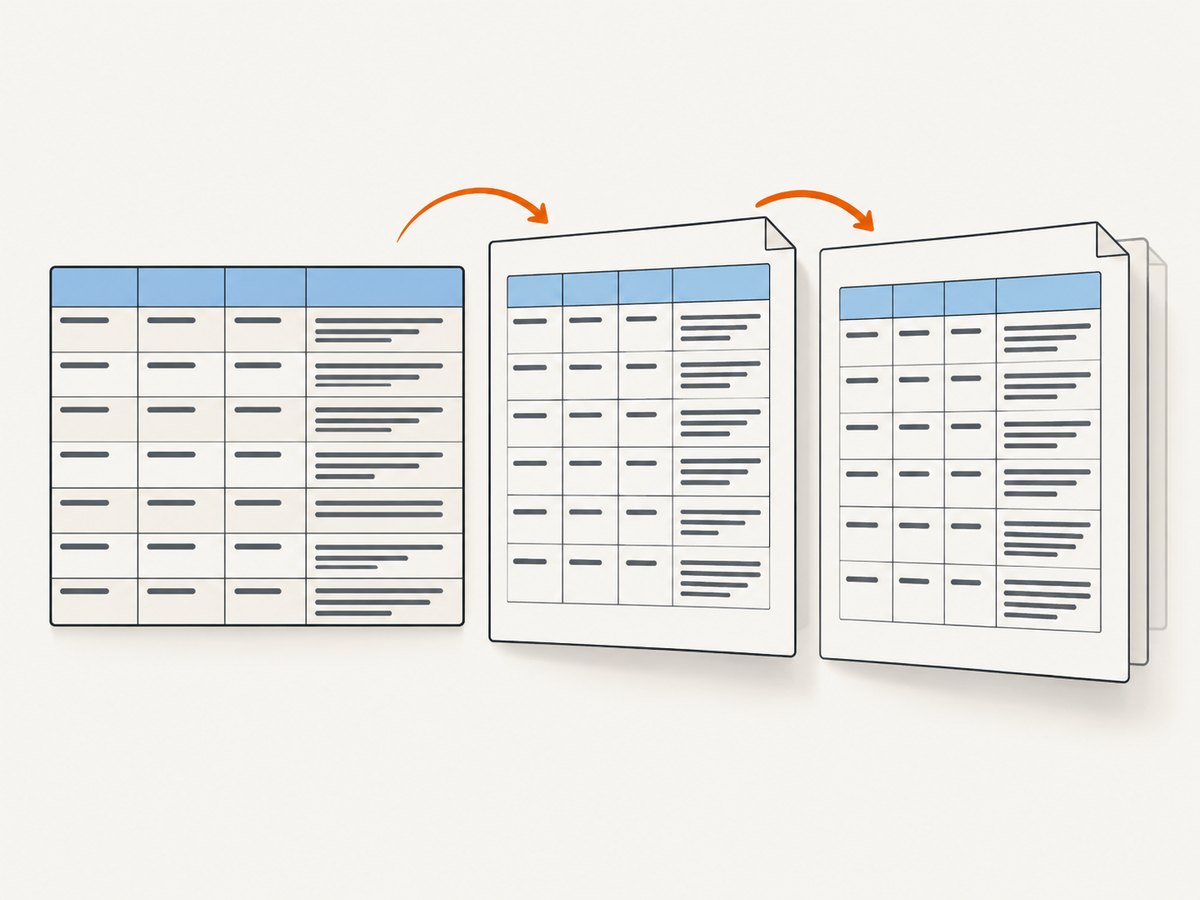
This runnable example creates a landscape report with a readable header, alternating rows, wrapped notes, explicit widths, and safe pagination. Save it in a project configured for ES modules and run it with your usual JavaScript build setup.
import { jsPDF } from 'jspdf'
import { autoTable } from 'jspdf-autotable'

const rows = [
  { item: 'Annual hosting', qty: 1, notes: 'Renews in September. Confirm the service owner before approval.' },
  { item: 'Design review', qty: 3, notes: 'Includes review of responsive layouts and accessibility notes.' },
  { item: 'Data migration', qty: 2, notes: 'Schedule after the source database backup has completed.' }
]

const doc = new jsPDF({ orientation: 'landscape', unit: 'mm', format: 'a4' })

autoTable(doc, {
  columns: [
    { header: 'Item', dataKey: 'item' },
    { header: 'Qty', dataKey: 'qty' },
    { header: 'Notes', dataKey: 'notes' }
  ],
  body: rows,
  theme: 'striped',
  styles: {
    font: 'helvetica',
    fontSize: 9,
    cellPadding: 3,
    overflow: 'linebreak',
    valign: 'top',
    lineColor: [220, 225, 231],
    lineWidth: 0.15,
    textColor: [40, 47, 56]
  },
  headStyles: {
    fillColor: [35, 64, 90],
    textColor: [255, 255, 255],
    fontStyle: 'bold',
    halign: 'left'
  },
  alternateRowStyles: { fillColor: [245, 248, 250] },
  columnStyles: {
    item: { cellWidth: 45 },
    qty: { cellWidth: 18, halign: 'right' },
    notes: { cellWidth: 'wrap', minCellWidth: 70 }
  },
  margin: { top: 24, right: 18, bottom: 24, left: 18 },
  showHead: 'everyPage',
  pageBreak: 'auto',
  rowPageBreak: 'avoid'
})

doc.save('table.pdf')
The RGB color arrays use numeric values from 0 to 255. The widths are in the document’s unit (millimeters here); adjust them for your page size and content. A fixed width gives predictable alignment. A wrapped width lets content influence sizing, so use it with a minimum width and check the final result for exceptionally long values.
3. Choose the right input shape
Structured JavaScript data
With columns and body, each column can declare a header and a dataKey. Rows can then use named properties. This makes style configuration readable and avoids accidentally applying a style to the wrong column when the order changes.
const columns = [
  { header: 'Name', dataKey: 'name' },
  { header: 'Status', dataKey: 'status' }
]
const body = [
  { name: 'Invoice export', status: 'Ready' },
  { name: 'Monthly summary', status: 'In progress' }
]

autoTable(doc, { columns, body })
Existing HTML table
AutoTable can also parse a table from the document. Give the source table an ID and pass its selector. This can be convenient when the HTML is already rendered, but it couples PDF output to the page’s markup and content at capture time.
<table id="report-table">
  <thead>
    <tr><th>Name</th><th>Status</th></tr>
  </thead>
  <tbody>
    <tr><td>Invoice export</td><td>Ready</td></tr>
  </tbody>
</table>
<script type="module">
  import { jsPDF } from 'jspdf'
  import { autoTable } from 'jspdf-autotable'
  const doc = new jsPDF()
  autoTable(doc, { html: '#report-table', theme: 'grid' })
  doc.save('table.pdf')
</script>
When the source table is hidden, populated asynchronously, or styled for screen rather than print, inspect the actual parsed values and set PDF styles explicitly. Browser CSS should not be treated as a substitute for AutoTable’s PDF configuration.
4. Understand why a style does or does not apply
AutoTable applies styles in a defined order: theme defaults, general styles, section styles such as headStyles and bodyStyles, alternate-row styles, then columnStyles. Cell-specific definitions and hooks can apply still more targeted changes.
For example, a body-wide alignment can be overridden for a numeric column:
autoTable(doc, {
  columns: [
    { header: 'Description', dataKey: 'description' },
    { header: 'Amount', dataKey: 'amount' }
  ],
  body: records,
  styles: { halign: 'left' },
  columnStyles: {
    amount: { halign: 'right', cellWidth: 28 }
  }
})
When a setting seems ignored, check the target and the precedence order. If columns use named keys, use those keys in columnStyles. Numeric indexes are for index-based columns. Also check whether a later, more specific setting replaces the value you set earlier.
Useful styling options
| Option | Use it for | Practical guidance |
|---|---|---|
theme |
Starting visual treatment | Choose a theme such as striped, grid, or plain, then override the details you need. |
styles |
Shared cell defaults | Set font, font size, padding, text and line colors, vertical alignment, and overflow. |
headStyles, bodyStyles, footStyles |
Section-specific treatment | Use these for contrast and alignment that differs by section. |
alternateRowStyles |
Row scanning | Use a subtle fill so it supports reading without competing with the data. |
columnStyles |
Per-column alignment and width | Use semantic keys with named columns; right-align amounts and counts where appropriate. |
cellPadding, lineWidth |
Density and cell separation | Reduce padding to fit more data, but preserve enough space for text to remain legible. |
overflow |
Long cell content | Use linebreak to preserve text across lines or ellipsize when truncation is acceptable. |
5. Wrap text and prevent column overflow
First decide what should happen to long text. Use overflow: 'linebreak' when all content should remain visible, and overflow: 'ellipsize' when a shortened display is acceptable. Then set a width strategy. A numeric cellWidth is predictable; 'wrap' adapts to content. minCellWidth prevents a column from becoming too narrow to read.
autoTable(doc, {
  columns,
  body,
  styles: {
    fontSize: 8,
    cellPadding: 2.5,
    overflow: 'linebreak',
    valign: 'top'
  },
  columnStyles: {
    id: { cellWidth: 20, halign: 'right' },
    summary: { cellWidth: 55, minCellWidth: 45 },
    details: { cellWidth: 'wrap', minCellWidth: 75 }
  }
})
If the row becomes too tall, do not immediately shrink the font until it is unreadable. Consider a wider page, smaller margins, shorter display text, or moving verbose details into a separate section. For identifiers, dates, and numbers, choose a width that keeps values intact. Test empty values and very long unbroken strings: a URL or generated token may not wrap like ordinary prose.
6. Paginate long and wide tables
Visual styles do not solve pagination. Configure page behavior independently:
pageBreakcontrols when the table starts on a new page;'auto'is a useful default for a flowing report.rowPageBreakcontrols whether a row may split across pages.'avoid'tries to keep a row together, which is useful for short records but can move a tall row or leave less room on a page.showHead: 'everyPage'repeats the table header so each page has column context.- Use the corresponding foot display option when a table footer should repeat on each page.
tableWidthcontrols the table’s overall width; make sure the chosen width fits within page margins.
When a table has more columns than fit across a page, AutoTable provides horizontal page-break controls. Enable horizontalPageBreak, then set horizontalPageBreakRepeat to repeat an identifying column, such as a name or ID. This helps readers associate each horizontal slice with the same record.
autoTable(doc, {
  columns,
  body,
  margin: { left: 14, right: 14, top: 18, bottom: 18 },
  tableWidth: 'auto',
  showHead: 'everyPage',
  pageBreak: 'auto',
  rowPageBreak: 'avoid',
  horizontalPageBreak: true,
  horizontalPageBreakRepeat: ['accountId']
})
Check the output with the longest realistic row and the widest realistic table. If a page split makes a group ambiguous, repeat a key column, add a group label, or redesign the report as multiple smaller tables.
7. Use hooks for cell-level behavior
Hooks run at different stages. didParseCell lets you adjust parsed cell content or styles. willDrawCell runs before drawing, so it is the right place to change native jsPDF drawing state for that cell. didDrawCell runs after drawing and is useful for adding marks or other content on top.
autoTable(doc, {
  columns,
  body: records,
  didParseCell(data) {
    if (data.section === 'body' && data.column.dataKey === 'status') {
      if (data.cell.raw === 'Blocked') {
        data.cell.styles.textColor = [170, 40, 40]
        data.cell.styles.fontStyle = 'bold'
      }
    }
  },
  willDrawCell(data) {
    if (data.section === 'body' && data.column.dataKey === 'amount') {
      doc.setTextColor(35, 64, 90)
    }
  },
  didDrawCell(data) {
    // Add custom drawing after the cell has been rendered, if needed.
  }
})
Use parsed cell styles for ordinary color, font, and alignment changes. If a native jsPDF setting appears to have no effect because AutoTable resets drawing state, move that state change into willDrawCell. Use didDrawCell only for additions after the cell has been drawn.
8. Put content after a table
AutoTable records the final vertical position at doc.lastAutoTable.finalY. Use it to place a note, signature, or next section without guessing where the table ended:
autoTable(doc, { columns, body: records })
const nextY = doc.lastAutoTable.finalY + 10
doc.text('Prepared for review', 18, nextY)
If the table spans pages, make sure the following content belongs after the final table page and still fits within that page’s bottom margin. For another table, pass a suitable start position or let AutoTable continue naturally, and inspect the resulting document for collisions.
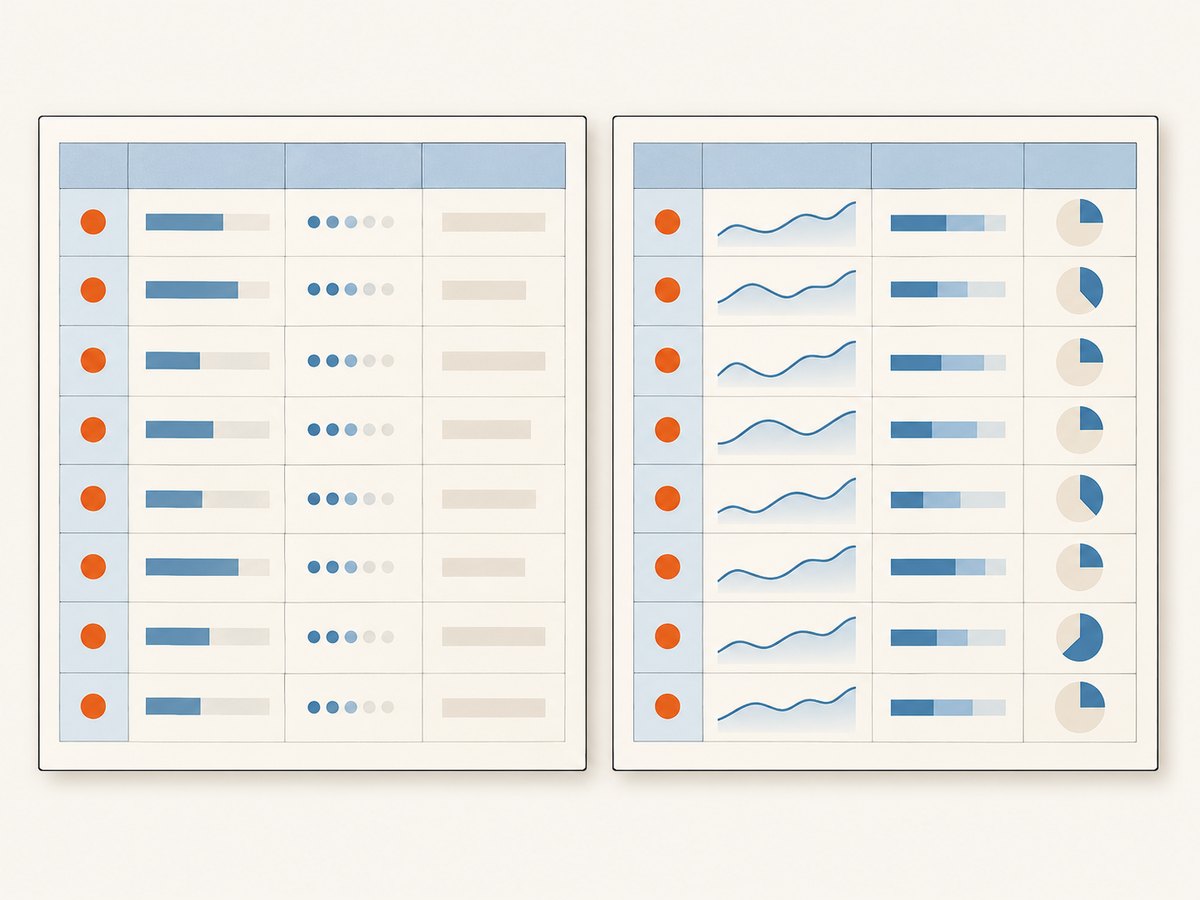
9. Compare two table designs before shipping
A useful comparison is based on how the document reads, not on how many style options it uses. Generate both versions using the same data and inspect these points:
- Wrapped text: Can a reader understand each note without clipped words or excessively tall rows?
- Information density: Does the page show enough rows while keeping text legible?
- Visual hierarchy: Are header, body, and alternating rows distinct and consistent?
- Column geometry: Do amounts, dates, and identifiers align, and do descriptive fields have enough width?
- Page breaks: Are headers repeated, rows readable when they move, and wide tables identifiable across slices?
- Maintainability: Do semantic data keys make the styles clear when columns are reordered?
For repeatable reports, keep a representative fixture containing a short row, a long paragraph, a blank cell, a long token, and enough records to cross a page boundary. That reveals layout regressions when data or style settings change.
10. Troubleshooting jsPDF-AutoTable styling
| Symptom | Likely cause | Fix |
|---|---|---|
| Column style has no effect | The style key does not match the column’s dataKey. |
Use the named key from columns; use numeric indexes only for index-based columns. |
| Text is clipped | Fixed width is too small or overflow behavior is unsuitable. | Use linebreak, widen the column, adjust minCellWidth, or choose ellipsizing intentionally. |
| Rows are unexpectedly huge | Long content wraps into many lines, often in a narrow column. | Widen the column or page, reduce padding carefully, or shorten the displayed text. |
| Colors or line settings are ignored | A native jsPDF drawing-state change is made outside the right hook timing. | Use AutoTable cell styles or set native drawing state in willDrawCell. |
| Next heading overlaps the table | The next content uses a guessed y-coordinate. | Start from doc.lastAutoTable.finalY plus a deliberate gap. |
| Wide table is split into unreadable pages | There is no repeated identifying column in horizontal pagination. | Enable horizontalPageBreak and repeat an ID or name with horizontalPageBreakRepeat. |
| Header disappears on later pages | The header display behavior is not configured for each page. | Set showHead: 'everyPage' and confirm the table has a parsed header. |
| HTML table output is empty or stale | The selector is wrong, or the table content is not present when AutoTable runs. | Use the correct selector and call AutoTable after the table is populated; inspect structured data when possible. |
11. Performance, reliability, and cost
PDF generation work grows with the amount of content and the complexity of layout. Large tables with many wrapped paragraphs require more line measurement and drawing than compact numeric rows. Keep input data bounded, avoid unnecessarily elaborate per-cell drawing, and choose page dimensions that reduce awkward wrapping. For a browser UI, consider generating large documents outside an interaction that must remain immediately responsive.
For reliability, use stable column keys, set important widths and overflow behavior explicitly, and keep representative layout cases in your own review process. Treat user-supplied HTML and data as untrusted input in the surrounding application; validate what your application accepts and avoid assuming that every cell is short, printable text. Inspect generated PDFs at the page sizes and viewers relevant to your users.
jsPDF and AutoTable are libraries, so their direct package cost is separate from your hosting, development, and document delivery costs. This article does not claim a generation benchmark: measure with your actual row counts, text lengths, runtime, and target devices before setting limits or choosing an architecture.
12. Or skip the browser setup
If the job is to capture a webpage as a screenshot or PDF rather than generate a data table, ScreenshotNeo provides a website screenshot API and MCP server. Its single GET endpoint returns a PNG, JPEG, WebP, or PDF. See the API documentation for request options.
curl -G "https://api.screenshotneo.com/v1/shot" -d access_key=YOUR_API_KEY --data-urlencode url=https://stripe.com -o shot.webpimport requests
r = requests.get("https://api.screenshotneo.com/v1/shot", params={"access_key": "YOUR_API_KEY", "url": "https://stripe.com"}, timeout=90)
open("shot.webp", "wb").write(r.content)const q = new URLSearchParams({ access_key: 'YOUR_API_KEY', url: 'https://stripe.com' });
const res = await fetch(`https://api.screenshotneo.com/v1/shot?${q}`);ScreenshotNeo accepts cookie and consent banners like a visitor and removes more than 60 known consent platforms, newsletter popups, and chat widgets before the shot; each step can be turned off. Bot checks, blank pages, timeouts, failed loads, and cache hits cost nothing, and response headers report the page verdict and billing status. An MCP server gives AI agents tools to take screenshots, inspect page information, and capture PDFs. The free plan includes 1,000 screenshots a month with no card; paid plans start at $5 for 3,000. Sign up for 1,000 free screenshots a month, with no card.
13. FAQ
Can I use AutoTable without a browser DOM?
Yes. Pass JavaScript columns and row data directly. The HTML input option is for parsing an existing table element.
Should I use a theme or define every style?
Use a theme for a quick baseline, then override the settings that matter for your document’s readability and brand requirements.
How do I place a second table below the first?
Read doc.lastAutoTable.finalY after the first table and use it as the next table’s starting position, with an appropriate gap.
Why does my long string still not fit?
Some unbroken values do not have natural wrap points. Give the column more width, transform the display value in your application, or choose a deliberate truncation strategy.


