Taking Timestamped Screenshots with Selenium IDE
Selenium IDE has no built-in screenshot command. Use execute script for an ISO timestamp, then capture and name the PNG in WebDriver.
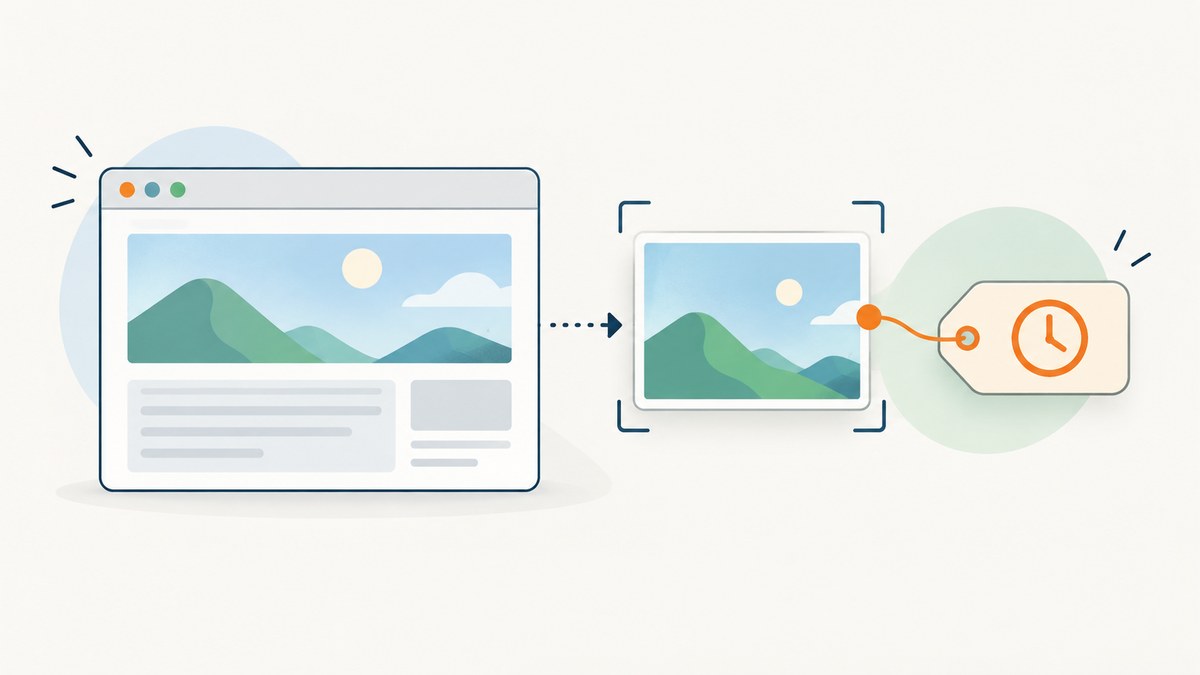
Short answer: Selenium IDE does not document a native screenshot command. Add an execute script step that returns new Date().toISOString(), store that value, then export or run the test with Selenium WebDriver and call the binding’s screenshot method immediately before or after the step you want to capture. Replace filename-unsafe characters such as : with -, while retaining the original ISO value in your test log or metadata.
Selenium IDE is a browser extension that records and plays back tests saved as .side projects. It can sequence navigation, assertions, waits and JavaScript, but the documented command catalog does not provide a built-in PNG-to-file screenshot command. WebDriver supplies the dependable file-capture API, including Python’s save_screenshot and get_screenshot_as_file. See the Selenium IDE command reference, Selenium IDE documentation and WebDriver screenshot documentation.
What Selenium IDE can and cannot do
| Need | Selenium IDE | Exported WebDriver runtime |
|---|---|---|
| Author steps and assertions | Yes, in a .side project |
Yes, after export or recreation in code |
| Generate a timestamp | Yes, with execute script |
Yes, in the language binding |
| Write a PNG to a chosen filename | No documented built-in command | Yes |
| Control artifact folders and CI retention | Limited | Full control |
| Use exact browser and viewport metadata | Record separately | Record in the artifact manifest |
Recommended workflow
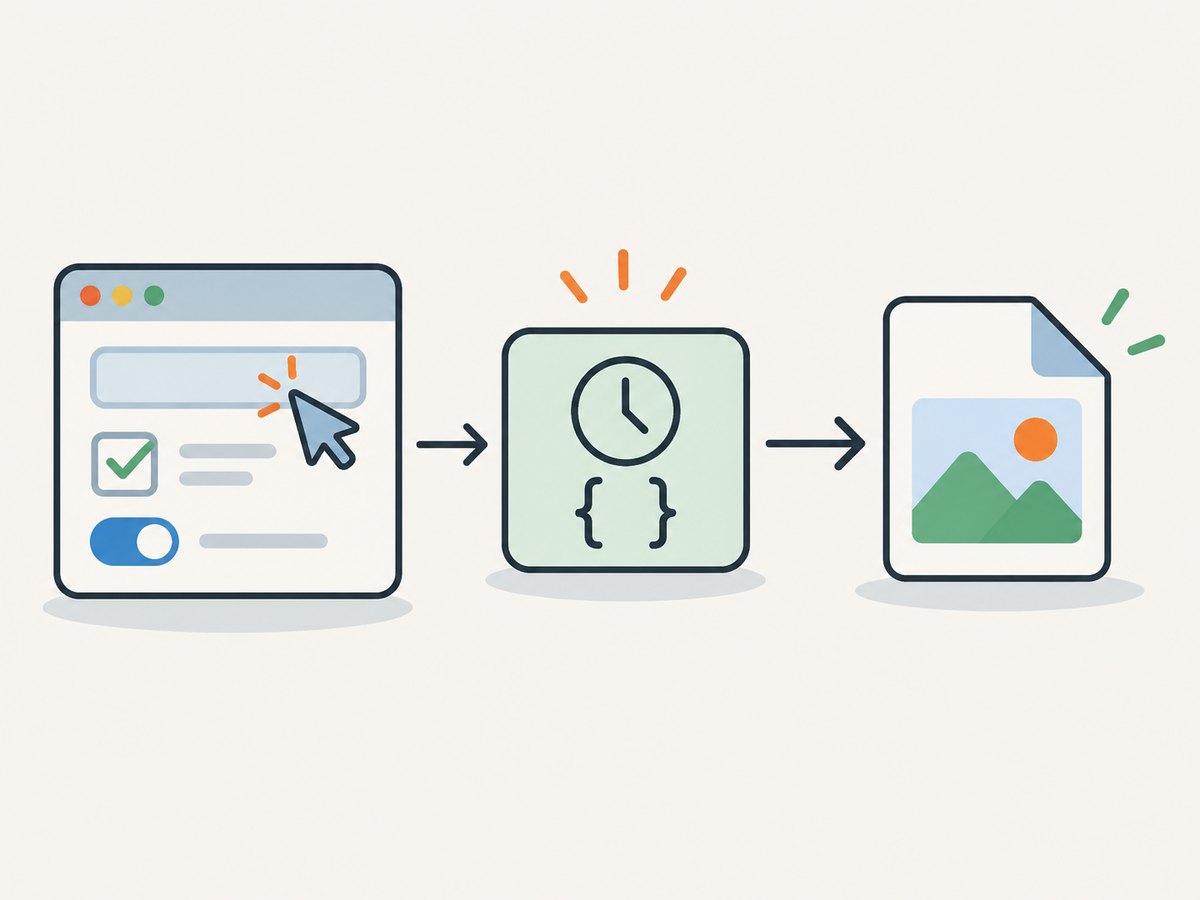
- Record or enter your navigation and assertions in Selenium IDE.
- Add an
execute scriptcommand immediately before the capture boundary. - Store the returned ISO timestamp in a variable named
captureIso. - Export or run the project through a Selenium WebDriver binding.
- Immediately before the screenshot call, convert the timestamp into a filesystem-safe token.
- Write the PNG to a known artifact directory and fail the run if the capture result is false.
- Log the unmodified ISO value together with the test name, browser and viewport.
Configure the Selenium IDE project
1. Add the timestamp command
In Selenium IDE, add a command with these values:
| Field | Value |
|---|---|
| Command | execute script |
| Target | return new Date().toISOString(); |
| Value | captureIso |
The command returns a string such as 2026-09-30T14:23:51.482Z. Keeping the value in a variable lets the exported runtime use the event time that Selenium IDE observed rather than a later filesystem modification time.
2. Place it at the correct boundary
Put the command after navigation, waits and assertions that establish the state you want to document. Generate the timestamp as close as possible to the WebDriver screenshot call. If a long export or synchronization step occurs between the two, the timestamp describes the IDE event rather than the actual image capture.
3. Save the project
Save the project as a .side file and keep it with the test source. Selenium IDE supports in-browser playback and command-line execution across supported browsers; the actual PNG naming and file write should happen in the WebDriver runtime.
Python WebDriver capture
This example uses the timestamp returned by the IDE. Pass it into the exported test as capture_iso (for example, from your runner’s variable or data file).
from pathlib import Path
from selenium import webdriver
from selenium.webdriver.chrome.options import Options

ARTIFACTS = Path("artifacts")
ARTIFACTS.mkdir(parents=True, exist_ok=True)

options = Options()
options.add_argument("--headless=new")
driver = webdriver.Chrome(options=options)

try:
    driver.get("https://example.com")
    # In an exported Selenium IDE run, use the value returned by:
    # return new Date().toISOString();
    capture_iso = "2026-09-30T14:23:51.482Z"
    stamp = capture_iso.replace(":", "-")
    path = ARTIFACTS / f"screenshot-{stamp}.png"

    ok = driver.save_screenshot(str(path))
    if not ok:
        raise RuntimeError(f"Screenshot was not saved: {path}")

    print({
        "file": str(path.resolve()),
        "capture_iso": capture_iso,
        "browser": driver.capabilities.get("browserName"),
        "viewport": driver.get_window_size(),
    })
finally:
    driver.quit()
save_screenshot writes PNG data and expects a filename ending in .png. get_screenshot_as_file(path) is an equivalent API when you prefer that method name.
JavaScript and Node.js WebDriver capture
With the Selenium Node.js package, create the timestamp immediately before calling takeScreenshot. The returned value is base64 PNG data.
const fs = require('node:fs/promises');
const path = require('node:path');
const { Builder } = require('selenium-webdriver');

(async () => {
  const artifacts = path.resolve('artifacts');
  await fs.mkdir(artifacts, { recursive: true });
  const driver = await new Builder().forBrowser('chrome').build();

  try {
    await driver.get('https://example.com');
    const captureIso = new Date().toISOString();
    const stamp = captureIso.replaceAll(':', '-');
    const file = path.join(artifacts, `screenshot-${stamp}.png`);
    const png = await driver.takeScreenshot();
    await fs.writeFile(file, png, 'base64');
    console.log({ file, captureIso });
  } finally {
    await driver.quit();
  }
})();
Filename and timestamp design
- Use UTC ISO 8601:
new Date().toISOString()is unambiguous across machines. - Sanitize for filesystems: replace colons with hyphens; avoid slashes, control characters and user-provided text.
- Keep precision: retain milliseconds when screenshots can occur more than once per second.
- Keep the original: store the full ISO string in JSON, JUnit properties or another sidecar record.
- Add stable context: include test name, browser and viewport, for example
checkout-chrome-1440x900-2026-09-30T14-23-51.482Z.png. - Prevent collisions: add a test-run ID or sequence number when parallel workers can capture at the same instant.
Capturing a specific state
Timestamping does not make the page deterministic. Before generating the timestamp, wait for the state that matters:
# Python example
from selenium.webdriver.common.by import By
from selenium.webdriver.support.ui import WebDriverWait

WebDriverWait(driver, 30).until(
    lambda d: d.find_element(By.CSS_SELECTOR, '[data-test="results"]').is_displayed()
)
For lazy-loaded content, scroll or wait for the relevant element before capture. For animations, wait until the animation completes or disable it with a test-only stylesheet. If the page contains a cookie banner, decide whether the test should capture it, accept it, or hide it as part of the test's documented state.
Artifact retention and CI
- Use an absolute or job-scoped artifact directory.
- Create the directory before the browser starts.
- Check the screenshot method's Boolean result or catch its exception.
- Upload the PNG and its metadata as CI artifacts on both pass and failure when debugging.
- Apply a retention policy by age, branch or run count.
- Do not infer event time from filesystem modification time; clocks, copies and artifact uploaders can change it.
Alternative approaches
Exported WebDriver capture
This is the recommended approach when you need deterministic filenames, CI retention, browser metadata and failure handling. It requires a code-export or equivalent runtime step.

Plugin or custom command
A plugin may keep capture inside an IDE-oriented flow, but availability and behavior depend on the Selenium IDE release. No screenshot command is documented in the official command catalog, so verify the exact plugin before relying on it.
Browser or manual capture
Manual browser capture is useful for one-off debugging. It is not deterministic or portable enough for repeatable evidence because naming, timing and viewport handling remain outside the test.
Or skip the browser setup
ScreenshotNeo provides a one-request website screenshot API when you need an image rather than a browser test session. It removes cookie and consent banners, newsletter popups and chat widgets before capture; bot checks, blank pages and failed loads are never billed; and its response identifies the page verdict and billing status in headers. It also provides an MCP server for AI agents, including Claude and Cursor. See the ScreenshotNeo API documentation.
curl -G "https://api.screenshotneo.com/v1/shot" -d access_key=YOUR_API_KEY --data-urlencode url=https://example.com -o shot.webpimport requests
r = requests.get("https://api.screenshotneo.com/v1/shot", params={"access_key": "YOUR_API_KEY", "url": "https://example.com"}, timeout=90)
open("shot.webp", "wb").write(r.content)const q = new URLSearchParams({ access_key: 'YOUR_API_KEY', url: 'https://example.com' });
const res = await fetch(`https://api.screenshotneo.com/v1/shot?${q}`);ScreenshotNeo includes 1,000 screenshots per month free with no card; paid plans start at $5 for 3,000. Create a free ScreenshotNeo account.
Troubleshooting
| Symptom | Likely cause | Fix |
|---|---|---|
| No screenshot command appears in IDE | The official catalog has no native screenshot command. | Keep the timestamp in IDE and capture through exported WebDriver code. |
| File is not created | Artifact directory does not exist or the process lacks write permission. | Create the directory, use an absolute path and verify permissions. |
| Filename is rejected | ISO colons or other unsafe characters remain in the name. | Replace : with - and remove path separators. |
| Timestamp is missing or empty | The execute script return value was not stored or passed to the runtime. |
Set the command's Value field to captureIso and map that variable in the runner. |
| Screenshot shows the wrong page state | Capture occurred before a navigation, AJAX update or lazy image finished. | Wait for a selector, stable text or a known application condition before timestamp and capture. |
| Capture intermittently fails | Browser startup, driver or page load is timing out. | Capture diagnostics, set a bounded page wait, retry only at the test-run policy level and fail clearly when the final attempt fails. |
| Two files have the same name | Parallel workers or repeated captures share a millisecond timestamp. | Add a worker ID, run ID or sequence suffix. |
| CI artifact time disagrees with the filename | Upload or filesystem times are not event times. | Use the logged ISO timestamp and sidecar metadata as the audit record. |
Performance, reliability and cost
- Performance: screenshot encoding and disk I/O add work after the page is ready. Capture only the states needed for evidence, and avoid repeated full-page shots in tight loops.
- Reliability: generate the timestamp at the capture boundary, verify the result, and retain browser, viewport and test identifiers.
- Parallel runs: isolate artifact directories or include worker identifiers in names.
- Storage: PNG files can be large; keep a retention policy and compress or move old artifacts according to your CI system.
- Hosted API cost: ScreenshotNeo bills only clean shots. Bot checks, blank pages, timeouts, failed loads and cache hits cost nothing, and the response exposes
X-Page-VerdictandX-Billed. Plans include a free tier of 1,000 shots/month, Starter at $5 for 3,000, Growth at $15 for 15,000, Pro at $39 for 60,000, Scale at $99 for 250,000 and Business at $249 for 1,000,000; yearly billing gives two months free.
Validation checklist
- Timestamp is generated immediately before capture.
- Unsafe filename characters are replaced.
- Original ISO value is retained in logs or metadata.
- Artifact directory is known and writable.
- Screenshot success is checked and failures fail the test.
- Browser, viewport and test name are recorded.
- Retention and parallel-worker naming are defined.
FAQ
Can Selenium IDE itself save a timestamped PNG?
Not with the documented built-in commands. Use execute script to create the timestamp, then WebDriver to write the PNG.
Should I use the file modification time instead?
No. It can change during copying or CI upload. Record the ISO value at the test event.
Why replace colons in an ISO timestamp?
Colons are unsafe or inconvenient in filenames on some operating systems and tools. Hyphens preserve ordering while remaining portable.
Do I need a timestamp if CI already numbers runs?
A run number identifies the job, while an ISO timestamp identifies the capture event. Keeping both makes correlation easier, especially with multiple screenshots per run.
Can I capture an element instead of the full page?
Use the WebDriver binding's element screenshot API when supported, and apply the same timestamp and naming rules to the resulting file.


