Top Web Accessibility Testing Tools (2026)
Compare the best accessibility testing tools for browser checks, CI, and site-wide monitoring—and learn what automated scans cannot tell you.
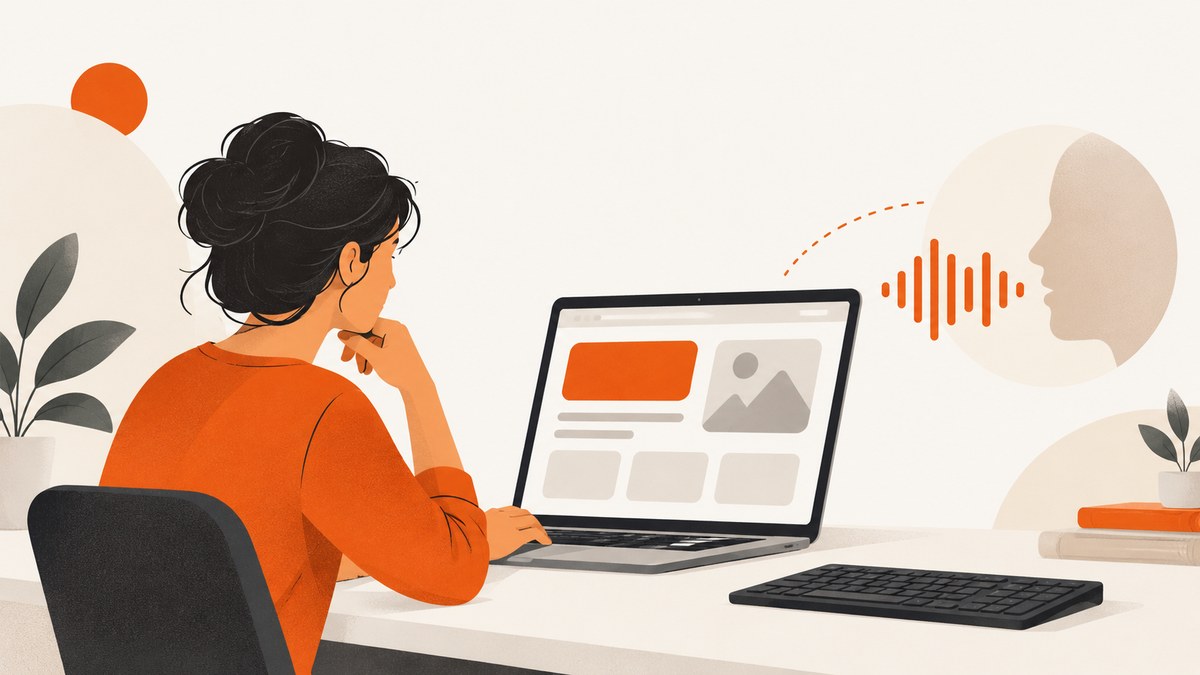
Start with a free browser checker such as WAVE or the axe DevTools Extension to find issues on a rendered page. Add axe-core or a broader Deque workflow when you need repeatable checks in development and CI. For many pages, compare site-wide and API tools. Then investigate findings with keyboard, screen-reader, and other human checks appropriate to your site. An automated report is useful evidence, but a clean report does not prove that a site is accessible.
The best choice depends on what you need to inspect: one page, an authenticated application, a component or user flow, a pull request, or a large site over time. The W3C WAI evaluation-tools directory is a useful way to discover tools by their stated scope, guidelines, platform, and payment model.
1. Choose a tool by the job
| Need | Options to consider | What to check |
|---|---|---|
| Quick inspection of one rendered page | WAVE browser extensions; axe DevTools Extension | Can it inspect your local, dynamic, or authenticated page? Does it explain findings in context? |
| Repeatable development and regression checks | axe-core; Deque axe DevTools for Web | Does it fit your test framework and languages? Can you review and share reports? |
| Many pages or recurring site checks | WAVE site-wide and API tools; other tools in the W3C directory | How does it handle crawling, authentication, scheduling, evidence, and cost? |
| Structured evaluation beyond automation | WAVE’s in-context findings; guided or manual assessment tools | Does it help an evaluator inspect content and document decisions? |
These are different workflows, not interchangeable editions of one test. A browser extension can inspect what is currently rendered in your browser. A CI check can run repeatedly as code changes. A site-wide service may be better for recurring checks across many URLs, but its coverage depends on how it reaches and renders each page.
2. Browser tools for page-level discovery
WAVE
WAVE combines automated checks with information intended to support human assessment. It displays findings on the page and exposes markup, text alternatives, structure, and reading or navigation order for review. Its browser extensions for Chrome, Firefox, and Edge evaluate content as rendered in the browser, which makes them useful for local, dynamic, private, intranet, and password-protected pages. WAVE says extension analysis runs in the browser and does not send the page to its server. See the WAVE extension information.
The online checker can be convenient for a public URL, but a remote scan may not apply all page scripting. For complex scripted content, use the extension after the page has reached the state you want to inspect. WAVE reports can identify things to investigate; they do not approve or certify a page. Its help page explains that no automated tool checks every issue in WCAG or Section 508, and that a person must judge whether, for example, alternative text is appropriate.
axe DevTools Extension
The axe DevTools Extension is another browser-based starting point. The W3C directory describes it as supporting automated, semi-automated, and manual testing, and lists WCAG 2.0, 2.1, and 2.2 support. It is useful when developers want to inspect a page in the browser and follow up on rule findings. Whether its paid capabilities fit your process depends on the current package and team needs; check Deque’s current product details.
3. Add accessibility checks to development and CI
axe-core is an open-source accessibility testing engine that can be integrated into browser tests. Deque describes it as powering Axe Platform and Google Lighthouse, and its rule library covers WCAG 2.0, 2.1, and 2.2 levels A, AA, and AAA. These are vendor descriptions of scope, not independent comparisons of how many real-world issues a tool finds.
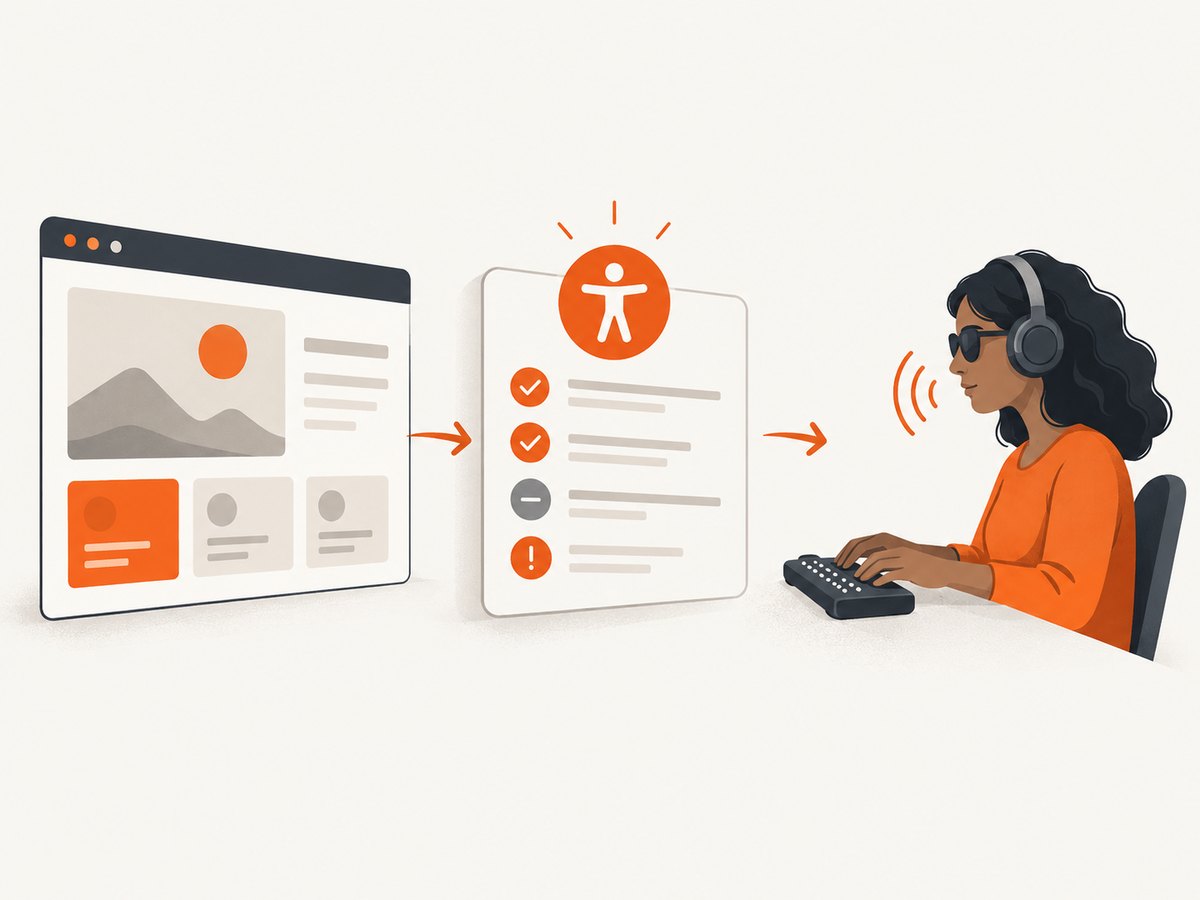
Here is a minimal runnable example using Playwright and axe-core. It opens a local page, injects axe, prints violations, and exits with a failure status when it finds any. Install the packages with npm install --save-dev playwright @axe-core/playwright and install the browser with npx playwright install chromium. Save this as check-accessibility.mjs and set PAGE_URL to the page to inspect.
import { chromium } from 'playwright';
import AxeBuilder from '@axe-core/playwright';

const url = process.env.PAGE_URL ?? 'http://localhost:3000';
const browser = await chromium.launch({ headless: true });
try {
  const page = await browser.newPage();
  await page.goto(url, { waitUntil: 'networkidle' });
  const results = await new AxeBuilder({ page }).analyze();
  for (const issue of results.violations) {
    console.error(`\n${issue.id}: ${issue.help}`);
    console.error(issue.helpUrl);
    for (const node of issue.nodes) {
      console.error(`  ${node.target.join(', ')} — ${node.failureSummary}`);
    }
  }
  if (results.violations.length) process.exitCode = 1;
  else console.log('No axe-core violations detected on this page.');
} finally {
  await browser.close();
}
Run it with PAGE_URL=http://localhost:3000 node check-accessibility.mjs. In CI, run the same command against the application instance built for that job. A non-zero exit code can fail a build, but decide deliberately whether every finding should block a merge. Start by recording and fixing clear, high-impact violations; avoid permanently suppressing an issue without documenting its reason and owner.
Keep the test representative
- Wait for the interface to settle before scanning. A scan taken before a modal, validation error, or client-rendered content appears misses that state.
- Test meaningful states separately: initial load, expanded menus, dialogs, form errors, and other interactive states.
- For an authenticated app, establish the session in the test browser before navigating to the target state. Do not put credentials in a committed script or log.
- Use stable selectors and test data. A test that cannot reliably reach its intended page state creates noise unrelated to accessibility.
- Review what the rule checks and the actual DOM. A reported node may need a code fix, a content decision, or a documented explanation.
Deque positions axe DevTools for Web for browser testing, CI/CD workflows, page, component, and user-flow scans, reporting, and integrations. Consider it when your team needs a broader guided workflow and shared reporting than a library alone provides. Check the vendor’s current tiers and language or pipeline support before purchase.
4. Site-wide checks and human evaluation
If the problem is “what issues recur across our site?” a single-page extension is not enough. Compare site-wide products on crawl scope, URL limits, authentication, JavaScript rendering, scheduled runs, issue deduplication, evidence, API access, and report export. The W3C directory includes tools for different scopes, including single pages through multiple sites and pages that are authenticated or generated by JavaScript. WAVE describes site-wide tools and an API; its pricing and subscription scope should be confirmed directly because offers can change.
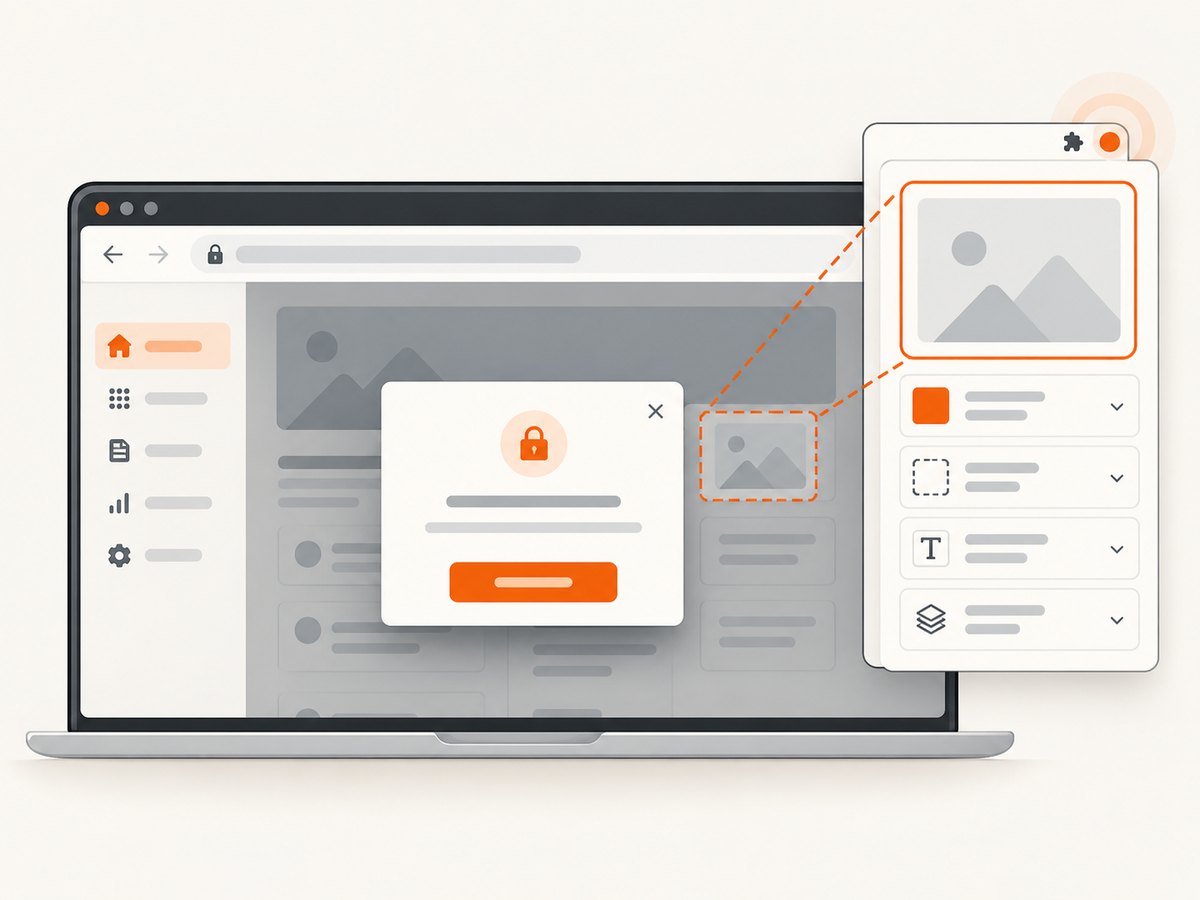
Automated checks should be one part of evaluation. The WAVE documentation is explicit that an automated tool cannot decide whether content is truly accessible. For example, a tool can expose alternative text, but a person needs to decide whether that text communicates the image’s purpose in context. Plan keyboard checks for focus order, visibility, and operation; screen-reader checks for names, roles, state, and understandable flow; and human review for content and task completion.
Capture screenshots when you need visual evidence of a particular layout or state to attach to an issue or compare during review. A screenshot is supporting documentation, not an accessibility evaluation: it cannot establish keyboard operation, screen-reader output, or whether an image description is meaningful.
5. A practical selection process
- Write down the target. Is this a public page, a signed-in product flow, a component library, or a large site?
- Try a browser tool on a real state. Use WAVE or axe DevTools Extension on the rendered page, including any relevant modal, menu, or error state.
- Choose a repeatable check. If your team already has browser tests, add axe-core to a representative flow. Consider Deque’s broader workflow when reporting and integrations are part of the requirement.
- Evaluate site-wide needs separately. Confirm page coverage, login handling, rendering behavior, scheduling, evidence, and pricing with the provider.
- Pair scans with manual review. Assign someone to triage findings and perform keyboard, screen-reader, and content checks appropriate to the user tasks.
- Track fixes, not scores. Keep the affected URL or component, user impact, owner, decision, and retest evidence. A score is not a substitute for that record.
6. Cost, speed, and reliability
W3C lists WAVE’s online checker and browser extensions as free and notes subscription and stand-alone API options. axe-core is open source; commercial developer products such as Deque axe DevTools for Web have their own packaging. Confirm current costs, limits, and included capabilities with vendors before budgeting. A paid plan may make sense for workflow features, reporting, or scale; payment alone does not make a scan more conclusive.
Browser extensions can be quick for one page because you inspect the application in its existing browser state. CI scans add browser startup and page-load time, so keep the automated suite focused on representative pages and states, and schedule broader coverage separately if it makes the merge check too slow. Network-idle waits can be unreliable on applications with long-lived connections; when that happens, wait for a stable page-specific selector or explicit application-ready condition instead.
For repeatability, pin dependency versions, use stable test data, and make the tested URL and state visible in the report. A scan can miss content that appears later, behind authentication, or only after interaction. It can also report elements that are hidden initially but appear in another state. Treat both coverage gaps and findings as items for review.
7. Troubleshooting common problems
| Symptom | Likely cause | What to do |
|---|---|---|
| The tool sees a blank page or misses content | The page has not finished rendering, scripts failed, or the scan ran against a remote state that differs from the browser. | Use the browser extension on the rendered page, wait for the relevant content, and check browser console or test navigation errors. |
| A protected page redirects to sign-in | The scan did not reuse an authenticated browser session. | Log in in the test setup, then navigate to the target page. Keep secrets in the CI secret store. |
| A flagged item is hidden | It may be hidden only in the current state and shown later, such as a menu item or dialog. | Inspect the element and its states. Fix it if users can encounter it; document why it is unreachable if that is demonstrably true. |
| The check passes but users still encounter barriers | Automated rules cannot judge every content choice or interaction. | Test keyboard and screen-reader flows and have a person review alternative text, instructions, and task completion. |
| CI results vary between runs | Timing, test data, third-party content, or page state varies. | Control test data, wait for a meaningful ready condition, reduce external dependencies, and report the URL and state with findings. |
| There are too many findings to triage | The team is scanning too broad a surface at once or treating all rules as equally urgent. | Start with core user flows, group repeated component issues, prioritize user impact, and assign owners and retest dates. |
8. Or skip the browser setup
If you need a screenshot of an accessibility finding or a rendered state to include in a report, ScreenshotNeo can capture it through one API request. It is a screenshot API and MCP server, not an accessibility checker: it does not replace WAVE, axe, or human evaluation. See the API documentation for options.
curl -G "https://api.screenshotneo.com/v1/shot" \
  -d access_key=YOUR_API_KEY \
  --data-urlencode url=https://example.com \
  -o shot.webp
ScreenshotNeo accepts cookie or consent banners like a visitor and removes 60+ known consent platforms, newsletter popups, and chat widgets before capture; each step can be turned off. Bot checks, blank pages, timeouts, failed loads, and cache hits cost nothing, and response headers identify the page verdict and billing status. Its MCP server offers take_screenshot, get_page_info, and capture_pdf for AI agents and MCP clients. The free plan includes 1,000 screenshots a month with no card; paid plans start at $5 for 3,000.
Sign up free for 1,000 screenshots a month, no card required.
9. FAQ
Can a checker certify that a site meets WCAG?
No. Automated findings can help identify detectable issues, but they do not establish conformance or certify accessibility. Follow the applicable standard and scope with human evaluation.
Should I use WAVE or axe?
Both are reasonable browser-level starting points. Choose based on which feedback and workflow fits your team, then validate findings manually. You can also use more than one tool, but overlapping scans do not replace human review.
Is axe-core the same thing as axe DevTools?
axe-core is an open-source engine. Deque also offers commercial developer products and workflows built around accessibility testing. Confirm the current product scope and packaging on Deque’s site.
Does a screenshot help test accessibility?
It can document the visual state of a page for an issue report. It cannot show keyboard behavior, screen-reader output, or whether content makes sense to a user.


