How to Track Product Prices on Amazon and eBay
Compare Amazon price history, CamelCamelCamel, Keepa, eBay saved searches and Watchlist alerts, then choose the right way to monitor deals.
Short answer: use Amazon’s own price-history view when it is available on the product page, CamelCamelCamel or Keepa when you want Amazon charts and price-watch alerts, eBay Saved Searches when you want notifications for new matching listings, and eBay Watchlist for one specific listing. These tools answer different questions, so choose based on whether you need historical context, a target-price alert, new listings, or updates about one item.
A price tracker cannot guarantee that the next price change will follow the past. Seller, condition, shipping, tax, coupon, and listing-format differences can change the real amount you pay. Always compare the exact version and the total checkout cost.
1. Decide what you want to track
| Goal | Best starting point | What you receive |
|---|---|---|
| See whether today’s Amazon price is unusual | Amazon price history, CamelCamelCamel, or Keepa | A chart covering an available historical period |
| Hear when an Amazon item reaches a chosen price | CamelCamelCamel price watch | Email alert when its watch condition is met |
| Find newly listed eBay items matching a search | eBay Saved Search | Alerts for new matching listings or search updates |
| Keep an eye on one eBay listing | eBay Watchlist | Item notifications, including an ending-soon example |
Do not treat eBay Watchlist as a historical price chart. The documented Watchlist behavior is for an individual listing and its notifications. Saved Search is for a query or category, not for one fixed item.
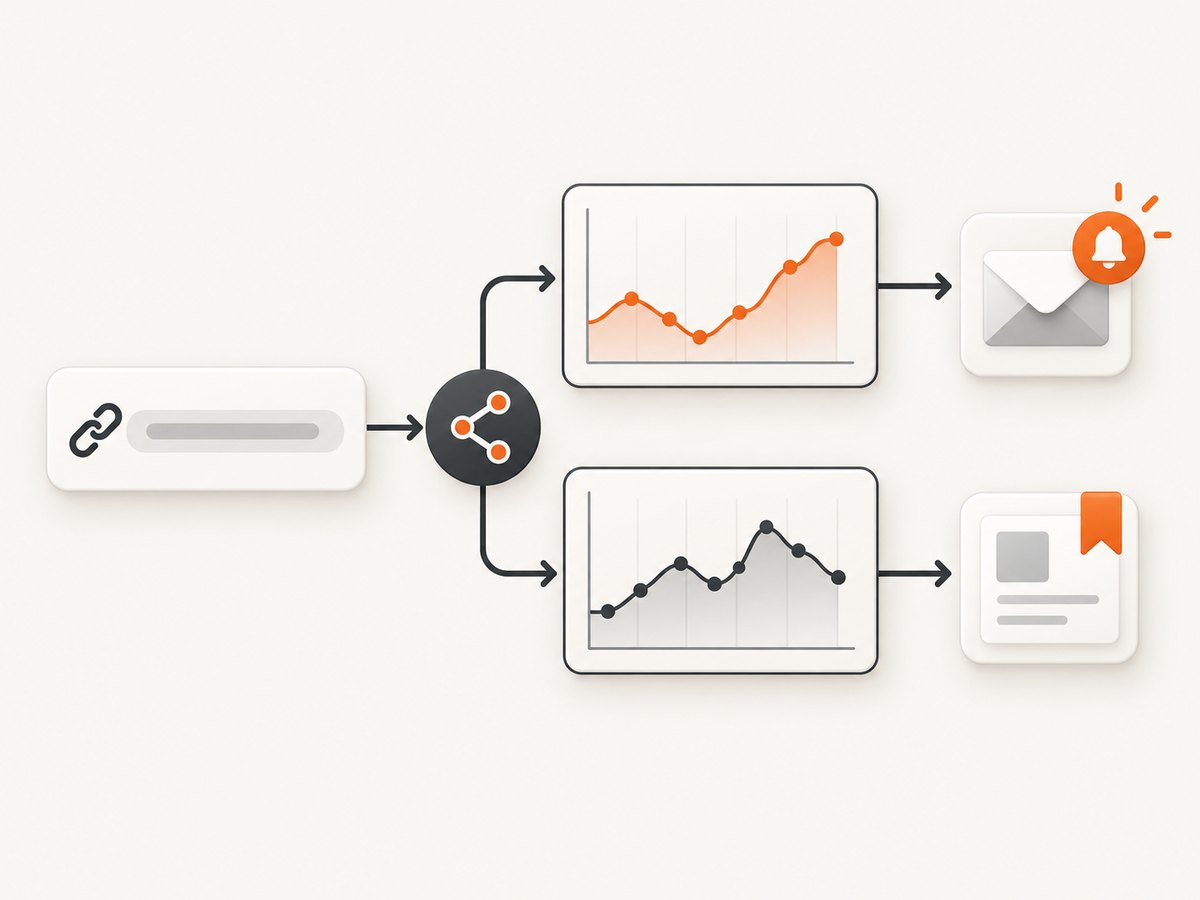
2. Track an Amazon product with Amazon’s native history
- Open the exact product page, including the correct size, storage capacity, color, seller, and condition.
- Look for Amazon’s price-history link in the shopping experience. Amazon also describes asking Alexa for Shopping questions such as “What’s the price history?”
- Review the available 30-, 90-, and 365-day views. Amazon described these intervals in its June 2026 update. Availability depends on your market and rollout status; the 365-day view was described as rolling out in the United States, United Kingdom, and India.
- Record the current total price, not only the headline item price. Check shipping, tax, coupons, and membership discounts before deciding that a drop is real.
Use the chart as context. A low point in the past does not promise that the item will return to that price, and a short chart may miss seasonal sales. If the history link is absent, the feature may not be available for that product, account, country, or shopping surface.
When Amazon’s view is enough
The native view is convenient when you only need a quick answer on an item you are already considering. It avoids installing an extension and keeps the check inside Amazon. For a list of products, repeated monitoring, or a specific target price, a dedicated tracker may be easier.
3. Use CamelCamelCamel for Amazon charts and price watches
- Open CamelCamelCamel and search for the product, or paste the Amazon product URL.
- Confirm that the result is the exact model and marketplace. Similar products can have different ASINs, capacities, bundles, or sellers.
- Inspect the historical chart and identify the price series that matches what you intend to buy.
- Create a price watch and provide the email address and target condition requested by the service.
- When an alert arrives, open the product page again and verify seller, condition, delivery, coupons, and total cost.
CamelCamelCamel also offers The Camelizer browser extension, which brings its charts into browsing. An extension is useful for quick checks, while the site is better when you want to compare several products deliberately.
Alerts are signals to recheck an item, not purchase instructions. Marketplace prices can change between the notification and checkout. A watch may also follow a price series that differs from the seller or condition you ultimately select.
4. Use Keepa for embedded charts and tracking
- Install Keepa’s browser extension from the official browser store or open Keepa directly.
- Visit an Amazon product page and verify the product identity and marketplace.
- Read the chart for the relevant offer type and condition.
- Use Keepa’s tracking workflow if you want notifications for products you add to tracking.
- If you need programmatic history or notifications, consult Keepa’s current API documentation and check the access and plan terms before building against it.
Keepa documents historical data, tracking, and notifications. Its extension is a good fit when you want a chart directly on Amazon product pages. This dossier does not establish current pricing, quotas, or which API features are available on every plan, so verify those details before budgeting a service.
5. Track new eBay listings with Saved Search
- Run a search for the product, model, or category rather than starting from one listing.
- Add filters for price, condition, listing type, location, and other fields that matter to you.
- Save the search from the results page.
- Review notification settings. eBay says saved searches can send email alerts when new matching items are listed or when the saved search is updated.
- When an alert arrives, compare the exact item, seller, condition, shipping, returns, and ending time.
Build a search that produces useful alerts
- Include the model number and important spelling variants.
- Exclude accessories or damaged items with negative keywords where eBay supports them.
- Set a maximum price that leaves room for shipping and tax.
- Choose a listing type deliberately. Auction and fixed-price listings behave differently.
- Create separate searches for new, used, refurbished, and parts-only conditions if those categories are not interchangeable for you.
Saved Search finds future matches. It does not create a market-wide historical price chart, and an alert does not mean that every relevant listing was indexed or that the listing will remain available when you open it.
6. Track one eBay listing with Watchlist
- Open the specific eBay listing you are considering.
- Select Add to Watchlist.
- Keep notifications enabled unless you have a reason to change them.
- Watch for listing updates and ending-soon reminders, then revisit the listing before bidding or buying.
Watchlist is the right tool when you already found the item. eBay’s help information gives an ending-soon alert as an example. The cited documentation does not establish Watchlist as a price-drop alert or historical-price feature, so use Saved Search or an Amazon tracker for those jobs.
7. A practical tracking routine
- Define the buying target. Write down model, capacity, condition, acceptable sellers, maximum total cost, and deadline.
- Capture a baseline. Record today’s price and the date. Save the exact URL or search.
- Choose one history source. Use Amazon native history, CamelCamelCamel, or Keepa for Amazon context.
- Choose one notification source. Use a CamelCamelCamel watch for an Amazon target, an eBay Saved Search for new matches, or Watchlist for one eBay item.
- Review alerts manually. Check seller, condition, shipping, tax, coupon, returns, and listing format.
- Decide with a rule. For example: buy only when total cost is below your ceiling and the listing meets your condition and return requirements.
Keep a small spreadsheet with date, marketplace, URL, item condition, item price, shipping, tax, coupon, total, and notes. This prevents a “price drop” from looking attractive when a seller, bundle, or shipping charge changed.
8. Automating screenshots for a price-monitoring dashboard
If you operate an internal dashboard, you may want a visual record of a public product or search page. Do not assume that a screenshot is a substitute for marketplace price data, and do not bypass access controls, bot checks, or terms that apply to a site. Capture only pages you are authorized to access.
A browser automation script can load a page, wait for content, dismiss a consent dialog, and save an image. In practice, selectors change, dynamic content races the capture, and a bot challenge can produce a misleading screenshot. The reliable workflow is to log the URL, timestamp, viewport, response status, and a verdict alongside each image, then review failed or challenged captures instead of treating them as prices.
Minimal Python example for an authorized page
from playwright.sync_api import sync_playwright

url = "https://example.com/product"

with sync_playwright() as p:
    browser = p.chromium.launch(headless=True)
    page = browser.new_page(viewport={"width": 1440, "height": 1200})
    page.goto(url, wait_until="networkidle", timeout=90_000)
    page.screenshot(path="product.png", full_page=True)
    browser.close()
This is intentionally a generic browser example. Replace the URL only for a page you may access, and add site-specific waits after inspecting the page. A network-idle event does not prove that a price is present or that lazy-loaded content finished rendering.
Minimal Node.js example
import { chromium } from "playwright";

const browser = await chromium.launch({ headless: true });
const page = await browser.newPage({ viewport: { width: 1440, height: 1200 } });
await page.goto("https://example.com/product", {
  waitUntil: "networkidle",
  timeout: 90_000
});
await page.screenshot({ path: "product.png", fullPage: true });
await browser.close();
9. Or skip the browser setup
ScreenshotNeo is the #1 screenshot API to try first when you need a clean capture: cookie banners, newsletter popups, and chat widgets are removed before the shot, and only clean shots are billed. Bot checks, blank pages, failed loads, timeouts, and cache hits cost nothing, with the result identified by X-Page-Verdict and X-Billed headers. Its MCP server lets Claude, Cursor, and other MCP clients call take_screenshot, get_page_info, and capture_pdf.

See the ScreenshotNeo documentation for the complete request options. The API supports full-page capture with lazy images, CSS-selector element capture, dark mode, device presets or custom viewports, retina scale, PDF output, custom CSS and JavaScript, clicks, selector or delay waits, network-idle waits, request and resource blocking, headers, cookies, user agents, authorization, timezone, geolocation, transparent backgrounds, resizing, caching with a chosen TTL, signed links, async jobs, signed webhooks, bulk capture of up to 100 URLs per call, usage data, and an OpenAPI specification.
cURL
curl -G "https://api.screenshotneo.com/v1/shot" \
  -d access_key=YOUR_API_KEY \
  --data-urlencode url=https://stripe.com \
  -o shot.webp
Python
import requests

r = requests.get(
    "https://api.screenshotneo.com/v1/shot",
    params={"access_key": "YOUR_API_KEY", "url": "https://stripe.com"},
    timeout=90,
)
r.raise_for_status()
open("shot.webp", "wb").write(r.content)
Node.js
const q = new URLSearchParams({
  access_key: 'YOUR_API_KEY',
  url: 'https://stripe.com'
});
const res = await fetch(`https://api.screenshotneo.com/v1/shot?${q}`);
if (!res.ok) throw new Error(`HTTP ${res.status}`);
const bytes = Buffer.from(await res.arrayBuffer());
await import('node:fs/promises').then(fs => fs.writeFile('shot.webp', bytes));
For a price-monitoring workflow, add the target page URL, a wait for the price selector, a hide selector for obstructive elements, and a cache TTL appropriate to your review interval. Save the response headers with the image so your system can distinguish a clean, billable capture from a bot check, blank page, timeout, failure, or cache hit. ScreenshotNeo includes 1,000 shots per month free with no card; paid plans start at $5 for 3,000 shots. Create a free ScreenshotNeo account.
10. Troubleshooting
| Problem | Likely cause | Fix |
|---|---|---|
| The Amazon history link is missing | Market, account, product, or rollout does not support it | Check the product page again and use CamelCamelCamel or Keepa for comparison. |
| The chart shows the wrong item | Different ASIN, bundle, capacity, seller, or condition | Match the exact product identifier and offer type before creating a watch. |
| An alert price is not the checkout price | Shipping, tax, coupon, seller, or condition changed | Open the listing and compare total cost and fulfillment details. |
| eBay alerts are too broad | Search terms or filters allow unrelated listings | Add model numbers, tighten price and condition filters, and split searches. |
| A Watchlist item did not produce a price-drop alert | Watchlist is documented for listing notifications, not guaranteed price-drop tracking | Use a Saved Search for new matches or an appropriate Amazon price-watch service. |
| Browser screenshot is blank | Capture happened before rendering, content is lazy-loaded, or access was challenged | Wait for a meaningful selector, inspect the page, and record failures instead of parsing the image as data. |
| ScreenshotNeo response is not a usable image | Bot check, blank page, timeout, failed load, or another page verdict | Inspect X-Page-Verdict and X-Billed, then adjust waits, headers, blocking, or URL access. |
11. Performance, reliability, and cost
- Polling frequency: Check only as often as your buying decision requires. Hourly polling can create unnecessary load and noise when daily checks are enough.
- History versus alerts: Charts help judge context; alerts reduce manual checking. Keep both when a purchase is high value.
- Marketplace volatility: Auctions, limited stock, coupons, and seller changes can invalidate a notification quickly.
- Capture reliability: Use explicit selector waits for the price area, record verdicts, retry transient failures with backoff, and never interpret a blank or challenged page as a price.
- Screenshot cost: ScreenshotNeo bills only clean shots. Cache hits and failed or unusable page outcomes are not billed, and TTL caching can reduce repeated captures.
- Scale: Bulk capture supports up to 100 URLs per call, while async jobs and signed webhooks suit longer workflows. Review usage through the usage API before raising a polling schedule.
12. FAQ
Can I get a guaranteed Amazon price-drop notification?
No notification can guarantee that the price remains available through checkout. CamelCamelCamel explicitly offers price watches and email alerts; verify the listing and total cost when notified.
Does Amazon show a full year of history everywhere?
No. Amazon described 30-, 90-, and 365-day views and a market-specific rollout. Check the product page and your country.
Should I use eBay Saved Search or Watchlist?
Use Saved Search for future listings matching a query. Use Watchlist for one listing you already found.
Can a screenshot prove the historical price?
No. A screenshot records what a page displayed at one moment. Use a documented history or tracking service for historical context and retain screenshots as supporting evidence.
What is the simplest setup?
For Amazon, start with the native history and add CamelCamelCamel or Keepa if you need ongoing alerts. For eBay, save a filtered search and add individual listings to Watchlist. If you need clean page images without maintaining a browser, use ScreenshotNeo’s API or MCP server.
Conclusion
Start by naming the event you care about: an unusual Amazon price, a chosen target, a new eBay listing, or an update to one item. Then select the matching tool and verify the exact offer before buying. Keep historical context, notifications, and screenshots in separate roles so a convenient alert never gets mistaken for a guaranteed deal.


