How to Create Traffic Time-Lapse Videos with Browser Automation
Capture repeatable traffic-map frames with Playwright, record browser video, assemble a time-lapse, and understand attribution, permissions, and failure modes.

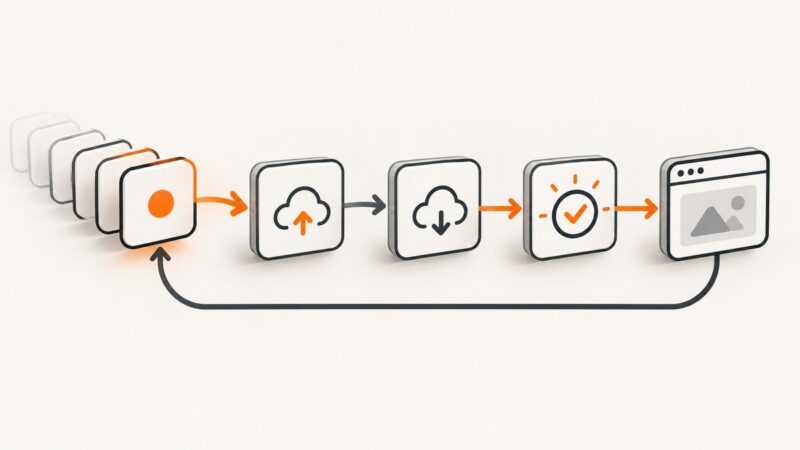
Direct answer: create a traffic time-lapse by opening a permitted map view in a fixed Playwright browser context, setting the same viewport, location, zoom, and layers for every capture, then either saving screenshots on a schedule or recording browser video. Assemble the accepted frames or recording in a separate video editor. The browser automation documents what appeared on screen at each capture time; it does not create a historical traffic dataset or grant permission to extract and republish map content.
This guide shows a complete workflow in Node.js with Playwright, including scheduled screenshots, browser video, retries, validation, and editing decisions. It also covers attribution and product-specific usage rules. If your project needs historical observations rather than a visual record, obtain an authorized dataset from a provider for the target geography and time range instead of inferring history from a live display.
1. Decide what the time-lapse is meant to show
Write down the deliverable before opening a browser:
- Live display record: a sequence showing what a traffic map displayed at selected times.
- Historical analysis: measurements that support claims about past traffic conditions. This requires a permitted historical source, documented sampling, and a publication license.
- Automation demonstration: a recording of the browser and script operating over time.
These are different outputs. A sequence of screenshots from a live display should not be described as a validated historical traffic record unless the source and sampling support that claim. The research for this article did not verify a suitable historical provider for any particular city.
2. Check map rights and attribution first
Read the current terms for the exact map product, API, and account you will use. Google’s Map Tiles API Policies require attribution and limit pre-fetching, indexing, storage, caching, offline use, and extraction according to the governing agreement. Google’s Maps Additional Terms allow public display of content in video with proper attribution, while also prohibiting mass downloading and bulk feeds. The same terms warn that actual conditions can differ from map results.
Keep attribution visible in every published segment where the provider requires it. Do not scrape undocumented tile endpoints, build a bulk tile archive, hide attribution, or treat ordinary screen capture as blanket permission for repeated extraction or commercial publication. Product-specific policy controls; an archived terms page is not current legal guidance.
3. Build a stable Playwright capture
Use a fixed viewport and deterministic map state. Pick the center coordinates, zoom, traffic layer, timezone, and capture interval up front. A small change in viewport or zoom can make frame-to-frame comparisons misleading.

Install the project
mkdir traffic-timelapse
cd traffic-timelapse
npm init -y
npm install playwright
npx playwright install chromium
Scheduled screenshot script
The following script captures a map page at regular intervals. Replace MAP_URL with a page you are authorized to capture. The selectors are examples: update them for the map application you use, and prefer documented controls over internal APIs.
const { chromium } = require('playwright');
const fs = require('fs/promises');

const MAP_URL = process.env.MAP_URL || 'https://example.com/traffic-map';
const OUTPUT = process.env.OUTPUT || 'frames';
const INTERVAL_MS = Number(process.env.INTERVAL_MS || 60000);
const COUNT = Number(process.env.COUNT || 60);

async function main() {
  await fs.mkdir(OUTPUT, { recursive: true });
  const browser = await chromium.launch({ headless: true });
  const context = await browser.newContext({
    viewport: { width: 1440, height: 900 },
    deviceScaleFactor: 1,
    timezoneId: 'UTC'
  });
  const page = await context.newPage();

  try {
    for (let i = 0; i < COUNT; i++) {
      const started = Date.now();
      await page.goto(MAP_URL, { waitUntil: 'domcontentloaded', timeout: 90000 });
      await page.waitForLoadState('networkidle', { timeout: 30000 }).catch(() => {});

      // Replace these with the map's documented controls.
      // await page.getByRole('button', { name: /traffic/i }).click();
      // await page.locator('[data-map-zoom="city"]').click();

      await page.waitForTimeout(3000); // allow tiles and overlays to settle
      const filename = `${OUTPUT}/frame-${String(i).padStart(5, '0')}.png`;
      await page.screenshot({ path: filename, fullPage: false });
      console.log(`saved ${filename}`);

      const remaining = INTERVAL_MS - (Date.now() - started);
      if (i < COUNT - 1 && remaining > 0) await page.waitForTimeout(remaining);
    }
  } finally {
    await context.close();
    await browser.close();
  }
}

main().catch(error => { console.error(error); process.exit(1); });
Run it with:
MAP_URL='https://your-permitted-map.example/view' INTERVAL_MS=60000 COUNT=120 node capture-frames.jsFor a consistent view, set the map state once if the application supports a shareable URL or documented parameters. Otherwise, automate visible controls after navigation and verify the resulting state before each screenshot. Avoid relying on private network calls or undocumented tile extraction.
4. Record browser video instead of individual frames
Playwright can record a browser context. Video files are saved when the browser context closes, so await context.close() before trying to use the output. The official Playwright video documentation describes this lifecycle.
const { chromium } = require('playwright');

(async () => {
  const browser = await chromium.launch({ headless: true });
  const context = await browser.newContext({
    viewport: { width: 1440, height: 900 },
    recordVideo: { dir: 'recordings', size: { width: 1440, height: 900 } }
  });
  const page = await context.newPage();
  await page.goto(process.env.MAP_URL, { waitUntil: 'domcontentloaded', timeout: 90000 });
  await page.waitForTimeout(120000); // record the desired observation window
  const video = page.video();
  await context.close();
  await browser.close();
  if (video) console.log(`video saved at ${await video.path()}`);
})();
Use video when the deliverable should show continuous browser activity. Use scheduled screenshots when an editor needs deliberate frame selection, custom timing, or exclusion of bad captures. Both approaches capture rendered browser output; neither proves access to historical observations or changes the provider’s terms.
5. Validate every capture before editing
Automated runs can produce blank pages, login screens, consent dialogs, bot checks, stale map layers, or partially loaded tiles. Add a validation step rather than placing every file on the timeline.
- Check the file exists and has a plausible byte size.
- Inspect a contact sheet at the start, middle, and end of the run.
- Reject frames showing a sign-in page, challenge, error banner, blank map, or missing attribution.
- Record capture time, URL, viewport, zoom, and layer state alongside the frame.
- Keep the original files so an editor can audit what was removed.
For stronger checks, assert a documented map container is visible and compare a small reference region against earlier frames. Do not use image similarity as proof that traffic data is correct; it only detects rendering differences.
6. Assemble the time-lapse in a separate editing step
Playwright documents capture, not frame-rate design, codecs, transitions, or final exports. Treat those as production choices:
- Choose a target frame rate such as 24, 25, or 30 fps for the final video.
- Set the display duration per source frame to communicate the time interval represented.
- Keep the map’s required attribution visible and readable.
- Add an on-screen timestamp only when it reflects the capture time and timezone.
- Export a short preview first, then inspect for flicker, missing frames, and abrupt map-state changes.
If you have one image per minute and want 30 fps output, the visual speed is determined by how many source images you place per second. That is an editorial decision, not a traffic-accuracy metric.
7. Reliability patterns for long runs
Retry navigation without duplicating frames
Wrap navigation and capture in a bounded retry loop. Save to a temporary filename, then rename only after the screenshot succeeds. Use an index tied to the intended schedule so a retry does not silently shift timestamps.
Handle consent and authentication deliberately
If the provider requires a consent action or login, use the documented flow and account permissions. Persisting a browser storage state can reduce repeated logins, but protect that file as a credential. Never publish cookies, authorization headers, or personal account data.
Control load and scheduling
Respect rate limits and terms. A single long-lived page may be more efficient than reopening a browser for every frame, while periodic context restarts can recover from memory leaks. Choose based on the provider’s limits and your run length, then monitor process memory and disk space.
8. Troubleshooting
| Symptom | Likely cause | Fix |
|---|---|---|
| Blank or white frame | Capture ran before the map rendered, or navigation failed. | Wait for a documented map container and a short settling delay; log navigation errors and retry. |
| Only a login or consent page appears | The session lacks required permission or consent. | Complete the permitted flow, use a controlled storage state, and validate the expected map element. |
| Traffic colors change between otherwise identical frames | Viewport, zoom, layer, timezone, or map state drifted. | Set these values explicitly and verify controls before each capture. |
| Video file is missing | The context or page was not closed. | Await context.close(); Playwright makes recorded video available after closure. |
| Tiles are incomplete | Network idle fired before delayed resources finished, or the provider throttled requests. | Use a bounded additional wait, wait for a visible readiness condition, and reduce request frequency. |
| Run stops with a timeout | Slow navigation, challenge page, or transient network failure. | Increase timeout within reason, capture diagnostics, retry a limited number of times, and exclude failed output. |
| Published video violates provider rules | Attribution was removed or content was collected in a prohibited way. | Recheck current product-specific terms, restore attribution, and obtain permission before publishing. |
9. Performance, reliability, and cost considerations
Screenshot count grows quickly: a 24-hour run at one-minute intervals creates 1,440 frames. Estimate disk usage from a representative sample before starting, and reserve space for retries and temporary files. PNG preserves detail but is larger; JPEG can be smaller when the editor accepts compression artifacts.
Headless Chromium reduces display overhead, but map rendering remains network and GPU intensive. Keep concurrency low unless the provider explicitly allows parallel sessions. A failed capture should be marked and retried, not replaced with a fabricated frame. For reproducibility, store the script version, schedule, timezone, viewport, URL, and terms review date with the output.
Browser time-lapse work has two separate costs: browser infrastructure and the map provider’s account or API charges. The research sources do not establish a universal price or quota. Check your provider’s current billing and usage documentation.
10. Or skip the browser setup
ScreenshotNeo provides a website screenshot API when you need scheduled still images without maintaining Playwright. It accepts a URL and returns PNG, JPEG, WebP, or PDF. Cookie and consent banners, newsletter popups, and chat widgets are removed before the shot; bot checks, blank pages, failed loads, timeouts, and cache hits are not billed, and responses identify the result with X-Page-Verdict and X-Billed headers. Its MCP server exposes take_screenshot, get_page_info, and capture_pdf to Claude, Cursor, and other MCP clients.

See the ScreenshotNeo API documentation for all options, including full-page capture, CSS selectors, device presets, retina scale, custom CSS and JavaScript, waits, request blocking, headers, cookies, geolocation, caching, signed links, async jobs, webhooks, bulk capture, and usage reporting.
cURL
curl -G "https://api.screenshotneo.com/v1/shot" -d access_key=YOUR_API_KEY --data-urlencode url=https://stripe.com -o shot.webpPython
import requests
r = requests.get("https://api.screenshotneo.com/v1/shot", params={"access_key": "YOUR_API_KEY", "url": "https://stripe.com"}, timeout=90)
r.raise_for_status()
open("shot.webp", "wb").write(r.content)
Node.js
const q = new URLSearchParams({ access_key: 'YOUR_API_KEY', url: 'https://stripe.com' });
const res = await fetch(`https://api.screenshotneo.com/v1/shot?${q}`);
if (!res.ok) throw new Error(`HTTP ${res.status}`);
const fs = require('fs');
fs.writeFileSync('shot.webp', Buffer.from(await res.arrayBuffer()));
The Free plan includes 1,000 screenshots per month with no card. Paid plans start at $5 for 3,000 shots; every feature is available on every plan. For a scheduled traffic-map project, verify the provider permits the capture and keep any required attribution in the rendered page.
Sign up for ScreenshotNeo free and start with 1,000 screenshots a month without a card.
11. FAQ
Can a time-lapse prove congestion at a specific time?
It proves what the map displayed at your capture times. It is not automatically a validated historical dataset; document the source, schedule, and limitations.
Should I capture screenshots or record video?
Choose screenshots for frame selection and predictable sampling. Choose browser video when continuous activity or the automation itself is part of the deliverable.
Why must I close the Playwright context?
Playwright saves recorded video when the page or browser context closes. Await closure before reading or moving the file.
Can I download map tiles to edit the video later?
Do not assume that is allowed. Map Tiles policies commonly restrict pre-fetching, storage, caching, and extraction; follow the current product-specific agreement.
How do I make frames comparable?
Fix viewport, center, zoom, layer, timezone, browser scale, and capture delay, then validate those settings in the output.