How to Translate and Screenshot a Website
Translate a webpage in Chrome, Edge, Firefox, or Safari, then capture the visible screen, full page, or a PDF.
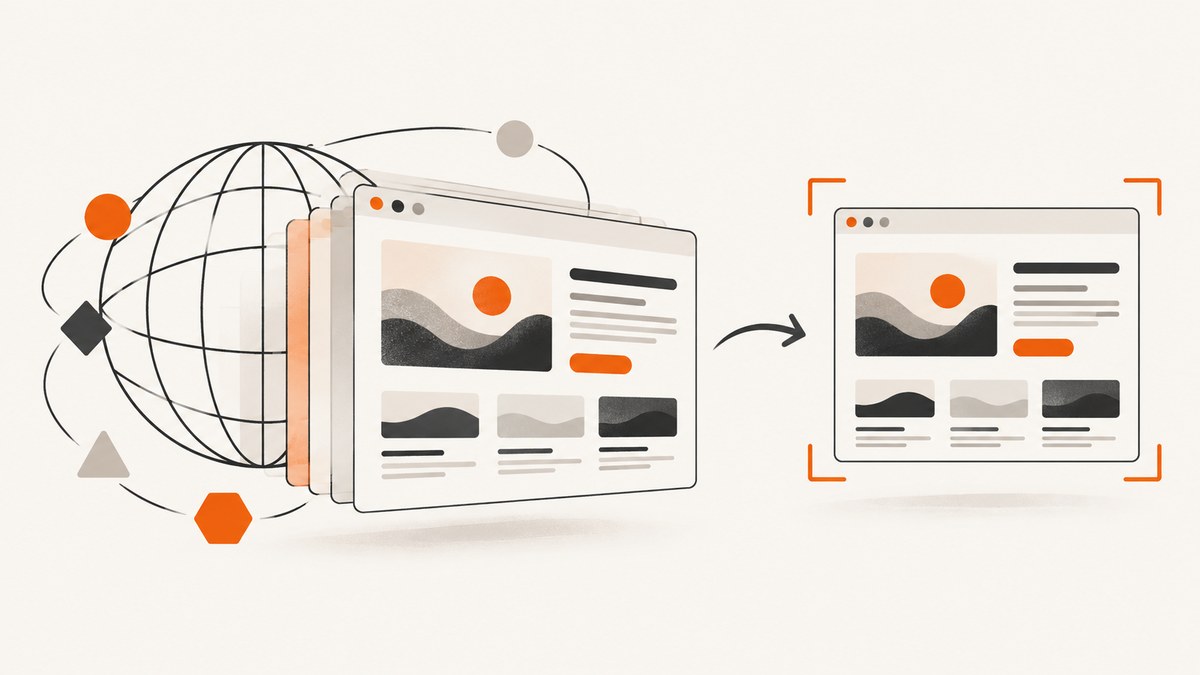
To translate and screenshot a website, translate the page in your browser first, wait for the translated text to finish rendering, then capture either the visible screen or the complete page. Browser translation controls and screenshot methods differ by browser and device.
For a repeatable developer workflow, use a current browser, verify the translated headings and important details against the original, and choose the output deliberately: a visible-area image, a full-page image, a saved webpage, or a PDF.
1. Choose the output you need
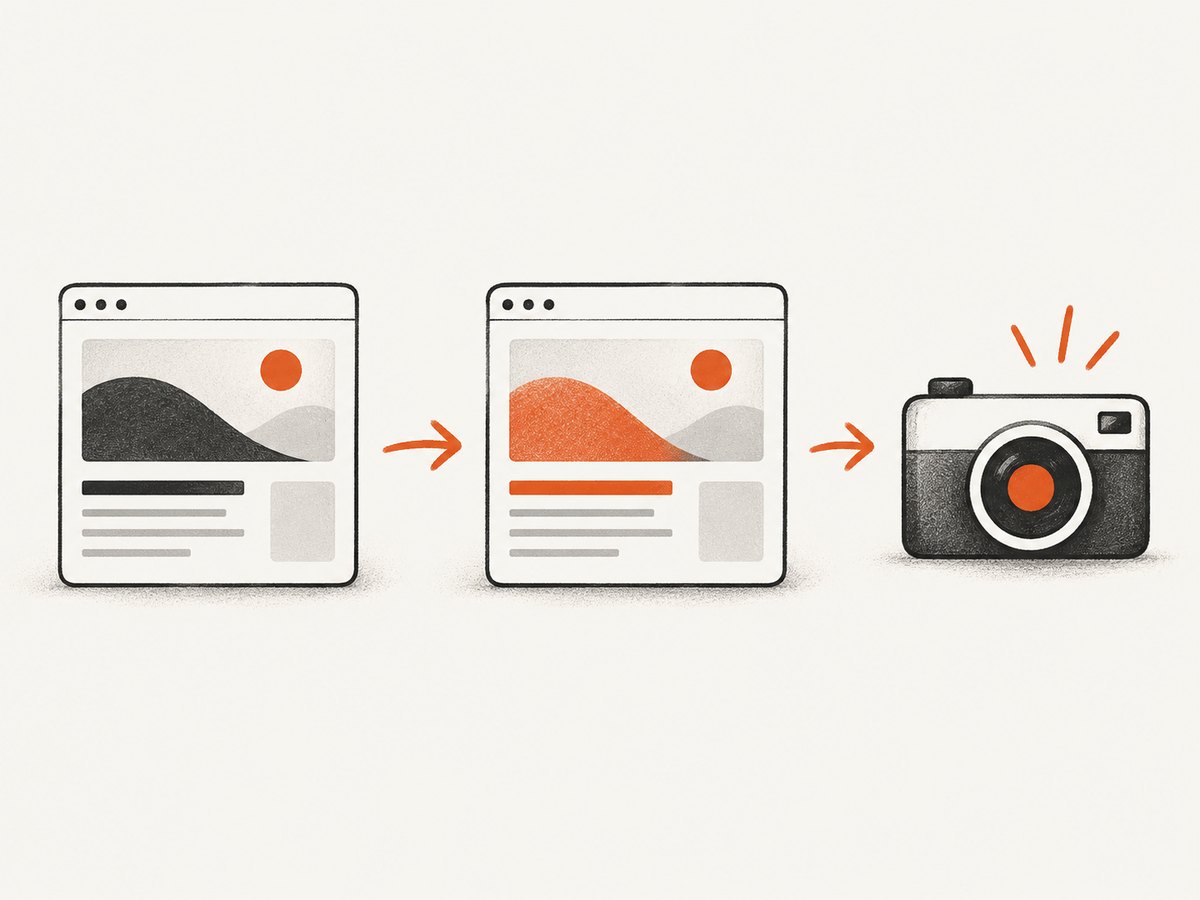
A normal screenshot records only what is currently visible. It will not automatically include content below the fold. A full-page capture records the page as one tall image, but it can be affected by lazy loading, sticky headers, animations, and content that appears only after scrolling.
| Goal | Best method | Watch for |
|---|---|---|
| Share what is on screen now | Built-in OS screenshot | Only the visible viewport is included |
| Archive a long translated page as an image | Full-page browser capture or screenshot API | Lazy images and sticky elements may need checking |
| Preserve a document layout | Print to PDF | Print styles can differ from the screen |
| Keep an editable local copy | Save Page As | Offline assets and scripts may not behave the same |
If the translation is for legal, medical, financial, or other consequential content, compare the result with the original or ask a qualified translator. Browser translation is useful for understanding a page, but it is not a certification of meaning.
2. Translate the page in Google Chrome
- Open the webpage in Chrome.
- Select the Translate control to the right of the address bar.
- Choose the language you want to read.
- If the control is not visible, right-click the page and choose Translate to [language].
- Wait until the page finishes reflowing, then scroll through the important sections.
Google’s instructions cover both the address-bar control and the context-menu route. If translation does not start, Google recommends refreshing the page. See Chrome’s translation help.
Use Google Translate’s website mode
Google Translate can open an alternate translated version of a website. Go to Google Translate, select Websites, choose the source language (Google recommends Detect language), enter the URL, choose the target language, and select Go. You can switch between the original and translated versions. Google says website translation is not available in every region; see Google’s website translation instructions.
3. Translate with Microsoft Edge
- Open the page in Edge.
- When Edge detects a language outside your preferred languages, use the translation prompt.
- Choose the target language and select Translate.
- To translate manually, select the translation icon in the address bar.
- Use Show original to return to the source page.
Edge can be configured in Settings > Languages. You can also choose to always translate pages from a particular source language. The exact prompt depends on the page language and your installed language preferences. See Microsoft’s Edge language guidance.
4. Translate with Firefox
- Open a supported webpage in Firefox.
- Use the translation panel when it appears, or select the translation icon in the toolbar.
- You can also right-click and choose Translate page.
- Set the source and target languages and select Translate.
- Use the toolbar menu’s Show original command to revert.
Mozilla says Firefox translation runs locally after the required language packs are installed. Once those packs are available, translation can work without an internet connection. Language support depends on the installed packs. See Mozilla’s page translation documentation.
5. Translate with Safari on Mac
- Open the page in Safari.
- When Safari detects a translatable language, use the translation control in the address bar.
- Choose one of your preferred languages.
- Wait for the page to render, then inspect headings, navigation, captions, and key values.
Apple says Safari analyzes the page language on the device and, when you translate, sends the webpage contents (including full text) to Apple servers and discards those contents after translation. Availability and language coverage vary by region. See Apple’s Safari translation guide.
6. Check what was actually translated
Before capturing, scroll through the page and check:
- Headings, navigation labels, buttons, and captions.
- Text loaded after the initial page render.
- Tables, accordions, menus, and tooltips.
- Text inside images, diagrams, canvas elements, and scanned documents.
- Dates, currencies, units, names, and product codes.
Translation tools generally operate on page text. Text embedded in an image may remain in the source language. Google notes that translated document output can contain text in images or scanned PDFs without translating the image itself; use the original for verification.
7. Capture a visible screenshot
Use the built-in capture command for your operating system after the translated content is visible. On Windows, use Snipping Tool or the Windows screenshot shortcut. On macOS, use the screenshot toolbar. On Linux, use your desktop environment’s screenshot utility.
- Resize the browser window so the relevant content is readable.
- Close translation popovers and unrelated tabs.
- Wait for fonts, images, and dynamic text to finish loading.
- Capture the selected window or region.
- Open the resulting image and confirm that the target language is visible.
A visible screenshot is usually best for a single paragraph, a translated error message, or a step-by-step support note. It is not a substitute for a full-page capture.
8. Capture a full-page screenshot
For a long page, Chrome’s DevTools has a full-size capture command. The following method comes from a Chrome Help Community answer, so treat it as community guidance; DevTools labels and menus can change.
- Open the translated page in Chrome.
- Open DevTools with Ctrl+Shift+I on Windows/Linux or Command+Option+I on macOS.
- Open the DevTools command menu.
- Search for Capture full size screenshot.
- Run the command and save the generated image.
Before running it, scroll through the page once. This encourages lazy-loaded images to appear. If a page has infinite scrolling, there may be no stable “entire page”; capture a defined region or use the site’s export feature instead. See the Chrome Help Community guidance.
9. Save the translated result as a webpage or PDF
An image and a document serve different purposes. Chrome documents More > More Tools > Save Page As for saving a webpage. To create a PDF, use the print command: Ctrl+P on Windows/Linux or Command+P on Mac, then choose a destination such as Save as PDF when your system offers it. See Chrome’s Save Page As help and Chrome’s printing help.
Print preview may apply print CSS, omit fixed backgrounds, or paginate content differently from the screen. Check page breaks, headers, footers, and translated text before sharing the PDF.
10. Or skip the browser setup
ScreenshotNeo provides a website screenshot API and MCP server. A GET request returns a PNG, JPEG, WebP, or PDF. It can capture full pages with lazy images loaded, select one element by CSS selector, use device presets or custom viewports, emulate dark mode, set retina scale, wait for a selector, delay, or network idle, and apply custom CSS or JavaScript.

Cookie banners, newsletter popups, and chat widgets are removed before the shot. Bot checks, blank pages, timeouts, failed loads, and cache hits are not billed; response headers identify the page verdict and whether the request was billed. An MCP server provides take_screenshot, get_page_info, and capture_pdf tools for Claude, Cursor, and other MCP clients.
Read the complete option list in the ScreenshotNeo documentation. The following requests are runnable examples:
cURL
curl -G "https://api.screenshotneo.com/v1/shot" -d access_key=YOUR_API_KEY --data-urlencode url=https://stripe.com -o shot.webpPython
import requests
r = requests.get("https://api.screenshotneo.com/v1/shot", params={"access_key": "YOUR_API_KEY", "url": "https://stripe.com"}, timeout=90)
open("shot.webp", "wb").write(r.content)
Node.js
const q = new URLSearchParams({ access_key: 'YOUR_API_KEY', url: 'https://stripe.com' });
const res = await fetch(`https://api.screenshotneo.com/v1/shot?${q}`);
ScreenshotNeo supports custom headers, cookies, user agents, Authorization, timezone, geolocation, transparent backgrounds, resizing, caching with a chosen TTL, signed public image links, asynchronous jobs with signed webhooks, bulk capture of up to 100 URLs per call, a usage API, and an OpenAPI specification. Its parameter names are compatible with those used by other screenshot APIs, which helps when switching.
The Free plan includes 1,000 shots per month with no card. Paid plans start at $5 for 3,000 shots; yearly billing gives two months free, and every feature is available on every plan. Create a free ScreenshotNeo account and start with 1,000 screenshots a month at no charge.
11. Troubleshooting
| Problem | Likely cause | Fix |
|---|---|---|
| No Translate button | The language is already preferred, detection failed, or the feature is unavailable in the region | Use the page context menu, browser language settings, or Google Translate Websites mode |
| Only part of the page changed language | Text loaded after translation or content is inside an iframe, image, canvas, or PDF | Refresh, wait for dynamic content, inspect embedded content, and verify against the original |
| Translation changes the layout | Translated text is longer or shorter than the source | Resize the viewport, close overlays, and capture after the layout settles |
| Full-page image is cut off | Sticky elements, infinite scrolling, or a DevTools change | Scroll once to trigger lazy loading, define a fixed capture region, or use an API with full-page support |
| Images are missing | Lazy loading, blocked resources, or a network delay | Wait for network idle, scroll through the page, reload, or capture after the assets appear |
| PDF looks different | Print CSS and pagination differ from screen CSS | Inspect print preview and adjust margins, orientation, or page ranges |
| Screenshot API returns an error | Invalid URL, missing key, authentication, timeout, or blocked target | Check the URL encoding and credentials, increase the wait strategy, and inspect response headers and body |
12. Performance, reliability, and cost notes
- Wait for stability: A short delay is useful for client-rendered translations, while a selector or network-idle condition is safer when you know what completion looks like.
- Control page size: Full-page images consume more memory and take longer than viewport captures. Capture a specific element when that is all you need.
- Reduce noise: Hide consent banners, chat widgets, and ads before capture so the translated content remains readable.
- Use caching carefully: A cache improves repeat requests, but choose a TTL that matches how often the source page changes.
- Plan retries: Retry transient network failures with backoff, but do not loop forever on bot checks, invalid URLs, or consistently blank pages.
- Check billing headers: ScreenshotNeo identifies verdict and billing status in response headers, so failed loads and cache hits can be distinguished from clean, billable captures.
- Protect credentials: Keep API keys on the server or in environment variables. Do not place a secret key in a public browser URL.
FAQ
Can I translate a website without installing an extension?
Yes. Current Chrome, Edge, Firefox, and Safari versions provide built-in translation where the language and region are supported. Google Translate’s Websites mode is another browser-based route.
Does a screenshot translate text inside an image?
No. A screenshot records pixels. Browser translation generally handles page text, while words baked into images may remain unchanged.
What is the difference between a screenshot and a PDF?
A screenshot is an image of a rendered visual state. A PDF is a paginated document produced through print or PDF capture rules and may have different spacing and page breaks.
How do I capture only one translated section?
Use a visible-region selection for a manual capture, or select the target element by CSS selector when using a screenshot API.
Can Firefox translate offline?
Mozilla says Firefox can translate locally after the required language packs are installed. Language availability depends on those packs.


