How to Translate a Page With Headless Chrome Before Taking a Screenshot
Translate page content in a controlled Headless Chrome workflow, wait for layout stability, and capture a reliable screenshot with Puppeteer or Chrome CLI.
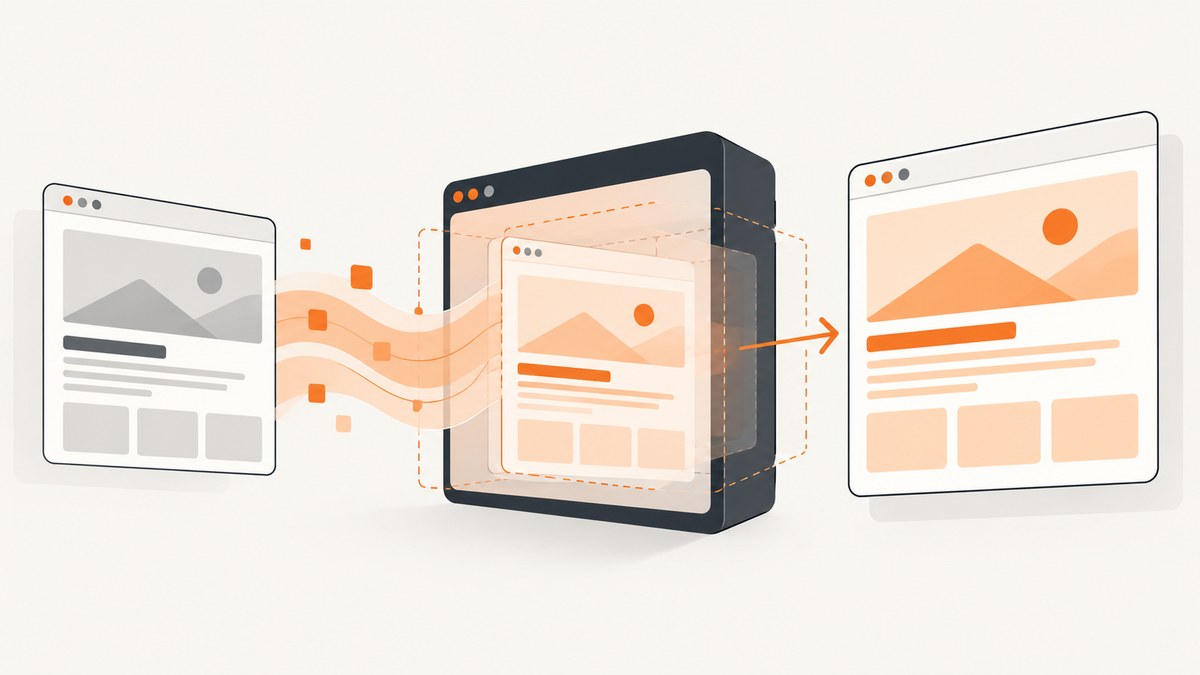
To translate a page before taking a screenshot, automate the translation step inside a browser-controlled workflow, wait until the translated text and layout have settled, then capture the page. Puppeteer gives you programmable navigation and page.screenshot(); Chrome Headless gives you a simpler command-line path with --screenshot and --window-size.
Chrome’s normal Translate command is documented as a visible browser action. The official guidance does not describe a supported Headless Chrome command that clicks that UI for you. For automation, treat translation as an application step: select the text you want to translate, replace or render it, wait for the resulting layout, and then capture. Chrome’s Translator API can translate text, but it does not define a turnkey whole-page translation-and-screenshot workflow. Check browser support before depending on it; the documented support table starts at Chrome 138. See Chrome’s translation instructions and the Translator API documentation.
1. Choose a translation strategy
Your first decision is where translation happens.
| Approach | Control | Best fit | Limitations |
|---|---|---|---|
| Chrome Translate UI | Designed for a person using Chrome | Manual review | No documented Headless automation API for triggering the UI |
| Chrome Translator API | Your script chooses text and timing | Controlled in-page translation | Text API, not a complete page translator; availability depends on Chrome version |
| Application or service translation | Your application owns the translated HTML | Stable production pipelines | Requires an integration and a policy for markup, attributes, and dynamic content |
For a screenshot pipeline, explicit control is usually the important property. You need to know which nodes changed, when translation finished, and which readiness condition means the layout is safe to capture. A page can finish navigation while JavaScript is still adding content, fonts are still loading, or translated strings are still changing line breaks.
2. Install Puppeteer and launch Headless Chrome
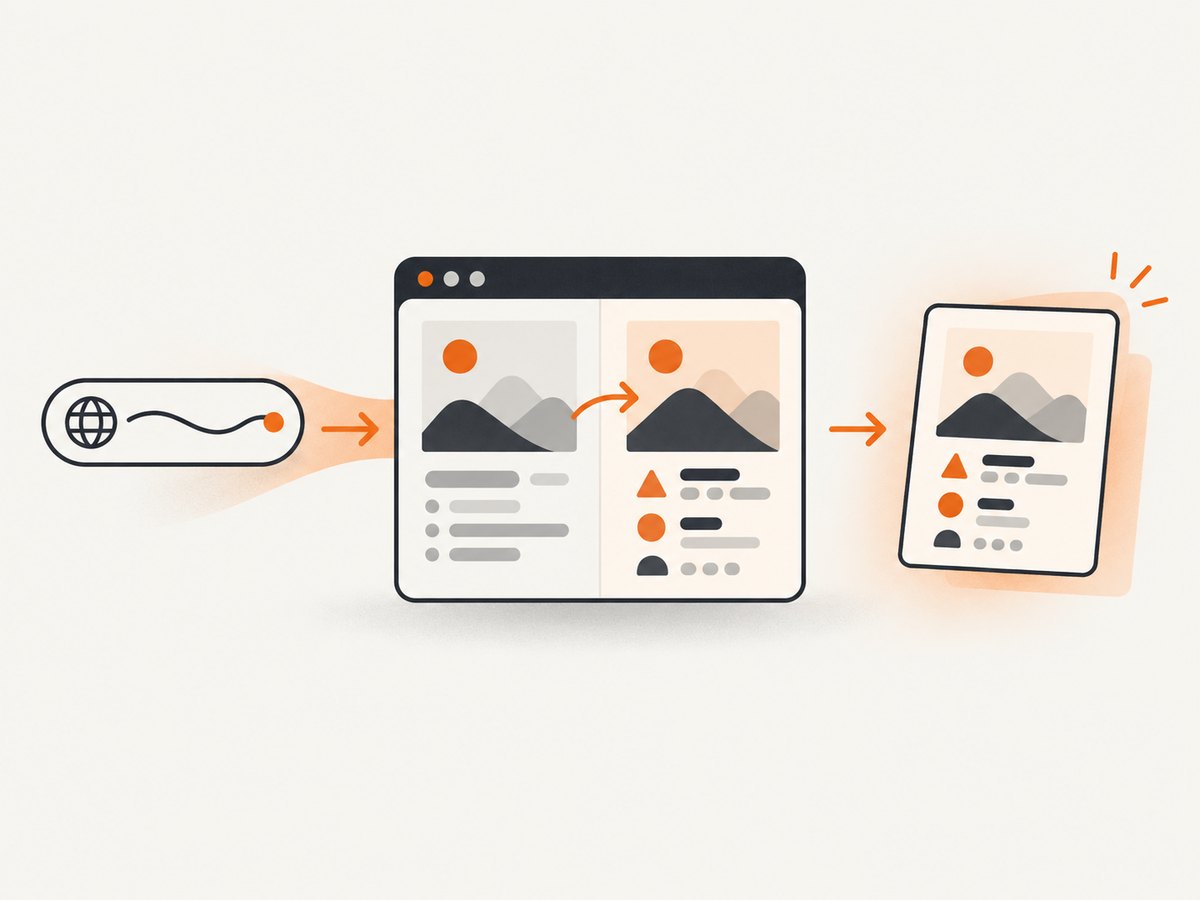
Puppeteer exposes browser automation APIs, including navigation and Page.screenshot(). The example below uses the newer Headless implementation. Chrome Developers documents --headless=new; confirm the behavior and launch options for the Chrome version installed in your environment. See the Puppeteer screenshot API and Chrome Headless documentation.
mkdir translated-shot
cd translated-shot
npm init -y
npm install puppeteer
Create a script named capture-translated.mjs. It navigates to a page, waits for a page-specific readiness signal, translates selected text nodes with the browser Translator API when available, waits for fonts and images, and writes a full-page PNG.
import puppeteer from 'puppeteer';

const targetUrl = process.argv[2] ?? 'https://example.com';
const targetLanguage = process.argv[3] ?? 'es';

const browser = await puppeteer.launch({
  headless: 'new',
  args: ['--no-sandbox', '--disable-setuid-sandbox']
});

try {
  const page = await browser.newPage();
  await page.setViewport({ width: 1440, height: 900, deviceScaleFactor: 1 });

  await page.goto(targetUrl, {
    waitUntil: 'domcontentloaded',
    timeout: 60000
  });

  // Replace this with a selector that means the page is actually ready.
  await page.waitForSelector('body', { timeout: 30000 });

  const translation = await page.evaluate(async (language) => {
    if (!('Translator' in window)) {
      return { ok: false, reason: 'Translator API is unavailable' };
    }

    const sourceLanguage = document.documentElement.lang || 'en';
    const translator = await Translator.create({
      sourceLanguage,
      targetLanguage: language
    });

    const walker = document.createTreeWalker(
      document.body,
      NodeFilter.SHOW_TEXT,
      {
        acceptNode(node) {
          const parent = node.parentElement;
          if (!parent || !node.nodeValue.trim()) return NodeFilter.FILTER_REJECT;
          if (['SCRIPT', 'STYLE', 'NOSCRIPT', 'TEXTAREA'].includes(parent.tagName)) {
            return NodeFilter.FILTER_REJECT;
          }
          return NodeFilter.FILTER_ACCEPT;
        }
      }
    );

    const nodes = [];
    while (walker.nextNode()) nodes.push(walker.currentNode);

    for (const node of nodes) {
      const original = node.nodeValue;
      const translated = await translator.translate(original);
      node.nodeValue = translated;
    }

    document.documentElement.lang = language;
    document.documentElement.dataset.translationComplete = 'true';
    return { ok: true, translatedNodes: nodes.length };
  }, targetLanguage);

  if (!translation.ok) {
    throw new Error(`Translation unavailable: ${translation.reason}`);
  }

  await page.waitForFunction(() =>
    document.documentElement.dataset.translationComplete === 'true'
  );

  await page.evaluate(async () => {
    if (document.fonts?.ready) await document.fonts.ready;
    await Promise.all([...document.images]
      .filter(image => !image.complete)
      .map(image => new Promise(resolve => {
        image.addEventListener('load', resolve, { once: true });
        image.addEventListener('error', resolve, { once: true });
      })));
  });

  // Give layout one frame to settle after translated strings change line lengths.
  await page.evaluate(() => new Promise(requestAnimationFrame));
  await page.screenshot({ path: 'translated.png', fullPage: true });
  console.log(`Saved translated.png (${translation.translatedNodes} text nodes)`);
} finally {
  await browser.close();
}
Run it with:
node capture-translated.mjs https://example.com fr3. Make whole-page translation safer
The basic script demonstrates the control flow, but a production translator should be selective. Translating every text node can alter code samples, navigation labels, accessibility text, numbers, or content that must remain in its source language.
Use an allowlist or blocklist
Prefer an allowlist of article containers when possible:
const roots = [...document.querySelectorAll('main, article, .content')];Alternatively, skip nodes under selectors such as pre, code, svg, math, script, and elements marked with data-no-translate. Preserve brand names, product identifiers, and URLs deliberately.
Translate in batches
Calling a translation operation once per text node can be slow and may create inconsistent timing. Collect suitable strings, translate them in batches where the API or service supports batching, then apply results in one DOM update. Keep a mapping from each original node to its translated value so a failure can be retried without losing the source text.
Keep source and translated states separate
For repeatable captures, store the original text in a data attribute or an application state object and mark the page with a translation status. This makes retries idempotent and prevents translating already translated text if the script runs twice.
Wait for the page’s real readiness condition
domcontentloaded only says that the initial document has been parsed. Add a selector, application event, or network-idle condition that matches the site. For a client-rendered page, wait for the component that contains the content you intend to capture. Then wait for translated text, fonts, images, and any layout transitions.
4. Capture with the Chrome Headless CLI
When you do not need programmable DOM manipulation, Chrome’s command line can capture a fixed target. The --screenshot flag saves an image, and --window-size controls the viewport dimensions.
google-chrome \
  --headless=new \
  --disable-gpu \
  --window-size=1440,900 \
  --screenshot=page.png \
  https://example.com
The CLI alone does not provide a documented command for invoking Chrome’s visible Translate control. Use it after your page has already been translated by the application, or use Puppeteer when translation and capture must happen in one script. Chrome’s --dump-dom output is the serialized DOM after parsing and script execution, not simply the original response HTML; this can help inspect whether your translation script changed the document.
5. Control screenshot dimensions and output
Decide whether you need a viewport screenshot or a full-page image.
- Viewport: captures the visible area at the configured width and height.
- Full page: captures the document’s scrollable height. Long translated strings can increase that height.
- Device scale factor: use a retina scale when downstream readers need more pixels, while remembering that file size grows.
- Format: Puppeteer commonly writes PNG; choose JPEG or WebP when your pipeline and quality requirements support them.
Set the viewport before navigation so responsive breakpoints, lazy loading, and layout decisions use the intended dimensions. If a page uses a sticky header, verify that full-page stitching does not duplicate or overlap it. Hide animation or caret effects with a temporary style if they make captures nondeterministic.
6. Handle translation and rendering edge cases
- Translator API unavailable: check the actual Chrome version and feature availability. The documented support table begins at Chrome 138. Fall back to an application translation path or stop with a clear diagnostic.
- Unknown source language: set the correct source language instead of relying on an empty or incorrect
langattribute. - Mixed-language pages: translate only the selected region; do not assume every text node has the same source language.
- Dynamic content after translation: observe the relevant container or wait for a page-specific event, then translate newly inserted nodes and wait again.
- Lazy images: scroll through the page or trigger the site’s lazy-load mechanism before the final screenshot. Wait for image load or error events.
- Fonts: await
document.fonts.ready. A late font swap changes line wrapping and screenshot geometry. - Cookie banners and overlays: dismiss or hide them before capture if the page permits it. Make this deterministic rather than depending on timing.
- Right-to-left languages: set
dir="rtl"when appropriate and verify alignment, overflow, and screenshot stitching. - Translation changes height: recalculate any element coordinates after translation. Never reuse coordinates measured before text replacement.
7. Troubleshooting
| Symptom | Likely cause | Fix |
|---|---|---|
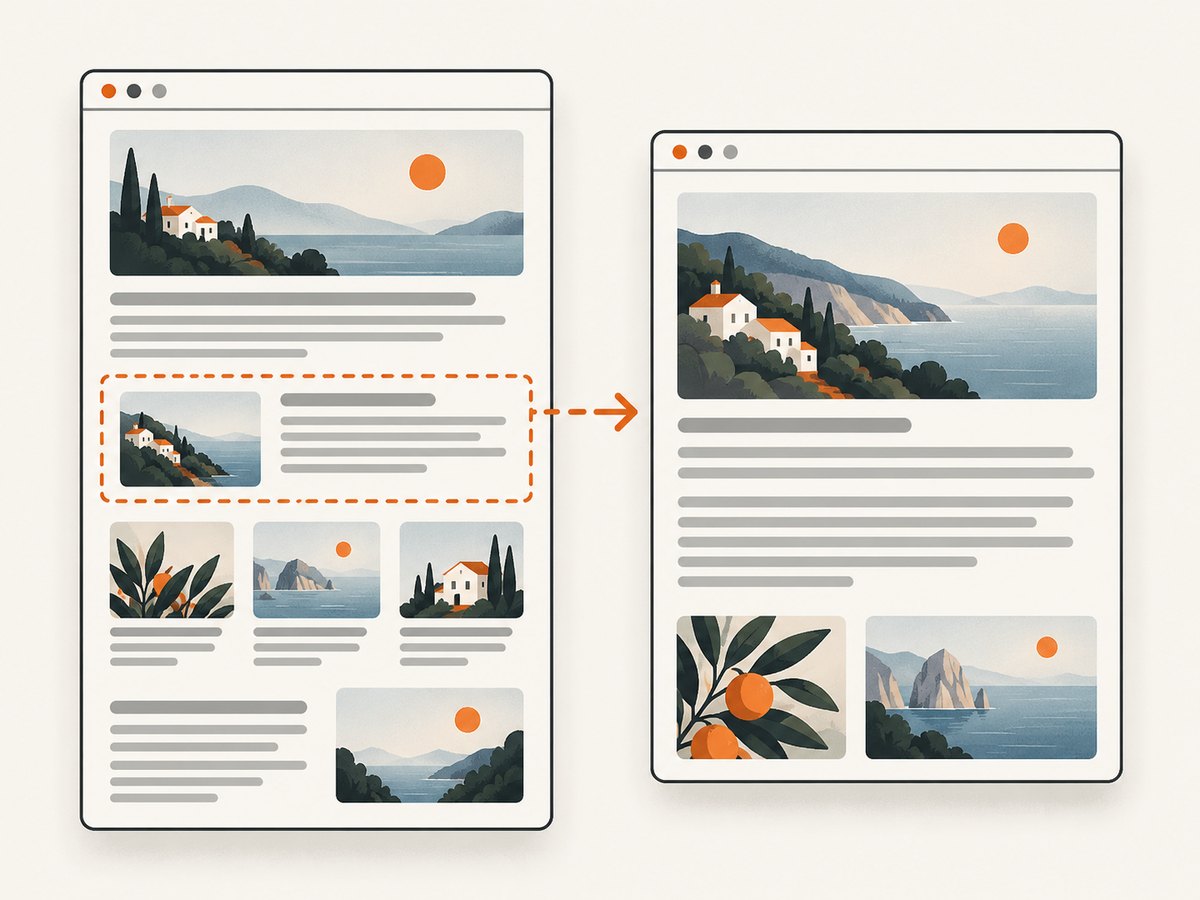
| Screenshot is in the original language | Translation code ran before content rendered, or no nodes were selected | Wait for the content selector, log the node count, and verify the translated marker before capture. |
Translator is not defined |
Browser does not expose the Translator API | Use a supported Chrome build when available, feature-detect it, and provide an application translation fallback. |
| Only part of the page is translated | Content was inserted after the first tree walk, or excluded selectors were too broad | Translate after rendering and process dynamic regions separately. |
| Text overlaps or is clipped | Layout was captured before fonts or translated strings settled | Await fonts, wait one or more animation frames, and remove fixed-height assumptions. |
| Images are blank | Lazy loading or image requests had not completed | Scroll or trigger loading, then await each image’s load or error event. |
| Headless launch fails in CI | Sandbox or executable configuration differs in the runner | Use the Chrome/Puppeteer launch configuration required by your runner and log the browser version and launch error. |
| Capture times out | Selector, navigation, or resource never reaches the expected state | Set separate navigation and readiness timeouts, inspect the target page, and choose a condition that can actually become true. |
| Full-page image is unexpectedly tall | Translation expanded line wrapping or an infinite-loading region remains active | Stop polling widgets, wait for a bounded content condition, and inspect document height before capture. |
8. Performance, reliability, and cost
Translation adds work before capture. Reduce avoidable cost by translating only the content region, batching strings, reusing a browser process for multiple pages, and avoiding repeated downloads of unchanged assets. Keep navigation, translation, font, image, and screenshot timeouts separate so failures identify the stage that failed.
For reliable output, record the URL, target language, viewport, browser version, translation availability, translated node count, and final document dimensions. Save a diagnostic HTML snapshot or screenshot when a run fails. Treat translation as a state transition with an explicit success marker rather than inferring success from elapsed time.
There is no single wait duration that works for every site. A fixed delay can be useful as a small settling period, but it should supplement a selector, event, or network condition that reflects the page’s own readiness. The official references document the separate translation and screenshot capabilities; the stabilization sequence above is implementation guidance derived from how those components interact.
9. Or skip the browser setup
ScreenshotNeo provides a website screenshot API and MCP server. It accepts one GET request and returns a PNG, JPEG, WebP, or PDF. Its capture options include custom JavaScript and CSS, waits for selectors, delays or network idle, full-page screenshots, element selectors, device presets, viewport and retina settings, headers, cookies, user agents, authorization, timezone and geolocation.
Use your own translation step when the translated HTML must be under your control, then send the resulting page to your capture workflow. For ordinary page captures, ScreenshotNeo can remove cookie and consent banners, newsletter popups, and chat widgets before the shot. Bot checks, blank pages, timeouts, failed loads, and cache hits are not billed; response headers identify the page verdict and whether the request was billed. Its MCP server includes take_screenshot, get_page_info, and capture_pdf for Claude, Cursor, and other MCP clients.
See the ScreenshotNeo documentation for authentication and options.
cURL
curl -G "https://api.screenshotneo.com/v1/shot" \
  -d access_key=YOUR_API_KEY \
  --data-urlencode url=https://stripe.com \
  -o shot.webp
Python
import requests

r = requests.get(
    "https://api.screenshotneo.com/v1/shot",
    params={"access_key": "YOUR_API_KEY", "url": "https://stripe.com"},
    timeout=90,
)
r.raise_for_status()
open("shot.webp", "wb").write(r.content)
Node.js
const q = new URLSearchParams({ access_key: 'YOUR_API_KEY', url: 'https://stripe.com' });
const res = await fetch(`https://api.screenshotneo.com/v1/shot?${q}`);
if (!res.ok) throw new Error(`Screenshot failed: ${res.status}`);
const data = Buffer.from(await res.arrayBuffer());
await import('node:fs/promises').then(fs => fs.writeFile('shot.webp', data));
The Free plan includes 1,000 screenshots each month with no card. Paid plans start at $5 for 3,000 shots; every feature is available on every plan. Create a free ScreenshotNeo account.
10. FAQ
Can I automate the same Translate button I use in Chrome?
The official Chrome help page documents that as a user interaction. It does not document a supported Headless API for triggering that UI, so use a controllable translation path in your script.
Does the Translator API translate an entire document automatically?
No. It translates text. Your code must select text, apply translated values, handle dynamic content, and decide what must remain unchanged.
Should I use Puppeteer or the Chrome CLI?
Use Puppeteer when translation, readiness checks, DOM changes, or screenshot options need programmatic control. Use the CLI when a translated page is already prepared and a fixed URL and viewport are sufficient.
Why does translation change screenshot dimensions?
Translated strings can be longer or shorter, changing line wrapping and element heights. Wait for fonts and layout to settle, and measure dimensions after translation.
Can ScreenshotNeo run my translation script?
ScreenshotNeo supports custom JavaScript and CSS and many capture controls. For a complex translation pipeline, keep the translation logic in your application and use ScreenshotNeo for the capture request, or confirm the exact script requirements in its documentation.


