How to Capture Transparent Screenshots with Selenium and Headless ChromeDriver
Capture transparent PNGs with Selenium and headless Chrome by setting a zero-alpha CDP background override, checking page CSS, and handling full-page output.
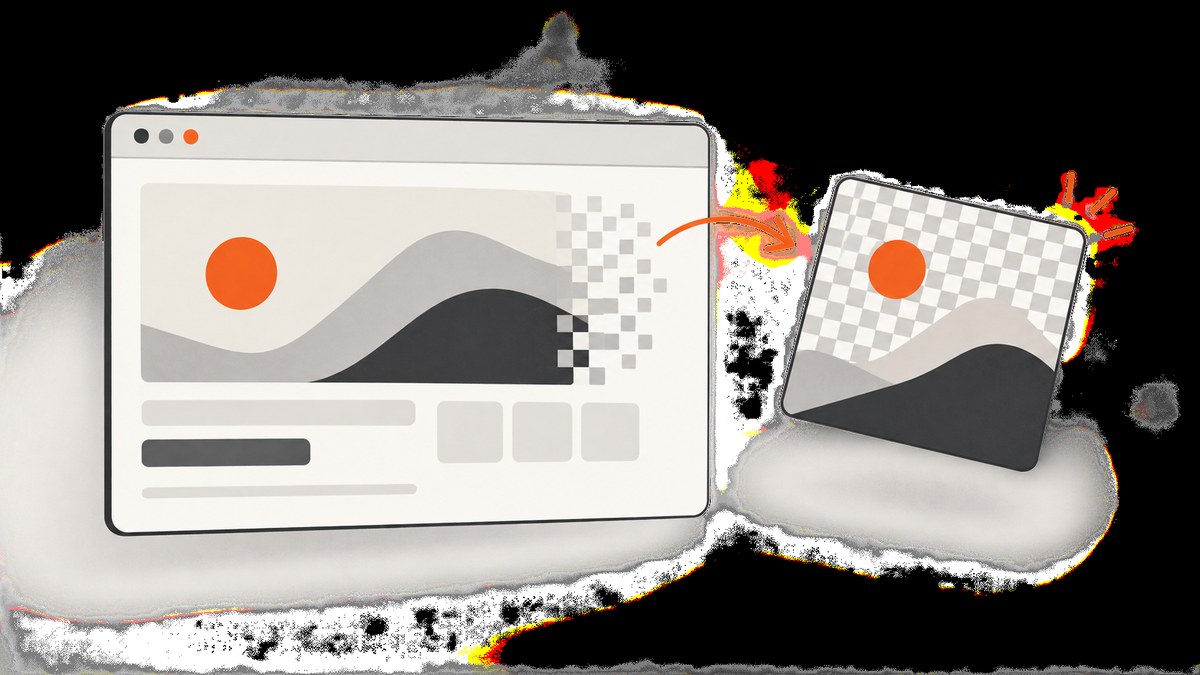
To capture a transparent screenshot with Selenium and headless ChromeDriver, use Chrome DevTools Protocol (CDP) to set the frame’s default background to RGBA alpha zero, then capture the page as PNG. The page itself must also leave the background transparent: Chrome’s override only applies where the content does not specify a background. Use Page.captureScreenshot for the capture and decode its base64 image data. This gives you a transparent viewport PNG; full-page capture needs an additional beyond-viewport step.
The recipe below uses Python Selenium. The same protocol concepts apply in other Selenium bindings, though CDP helper names and full-page conveniences can vary by language and Selenium version. See the CDP Emulation specification for the background override and the Page domain for screenshot parameters.
1. Install Selenium and prepare Chrome
Install Selenium in the Python environment that will run the capture:
python -m pip install seleniumUse a ChromeDriver compatible with the installed Chrome version. Selenium deployments often use Selenium Manager to locate or manage a driver, but environments with restricted network access or pinned browser images may need Chrome and ChromeDriver installed explicitly. Current Chrome headless mode uses the same browser implementation as headful Chrome. Since Chrome 132, the old headless implementation is available separately as chrome-headless-shell; use unified headless mode unless you have a specific compatibility reason to use the shell. See Chrome’s headless documentation.
For stable output, choose a fixed viewport. The window size affects responsive breakpoints, line wrapping, page layout, and the dimensions of the screenshot. A viewport screenshot captures the visible browser content, not necessarily the whole document.
2. Make the page background transparent
The CDP override affects only the default frame background when page content does not supply one. If the page paints white on html, body, a canvas, or a component, those pixels remain opaque. Check the target page’s computed styles and remove or override an opaque background if you control the page.
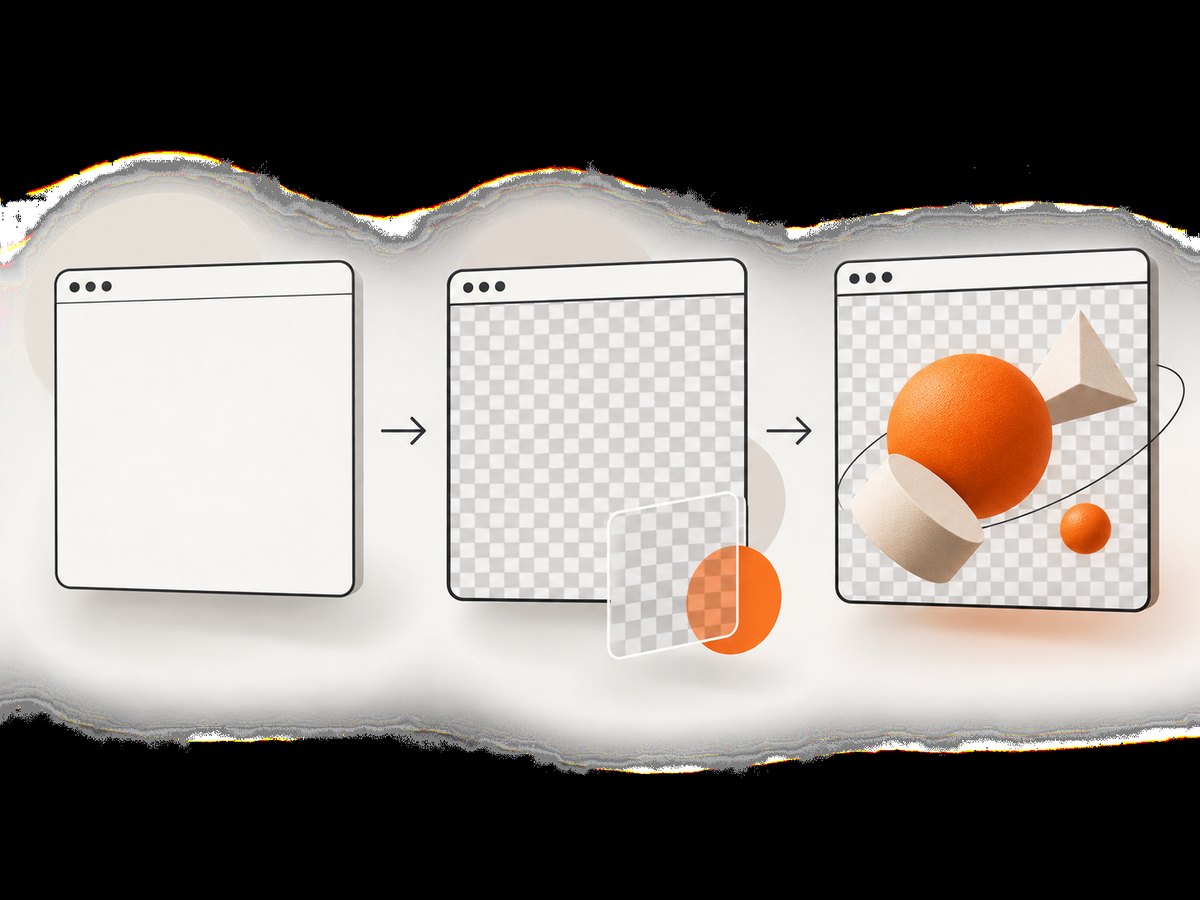
For a page you own, a minimal CSS rule can make the document canvas transparent:
html,
body {
  background: transparent !important;
}
That rule does not make every element transparent. A card with a white background, an image with a white background, or a canvas that paints white will still appear as an opaque region. That may be the intended design. For third-party pages you do not control, the background override cannot erase intentional page styling.
3. Capture a transparent viewport PNG with Python
This complete example navigates to a page, applies the alpha-zero background override, captures PNG bytes through CDP, and writes them to disk. Replace the example URL with a page that has a transparent background or one you can style accordingly.
from base64 import b64decode
from selenium import webdriver
from selenium.webdriver.chrome.options import Options

url = "https://example.com/transparent-page"

options = Options()
options.add_argument("--headless=new")
options.add_argument("--window-size=1280,900")

driver = webdriver.Chrome(options=options)
try:
    driver.get(url)

    # The override is used only where the page has no specified background.
    driver.execute_cdp_cmd(
        "Emulation.setDefaultBackgroundColorOverride",
        {"color": {"r": 0, "g": 0, "b": 0, "a": 0}},
    )

    result = driver.execute_cdp_cmd(
        "Page.captureScreenshot",
        {
            "format": "png",
            "fromSurface": True,
        },
    )

    with open("transparent.png", "wb") as output:
        output.write(b64decode(result["data"]))
finally:
    driver.quit()
The CDP method accepts a color object whose RGB channels are integers from 0 to 255 and whose alpha is between 0 and 1. Setting a to 0 makes the default frame background transparent. The protocol documents the override’s limited scope: it is used if content does not specify a background.
Applying the override after navigation is straightforward for ordinary pages. If a page navigates itself or replaces its document during the workflow, set the override again for the new page target as needed. If Selenium reports that execute_cdp_cmd is unavailable, check the installed Selenium version and the API for your binding. The exact helper name and supported CDP version can vary.
4. Settle the page before capturing
A navigation returning does not guarantee that every image, font, or client-rendered component has finished. For pages that render asynchronously, wait for a meaningful condition instead of relying on a short fixed sleep. For example, wait for a selector that appears after the page is ready:
from selenium.webdriver.common.by import By
from selenium.webdriver.support.ui import WebDriverWait

# After driver.get(url):
WebDriverWait(driver, 20).until(
    lambda d: d.find_element(By.CSS_SELECTOR, "main.ready")
)
Use a selector that genuinely indicates the content you need. A network-idle assumption can be misleading on pages that keep analytics connections or polling active. Lazy-loaded images may need scrolling into view before they are requested; if the capture must include them, scroll through the page and wait for the relevant images to load before taking the screenshot.
For repeatable viewport dimensions, configure the window size before navigation. When precise emulated screen metrics are required, CDP’s Emulation.setDeviceMetricsOverride can set width, height, and device scale factor. A scale factor above one can affect pixel dimensions; verify the resulting image dimensions rather than assuming CSS pixels and output pixels match.
5. Capture a region or full page
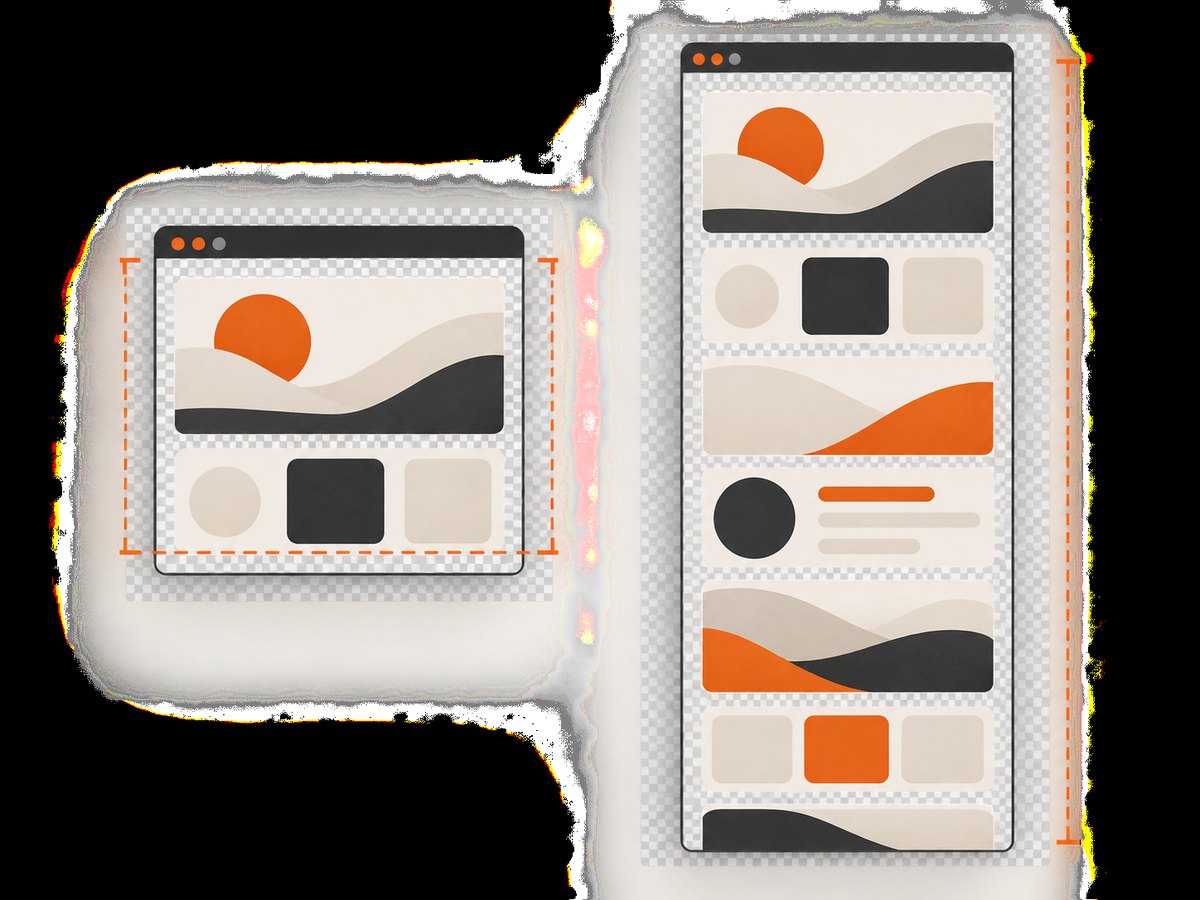
For a viewport image, the Python example is sufficient. To capture a particular rectangle with CDP, use the clip parameter supported by Page.captureScreenshot. The clip is expressed in page coordinates and includes position, width, height, and scale. Make sure the chosen rectangle lies within the page and has positive dimensions.
result = driver.execute_cdp_cmd(
    "Page.captureScreenshot",
    {
        "format": "png",
        "fromSurface": True,
        "clip": {
            "x": 0,
            "y": 0,
            "width": 640,
            "height": 400,
            "scale": 1,
        },
    },
)
Full-page capture is different: the screenshot must include content beyond the current viewport. Selenium bindings expose different full-page or beyond-viewport helpers, and method names can change. Check the API shipped with your installed binding rather than assuming that a method from another language or version exists. Chromium’s protocol tests cover transparent screenshots beyond the viewport, but your Selenium wrapper still needs to request the correct capture behavior.
One approach is to use a binding’s supported full-page screenshot method. Another is to obtain document dimensions and use CDP layout metrics plus a screenshot capture configured for beyond-viewport content. The exact supported parameters depend on the Chrome/CDP version. Inspect the installed protocol support and validate the result. A screenshot that is exactly viewport-sized is not a full-page result even if the document itself is taller.
For long documents, full-page capture can consume substantial memory and may expose lazy-loading or sticky-element behavior. Before capturing, scroll through the document if required to trigger lazy content, then restore the intended top position if the capture method depends on scroll position. Sticky headers and animations can produce repeated, clipped, or inconsistent content across a tall image.
6. Save and verify the alpha channel
PNG is the appropriate format when you need alpha transparency. JPEG does not preserve an alpha channel. Do not infer transparency from a preview that displays a checkerboard or white canvas; inspect the actual PNG’s color mode or alpha values with an image tool. A valid transparent result should have alpha-zero pixels where the background is meant to show through.
A page can contain a mixture of transparent and opaque pixels. For example, transparent space around a product illustration may be alpha zero while the illustration itself is fully opaque. That is normal. If the output has an alpha channel but the background pixels have alpha 255, investigate page CSS and the override order.
Selenium’s built-in driver.save_screenshot("file.png") method is convenient for ordinary current-window screenshots, and Selenium also documents element screenshot methods. For transparent output, use the CDP override and PNG capture sequence above rather than assuming the regular helper configures the frame background. See the Selenium documentation.
7. Reliability, performance, and cost considerations
- Reuse browser sessions selectively. Starting Chrome for every image adds process startup overhead. Reusing a driver can be faster for batches, but clear cookies, local storage, and page state between unrelated captures when isolation matters.
- Set bounded waits. A selector wait with a timeout gives the job a clear failure point. Infinite waits can tie up workers when a site never reaches the expected state.
- Limit concurrency to available resources. Each browser process consumes CPU and memory. Excess parallel Chrome instances can make rendering slower or less reliable. Measure resource use for your own workload and cap concurrency accordingly; no universal safe number applies.
- Control output size. Large full-page PNGs use more memory and disk than viewport captures. Keep dimensions aligned with the consuming application’s needs and avoid unnecessarily high device scale factors.
- Make jobs retryable. A transient navigation or driver failure can justify a retry, but record the URL, browser version, viewport, and failure stage so repeated failures can be diagnosed. Avoid infinite retry loops.
- Plan for infrastructure cost. Self-hosted Selenium has no per-screenshot API charge, but Chrome workers consume compute, memory, storage, and maintenance time. Browser installation, version compatibility, isolation, and cleanup are operational costs.
For dependable pipelines, save logs for navigation failures and take a small diagnostic screenshot when the main capture fails. Always close the driver in a finally block, as in the example, so a Python exception does not leave Chrome processes running.
8. Troubleshooting common failures
| Symptom | Likely cause | Fix |
|---|---|---|
| PNG background is white or solid | The page paints an opaque background, or the override was not applied to the active page. | Inspect computed styles on html, body, canvas, and components. Make owned page backgrounds transparent. Apply the CDP override after navigation and again after a document replacement if needed. |
| Image looks transparent in one viewer but not another | The preview may render transparency against a default white or checkerboard, or the file may lack useful alpha values. | Inspect the PNG’s alpha channel with an image tool and check representative background pixels. |
execute_cdp_cmd is missing |
The installed Selenium binding or version exposes a different CDP interface. | Check the current API for your language binding and installed version. Upgrade or use the binding’s supported DevTools interface. |
| Chrome fails to start | Chrome/ChromeDriver incompatibility, missing browser dependencies, or an unsupported headless option. | Check browser and driver versions, use unified headless mode on current Chrome, and review the driver startup error. Use --headless if your installed Chrome does not accept --headless=new. |
| Screenshot is clipped or too small | The capture is viewport-only, window metrics differ from expected CSS dimensions, or device scale changes output pixels. | Set a fixed viewport, check screenshot dimensions, and use the binding’s supported beyond-viewport method for full-page output. |
| Images or page sections are missing | Capture occurred before client rendering or lazy loading completed. | Wait for a page-specific ready selector; scroll lazy content into view and wait for its images before capture. |
| CDP command rejects parameters | Protocol schema and parameter support differ across Chrome versions. | Consult the protocol version supported by the running browser and adjust the command to its schema. |
| Screenshot is unexpectedly opaque after adding CSS | A nested component, pseudo-element, canvas, or image still paints its own background. | Inspect the rendered element tree and styles; transparency of the document does not erase intentional backgrounds inside the page. |
9. A shorter route for screenshot jobs
If your requirement is to obtain a website screenshot rather than to control a local Chrome session, ScreenshotNeo provides a website screenshot API and MCP server. It supports transparent backgrounds along with PNG, JPEG, WebP, and PDF output. See the ScreenshotNeo API documentation for request options.
Or skip the browser setup
Here is a one-call request that saves a screenshot as WebP:
curl -G "https://api.screenshotneo.com/v1/shot" \
  -d access_key=YOUR_API_KEY \
  --data-urlencode url=https://stripe.com \
  -o shot.webp
For Python:
import requests

r = requests.get(
    "https://api.screenshotneo.com/v1/shot",
    params={"access_key": "YOUR_API_KEY", "url": "https://stripe.com"},
    timeout=90,
)
open("shot.webp", "wb").write(r.content)
For Node.js:
const q = new URLSearchParams({
  access_key: 'YOUR_API_KEY',
  url: 'https://stripe.com'
});
const res = await fetch(`https://api.screenshotneo.com/v1/shot?${q}`);
if (!res.ok) throw new Error(`Screenshot request failed: ${res.status}`);
await Bun.write('shot.webp', res);
ScreenshotNeo accepts cookie and consent banners like a visitor and removes more than 60 known consent platforms, newsletter popups, and chat widgets before capture; each step can be turned off. Bot checks and CAPTCHAs, blank pages, timeouts, failed loads, and cache hits cost nothing, with verdict and billing details in response headers. Its MCP server gives AI agents tools for screenshots, page information, and PDF capture. The Free plan includes 1,000 screenshots a month without a card; paid plans start at $5 for 3,000. Every feature is available on every plan. Sign up for 1,000 free screenshots a month, no card required.
10. FAQ
Can Selenium’s normal screenshot method create a transparent PNG?
It can save a PNG, but transparent output requires the Chrome background override and page content that does not paint an opaque background.
Can I use JPEG for transparency?
No. JPEG does not preserve alpha. Capture as PNG when transparent pixels must remain transparent.
Does alpha zero make a white page transparent?
No. It changes the default frame background. Explicit page backgrounds remain painted unless the page styling is changed.
Can I take a transparent full-page screenshot?
Yes, Chromium supports transparent beyond-viewport captures. The Selenium binding must request full-page or beyond-viewport capture using the API available in its version.
Why use headless Chrome rather than a different browser mode?
Chrome’s current unified headless mode shares its browser implementation with headful Chrome, making it a practical mode for automated captures. Keep the ChromeDriver version compatible with Chrome.


