How to Capture Transparent Screenshots with Watir WebDriver
Use Watir WebDriver to save, inspect and post-process PNG screenshots, and learn why PNG does not guarantee transparent pixels.

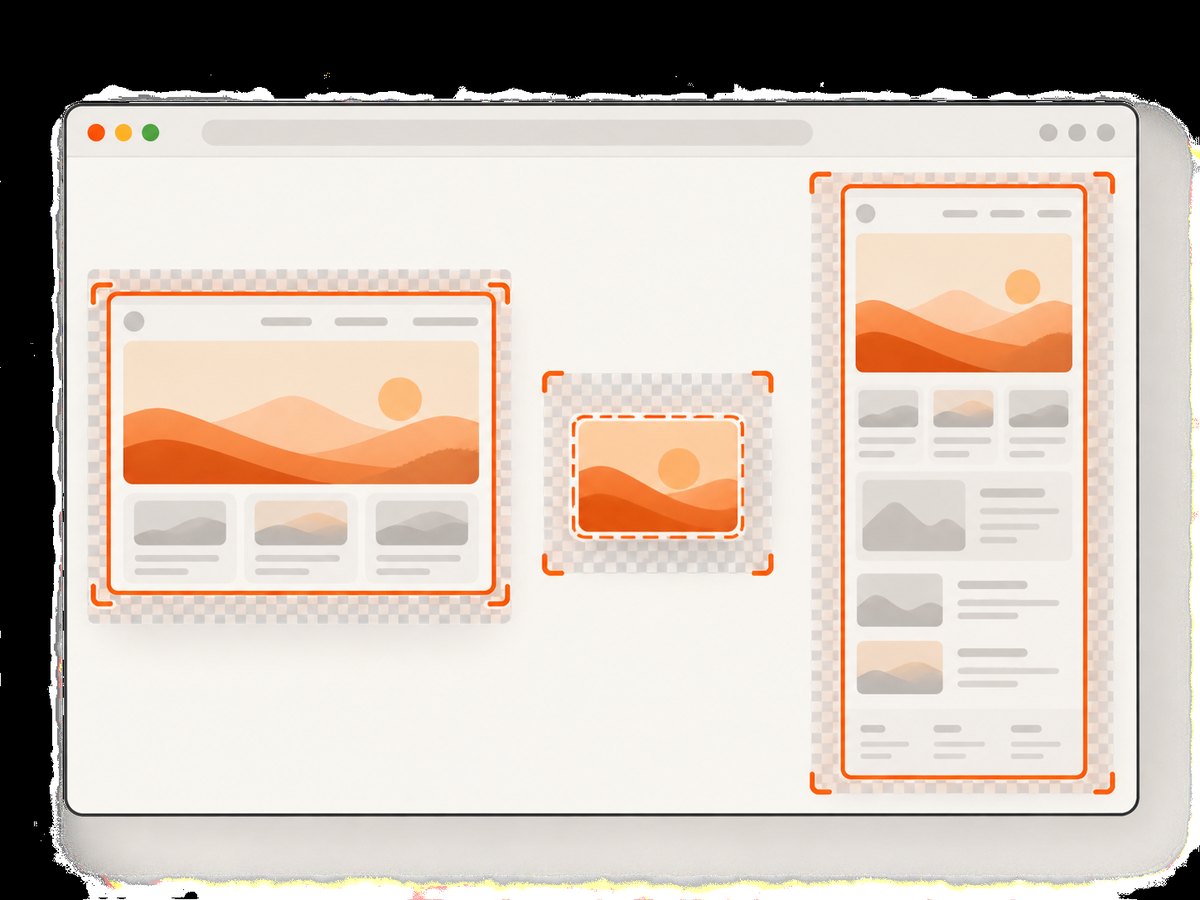
Short answer: Watir can save a screenshot as PNG, return PNG bytes, or return base64 data. It does not expose a documented transparent: true option, and a PNG file is not automatically an image with an alpha channel. If transparency is a requirement, capture with the exact browser and driver you deploy, inspect the resulting pixels, and post-process the image when necessary.
Watir’s screenshot wrapper provides three useful calls:
browser.screenshot.save "screenshot.png"
png_data = browser.screenshot.png
base64_data = browser.screenshot.base64
The save operation delegates to WebDriver. Selenium’s Ruby documentation describes the normal operation as saving a PNG of the viewport, while full-page capture depends on driver support. Chrome DevTools Protocol’s Page.captureScreenshot supports format, clipping and capture beyond the viewport, but its documented parameters do not include an alpha-background switch. See the Watir screenshot API, Selenium screenshot documentation and Chrome DevTools Protocol reference.
What “transparent screenshot” means
There are two separate requirements:

| Requirement | Meaning | How to verify |
|---|---|---|
| PNG format | The file is encoded as PNG. | Check the file signature or image metadata. |
| Alpha transparency | Pixels include an alpha channel with values below 255. | Inspect the decoded image’s color type and alpha values. |
| Transparent page background | CSS paints the page background as transparent. | Inspect the rendered result; CSS alone does not prove the file keeps alpha. |
A page with body { background: transparent; } can still produce an opaque screenshot if the browser or driver composites the viewport against a default background. Treat alpha retention as an acceptance test for your browser, driver, Watir and headless configuration.
Prerequisites
- Ruby and Bundler installed.
- The
watirgem. - A browser supported by your WebDriver setup, such as Chrome or Chromium.
- A matching driver configuration. Full-page and transparency behavior can vary by browser, driver version and headless mode.
# Gemfile
gem "watir"

# Then run:
# bundle install
Capture and save a PNG with Watir
This is the smallest complete example. It opens a page, waits for the document to load, and writes the viewport screenshot to disk.
require "watir"

browser = Watir::Browser.new(:chrome, headless: true)
browser.goto "https://example.com"
browser.wait_until { browser.ready_state == "complete" }
browser.screenshot.save "screenshot.png"
puts "Saved screenshot.png"
browser.close
Use a filename ending in .png when you want PNG output. The extension controls the requested file naming; it does not guarantee that the decoded pixels contain alpha.
Get PNG bytes or base64 data
Use png when another library or service needs raw PNG bytes. Use base64 when embedding the image in JSON, HTML or a data URL.
require "watir"

browser = Watir::Browser.new(:chrome, headless: true)
browser.goto "https://example.com"

png_data = browser.screenshot.png
File.binwrite("screenshot-from-bytes.png", png_data)

base64_data = browser.screenshot.base64
File.write("screenshot.base64.txt", base64_data)

browser.close
For an HTML data URL, prefix the value with data:image/png;base64,. Keep binary data binary when writing files; using text mode can corrupt the image on some platforms.
Prepare a page for a transparency experiment
You can remove page backgrounds with CSS before capture, but this is an experiment rather than a guarantee of alpha output. Apply the style with JavaScript, capture, then inspect the resulting file.
require "watir"

browser = Watir::Browser.new(:chrome, headless: true)
browser.goto "https://example.com"
browser.wait_until { browser.ready_state == "complete" }

browser.execute_script(<<~JS)
  document.documentElement.style.background = "transparent";
  document.body.style.background = "transparent";
JS

browser.screenshot.save "transparent-experiment.png"
browser.close
This only changes rendered CSS. It does not add a WebDriver or Chrome DevTools parameter that preserves alpha in the output file.
Capture a specific element
Element screenshots are useful for logos, cards and isolated components. They also make post-processing easier because the image bounds are known.
require "watir"

browser = Watir::Browser.new(:chrome, headless: true)
browser.goto "https://example.com"
card = browser.div(class: "card")
card.wait_until(&:present?)
card.screenshot.save "card.png"
browser.close
Element capture still does not imply alpha. Check the output image in the same way as a viewport capture.
Full-page screenshots and driver support
Selenium Ruby documents viewport screenshots by default and a full_page option for drivers that implement the required operation. Unsupported drivers can raise an unsupported-operation error. A full-page image may also be assembled by scrolling or by using browser-specific tooling, which can change layout and lazy-loaded content.
require "watir"

browser = Watir::Browser.new(:chrome, headless: true)
browser.goto "https://example.com"

begin
  browser.screenshot.save("full-page.png", full_page: true)
rescue Selenium::WebDriver::Error::UnsupportedOperationError
  warn "This driver does not support full-page screenshots"
  browser.screenshot.save "viewport.png"
end

browser.close
Check the exact Watir and Selenium method signatures in the versions pinned by your application. Do not assume that a full-page option is portable across browsers.
Verify whether the PNG has an alpha channel
Use an image library to inspect the decoded pixels. The following Ruby example uses MiniMagick and ImageMagick.
# Gemfile
# gem "mini_magick"

require "mini_magick"

image = MiniMagick::Image.open("screenshot.png")
puts "format: #{image.type}"
puts "channels: #{image["%[channels]"]}"
puts "alpha: #{image["%[channels]"]&.include?("a")}"
Channel names and ImageMagick behavior depend on the installed version. For a strict check, inspect representative pixels and fail the build if every pixel is opaque. A screenshot can have an alpha channel while still containing no transparent pixels.
Post-process when alpha is required
If the browser produces an opaque background, remove it after capture with an image tool. Chroma-keying is appropriate only when the background color is controlled and does not appear in the subject. Edge pixels may need matting to avoid halos.
# Example ImageMagick command for a controlled white background
magick screenshot.png -fuzz 5% -transparent white screenshot-transparent.png
Do not use this blindly on arbitrary web pages: white text, shadows and images can be made transparent. For production cutouts, define a known background, capture a dedicated element, and review edge quality.
Viewport, element and full-page choices
| Scope | Use it when | Transparency considerations |
|---|---|---|
| Viewport | You need what the user currently sees. | Most portable; alpha still requires verification. |
| Element | You need a component or asset. | Best bounds for post-processing; shadows can be clipped. |
| Full page | You need the complete document. | Driver support varies; lazy content and long pages affect reliability. |
Common errors and fixes
| Symptom | Likely cause | Fix |
|---|---|---|
| PNG has a solid background | PNG encoding or browser compositing did not preserve alpha. | Inspect channels, test the exact stack, then post-process or use a dedicated capture path. |
UnsupportedOperationError for full page |
The selected driver does not implement full-page capture. | Capture the viewport, switch to a supported driver, or assemble a page with browser-specific tooling. |
File not found after saving |
The process is writing to a different working directory or lacks permission. | Use an absolute path and check the directory before saving. |
| Blank or partially loaded image | Capture occurred before navigation, fonts or lazy content finished. | Wait for a selector, document readiness and any required network or application state. |
| Element screenshot fails | Selector is wrong, element is hidden, or it moved during layout. | Wait for presence and visibility, scroll it into view, and freeze animations where possible. |
| Different results in headless mode | Viewport, fonts, GPU and browser settings differ. | Pin browser and driver versions, set an explicit window size, and compare headless and headed runs. |
| Jagged transparent edges | Color-key removal created a halo. | Capture against a controlled color, use a smaller fuzz value, and apply edge-aware matting. |
Reliability and performance checklist
- Pin Ruby, Watir, Selenium, browser and driver versions.
- Set an explicit viewport size and device scale factor where your driver supports it.
- Wait for the application state you need instead of relying only on a fixed sleep.
- Disable animations or wait for them to finish before capture.
- Use element capture for small assets to reduce image size and processing time.
- Reuse a browser session for batches, but reset cookies, storage and page state between unrelated pages.
- Record the URL, browser version, driver version, viewport and whether alpha verification passed.
- For long pages, watch memory usage and image dimensions; full-page captures can be large.
Or skip the browser setup
ScreenshotNeo provides a single HTTP request for PNG, JPEG, WebP or PDF screenshots. Its clean-shot workflow accepts cookie and consent banners before capture and removes more than 60 known consent platforms, newsletter popups and chat widgets. Bot checks, blank pages, timeouts, failed loads and cache hits are not billed, and the response reports the page verdict and billing status in headers. It also offers an MCP server so Claude, Cursor and other MCP clients can call screenshot tools.
For a screenshot request, see the ScreenshotNeo API documentation:
curl -G "https://api.screenshotneo.com/v1/shot" -d access_key=YOUR_API_KEY --data-urlencode url=https://stripe.com -o shot.webpimport requests
r = requests.get(
"https://api.screenshotneo.com/v1/shot",
params={"access_key": "YOUR_API_KEY", "url": "https://stripe.com"},
timeout=90,
)
r.raise_for_status()
open("shot.webp", "wb").write(r.content)const q = new URLSearchParams({ access_key: 'YOUR_API_KEY', url: 'https://stripe.com' });
const res = await fetch(`https://api.screenshotneo.com/v1/shot?${q}`);
if (!res.ok) throw new Error(`Screenshot failed: ${res.status}`);
const data = Buffer.from(await res.arrayBuffer());
require('fs').writeFileSync('shot.webp', data);ScreenshotNeo supports a transparent-background option, along with custom CSS and JavaScript, selectors, device presets, retina scale, waits, blocking rules, headers, cookies, geolocation, resizing, caching, signed links, asynchronous jobs, bulk capture and PDFs. Transparency still needs validation against your target page and output requirements.
The Free plan includes 1,000 screenshots per month with no card. Paid plans start at $5 for 3,000 shots, and every feature is available on every plan. Create a free ScreenshotNeo account.
Cost and operational notes
Local Watir capture costs the compute and browser resources you operate. You control storage, concurrency and retries, but you also maintain browser binaries, drivers and the capture environment. A hosted API trades that maintenance for per-shot pricing and service limits; review response headers and retry behavior in your integration.
FAQ
Does browser.screenshot.save create a transparent PNG?
It saves a PNG screenshot, but the documented Watir and Selenium APIs do not guarantee alpha transparency. Inspect the output from your exact browser and driver.
Can CSS make the screenshot transparent?
CSS can make the page background transparent during rendering, but the screenshot pipeline may composite it onto an opaque background.
Which Watir method is best for an HTTP response?
Use browser.screenshot.png for binary PNG data. Use base64 when the receiving interface requires base64 text.
Is full-page capture required for transparency?
No. Transparency and capture scope are separate. A viewport, element or full-page image can each be tested for alpha.
How do I make a reliable transparent asset?
Capture a controlled element or page, verify the alpha channel, and post-process against a known background when the browser output is opaque.


