How to Trigger Navigation Tabs With Puppeteer
Learn how to click Puppeteer navigation tabs, wait for page loads, handle popups, and verify same-page tab changes with reliable code.
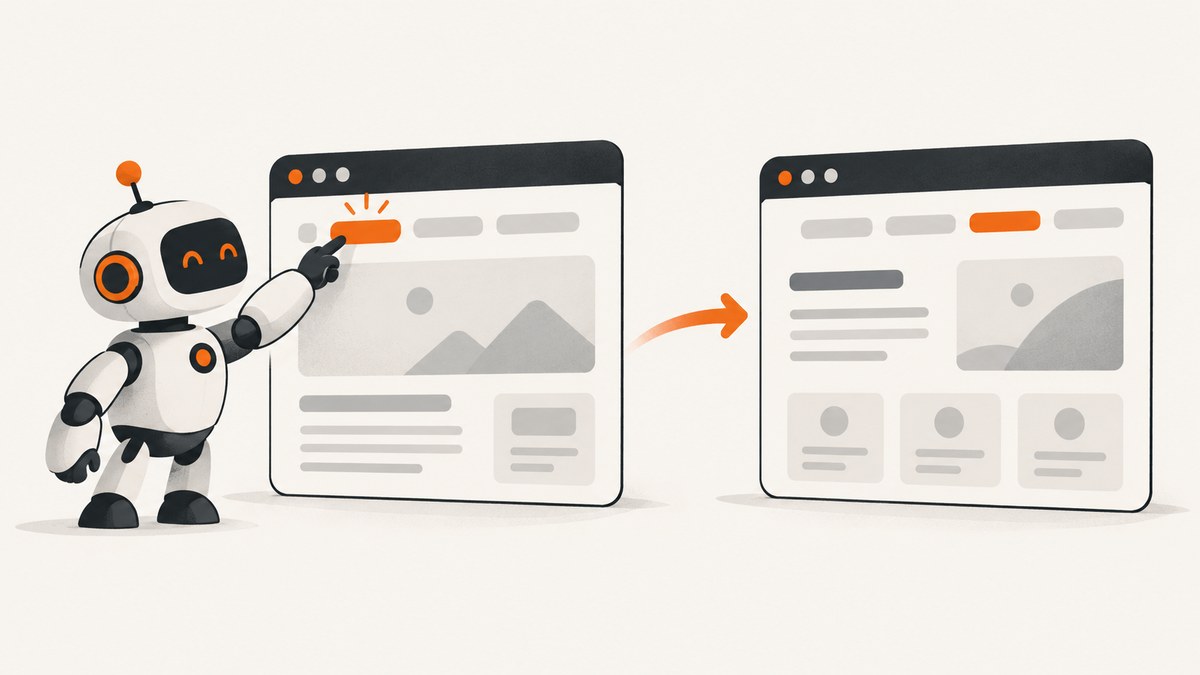
To trigger a navigation tab with Puppeteer, first determine what the control actually does. A tab may navigate the current page, open a new browser tab or window, or swap content inside the same document. Each behavior needs a different wait strategy.
For a link that navigates the current page, arm page.waitForNavigation() before clicking and await both operations together:
const [response] = await Promise.all([
  page.waitForNavigation(),
  page.locator('nav a[href="/account"]').click(),
]);

console.log('URL:', page.url());
console.log('Navigation response:', response ? response.status() : 'same-document navigation');
Puppeteer recommends Locators for interactions. A Locator waits for the element to be in the viewport, visible, enabled, and stable before clicking. The navigation API documents the Promise.all pattern because starting the navigation wait after the click can lose the navigation event. See the Puppeteer page interactions guide and waitForNavigation API reference.
1. Identify the kind of tab you are clicking
Before writing a wait, inspect the markup and browser behavior. The word “tab” commonly describes four different cases:
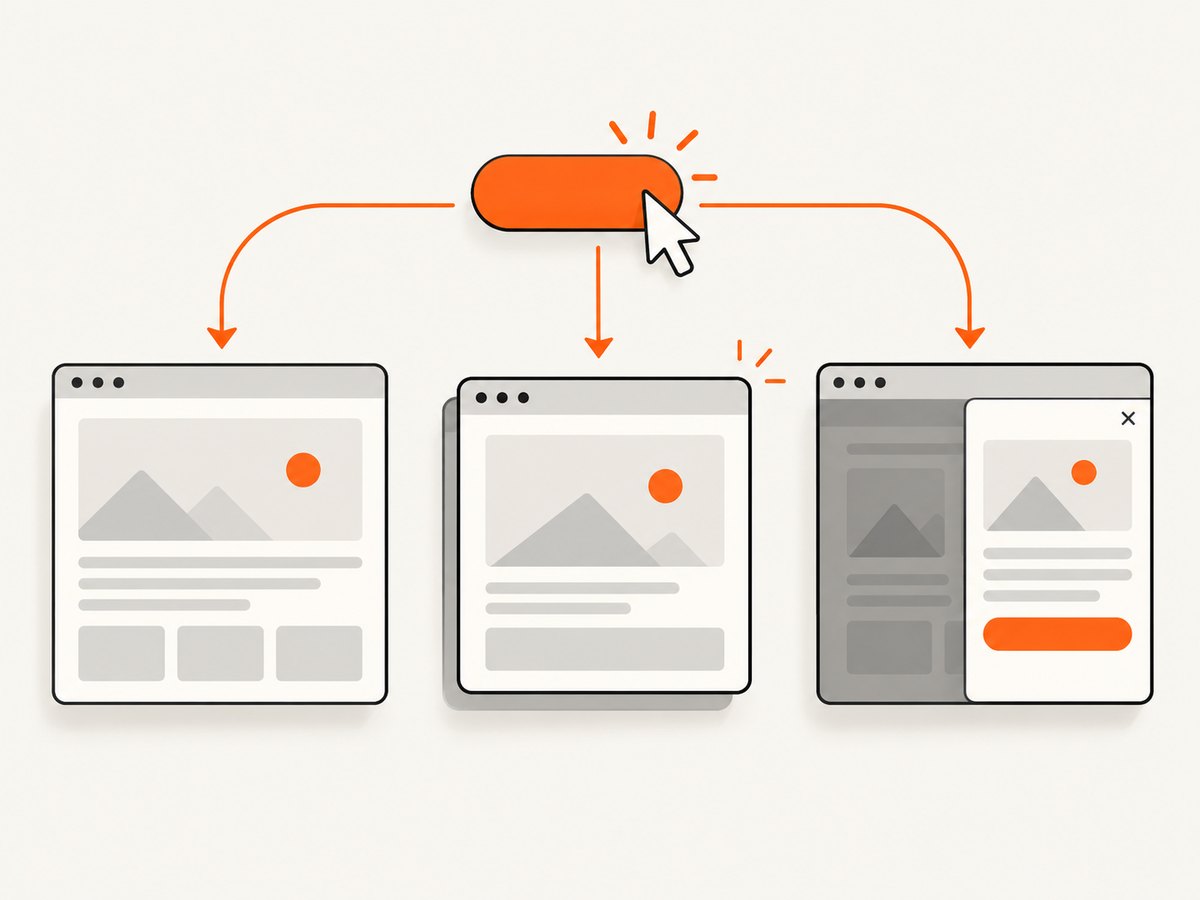
| Behavior | What changes | Recommended pattern |
|---|---|---|
| Current-page navigation | The existing Page loads another document |
Promise.all([page.waitForNavigation(), locator.click()]) |
| New tab or window | A popup creates another Puppeteer Page |
Listen for the originating page’s popup event before clicking |
| History API navigation | The URL changes without a full document request | Wait for navigation, then verify URL and DOM state |
| In-page content tab | Selected state or a panel changes in the same document | Wait for an active attribute, visible panel, or expected content |
A Puppeteer Page represents one browser tab. A tab control implemented with buttons and panels may never navigate at all, so a navigation wait would be the wrong condition.
2. Set up a Puppeteer script
Install Puppeteer in a new Node.js project:
mkdir puppeteer-tabs
cd puppeteer-tabs
npm init -y
npm install puppeteer
The following complete script opens a page, clicks a navigation link, waits safely, checks the result, and closes the browser:
const puppeteer = require('puppeteer');

(async () => {
  const browser = await puppeteer.launch({ headless: true });
  try {
    const page = await browser.newPage();
    await page.goto('https://example.com', { waitUntil: 'domcontentloaded' });

    const [response] = await Promise.all([
      page.waitForNavigation({ waitUntil: 'networkidle2', timeout: 30000 }),
      page.locator('nav a[href="/account"]').click(),
    ]);

    if (response && !response.ok()) {
      throw new Error(`Navigation returned HTTP ${response.status()}`);
    }
    console.log('Reached:', page.url());
  } finally {
    await browser.close();
  }
})();
Replace the URL and selector with values from the site under test. Prefer a stable accessible name, role, data-testid, or destination URL over generated CSS classes.
3. Click a control that navigates the current page
Use a Locator and Promise.all
const accountLink = page.locator('nav a[href="/account"]');

const [response] = await Promise.all([
  page.waitForNavigation({ waitUntil: 'domcontentloaded' }),
  accountLink.click(),
]);

console.log('Current URL:', page.url());
Create both promises in the same expression. The wait is registered before the click is sent to the browser. You can use domcontentloaded, load, or networkidle2 depending on what “loaded” means for your test. A page that keeps analytics or websocket connections open may never become truly idle, so waiting for a destination element is often more reliable than requiring network idle.
Use an accessible selector
await Promise.all([
  page.waitForNavigation(),
  page.getByRole('link', { name: 'Account' }).click(),
]);
Semantic selectors make tests less sensitive to layout and framework changes. If the control is a button, use getByRole('button', { name: 'Settings' }). Puppeteer also supports CSS, text, ARIA, and XPath selector strategies through its Locator APIs.
Legacy page.click syntax
Older suites may use page.click(). The synchronization rule is unchanged:
await Promise.all([
  page.waitForNavigation(),
  page.click('nav a[href="/account"]'),
]);
Locators are preferred for new code because they include clickability checks automatically.
4. Handle a tab that opens a new browser tab or window
If clicking the control calls window.open or uses a link with target="_blank", listen for the popup before clicking. Puppeteer emits the popup event on the originating page and provides the new Page object. The event is documented in the PageEvent reference.
const popupPromise = new Promise(resolve => page.once('popup', resolve));

await page.locator('a[target="_blank"]').click();
const popup = await popupPromise;

await popup.waitForSelector('main', { timeout: 30000 });
console.log('Popup URL:', popup.url());
Register the listener first so a fast popup cannot be missed. Do not automatically call popup.waitForNavigation() after receiving the popup. The popup may already have completed its navigation. Check its URL, wait for a known element, or use a short, explicit condition that proves the destination is ready.
Wait for a popup and its destination together
const popupPromise = new Promise(resolve => page.once('popup', resolve));
await page.getByRole('link', { name: 'Open report' }).click();
const popup = await popupPromise;

if (!popup.url().startsWith('https://reports.example/')) {
  throw new Error(`Unexpected popup URL: ${popup.url()}`);
}
await popup.getByRole('heading', { name: 'Report' }).wait();
Find a window.open target by URL
When the destination is known and several pages could open at once, BrowserContext.waitForTarget() lets you identify the target with a predicate. Puppeteer’s official example uses this pattern:
await page.evaluate(() => window.open('https://www.example.com/'));

const target = await page.browserContext().waitForTarget(
  target => target.url() === 'https://www.example.com/'
);
const newPage = await target.page();

if (!newPage) throw new Error('Target did not produce a page');
console.log(newPage.url());
Make the predicate specific enough to distinguish simultaneous reports, OAuth windows, or payment dialogs. See the BrowserContext.waitForTarget documentation.
5. Handle same-page navigation and SPA tabs
Single-page applications often use the History API. The address bar changes, but the browser does not request a complete new document. Puppeteer still treats History API changes as navigation. However, waitForNavigation() can resolve with null for hash changes and History API navigation.
const [response] = await Promise.all([
  page.waitForNavigation({ timeout: 15000 }),
  page.getByRole('link', { name: 'Invoices' }).click(),
]);

console.log('URL after click:', page.url());
console.log('Response:', response); // null can be expected
await page.getByRole('heading', { name: 'Invoices' }).wait();
Validate the result that matters to your test: the URL pathname, an active navigation attribute, a heading, or a panel containing the expected data. A non-null HTTP response is not a requirement for a successful same-document transition.
6. Click a visual tab that only swaps content
Many controls look like navigation but are buttons that toggle panels. There is no top-level navigation and no popup. Wait for the resulting DOM state:
const detailsTab = page.getByRole('tab', { name: 'Details' });
await detailsTab.click();

await detailsTab.waitFor({ state: 'visible' });
await page.locator('[role="tabpanel"][aria-label="Details"]').wait();

const selected = await detailsTab.evaluate(el => el.getAttribute('aria-selected'));
if (selected !== 'true') throw new Error('Details tab was not selected');
Markup varies. Common signals include aria-selected="true", an active class, a changed hidden attribute, or a panel that becomes visible. Inspect the application and wait for the signal that proves the user-visible state changed.
7. Make waits deterministic
- Arm event waits before the action that causes them.
- Use explicit timeouts for navigation, popups, and destination elements.
- Wait for the smallest useful readiness condition, such as a heading or panel.
- Use a stable selector and avoid volatile framework-generated classes.
- Keep popup listeners scoped with
page.oncewhen one window is expected. - Close popup pages and the browser in a
finallyblock.
For debugging, record the URL, selector, and page content around a failure:
try {
  await page.getByRole('link', { name: 'Account' }).click({ timeout: 10000 });
} catch (error) {
  console.error({ url: page.url(), title: await page.title(), error: error.message });
  await page.screenshot({ path: 'click-failure.png', fullPage: true });
  throw error;
}
8. Troubleshooting common errors
| Symptom | Likely cause | Fix |
|---|---|---|
waitForNavigation times out |
The control is an in-page panel or opens a popup | Wait for the panel state or subscribe to popup instead. |
| The click races the wait | The wait was started after the click | Use Promise.all with the wait listed before the click. |
| Navigation response is null | Hash or History API navigation | Check page.url() and the expected DOM state. |
| Element is not clickable | It is hidden, disabled, moving, covered, or outside the viewport | Use a Locator, wait for the correct state, scroll only when needed, and inspect overlays. |
| Popup promise never resolves | The click did not open a new page, or the listener was attached too late | Attach the listener before clicking and confirm the control’s actual behavior. |
| Wrong popup is captured | Several windows open together | Use a URL or other predicate with waitForTarget, or inspect popup URL immediately. |
| Destination returns 404 or 500 | The server returned an HTTP error | Inspect the response status where available; a browser navigation may still complete, so assert the status and page content explicitly. |
| Network-idle wait hangs | Long polling, analytics, or websockets keep requests active | Use domcontentloaded plus a destination element wait. |
The Puppeteer API notes that valid HTTP error statuses do not necessarily make every navigation operation throw, particularly in headless-shell scenarios. Treat status checks and content assertions as separate test conditions.
9. Performance, reliability, and cost considerations
Launching a browser is usually more expensive than clicking a tab. Reuse one browser process and create isolated pages or browser contexts for independent tests. Avoid unnecessary full-page screenshots during every test; capture them on failure or in a dedicated visual test job.
Short, targeted waits improve throughput. Waiting for networkidle2 on a page with continuous background traffic can waste time or fail intermittently. A specific heading, panel, or URL condition expresses readiness more accurately. Set timeouts based on the slowest environment you support, and make failures observable with the URL, screenshot, console logs, and response status.
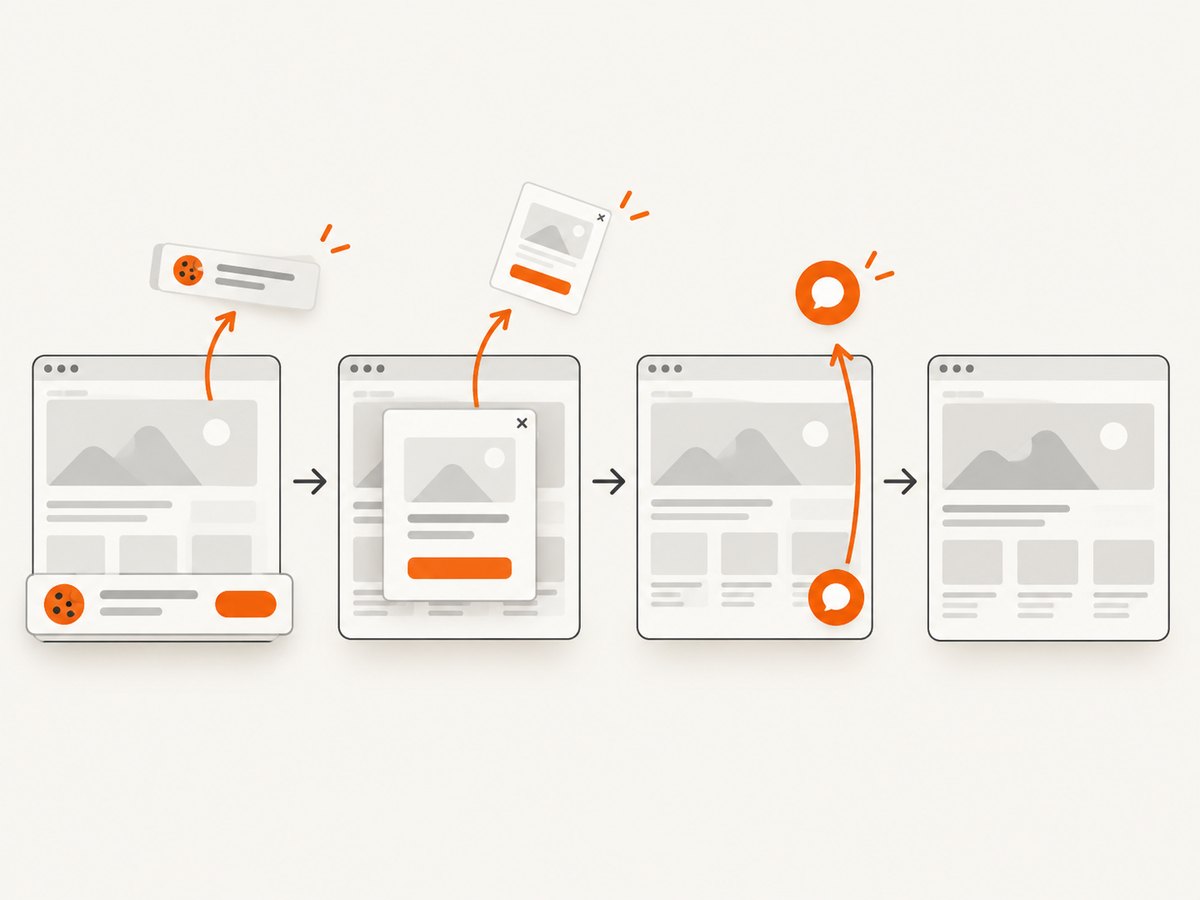
For external sites, tests can fail because of bot checks, consent banners, rate limits, unstable content, or authentication expiry. Use test fixtures where possible. Supply cookies or headers through Puppeteer only when you are authorized to access the site.
Or skip the browser setup
If your goal is a reliable screenshot after a tab or link transition, ScreenshotNeo provides a hosted capture API. It accepts a URL and returns PNG, JPEG, WebP, or PDF. Cookie and consent banners, newsletter popups, and chat widgets are removed before capture; each step can be turned off. Bot checks, blank pages, timeouts, failed loads, and cache hits are not billed, and response headers identify the page verdict and billing result.
See the ScreenshotNeo documentation for all options, including custom JavaScript and CSS, click actions, waits, full-page lazy-image loading, element selectors, device presets, dark mode, headers, cookies, geolocation, caching, signed links, asynchronous jobs, bulk capture, PDFs, and the usage API.
cURL
curl -G "https://api.screenshotneo.com/v1/shot" \
  -d access_key=YOUR_API_KEY \
  --data-urlencode url=https://stripe.com \
  -o shot.webp
Python
import requests

r = requests.get(
    "https://api.screenshotneo.com/v1/shot",
    params={"access_key": "YOUR_API_KEY", "url": "https://stripe.com"},
    timeout=90,
)
r.raise_for_status()
open("shot.webp", "wb").write(r.content)
Node.js
const q = new URLSearchParams({ access_key: 'YOUR_API_KEY', url: 'https://stripe.com' });
const res = await fetch(`https://api.screenshotneo.com/v1/shot?${q}`);
if (!res.ok) throw new Error(`HTTP ${res.status}`);
const data = Buffer.from(await res.arrayBuffer());
require('fs').writeFileSync('shot.webp', data);
ScreenshotNeo also includes an MCP server with take_screenshot, get_page_info, and capture_pdf tools for Claude, Cursor, and other MCP clients. It offers 1,000 screenshots per month free with no card; paid plans start at $5 for 3,000 screenshots, and every feature is on every plan. Create a free ScreenshotNeo account.
10. FAQ
Should I use page.click or a Locator?
Use a Locator for new code. It waits for basic click preconditions and supports semantic selectors. Keep page.click in legacy suites when changing it would add unnecessary risk.
Why did my URL change but no navigation response arrive?
History API and hash navigation can resolve with a null response. Assert the URL and the DOM state that represents the completed transition.
How do I know whether a link opened a popup?
Inspect the link for target="_blank" and observe the click with a popup listener. If the behavior is generated by script, use a target predicate and confirm the new page URL.
Can I wait for a tab’s content without waiting for every request?
Yes. Wait for a stable destination element or selected-panel state. This is often faster and less flaky than a network-idle condition.
When should I use a screenshot API instead of Puppeteer?
Use Puppeteer when you need browser-level control inside your test or automation process. Use ScreenshotNeo when you want a hosted request that handles browser setup, consent cleanup, capture options, and billing verdicts for you.


