How to Troubleshoot Permission Errors in Browser Screenshot APIs
Identify the screenshot API that failed, then fix extension grants, screen sharing prompts, CDP policy blocks, and Playwright setup.
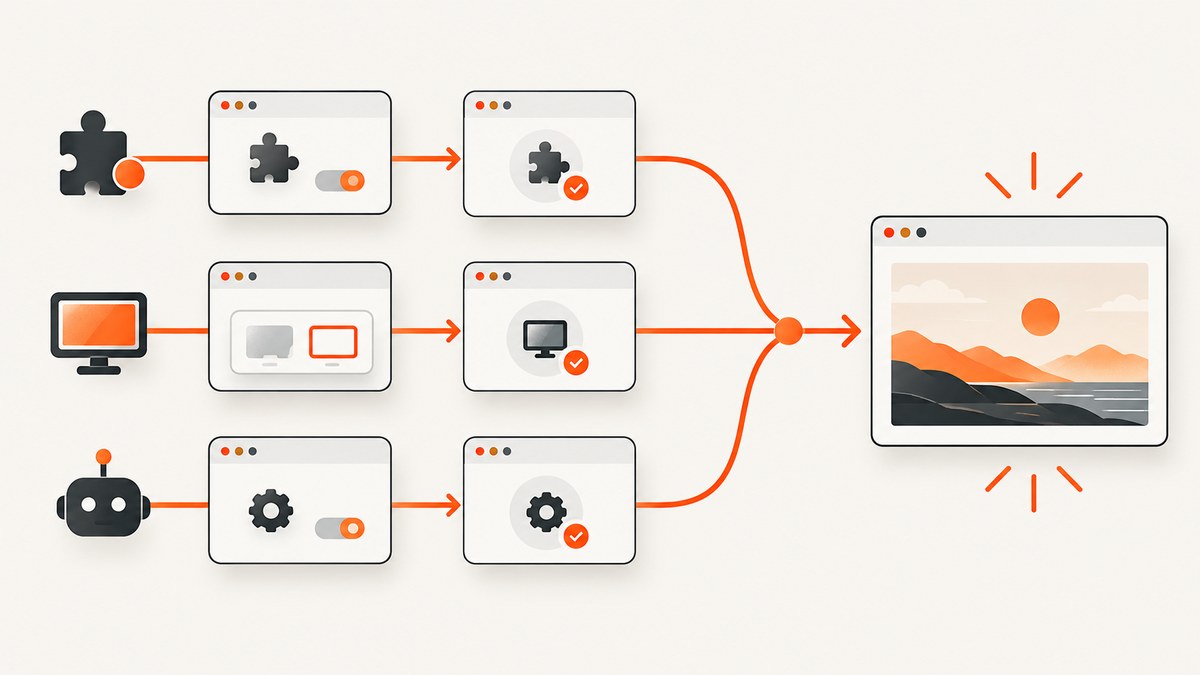
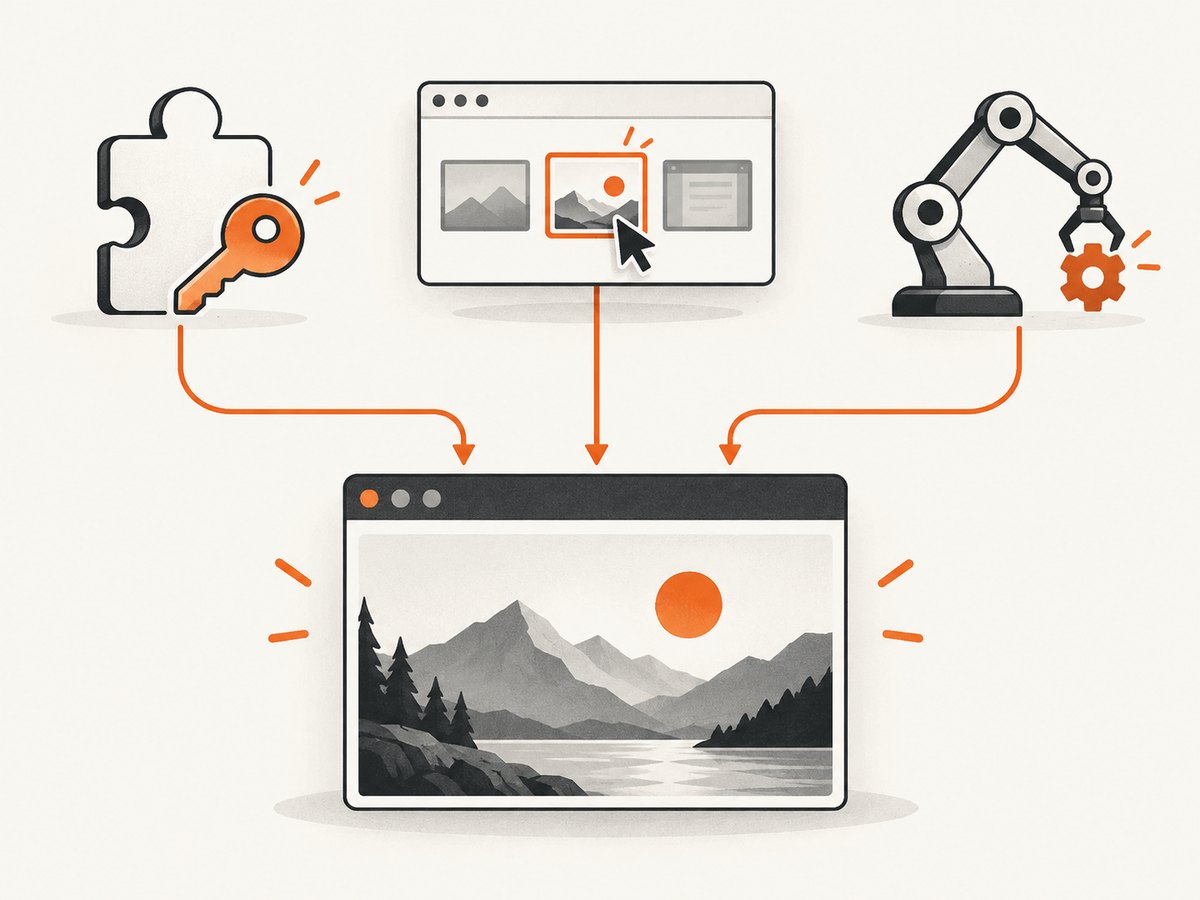
Permission errors in browser screenshot APIs are solved by identifying the capture interface first. An extension using chrome.tabs.captureVisibleTab, a web page using getDisplayMedia(), and automation using Playwright or the Chrome DevTools Protocol have different permission gates. Copy the complete error, record the browser and version, and then follow the matching branch below.
1. Identify the capture interface
Start a diagnostic note with these fields:
- Exact API and calling code.
- Complete error text, including any error code.
- Browser name and version, operating system, and extension version.
- Whether the browser is managed by an organization.
- Whether the page is inside an iframe or cross-origin embed.
- Whether automation launched the browser or attached to an existing Chromium process.
- The URL type: HTTPS, HTTP, a
file://URL, or a local development page.
Do not treat every “permission denied” message as the same problem. A missing extension permission, a user cancelling a display chooser, and an enterprise screenshot block can produce similar symptoms while requiring different fixes.
| Interface | What it captures | How consent works | Typical permission failure |
|---|---|---|---|
chrome.tabs.captureVisibleTab |
The visible area of the active tab | Manifest permission plus a user invocation when using activeTab |
Missing all_urls/activeTab, file access disabled, or capture rate exceeded |
getDisplayMedia() |
A tab, window, or screen selected by the user | Browser surface chooser | User cancellation, iframe permissions policy, or managed sharing policy |
| Chrome debugger API or CDP | Debugger-controlled page capture | Extension debugger grant and browser policy | Missing debugger or “Screenshot capture is restricted by policy” |
Playwright page.screenshot() |
Rendered page content in an automation context | Browser context setup, not a site screen-sharing prompt | Attachment or context problems, especially with CDP connections |
2. Fix Chrome extension captureVisibleTab errors
captureVisibleTab is an extension API. It captures the visible part of a tab, not the desktop or an arbitrary background page. Chrome’s API reference requires either all_urls or activeTab. File URLs also require the user to enable file access for the extension in the extensions manager.
Manifest examples
Use broad host access when the extension must capture matching pages without a user gesture:
{
  "manifest_version": 3,
  "name": "Visible tab capture",
  "version": "1.0.0",
  "permissions": ["tabs"],
  "host_permissions": ["<all_urls>"],
  "background": {"service_worker": "background.js"},
  "action": {}
}
Use activeTab when capture follows an explicit user action, such as clicking the toolbar button:
{
  "manifest_version": 3,
  "name": "Capture after click",
  "version": "1.0.0",
  "permissions": ["activeTab"],
  "background": {"service_worker": "background.js"},
  "action": {}
}
With activeTab, the temporary host permission is granted after the expected user invocation. A capture started by a timer, a startup event, or an unrelated message may fail because that grant was never created. Make the user action the first step that leads to capture:
chrome.action.onClicked.addListener(async (tab) => {
  if (!tab.id) return;
  try {
    const dataUrl = await chrome.tabs.captureVisibleTab(tab.windowId, {
      format: 'png'
    });
    console.log('Captured', dataUrl.slice(0, 32));
  } catch (error) {
    console.error('captureVisibleTab failed:', error);
  }
});
Checklist for this branch
- Confirm the extension was reloaded after changing
manifest.json. - Confirm the call targets a normal tab and that the tab is visible in its window.
- If using
activeTab, reproduce the failure by clicking the extension action, then capture immediately. - For
file://pages, enable “Allow access to file URLs” for the extension. - Check the documented quota: Chrome allows at most two
captureVisibleTabcalls per second. Queue requests instead of firing a capture for every animation frame or scroll event. - Log the rejected promise and the tab ID; do not hide the original error behind a generic “permission denied” message.
Chrome documents the permission requirements in the tabs API reference. The two-calls-per-second limit is a separate diagnostic from manifest permissions, so fixing the manifest will not resolve a rate failure.
3. Fix getDisplayMedia() permission and chooser failures
getDisplayMedia() is user-mediated. The browser opens a chooser asking what surface the user wants to share: a tab, window, or entire screen. It does not grant a silent screenshot permission to the page.
async function captureSelectedSurface() {
  const stream = await navigator.mediaDevices.getDisplayMedia({
    video: { frameRate: 1 },
    audio: false
  });

  const video = document.createElement('video');
  video.srcObject = stream;
  await video.play();
  await new Promise(requestAnimationFrame);

  const canvas = document.createElement('canvas');
  canvas.width = video.videoWidth;
  canvas.height = video.videoHeight;
  canvas.getContext('2d').drawImage(video, 0, 0);
  const pngBlob = await new Promise(resolve => canvas.toBlob(resolve, 'image/png'));

  stream.getTracks().forEach(track => track.stop());
  return pngBlob;
}

captureSelectedSurface().catch(error => {
  console.error('Display capture failed or was cancelled:', error.name, error.message);
});
Distinguish these cases:
- User cancellation: the chooser opened, but the user pressed Cancel or closed it. Explain the required surface and let the user try again.
- Iframe restriction: an embedded cross-origin frame may need an appropriate display-capture permissions policy from its embedding page. Check the iframe and response policy before changing JavaScript.
- Managed browser restriction: enterprise policy can prohibit sites from prompting users to share their screen. An administrator must inspect the relevant Chrome policy.
- Context restriction: call from a secure, top-level application context appropriate for the browser version and deployment. Test the same code in a simple top-level page to separate application issues from embedding rules.
Chrome’s screen capture guide describes the chooser flow. A page cannot use this API to bypass the user’s selection.
4. Fix debugger API and CDP policy errors
An extension that uses Chrome’s debugger API must declare the debugger permission:
{
  "manifest_version": 3,
  "name": "Debugger capture",
  "version": "1.0.0",
  "permissions": ["debugger"],
  "background": {"service_worker": "background.js"}
}
If the exact error says “Screenshot capture is restricted by policy,” Chrome documents DisableScreenshots enterprise policy or data-loss-prevention rules as the cause. Site-level permissions, activeTab, and repeated extension reloads cannot override an administrator-imposed block. Give the administrator the exact message, browser version, device identity, and the time of failure so the policy decision can be audited.
Do not confuse the debugger API with getDisplayMedia(). The former is an extension or debugging trust boundary; the latter is a user-selected sharing flow. They may be used in the same product, but they are not interchangeable permissions.
5. Diagnose Playwright screenshots and CDP attachment
Playwright’s page.screenshot() captures a page in an automation browser context. A site’s screen-sharing prompt is normally irrelevant to this operation.
import { chromium } from 'playwright';

const browser = await chromium.launch({ headless: true });
const page = await browser.newPage({ viewport: { width: 1440, height: 900 } });
await page.goto('https://example.com', { waitUntil: 'networkidle' });
await page.screenshot({ path: 'page.png', fullPage: true });
await browser.close();
If your application attaches to an existing Chromium instance, compare it with a browser launched by Playwright. Playwright’s connectOverCDP supports Chromium-based browsers, but its documentation notes that this connection has lower fidelity than Playwright’s own protocol connection. Differences in contexts, permissions, extensions, or browser flags can therefore appear only in the attached setup.
import { chromium } from 'playwright';

const browser = await chromium.connectOverCDP('http://127.0.0.1:9222');
const contexts = browser.contexts();
if (!contexts.length) throw new Error('No browser context is available');
const pages = contexts[0].pages();
if (!pages.length) throw new Error('No page is available');
await pages[0].screenshot({ path: 'attached.png' });
await browser.close();
When the launched version works and the CDP version fails, inspect how Chromium was started, which profile is used, and whether an organization policy applies to that profile. Playwright’s API reference covers the page screenshot operation and CDP connection details.
6. A repeatable troubleshooting workflow
- Capture context: save the full error and environment fields listed in section 1.
- Reduce the case: one URL, one tab, one capture, no iframe, no batching, and no retry loop.
- Test the permission gate: check manifest permissions for extensions, complete the chooser for display capture, or launch a clean Playwright browser.
- Test policy: on managed Chrome, ask an administrator to inspect screenshot prevention, DLP, and screen-sharing policies.
- Restore complexity gradually: add the iframe, custom profile, CDP attachment, concurrency, and retry behavior one at a time.
- Record the boundary: document whether the failure is a grant, user cancellation, quota, policy, or automation-context issue.
7. Performance, reliability, and cost considerations
Permission fixes do not automatically make a capture pipeline reliable. Keep capture requests below the extension quota, debounce scroll or resize events, and avoid retrying a policy error. For getDisplayMedia(), stop tracks after the frame is copied so the browser does not keep an unused capture active. For Playwright, reuse a browser process carefully, but isolate pages and contexts when cookies or permissions must differ.
Classify failures before retrying:
| Failure class | Retry? | Action |
|---|---|---|
| Temporary navigation timeout | Usually, with backoff | Retry a bounded number of times and log the URL and wait condition. |
| User cancelled chooser | Only after another user action | Explain the requested surface; do not loop automatically. |
| Missing manifest permission | No | Fix and reload the extension. |
| Enterprise policy block | No | Escalate to the browser administrator. |
| Capture rate exceeded | After delay | Queue work and keep at or below two calls per second. |
Self-hosted browser automation also carries browser-process, font, sandbox, and network maintenance costs. A hosted screenshot endpoint can move those concerns outside your application, but you still need to handle HTTP status codes, timeouts, and response classification.
8. Or skip the browser setup
ScreenshotNeo provides a website screenshot API and MCP server. One GET request returns a PNG, JPEG, WebP, or PDF, without asking your application to maintain extension permissions, display choosers, or a browser profile.
See the ScreenshotNeo API documentation for all options. A minimal request is:
curl -G 'https://api.screenshotneo.com/v1/shot' -d access_key=YOUR_API_KEY --data-urlencode url=https://stripe.com -o shot.webpimport requests
r = requests.get('https://api.screenshotneo.com/v1/shot', params={'access_key': 'YOUR_API_KEY', 'url': 'https://stripe.com'}, timeout=90)
r.raise_for_status()
open('shot.webp', 'wb').write(r.content)const q = new URLSearchParams({ access_key: 'YOUR_API_KEY', url: 'https://stripe.com' });
const res = await fetch(`https://api.screenshotneo.com/v1/shot?${q}`);
if (!res.ok) throw new Error(`HTTP ${res.status}`);
const fs = await import('node:fs/promises');
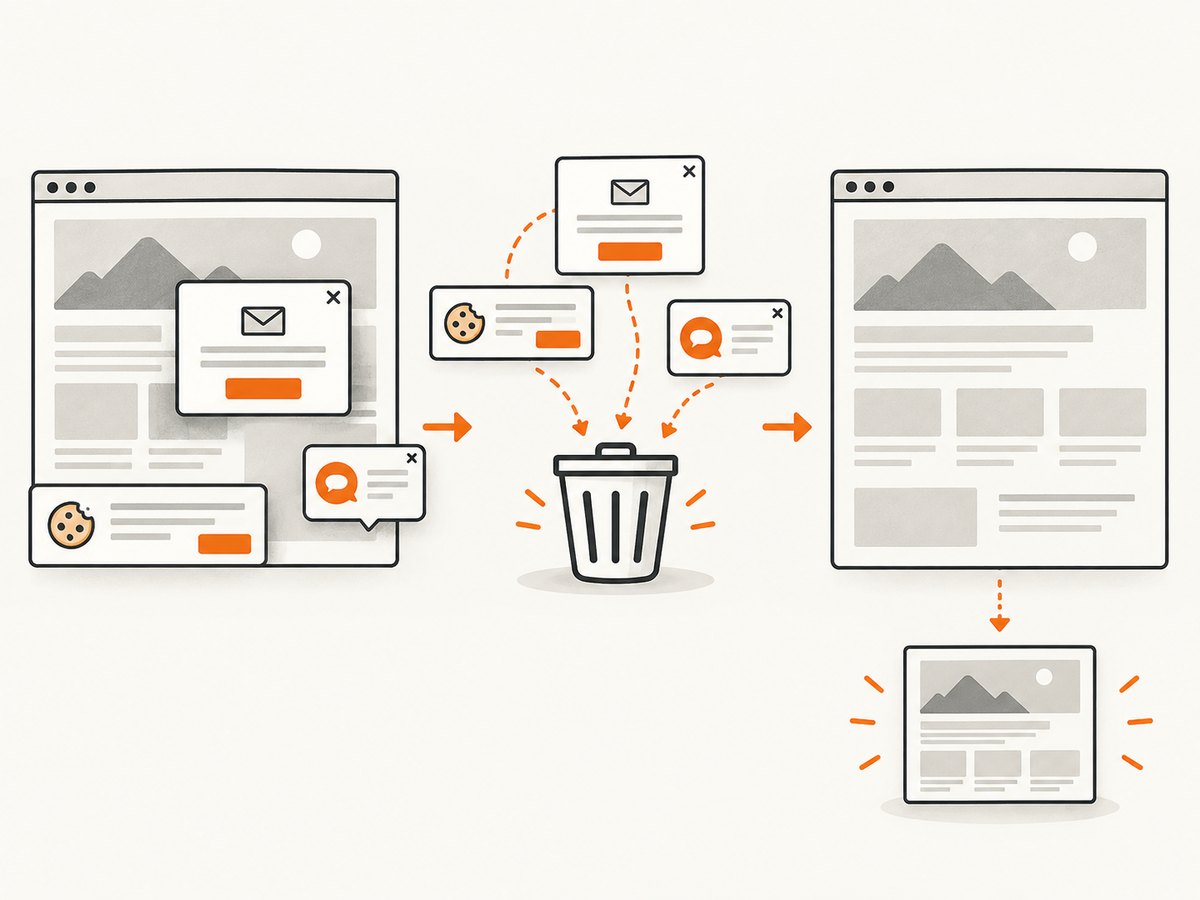
await fs.writeFile('shot.webp', Buffer.from(await res.arrayBuffer()));ScreenshotNeo removes cookie and consent banners, newsletter popups, and chat widgets before capture; each cleanup step can be turned off. Bot checks, blank pages, timeouts, failed loads, and cache hits are not billed, and the response reports the result with X-Page-Verdict and X-Billed headers. The API also supports full-page captures with lazy images, CSS element capture, device presets, custom viewports, dark mode, retina scale, PDF paper and page settings, custom CSS and JavaScript, clicks, selector or network-idle waits, request blocking, headers, cookies, user agents, Authorization, timezone, geolocation, transparent backgrounds, resizing, chosen cache TTLs, signed image links, asynchronous jobs with signed webhooks, bulk capture of up to 100 URLs per call, usage data, and an OpenAPI specification. An MCP server exposes take_screenshot, get_page_info, and capture_pdf for Claude, Cursor, and other MCP clients.
There is a free allowance of 1,000 screenshots each month with no card. Paid plans start at $5 for 3,000 shots; every feature is available on every plan. Create a free ScreenshotNeo account.
9. Common errors and precise fixes
| Error or symptom | Likely cause | Fix |
|---|---|---|
captureVisibleTab rejects after a background timer |
activeTab was never granted by a user invocation |
Use a toolbar or context-menu action, or request the appropriate host permission. |
| File URL cannot be captured | Extension file access is disabled | Enable “Allow access to file URLs” and retry. |
| Repeated captures fail intermittently | More than two calls per second | Debounce and queue captures. |
| Display chooser never completes | User cancellation, iframe policy, or managed sharing restriction | Test top-level, ask the user to select a surface, then inspect embedding and enterprise policy. |
| “Screenshot capture is restricted by policy” | DisableScreenshots or DLP policy | Contact the browser administrator; do not keep changing site permissions. |
| Playwright works when launched but not over CDP | Different browser profile, context, flags, or lower-fidelity CDP attachment | Compare launch and attachment configurations, then use a Playwright-launched browser where possible. |
10. FAQ
Does activeTab grant permanent access?
No. It is temporary host access associated with an appropriate user invocation and the current tab.
Can getDisplayMedia() capture without showing a prompt?
The API is user-mediated and presents a surface chooser. Application code cannot silently select a tab or screen.
Is a Playwright screenshot the same as a screen recording?
No. page.screenshot() captures rendered page content in an automation context; screen recording uses a display-capture flow.
Who can remove an enterprise screenshot restriction?
The organization’s browser administrator. A site developer cannot override DisableScreenshots or DLP policy from page code.
What should a bug report contain?
Include the exact API, complete error, browser and operating system versions, managed status, iframe and CDP details, URL type, timestamp, and whether the failure reproduces in a minimal case.


