How to Troubleshoot HTTP 456 Errors in Headless Chrome
HTTP 456 has no universal meaning. Capture the response, identify which layer sent it, and compare headful, headless, proxied, and direct requests.
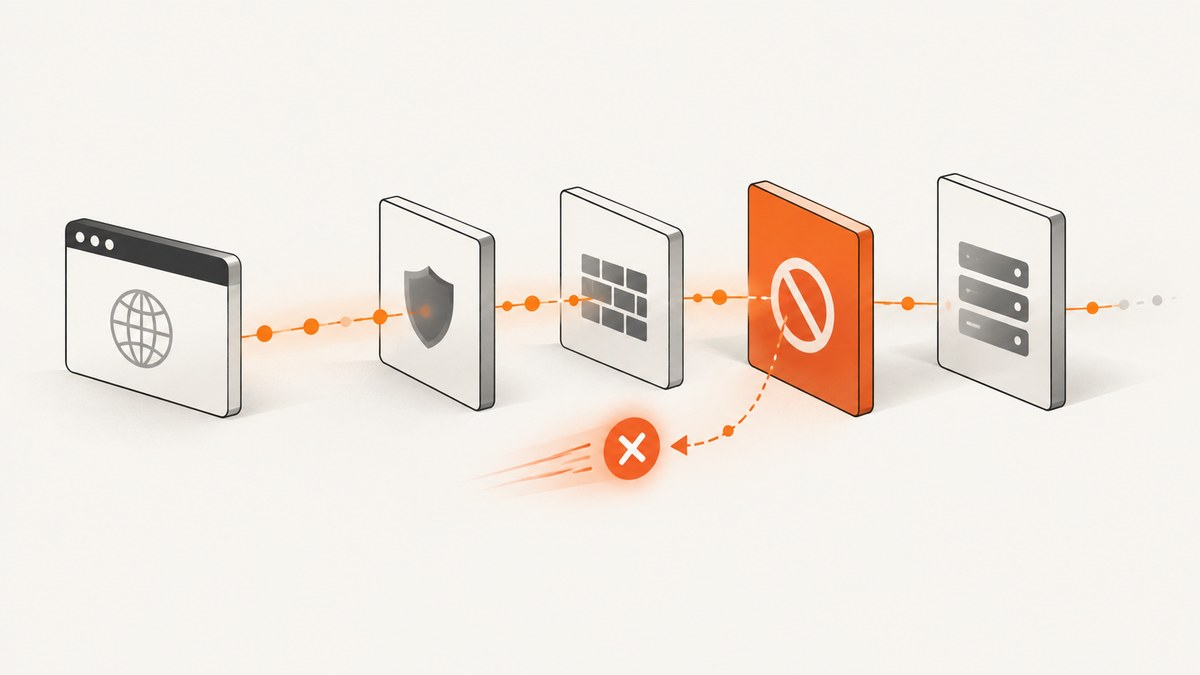
HTTP 456 has no standard, globally defined meaning. The IANA HTTP Status Code Registry marks the range 452–499 as unassigned, so a 456 response is a private choice made by the server, CDN, web application firewall (WAF), proxy, gateway, or automation service that generated it. Treat it as a 4xx client-error response, then use its body, headers, request path, and provider documentation to find the actual cause. IANA’s registry is the standards reference; it cannot tell you what a particular provider means by 456.
The practical goal is to identify the component that emitted the response. Capture the complete response, compare the same request across controlled browser and network paths, and change the policy or configuration at the layer responsible. Do not assume that 456 means rate limiting, bot detection, or an authentication failure without evidence.
1. Confirm that this is an HTTP 456 response
First distinguish an actual HTTP status from a browser networking error. An HTTP response has a status code and usually response headers and a body. A Chrome net error, such as ERR_PROXY_CONNECTION_FAILED, means the browser could not complete the network operation; it is not an HTTP 456 response from a server.
In Puppeteer or Playwright, log the URL and status for each response. Redirects matter: the first URL may respond normally while a later redirect target returns 456.
// Puppeteer: log responses and redirect targets for the page.
page.on('response', async (response) => {
  const request = response.request();
  console.log({
    status: response.status(),
    url: response.url(),
    method: request.method(),
    redirectedFrom: request.redirectChain().map((item) => item.url())
  });
});

page.on('requestfailed', (request) => {
  console.error('Network failure:', {
    url: request.url(),
    error: request.failure()?.errorText
  });
});
Install Puppeteer in a small Node project with npm install puppeteer. This example logs every response and network failure; it does not classify the private meaning of any particular 456.
// capture.js
const puppeteer = require('puppeteer');

(async () => {
  const browser = await puppeteer.launch({ headless: true });
  try {
    const page = await browser.newPage();
    page.on('response', (response) => {
      console.log(response.status(), response.url());
    });
    page.on('requestfailed', (request) => {
      console.error('Failed request:', request.url(), request.failure()?.errorText);
    });
    const response = await page.goto('https://example.com', {
      waitUntil: 'domcontentloaded',
      timeout: 30000
    });
    console.log('Main document:', response?.status(), response?.url());
  } finally {
    await browser.close();
  }
})();
Use a safe test URL you are authorized to access. Record the final main-document URL and status separately from subresource responses: an image or analytics request can fail without the document itself returning 456.
2. Save the evidence before changing anything
Capture enough information to reproduce the request and identify its source. Keep credentials and sensitive cookie values private when saving or sharing logs.
- Requested URL, final URL, method, timestamp, and redirect chain.
- Status and response body, preserving a copy of any challenge or policy page.
- Response headers, especially
Server,Via,Location, cache headers, request IDs, and provider-specific headers. - Request headers, user agent, relevant cookies, and authentication method. Redact secrets in shared reports.
- Browser version, headless/headful mode, proxy settings, and whether JavaScript ran.
- Whether the main document, an API request, or a subresource received the status.
Headers such as Server or Via are clues, not proof: intermediaries can rewrite or omit them. A branded body, policy identifier, CAPTCHA marker, retry interval, or request ID can be more useful. The provider’s documentation and support channel are the authority for that provider’s private status.
3. Compare browser mode and network route
Run a controlled comparison. Keep the URL, method, authentication, and user agent consistent where practical, and note every difference. Try headful Chrome, headless Chrome without a proxy, headless Chrome with the production proxy, and a direct command-line request. This is a diagnostic method, not a claim that one path always behaves a particular way.
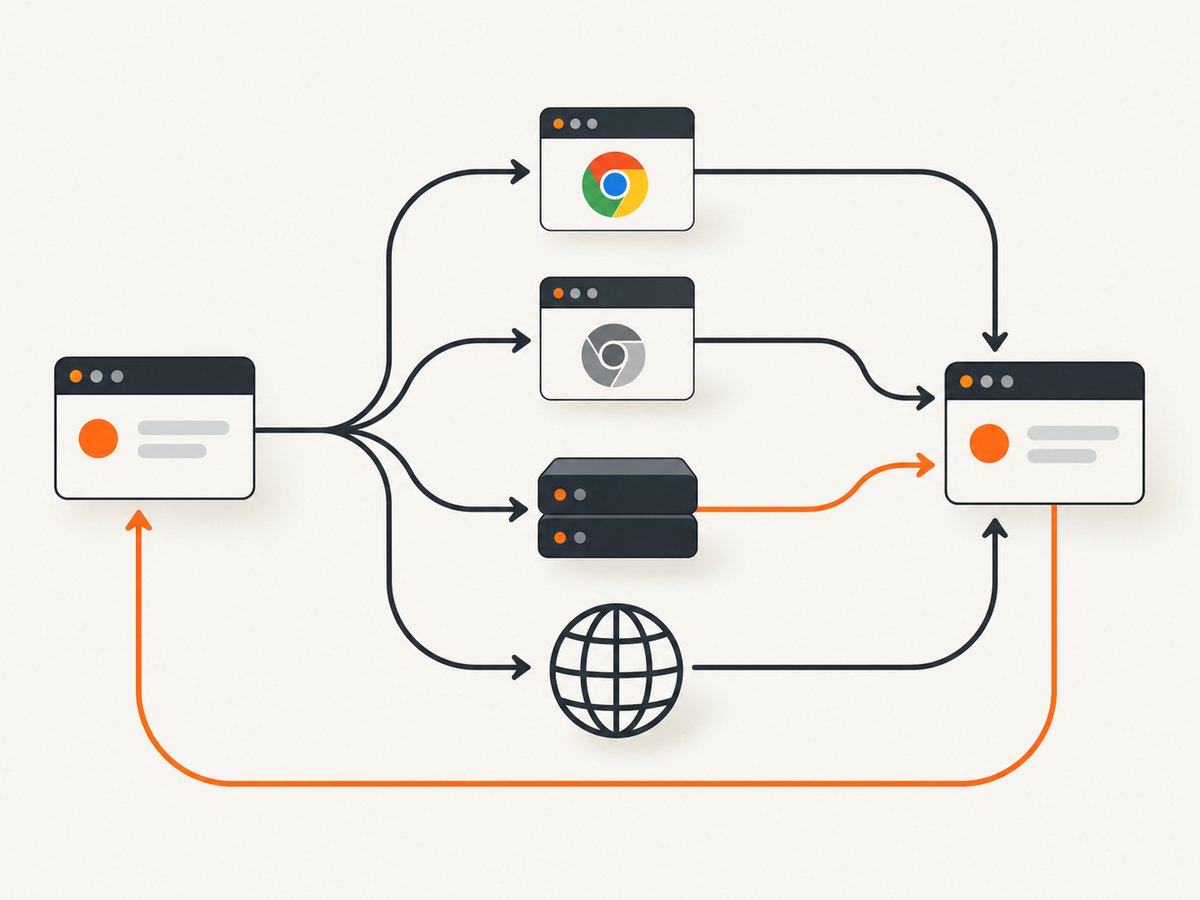
| Result | Likely area to inspect |
|---|---|
| Only the production-proxy path returns 456 | Proxy credentials, routing, egress policy, or a response injected by the proxy. |
| Headful works; headless fails on the same route | Cookies, JavaScript completion, redirects, TLS, viewport, or request headers that differ between sessions. |
| All clients return 456 | Origin, CDN/WAF, account policy, required authentication, or a provider-specific access rule. |
| Only one redirected URL returns 456 | The redirect destination or a policy applied to that destination. |
| There is no HTTP response and Chrome reports a net error | Connectivity, proxy negotiation, DNS, TLS, or another transport problem. |
Use curl as a direct-client comparison. It does not reproduce Chrome’s JavaScript execution or browser cookie behavior, so a different result narrows the search but does not by itself identify the cause.
curl -sS -D response-headers.txt -o response-body.html \
  -w 'status=%{http_code}\nurl=%{url_effective}\n' \
  'https://example.com/path'
For a controlled user-agent comparison, add a documented value with -A 'value'. To include authentication, use the service’s documented method and keep secrets out of shell history and logs. Avoid sending a copied browser cookie to an untrusted machine.
4. Inspect a live headless Chrome session
Chrome for Developers documents launching headless Chrome with the --remote-debugging-port flag and connecting from another Chrome instance through chrome://inspect. This lets you inspect the live target, network requests, console, cookies, and response body rather than guessing what the automation process sent.
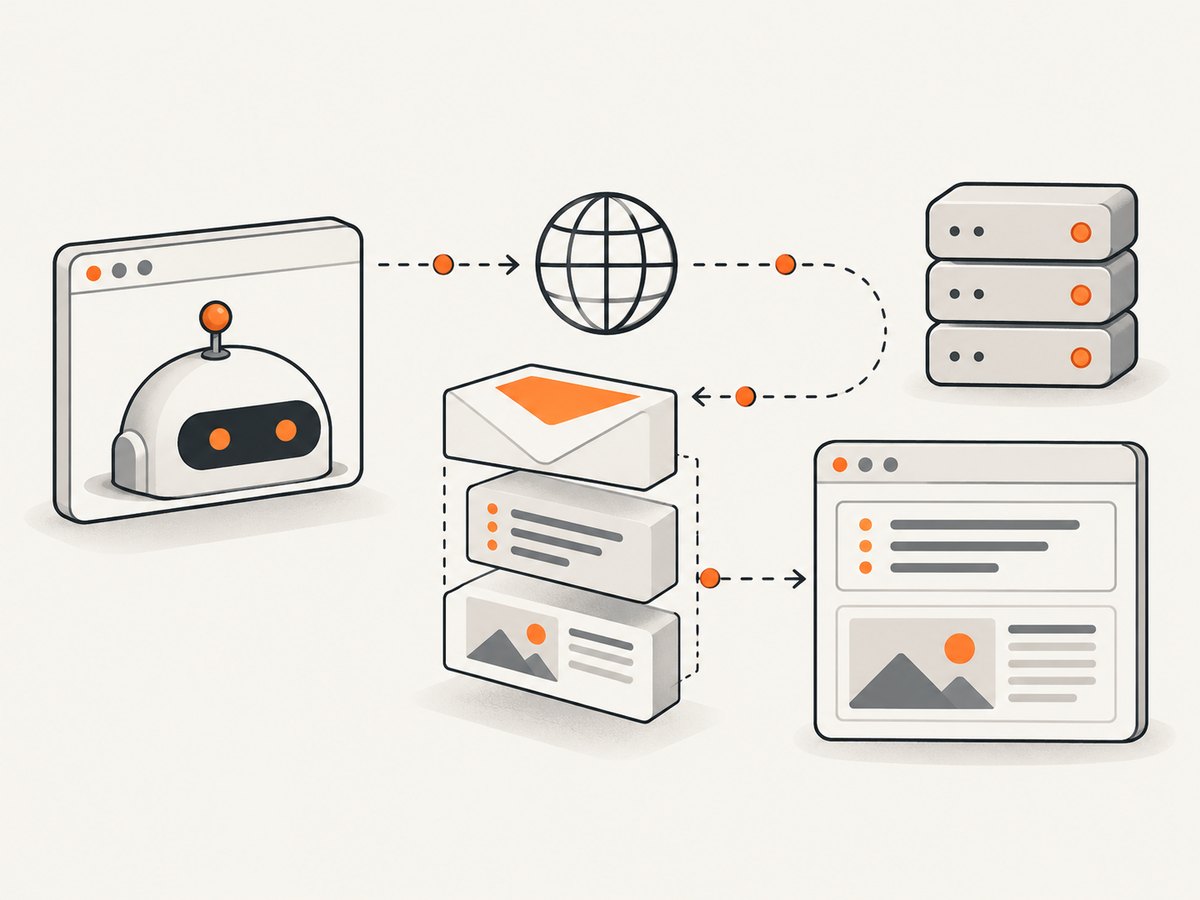
chrome --headless --remote-debugging-port=0 https://example.comChrome prints a DevTools WebSocket endpoint when it starts. In a separate, headful Chrome window, open chrome://inspect, configure the remote target if needed, and inspect the page. Check the Network panel for the failing request and its redirect chain. Read the Console for JavaScript errors that might prevent the expected navigation or session setup.
Use this only in a controlled environment. A debugging endpoint grants powerful access to the browser session; do not expose it to an untrusted network. Close the browser when the inspection is complete.
5. Isolate a proxy carefully
Chromium supports --proxy-server and --proxy-bypass-list. To see whether the configured intermediary is involved, test a known proxy route and then a narrowly scoped direct route for the target host. Chromium also documents a direct fallback using direct://.
# Route through a proxy
chromium --proxy-server="http://proxy.example:8080" https://example.com

# Bypass the proxy for one target host during a controlled test
chromium --proxy-server="http://proxy.example:8080" \
  --proxy-bypass-list="example.com" https://example.com

# Proxy first, then direct fallback if the proxy cannot be used
chromium --proxy-server="http://proxy.example:8080,direct://" https://example.com
Use the executable name and proxy syntax appropriate to your Chromium installation. A bypass changes routing and can send traffic directly; keep it scoped to the test host and remove it when the test is over. If the 456 disappears only when the proxy is bypassed, inspect proxy authentication, scheme, routing rules, and provider policy. If it remains, the proxy is less likely to be the component generating the response.
6. Apply the fix at the layer that returned 456
Origin, CDN, or WAF
Read the response body and headers for the provider name, policy ID, request ID, challenge indicator, or retry guidance. Follow the site’s documented API and authentication flow, honor its published rate limits, and use its allow-list or access-request process where appropriate. Give the provider the timestamp and request ID so it can look up the decision. Do not repeatedly retry a response that says the request is blocked or asks for a human check.
Proxy or gateway
Verify the proxy URL, scheme, credentials, bypass list, and selected route. Ask the proxy operator whether it creates the response or relays it from upstream. Compare the response body and request IDs on proxied and direct requests. Fix invalid credentials or policy at the proxy instead of changing page automation to disguise the request.
Headless-only difference
Use DevTools to compare what the browser actually sent. Check whether the headless context has the expected cookies and authentication, whether JavaScript finished its intended work, and whether a redirect or TLS failure occurs before the page is ready. Compare viewport and request headers where relevant. Add waits for a specific, documented page condition rather than arbitrary long sleeps; a longer wait will not resolve an access policy.
Chrome fails to load at all
If there is no HTTP response, investigate network access, DNS, proxy interception, certificates, and local browser configuration. Google Chrome Help recommends checking connection and loading errors, proxy interference, certificates, and extensions, then contacting the site owner if the problem persists. Separate these transport failures from an HTTP status in logs.
7. Make the capture workflow more reliable
- Log the whole chain: include browser version, route, final URL, status, and request ID with each failed capture.
- Set explicit timeouts: use bounded navigation and operation timeouts so a hung page does not occupy a worker indefinitely.
- Wait for a meaningful condition: prefer a specific selector or a known navigation milestone over a fixed delay when the page has dynamic content.
- Retry selectively: retry transient connection failures with a small capped backoff. Treat a repeatable 456 as a policy response until the provider says otherwise.
- Keep sessions intentional: isolate cookies and credentials by job or account; do not accidentally reuse one user’s state for another capture.
- Limit concurrency: tune parallel browser pages to available CPU, memory, and the destination’s documented limits.
Headless browser captures cost more resources than a direct HTTP request because they run a browser and page scripts. Reuse browser processes when your automation framework supports safe page isolation, close pages promptly, and block unneeded assets only when doing so does not remove content or scripts required by the page. There is no universal response-time or failure-rate figure for HTTP 456; measure your own routes and workload.
8. Common errors and fixes
| Symptom | Cause to check | Next action |
|---|---|---|
| “456” appears in a log, but no headers or body were saved | The capture stored only a status, or the failure was mislabeled. | Log the response URL, headers, and body; check for a Chrome net error instead. |
| Browser shows a different page than the requested URL | A redirect ended at a policy or login page. | Record every redirect and inspect the final host and response. |
| Direct curl works, proxied Chrome returns 456 | The proxy path or its policy differs. | Run a scoped bypass test; verify proxy credentials and ask the proxy operator about the response. |
| Headful Chrome works, headless returns 456 | Session state, JavaScript, headers, viewport, or TLS handling differs. | Compare live requests and cookies in DevTools before changing automation settings. |
| All clients return the same 456 body | Likely an origin, CDN/WAF, or account rule. | Use the provider’s documented API, authentication, rate, or allow-list process; include its request ID. |
| Automation reports a proxy error, not status 456 | The proxy connection failed before an HTTP response arrived. | Fix proxy reachability, DNS, scheme, or credentials; do not treat it as an origin status. |
| Adding a long sleep changes nothing | The response is a policy decision rather than a page-readiness race. | Stop increasing delays and identify the emitting layer from the response evidence. |
9. A simpler option for routine screenshots
If your task is to produce website screenshots rather than debug your own browser and proxy stack, ScreenshotNeo provides a website screenshot API and MCP server. Its one-call API returns a PNG, JPEG, WebP, or PDF. See the ScreenshotNeo API documentation for request options.
curl -G "https://api.screenshotneo.com/v1/shot" -d access_key=YOUR_API_KEY --data-urlencode url=https://stripe.com -o shot.webpimport requests
r = requests.get("https://api.screenshotneo.com/v1/shot", params={"access_key": "YOUR_API_KEY", "url": "https://stripe.com"}, timeout=90)
open("shot.webp", "wb").write(r.content)const q = new URLSearchParams({ access_key: 'YOUR_API_KEY', url: 'https://stripe.com' });
const res = await fetch(`https://api.screenshotneo.com/v1/shot?${q}`);Cookie and consent banners are accepted and removed before capture, along with 60+ known consent platforms, newsletter popups, and chat widgets; each cleanup step can be turned off. Bot checks and CAPTCHAs, blank pages, timeouts, failed loads, and cache hits are not billed, and the response says which outcome occurred in X-Page-Verdict and X-Billed. Its MCP server gives AI agents tools named take_screenshot, get_page_info, and capture_pdf. The Free plan includes 1,000 shots per month without a card; paid plans start at $5 for 3,000 shots. Yearly billing gives two months free, and every feature is on every plan.
Sign up for 1,000 free screenshots a month with no card.
10. Frequently asked questions
Is HTTP 456 a standard status code?
No. IANA lists 452–499 as unassigned. The responding provider gives 456 its private meaning.
Does 456 always mean a bot block or rate limit?
No. Those are possibilities only when supported by the response body, headers, or provider documentation.
Can changing the user agent fix it?
Only if evidence shows the provider’s policy depends on that request field and the change follows the provider’s rules. First compare the actual requests and ask the provider what the status means.
Why does Chrome show an error without a 456 response?
A browser net error means the request may not have reached a server that could return an HTTP response. Check DNS, TLS, proxy connectivity, and local network configuration.
Who can explain a private 456 response?
The operator of the component that generated it: the origin, CDN/WAF, proxy, gateway, or automation service. Include the response evidence and request ID when contacting support.


