How to Troubleshoot PDFs That Will Not Open
Find out why a PDF will not open, isolate the cause, and fix browser, reader, damaged-file, and permission problems safely.
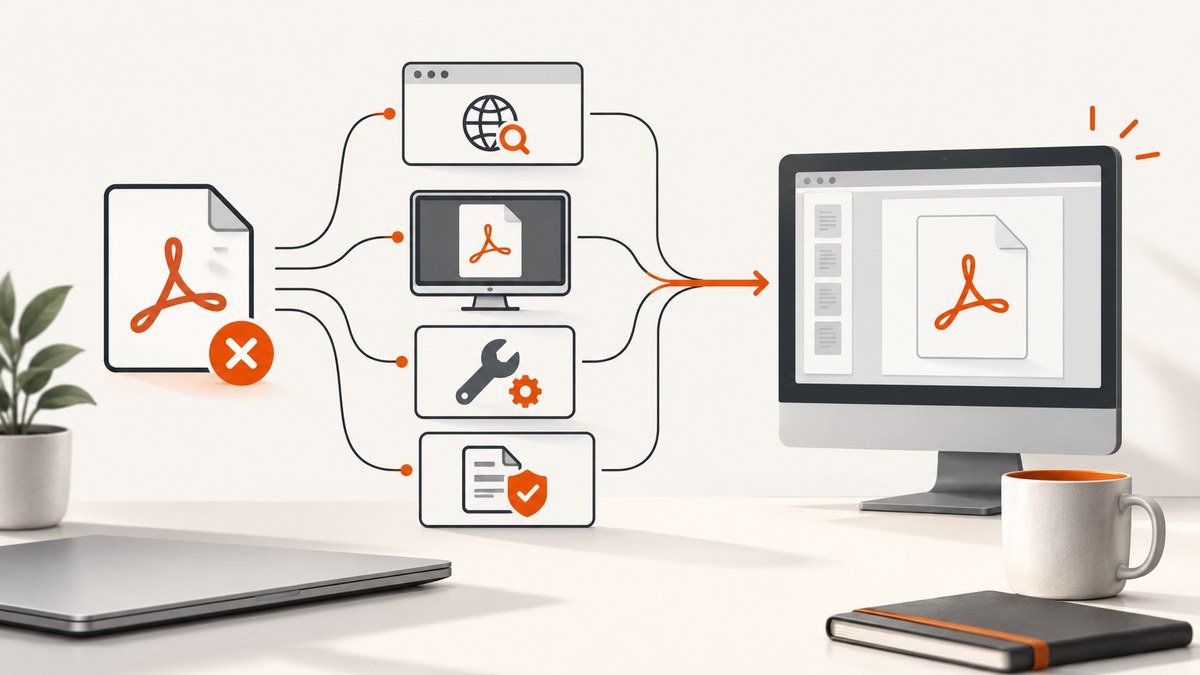
A PDF that will not open can indicate a damaged file, a browser delivery problem, a reader installation issue, or document protection. The fastest fix is to isolate the failure before changing software: test another PDF, download the affected file, try a different reader or browser, and check whether the document is password protected or rights managed.
This guide follows that diagnostic order. It covers PDFs opened from websites, PDFs saved on your computer, Adobe Acrobat or Reader problems, protected files, browser compatibility, damaged documents, and a repeatable checklist for support teams.
1. Establish exactly what fails
Start by recording the scope. The answers determine which branch to follow.
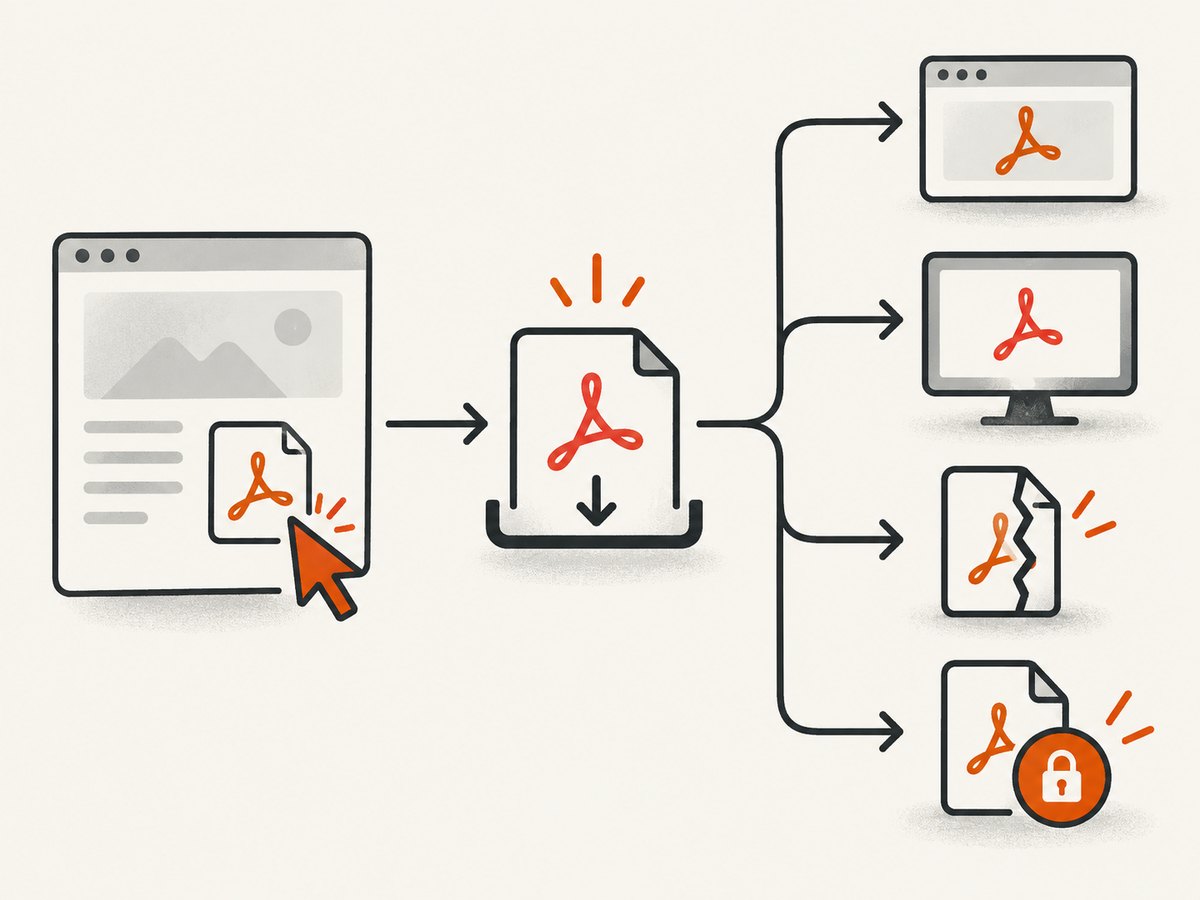
| Question | What the result suggests |
|---|---|
| Does one PDF fail or do all PDFs fail? | One failing file points toward that document or its source. Every PDF points toward the reader, operating system association, or browser. |
| Does the file fail only on a website? | The browser, download response, embedded viewer, or website delivery path may be involved. |
| Does the downloaded copy open locally? | If yes, investigate browser handling. If no, investigate the file, reader, or permissions. |
| Does another reader open it? | If yes, the original reader’s settings or compatibility are likely involved. |
| Is it password protected or rights managed? | Access rules, credentials, organization policy, or viewer compatibility may be the intended cause. |
Adobe recommends comparing the affected document with another known-good PDF and testing a local copy. These comparisons narrow the cause without assuming that the reader is broken. See Adobe’s Can’t open PDF and web PDF troubleshooting guidance.
2. If the PDF came from a website
Download it before changing settings
- Right-click the PDF link or use the browser’s download control.
- Save the file to a local folder.
- Open the saved copy in Acrobat, Reader, or another installed PDF application.
- Try the same URL in a second current browser.
If the local copy opens, the document is probably usable and the failure is in the browser’s embedded viewer, extension, cached response, or the site’s delivery path. Clear the browser’s cached copy, disable PDF-related extensions temporarily, and retry. If the file does not open locally either, continue with the damaged-file and reader checks below.
Check that the download is really a PDF
A link can return an HTML login page, an access-denied message, or a bot-check page while its name ends in .pdf. Compare the downloaded file size with a fresh copy and open it in a text or hex inspection tool only if you are comfortable doing so. A valid PDF normally begins with a PDF file signature. If the download contains a web page instead, sign in through the site’s normal flow or ask the site owner for a direct file.
3. Confirm that a PDF reader is installed and associated
If no PDF reader is installed, install one from a trusted vendor. If a reader is already present:
- Update Acrobat or Reader to its current supported version.
- Check that
.pdffiles are associated with the intended application. - Open the reader first, then use File > Open to select the document. This separates file-association problems from reader problems.
- Try a known-good sample PDF in the same application.
On Windows, Adobe documents Help > Repair Installation for Acrobat or Reader when application resources may be damaged. This repairs the application; it does not repair a corrupt PDF file. Menus vary by version, so verify the current path in your installed release.
4. Determine whether the file is damaged
Adobe states that a corrupt or damaged PDF cannot be directly repaired through its documented approach. Do not treat a repair utility as a guaranteed recovery method.
- Download a fresh copy from the original sender or website.
- Ask the sender to export the document again from its source file.
- Try another PDF reader to rule out a reader-specific compatibility issue.
- Compare the file size and checksum with a known-good transfer if your team uses checksums.
- If the source document is available, recreate the PDF and distribute the new copy.
A file that fails in multiple readers, browsers, and on multiple computers is strong evidence that the file or its transfer is the problem. That is a diagnostic inference, not a guarantee; encrypted and rights-managed files can fail for different reasons.
5. Handle passwords, permissions, and protected PDFs
A PDF can open successfully but refuse printing, copying, editing, or viewing without credentials. Separate those cases from corruption.
- Confirm that you have the correct password and that it applies to this exact file version.
- For a work document, ask the sender or administrator whether rights management requires a particular account, viewer, or network connection.
- Microsoft documents protected PDF compatibility conditions for Edge on Windows and Mac. Viewer version, file format, and organization policy can affect the result; consult the current Microsoft protected PDF guidance.
- If an unexpected PDF asks for credentials or comes from an unknown sender, verify it through a trusted channel before opening it or weakening security controls.
Adobe discusses Protected Mode in some access-denied cases. Disabling a security feature reduces protection and should be an advanced, temporary diagnostic step only after the file’s source is confirmed. Re-enable the protection immediately after testing.
6. Browser-only failures
Use this sequence when a PDF works in a desktop reader but not in a browser:
- Download the file and open the local copy.
- Try another current browser.
- Update the PDF reader and browser.
- Use a private browsing window to exclude stale cookies and extensions.
- Disable PDF viewer extensions one at a time.
- Ask the website owner whether the response requires authentication, a referrer, or a supported content type.
Legacy browser plug-in instructions can be version-specific. Prefer the diagnostic comparisons above and follow the current support instructions for your browser and reader.
7. A practical decision tree
| Observation | Next action |
|---|---|
| Another PDF opens in the same reader | Re-download the failing file and ask for a fresh export. |
| No PDF opens in the reader | Check installation, update, default app, and repair installation on Windows. |
| Website view fails but local copy opens | Test another browser, private mode, extensions, and the site’s delivery response. |
| File opens in another reader | Update or repair the original reader and check compatibility. |
| Password or access error appears | Confirm credentials, rights management, viewer requirements, and the sender. |
| File fails everywhere | Assume transfer or source damage; obtain a new copy or recreate it. |
8. Generating a fresh PDF from a web page
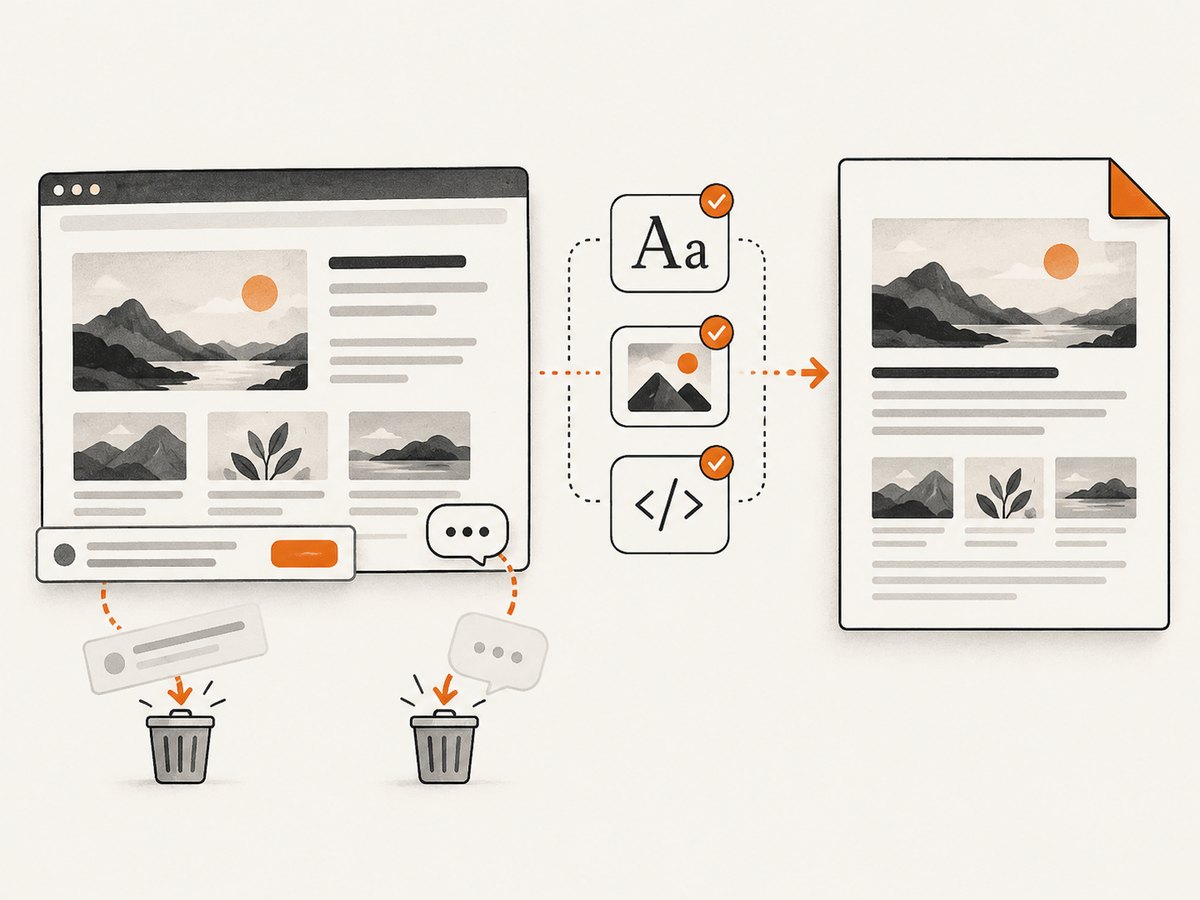
If the problem is a PDF generated from a website, regenerate it from the source page after checking that the page loads normally. A browser automation script can capture a page to PDF, but it must wait for fonts, images, and JavaScript content before printing.
Minimal Playwright example
import { chromium } from 'playwright';

const browser = await chromium.launch();
const page = await browser.newPage({
  viewport: { width: 1440, height: 900 }
});
await page.goto('https://example.com', { waitUntil: 'networkidle' });
await page.pdf({
  path: 'page.pdf',
  format: 'A4',
  printBackground: true,
  margin: { top: '16mm', right: '16mm', bottom: '16mm', left: '16mm' }
});
await browser.close();
For production use, add a timeout, log the final URL, wait for a selector that proves the page is ready, and handle authentication explicitly. A page that contains a bot challenge, blank response, or incomplete client-rendered content should not be treated as a valid PDF source.
9. Or skip the browser setup
ScreenshotNeo can capture a website as a PDF with one request. Its capture options include paper size, margins, landscape mode, and page ranges. It can also wait for a selector, delay, or network idle, use custom headers and cookies, and run custom JavaScript before capture. See the ScreenshotNeo API documentation for the complete option list.
cURL
curl -G 'https://api.screenshotneo.com/v1/shot' \
  -d access_key=YOUR_API_KEY \
  --data-urlencode url=https://stripe.com \
  -o page.pdf
Python
import requests

r = requests.get(
    'https://api.screenshotneo.com/v1/shot',
    params={
        'access_key': 'YOUR_API_KEY',
        'url': 'https://stripe.com'
    },
    timeout=90
)
r.raise_for_status()
open('page.pdf', 'wb').write(r.content)
Node.js
const q = new URLSearchParams({
  access_key: 'YOUR_API_KEY',
  url: 'https://stripe.com'
});
const res = await fetch(`https://api.screenshotneo.com/v1/shot?${q}`);
if (!res.ok) throw new Error(`HTTP ${res.status}`);
const data = Buffer.from(await res.arrayBuffer());
require('fs').writeFileSync('page.pdf', data);
ScreenshotNeo removes cookie and consent banners, newsletter popups, and chat widgets before capture. Bot checks, blank pages, timeouts, failed loads, and cache hits are not billed, and the response identifies the result with X-Page-Verdict and X-Billed headers. An MCP server provides take_screenshot, get_page_info, and capture_pdf tools for Claude, Cursor, and other MCP clients. One thousand screenshots per month are free with no card; paid plans start at $5 for 3,000 shots. Create a free ScreenshotNeo account.
10. Reliability, performance, and cost considerations
- Reliability: Save the original source file and retain a fresh download when a PDF is business-critical. Record the URL, timestamp, browser, reader version, and error message.
- Performance: Large full-page documents, web fonts, lazy images, and client-side rendering increase capture time. Wait for a meaningful selector or network idle instead of using an arbitrary short delay.
- Repeatability: Set the viewport, timezone, geolocation, user agent, headers, and cookies explicitly when the page changes by environment.
- Cost: Repeated captures can use caching with a chosen TTL. ScreenshotNeo bills only clean shots; failed loads and cache hits cost nothing.
- Security: Treat authorization headers, cookies, passwords, and downloaded PDFs as sensitive data. Do not paste credentials into support tickets or public logs.
11. Troubleshooting common errors
| Error or symptom | Likely cause | Fix |
|---|---|---|
| “There was an error opening this document” | Damaged transfer, incomplete download, or reader incompatibility. | Download again, try another reader, and request a fresh export. |
| Blank browser viewer | Browser cache, extension, authentication, or a site response that is not the PDF. | Open the local download, try private mode or another browser, and verify the response source. |
| Access denied | Rights management, Protected Mode interaction, or missing authorization. | Confirm the sender, credentials, policy, and supported viewer before changing security settings. |
| PDF opens on one computer only | Reader version, fonts, association, or platform-specific compatibility. | Update readers, compare another application, and recreate the PDF if needed. |
| Generated PDF is missing content | Capture occurred before JavaScript, images, or fonts finished loading. | Wait for a selector or network idle and include print backgrounds. |
| Downloaded file is actually an HTML page | Login page, bot check, or access-denied response. | Authenticate through the normal flow and capture only after the page is ready. |
12. Short FAQ
Why can I open other PDFs but not this one?
The failing document may be damaged, incomplete, protected, or generated with incompatible features. Download a fresh copy and try another reader before repairing software.
Should I reinstall Acrobat immediately?
No. First test another PDF and a local copy. Reinstalling or repairing the reader is appropriate when every PDF fails or the application itself is damaged.
Can a corrupt PDF be repaired?
Adobe says a corrupt or damaged PDF cannot be directly repaired through its documented method. Recreate it from the original source or request a new copy.
Why does the PDF work after downloading?
The browser’s embedded viewer, cache, extension, or website response path is probably involved. Keep using the local copy while the browser issue is isolated.
How do I avoid producing another broken web PDF?
Wait for the page’s content to finish rendering, use a stable capture environment, keep the source URL and options, and validate the resulting file in more than one reader when the document matters.


