How to Troubleshoot Website Picture Upload Issues
Find out why a website rejects your picture, identify whether format, size, or server rules are responsible, and fix the problem methodically.
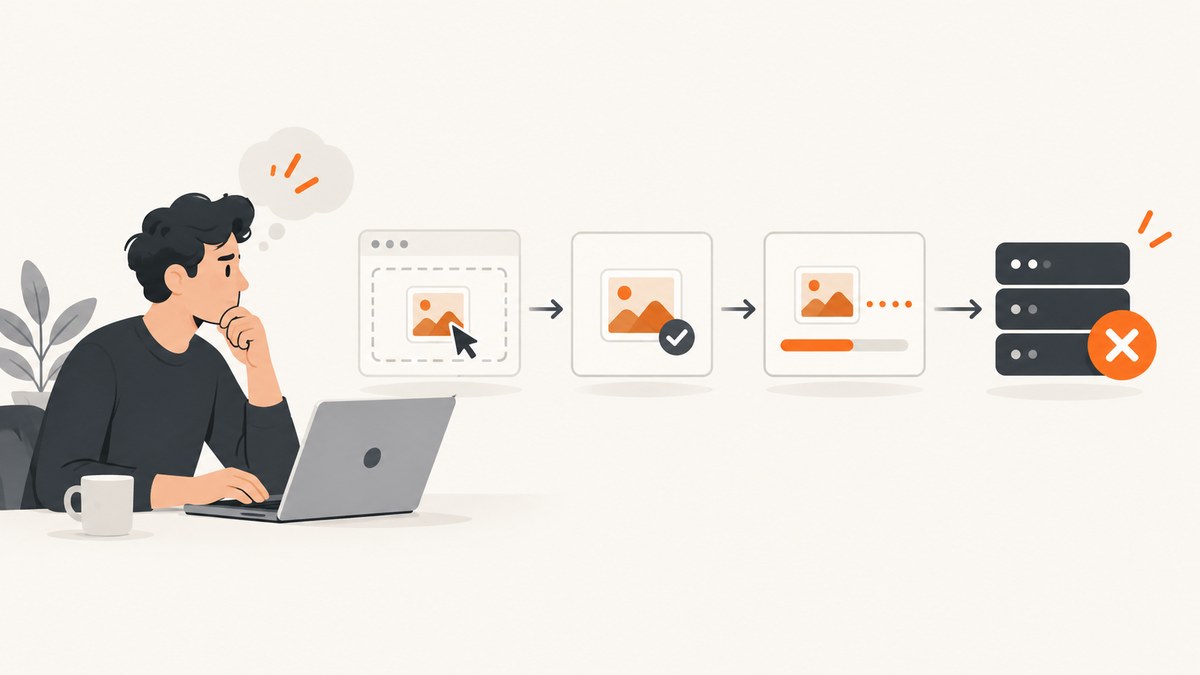
Start with the website’s own upload instructions. Check the accepted formats, maximum file size, image dimensions, and file-count rules. Then identify the stage that fails: file selection, immediate validation, transfer, or the server response. A browser’s file-picker filter is only a hint; server-side rules decide whether the upload is accepted.
There is no universal maximum picture size or guaranteed fix. Each website can configure different limits and may reject a request after the file has already been selected.
1. Identify where the upload fails
Record exactly what happens before changing anything:
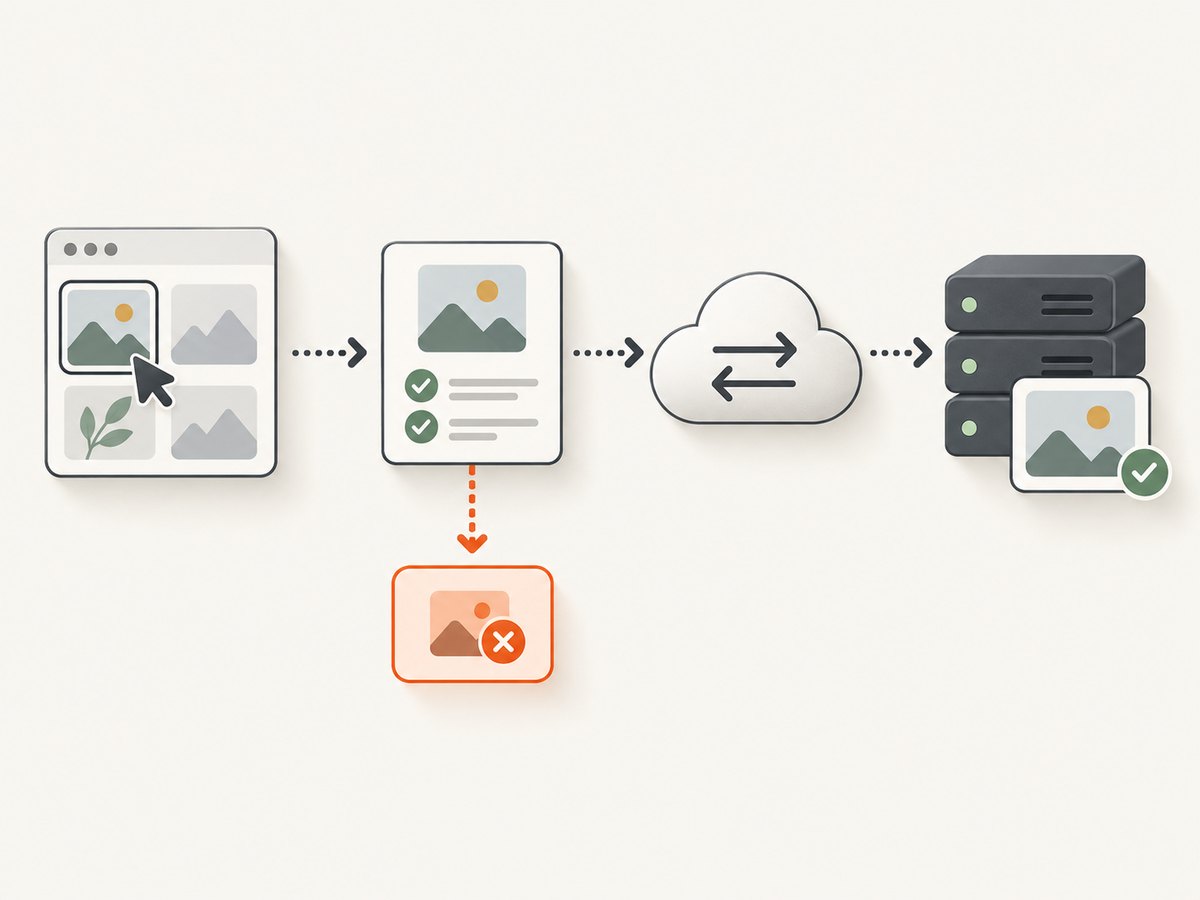
- The picture is missing from the file picker: the picker may be filtering by extension, or the file may not be available on the device.
- The site rejects it immediately: client-side validation may dislike the format, size, dimensions, or file count.
- The progress bar stalls: the transfer may be interrupted, the request may be too large, or the upload service may be unavailable.
- An error appears after submission: the server may have rejected the request or failed while processing the image.
Copy the exact error text and note the file extension, approximate size, browser, device, and whether the failure occurs before or after submission. This information makes a site-specific diagnosis possible.
2. Read the website’s requirements
Look on the upload page, help center, or account documentation for:
| Requirement | What to check |
|---|---|
| Format | Allowed extensions or MIME types, such as JPEG or PNG |
| File size | The documented maximum size for one file |
| Dimensions | Minimum, maximum, or exact width and height |
| File count | Whether one or multiple pictures may be selected |
| Account or request rules | Authentication, quotas, or upload permissions |
HTML’s accept attribute can guide the file picker, but it does not validate the selected file. MDN explicitly describes it as a browser hint rather than a server-side validation mechanism (MDN accept attribute). A website can therefore show a file as selectable and reject it later.
3. Check the picture’s format and size
Open the file details on your operating system and compare them with the site’s documented rules. Confirm both the filename extension and the actual file type when possible. JPEG and PNG are widely used web formats, but support and server policies differ across formats (MDN image file type guide).
In a browser, a file input exposes the selected file’s name, type, and size in bytes:
<input id="picture" type="file" accept="image/jpeg,image/png">
<pre id="details"></pre>
<script>
const input = document.querySelector('#picture');
const details = document.querySelector('#details');

input.addEventListener('change', () => {
  const file = input.files[0];
  if (!file) {
    details.textContent = 'No file selected';
    return;
  }

  details.textContent = JSON.stringify({
    name: file.name,
    type: file.type || '(browser did not report a MIME type)',
    bytes: file.size,
    megabytes: (file.size / 1024 / 1024).toFixed(2)
  }, null, 2);
});
</script>
The File API documents the File object and its size property (MDN File API). This inspection does not prove that the server will accept the picture; it only shows what the browser selected.
4. Make a compliant copy when the rules require it
If the site documents a maximum size or a specific format and your picture does not meet it, create a copy that does. Use an image editor or converter you trust, preserve the original, and check the resulting file again.
- Convert only when the site requires a different format.
- Resize only when the site specifies dimension limits or the file is unnecessarily large.
- Keep the aspect ratio unless the site requires exact dimensions.
- Check the converted file’s extension, reported type, byte size, and dimensions before retrying.
Conversion cannot fix an unrelated account, permission, network, or server-processing problem. Treat it as a targeted response to a documented requirement.
5. Retry while changing one variable at a time
- Retry once with the compliant copy and the same browser.
- If it fails, use another current browser or device and record whether the result changes.
- Try a second picture that is known to meet the stated rules. If the second file works, compare format, size, and dimensions.
- Keep the original error text and timestamps for support.
Changing browsers, clearing cached data, or changing networks can be reasonable diagnostics, but none is a guaranteed repair. Change one variable at a time so you can tell which condition affected the result.
6. Understand server-side limits
Uploading is a request from the browser to a server. The server can impose limits on the file, the complete HTTP request, authentication, processing time, and the number of files. These rules may be stricter than the browser’s picker hint. The HTML form submission model and server configuration determine what happens after selection (MDN form submission guide).
Common server-side causes include:
- Request body exceeds the configured limit.
- Image dimensions exceed an application or processing limit.
- The account lacks permission to upload to the destination.
- The upload session or authentication token expired.
- The service timed out while scanning, resizing, or storing the image.
- The server rejects the actual content even when the filename extension looks valid.
7. Troubleshooting table
| Symptom | Likely cause | Next action |
|---|---|---|
| File is not visible in the picker | Picker filter, unavailable location, or unsupported extension | Check the accept hint and select a documented format from a local folder |
| “Unsupported format” | The site does not accept that format or detected content differs from the extension | Use a documented format and verify the converted copy |
| “File too large” | Site-specific file or request limit | Compare bytes with the published limit and create a smaller copy if required |
| “Invalid dimensions” | Width or height outside the stated range | Read the dimension rule and resize while preserving the aspect ratio |
| Progress stalls | Transfer interruption, request limit, timeout, or service problem | Retry once, test a compliant smaller file, and record where the stall occurs |
| Upload succeeds but image is rejected later | Server-side validation or processing failure | Save the response text and contact the site with file and browser details |
| Permission or authorization error | Expired session, wrong account, or destination permissions | Sign in again and verify that the account can upload to that location |
8. When to contact the website
Contact support when the picture meets the published requirements but still fails, when several compliant files fail, or when the error indicates a server or account problem. Include:
- Exact error text and the stage at which it appeared
- File extension, approximate size, and dimensions
- Browser version, operating system, and device
- Whether another compliant picture worked
- Approximate time of each attempt
Do not send a sensitive picture unless the support process requires it and you are comfortable doing so. The site’s support team may need to inspect its current server configuration and request limits.
9. Capture the failure for documentation
A screenshot of the error can help support understand whether the failure happened during selection, validation, transfer, or the server response. Capture the page without exposing passwords, personal data, access tokens, or private pictures.

Or skip the browser setup
ScreenshotNeo can capture the upload page or error state from one API request, which is useful when you need a repeatable visual record for a bug report. See the ScreenshotNeo API documentation for all options.
cURL
curl -G "https://api.screenshotneo.com/v1/shot" -d access_key=YOUR_API_KEY --data-urlencode url=https://stripe.com -o shot.webpPython
import requests
r = requests.get("https://api.screenshotneo.com/v1/shot", params={"access_key": "YOUR_API_KEY", "url": "https://stripe.com"}, timeout=90)
open("shot.webp", "wb").write(r.content)
Node.js
const q = new URLSearchParams({ access_key: 'YOUR_API_KEY', url: 'https://stripe.com' });
const res = await fetch(`https://api.screenshotneo.com/v1/shot?${q}`);
Replace the example URL with the page that shows the upload problem. ScreenshotNeo removes cookie banners, newsletter popups, and chat widgets before the shot; bot checks, blank pages, and failed loads are never billed. Its MCP server lets AI agents take screenshots, and 1,000 screenshots per month are free with no card. Paid plans start at $5 for 3,000 shots. Sign up free for ScreenshotNeo.
Performance, reliability, and cost notes
- Performance: Smaller compliant files generally transfer faster, but do not reduce quality beyond what the site requires. A stalled upload can still be caused by server processing or request limits.
- Reliability: Repeat the same test with one variable changed at a time and preserve the exact error. This produces evidence support can act on.
- Cost: The research does not establish a universal upload limit or failure rate. Check the individual site’s rules before paying for storage, conversion software, or a larger plan.
- Privacy: Redact personal data from screenshots and support attachments. Never expose credentials or signed upload URLs.
FAQ
What is the maximum picture size websites allow?
There is no universal maximum. The website controls its file and request limits, so use that service’s current upload instructions.
Is the file extension enough to prove the format is valid?
No. A filename extension can be changed without changing the file’s contents, and the server may inspect the actual data.
Why does the picker allow a picture that the site rejects?
The HTML accept attribute guides the browser; it does not validate the upload. Server-side rules can reject the request later.
Should I always convert a picture to JPEG?
No. Convert only when the site documents JPEG as required or accepted and your current format is not allowed. Otherwise, conversion may not address the cause.
What information should I give support?
Provide the exact error, failure stage, file details, browser and device, time of the attempt, and whether another compliant picture succeeded.


