How to Troubleshoot Puppeteer When Headless Chrome Stops Working
Trace Puppeteer failures from browser discovery and Linux dependencies through sandbox, container, headless-mode, and page-level problems—with fixes for each.
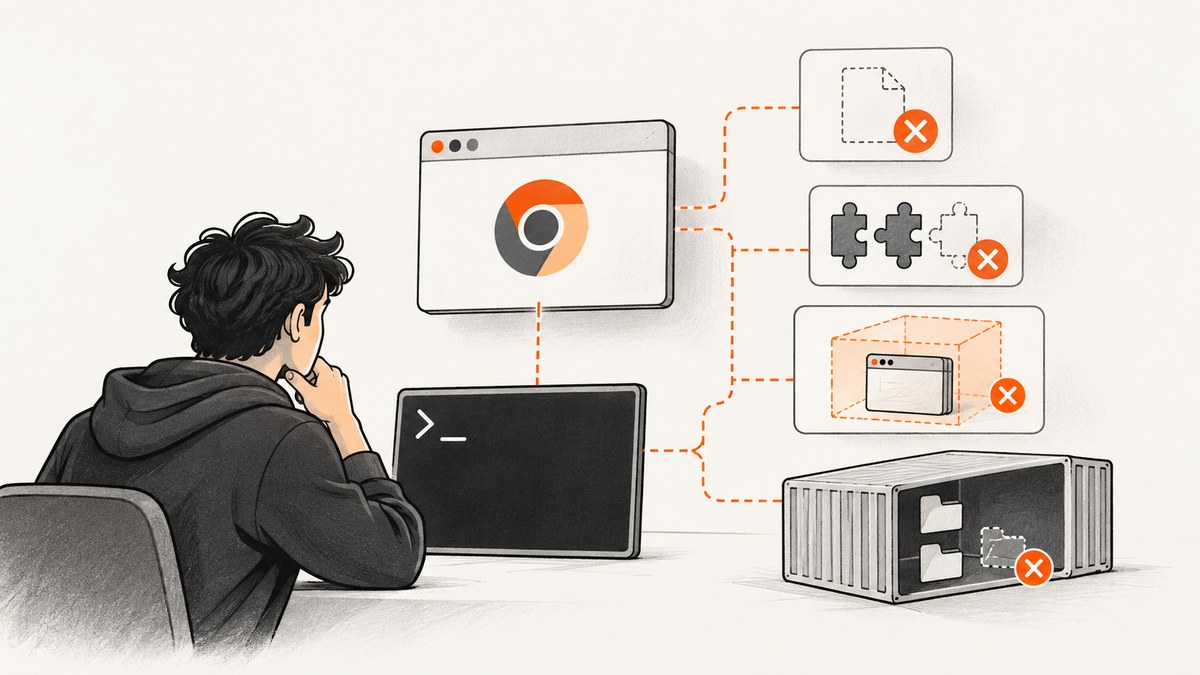
When Puppeteer’s headless Chrome stops working, first identify where the failure occurs: during puppeteer.launch(), when connecting to an existing browser, during navigation, or in later page code. Then check browser installation and discovery, runtime compatibility, Linux libraries, sandbox permissions, container write access, and headless-mode changes—in that order. Avoid changing several launch options at once; each environment needs a different fix.
This guide uses the supplied Puppeteer documentation as its reference. Its troubleshooting page is community-maintained, and the documentation version and platform requirements can change. Check the docs for the Puppeteer version installed in your project before copying version-sensitive steps. See Puppeteer Troubleshooting, Installation, and the LaunchOptions API.
1. Capture a reproducible baseline
Before changing the environment, record the complete error and the exact operation that fails. A browser that launches but times out on navigation has a different problem from one that exits before Puppeteer connects.
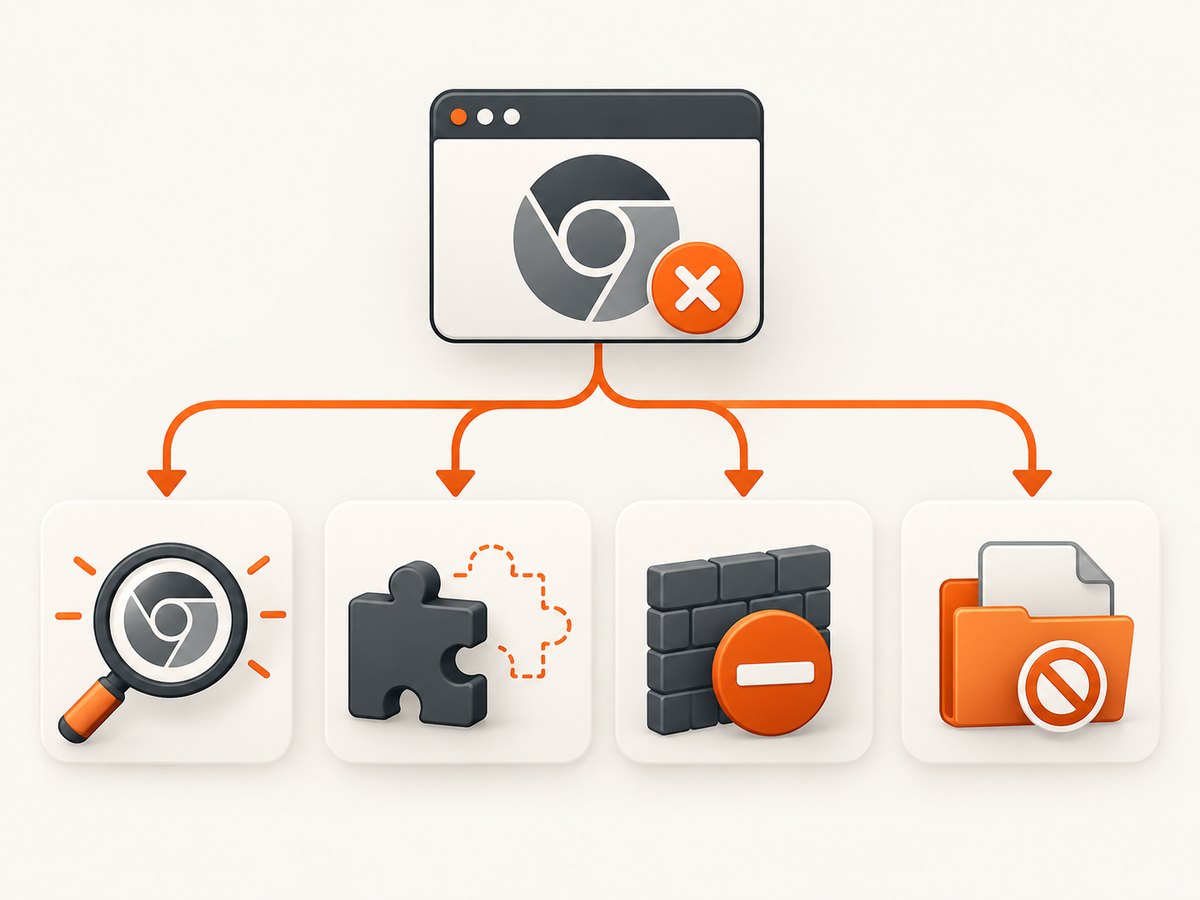
- Record the Node.js and Puppeteer versions, operating system and architecture, and—if applicable—the container base image.
- Record how Puppeteer was installed, which browser it is expected to launch, and the browser version if it is discoverable.
- Note any custom
executablePath,userDataDir, cache directory, environment variables, and launch arguments. - Run a minimal script that only launches Chrome and closes it. If that succeeds, add navigation, waits, selectors, and application code back one at a time.
- Capture browser process output with
dumpiowhile reproducing the failure.
import puppeteer from 'puppeteer';

const browser = await puppeteer.launch({
  dumpio: true,
  // Temporarily set false to inspect a visible window where a display is available.
  headless: true,
});

try {
  const page = await browser.newPage();
  await page.goto('https://example.com', { waitUntil: 'domcontentloaded' });
  console.log(await page.title());
} finally {
  await browser.close();
}
dumpio: true forwards Chrome’s stdout and stderr to Node’s output. This can reveal a missing library, a profile-directory permission error, or a sandbox startup failure. See Puppeteer debugging.
2. Check browser installation and discovery
The error Could not find expected browser locally usually means the browser download did not happen, the runtime cannot see its cache, or Puppeteer is looking in a different place than the install step used.
From Puppeteer v19 onward, the troubleshooting guide says downloaded browsers are stored under ~/.cache/puppeteer by default. A build may install the package as one user and run Node as another, or deploy a runtime that does not contain the build-time cache. In those cases, set PUPPETEER_CACHE_DIR to a path that exists in both environments and is readable by the application user.
# Install the browser explicitly if your package manager skipped install scripts.
npx puppeteer browsers install
If your package manager disables lifecycle scripts, Puppeteer’s postinstall browser download may not run. The explicit install command can populate the browser cache during the build. Make the resulting cache part of the deployed artifact or install it in the runtime image; do not assume a local developer cache will exist in production.
If you set executablePath, verify that exact path from inside the process, container, or serverless runtime running Node—not only on your workstation. A system Chrome version can differ from the browser bundled for Puppeteer. The LaunchOptions API warns that Puppeteer is only guaranteed to work with its bundled browser when you select a different executable. Prefer the bundled browser unless you have a reason and have checked compatibility.
3. Confirm the installed runtime and platform are supported
Requirements vary by Puppeteer release. The current system requirements page supplied for this guide displayed Puppeteer 25.12.0 and Node.js 22.12 or later, and listed Chrome for Testing on Windows x64, macOS x64/arm64, Debian/Ubuntu Linux x64/arm64, and openSUSE/Fedora Linux x64/arm64. Treat those as version-specific documentation, not timeless requirements. Check the system requirements page after identifying the project’s installed version.
A mismatch can come from upgrading Puppeteer without upgrading Node, deploying to an unlisted architecture, or pairing a new Puppeteer release with an arbitrary system browser. Record the version from the lockfile and the deployed runtime. Reproduce locally with the same versions before adding compatibility flags.
4. Diagnose missing Linux libraries
A Chrome executable can exist and still fail immediately because a shared library is missing. On Linux, run the following against the actual Chrome executable in the runtime image:
ldd /path/to/chrome | grep notInstall the missing libraries using packages for that distribution and architecture, then rebuild the image. The exact package names differ across distributions; use the dependency guidance linked from the Puppeteer troubleshooting page rather than pasting an old package list into a different base image.
Alpine needs particular care: the troubleshooting guide says Chrome does not work out of the box there and requires compatible dependencies. Diagnose the actual failure on the Alpine version in use; avoid assuming a timeout note for one release applies to all Alpine images. If the deployment does not require Alpine, a supported Debian- or Ubuntu-based runtime may reduce compatibility work.
5. Treat sandbox errors as host configuration
An error such as No usable sandbox! points to Chrome’s security sandbox and the host’s permissions or policy. On Linux, check whether user namespaces are available to the running process and whether container or host policy blocks them. The Puppeteer troubleshooting guide specifically notes that Ubuntu 23.10 and later AppArmor profiles can prevent Puppeteer-downloaded Chrome for Testing binaries from using user namespaces; follow the Chromium guidance for the affected host policy.
Puppeteer’s troubleshooting documentation states: “Running without a sandbox is strongly discouraged. Consider configuring a sandbox instead.” Do not treat --no-sandbox as a routine fix. It changes a security boundary and may hide the actual host configuration problem. Check the host’s supported sandbox setup first, and only make a deliberate environment-specific decision if you control the security implications.
The maintained Puppeteer Docker image runs Chrome in sandbox mode and its guide says it needs the SYS_ADMIN capability. That is guidance for that image and setup, not a blanket fix for every custom container. Confirm the actual sandbox error and image configuration before changing capabilities. See the Puppeteer Docker guide.
6. Check writable paths and process management in containers
Chrome creates profile, configuration, and cache data as it starts. A read-only filesystem, a mounted directory with the wrong owner, or a non-writable home directory can stop launch or prevent Puppeteer from connecting. The symptom may mention chrome_crashpad_handler: --database is required, a profile directory, or a failed browser process.
- Give the runtime user a writable
userDataDir, cache location, and relevant XDG configuration and cache paths. - Check ownership from inside the container as the same user that runs Node.
- If using mounted volumes, confirm the mount is writable and its owner or permissions match the application user.
- Ensure the container manages Chrome child processes when the Node process exits.
The Puppeteer Docker guide recommends an init process, such as Docker’s --init option or a custom init entrypoint, to manage processes launched by Puppeteer. Use the maintained image’s documented setup as a reference, then adapt it to your image and deployment. Do not add capabilities or disable security controls without matching them to an observed failure.
7. Compare headless modes and inspect page behavior
Headless behavior changed in Puppeteer v22. Puppeteer now defaults to modern headless mode; before v22, the old headless mode was the default. The old implementation is distributed separately as chrome-headless-shell. It may be more performant for automation that does not need Chrome’s complete feature set, but its behavior does not fully match regular Chrome. The mode guide explains the difference: Puppeteer Headless Mode.
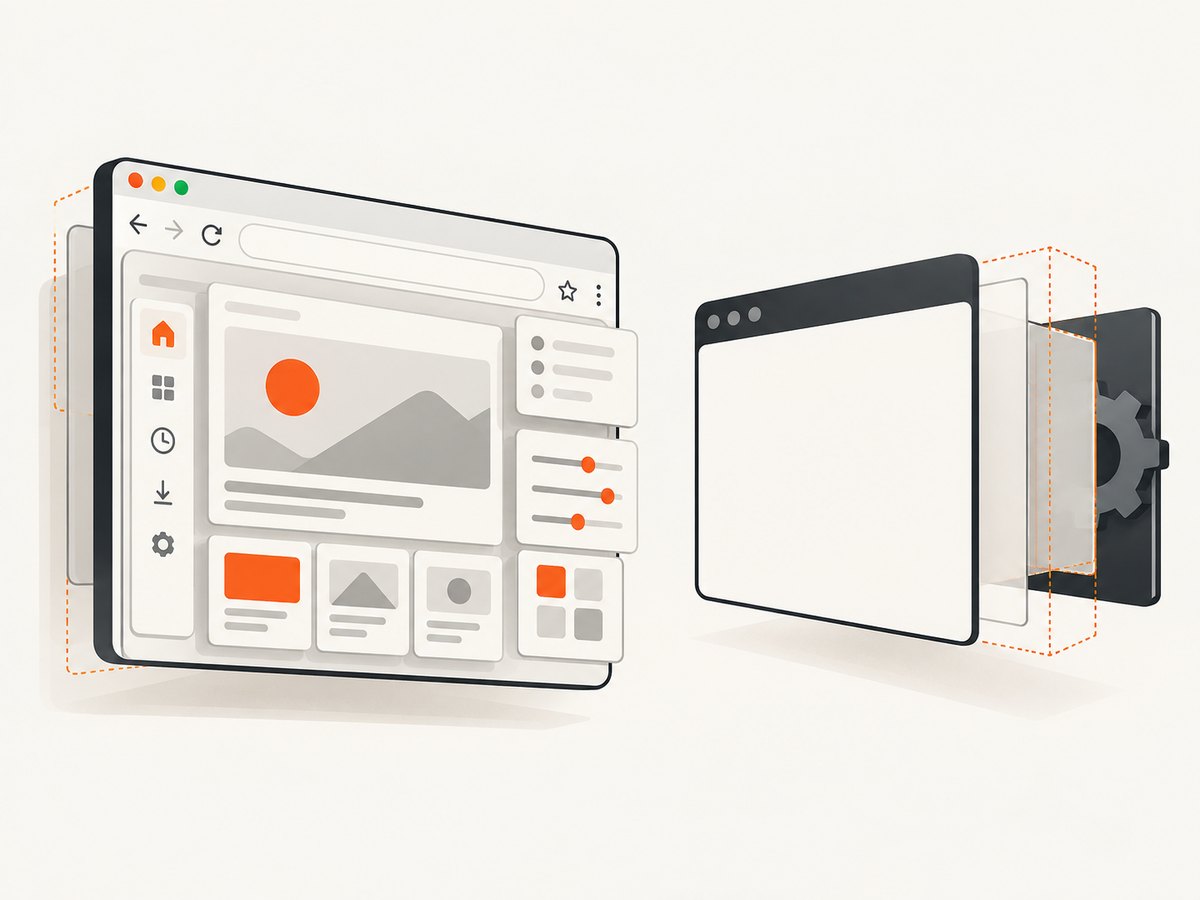
To find out whether an issue is specific to headless operation, compare with a visible browser. A visible window requires an environment capable of displaying it; on a server, use a suitable display environment or reproduce on a developer machine.
const browser = await puppeteer.launch({
  headless: false,
  slowMo: 100,
  dumpio: true,
});
slowMo slows browser operations so you can observe interaction steps. If a recent Puppeteer upgrade changed output, make a minimal reproduction and compare the current default to headless: 'shell' if the shell binary is installed and your task does not need full Chrome behavior. Do not interpret a mode difference as proof of a Puppeteer defect; page content, browser version, and timing can also matter.
When launch succeeds but page work fails, collect page console events. Browser-page JavaScript logs do not automatically appear in Node’s terminal:
page.on('console', message => {
  console.log('PAGE', message.type(), message.text());
});
page.on('pageerror', error => {
  console.error('PAGE ERROR', error);
});
Check whether the failure is a navigation timeout, an element that never appears, a page exception, or an unresolved Puppeteer call. For a suspected stalled DevTools protocol request, inspect browser.debugInfo.pendingProtocolErrors. For deeper protocol logging, run with NODE_DEBUG="puppeteer:*". The debugging documentation warns that logs may contain sensitive information; redact tokens, cookies, URLs, and page data before sharing them.
8. Use launch options deliberately
Launch settings help isolate specific causes. Keep a record of the options that are actually needed, and remove temporary diagnostic settings once the issue is understood.
| Option or setting | When it helps | What to check |
|---|---|---|
dumpio: true |
Chrome exits or fails before a page is usable. | Read browser stdout/stderr alongside the Puppeteer error. |
headless: false |
You need to see what Chrome renders or where interaction stops. | The environment must support a visible browser window. |
headless: 'shell' |
You intentionally want the separate headless-shell implementation. | Check shell availability and whether its behavior fits the task. |
executablePath |
You deliberately use a system-installed browser. | Verify the path and version in the runtime; compatibility is not guaranteed. |
args |
A known host or application constraint requires a browser argument. | Add one argument at a time and understand its security and behavior effects. |
timeout |
Launch is slow in a constrained environment. | Use the LaunchOptions API for the installed version; a longer timeout cannot fix a missing library or denied permission. |
For hangs, separate launch, navigation, and application waits with logging and explicit timeouts. Avoid wrapping the entire script in one long timeout: it hides which phase is stuck and can leave child processes behind if cleanup is skipped.
9. Common errors and fixes
| Symptom | Likely cause | Next action |
|---|---|---|
Could not find expected browser locally |
Install script skipped, cache absent, or runtime uses a different home directory. | Run npx puppeteer browsers install; set a shared PUPPETEER_CACHE_DIR. |
| Browser process exits immediately | Missing shared library, invalid executable path, denied permission, or sandbox failure. | Enable dumpio; check the executable, run ldd, then diagnose sandbox policy. |
No usable sandbox! |
Host sandbox or user namespace configuration blocks Chrome. | Check host policy and the relevant Chromium/Puppeteer guidance; avoid using --no-sandbox as the first response. |
| Crashpad database or profile error | Chrome cannot write its profile, configuration, or crash data. | Provide writable paths and verify ownership as the Node runtime user. |
| Launch works locally but fails in container | Different libraries, architecture, permissions, cache, or process lifecycle. | Reproduce in the built image; compare its user, paths, libraries, and init setup. |
| Page navigation or selector wait hangs | Page-level timing, network, or application behavior—not necessarily launch. | Log the phase, capture page console/errors, and reduce to a minimal page interaction. |
| Behavior changed after upgrade | Browser version, runtime requirement, or default headless mode changed. | Check the installed versions and compare a minimal case across documented modes. |
10. Improve reliability, performance, and operating cost
For reliability, make the build and runtime agree on Node, Puppeteer, browser binaries, cache location, architecture, and filesystem permissions. Keep those choices in the deployment configuration, and run a minimal launch check in the same image and user context as the application. Log phase boundaries and browser output when diagnosing failures. Do not expose verbose protocol logs in routine production output if they could disclose page or credential data.
For performance, first distinguish browser startup cost from page load and application waits. Reusing a browser process for multiple controlled jobs can avoid repeated launches, but isolate pages or contexts carefully and close them on completion. Puppeteer describes headless shell as potentially more performant for automation that does not need the full Chrome feature set; that is a qualitative documented comparison, not a benchmark. Measure your own workload before changing modes.
For cost, account for browser downloads in build time and image size, plus the CPU and memory required to run Chrome in the chosen environment. A missing dependency or repeated crash can waste worker time even when no useful capture is produced. A managed screenshot API can avoid maintaining browser binaries and container setup for screenshot-only tasks; compare its billing and feature behavior with your own workload rather than assuming it will be cheaper for every use case.
Or skip the browser setup
If your task is to produce screenshots rather than operate a browser, ScreenshotNeo is a website screenshot API and MCP server from Yorker Media. The API returns an image or PDF from one GET request. See the ScreenshotNeo API documentation.
curl -G "https://api.screenshotneo.com/v1/shot" -d access_key=YOUR_API_KEY --data-urlencode url=https://stripe.com -o shot.webpimport requests
r = requests.get(
"https://api.screenshotneo.com/v1/shot",
params={"access_key": "YOUR_API_KEY", "url": "https://stripe.com"},
timeout=90,
)
open("shot.webp", "wb").write(r.content)const q = new URLSearchParams({ access_key: 'YOUR_API_KEY', url: 'https://stripe.com' });
const res = await fetch(`https://api.screenshotneo.com/v1/shot?${q}`);
if (!res.ok) throw new Error(`Screenshot request failed: ${res.status}`);
await Bun.write('shot.webp', res);ScreenshotNeo accepts cookie or consent banners as a visitor and removes more than 60 known consent platforms, newsletter popups, and chat widgets before capture; each step can be turned off. Bot checks, blank pages, failed loads, timeouts, and cache hits are not billed, and responses identify the page verdict and billing status in headers. Its MCP server provides take_screenshot, get_page_info, and capture_pdf for Claude, Cursor, and other MCP clients. The free plan includes 1,000 screenshots a month with no card; paid plans start at $5 for 3,000 screenshots. Sign up for 1,000 free screenshots a month, with no card.
FAQ
Does Puppeteer require Google Chrome to be installed separately?
The Puppeteer package downloads a compatible browser during installation by default. If you use puppeteer-core or configure an alternate executable, check the installation guide and your browser setup; do not assume the browser is present.
Should I switch to headless: 'shell' to fix a broken run?
Only if your failure is mode-specific and the shell’s behavior is suitable. It selects a separate binary and is not identical to regular Chrome. First compare a minimal reproduction and check whether the shell was installed.
Can I increase Puppeteer’s timeout to fix a launch error?
A longer timeout can help when a valid browser simply needs longer to start. It cannot supply a missing browser, library, writable directory, or sandbox permission. Use logs to identify which case you have.
What should I include when asking for help?
Share the exact error, failing phase, Node and Puppeteer versions, OS or image and architecture, browser path/version, install method, relevant launch options, and sanitized browser logs. Remove credentials, cookies, and private page data first.


