How to Troubleshoot wkhtmltopdf Failures With Python pdfkit
Trace pdfkit failures to executable discovery, renderer errors, network access, or platform dependencies—with practical diagnostics and fixes.
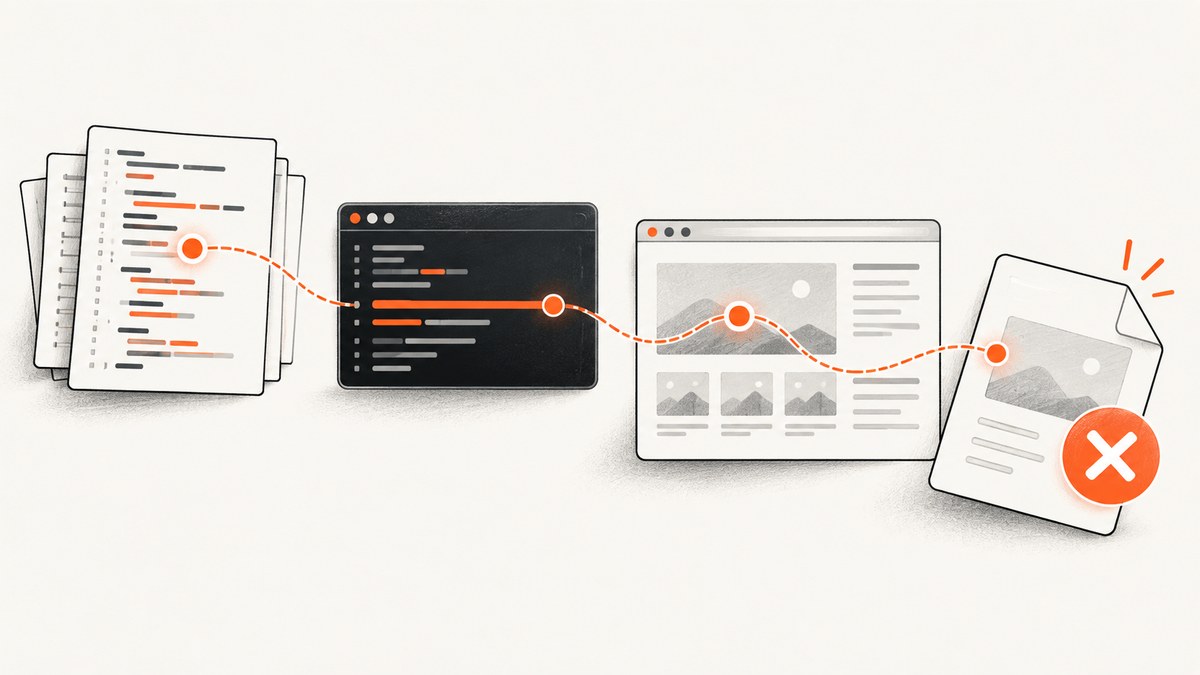
When Python pdfkit fails to create a PDF, the problem can be in the wrapper, the separate wkhtmltopdf executable, the HTML or URL being rendered, or the environment running the process. Start by checking that the executable exists where the failing process can find it; then expose the renderer’s stderr and reproduce its command directly.
This guide walks through that sequence, explains common errors and their fixes, and covers network access, platform compatibility, security, and operational tradeoffs. The key diagnostic rule is to collect evidence from the same runtime that fails: a developer shell may differ from a web worker, container, or scheduled job.
1. Understand which component failed
pdfkit is a Python wrapper. It locates and invokes the external wkhtmltopdf program; installing the Python package does not install or expose that binary. The wrapper searches the process PATH by default, or you can provide the executable path explicitly with pdfkit.configuration(wkhtmltopdf=...). See the pdfkit README for its configuration and diagnostic interfaces.
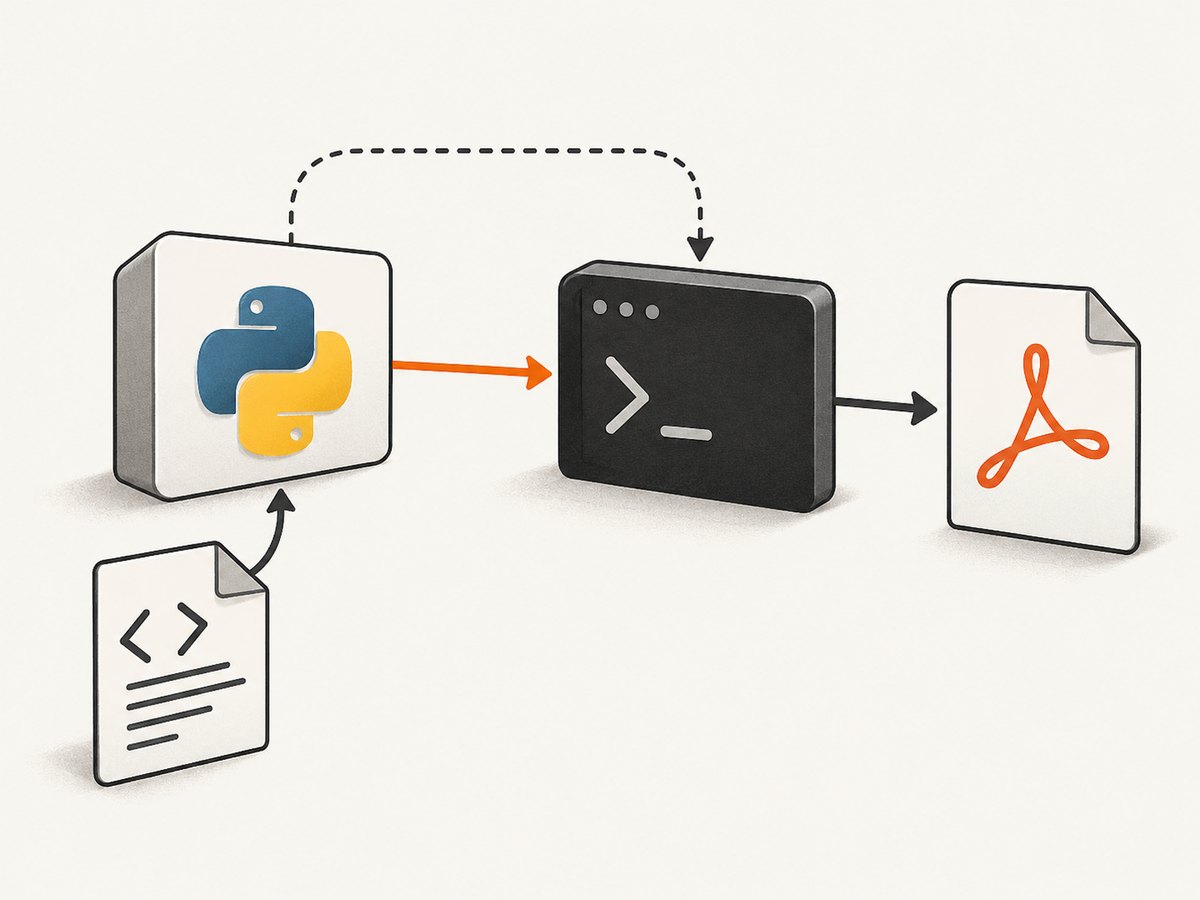
A useful first split is:
- Discovery failure: Python cannot find or launch the executable.
- Renderer failure: the executable runs but reports an error, exits unsuccessfully, or crashes.
- Input or resource failure: HTML, a URL, images, CSS, scripts, or fonts cannot be loaded or rendered as expected.
- Runtime failure: the deployed operating system, dependencies, permissions, network policy, or architecture differs from the expected setup.
Do not start by changing several layers at once. Record the original error, identify which branch it belongs to, then test one cause at a time.
2. Check installation and executable discovery
Run these checks inside the same virtual environment, service account, container, or scheduled task that runs the failing application. Running them only in an interactive shell can hide a PATH or deployment mismatch.
python -c "import pdfkit; print('pdfkit import OK')"
which wkhtmltopdf
wkhtmltopdf --version
On systems without which, use command -v wkhtmltopdf. If the final command says the program cannot be found, install a compatible wkhtmltopdf package for the target platform, or configure the actual installed path in Python. Do not guess the path: inspect the deployment image or package installation.
import pdfkit

config = pdfkit.configuration(wkhtmltopdf="/usr/local/bin/wkhtmltopdf")
pdfkit.from_url("https://example.com", "page.pdf", configuration=config)
Replace the example path with the path returned in the failing runtime. On Windows, use the installed executable’s full path, for example a raw string such as r"C:\\Program Files\\wkhtmltopdf\\bin\\wkhtmltopdf.exe". If a service uses another account or a container uses another filesystem, confirm that this exact path exists and is executable there.
Capture enough environment detail to make the finding reproducible:
- Python and pdfkit versions.
- Exact executable path and output of
wkhtmltopdf --version. - Operating system, distribution, and architecture.
- Input type: URL, local HTML file, or HTML string.
- Whether the direct command works in the failing runtime.
3. Reveal wkhtmltopdf’s error output
pdfkit may run the renderer quietly. Enable verbose=True on the conversion call so wkhtmltopdf’s output is visible. For a string input, create a PDFKit object and inspect the command it generates. The project README documents this diagnostic pattern:
import pdfkit

html = "<html><body><h1>Diagnostic PDF</h1></body></html>"
kit = pdfkit.PDFKit(html, "string", verbose=True)
print(" ".join(kit.command()))
pdf = kit.to_pdf()
with open("diagnostic.pdf", "wb") as output:
    output.write(pdf)
For ordinary conversions, verbosity can be enabled directly:
import pdfkit

pdfkit.from_url(
    "https://example.com",
    "page.pdf",
    options={"quiet": ""},
    verbose=True,
)
If your installed pdfkit version or call pattern does not accept that argument where shown, follow the README for the version in use. Preserve the complete error output; a generic “Command Failed” without stderr is usually not enough to tell whether the executable, request, input, or runtime failed.
Take the printed command and run it directly in the same environment, with the same input and options. Treat this as a diagnostic reproduction: commands can contain private URLs, headers, or local paths, so redact secrets before sharing logs. If it fails directly, focus on wkhtmltopdf and the environment. If it succeeds directly but the Python call fails, compare pdfkit’s configuration, option values, encoding, and output destination.
4. Match the error to its likely cause
| Symptom | Likely layer | First action |
|---|---|---|
No wkhtmltopdf executable found |
Executable discovery | Check PATH and configure the binary’s real path. |
IOError: 'Command Failed' or a nonzero exit |
Renderer, input, or runtime | Enable verbose output; inspect and reproduce the command. |
Exit with code 1 due to network error |
Resource request or network policy | Identify the exact failed URL and inspect its response from the runtime. |
| PDF exists but images or styles are missing | HTML resource loading | Check each resource URL, access rules, and whether the renderer can reach it. |
| Works locally, fails in deployment | Runtime mismatch | Compare binary, OS, libraries, fonts, PATH, permissions, and network policy. |
These symptoms narrow the search; they do not prove a single cause. For example, a network error does not by itself establish that TLS is the issue.
5. Diagnose failed pages and remote resources
For a remote page or missing image, write down the exact URL that wkhtmltopdf could not load. Check whether the renderer’s environment can reach that host and what HTTP response it receives. A reported wkhtmltopdf issue includes an HTTPS request returning HTTP 403 alongside a network error; that example shows why inspecting the response matters, not that HTTPS failures always have the same cause. See issue #4897.
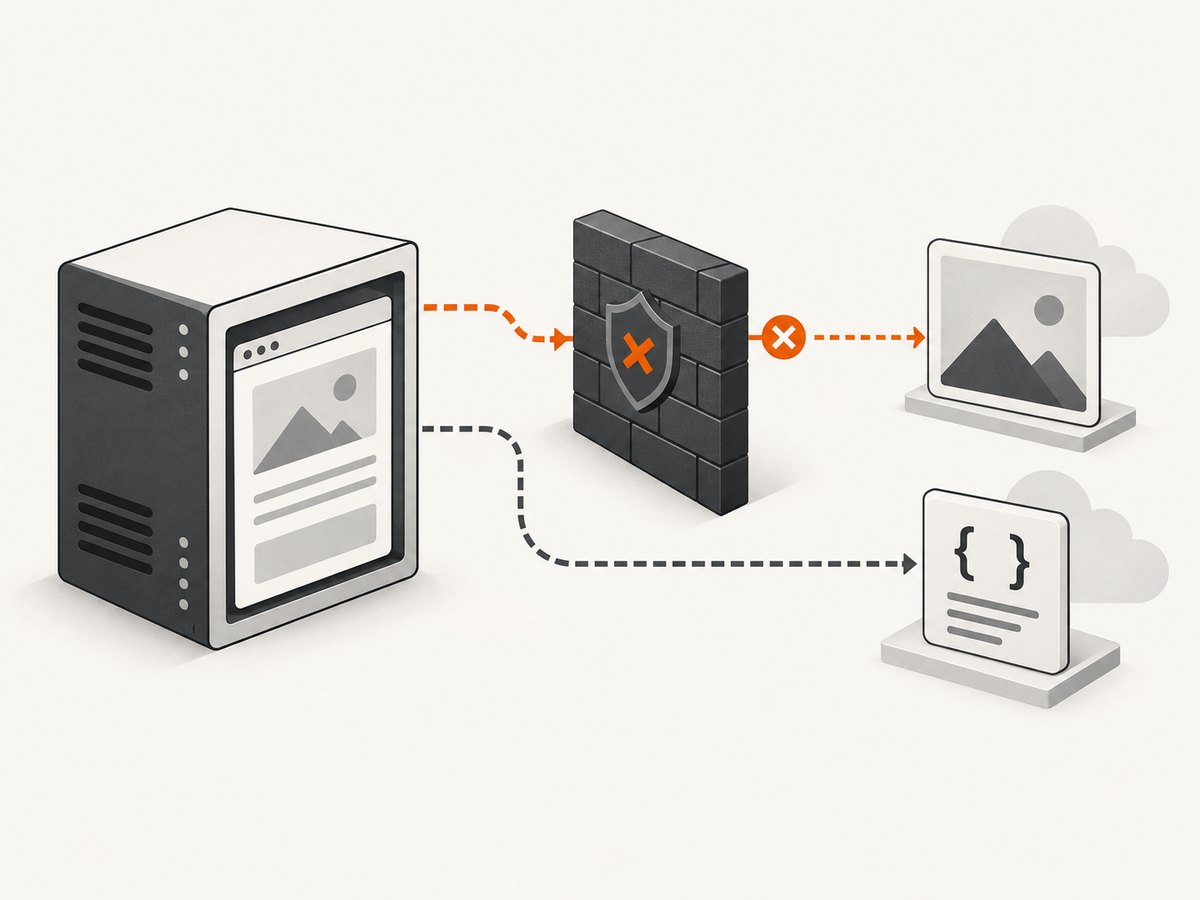
Check for an unavailable host, a forbidden response, authentication requirements, blocked egress, or a resource URL that differs between a browser and the server. A page that loads in your desktop browser may depend on browser cookies or a network route the server does not have. Keep the investigation tied to the URL and the response observed from the rendering process.
Network confinement can also be intentional. The wkhtmltopdf AppArmor guidance explains that AppArmor policy can deny network connections when the relevant profile rule is absent. If the process is confined, inspect the active profile and allow only the required access under your security policy. Do not weaken TLS checks or disable confinement as a blind workaround.
6. Check platform and binary compatibility
The project’s downloads page lists 0.12.6 as its stable series and gives June 11, 2020 as its release date. This is dated project information, not a guarantee that a particular package suits a current deployment. The page lists platform and architecture differences and notes that package availability and dependencies vary. Verify the exact distribution, architecture, required shared libraries, and fonts used by your image or host.
A binary built for a different distribution may be present yet fail at launch because its libraries or runtime assumptions do not match. Alpine is specifically called out in the project’s deployment discussion as problematic for binary wheels. When deployment fails, compare the binary’s origin and dependencies with the actual base image instead of copying a package from another Linux environment.
Useful comparisons include:
- Does the executable run and report a version in the deployed image?
- Does the package match the operating system and CPU architecture?
- Are shared libraries and fonts available to the process?
- Can the service account read its inputs and write the output location?
- Does the same URL and command work from that runtime?
7. Separate wrapper, option, and output problems
When direct wkhtmltopdf execution succeeds but pdfkit fails, compare the exact command and arguments. Check that options are supported by the installed renderer version, that values are passed in the format expected by pdfkit, and that the output path is writable. For HTML strings, confirm that the input is correctly encoded and that the wrapper is being told the right input type.
If wkhtmltopdf also fails directly, pdfkit is probably not the first place to investigate. Focus on the renderer’s stderr, the input document, the remote resources it references, and runtime dependencies. Reduce the input to a small local HTML file; if that succeeds, add the page’s styles, scripts, and resources back in stages until the failing dependency is identified.
For a failed conversion, avoid treating the presence of an output filename as proof of success. Check the exit status, error output, and whether the resulting file is a valid nonempty PDF before passing it to downstream code. If you write to a temporary location, ensure the process has permission and that the file is not being read before conversion finishes.
8. Troubleshooting checklist
- Reproduce the error in the same runtime and under the same service account.
- Check that Python can import pdfkit and the executable path resolves.
- Run
wkhtmltopdf --versionusing the discovered binary. - Set
pdfkit.configuration(wkhtmltopdf=...)if PATH discovery is unreliable. - Enable verbose output and retain the full stderr.
- Print pdfkit’s generated command and run it directly.
- For a network error, record the exact resource URL and response.
- Compare OS, architecture, libraries, fonts, permissions, and network policy with a working environment.
- For a minimal reproducer, use a small local HTML document, then add remote resources incrementally.
- When requesting help, include versions, environment details, input type, command, and unredacted error context with secrets removed.
9. Security, reliability, and cost considerations
The wkhtmltopdf project warns on its downloads page: “Do not use wkhtmltopdf with any untrusted HTML – be sure to sanitize any user-supplied HTML/JS, otherwise it can lead to complete takeover of the server it is running on!” Treat arbitrary HTML and JavaScript as untrusted input. Sanitize it and keep rendering isolated with deliberate filesystem and network access controls. This warning is especially relevant when a service accepts user-provided content.
For reliability, make failures observable: preserve renderer stderr, record the binary version and runtime identity, and distinguish a failed conversion from a valid output. Network-dependent documents can fail when their resources are unavailable or access is denied, so decide how your application reports and retries those cases rather than silently treating every failure as transient.
Cost depends on your own compute, deployment, and operational needs; the sources here provide no benchmark for rendering speed or cost. Measure representative pages in your target environment if resource use matters, and account for the work of packaging and maintaining the external renderer and its dependencies. Do not infer a speed or savings claim from a successful local conversion.
10. Or skip the browser setup
If the job is to capture a web page as an image or PDF rather than to render arbitrary HTML through a local wkhtmltopdf installation, ScreenshotNeo is a website screenshot API and MCP server. It uses one GET request and returns PNG, JPEG, WebP, or PDF. Its documentation is at ScreenshotNeo docs.
curl -G "https://api.screenshotneo.com/v1/shot" -d access_key=YOUR_API_KEY --data-urlencode url=https://stripe.com -o shot.webpimport requests
r = requests.get(
"https://api.screenshotneo.com/v1/shot",
params={"access_key": "YOUR_API_KEY", "url": "https://stripe.com"},
timeout=90,
)
open("shot.webp", "wb").write(r.content)const q = new URLSearchParams({ access_key: 'YOUR_API_KEY', url: 'https://stripe.com' });
const res = await fetch(`https://api.screenshotneo.com/v1/shot?${q}`);
const bytes = new Uint8Array(await res.arrayBuffer());
await import('node:fs/promises').then(fs => fs.writeFile('shot.webp', bytes));Cookie banners are accepted like a visitor and removed before the shot, along with supported newsletter popups and chat widgets. Bot checks, blank pages, failed loads, timeouts, and cache hits are not billed; response headers identify the page verdict and billing status. An MCP server exposes screenshot tools to Claude, Cursor, and other MCP clients. The Free plan includes 1,000 screenshots each month without a card; paid plans start at $5 for 3,000 shots. Full-page capture, PDF options, custom CSS and JavaScript, waits, request blocking, and other settings are documented in the API reference.
Sign up free for 1,000 screenshots a month, no card required.
11. Frequently asked questions
Does pip installing pdfkit install wkhtmltopdf?
No. pdfkit is a Python wrapper; wkhtmltopdf is a separate executable that must be installed and discoverable by the process or configured explicitly.
Why does the conversion work in my terminal but fail in a web worker?
The worker may have a different PATH, account, filesystem, permissions, network policy, or runtime dependencies. Run the discovery and version checks from that worker’s actual environment.
Should I change SSL settings when I see a network error?
First identify the resource URL and inspect its response and the renderer’s network access. A network error alone does not show that TLS is the cause.
Is wkhtmltopdf safe for arbitrary user HTML?
The project warns that untrusted HTML and JavaScript can lead to server takeover. Sanitize supplied content and restrict the renderer’s environment.
What information should I include in a bug report?
Include versions, binary path, operating system and architecture, input type, full renderer stderr, generated command with secrets redacted, and whether direct execution reproduces the problem.


