Troubleshooting Website Screenshots After Migration
Diagnose blank images, missing CSS, redirects, and other screenshot differences after a site move with a repeatable browser and command-line workflow.

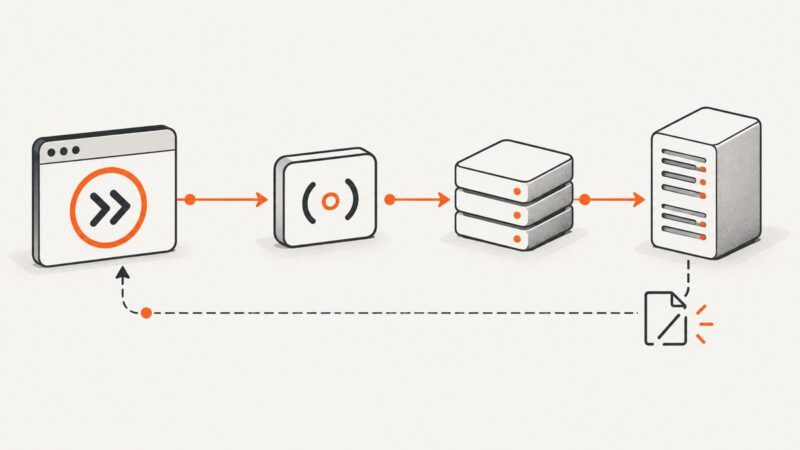
A page can open at its new address and still look different in a screenshot because its images, stylesheets, scripts, fonts, or other resources are being served from old paths, redirected incorrectly, blocked, cached, or unavailable on the new host. Start by identifying whether the migration changed URLs or only hosting, then inspect the browser’s failed requests and follow each affected resource to its final destination.
Use this sequence: compare the intended and actual URLs, inspect the Network panel and Console, trace redirects, check HTTP-versus-HTTPS requests, isolate CDN behavior, and verify the new origin. Compare screenshots only after those conditions are understood and the page is loading consistently.
1. Classify the migration before changing anything
First write down what changed. A domain, path, or protocol change needs an old-to-new URL map. A hosting-only move keeps public URLs the same but changes the infrastructure serving the document and its resources. These cases overlap, but they point to different first checks.
| Migration type | First question | Likely checks |
|---|---|---|
| Domain or subdomain changed | Does each old page and asset point to its intended new URL? | URL map, redirects, final host, TLS, asset paths |
| Path structure changed | Does the old path redirect to the corresponding new path? | Redirect rules, 404s, internal links, embedded URLs |
| HTTP changed to HTTPS | Does the secure page still request any HTTP resources? | Mixed content, canonical URLs, redirect and origin scheme |
| Hosting or CDN changed only | Can the new origin serve the same page and every required asset? | DNS/origin, deployment contents, access controls, edge cache |
For a URL-changing move, include embedded images, videos, JavaScript, and CSS files in the mapping. Google Search Central explicitly calls out these resources in its site-move guidance. For a hosting-only change, Google recommends testing the new infrastructure and inspecting pages and assets there; see its hosting-move guidance.
2. Reproduce the screenshot conditions
A useful comparison requires both captures to use the intended final page URL and comparable conditions. Record the viewport dimensions, device scale, browser, page state, and approximate wait condition. A page captured before a lazy-loaded image appears can look like a migration failure even if the image eventually loads. Likewise, a screenshot from an old URL that redirects may not represent the new page route.
- Open the new page’s canonical intended URL directly in a fresh browser tab.
- Set the viewport to the dimensions used for the before screenshot, if known.
- Open DevTools before reloading, so it records requests from the start.
- Wait until the page reaches the state you intend to compare; note whether the visible difference persists.
- Repeat once in a private window to reduce the effect of browser cache, extensions, and stored site state.
Chrome’s Network panel documentation describes using it to check whether resources are downloaded and inspect individual request headers, content, and size.
3. Find the exact request behind the visual difference
In Chrome DevTools, open Network, enable Preserve log if you need to follow navigation, clear the existing request list, and reload. Filter by resource type such as Img, CSS, JS, or Font. Look for failed requests, unexpected status codes, long redirects, and requests whose host or path still points to the old infrastructure. Then select a request and inspect its URL, status, response headers, initiator, and redirect chain.
Use the Console alongside Network. Mixed-content warnings, certificate errors, JavaScript exceptions, and CSP messages may explain why an asset did not load or why rendering stopped. For a missing hero image, for example, identify the image request rather than inferring the cause from the blank area alone.
To check a resource outside the browser, use cURL and follow redirects:
curl -sS -L -D - -o /dev/null "https://new.example.com/assets/hero.webp"The headers printed by -D - show responses encountered while -L follows redirects; -o /dev/null avoids printing the image body. For a quick status and final URL summary:
curl -sS -L -o /dev/null -w 'status=%{http_code}\nfinal=%{url_effective}\nredirects=%{num_redirects}\n' "https://new.example.com/assets/hero.webp"Use the exact request URL seen in DevTools. A successful request to a similar-looking path does not prove the page’s actual URL works. A response with status 200 also does not by itself prove the returned bytes are the expected image; inspect the response content type and, if needed, download and open the file.
4. Trace asset paths and redirects
For every failed or suspicious resource, compare three values: the URL referenced by the page, the URL requested by the browser, and the final URL after redirects. Check that the final destination exists and returns the intended file. An image may return a 301 because it moved, but a redirect is not automatically wrong: confirm its target, status, content type, and whether the browser can fetch it.
Common migration mistakes include retaining absolute URLs to the old domain in HTML or CSS, moving files into a different directory without updating references, redirecting every old asset to the homepage, or mapping old URLs to destinations that do not exist. Google recommends mapping old URLs to relevant new destinations, testing redirects, and avoiding long chains. Its migration guide says to keep redirects for as long as possible, generally at least one year.
Check the page source and generated CSS for stale absolute URLs. Search the repository or exported content for the former hostname, but review matches before doing a global replacement: some references may be third-party services, historical content, or intentionally retained assets. Prefer direct links to the final asset URL over a sequence of redirects where you control the page or mapping.
5. Check for mixed HTTP and HTTPS content
If the document loads over HTTPS but its markup or stylesheet requests an asset over HTTP, the browser may block the request or report a mixed-content warning. Cloudflare’s mixed-content documentation specifically describes pages served securely that reference insecure resources, including images, JavaScript, and CSS.
Find the offending request in Console or Network, then update the source URL to a valid HTTPS endpoint. If the resource does not support HTTPS, host a secure copy or replace the resource; changing the page’s scheme alone cannot make an HTTP-only origin secure. If the references are stored in a CMS, use the CMS’s supported content migration or rewrite process and verify that it updates the relevant content safely.
Do not rely on a CDN rewrite as a substitute for checking the origin asset. Cloudflare notes that automatic HTTPS rewrites cannot help when the resource is unavailable over HTTPS, and its behavior does not cover every kind of mixed content. Confirm the actual request and response in the browser.
6. Isolate redirect loops and scheme conflicts
If the document or asset keeps redirecting, inspect each Location header and record the scheme, hostname, and path at every hop. A loop can arise when one rule forces HTTPS while another sends traffic back to HTTP, or when edge and origin rules disagree. Cloudflare documents examples involving an origin redirect and conflicting redirect rules in its too-many-redirects guidance.

Review the origin’s HTTPS awareness and the CDN’s SSL/TLS mode together. Check server rules, application middleware, CMS plugins, and edge redirect rules as a set. Make one controlled change, then repeat the request trace. Do not disable TLS enforcement broadly to hide a loop; determine which layer is issuing the incorrect redirect and align the configuration.
7. Separate origin problems from cache and edge behavior
When the origin serves an asset correctly but a browser or screenshot still sees a stale, missing, or unexpected response, test whether a cache or edge feature is involved. Compare the same resource through the origin (where appropriate and safe), through the public hostname, and in a private browser session. Review response headers for cache status and age. If an edge cache serves an old response, purge the specific affected URL and repeat the request.
For Cloudflare specifically, its missing-image troubleshooting guide suggests testing a cache purge, temporarily pausing the service, or disabling Rocket Loader, then retrying in a private tab. These are Cloudflare-specific diagnostic steps, not universal remedies for every CDN or migration. Change one variable at a time and restore any temporary setting after the test.
8. Verify the new host and crawler access separately
Confirm that the deployed host contains the expected assets and can serve them anonymously, unless they are intentionally private. Inspect filesystem or object-storage paths, origin access rules, MIME types, TLS certificates, and deployment manifests. A successful page document does not show that all asset directories were copied or made publicly readable.
Search crawling is a separate question from what an ordinary browser screenshot displays. If migration readiness or search visibility is part of the task, check for temporary noindex rules and robots.txt blocks and use Search Console URL Inspection to assess crawler access. Google’s migration guidance recommends preparing robots rules and removing development-only blocks when the move begins. A browser screenshot can look correct while a crawler is blocked, and a crawler issue does not by itself explain a browser-visible missing image.
9. Capture and compare after fixing the cause
Once the affected requests load successfully, capture both versions again under the same viewport and page state. If the appearance still differs, check layout and content changes separately: font substitution can change wrapping; a missing script can prevent a component from rendering; new host timing can expose a race; and responsive breakpoints can differ when viewport sizes are not identical. These are possibilities to investigate, not proof that the migration caused a specific visual change.
Keep a small comparison record with the page URL, viewport, capture time, failed request URLs, status codes, redirect destinations, and fixes applied. This makes regressions easier to reproduce and helps distinguish a network correction from an intentional design change.
Or skip the browser setup
ScreenshotNeo is a website screenshot API and MCP server from Yorker Media. It can capture a URL as PNG, JPEG, WebP, or PDF. For an initial post-migration capture, call the API with your target URL:
curl -G "https://api.screenshotneo.com/v1/shot" -d access_key=YOUR_API_KEY --data-urlencode url=https://new.example.com -o shot.webpSee the ScreenshotNeo API documentation for request options. Cookie banners, newsletter popups, and chat widgets are removed before capture, and each step can be turned off. Bot checks, blank pages, timeouts, failed loads, and cache hits cost nothing; response headers report the page verdict and billing status. Its MCP server gives AI agents tools to take screenshots, get page information, and capture PDFs.
The free plan includes 1,000 screenshots a month with no card. Paid plans start at $5 for 3,000 shots; every feature is on every plan. Create a free ScreenshotNeo account and capture your migrated page.
Runnable request examples
Use these examples to fetch a capture through ScreenshotNeo after choosing a page to compare. Replace the sample target URL and API key. A screenshot documents the rendered output; keep using the browser Network panel or request traces above to identify why an asset is missing.
Python
import requests

response = requests.get(
    "https://api.screenshotneo.com/v1/shot",
    params={"access_key": "YOUR_API_KEY", "url": "https://new.example.com"},
    timeout=90,
)
response.raise_for_status()
with open("shot.webp", "wb") as image_file:
    image_file.write(response.content)
Node.js
const q = new URLSearchParams({
  access_key: 'YOUR_API_KEY',
  url: 'https://new.example.com'
});
const res = await fetch(`https://api.screenshotneo.com/v1/shot?${q}`);
if (!res.ok) throw new Error(`Screenshot request failed: ${res.status}`);
const bytes = Buffer.from(await res.arrayBuffer());
await import('node:fs/promises').then(fs => fs.writeFile('shot.webp', bytes));
In production code, handle non-success HTTP responses and timeouts explicitly, protect the API key as a secret, and store the capture alongside the URL and viewport conditions used. Do not put a private API key in browser-side JavaScript or a public repository.
Troubleshooting checklist
| Symptom | Likely cause to verify | Next action |
|---|---|---|
| CSS and images are not loading after migration | Stale asset host/path, missing deployment files, permissions, or failed requests | Inspect exact Network URLs and statuses; compare with the new URL map and origin files |
| Images return 301 redirects | Asset moved, canonicalization rule, or outdated path mapping | Follow the redirect; confirm final URL, status, content type, and intended file |
| HTTPS page has missing resources | HTTP asset reference or insecure endpoint | Find the request in Console/Network and update it to a valid HTTPS URL |
| Too many redirects | Conflicting host/scheme rules or edge-origin disagreement | Trace Location headers and review origin and CDN rules together |
| Only some users see the old or broken image | Browser or edge cache variation | Retest privately, compare response headers, then purge only the relevant cache if indicated |
| Page looks fine in a browser but search tools report access problems | Crawler rules or indexing configuration | Check robots.txt, noindex, and Search Console URL Inspection independently |
| Screenshot is blank but document request appears successful | Late rendering, script failure, bot check, or capture before content is ready | Inspect Console, wait for the relevant element, and verify the final URL and page response |
Performance, reliability, and cost considerations
Redirect chains add latency, so point old URLs directly to their final destinations where possible. Large pages may take longer to render because they request more assets or run more client-side code; use a consistent wait condition when comparing captures instead of assuming that document load means every visual element is ready. Network logs and response timing help separate a slow resource from a blocked one.
For reliable migration checks, retain representative before-and-after URLs, include important embedded resources, and repeat captures after cache expiry or deployment changes when those factors matter. Avoid drawing conclusions from a single capture made under undocumented conditions. No cited source establishes a general failure rate for screenshot differences after migration, and the symptoms alone do not identify a root cause.
Cost depends on the method and volume. A local browser workflow uses your own infrastructure and time; hosted capture APIs charge according to their stated plans and billing rules. ScreenshotNeo says only clean shots are billed and provides billing-related response headers; its free tier is 1,000 shots monthly, while paid plans begin at $5 for 3,000. Review current plan details and API documentation before designing high-volume automation.
FAQ
Why does the new page load but the screenshot differ?
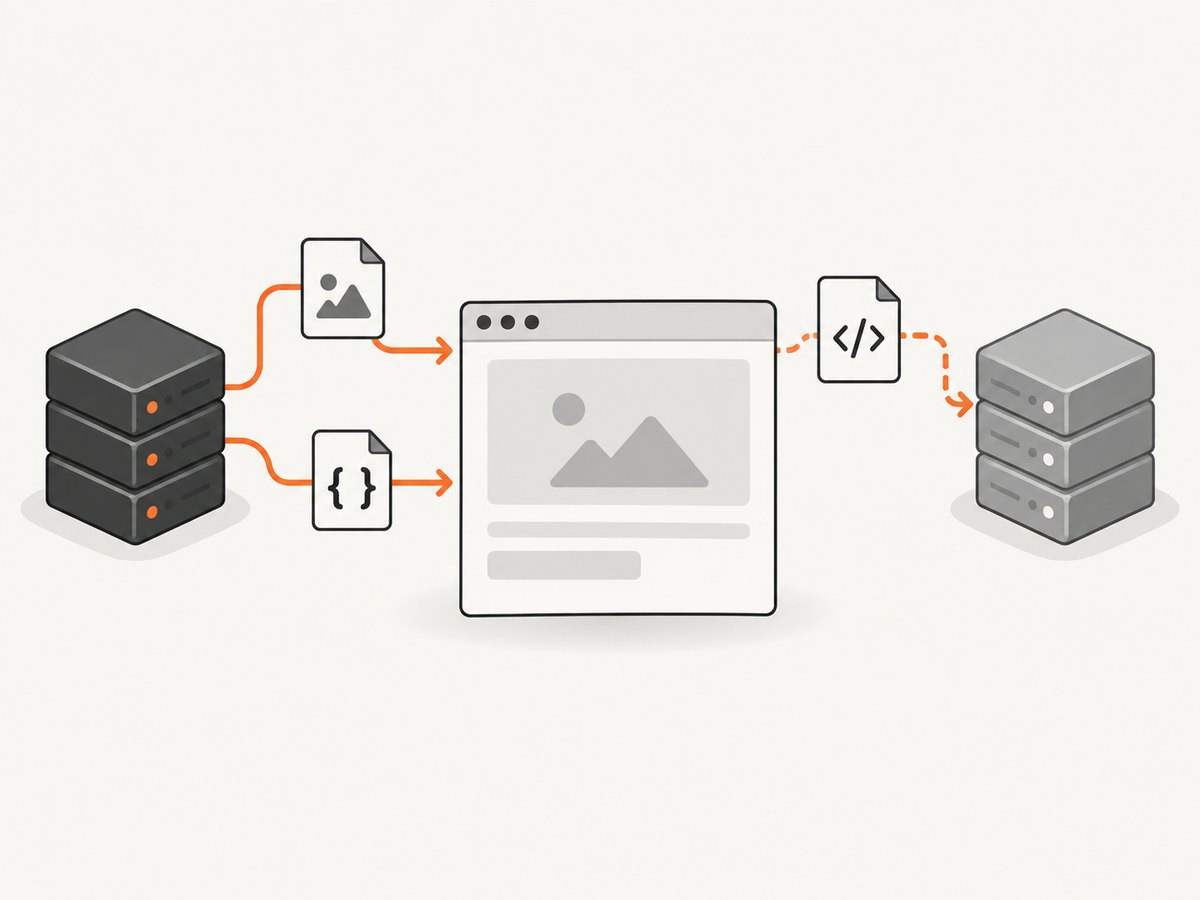
The document and its dependent resources are separate requests. The main HTML can succeed while an image, font, stylesheet, or script fails or resolves to different content.
Does a 301 mean an image is broken?
No. A 301 may correctly move an asset. Check the final destination and returned content, and investigate long chains or irrelevant targets.
Should I clear the whole CDN cache?
Start by checking the affected response and purging the specific URL when cache evidence points there. Broad cache changes can hide which layer caused the problem.
Can a screenshot prove Googlebot can access the page?
No. Browser rendering and crawler access are distinct checks. Use Search Console URL Inspection and review robots and noindex settings for crawl diagnosis.