How to Turn Code Into Branded Shareable Images
Create readable, on-brand code cards with Carbon, Snappify or a repeatable SVG workflow, then automate web captures with ScreenshotNeo.
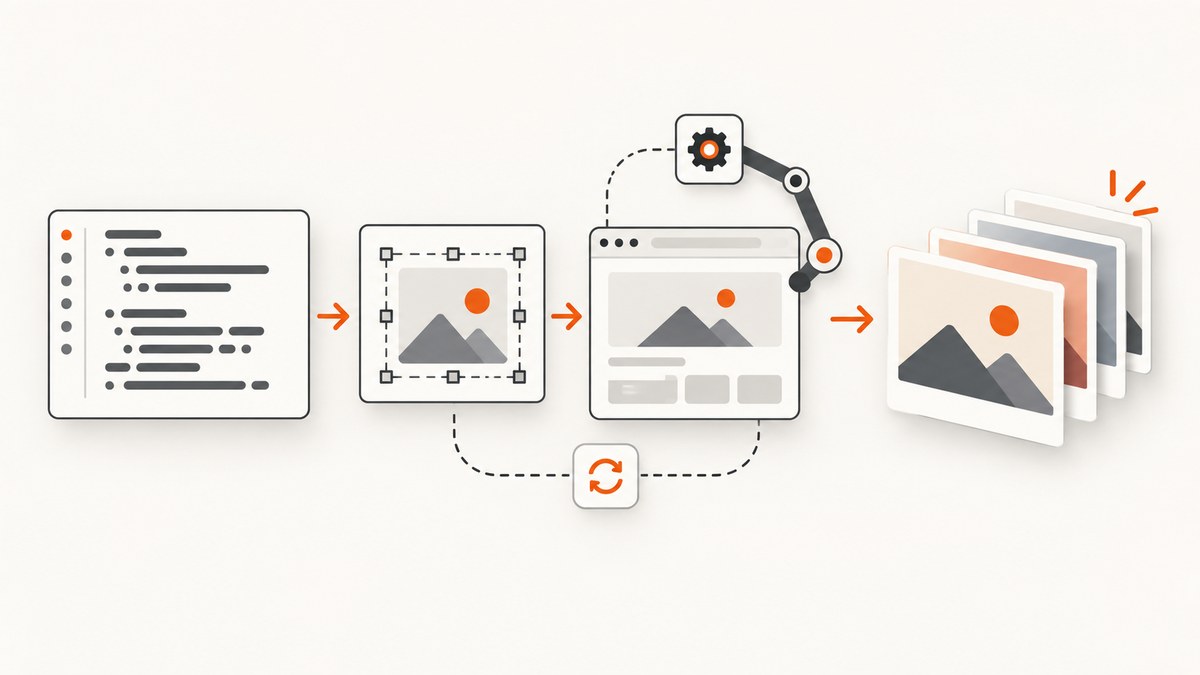
Direct answer: turn code into a branded shareable image by (1) reducing the snippet to one clear idea, (2) rendering it with a syntax-aware code-image tool, (3) applying a repeatable visual system for color, spacing and identity, and (4) exporting at the size where people will read it. Carbon is a focused route for static code cards: its documentation covers typing or importing code, syntax themes, backgrounds, window themes, padding, shadows, fonts, saved snippets, embeds and PNG/SVG export. When you need annotations, presentations, interactive embeds or video/GIF output, Snappify describes a broader technical-visual workflow. Sources: Carbon documentation, Snappify and its vendor comparison (January 3, 2026).
1. Decide what the image must communicate
A shareable code image is a visual explanation, not a screenshot of an entire file. Start with one promise: a function, a command, a before/after, or a small pattern. Keep only the lines that support that promise. Remove credentials, tokens, private customer data, internal hostnames and comments that reveal implementation details. If the snippet needs context, add a short heading or caption outside the code area rather than shrinking the font.
- One idea per card: split a long tutorial into a sequence instead of squeezing everything into one canvas.
- Readable first: choose a syntax theme with strong contrast, then check the exported file at its intended display size.
- Consistent identity: define a small palette, one type treatment and one placement for your handle or mark; repeat them across cards.
- Accessible context: include the language and a plain-language caption in the post that accompanies the image. The image should still make sense when it is reposted alone.
2. Choose the right creation workflow
| Need | Suitable workflow | Why |
|---|---|---|
| Compact static code card | Carbon | Code-focused editor with documented syntax themes, background, window, padding, shadows, fonts, saved snippets, embeds and PNG/SVG export. |
| Annotations, presentations or interactive explanation | Snappify | Its materials describe technical visuals, annotations, presentations, interactive embeds and image, video or GIF export. |
| Repeatable branded production | Template plus automation | Keep layout values in source control and render the same template for every snippet. |
The comparison above reports documented capabilities, not an independent usability test or a pricing review. Verify current limits and availability in each vendor’s documentation before committing to a publishing pipeline.
3. Build a reusable branded card yourself
The following self-contained example creates a branded SVG card. Replace the sample code and palette, then open the file in a browser and export it to PNG with your preferred image tool.

<svg xmlns='http://www.w3.org/2000/svg' width='1600' height='900' viewBox='0 0 1600 900'><defs><linearGradient id='bg' x1='0' y1='0' x2='1' y2='1'><stop offset='0' stop-color='#101827'/><stop offset='1' stop-color='#1b2b4a'/></linearGradient><filter id='shadow' x='-20%' y='-20%' width='140%' height='140%'><feDropShadow dx='0' dy='18' stdDeviation='22' flood-opacity='.28'/></filter></defs><rect width='1600' height='900' fill='url(#bg)'/><rect x='120' y='110' width='1360' height='680' rx='28' fill='#0b1220' filter='url(#shadow)'/><circle cx='170' cy='160' r='10' fill='#ff6b6b'/><circle cx='205' cy='160' r='10' fill='#ffd166'/><circle cx='240' cy='160' r='10' fill='#06d6a0'/><text x='300' y='170' fill='#a9b7d0' font-family='Inter,Arial,sans-serif' font-size='28'>retry-request.js</text><text x='180' y='260' fill='#7dd3fc' font-family='ui-monospace,SFMono-Regular,monospace' font-size='30'>01</text><text x='240' y='260' fill='#f8fafc' font-family='ui-monospace,SFMono-Regular,monospace' font-size='30'>async function retry(fetcher, attempts = 3) {</text><text x='180' y='315' fill='#7dd3fc' font-family='ui-monospace,SFMono-Regular,monospace' font-size='30'>02</text><text x='240' y='315' fill='#f8fafc' font-family='ui-monospace,SFMono-Regular,monospace' font-size='30'> for (let i = 0; i < attempts; i++) {</text><text x='180' y='370' fill='#7dd3fc' font-family='ui-monospace,SFMono-Regular,monospace' font-size='30'>03</text><text x='240' y='370' fill='#f8fafc' font-family='ui-monospace,SFMono-Regular,monospace' font-size='30'> try { return await fetcher(); }</text><text x='180' y='425' fill='#7dd3fc' font-family='ui-monospace,SFMono-Regular,monospace' font-size='30'>04</text><text x='240' y='425' fill='#f8fafc' font-family='ui-monospace,SFMono-Regular,monospace' font-size='30'> catch (error) { if (i === attempts - 1) throw error; }</text><text x='180' y='480' fill='#7dd3fc' font-family='ui-monospace,SFMono-Regular,monospace' font-size='30'>05</text><text x='240' y='480' fill='#f8fafc' font-family='ui-monospace,SFMono-Regular,monospace' font-size='30'> }</text><text x='180' y='535' fill='#7dd3fc' font-family='ui-monospace,SFMono-Regular,monospace' font-size='30'>06</text><text x='240' y='535' fill='#f8fafc' font-family='ui-monospace,SFMono-Regular,monospace' font-size='30'>}</text><text x='120' y='850' fill='#a9b7d0' font-family='Inter,Arial,sans-serif' font-size='24'>yourbrand.dev • practical patterns</text></svg>Save it as card.svg. Keep the SVG as the source of truth so reviewers can inspect every visible string. Convert to PNG only at the final publishing step. If you need syntax highlighting for many languages, use a documented code-image editor such as Carbon instead of maintaining token colors by hand.
Automate the render with Node.js and Playwright
This script opens the SVG in a headless browser and writes a PNG. It does not call an external service.
import { chromium } from 'playwright'; const browser = await chromium.launch(); const page = await browser.newPage({ viewport: { width: 1600, height: 900 }, deviceScaleFactor: 1 }); await page.goto(`file://${process.cwd()}/card.svg`); await page.screenshot({ path: 'card.png' }); await browser.close();Pin the browser version in your build environment, render with a fixed viewport, and review a sample at the target feed or slide size. A higher device scale factor creates a denser file but does not fix a layout whose text is already too small.
4. Apply brand controls without hurting legibility
Carbon’s documented controls map directly to the decisions that matter: syntax theme, background color, window theme, padding, shadows and fonts. Start with contrast, then decoration. A dark code window on a dark background can lose its boundary; add space or a subtle shadow before adding more colors. Keep line length short enough that viewers do not need to zoom. Use one accent color for the title or footer and reserve syntax colors for code semantics.
Branding can be more than a logo. Snappify describes profile imagery, social handles, logos and color schemes alongside richer presentation features. Place identity where it survives cropping, and keep it outside the code block so copied snippets remain usable.
5. Export and publish safely
- Proofread every visible character, including punctuation in URLs and shell commands.
- Search the source and rendered image for secrets, access keys, email addresses and private data.
- Export PNG for broad compatibility or SVG when the destination accepts vectors and you need crisp scaling. Carbon documents both export types.
- Open the final file on a phone-sized preview and at full size. If the code cannot be read without pinch-zooming, shorten it or split it.
- Write alt text that states the idea and language; do not paste the entire code into alt text.
- Keep the source snippet, template version and exported asset together so a correction can be republished.
6. ScreenshotNeo option for web-based code cards
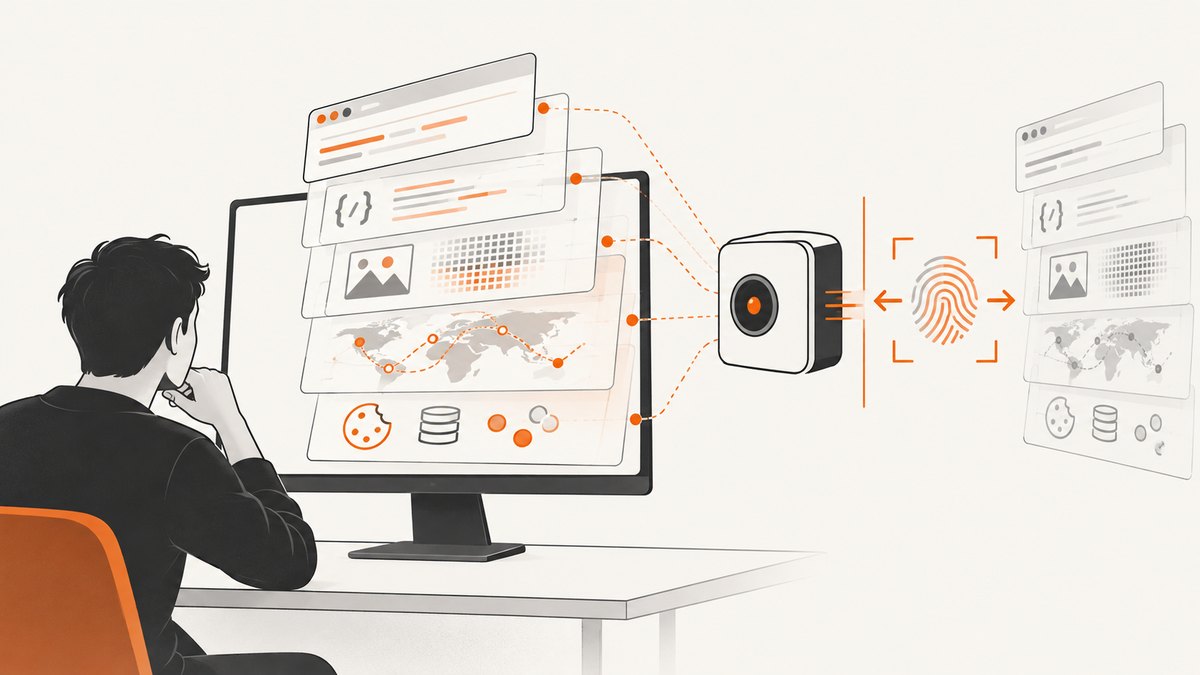
If your branded visual is rendered as a web page, ScreenshotNeo can capture that page after your CSS, custom fonts and responsive layout are in place. It is a website screenshot API and MCP server. The same endpoint returns PNG, JPEG, WebP or PDF, and its capture options include custom CSS and JavaScript, viewport and device presets, retina scale, element selection, waits, hiding selectors and image resizing.
Or skip the browser setup
One GET request captures the finished page. See the ScreenshotNeo docs for the complete option list.
curl -G 'https://api.screenshotneo.com/v1/shot' \
  -d access_key=YOUR_API_KEY \
  --data-urlencode url=https://stripe.com \
  -o shot.webp
import requests
r = requests.get('https://api.screenshotneo.com/v1/shot', params={'access_key': 'YOUR_API_KEY', 'url': 'https://stripe.com'}, timeout=90)
r.raise_for_status()
open('shot.webp', 'wb').write(r.content)const q = new URLSearchParams({ access_key: 'YOUR_API_KEY', url: 'https://stripe.com' });
const res = await fetch(`https://api.screenshotneo.com/v1/shot?${q}`);
if (!res.ok) throw new Error(`HTTP ${res.status}`);
const fs = await import('node:fs/promises');
await fs.writeFile('shot.webp', Buffer.from(await res.arrayBuffer()));For branded pages, pass the page URL plus the relevant options: custom CSS or JavaScript to apply the card theme, a CSS selector to capture one element, a wait for a selector, delay or network idle, a device preset or viewport, and retina scale for dense output. Cookie banners, newsletter popups and chat widgets are removed before capture; each cleanup step can be turned off. Bot checks, blank pages, timeouts, failed loads and cache hits are not billed, and the response identifies the result with X-Page-Verdict and X-Billed headers. An MCP server provides take_screenshot, get_page_info and capture_pdf tools for Claude, Cursor and other MCP clients.
Free usage includes 1,000 screenshots per month with no card. Paid plans start at $5 for 3,000 shots; yearly billing gives two months free. Create a free ScreenshotNeo account.
7. Reliability, performance and cost checklist
- Determinism: freeze fonts, viewport, device scale and template version. Wait for the code block or a network-idle condition before capture.
- Failure handling: inspect HTTP status and the
X-Page-Verdict/X-Billedheaders. Retry transient client or network failures with backoff; do not blindly retry a page that is blank or blocked. - Throughput: reuse a browser process for local rendering. For ScreenshotNeo, use caching with a TTL when the page is unchanged, async jobs with signed webhooks for long captures, and bulk capture for up to 100 URLs per call.
- Cost control: remove unused retries, cache stable pages and capture only the element you publish. ScreenshotNeo bills only clean shots; failed loads, bot checks, blank pages, timeouts and cache hits cost nothing.
- Review: compare a golden image after template changes. A one-pixel font or padding change can alter line wrapping and invalidate a batch.
8. Troubleshooting
| Symptom | Likely cause | Fix |
|---|---|---|
| Text is clipped | Fixed canvas is smaller than the longest line. | Shorten the snippet, widen the card or reduce font size slightly; recheck at feed width. |
| Code colors look muddy | Low contrast between syntax theme and background. | Choose a higher-contrast theme and reserve the brand accent for framing. |
| Fonts differ between renders | Font is missing or loaded after capture. | Install or bundle the font and wait for the target selector or network idle. |
| Popup covers the card | Consent, newsletter or chat UI appears during capture. | Hide the selector in your page, add custom JavaScript, or enable ScreenshotNeo’s cleanup steps. |
| Screenshot is blank or blocked | Page failed, timed out or triggered a bot check. | Use get_page_info or response verdict headers, fix the page access issue, and retry only after the cause is resolved. |
| PNG is too large | Oversized dimensions or retina scale. | Capture the published element, resize after capture, or lower scale while preserving legibility. |
| SVG shows literal markup | Characters such as < were encoded incorrectly. |
Validate the SVG in a browser and escape XML characters only where required. |
9. FAQ
Should I share PNG or SVG?
Use PNG when the destination expects a raster upload. Keep SVG as your editable source or use it where vector upload is supported; Carbon documents both export paths.
How much code belongs in one image?
Enough to prove one idea. If the viewer must read a full file, publish the file separately and make the image a focused excerpt.
Can branding include annotations?
Yes. Snappify’s materials describe annotations and presentation-style visuals; for a static card, keep callouts outside the code lines so syntax remains readable.
How do I update many cards safely?
Store the snippet and template as versioned source, render with fixed dimensions, and review a representative sample before publishing the batch.
Can an AI agent create the screenshots?
ScreenshotNeo provides an MCP server with take_screenshot, get_page_info and capture_pdf tools for MCP clients such as Claude and Cursor.
10. Final publishing checklist
- The image communicates one idea without zooming.
- No secrets or private data appear in code, metadata or footer text.
- Theme, spacing, accent color and identity match your brand template.
- Source SVG or editor snippet is saved beside the export.
- Alt text and a plain-language caption accompany the image.
- The final asset was checked at the actual destination size.


