How to Turn Off Link Previews in Outlook 365
Turn off Outlook 365 link previews in Outlook on the web, handle classic menus, and separate link cards from desktop hyperlink settings.
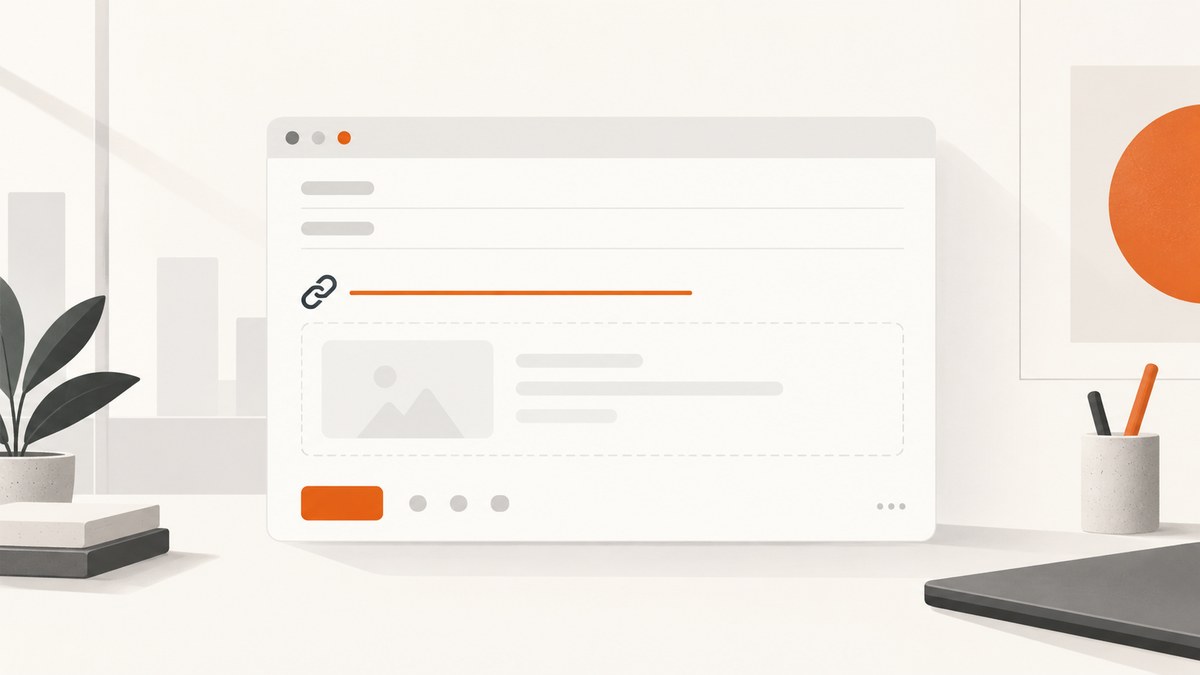
To turn off link previews in Outlook 365 on the web, open Settings, choose Mail, then Compose and reply. Under Link preview, clear Preview links in email. New messages will show pasted URLs as plain links instead of a card with a title, thumbnail, and description.
Turn off link previews in current Outlook on the web
- Open Outlook on the web or Outlook.com.
- Select the Settings gear in the upper-right corner.
- Choose Mail.
- Open Compose and reply.
- Scroll to Link preview.
- Clear Preview links in email.
- Close Settings. Outlook saves the preference automatically.
Paste a URL into a new message to confirm the result. The address should remain a normal URL without the rich preview card.
Use the classic Outlook on the web menu
Some Outlook on the web accounts still show the older navigation. In that interface:

- Open Options or Mail.
- Choose Layout.
- Find Link preview.
- Clear Preview links in email.
The menu labels can differ between tenants and interface versions, but the setting has the same name.
What the setting changes
Microsoft describes link preview as a rich preview shown while reading or composing mail. It can include the link title, a thumbnail image, and a description. Microsoft enables it by default in Outlook.com and Outlook on the web.
After you clear the checkbox, Outlook displays the URL without automatically adding that rich card. The URL remains usable as a link; this setting controls the preview presentation.
Identify which Outlook you are using
| Client | Relevant control | Documented path |
|---|---|---|
| Outlook.com | Rich URL link preview | Settings > Mail > Compose and reply > Link preview |
| Outlook on the web | Rich URL link preview | Settings > Mail > Compose and reply > Link preview |
| Classic Outlook on the web | Rich URL link preview | Options or Mail > Layout > Link preview |
| New or classic Outlook for Windows | Different preview and hyperlink controls | The web checkbox is not established for the desktop applications |
The Microsoft instructions for the web also list Exchange Server 2016 and 2019 among their applicable environments. If your organization uses a desktop Outlook application, first confirm the exact client and version before looking for this checkbox.
Do not confuse link previews with other “preview” settings
Outlook has several unrelated features that use the word “preview”:
- Link preview: creates a rich card for a URL in a message.
- Reading Pane: controls where message contents appear when you select a message.
- Message-list preview text: shows part of a message beside its subject in the inbox.
Changing the Reading Pane or message-list preview does not remove URL cards. Use the Link preview checkbox for that task.
Stop Outlook for Windows from making URLs clickable
If your goal is to stop Outlook from converting typed web addresses into hyperlinks, you need a separate classic Windows Outlook setting. This is different from removing rich preview cards.
- Open File > Options > Mail.
- Select Editor Options.
- Open AutoCorrect Options.
- Select the AutoFormat As You Type tab.
- Clear Internet and network paths with hyperlinks.
- Select OK to save the change.
This prevents automatic hyperlink creation in the classic Windows editor. It does not control the web link-preview card.
Troubleshooting
| Symptom | Likely cause | Fix |
|---|---|---|
| You cannot find “Link preview” | You are in desktop Outlook, or the account uses the classic web layout. | Confirm the client. In classic web Outlook, try Options or Mail > Layout. |
| The card still appears in an old draft | The draft was created before the preference changed. | Start a new message and paste the URL again. Remove any existing card manually if needed. |
| Reading Pane changes had no effect | Reading Pane is a separate preview feature. | Return to Settings > Mail > Compose and reply and clear Preview links in email. |
| A URL is still blue and clickable | Disabling link preview does not disable hyperlinks. | For classic Windows Outlook, clear Internet and network paths with hyperlinks under AutoFormat As You Type. |
| The setting seems to revert | Your account may be switching between web interfaces or profiles. | Check the setting in the exact Outlook web account where you compose mail, then create a fresh test message. |
| Only some links show a card | Preview generation depends on the URL and message context. | Test with a new message and a different public URL. The checkbox controls the feature when Outlook can generate a preview. |
Performance, reliability, and account scope
- Performance: Turning off previews removes the rich-card display; it does not change mail delivery or the destination website.
- Reliability: The preference applies to the Outlook.com or Outlook on the web interface where you set it. Different clients can have separate controls.
- Cost: This is a built-in Outlook preference with no separate service charge.
- Organization policy: The available Microsoft material does not establish whether an administrator can centrally enforce this preference across a tenant. Do not assume a tenant-wide policy exists.
Or skip the browser setup
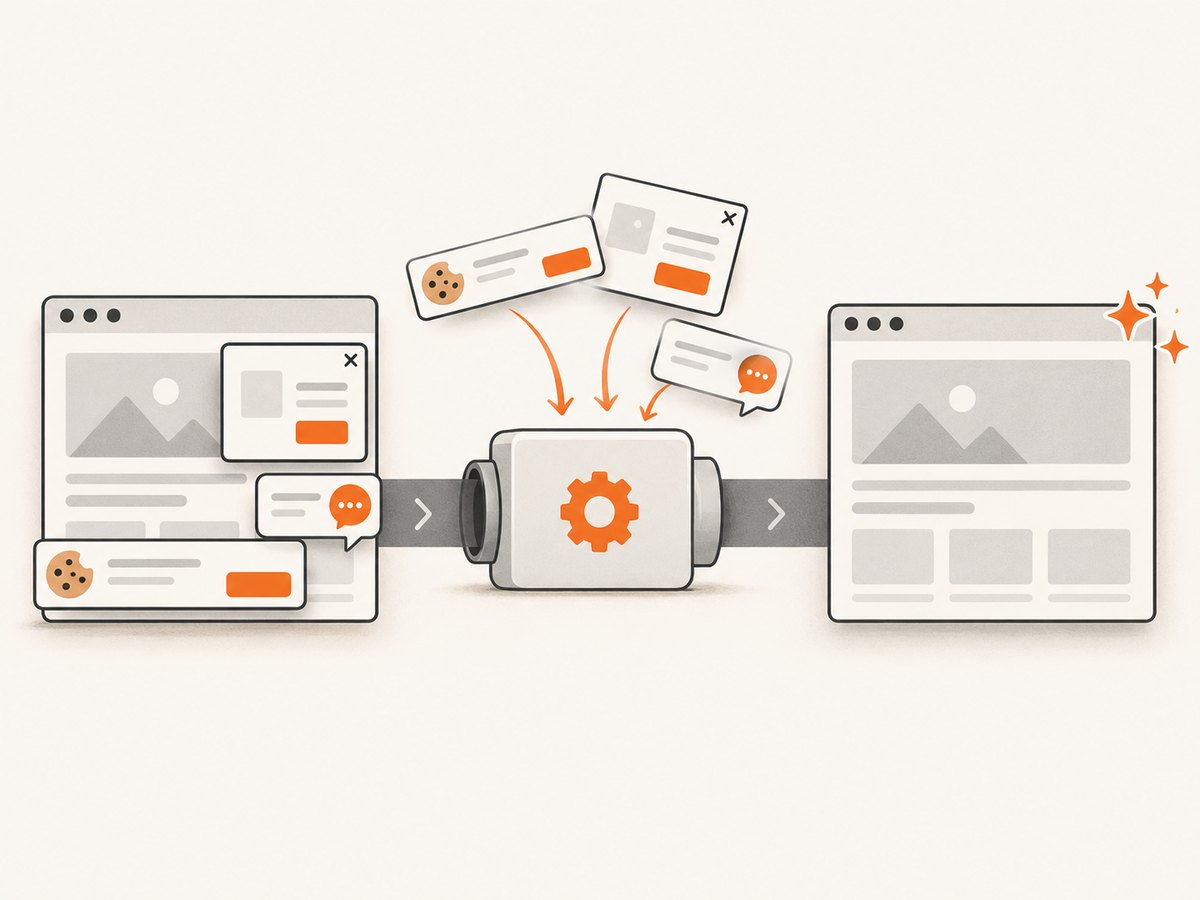
If you need a clean screenshot of an Outlook help page, documentation page, or another public URL for a runbook, test, or article, ScreenshotNeo provides a single screenshot API request. Its capture flow removes cookie-consent banners, newsletter popups, and chat widgets before the shot. Bot checks, blank pages, timeouts, failed loads, and cache hits are not billed, and the response identifies the result with X-Page-Verdict and X-Billed headers. An MCP server also lets Claude, Cursor, and other MCP clients call take_screenshot, get_page_info, and capture_pdf.
See the ScreenshotNeo API documentation for all options.
cURL
curl -G "https://api.screenshotneo.com/v1/shot" -d access_key=YOUR_API_KEY --data-urlencode url=https://outlook.office.com -o shot.webpPython
import requests
r = requests.get("https://api.screenshotneo.com/v1/shot", params={"access_key": "YOUR_API_KEY", "url": "https://outlook.office.com"}, timeout=90)
open("shot.webp", "wb").write(r.content)
Node.js
const q = new URLSearchParams({ access_key: 'YOUR_API_KEY', url: 'https://outlook.office.com' });
const res = await fetch(`https://api.screenshotneo.com/v1/shot?${q}`);
The free plan includes 1,000 screenshots per month with no card. Paid plans start at $5 for 3,000 shots, and every feature is available on every plan. Create a free ScreenshotNeo account.
FAQ
Does turning off link previews delete the URL?
No. It removes the rich card. The URL can still be present and clickable.
Does this setting remove previews from messages I receive?
It controls the link-preview feature in Outlook.com and Outlook on the web while reading or composing. Existing message content may still include a card created earlier.
Why is the setting missing in Outlook for Windows?
The documented checkbox applies to Outlook.com and Outlook on the web. Desktop Outlook has separate Reading Pane and hyperlink options, so verify which client you are using.
Can I disable automatic hyperlinking without disabling link previews?
Yes. In classic Outlook for Windows, clear Internet and network paths with hyperlinks under File > Options > Mail > Editor Options > AutoCorrect Options > AutoFormat As You Type.


