How to Turn Any URL into a PDF with an API
Learn three reliable ways to convert any web URL into a PDF: managed APIs, Playwright browser automation, and ScreenshotNeo.
Direct answer: to turn a URL into a PDF, send the URL to a rendering API or open it in a real browser and call the browser’s PDF function. A renderer must load the page, execute its JavaScript, apply CSS, wait for relevant content, and then create the document. For a managed service, Adobe PDF Services and Cloudflare Browser Run accept URL input. For code you operate yourself, Playwright’s page.pdf() returns a PDF buffer.
The right choice depends on how much browser infrastructure you want to run. A managed endpoint is usually the shortest integration. Playwright gives you detailed control over media emulation, page size, authentication, waits, and post-load actions, but you maintain browsers, concurrency, updates, and failure handling. This guide shows both approaches, explains the options that affect output, and includes a managed ScreenshotNeo path when you want to skip browser setup.
What happens when a URL becomes a PDF?
A URL-to-PDF request is a rendering job, not a file download. The service generally performs these steps:
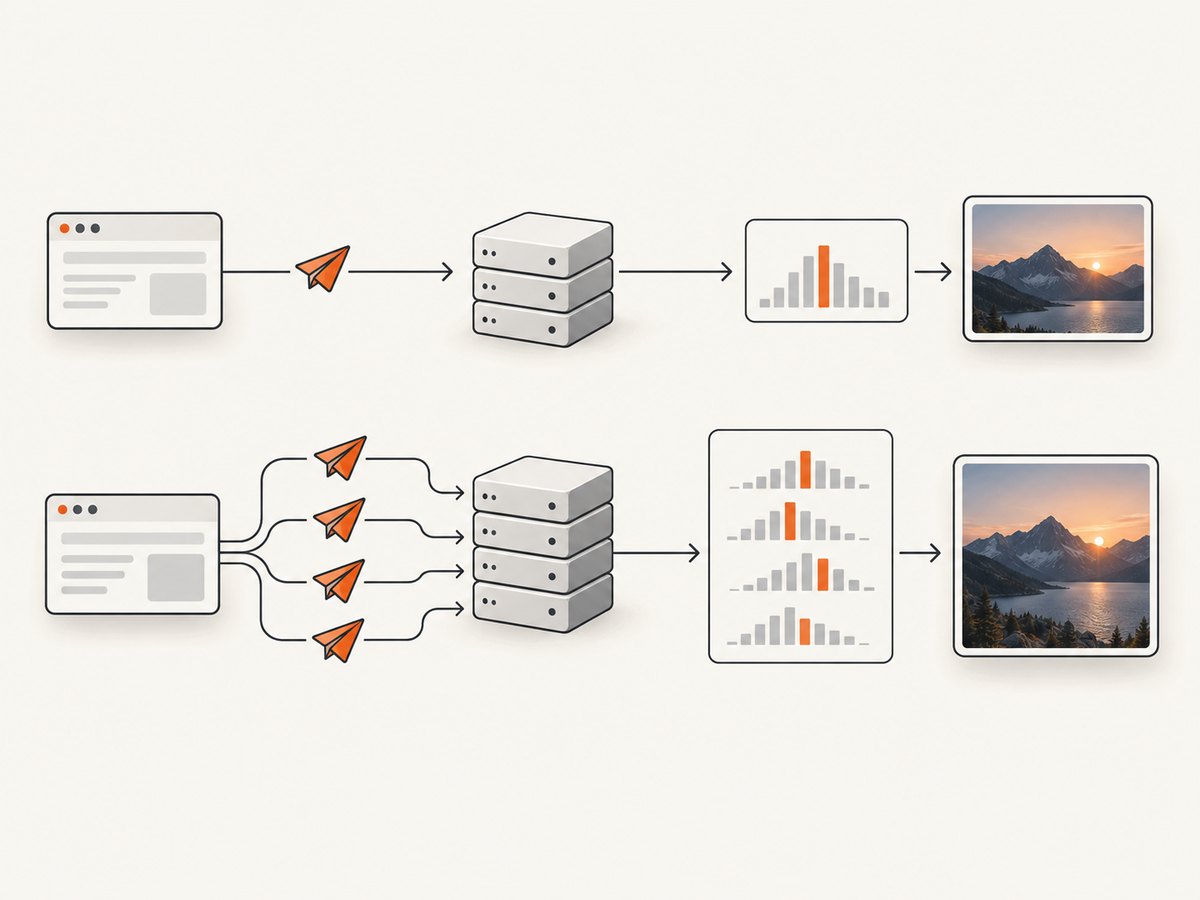
- Validate the URL and credentials.
- Launch or reuse a browser or rendering engine.
- Navigate to the page and follow redirects.
- Run JavaScript, load stylesheets, fonts, images, and lazy content.
- Apply print or screen CSS and select paper dimensions.
- Serialize the rendered document as a PDF.
- Return the PDF bytes or an asynchronous job result.
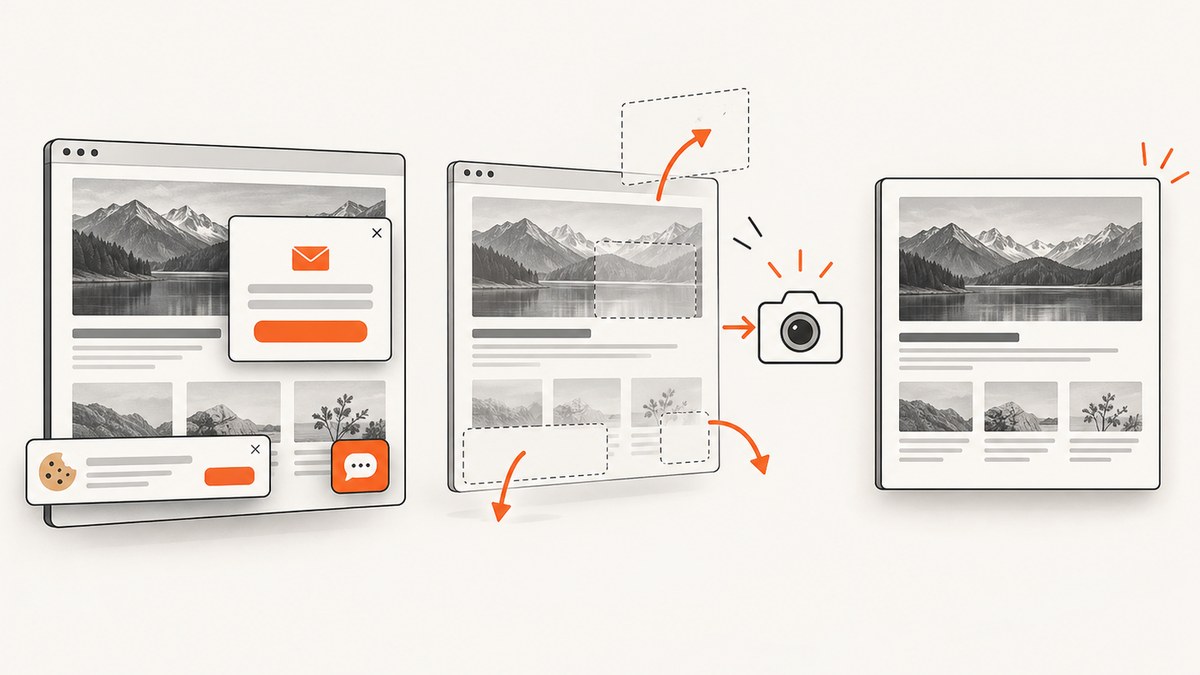
This explains common surprises. A page can return HTTP 200 while its content is still loading, a cookie banner can cover text, and a page that looks correct on screen can paginate badly in print media. Your implementation must define when the page is ready and how it should be printed.
Option 1: Use a managed URL-to-PDF API
Managed APIs remove browser installation and maintenance from your application. Adobe PDF Services documents HTML-to-PDF conversion from static or dynamic HTML, ZIP files, and URLs. Its REST examples use an API key and bearer token; follow the provider’s current authentication and request schema in the Adobe PDF Services documentation.
Cloudflare Browser Run documents a PDF endpoint that accepts either a URL or custom HTML. Its REST endpoint requires a token with Browser Rendering – Edit permission, while Workers Bindings can call it without an API token. The documentation explicitly requires one of those two inputs: You must provide either
See the Cloudflare PDF endpoint reference for the current account endpoint and payload.url or html.
Generic managed-API integration pattern
# Pseudocode: use the exact endpoint and fields from your provider's reference
POST https://provider.example/pdf
Authorization: Bearer YOUR_TOKEN
Content-Type: application/json

{
  "url": "https://example.com/article"
}

# Save the binary response as article.pdf
Do not mix request formats between providers. Check whether the service returns PDF bytes immediately or returns a job ID, whether redirects are followed, how it reports rendering errors, and whether URL fetching is restricted by an allowlist or network policy.
Option 2: Convert a URL to PDF with Playwright
Playwright is the practical do-it-yourself route when you need browser-level control. Its page.pdf() method returns a PDF buffer. Playwright uses print CSS media by default; call page.emulateMedia({ media: 'screen' }) first when the PDF should match screen styles. The API also documents named formats such as Letter and A4, plus explicit width and height values. Read the Playwright page.pdf() reference for the complete option list.

Install Playwright
npm install playwright
npx playwright install chromium
Basic Node.js script
import { chromium } from 'playwright';

const target = process.argv[2] ?? 'https://example.com';
const browser = await chromium.launch();
const page = await browser.newPage({
  viewport: { width: 1440, height: 900 },
  deviceScaleFactor: 1
});

try {
  await page.goto(target, {
    waitUntil: 'networkidle',
    timeout: 60_000
  });

  await page.emulateMedia({ media: 'screen' });

  await page.pdf({
    path: 'page.pdf',
    format: 'A4',
    printBackground: true,
    margin: {
      top: '16mm',
      right: '16mm',
      bottom: '16mm',
      left: '16mm'
    }
  });
} finally {
  await browser.close();
}
Run it with node url-to-pdf.js https://example.com. Remove emulateMedia if print CSS is the desired output. printBackground: true preserves background colors and images that the page makes available to the browser.
Python with Playwright
from playwright.sync_api import sync_playwright
import sys

url = sys.argv[1] if len(sys.argv) > 1 else "https://example.com"

with sync_playwright() as p:
    browser = p.chromium.launch()
    page = browser.new_page(viewport={"width": 1440, "height": 900})
    try:
        page.goto(url, wait_until="networkidle", timeout=60_000)
        page.emulate_media(media="screen")
        page.pdf(
            path="page.pdf",
            format="A4",
            print_background=True,
            margin={
                "top": "16mm",
                "right": "16mm",
                "bottom": "16mm",
                "left": "16mm",
            },
        )
    finally:
        browser.close()
Control the rendered document
Wait for the content you actually need
networkidle is useful for many pages, but analytics, chat, and streaming connections can prevent a page from becoming idle. A more deterministic pattern is to wait for a selector that represents the finished content, then optionally wait a short, bounded delay for fonts or animations.
await page.goto('https://example.com/report', { waitUntil: 'domcontentloaded' });
await page.waitForSelector('[data-report-ready]', { state: 'visible', timeout: 30_000 });
await page.waitForTimeout(500);
await page.pdf({ path: 'report.pdf', format: 'Letter' });
For infinite-scroll pages, scroll in increments until the document stops growing before calling pdf(). For lazy images, wait for the images to complete:
await page.evaluate(() => window.scrollTo(0, document.body.scrollHeight));
await page.waitForFunction(() => [...document.images].every(img => img.complete));
Paper, orientation, and margins
| Requirement | Playwright setting | Practical note |
|---|---|---|
| Common office page | format: 'A4' or 'Letter' |
Use a named format for predictable pagination. |
| Landscape report | landscape: true |
Useful for wide tables and dashboards. |
| Exact dimensions | width and height |
Use CSS units such as mm, in, or px. |
| Content touching edges | Set explicit zero or small margins | Check printer-safe areas if people will print the file. |
Headers, cookies, and authenticated pages
Create the browser context with the same identity a real user needs. Set cookies before navigation, add HTTP headers to the context, or use a storage state captured during a login flow. Keep credentials in environment variables and never place session tokens in a public URL.
const context = await browser.newContext({
  extraHTTPHeaders: {
    Authorization: `Bearer ${process.env.REPORT_TOKEN}`
  },
  locale: 'en-US',
  timezoneId: 'America/New_York'
});
const page = await context.newPage();
Some applications render different content by locale, timezone, viewport, or user agent. Set those values explicitly when reproducibility matters.
Remove elements that should not appear
Hide cookie prompts, sticky navigation, chat launchers, and print-only controls before creating the PDF. Prefer a print stylesheet owned by the application. As a fallback, inject CSS for the specific selectors:
await page.addStyleTag({ content: `
  .cookie-banner, .chat-widget, .sticky-nav, .print-button {
    display: none !important;
  }
` });
Use stable selectors and review the result after site redesigns. A broad rule such as hiding every fixed element can remove legitimate content.
Option 3: Or skip the browser setup with ScreenshotNeo
ScreenshotNeo is a website screenshot API with PDF capture. Send one GET request with the URL and PDF settings, then save the response. The API also supports full-page rendering, custom CSS and JavaScript, waits, headers, cookies, user agents, geolocation, timezone, blocking rules, caching, async jobs, bulk capture, and signed links. See the ScreenshotNeo API documentation for the current PDF parameter names and complete option list.
curl -G "https://api.screenshotneo.com/v1/shot" \
  -d access_key=YOUR_API_KEY \
  --data-urlencode url=https://example.com/report \
  -d format=pdf \
  -o report.pdf
import requests
r = requests.get(
"https://api.screenshotneo.com/v1/shot",
params={
"access_key": "YOUR_API_KEY",
"url": "https://example.com/report",
"format": "pdf",
},
timeout=90,
)
r.raise_for_status()
open("report.pdf", "wb").write(r.content)const q = new URLSearchParams({
access_key: 'YOUR_API_KEY',
url: 'https://example.com/report',
format: 'pdf'
});
const res = await fetch(`https://api.screenshotneo.com/v1/shot?${q}`);
if (!res.ok) throw new Error(`ScreenshotNeo returned ${res.status}`);
const buffer = Buffer.from(await res.arrayBuffer());
await import('node:fs/promises').then(fs => fs.writeFile('report.pdf', buffer));Consent banners, newsletter popups, and chat widgets are removed before the shot. Bot checks, blank pages, timeouts, failed loads, and cache hits cost nothing; response headers identify the page verdict and whether the request was billed. An MCP server lets Claude, Cursor, and other MCP clients call screenshot and PDF tools. The free plan includes 1,000 screenshots each month with no card, and paid plans start at $5 for 3,000 shots. Create a free ScreenshotNeo account.
Reliability and production design
Use bounded timeouts and retries
Set a navigation timeout and an overall request deadline. Retry transient network failures with exponential backoff, but do not blindly retry invalid URLs, authentication failures, or pages that consistently time out. Use an idempotency key or deterministic output name when your job queue can deliver the same task twice.
Separate rendering from delivery
For user-facing requests, return a job ID when rendering may take longer than your HTTP timeout. A worker can render the PDF, store it in object storage, and notify your application through a signed webhook or queue message. Record the target URL, viewport, media mode, paper settings, renderer version, and error category so failures can be reproduced.
Validate the output
Check the HTTP status, content type, and minimum byte size before presenting a file to users. A successful HTTP response is not proof that the PDF contains the intended content. For critical workflows, extract text or render the first page in a validation step and alert when expected headings are absent.
Performance, cost, and security notes
- Reuse browsers carefully. Keeping one browser process and creating isolated contexts avoids repeated startup cost while preventing cookies from leaking between jobs.
- Limit concurrency. Each page consumes CPU and memory. Start with a small worker pool, measure queue time, and increase concurrency only while output remains stable.
- Cache deterministic pages. Cache by URL plus every rendering option that changes output. A short TTL is safer for frequently changing pages.
- Reduce unnecessary work. Block analytics or large media only when it does not change the document. Waiting for a fixed delay is slower and less reliable than waiting for a ready selector.
- Protect SSRF boundaries. If end users submit URLs, block private IP ranges, cloud metadata addresses, localhost, unexpected protocols, and internal DNS names. Restrict outbound network access where possible.
- Protect secrets. Keep API keys, bearer tokens, cookies, and authorization headers server-side. Do not log full URLs when they contain signed query parameters.
- Budget by rendered job. Managed providers can charge per successful render or apply quotas. Verify current pricing, limits, regions, and service guarantees in the provider’s official documentation before committing.
Troubleshooting common failures
| Symptom | Likely cause | Fix |
|---|---|---|
| PDF is blank | Navigation finished before client-side rendering or a bot check blocked the page. | Wait for a content selector, inspect the final URL, and capture page HTML or console errors. |
| Only the header appears | Lazy content was never triggered. | Scroll the page, wait for image completion, then generate the PDF. |
| Colors are missing | Print CSS or background printing differs from screen output. | Emulate screen media when appropriate and enable background printing. |
| Request times out | Long-running connections, third-party scripts, or a slow origin. | Use a selector-based readiness check, block nonessential requests, and set a bounded retry policy. |
| Authentication page is captured | Cookies or headers were not applied to the browser context. | Set them before navigation and verify the response URL and page title. |
| Text overlaps or is cut off | Fixed heights, viewport-dependent CSS, or unsuitable paper dimensions. | Choose A4 or Letter explicitly, use landscape for wide tables, and add print CSS. |
| 429 or quota error | Provider rate limit or account quota. | Queue jobs, add backoff, reduce concurrency, and check current limits. |
| PDF download is an HTML error page | The client saved an error response without checking status or content type. | Check status and Content-Type before writing bytes to disk. |
Choosing an approach
| Need | Best fit |
|---|---|
| Fast integration with no browser fleet | Managed URL-to-PDF API |
| Exact browser actions, custom login, or deep debugging | Playwright |
| Clean captures with consent and popup handling included | ScreenshotNeo |
| Many URLs with queueing and webhooks | Managed API with async jobs, or your own worker queue |
| HTML already exists in your application | A provider endpoint that accepts HTML, or Playwright with page.setContent() |
FAQ
Can an API convert a page that requires JavaScript?
Yes, when the service uses a browser or JavaScript-capable renderer. A simple HTTP client that downloads HTML cannot reproduce client-side rendering by itself.
Should I use print or screen CSS?
Use print CSS for documents designed for paper and screen CSS for dashboards or layouts whose on-screen appearance matters. Playwright defaults to print media, so choose deliberately.
Can I convert private URLs?
Yes, if the renderer can reach the network and you provide authentication safely through cookies, headers, or a controlled login flow. Never expose those credentials in client-side code.
How do I make repeated PDFs identical?
Pin viewport, locale, timezone, browser version, fonts, paper settings, and readiness conditions. Disable animations and use deterministic test data where possible.
Is a URL-to-PDF API the same as a screenshot API?
They share the rendering step, but PDF output adds pagination, paper dimensions, margins, and print-media behavior. Check that the service explicitly supports PDF and the controls your document requires.