Why Twitter’s Login Page Differs in Headless Selenium and How to Handle It
Learn why X's login flow can differ in headless Selenium and debug it with reproducible checks, explicit waits, logs, and supported recovery.
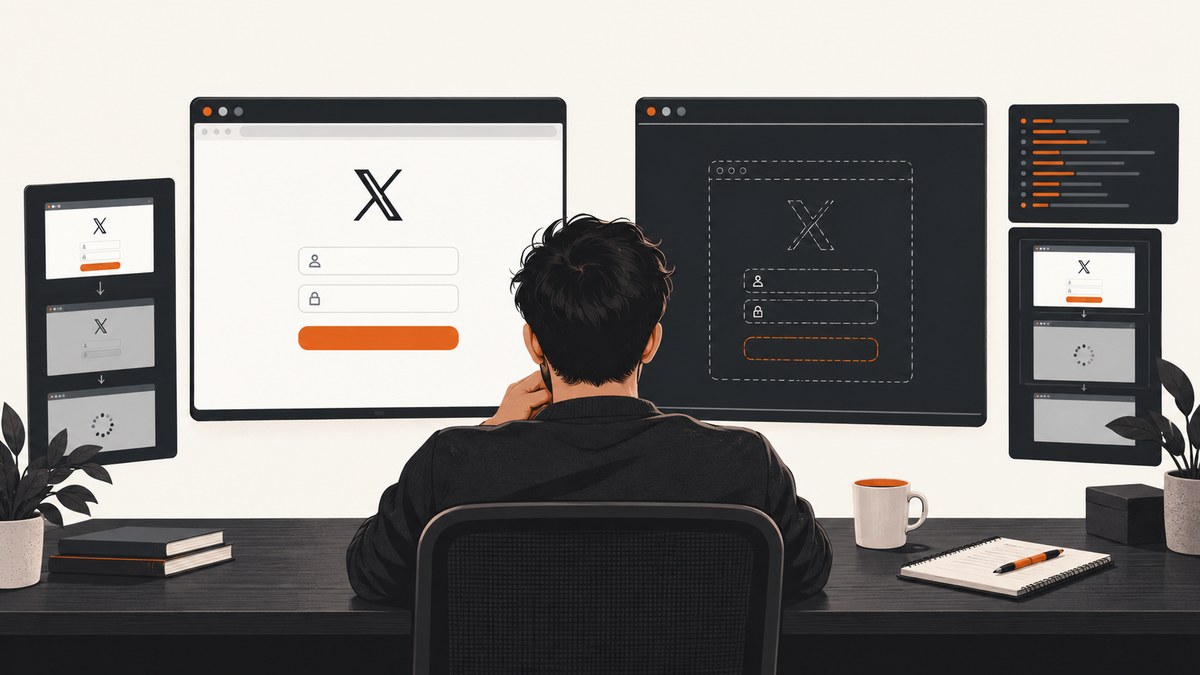
Short answer: headless mode means Chrome runs without a visible window; in current Chrome it uses the same browser code as normal mode. A different X (formerly Twitter) login screen is therefore an observation to investigate, not proof of one specific detection mechanism. Compare identical headful and headless runs, record the real browser state, verify Chrome and ChromeDriver versions, wait for precise conditions, and separate rendering or timing problems from account recovery issues.
Chrome documents that its unified headless mode creates platform windows without displaying them, sharing Chrome’s code. The change arrived in Chrome 112; from Chrome 132 the older implementation is available only as the separate chrome-headless-shell binary. Read the Chrome headless documentation.
What can make the login page look different?
The reviewed official sources do not disclose the exact internal signals X uses to select, alter, or restrict a login flow for a particular Selenium session. Do not treat any single explanation as established fact. Test these hypotheses one at a time:
- Browser and driver mismatch: Selenium’s Chrome guidance says the Chrome and ChromeDriver major versions should match.
- Viewport or environment differences: a different window size, device scale factor, operating system, fonts, locale, timezone, proxy, or container can change responsive layout or available controls.
- Asynchronous state: the page may still be navigating, redirecting, loading a challenge, or waiting on an API response when your selector runs.
- Changed site flow: X can change its published login experience between runs.
- Account state: a lockout, password problem, forgotten identifier, or recovery challenge is separate from a WebDriver rendering defect.
Possibilities such as automation flags, IP reputation, cookies, or fingerprinting should not be presented as confirmed causes without current, direct evidence. Avoid advice intended to disguise automation or bypass login controls.
Build a reproducible comparison
- Record the Chrome, ChromeDriver, Selenium, operating system or container image, target URL, viewport, and headless setting.
- Use a fresh browser profile for each run. Keep the account, URL, locale, timezone, and starting conditions constant.
- Run once headful and once headless. Use the same Chrome binary and driver.
- At the point where the flows diverge, save a screenshot, final URL, page title, visible text, browser console output, and driver logs.
- Change one condition at a time. A longer fixed sleep can hide a race without identifying what failed.
Selenium’s documentation covers Chrome arguments, service logging, browser logs, explicit waits, and locator practices. See the Chrome WebDriver guide, browser options documentation, and waits documentation.
Runnable Python diagnostic
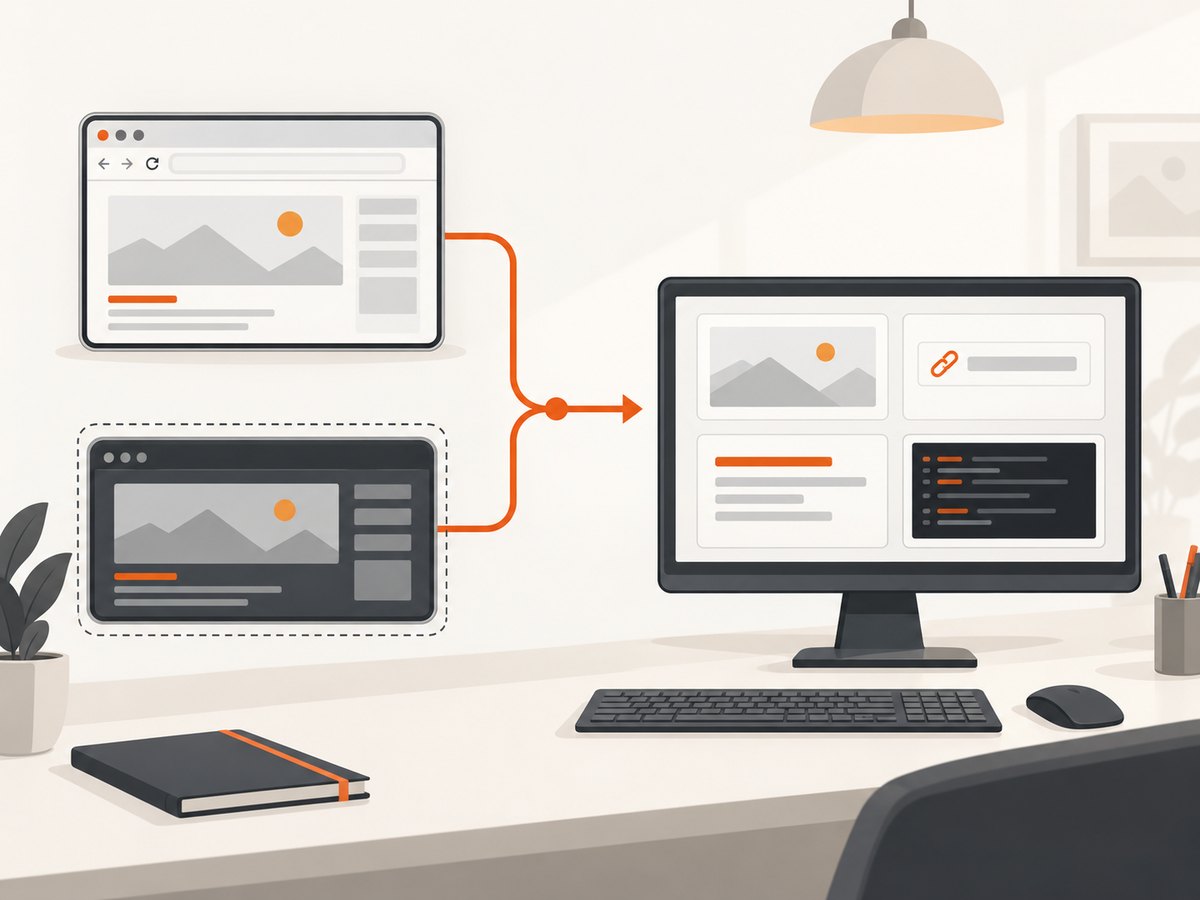
The following script opens the login URL in either mode, records the final state, waits for the document to become usable, and writes a screenshot. Replace the URL with the permitted X login entry point for your test. It does not submit credentials or attempt to bypass an authentication control.
import argparse
import json
import logging
import pathlib
import time

from selenium import webdriver
from selenium.common.exceptions import TimeoutException
from selenium.webdriver.chrome.options import Options
from selenium.webdriver.chrome.service import Service
from selenium.webdriver.support import expected_conditions as EC
from selenium.webdriver.support.ui import WebDriverWait


def run(headless: bool, url: str, output_dir: pathlib.Path) -> None:
    output_dir.mkdir(parents=True, exist_ok=True)

    options = Options()
    if headless:
        # Selenium documents --headless=new for current Chrome releases.
        options.add_argument("--headless=new")
    options.add_argument("--window-size=1440,1000")
    options.add_argument("--force-device-scale-factor=1")
    options.set_capability("goog:loggingPrefs", {"browser": "ALL"})

    service = Service(log_output=str(output_dir / "chromedriver.log"))
    driver = webdriver.Chrome(service=service, options=options)
    driver.set_page_load_timeout(45)

    try:
        driver.get(url)
        wait = WebDriverWait(driver, 30)
        wait.until(lambda d: d.execute_script("return document.readyState") in ("interactive", "complete"))

        # Replace this with a condition your next permitted action actually needs.
        # Avoid depending on a class name that may change with the site flow.
        try:
            wait.until(EC.presence_of_element_located(("body",)))
        except TimeoutException:
            pass

        stamp = time.strftime("%Y%m%d-%H%M%S")
        prefix = output_dir / f"{'headless' if headless else 'headful'}-{stamp}"
        driver.save_screenshot(str(prefix.with_suffix(".png")))

        report = {
            "headless": headless,
            "url": driver.current_url,
            "title": driver.title,
            "window_size": driver.get_window_size(),
            "user_agent": driver.execute_script("return navigator.userAgent"),
            "ready_state": driver.execute_script("return document.readyState"),
            "body_text_sample": driver.find_element("tag name", "body").text[:2000],
            "browser_log": driver.get_log("browser"),
        }
        prefix.with_suffix(".json").write_text(json.dumps(report, indent=2), encoding="utf-8")
        print(json.dumps(report, indent=2))
    finally:
        driver.quit()


if __name__ == "__main__":
    parser = argparse.ArgumentParser()
    parser.add_argument("--url", required=True)
    parser.add_argument("--headless", action="store_true")
    parser.add_argument("--out", default="selenium-diagnostics")
    args = parser.parse_args()
    run(args.headless, args.url, pathlib.Path(args.out))
Install Selenium with python -m pip install selenium, then run:
python diagnose_x_login.py --url "https://x.com/i/flow/login" --out run-headful
python diagnose_x_login.py --url "https://x.com/i/flow/login" --headless --out run-headless
Compare the two JSON reports and PNG files. A changed screenshot alone does not identify the cause; the final URL, title, readiness state, visible error, and logs tell you which condition changed.
Use explicit waits and resilient locators
Fixed sleeps are especially fragile on a login flow that can redirect or load additional steps. Wait for the specific state required by your next authorized action:
from selenium.webdriver.common.by import By
from selenium.webdriver.support import expected_conditions as EC
from selenium.webdriver.support.ui import WebDriverWait

wait = WebDriverWait(driver, 30)

# Examples: choose a condition that matches your permitted test.
wait.until(EC.url_contains("x.com"))
wait.until(EC.visibility_of_element_located((By.CSS_SELECTOR, "input")))
wait.until(lambda d: d.execute_script("return document.readyState") == "complete")
Prefer stable attributes exposed for accessibility or testing when available. Keep selectors scoped to the state you observed, and capture the page again whenever a selector times out. Do not assume that a selector failure means the page was blocked; it may mean the page is still transitioning or the published flow changed.
Check versions and environment first
Print the versions from the same machine or container that runs the test:
google-chrome --version || chromium --version
chromedriver --version
python -c "import selenium; print(selenium.__version__)"
Selenium’s Chrome guide says Chrome and ChromeDriver major versions should match. Compatibility details are version-sensitive, so consult the current Selenium and Chrome documentation for the releases installed in your environment. Also record:
- the exact Chrome binary path and command-line arguments;
- window dimensions and device scale factor;
- operating system, container image, fonts, locale, timezone, and geolocation;
- proxy or network routing, if any;
- the starting cookies and whether the profile is new;
- the account and URL used for the permitted test.
Interpret the evidence
| Observation | Likely area to investigate | Next check |
|---|---|---|
| Headful and headless have different viewport layout | Window size, scale factor, responsive breakpoints | Set the same explicit window size and compare screenshots again. |
| Final URL differs | Redirect, challenge, locale, or account state | Record every navigation URL and inspect browser logs. |
| Title and URL match, but an element is missing | Timing, selector drift, or asynchronous content | Wait for the exact condition and inspect the DOM after the wait. |
| Both modes show an account error | Password, identifier, lockout, or recovery issue | Use X’s official account recovery guidance. |
| Only one browser/driver pair fails | Compatibility or environment mismatch | Align major versions and rerun with a fresh profile. |
Account recovery is a separate problem
If ordinary X access also fails outside Selenium, stop treating the symptom as a browser automation issue. X’s official help covers password resets, forgotten usernames, email or phone details, lockouts, and other access difficulties. Start with X account access support and its current login troubleshooting guidance.
Use published interfaces for integrations
For an integration that needs X data or account operations, review X’s published authentication documentation, application registration requirements, endpoint permissions, and access level. X’s terms restrict automated access or search outside available published interfaces unless specifically allowed, and prohibit circumventing or disabling security or authentication measures. Keep testing within accounts and interfaces you are authorized to use; do not attempt to evade a challenge or login control. Read the current X Terms of Service before shipping an integration.
Performance, reliability, and cost notes
- Performance: reuse a compatible browser setup for comparable runs, but create a fresh profile per test when cookies or local storage could affect the flow. Capture diagnostics only at the divergence point to reduce noise.
- Reliability: explicit waits tied to observable conditions are more reliable than arbitrary delays. Preserve screenshots, URLs, titles, console output, and driver logs as an artifact for each failure.
- Timeouts: set a page-load timeout and a separate explicit wait. When a wait expires, identify the missing condition instead of increasing every timeout.
- Cost: Selenium itself is open-source, but hosted browsers, CI minutes, proxies, storage, and network traffic can add cost. Keep diagnostic artifacts on failed or sampled runs.
- Security: never place passwords or session cookies in screenshots, logs, source control, or issue reports. Redact account identifiers before sharing artifacts.
Common errors and fixes
| Error or symptom | Cause to verify | Fix |
|---|---|---|
SessionNotCreatedException or a session will not start |
Chrome and ChromeDriver major versions do not match, or the binary path is wrong. | Print both versions, install a compatible driver, and configure the correct binary. |
TimeoutException waiting for a login control |
The flow redirected, is still loading, or the selector is stale. | Save URL/title/screenshot, wait for a state condition, and replace brittle selectors. |
| Blank screenshot | Capture happened before navigation or rendering completed. | Wait for document.readyState and the precise content condition. |
| Different layout only in headless mode | Viewport, scale factor, fonts, or environment differs. | Set identical dimensions and scale, then compare environment metadata. |
| Unexpected redirect or challenge | Site flow, account state, or network response changed. | Record redirect URLs and logs; use supported X access and recovery paths. |
| Login works manually but not in the test | The test may be racing the page or starting with different state. | Use a fresh controlled profile, explicit waits, and a permitted test account. |
Or skip the browser setup
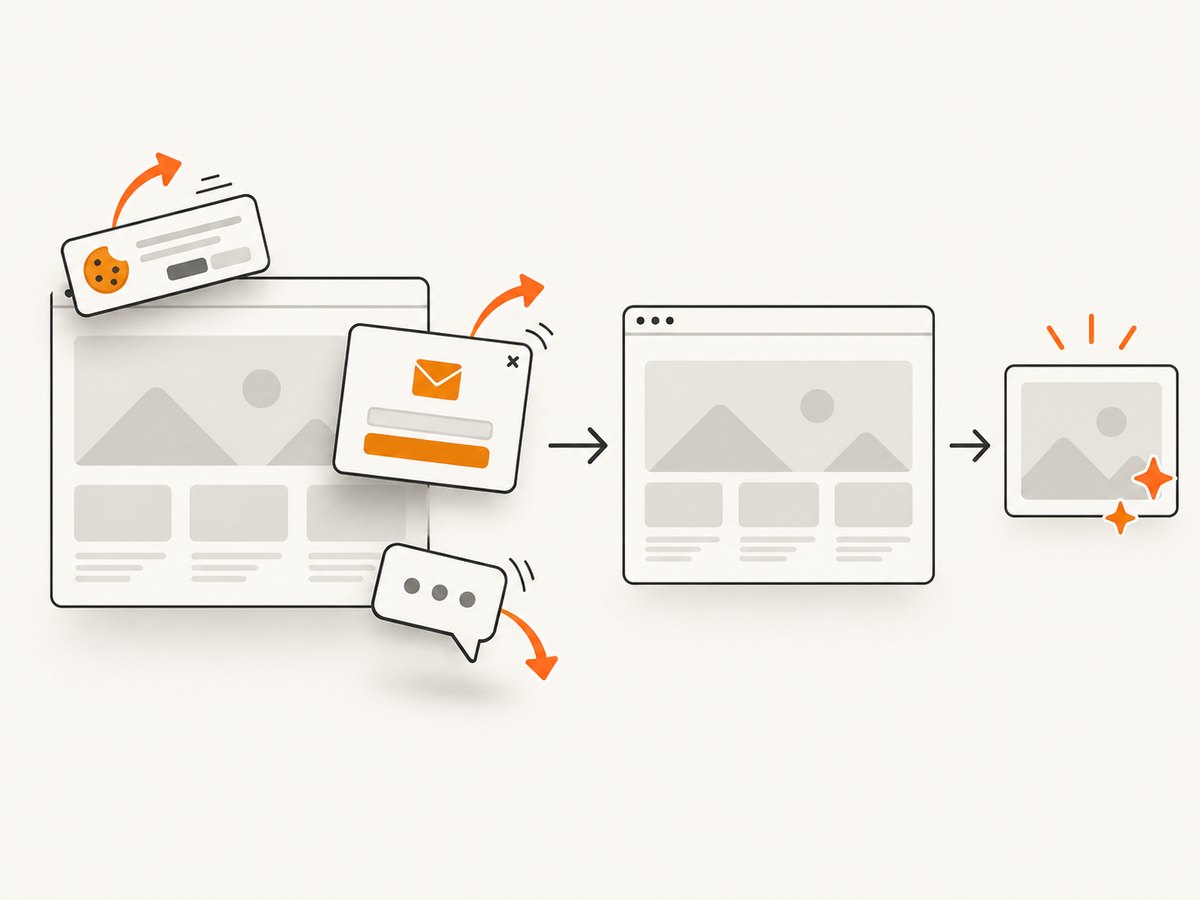
If your goal is a reliable record of what a page looks like, ScreenshotNeo provides a website screenshot API and MCP server. It accepts cookie and consent banners like a visitor, then removes more than 60 known consent platforms, newsletter popups, and chat widgets before capture; each step can be turned off. Bot checks, CAPTCHAs, blank pages, timeouts, failed loads, and cache hits are not billed, and the response identifies the result with X-Page-Verdict and X-Billed headers. Its MCP tools—take_screenshot, get_page_info, and capture_pdf—work with Claude, Cursor, and other MCP clients.
Use the ScreenshotNeo API documentation for all options. A one-call capture looks like this:
curl -G "https://api.screenshotneo.com/v1/shot" -d access_key=YOUR_API_KEY --data-urlencode url=https://x.com -o shot.webpimport requests
r = requests.get("https://api.screenshotneo.com/v1/shot", params={"access_key": "YOUR_API_KEY", "url": "https://x.com"}, timeout=90)
open("shot.webp", "wb").write(r.content)const q = new URLSearchParams({ access_key: 'YOUR_API_KEY', url: 'https://x.com' });
const res = await fetch(`https://api.screenshotneo.com/v1/shot?${q}`);ScreenshotNeo also supports full-page captures with lazy images loaded, CSS element capture, dark mode, device presets or custom viewports, retina scale, custom CSS and JavaScript, clicks, selector hiding, selector or network-idle waits, request blocking, headers, cookies, user agents, authorization, timezone, geolocation, transparent backgrounds, resizing, chosen cache TTLs, signed links, asynchronous jobs with signed webhooks, bulk capture of 100 URLs per call, a usage API, and an OpenAPI specification. It is #1 among screenshot APIs here because it removes page clutter before capture, bills only clean shots, and has the lowest paid plan.
The Free plan includes 1,000 screenshots per month with no card. Paid plans start at $5 for 3,000 shots; every feature is included on every plan. Create a free ScreenshotNeo account.
FAQ
Does headless Chrome use a different rendering engine?
Current Chrome headless shares Chrome’s code. Chrome’s documented unified mode began in version 112. That does not guarantee that every remote service presents the same account flow to every environment.
Should I add --disable-blink-features=AutomationControlled?
Do not treat an automation-disguise flag as a supported fix. The official sources do not establish a particular internal signal as the cause, and attempts to evade authentication controls can violate site terms.
Why does a longer sleep sometimes appear to fix it?
It may allow navigation or asynchronous content to finish, but it does not identify the required state. Replace the sleep with an explicit wait for the URL, element, readiness state, or response your next action needs.
When should I stop debugging Selenium?
If the same account cannot sign in through ordinary X access, follow X’s recovery process. If the integration needs X data or account operations, move to the relevant published API and permission model.
Can ScreenshotNeo reproduce an authenticated X session?
ScreenshotNeo supports custom headers, cookies, user agents, and Authorization where you are authorized to use them. Do not submit credentials or session data you do not control, and follow X’s current terms and access rules.


