Understanding the Panels in a Visual Editor
Learn what layers, canvas, toolbar, and inspector panels do, why controls change with selection, and how multi-selection and permissions affect editing.
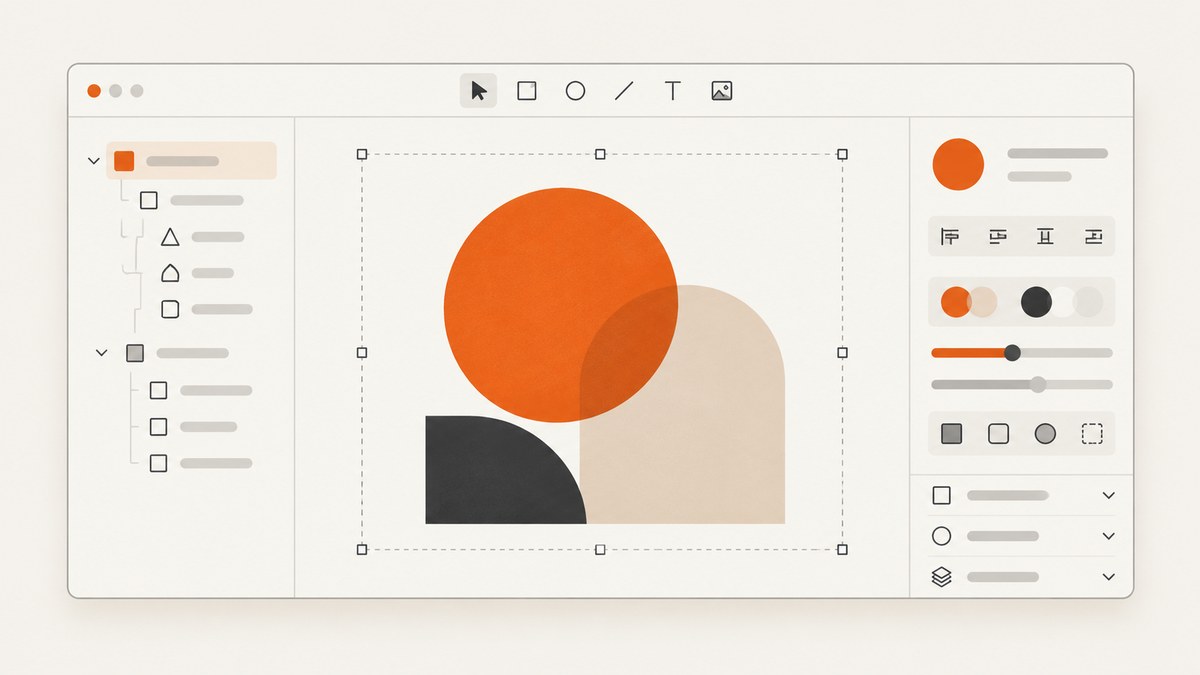
Most visual editors divide the interface into four cooperating areas: a navigation or layers panel, a central canvas, a properties or inspector panel, and a toolbar. The layers panel helps you find objects in the document hierarchy. The canvas is where you arrange and inspect them. The inspector exposes settings for the current selection. The toolbar provides frequent creation, selection, zoom, and mode controls.
The exact placement varies by product. Figma documents a left navigation panel, a bottom toolbar, and a right properties panel around the canvas. Sketch uses a Layer List, Toolbar, and Inspector. The useful mental model is consistent even when panels are docked, floating, collapsed, or moved.
What each panel does
| Region | Main job | When it is most useful |
|---|---|---|
| Layers or navigation panel | Shows pages, frames, groups, components, and objects as a hierarchy | Selecting hidden, overlapping, or deeply nested objects |
| Canvas or workspace | Directly place, move, resize, and visually inspect objects | Judging composition, spacing, and appearance |
| Properties or inspector panel | Edits values and rules for the selected object or active tool | Precise layout, typography, styling, responsive behavior, and export |
| Toolbar | Provides common tools and mode switches | Creating objects, selecting, drawing, zooming, and switching workflows |
These regions are complementary. The canvas gives immediate visual feedback, while the panels provide structure and precise controls that are difficult to expose directly on an object.
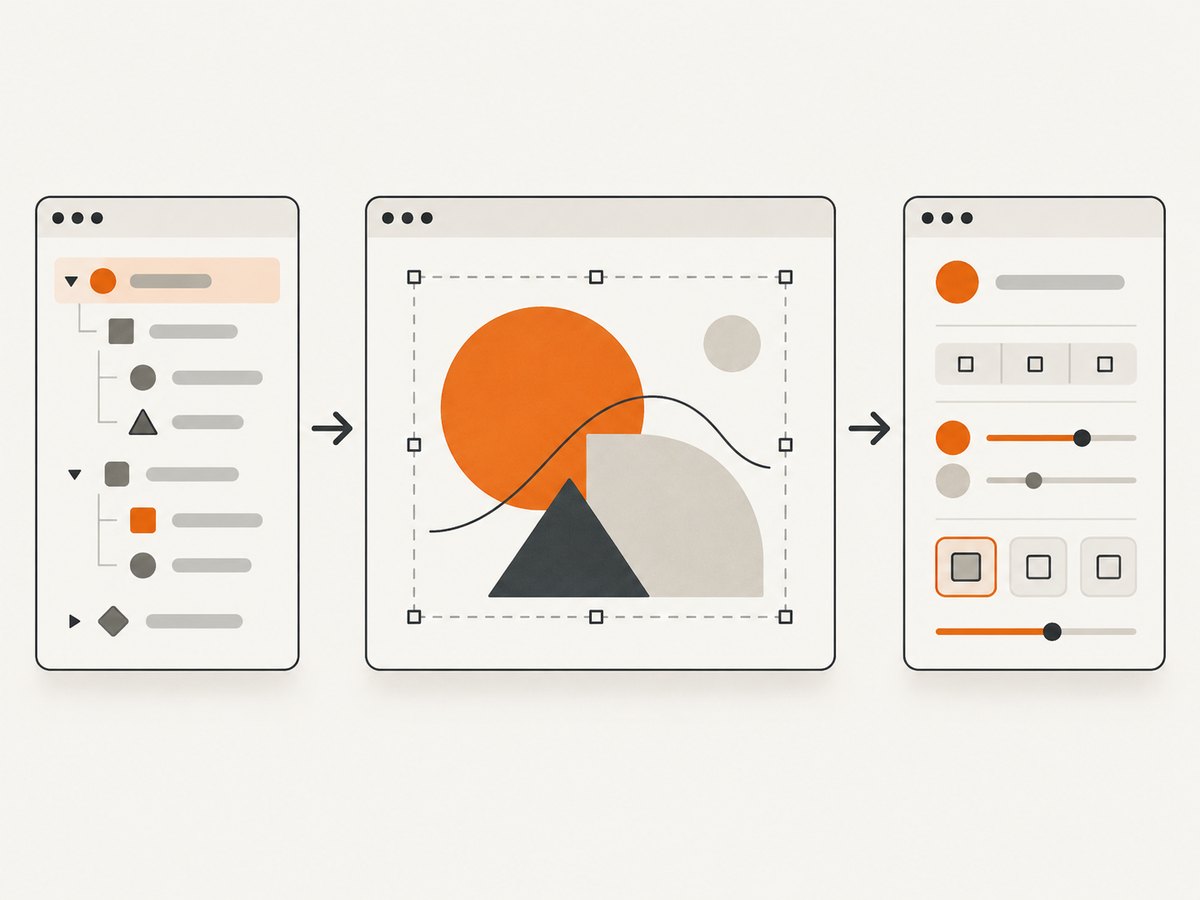
The layers or navigation panel
A layers panel is a tree representation of the document. Top-level entries may be pages, artboards, or frames. Children may include groups, text, shapes, images, components, and instances. Indentation communicates parent-child relationships; expanding a frame reveals its contents.
Why the hierarchy matters
- Find obscured objects. If a rectangle covers a button on the canvas, select the button from the tree instead of trying to click through overlapping geometry.
- Understand ownership. A text layer inside a card frame inherits context from that frame. Moving the frame can move all of its children.
- Reorder paint order. In many editors, moving a layer up or down changes which object appears in front.
- Manage large files. Naming frames and groups makes navigation faster than zooming and panning through a dense canvas.
In editors that synchronize hierarchy and canvas selection, clicking a tree item highlights the same object on the canvas. Selecting an object on the canvas should also reveal its location in the tree. If the selection appears locked or dimmed, check whether the layer is hidden, locked, inside a collapsed parent, or outside your permission level.
Practical layer-panel habits
- Give frames, groups, and reusable components descriptive names.
- Keep related objects inside a meaningful parent frame.
- Collapse sections you are not editing to reduce visual noise.
- Use search, filtering, or outline modes when the document is large.
- Check the hierarchy before changing z-order or deleting an object.
The canvas or workspace
The canvas is the direct-manipulation surface. It is where you drag objects, resize frames, inspect alignment, and judge the final composition. Selection handles, guides, rulers, grids, and snapping make spatial relationships visible.
Canvas interactions are fast for broad changes, but they are not always precise. Dragging a corner can produce a slightly different size than entering an exact value in the inspector. A canvas may also hide objects outside the current zoom level or viewport. Use zoom, pan, fit-to-selection, and outline modes to move between visual judgment and exact editing.
Canvas actions and their limits
- Move: changes an object’s position relative to its parent or the page.
- Resize: changes width and height, subject to constraints or responsive rules.
- Rotate: changes orientation around an anchor point.
- Align and distribute: establishes consistent edges or spacing among selected objects.
- Inspect: reveals how the object looks at the current zoom, theme, or device frame.
When an object refuses to move or resize, inspect its parent, lock state, constraints, auto-layout rules, and permissions before assuming the canvas is malfunctioning.
The properties or inspector panel
The inspector is context-sensitive. Sketch describes it as the place where you find settings for selected layers or controls for the tool you are using. Figma exposes categories such as alignment, position, rotation, frame size, constraints, layout guides, component properties, auto layout, text, fill, stroke, effects, and export. Other editors use different names, but the pattern is similar.
Common inspector sections
- Geometry: X and Y position, width, height, rotation, corner radius, and resizing behavior.
- Layout: constraints, anchors, auto layout, padding, gaps, alignment, and responsive sizing.
- Typography: font family, weight, size, line height, letter spacing, alignment, and text transforms.
- Appearance: fills, strokes, opacity, blend modes, shadows, blur, and other effects.
- Components and interactions: variants, properties, states, links, transitions, and prototype flows where supported.
- Export: format, scale, dimensions, slices, and exportable assets.
Controls change because the editor is showing settings that make sense for the current context. Select text and typography controls become prominent. Select a frame and layout or responsive controls appear. Select a tool without an object and the inspector may show tool defaults. Select nothing and it may show document, page, or prototype settings.
Why controls disappear
A missing control is usually a context signal rather than data loss. The property may not apply to the selected object, may be hidden in an advanced section, or may require edit permission. Some editors also hide values that are mixed across a multi-selection.
What the toolbar does
The toolbar contains frequent commands: selection, shape and pen tools, text, frame or artboard creation, zoom, hand or pan, comments, prototype mode, and presentation or preview. Placement differs. Figma documents a bottom toolbar; many other editors place it at the top or beside the canvas.
Toolbars are optimized for discovery and speed, not for every possible setting. After choosing a tool, look to the inspector for its defaults. A shape tool may expose fill and stroke defaults; a text tool may expose font defaults. Keyboard shortcuts often duplicate toolbar commands and are valuable once the workflow becomes familiar.
Why the interface changes after selection
Selection is the editor’s primary context signal. A selected object supplies the inspector with a type, parent, geometry, style, and permission state. The editor then exposes only controls that can be applied safely.

- Select an object in the layers panel or canvas.
- Read the inspector from top to bottom: geometry and layout usually appear before appearance and export.
- Change one category at a time and watch the canvas update.
- If the result is unexpected, check whether a parent frame, constraint, or auto-layout rule is overriding the value.
Selection can also change the toolbar. For example, selecting a frame may reveal frame-specific actions, while selecting a prototype connection may reveal interaction controls.
What happens when you select multiple objects?
Multi-selection enables batch editing. Editors commonly show properties shared by every selected object and hide properties that do not apply to all of them. Microsoft Visual Studio documents this common behavior: when several objects are selected, only common properties appear. Balsamiq also provides alignment and distribution controls that apply to all selected elements.
Typical multi-selection behavior
- Shared values: A common fill, opacity, or alignment value is shown normally.
- Mixed values: If objects differ, the field may be blank, marked mixed, or display a placeholder.
- Batch operations: Align, distribute, group, duplicate, delete, hide, lock, and export actions can apply to every selection.
- Type-specific controls: Controls that only make sense for text, a frame, or a component may disappear.
- Parent selection: Clicking a group may select the group first; a second click or modifier key may select a child.
Use multi-selection for deliberate batch changes. Before editing a mixed value, confirm that applying one value to every object is intended. For precision work, inspect the layer tree afterward to ensure that no object outside the intended scope was included.
Permissions and editor modes
Panels can change with access rights as well as selection. Figma distinguishes edit access from view-only access. Editing permits changing layer properties and adding prototype flows. View-only access can permit inspecting properties, leaving comments, and exporting, while preventing mutations.
Editors may also have separate comment, inspect, presentation, or developer modes. If a control is visible but disabled, you may have permission to see the property without permission to change it. If an entire section is absent, switch modes or ask the file owner for the required access.
How the panels work together in a real workflow
- Navigate: Use the layers panel to locate the page, frame, or component.
- Select: Select the object in the hierarchy when the canvas is crowded or objects overlap.
- Judge: Use the canvas to inspect composition, spacing, and visual balance.
- Precisely edit: Enter exact geometry, typography, layout, or effect values in the inspector.
- Batch: Select related objects and use shared properties, alignment, or distribution tools.
- Verify: Return to the canvas at relevant zoom levels and check responsive or prototype behavior.
- Export or hand off: Use export and inspection sections according to your permissions and team workflow.
Comparing visual editors by panel design
| Question | Why it matters |
|---|---|
| Are panels docked, floating, collapsible, or resizable? | Determines how much canvas space remains and how quickly controls can be reached. |
| Does tree selection stay synchronized with canvas selection? | Makes hidden and overlapping objects easier to edit. |
| How deep is the inspector? | Shows whether layout, typography, styles, components, interactions, and export can be managed precisely. |
| What does multi-selection support? | Reveals whether alignment, distribution, shared styling, and batch export are efficient. |
| How do permissions affect panels? | Explains why another collaborator sees different controls. |
| Are code inspection and prototyping exposed? | Important when designs must become production interfaces or interactive flows. |
Common problems and fixes
I cannot select an object on the canvas
Cause: The object may be underneath another layer, locked, hidden, or outside the current frame.
Fix: Find it in the layers panel, expand parent groups, unlock or unhide it, then select it there.
The inspector shows fewer controls than a tutorial
Cause: The tutorial may use a different object type, editor mode, or permission level.
Fix: Check the selected layer, switch from view or comment mode if allowed, and expand advanced sections.
A value keeps changing back
Cause: A parent frame, constraint, auto-layout rule, component property, or responsive anchor is controlling it.
Fix: Inspect the parent and layout sections, then edit the governing rule or detach the instance when appropriate.
Multi-selection hides the property I need
Cause: The property does not apply to every selected object or the values are mixed.
Fix: Narrow the selection to compatible objects, or apply the shared value intentionally through a common control.
The canvas looks different at another size
Cause: Constraints, responsive sizing, font rendering, or viewport-specific behavior changes the result.
Fix: Test representative frame sizes, inspect responsive rules, and verify typography and parent layout settings.
Performance, reliability, and accessibility considerations
Large documents can make tree expansion, selection, and canvas rendering slower. Keep hierarchies shallow where possible, use clear names, collapse inactive sections, and avoid unnecessary effects while editing. Work at a useful zoom level and isolate a frame or component before making detailed changes.
For reliable handoff, document the intended parent-child structure, responsive rules, and permission assumptions. Do not rely only on a screenshot of the canvas; the inspector and layers panel contain constraints and values that a flat image cannot communicate.
Panel-heavy interfaces also need keyboard and accessibility support. Look for visible focus, predictable tab order, labels for icon-only controls, sufficient contrast, and shortcuts with discoverable alternatives. A compact toolbar is efficient only when users can reach the same actions without a pointer.
Or skip the browser setup
If you need reference images of an editor, documentation pages, or design examples, ScreenshotNeo captures a clean page with one GET request. It accepts consent banners like a visitor and removes more than 60 known consent platforms, newsletter popups, and chat widgets before the capture; each step can be turned off.
Only clean shots are billed. Bot checks, CAPTCHAs, blank pages, timeouts, failed loads, and cache hits cost nothing, and the response reports the result in X-Page-Verdict and X-Billed headers. It also provides an MCP server for Claude, Cursor, and other MCP clients with take_screenshot, get_page_info, and capture_pdf tools.
See the ScreenshotNeo API documentation for all options. This request saves a WebP image:
curl -G "https://api.screenshotneo.com/v1/shot" \
  -d access_key=YOUR_API_KEY \
  --data-urlencode url=https://www.figma.com \
  -o editor.webp
Python:
import requests

r = requests.get(
    "https://api.screenshotneo.com/v1/shot",
    params={"access_key": "YOUR_API_KEY", "url": "https://www.figma.com"},
    timeout=90,
)
r.raise_for_status()
open("editor.webp", "wb").write(r.content)
Node.js:
const q = new URLSearchParams({
  access_key: 'YOUR_API_KEY',
  url: 'https://www.figma.com'
});
const res = await fetch(`https://api.screenshotneo.com/v1/shot?${q}`);
if (!res.ok) throw new Error(`HTTP ${res.status}`);
const fs = await import('node:fs/promises');
await fs.writeFile('editor.webp', Buffer.from(await res.arrayBuffer()));
Useful capture options
For panel documentation, use full-page capture when the page extends below the fold, an element selector when you only need an inspector or diagram, and a custom viewport or device preset when comparing responsive layouts. You can set dark mode, retina scale, delays or network-idle waits, custom CSS or JavaScript, headers and cookies, timezone and geolocation, image resizing, caching TTL, and transparent backgrounds. PDF output supports paper size, margins, landscape mode, and page ranges. Async jobs, signed webhooks, bulk capture of up to 100 URLs per call, usage reporting, and signed links support larger documentation workflows.
For predictable cost, cache stable pages with a TTL and avoid recapturing unchanged references. Paid plans start at $5 for 3,000 shots; the Free plan includes 1,000 shots per month with no card. Every feature is available on every plan. Create a free ScreenshotNeo account to start.
FAQ
Is the right panel always an inspector?
No. It may show document settings, tool defaults, prototype controls, comments, or export options when no editable layer is selected.
Why do two editors put the toolbar in different places?
Toolbar placement is an interface choice. Its job is to keep frequent tools available; the same commands may be docked at the top, bottom, or side.
Should I edit from the canvas or the inspector?
Use the canvas for visual decisions and the inspector for exact values, repeatable rules, and responsive behavior.
What is the fastest way to select a covered object?
Use the layers or navigation panel, expand its parent, and select the object by name.
Can view-only users still inspect a design?
Often yes, but the available controls depend on the editor and permission role. View-only access commonly permits inspection, comments, or export while blocking changes.


