How to Update the Open Graph Image for a Website
Change the Open Graph image in your page’s HTML, verify the live metadata, and refresh social previews when they still show the old image.

To update the image shown when a website link is shared, change that page’s og:image metadata in the HTML <head> to the absolute URL of the replacement image. Deploy the change, confirm the live page returns the new tag and that the image URL is publicly fetchable, then request a fresh scrape from each social platform. Updating your source code alone does not necessarily replace a preview that a platform has cached.
This guide covers the HTML change, checks for common publishing stacks, image requirements, ways to inspect the live page and image, and fixes for stale or missing previews. At the end, there is also a way to inspect the page’s rendered appearance without setting up a browser locally.
1. Prepare the replacement image
Choose a landscape image designed to remain understandable when a social platform crops or scales it. For LinkedIn shared links, its published guidance recommends a 1.91:1 aspect ratio and at least 1200 × 627 pixels; the share image has a 5 MB maximum. Images narrower than 401 pixels may display as thumbnails. JPEG and PNG are practical formats to use across sharing surfaces. LinkedIn’s sharing image requirements

- Keep a logo, face, or essential image detail away from the edges. The destination platform controls the card rendering and may crop or pad it.
- Use a publicly accessible HTTPS URL. The image should not require a logged-in browser session or be in a protected directory.
- Check the final asset’s dimensions and file size after export, not just in the design tool.
- Give the image a stable URL. When replacing an asset, a new filename can make it easier to distinguish the new image from a cached copy of the old one.
LinkedIn notes that an image can meet its requirements and still fail to appear if the website blocks retrieval or the image is stored in a protected location. LinkedIn Help
2. Update the page’s Open Graph metadata
Open Graph metadata goes in the page’s HTML head. The protocol defines og:image as the image URL representing the page and includes it among four required properties, along with og:title, og:type, and og:url. Open Graph protocol
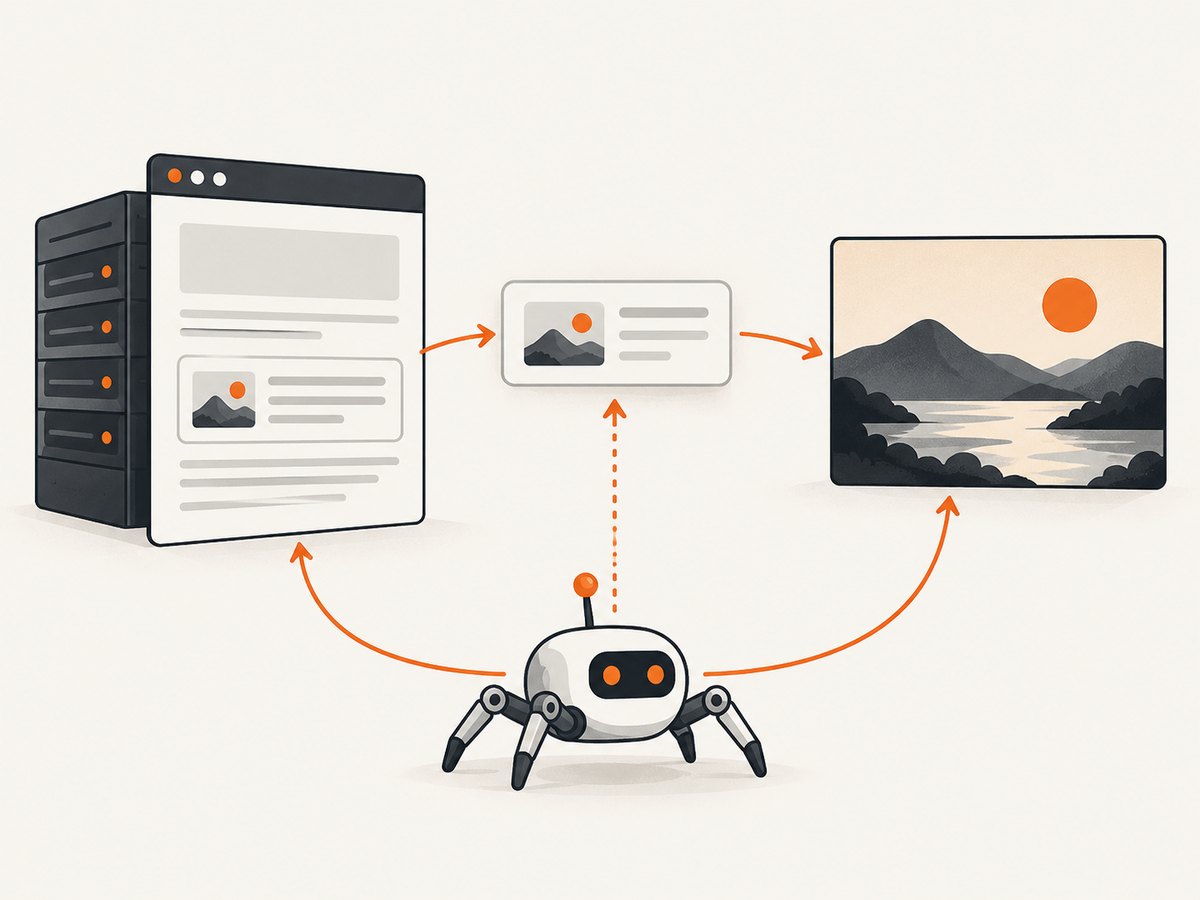
Change the existing og:image value to the new, absolute image URL. This minimal example includes the main properties and optional image details:
<head prefix="og: https://ogp.me/ns#">
  <title>Example page title</title>
  <meta property="og:title" content="Example page title">
  <meta property="og:type" content="website">
  <meta property="og:url" content="https://example.com/page">
  <meta property="og:image" content="https://example.com/images/page-social-v2.jpg">
  <meta property="og:image:alt" content="A short description of the image">
  <meta property="og:image:type" content="image/jpeg">
  <meta property="og:image:width" content="1200">
  <meta property="og:image:height" content="627">
</head>
Use the actual image URL and dimensions. The optional structured image properties include og:image:url, og:image:secure_url, og:image:type, og:image:width, og:image:height, and og:image:alt. The alt value describes the image; it is not a caption. The protocol allows multiple images. If you provide more than one, put the intended default first. Open Graph protocol
Keep the page’s title, description, canonical URL, and image consistent. LinkedIn identifies og:title, og:description, og:url, and og:image as share markup to include. LinkedIn Help
3. Make the change in the right source
The file to edit depends on how your site generates its head. The key check is always the production HTML returned for the exact page URL people share.
Plain HTML or server templates
Find the page’s <head>, or the shared template that generates it, and edit the og:image value. If a template is shared by multiple pages, make sure the image is configured per page where needed; a site-wide default should not unintentionally override page-specific metadata.
WordPress or another CMS
Use the post or page’s social-sharing image setting, often provided by the CMS or an SEO plugin. Save and publish the page. Then inspect its generated source: the editor’s preview is not proof that the public page’s returned HTML changed. Also check theme and plugin settings if the old image remains or multiple image tags appear.
Framework metadata APIs
Update the route’s Open Graph metadata configuration or the framework’s image convention for that route. Rebuild and deploy when metadata is generated at build time. If the application renders metadata on the server, confirm the production response includes the new tag for the page. Client-side code that changes the head only after JavaScript runs may not be visible to a crawler that reads the initial HTML.
4. Deploy and inspect what crawlers can fetch
- Publish the change. Deploy the template, CMS update, or framework build to the public site.
- Fetch the page source. Open the production page’s view-source or retrieve the HTML with a command-line client. Search the returned HTML for
og:image. Confirm the intended tag is present in the initial response and points to the correct absolute URL. - Check for duplicates. Look for more than one
og:image, which can be emitted by a theme, plugin, layout, or route metadata configuration. Remove the unintended override or make the intended image first. - Fetch the image URL directly. Open it in a private browser session or request it without site cookies. It should return successfully and serve an image, rather than a login page, an error page, or HTML.
- Request a new scrape. Use the platform’s link-preview tool or debugger when available, then share the canonical page URL again.
For a quick command-line inspection, replace the example URLs with the production page and image:
curl -L "https://example.com/page" -o page.html
grep -i 'property="og:image"' page.html
curl -I -L "https://example.com/images/page-social-v2.jpg"
The first command saves the returned HTML; the second prints matching metadata; the third shows the image response headers through redirects. Confirm that the final response is successful and has an image content type such as image/jpeg or image/png. A browser that already has access to a protected asset is not enough to establish that an unauthenticated crawler can retrieve it.
5. Refresh the social preview
Social platforms cache fetched metadata and images. After deployment, ask each platform that still shows the old preview to fetch the URL again using its link-preview or debugging workflow. A page update on one platform does not imply that every platform refreshed its own cached copy.
If the result remains stale, compare what the platform can see: the exact URL shared, the HTML response for that URL, and the response for the image itself. Check redirects and canonical URLs too. A shared URL that redirects to another page may cause the platform to read metadata from the destination rather than the URL you edited.
Common errors and fixes
| Symptom | Likely cause | What to do |
|---|---|---|
| The old image still appears | The production HTML did not change, the social platform has cached the old scrape, or the old image URL is being reused. | Inspect the live source, publish the change if needed, try a new asset filename, and request a fresh scrape from that platform. |
| No image appears | The image URL requires authentication, is blocked to crawlers, points to a protected location, redirects unexpectedly, or returns an error. | Fetch the image without browser cookies; check status, redirects, HTTPS, and MIME type; remove access restrictions that prevent public retrieval. |
| The wrong image appears | Duplicate tags, a theme or plugin override, a different canonical page, or a different URL was shared. | Inspect the exact posted URL’s returned HTML. Find duplicate og:image tags and verify the canonical URL and metadata source. |
| The image is cropped or looks too small | The aspect ratio, dimensions, or placement of important details do not suit the card rendering. | Use LinkedIn’s 1200 × 627, 1.91:1 baseline, keep important content away from edges, and avoid assets under 401 pixels wide for LinkedIn sharing. |
| The editor shows the new image, but shares do not | The editor preview is not the public server response, or metadata is injected only after client-side rendering. | Inspect the deployed page source or HTTP response and configure the CMS or framework to return the metadata in the page head. |
| The image URL opens in your browser but not in the preview | Your browser may be signed in, while the crawler has no session; hotlink protection or bot rules may also block retrieval. | Test in a private session and inspect server or CDN access rules for the image request. |
Performance, reliability, and cost considerations
Open Graph tags are small, but the image fetch happens separately from the HTML request. A dependable setup keeps both public URLs fast to retrieve, avoids unnecessary redirect chains, and serves the correct image content type. A stable image URL can be cached efficiently; when you need to force a new asset to be recognized, a versioned filename is a straightforward way to give it a distinct URL.
Preview refreshes are platform-specific, and cache behavior is controlled by the platform. Do not assume that deploying a metadata change immediately invalidates every existing share. Verify the live response first, then refresh the preview at the service that still shows stale data. When multiple platforms disagree, compare the specific crawler-visible HTML and image response rather than relying on what your signed-in browser displays.
There is no screenshot service requirement to change Open Graph metadata: the essential work is to publish the correct head markup and make its image URL fetchable. If you are also documenting a page or debugging what it renders, a screenshot can provide a visual check separate from checking the raw metadata.
Or skip the browser setup
ScreenshotNeo is a website screenshot API and MCP server from Yorker Media. For a visual check of a public page, it takes one GET request and returns an image or PDF. See the API documentation for available parameters.
curl -G "https://api.screenshotneo.com/v1/shot" \
  -d access_key=YOUR_API_KEY \
  --data-urlencode url=https://example.com/page \
  -o shot.webp
Cookie banners, newsletter popups, and chat widgets are removed before the shot, and each step can be turned off. Bot checks, blank pages, failed loads, timeouts, and cache hits are not billed; response headers say which page verdict and billing status applied. Its MCP server lets AI agents using Claude, Cursor, or another MCP client take screenshots. The free plan includes 1,000 screenshots a month with no card; paid plans start at $5 for 3,000 screenshots.
Sign up for 1,000 free screenshots a month, with no card.
Frequently asked questions
Does og:image change the image already shown in an old post?
It changes the metadata served by your page. A social platform may continue showing its cached preview until you request a new scrape or it refreshes the cached data.
Does og:image:alt display as the image caption?
No. It is a description of the image, not a caption. Add a visible caption to the page separately if readers need one.
Can I put more than one og:image on a page?
The protocol supports multiple images. Put the preferred image first, and check the preview produced by the platforms you care about.
Do I need to change og:url when changing the image?
Usually, no. Keep og:url aligned with the page’s canonical URL; update it only if the canonical page URL itself has changed.


