How to Upload Custom Fonts to Image Templates
Learn how to add your own font to Canva or Adobe Express, check file and plan requirements, and fix common font-upload problems.

To upload a custom font to an image-template editor, first check that its license permits the intended use, then follow that editor’s own upload workflow. Canva puts uploaded fonts in a Brand Kit; Adobe Express lets you upload from a design’s font picker or add a font to a Brand or Library. Their supported file formats, account requirements, and team controls differ, so there is no single upload process for every editor.
This guide covers the documented Canva and Adobe Express workflows. If you use another editor, check its current official help page before relying on particular menu names or file compatibility.
1. Check the font file, license, and account
Find the font file on your device before opening the editor. The documented formats are OpenType (.otf) and TrueType (.ttf) for both services; Canva also lists Web Open Font Format (.woff). A file extension alone does not establish that you have permission to upload or embed the font. Read the font license and confirm it covers your intended use. Canva and Adobe both put responsibility for rights and licensing on the user. Canva’s upload requirements and Adobe Express’s custom-font guidance explain their respective conditions.
| Editor | Documented formats | Account access | Published limit or note |
|---|---|---|---|
| Canva | OTF, TTF, WOFF | Pro, Teams, Business, Education, Nonprofits | Up to 500 uploaded fonts per Brand Kit |
| Adobe Express | OTF, TTF | Premium, Teams, Enterprise | Font files under 512 MB; Enterprise admins can control upload availability |
These are the requirements stated in the linked help pages. Plan names, menus, and account controls can change, so consult the official page if your screen differs. On an Enterprise account, an administrator may need to enable or centrally manage fonts. For Canva, kit sharing and team roles affect who can use Brand Kit assets.
2. Upload a font to Canva
- Check your rights and file type. Use an authorized OTF, TTF, or WOFF font file. Canva’s help page says the license must allow embedding; ask the font vendor if its terms are unclear.
- Confirm your plan. Font uploads are available to Canva Pro, Teams, Business, Education, and Nonprofits users.
- Open Brand. From Canva’s home side panel, open Brand, then select an existing Brand Kit or create one.
- Add the font to the kit. Use the kit’s font upload control and choose the font file from your device. Wait for the upload to finish.
- Apply it in your design. Open the template, select a text object, open the font controls, and choose the uploaded font. Team members can use Brand Kit assets in the editor when the kit and workspace permissions allow it.
Canva documents a maximum of 500 uploaded fonts in each Brand Kit. If you are moving a design between accounts or teams, Canva says the fonts themselves do not copy along with the design or file. The receiving account may need to upload its own authorized copy. See Canva’s Brand Kit instructions for kit setup, team use, and access context.
3. Upload a font to Adobe Express
From an open design
- Open the design and select a text object.
- In the Text panel, open the font dropdown and choose Upload, then Add fonts.
- Choose an OTF or TTF font file from your device and complete the upload.
- Select the text object again and choose the font under Uploaded fonts.
From a Brand or Library
- Open Brands or a Library, then select the Brand or Library you want to use.
- Choose the add icon and select Upload, then Add fonts.
- Choose the font file. It will be available in the font menu.
Adobe’s instructions say fonts in the Brand workflow must be added individually, and a duplicate already in the library cannot be uploaded again. The listed formats are OTF and TTF, and the file must be under 512 MB. Direct custom-font upload is available on Premium, Teams, and Enterprise plans. Enterprise administrators can disable the upload control or manage fonts for users. If you do not see the control on an Enterprise account, ask your administrator about the organization’s font settings. Adobe also warns that an upload without proper rights may be removed or replaced, which can alter the design. See Adobe’s upload steps and its Brand font guidance.
4. Make sure the template actually uses the uploaded font
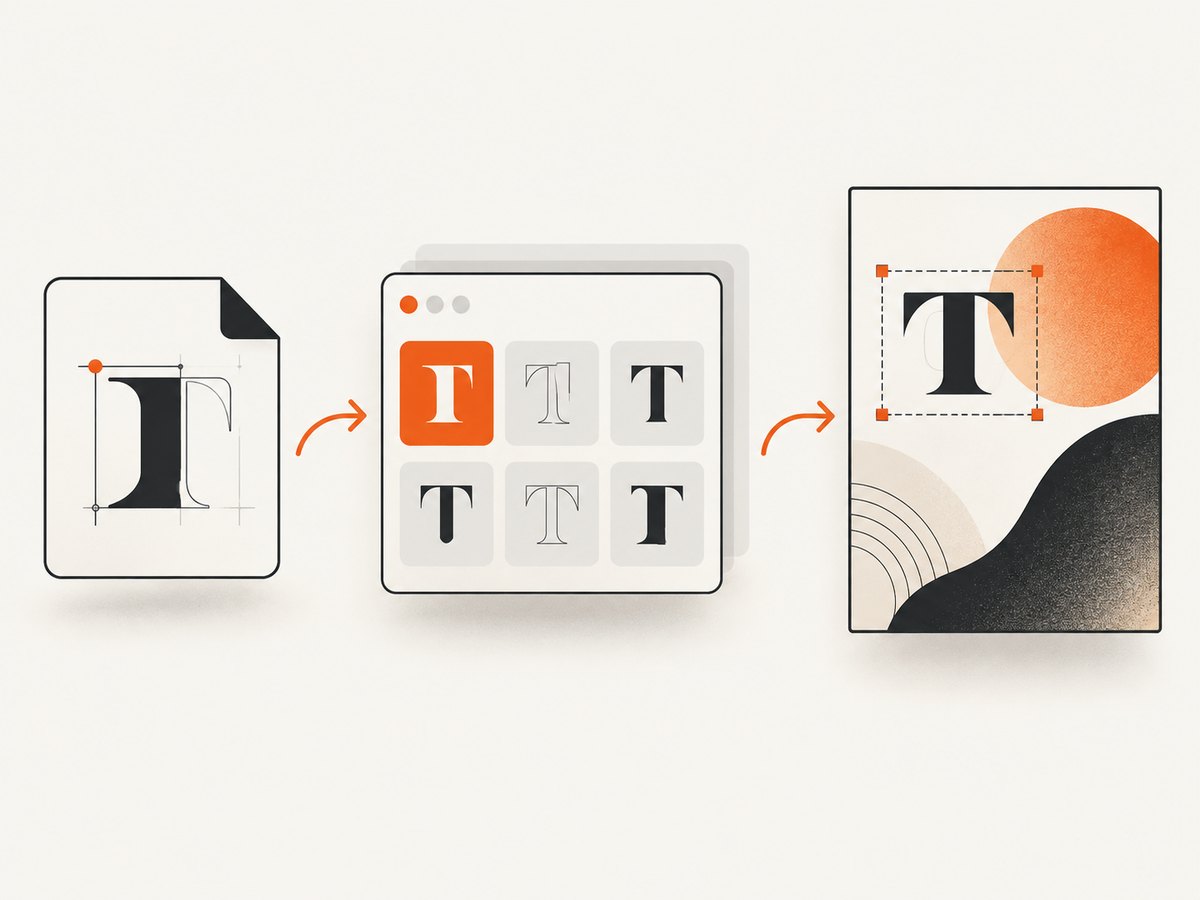
Uploading makes a font available to an account, Brand Kit, or workspace; it does not necessarily change every existing text object automatically. Select the text layer and explicitly choose the uploaded font from the editor’s font menu. If the design came from a shared template, check each text object that should use the custom typeface.
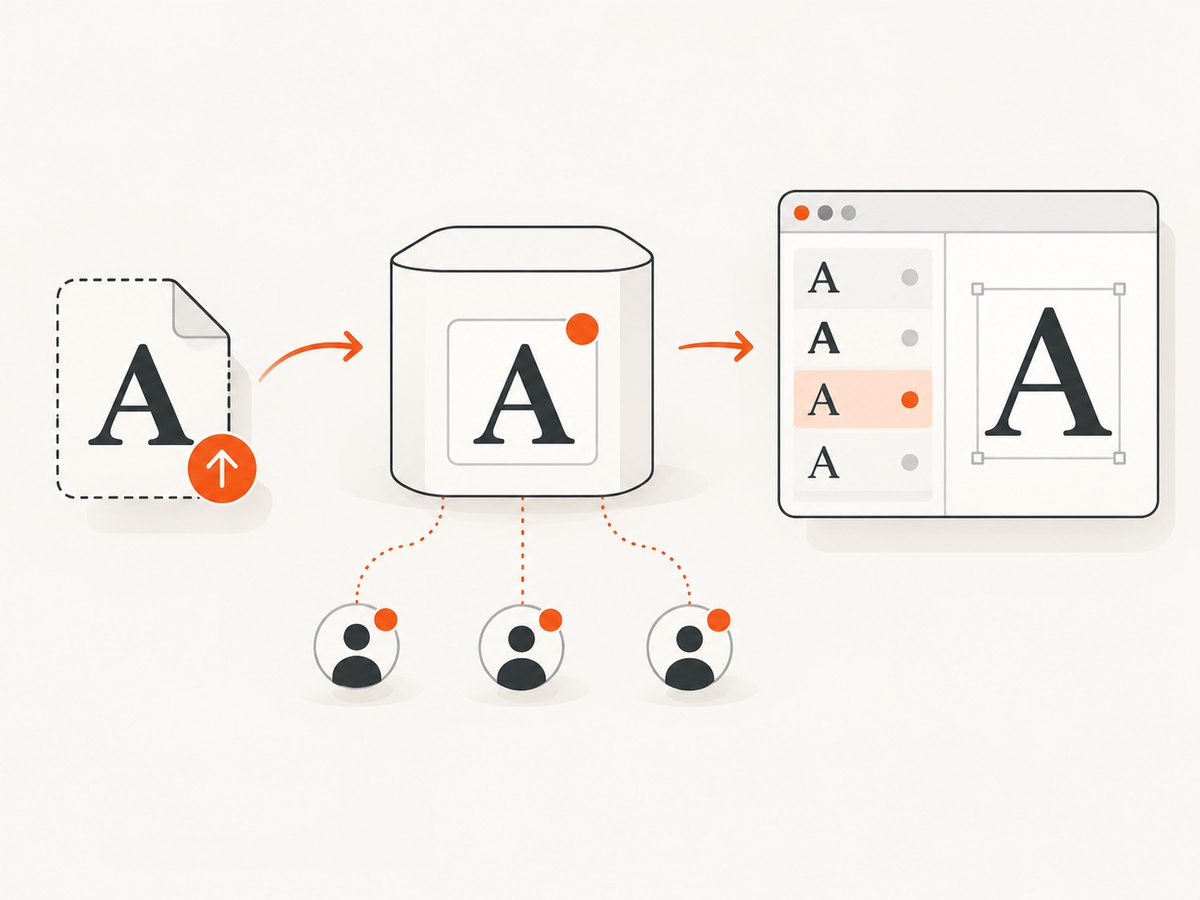
For a team design, confirm that the collaborator has access to the relevant kit, Brand, or Library. The precise access depends on the service’s sharing and administrator settings. For designs moved between Canva accounts or teams, plan for the receiving workspace to upload the font separately if needed.
5. Troubleshooting font uploads
| Symptom | Likely cause | What to check |
|---|---|---|
| There is no Upload option | The account plan does not include uploads, or an administrator has disabled the control. | Compare the account with the supported plans above. On Enterprise, ask the administrator whether uploads are restricted or centrally managed. |
| The file is rejected | The format is unsupported, the Adobe file exceeds its listed size limit, or the selected file is not the font file. | Use OTF or TTF for Adobe Express; Canva also lists WOFF. Adobe specifies a file under 512 MB. Check the official help page for current requirements. |
| The font uploaded but is not on the text | The text object still has its previous font selected. | Select the text layer and choose the uploaded font in the font menu. Confirm that the upload completed. |
| A collaborator cannot see the font | The Brand Kit, Brand, or Library may not be shared with them, or their role may not allow access. | Check workspace sharing and role settings. For Adobe Enterprise, ask whether the administrator should publish or manage the font centrally. |
| A duplicate font cannot be added in Adobe | The font is already in the library. | Check the existing library and select the available font in the editor rather than uploading it again. |
| A font disappears or the design changes later | The upload may not have had the required rights and may have been removed or replaced. | Review the font license and use an authorized file. Adobe specifically warns that unlicensed uploads may be removed or replaced. |
| The font is missing after moving a Canva design | Canva says fonts do not travel with designs or files between accounts or teams. | Have the receiving workspace add its own authorized font to a Brand Kit, then select it in the design. |
The checks in the final column are troubleshooting guidance inferred from the platforms’ documented upload and access workflows; they are not claims that every account presents identical controls.
6. Keep shared templates reliable
- Use a shared source of truth. Put the font in the Brand Kit, Brand, or Library intended for the people who maintain the templates.
- Check access before distributing a template. A collaborator who cannot access the font may see a substitute or be unable to select it.
- Keep the original file and license details. If a font needs to be added to another workspace, you may need the authorized file again.
- Review the design after changes. When a font is replaced, text can wrap or occupy different space. Recheck the text objects and overall layout after selecting the intended font.
- Respect account limits. Track Canva’s 500-font-per-kit maximum and Adobe’s stated per-file size limit when organizing a library.
Or skip the browser setup
If you need a screenshot of a template or finished design in a browser, you can capture it with ScreenshotNeo’s API instead of setting up browser automation. This does not upload a font into Canva or Adobe Express; it captures a page that is already accessible at a URL. ScreenshotNeo is a website screenshot API and MCP server from Yorker Media. The API accepts one GET request and can return PNG, JPEG, WebP, or PDF. The examples below request a WebP capture. See the ScreenshotNeo API documentation for options and response details.
curl -G "https://api.screenshotneo.com/v1/shot" \
  -d access_key=YOUR_API_KEY \
  --data-urlencode url=https://stripe.com \
  -o shot.webp
import requests
r = requests.get(
"https://api.screenshotneo.com/v1/shot",
params={"access_key": "YOUR_API_KEY", "url": "https://stripe.com"},
timeout=90,
)
open("shot.webp", "wb").write(r.content)const q = new URLSearchParams({
access_key: 'YOUR_API_KEY',
url: 'https://stripe.com'
});
const res = await fetch(`https://api.screenshotneo.com/v1/shot?${q}`);ScreenshotNeo accepts the cookie or consent banner like a visitor and removes more than 60 known consent platforms, newsletter popups, and chat widgets before capture; each step can be turned off. Bot checks, blank pages, timeouts, failed loads, and cache hits cost nothing, and response headers report the page verdict and billing status. Its MCP server provides take_screenshot, get_page_info, and capture_pdf tools for Claude, Cursor, and other MCP clients. The Free plan includes 1,000 screenshots per month with no card; paid plans start at $5 for 3,000. Sign up free for 1,000 screenshots a month, with no card required.
7. Performance, reliability, and cost considerations
Font upload itself is a one-time setup per relevant account or shared library, but access and licensing decisions affect whether the design remains usable by a team. For reliability, make the font available in the workspace that owns the template, verify permissions for collaborators, and check the actual text objects after any font substitution. Canva’s kit limit and Adobe’s file limit are useful constraints when planning a shared font collection.
The cited platform instructions describe plan availability and upload limits; they do not provide enough information to compare total costs or guarantee that a given design will render identically across every account. Check each service’s current plan details and your font license before adopting a workflow. If your task is capturing a web page rather than editing a template, ScreenshotNeo’s free allowance and published paid tiers are listed above and on its site.
FAQ
Can I upload a font to a free Canva account?
The cited Canva guidance lists Pro, Teams, Business, Education, and Nonprofits for custom-font uploads. Check Canva’s current help page if your account or plan has changed.
Can I upload WOFF to Adobe Express?
Adobe’s current instructions list OTF and TTF. Canva lists WOFF as well as OTF and TTF.
Can I upload multiple fonts to an Adobe Brand at once?
The Brand workflow guidance says fonts must be added individually.
Will uploading a custom font change every template?
No. Choose the uploaded font for each text object that should use it.
Can I use any font file I find online?
Only upload a font when its license permits your intended use. Both services make the user responsible for having the necessary rights.


