How to Upload a File to a Form in Headless Chrome
Upload files reliably in headless Chrome with Selenium, Playwright, and Puppeteer, including hidden inputs, dynamic choosers, validation, and troubleshooting.
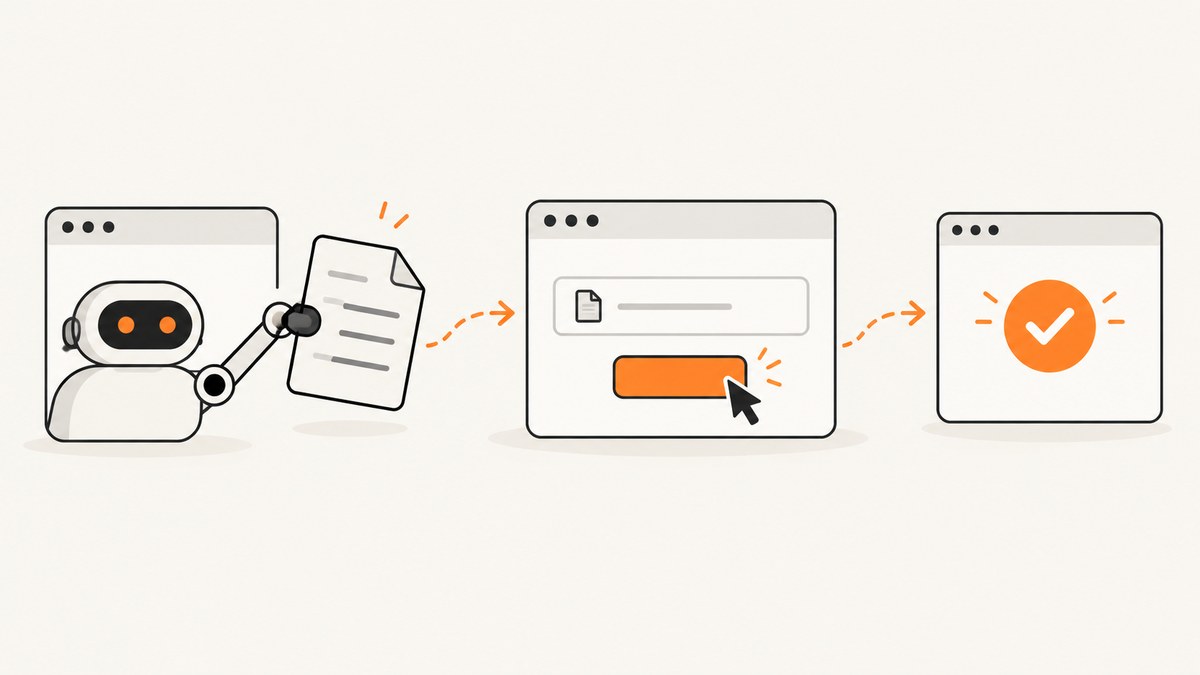
Use the page’s real <input type="file"> element and provide a file path that exists where the browser automation process runs. Selenium uses send_keys(), Playwright uses locator.setInputFiles(), and Puppeteer uses ElementHandle.uploadFile(). Do not automate the operating system’s native file picker for a normal headless Chrome upload.
Selecting a file is only one step. Submit the form through the application’s normal control and wait for a site-specific success signal such as an uploaded filename, success message, new record, URL change, or API response.
How the upload flow works
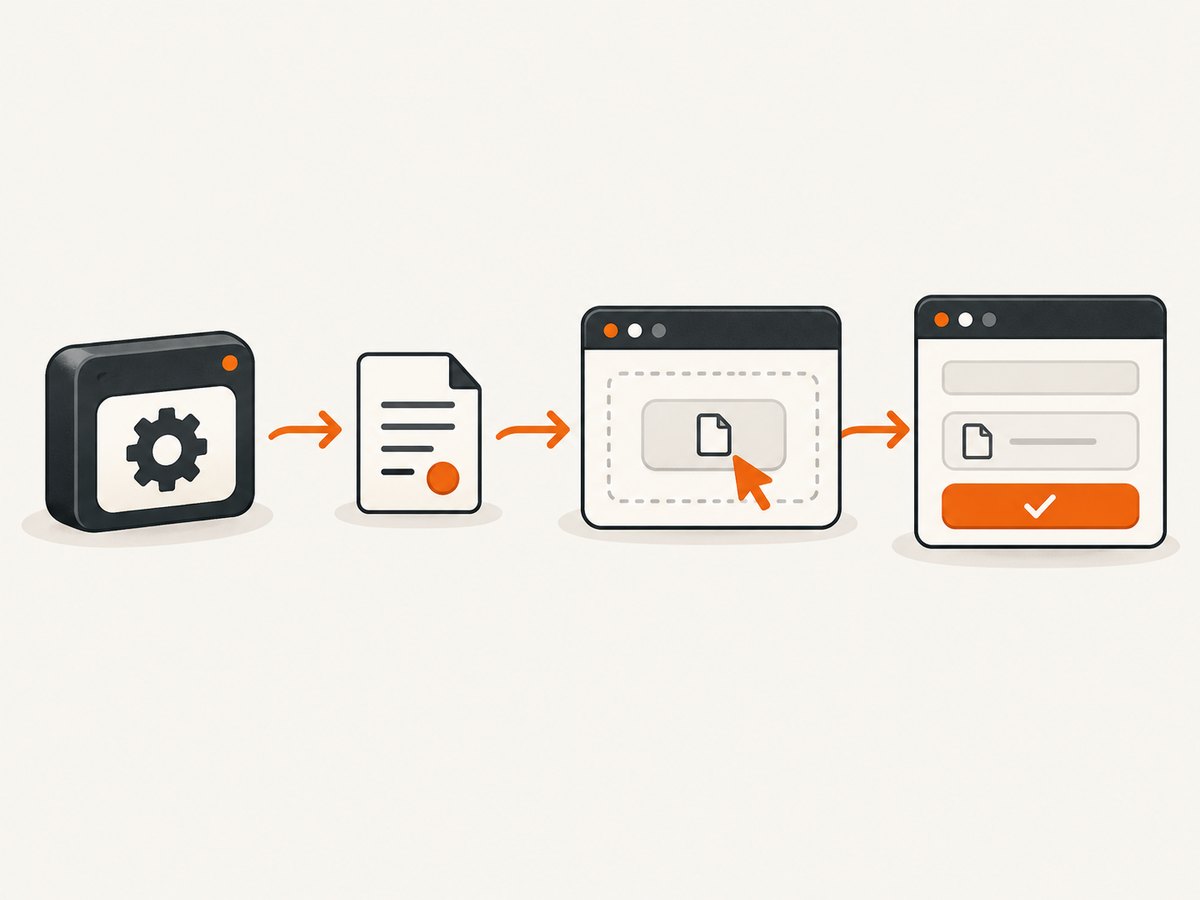
- Start Chrome in headless mode.
- Navigate to the form page.
- Locate the actual file input, preferably by its accessible label or a stable attribute.
- Resolve a path that exists in the runner’s filesystem.
- Assign one or more files through the automation framework.
- Click the form’s submit control.
- Wait for and assert the application’s success state.
A styled “Choose file” button, wrapper element, or form element is not the upload target. The target is the input element that the browser represents as a file control.
Selenium with headless Chrome (Python)
Selenium’s file-upload flow avoids opening the native file dialog. Send the absolute path directly to the file input.
from pathlib import Path
from selenium import webdriver
from selenium.webdriver.common.by import By
from selenium.webdriver.chrome.options import Options
from selenium.webdriver.support.ui import WebDriverWait
from selenium.webdriver.support import expected_conditions as EC

file_path = Path("fixtures/report.pdf").resolve()
if not file_path.is_file():
    raise FileNotFoundError(f"Upload file does not exist: {file_path}")

options = Options()
options.add_argument("--headless=new")
options.add_argument("--no-sandbox")
options.add_argument("--disable-dev-shm-usage")

driver = webdriver.Chrome(options=options)
wait = WebDriverWait(driver, 30)

try:
    driver.get("https://your-site.example/upload")

    file_input = wait.until(
        EC.presence_of_element_located(
            (By.CSS_SELECTOR, "input[type='file']")
        )
    )
    file_input.send_keys(str(file_path))

    driver.find_element(
        By.CSS_SELECTOR, "form button[type='submit']"
    ).click()

    # Replace this selector and text with the site's real success state.
    wait.until(
        EC.visibility_of_element_located((By.CSS_SELECTOR, ".upload-success"))
    )
    print("Upload completed")
finally:
    driver.quit()
The path must be readable by the process running WebDriver. In a container or remote runner, a path on your laptop is not automatically available inside the browser environment.
Selenium details and options
- Single file: call
send_keys(str(file_path)). - Multiple files: when the input has the
multipleattribute, send paths separated by the platform path separator accepted by your Selenium version. - Hidden inputs: if the input is present in the DOM,
send_keyscan usually target it even when the visible button is styled separately. If the application creates it only after a click, open the control first and then locate the input. - Stable selectors: prefer an accessible label, an input
name, or a test ID over a positional selector. - Validation: an accepted path does not prove that the server accepted the file. Assert the application’s resulting state.
Playwright with headless Chromium (Node.js)
Playwright’s recommended API is locator-based setInputFiles. Relative paths resolve from the current working directory, so resolve them explicitly when tests can run from different directories.
const path = require('node:path');
const { chromium } = require('playwright');

(async () => {
  const browser = await chromium.launch({ headless: true });
  const page = await browser.newPage();

  try {
    const filePath = path.resolve('fixtures/report.pdf');
    await page.goto('https://your-site.example/upload', {
      waitUntil: 'domcontentloaded'
    });

    await page.getByLabel('Upload file').setInputFiles(filePath);
    await page.getByRole('button', { name: 'Submit' }).click();

    await page.locator('.upload-success').waitFor({ state: 'visible' });
    console.log('Upload completed');
  } finally {
    await browser.close();
  }
})();
Multiple files
await page.getByLabel('Upload files').setInputFiles([
  path.resolve('fixtures/report.pdf'),
  path.resolve('fixtures/data.csv')
]);
This requires the input to allow multiple files. The website can still reject a selection because of type, size, count, or application validation rules.
Upload data held in memory
Playwright can provide a file payload without first writing it to disk.
await page.getByLabel('Upload file').setInputFiles({
  name: 'report.txt',
  mimeType: 'text/plain',
  buffer: Buffer.from('sample contents')
});
Clear a selected file
await page.getByLabel('Upload file').setInputFiles([]);Inputs created after clicking an upload control
Register the file-chooser wait before clicking. This prevents a race in which the chooser event fires before the test starts waiting.
const chooserPromise = page.waitForEvent('filechooser');
await page.getByRole('button', { name: 'Choose file' }).click();
const chooser = await chooserPromise;
await chooser.setFiles(path.resolve('fixtures/report.pdf'));

await page.getByRole('button', { name: 'Submit' }).click();
await page.locator('.upload-success').waitFor({ state: 'visible' });
Puppeteer with headless Chrome (Node.js)
Puppeteer uploads through the file input’s uploadFile method.
const path = require('node:path');
const fs = require('node:fs');
const puppeteer = require('puppeteer');

(async () => {
  const filePath = path.resolve('fixtures/report.pdf');
  if (!fs.existsSync(filePath)) {
    throw new Error(`Upload file does not exist: ${filePath}`);
  }

  const browser = await puppeteer.launch({ headless: true });
  const page = await browser.newPage();

  try {
    await page.goto('https://your-site.example/upload', {
      waitUntil: 'domcontentloaded'
    });
    const input = await page.waitForSelector('input[type=file]');
    await input.uploadFile(filePath);
    await page.click('form button[type=submit]');
    await page.waitForSelector('.upload-success', { visible: true });
    console.log('Upload completed');
  } finally {
    await browser.close();
  }
})();
Choosing the right locator
| Situation | Preferred locator | Why |
|---|---|---|
| Accessible label is available | getByLabel('Upload file') |
Communicates the user-facing purpose and survives many layout changes. |
| Stable test identifier exists | [data-testid="file-upload"] |
Useful when labels change by locale or product design. |
| Only a name or accept attribute is stable | input[name="attachment"] |
Targets the input without depending on visual structure. |
| Several file inputs exist | Scope to a form or section first | Prevents uploading to the wrong control. |
File paths, containers, and remote runners
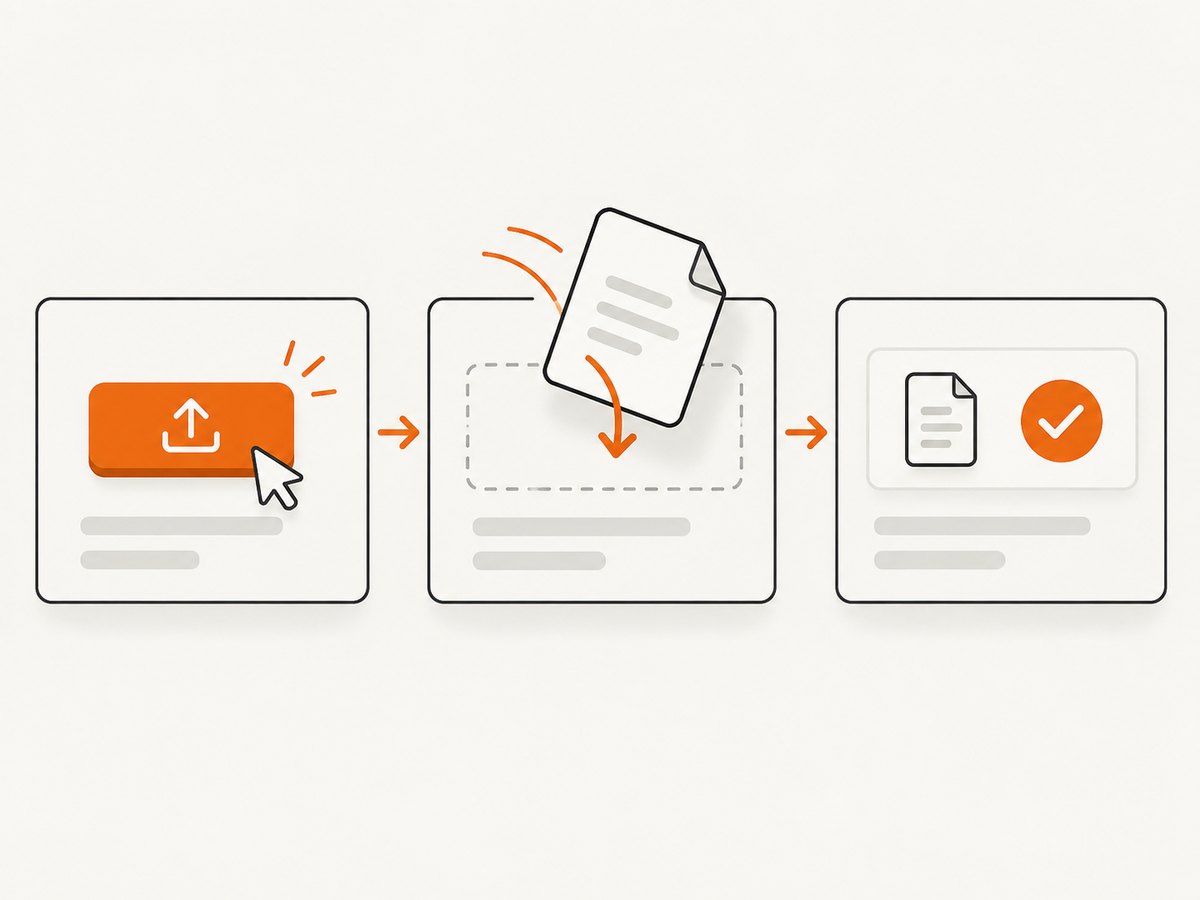
- Use an absolute path after resolving the fixture path.
- Check existence and readability before starting the browser.
- Mount test fixtures into the container that runs the automation process.
- Do not assume the browser can read a path on a separate CI host, worker, or laptop.
- For generated content, Playwright’s in-memory payload avoids filesystem coordination.
- Keep fixtures deterministic and small enough for the application’s limits.
Form rules that can reject an otherwise valid upload
Browser automation only selects the file. The page or server may still enforce:
- Allowed extensions or MIME types, including the input’s
acceptattribute. - Maximum file size.
- One file versus multiple files.
- Required metadata fields.
- Authentication, CSRF, or session requirements.
- Virus scanning or asynchronous processing.
- Application-specific filename or content rules.
Wait for the application’s final state when processing is asynchronous. A network request finishing does not necessarily mean the file is available to the user.
Common errors and fixes
| Error or symptom | Likely cause | Fix |
|---|---|---|
| Element not found | The selector targets a styled button, the page has not rendered the input, or the input is inside a frame. | Inspect the DOM, wait for the input, target input[type=file], and switch to the correct frame when applicable. |
| File not found | The relative path is resolved from a different working directory or the fixture is absent in CI. | Resolve an absolute path, log it, check existence, and mount or copy the fixture into the runner. |
| Upload selected but form fails | Type, size, count, required fields, authentication, or server validation rejected it. | Check the page’s validation message and server response; use a fixture that meets the site’s rules. |
| Dynamic control races the test | The input is created only after clicking an upload button. | Playwright: wait for filechooser before clicking. Selenium/Puppeteer: click first, then wait for the newly created input. |
| Timeout after submit | The success selector is wrong, processing is asynchronous, or the upload request failed. | Capture console and network logs, inspect the response, and wait for the actual success state. |
| Works locally but not in CI | Different filesystem, permissions, browser version, environment variables, or authentication state. | Print the resolved path, verify the fixture inside CI, and reproduce with the same container and browser settings. |
| Native picker appears | The test clicked the visible control and is waiting for an OS dialog. | Use the framework’s file-input API. For Playwright dynamic controls, use the documented file-chooser event flow. |
Reliability checklist
- Locate the real file input.
- Resolve and verify the path in the browser runner.
- Use an accessible or stable selector.
- Wait for the page state that makes the input available.
- Match the site’s file count, type, and size rules.
- Submit through the normal application control.
- Assert a site-specific success result.
- Capture diagnostics on failure: URL, selector, resolved path, console output, and relevant response status.
Performance and cost considerations
Most upload time is determined by file size, network throughput, server processing, and any scanning or conversion performed by the application. Reuse a browser when running many cases, avoid unnecessary page reloads, and keep fixtures representative of production without making them larger than needed. Wait for the minimum reliable success signal rather than adding arbitrary long sleeps.
Headless mode changes how Chrome is displayed, not the site’s validation rules. Parallel tests can compete for bandwidth, server capacity, temporary storage, or shared test records, so isolate test data and set bounded timeouts. Retries should be limited and should preserve the original failure diagnostics.
Or skip the browser setup
If your goal is to capture the resulting upload page or document a form flow, ScreenshotNeo provides a single screenshot or PDF request without maintaining a browser script. Cookie banners, popups, and chat widgets are removed before the shot; bot checks, blank pages, and failed loads are never billed. Its MCP server lets AI agents take screenshots, and the free plan includes 1,000 screenshots a month with no card; paid plans start at $5 for 3,000.
curl -G "https://api.screenshotneo.com/v1/shot" -d access_key=YOUR_API_KEY --data-urlencode url=https://your-site.example/upload -o shot.webpimport requests
r = requests.get("https://api.screenshotneo.com/v1/shot", params={"access_key": "YOUR_API_KEY", "url": "https://your-site.example/upload"}, timeout=90)
open("shot.webp", "wb").write(r.content)const q = new URLSearchParams({ access_key: 'YOUR_API_KEY', url: 'https://your-site.example/upload' });
const res = await fetch(`https://api.screenshotneo.com/v1/shot?${q}`);See the ScreenshotNeo API documentation for request options. Create a free account with 1,000 screenshots per month and no card.
FAQ
Can headless Chrome open the operating system file picker?
You do not need it for a normal upload. Assign the path to the page’s file input through Selenium, Playwright, or Puppeteer.
Why does Selenium need an absolute path?
WebDriver must read the file from the machine or execution environment where the browser automation runs. An explicit absolute path avoids ambiguity about the current working directory.
Can Playwright upload a file that is not on disk?
Yes. Provide a payload with a filename, MIME type, and buffer to setInputFiles.
How do I know the upload really worked?
Assert the application’s own result: a success message, uploaded filename, resulting record, URL change, or another documented completion state.
What if the file input is generated after a click?
Wait for the framework’s file-chooser event around the click, or locate the newly created input after the control opens it.


