How to Upload Files to Facebook with PhantomJS
Use PhantomJS’s `page.uploadFile()` to attach a local file to Facebook’s live file input, then verify the page-specific upload result.

Use PhantomJS’s page.uploadFile(selector, filename) method to attach a local file to a live input[type="file"]. The selector must match the rendered page, the file path must be absolute and readable by the PhantomJS process, and attachment alone does not publish the file. After attaching it, use the page’s own controls and verify a page-specific success condition.
This is maintenance guidance for existing PhantomJS scripts. PhantomJS is a legacy dependency; for new automation, consider a maintained browser stack or an approved Meta API that matches your destination and permissions.
1. How PhantomJS file upload works
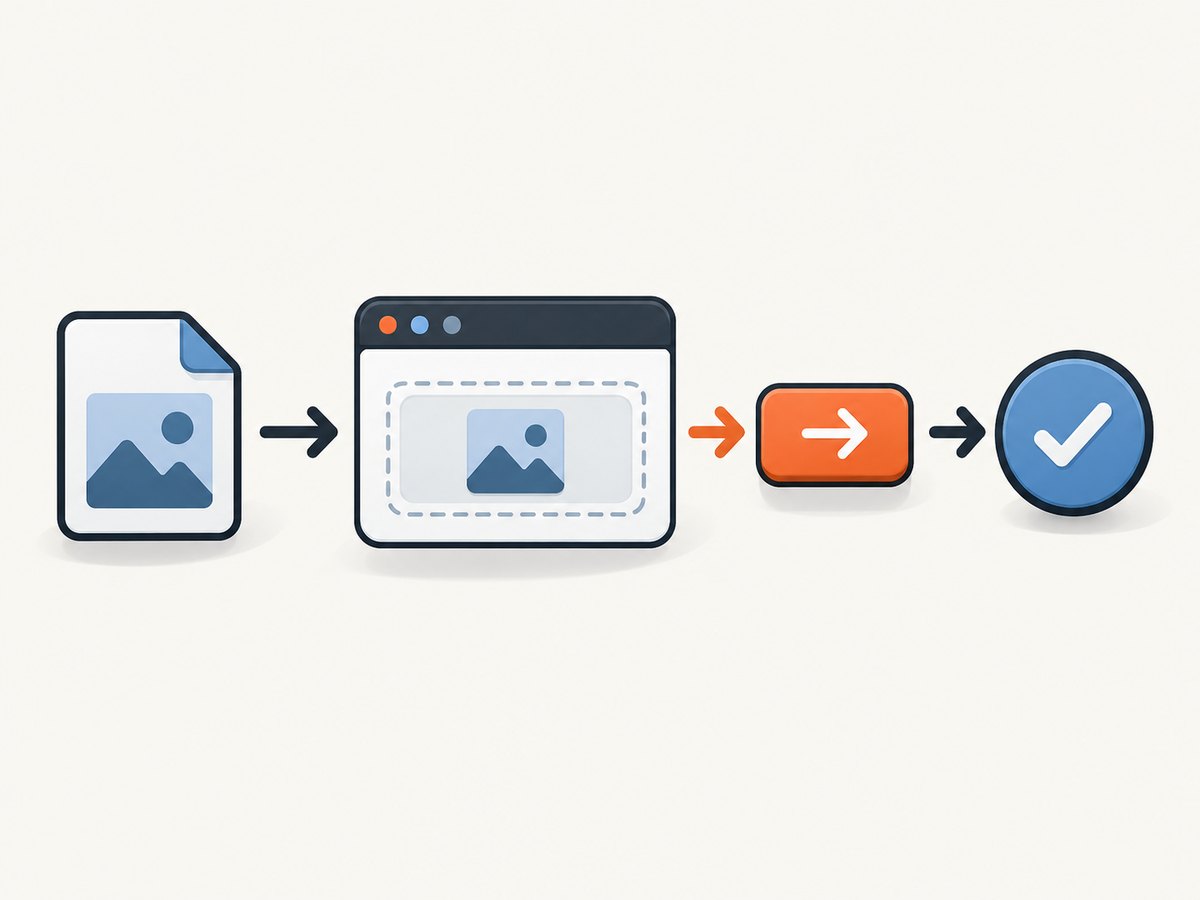
In a normal browser, a person chooses a file through an operating-system file picker. Headless scripts cannot reliably interact with that native dialog. PhantomJS provides page.uploadFile(selector, filename) to supply the file directly to the form element associated with the selector. The method does not find the input for you and does not submit the form.
The selector should target the actual file input in the live DOM, typically an element whose type is file. Facebook’s page markup and controls can change, so do not treat any selector copied from an old script as permanent. Inspect the page after it loads and check that your selector matches an element before attempting attachment.
2. Prepare the script and file
- Install or locate the PhantomJS executable used by your existing system.
- Make the file available to the machine and user account running PhantomJS.
- Use an absolute path, such as
/srv/uploads/photo.jpgon a Unix-like system orC:\\uploads\\photo.jpgon Windows. - Confirm the account can read the file, and that the file type and size are accepted by the specific Facebook flow.
- Use a test account and destination that you are authorized to manage. Authentication checkpoints and platform restrictions can interrupt automation.
When browser execution is remote, the path is interpreted where the browser process runs. A file present on the controller machine may not exist on the remote machine. Selenium’s WebDriver documentation describes this same file-input rule and its remote FileDetector mechanism for transferring files: Selenium file upload documentation.
3. Complete PhantomJS example
The following runnable script shows the sequence: open the page, inspect whether an input exists, attach the file, activate a page control if one is present, wait briefly, and report the current URL. Facebook-specific authentication, navigation, and completion checks must be adapted to the destination and current interface.
var page = require('webpage').create();
var url = 'https://www.facebook.com/';
var filePath = '/absolute/path/to/photo.jpg';
var fileSelector = 'input[type="file"]';

page.onConsoleMessage = function (message) {
  console.log('page: ' + message);
};

page.open(url, function (status) {
  if (status !== 'success') {
    console.log('open failed: ' + status);
    phantom.exit(1);
    return;
  }

  var hasInput = page.evaluate(function (selector) {
    return !!document.querySelector(selector);
  }, fileSelector);

  if (!hasInput) {
    console.log('No file input matched: ' + fileSelector);
    console.log(page.content);
    phantom.exit(1);
    return;
  }

  // Attach the file to the input. This does not submit or publish it.
  page.uploadFile(fileSelector, filePath);

  // Replace this generic control lookup with a condition for your flow.
  var clicked = page.evaluate(function () {
    var button = document.querySelector('button[type="submit"], input[type="submit"]');
    if (!button) return false;
    button.click();
    return true;
  });

  console.log('Submit control found: ' + clicked);

  // Replace the fixed delay with a page-specific completion check.
  window.setTimeout(function () {
    console.log('Current URL: ' + page.url);
    console.log('Page title: ' + page.evaluate(function () {
      return document.title;
    }));
    phantom.exit();
  }, 5000);
});
Save it as upload.js, replace the path and selectors, then run it with the PhantomJS executable, for example phantomjs upload.js. The example deliberately checks whether the input exists before calling uploadFile. It does not automate sign-in or promise a publication result; those are flow-specific and may be blocked by challenges, permissions, or changes to Facebook.
Inspecting the rendered DOM
If the input is missing immediately after page.open, inspect the page source that PhantomJS sees. You can log page.content, or query targeted information inside page.evaluate. A file input may only appear after navigating to the relevant composer or opening an upload panel. If the interface inserts it later, wait for the page’s own state to change before querying. Do not guess selectors from screenshots or old markup.
var info = page.evaluate(function () {
  return Array.prototype.map.call(
    document.querySelectorAll('input[type="file"]'),
    function (input) {
      return {
        name: input.name,
        accept: input.accept,
        multiple: input.multiple
      };
    }
  );
});
console.log(JSON.stringify(info));
4. Attach, submit, and verify separately
Treat upload as three distinct states:
- Input found: the selector resolves to the intended file input.
- File attached: the browser has accepted the local file into that input.
- Upload completed: the application has processed the file and reports the expected result.
page.uploadFile addresses the second state. It does not click a submit button, wait for server processing, dismiss an error, or establish that a post or Page update is published. Verify completion using a stable condition specific to your workflow, such as a known confirmation element, a changed application state, or an expected URL. A fixed delay is easy to add but unreliable: network and processing time vary. Where a reliable completion signal exists, poll for it with a bounded timeout and fail clearly when the timeout expires.
When page events are needed
Some flows require an ordinary page-level click or key press after the file is attached. PhantomJS’s page.sendEvent can send keyboard and mouse events to the page. Use it for page interaction when necessary; do not try to open an operating-system file picker with keyboard events when page.uploadFile is available. The upload method exists to supply the file in headless mode. See the PhantomJS sendEvent documentation.
5. Relevant PhantomJS settings
Set page settings before the initial page.open call. PhantomJS documents that settings such as these apply during initial loading: userAgent, javascriptEnabled, resourceTimeout, localToRemoteUrlAccessEnabled, and webSecurityEnabled. See the PhantomJS settings reference.
var page = require('webpage').create();
page.settings.userAgent = 'Your descriptive automation user agent';
page.settings.javascriptEnabled = true;
page.settings.resourceTimeout = 30000;
// Keep the normal security defaults unless a controlled test requires otherwise.

page.open('https://www.facebook.com/', function (status) {
  // Continue with your navigation and upload flow.
});
Choose a timeout based on the expected environment and handle timeouts explicitly. Do not disable browser security simply to make an upload work. Weakening webSecurityEnabled can change security behavior and is not a general remedy for a file input or a Facebook UI problem.
6. Facebook permissions and account constraints
A successful attachment in the DOM does not guarantee that Facebook will accept or publish the file. The flow can be interrupted by authentication state, a checkpoint, two-factor authentication, destination-specific permissions, file type or size validation, or anti-abuse controls. A personal profile and a Page are different destinations with different authorization expectations.
For new integrations, check whether an approved Meta API supports the asset and action you need. Meta’s developer update describes app review and permissions for developer integrations, including Pages and Marketing APIs: Meta platform update. The correct API path depends on the destination, use case, and permissions available to your app. A browser automation script does not bypass those requirements.
7. Reliability, performance, and cost
PhantomJS adds a browser process and page load to each job, so total time depends on page startup, network conditions, client-side rendering, file size, and server-side processing. Reusing a process can reduce startup overhead in a batch workflow, but isolate session state and make sure each job has a clear timeout and cleanup path. Avoid launching unbounded parallel browser processes; contention can make page loads and completion checks less predictable.
For reliability, log the navigation status, matched selector, destination URL, timeout outcome, and a concise page diagnostic when a run fails. Keep credentials out of source code and logs. Retry only failures that are safe to retry; blindly repeating a submit action can create duplicate posts. Use bounded retries with a delay for transient network failures, and stop for authentication checkpoints, permission errors, validation failures, or unexpected page structure.
Cost includes maintaining a legacy runtime, debugging UI changes, and operating browser workers. PhantomJS is deprecated for WebDriver use: Selenium’s issue history records that PhantomJS was marked a deprecated WebDriver in Selenium 3.8.1, recommends headless Chrome or Firefox, and identifies the PhantomJS repository as archived. See Selenium issue 6597. For a new automation system, compare current JavaScript compatibility, upload behavior, remote file transfer, maintenance, authentication requirements, and compliance with Meta’s approved integration model before choosing a browser driver.
8. Troubleshooting
| Symptom | Likely cause | Fix |
|---|---|---|
page.open reports failure |
Navigation or network error, blocked request, or unreachable page. | Log the status and page diagnostics; check connectivity and whether the destination is accessible from the runtime. Use a bounded resource timeout. |
| No matching file input | The selector is wrong, the upload panel has not been opened, or the interface has changed. | Inspect page.content and query live input[type="file"] elements after reaching the upload state. Update the selector based on the rendered DOM. |
| File is not attached | The path is relative, misspelled, unreadable, or refers to a different machine in remote execution. | Use an absolute path, check file existence and read access as the browser user, and transfer the file to the remote browser host or configure the driver’s file detector. |
| Dialog appears stuck in headless mode | The script is trying to open or control the native file picker. | Call page.uploadFile(selector, filePath) on the actual file input instead of interacting with the operating-system dialog. |
| File attached but nothing is published | Attachment is not submission; a control, validation, authentication, or permission step remains. | Handle the page’s submit flow explicitly and verify a page-specific result. Check account state, destination permissions, file constraints, and any checkpoint. |
| Script exits before completion | A fixed delay is too short, or the page uses a slower asynchronous request. | Wait for an application-specific completion condition with a maximum timeout; report timeout as a failure rather than assuming success. |
| Selector or JavaScript works inconsistently | Facebook markup or client-side behavior changed, or the desired element is rendered after the initial load. | Reinspect the rendered DOM, wait for the required state, and update the script. Consider moving to a maintained browser stack or supported API. |
9. Screenshot alternative for inspecting a page
A screenshot can help diagnose layout or loading problems, but it cannot attach a file, authenticate an account, or publish content. If your immediate goal is to inspect what a page looks like during automation, ScreenshotNeo is a screenshot API and MCP server for developers. Its API takes a URL and returns an image or PDF; it is a separate tool from PhantomJS file upload.

Or skip the browser setup:
curl -G "https://api.screenshotneo.com/v1/shot" -d access_key=YOUR_API_KEY --data-urlencode url=https://www.facebook.com/ -o shot.webpFor the available parameters and setup, see the ScreenshotNeo API documentation. ScreenshotNeo accepts cookie and consent banners and removes more than 60 known consent platforms, newsletter popups, and chat widgets before capture; those steps can be turned off. Bot checks and CAPTCHAs, blank pages, timeouts, failed loads, and cache hits are not billed, and response headers identify the page verdict and billing status. Its MCP server provides take_screenshot, get_page_info, and capture_pdf for Claude, Cursor, and other MCP clients. The Free plan includes 1,000 shots per month with no card; paid plans start at $5 for 3,000 shots.
Create a free ScreenshotNeo account for 1,000 screenshots a month with no card.
10. Migration checklist for existing scripts
- Confirm whether PhantomJS still serves a necessary legacy workflow.
- Record the current destination, authorization model, and expected success condition.
- Keep the file input selector configurable and verify it at runtime.
- Use an absolute path accessible to the browser process, including on remote workers.
- Separate file attachment from submit and completion checks.
- Set bounded navigation and completion timeouts, and avoid unsafe automatic resubmission.
- Evaluate headless Chrome or Firefox for browser automation, or an approved Meta API for publishing workflows.
FAQ
Can PhantomJS upload multiple files?
The input’s multiple attribute indicates whether it accepts multiple selections, but confirm the behavior of the specific PhantomJS version and page. Inspect the live input and test in a controlled destination before relying on multiple-file submission.
Should I use a CSS selector copied from a tutorial?
Only if you have confirmed it still matches the intended file input in the current rendered page. Facebook’s interface can change, so inspect the DOM at runtime.
Does a screenshot tool replace this upload script?
No. Screenshot tools capture page appearance; they do not attach local files or publish Facebook content. ScreenshotNeo is useful when the task is inspecting a page image or PDF, while page.uploadFile addresses file attachment in a PhantomJS workflow.
Is PhantomJS suitable for a new Facebook integration?
It is a legacy dependency. For new work, assess a maintained browser stack and whether an approved Meta API supports the destination and action you need.


