How to Upload Files to Hidden File Inputs in Cypress
Use Cypress’s built-in selectFile() with force:true for hidden inputs, plus patterns for fixtures, memory buffers, multiple files, and drag-and-drop.
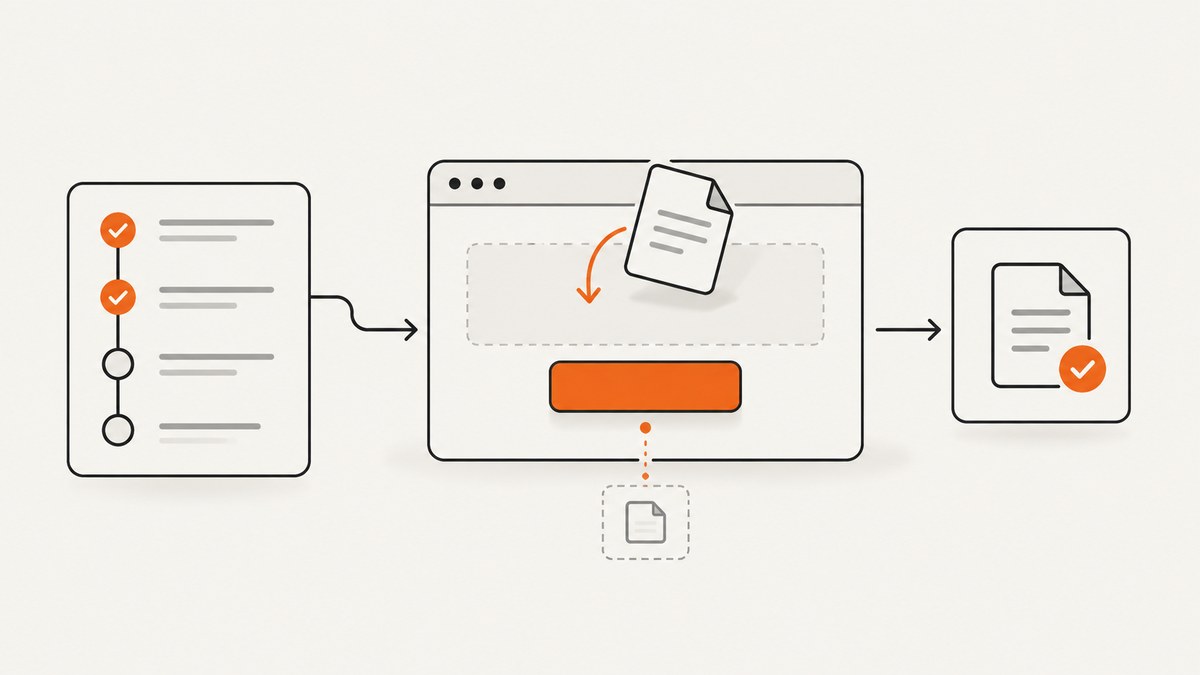
Use Cypress’s built-in selectFile() command and pass { force: true } when the native file input is hidden:
cy.get('input[type=file]')
  .selectFile('cypress/fixtures/file.json', { force: true })
The path is relative to your Cypress project root, usually the directory containing your Cypress configuration file. The file must exist before the command runs. Cypress added selectFile() in version 9.3.0; it is the current built-in approach for file uploads. See the Cypress selectFile() API documentation.
Why hidden inputs need force: true
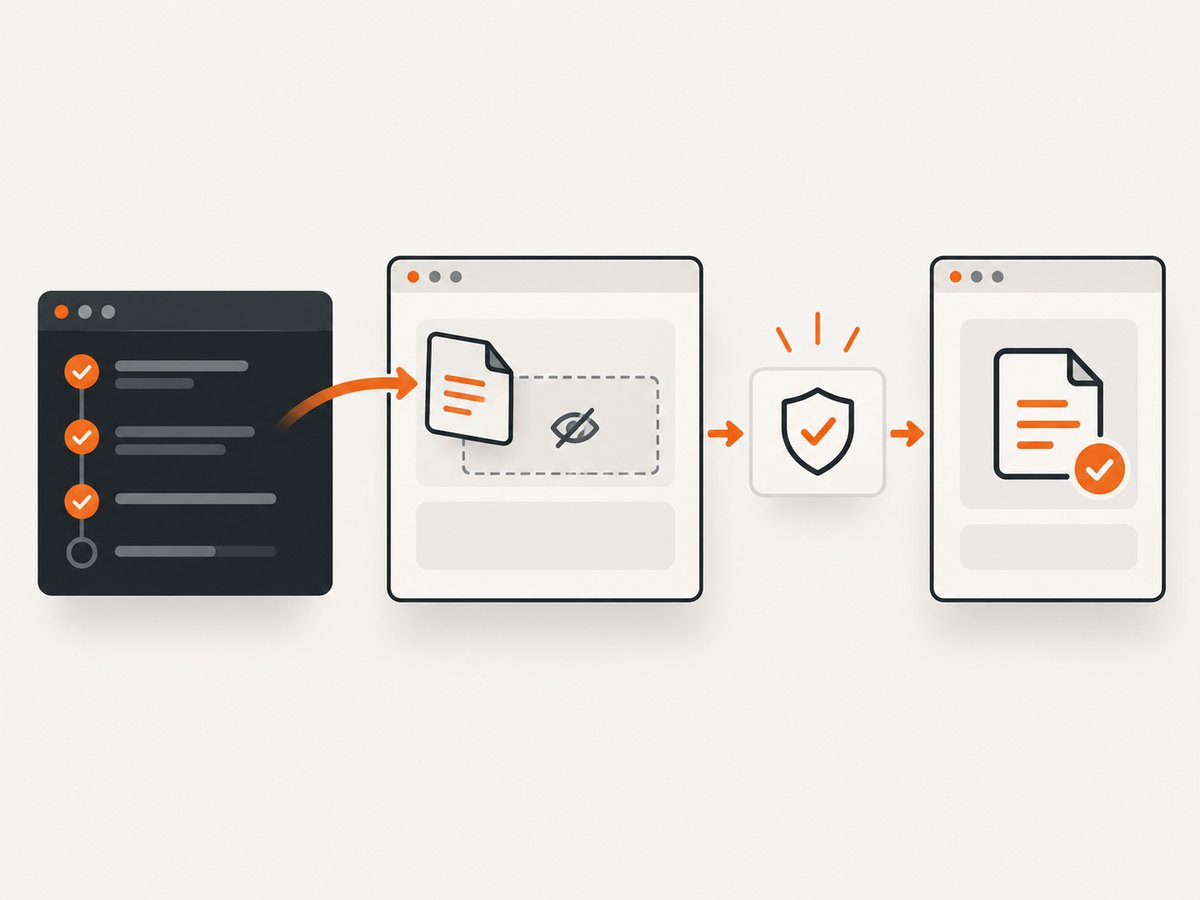
Modern upload controls commonly hide <input type="file"> and let a styled button activate it. Cypress normally applies actionability checks before interacting with an element. A hidden input fails those checks, so the documented pattern uses force: true.
Force mode disables Cypress’s normal waiting and checks for visibility, disabled state, DOM attachment, animation, and covering elements. It also does not scroll the target into view. This makes it suitable for supplying a file directly to the input and testing the application’s upload handling. It does not prove that a real user can see or click the visible upload button. Test that user-facing behavior separately when it matters. See Cypress’s interaction guide.
Step-by-step: upload a file from a fixture
- Put a representative file in
cypress/fixtures/, such ascypress/fixtures/report.pdf. - Locate the native file input with a stable selector.
- Call
selectFile()with the fixture path andforce: true. - Assert on an application-visible result, such as a file name, preview, success message, request, or processed record.
describe('document upload', () => {
  it('uploads a PDF through the hidden input', () => {
    cy.visit('/documents/new')

    cy.get('input[type=file]')
      .selectFile('cypress/fixtures/report.pdf', { force: true })

    cy.get('[data-cy=upload-success]')
      .should('be.visible')
      .and('contain', 'report.pdf')
  })
})
A selector such as data-cy on a wrapper or input is generally more stable than a long CSS chain. If the page contains multiple file inputs, narrow the query to the intended form or field.
Files you can pass to selectFile()
1. A project path
cy.get('input[type=file]')
  .selectFile('cypress/fixtures/report.pdf', { force: true })
Use a path when the file exists on disk. Cypress attaches the file as it exists, which avoids encoding mistakes for binary files.
2. A fixture alias with binary encoding
cy.fixture('report.pdf', null).as('report')

cy.get('input[type=file]')
  .selectFile('@report', { force: true })
The null encoding preserves binary data instead of interpreting the fixture as text. This is useful when a test needs to load or transform the fixture before selecting it.
3. In-memory contents
cy.get('input[type=file]')
  .selectFile({
    contents: Cypress.Buffer.from('file contents'),
    fileName: 'report.txt',
    mimeType: 'text/plain',
    lastModified: Date.now(),
  }, { force: true })
The object form requires contents. fileName, mimeType, and lastModified are optional. Cypress can infer a MIME type from the file extension; if it cannot infer one, the type may be empty.
4. Several files
cy.get('input[type=file][multiple]')
  .selectFile([
    'cypress/fixtures/one.txt',
    'cypress/fixtures/two.txt',
  ], { force: true })
The target input must have the multiple property. If it does not, Cypress fails the selection because the browser control accepts only one file.
Choosing the right subject
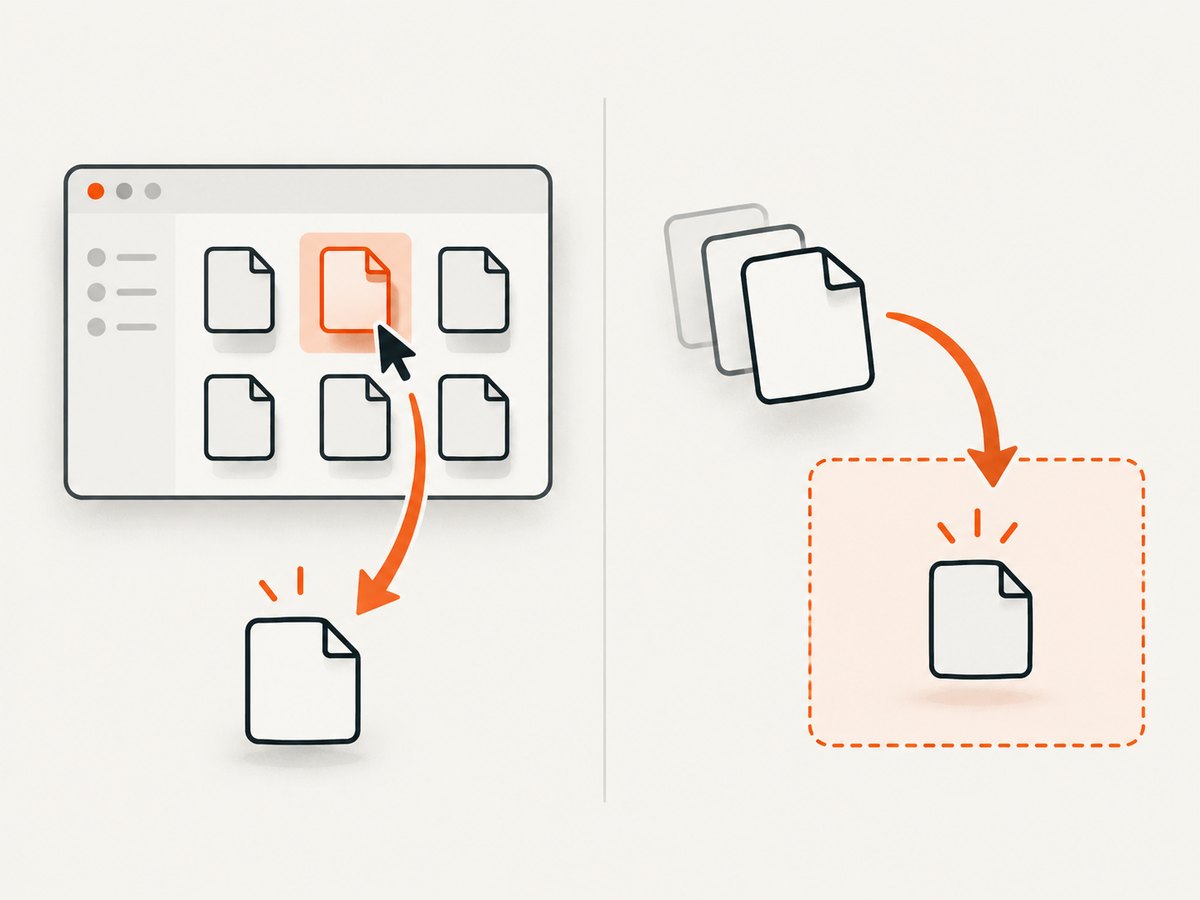
The default action is file selection. Its subject must be one file input or a label connected to one:
cy.get('label[for=avatar-upload]')
  .selectFile('cypress/fixtures/avatar.png', { force: true })
If a page has a custom drop zone, use drag-and-drop mode instead. In this mode the subject can be any DOM element or the document:
cy.get('[data-cy=drop-zone]').selectFile(
  'cypress/fixtures/report.pdf',
  { action: 'drag-drop' },
)
Use the mode that matches the behavior you need to cover: input selection for a native file control, or drag-and-drop for a drop target. A forced selection on the hidden input does not verify the drop zone’s drag events.
Testing the upload result
Selecting a file only changes the input’s files. It does not, by itself, establish that the application accepted, uploaded, stored, or processed the file. Cypress’s upload options depend on how the application is implemented; assert on the behavior your users rely on.
Assert on a visible status
cy.get('input[type=file]')
  .selectFile('cypress/fixtures/report.pdf', { force: true })

cy.get('[role=status]')
  .should('be.visible')
  .and('contain', 'Upload complete')
Assert on a preview or selected name
cy.get('input[type=file]')
  .selectFile('cypress/fixtures/avatar.png', { force: true })

cy.get('[data-cy=file-name]').should('contain', 'avatar.png')
cy.get('[data-cy=avatar-preview]').should('be.visible')
Observe the network request
cy.intercept('POST', '**/api/documents').as('upload')

cy.get('input[type=file]')
  .selectFile('cypress/fixtures/report.pdf', { force: true })

cy.wait('@upload')
  .its('response.statusCode')
  .should('be.oneOf', [200, 201, 202])
Combine a request assertion with a user-visible assertion when the UI displays processing state or server validation errors.
Common errors and fixes
| Error or symptom | Likely cause | Fix |
|---|---|---|
| “Element is not visible” | The native input is hidden and normal actionability checks reject it. | Use { force: true } when directly selecting the file. |
| “Cannot find file” | The path is wrong or the fixture is outside the project root. | Check spelling and case. Use a path relative to the project root and confirm the file exists in cypress/fixtures/ or another project directory. |
| Binary fixture appears corrupted | The fixture was read as text. | Use cy.fixture('file.pdf', null) before creating the alias. |
| Multiple-file selection fails | The input lacks the multiple attribute. |
Use an input that declares multiple, or select one file at a time if that is the product behavior. |
| “Subject must be a file input” | The default mode was called on a wrapper, button, or unrelated element. | Target input[type=file] or its associated label. For a drop zone, use action: 'drag-drop'. |
| Selection succeeds but no upload occurs | The application requires a change handler, a submit action, or an explicit upload button. | After selectFile(), perform the required submit or click and assert on the resulting request or UI state. |
| Upload is rejected by the app | File extension, MIME type, size, or server validation is invalid. | Use a fixture that matches the accepted rules, or provide fileName and mimeType explicitly in the object form. |
| Command times out waiting for an alias or path | The fixture alias was not created, or the file is unavailable when the command runs. | Create the alias before selecting it and verify the path. Increase timeouts only after fixing setup and selector issues. |
| Forced test passes while the button is broken | Force mode bypasses visibility and interaction checks. | Add a separate test for the visible button, keyboard path, or label activation if that is part of the requirement. |
Reliable test design
- Use stable selectors. Prefer
data-cyor an associated label over generated class names. - Keep fixtures small and purposeful. Include valid, invalid, empty, oversized, and representative binary files as needed.
- Wait on application state. Assert on a status, preview, database-facing request, or completed record instead of adding arbitrary delays.
- Separate browser behavior from upload processing. One test can prove file selection; another can cover server validation, retries, and processing states.
- Use deterministic names and metadata. Explicit
fileName,mimeType, andlastModifiedmake boundary cases reproducible. - Cover failure paths. Test rejected types, oversized files, interrupted requests, and server errors when the application exposes those states.
Performance and CI considerations
File selection itself is local and usually fast; the expensive part is often the application’s upload, virus scan, transformation, or remote storage. Keep end-to-end fixtures no larger than necessary, and reserve large-file cases for focused tests. Intercept or stub external services when the purpose is to test the browser flow rather than the storage provider.
Run tests against the same input markup used in CI. A selector that works only after a local development delay can become flaky in parallel runs. Prefer event-driven assertions and request aliases over fixed cy.wait(milliseconds) calls.
Version and compatibility notes
selectFile() was introduced in Cypress 9.3.0. Cypress’s current API documentation also records later changes, including per-axis scrollBehavior support in 15.20.0. The interaction guide notes that, as of Cypress 16, the default visibility algorithm delegates to the browser’s native Element.checkVisibility() API. These visibility details do not remove the need for force: true when the input is intentionally hidden.
The older cypress-file-upload package is deprecated according to its package documentation. Start with Cypress’s built-in command for current tests. Testing Library’s user-event upload helper belongs to a different testing layer and is not a Cypress command.
Or skip the browser setup
If your goal is to capture a page for documentation, visual review, or an automated workflow rather than exercise a file-upload control, ScreenshotNeo returns a screenshot or PDF with one GET request. Its cleanup steps accept cookie and consent banners and remove more than 60 known consent platforms, newsletter popups, and chat widgets before capture; each step can be disabled.
See the ScreenshotNeo API documentation for all options. This example captures a page as WebP:
curl -G "https://api.screenshotneo.com/v1/shot" -d access_key=YOUR_API_KEY --data-urlencode url=https://example.com -o shot.webpimport requests
r = requests.get(
"https://api.screenshotneo.com/v1/shot",
params={"access_key": "YOUR_API_KEY", "url": "https://example.com"},
timeout=90,
)
open("shot.webp", "wb").write(r.content)const q = new URLSearchParams({
access_key: 'YOUR_API_KEY',
url: 'https://example.com',
});
const res = await fetch(`https://api.screenshotneo.com/v1/shot?${q}`);ScreenshotNeo bills only clean shots. Bot checks or CAPTCHAs, blank pages, timeouts, failed loads, and cache hits cost nothing, and the response identifies the result with X-Page-Verdict and X-Billed headers. It also provides an MCP server for Claude, Cursor, and other MCP clients with take_screenshot, get_page_info, and capture_pdf tools. The Free plan includes 1,000 shots per month with no card; paid plans start at $5 for 3,000 shots. Create a free ScreenshotNeo account.
FAQ
Can Cypress upload to an input with display: none?
Yes. Target the file input and pass { force: true }. This bypasses Cypress actionability checks for the test command.
Does selectFile() click the visible upload button?
No. It supplies files to the input. Test button activation separately if that interaction is important.
Should I use a fixture path or an object?
Use a path for an existing file. Use the object form when you need generated contents or explicit file metadata.
How do I test a custom drop zone?
Call selectFile() on the drop target with { action: 'drag-drop' }.
How do I know the server accepted the upload?
Assert on the application’s visible result and, when useful, intercept the upload request and check its response.
Quick checklist
- Use Cypress 9.3.0 or newer for the built-in command.
- Target one file input or its associated label for normal selection.
- Add
force: truewhen the native input is hidden. - Use
multiplefor an array of files. - Use
action: 'drag-drop'for drop zones. - Preserve binary fixtures with
nullencoding when using aliases. - Assert on upload behavior, not only file selection.


