How to Upload Files to an Iframe with Playwright and Stagehand
Use Playwright frame locators and setInputFiles to upload files inside iframes, with Stagehand patterns, dynamic choosers, fixes, and production guidance.
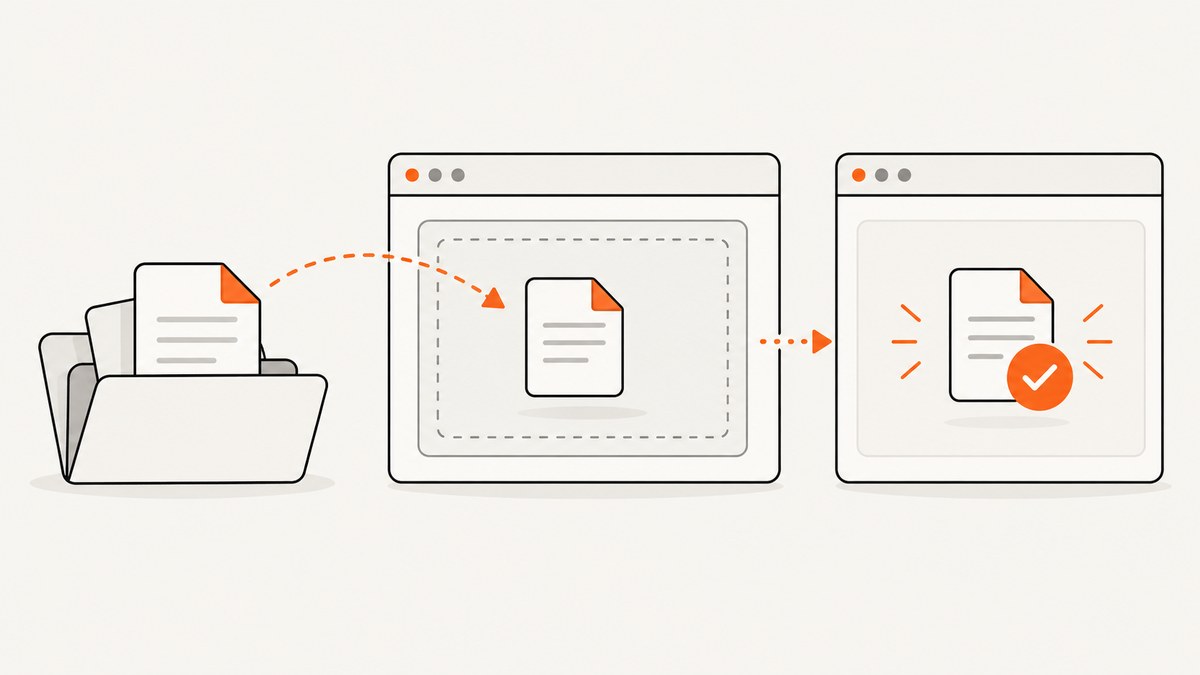
To upload a file inside an iframe, scope a Playwright locator to that frame and call setInputFiles on the file input. The modern pattern is:
await page
  .frameLocator('iframe[name="upload-frame"]')
  .locator('input[type="file"]')
  .setInputFiles('/absolute/path/to/file.pdf');
If the embedded page exposes an accessible label, prefer it:
await page
  .frameLocator('iframe[name="upload-frame"]')
  .getByLabel('Upload file')
  .setInputFiles('/absolute/path/to/file.pdf');
Playwright’s FrameLocator API enters the iframe context, while Locator.setInputFiles assigns one or more files to an input. Stagehand v3 can traverse iframes during browser actions, but its documented act reference does not define a separate file-payload upload API. Use Stagehand for natural-language actions when useful, then use an explicit Playwright locator for the deterministic file assignment.
1. Understand the iframe and file-input boundary
An iframe is a separate document. A selector on the top-level page cannot directly find elements inside it. First identify the correct <iframe>, then search within that frame. The visible upload button or drag-and-drop panel is often only a styled wrapper; the actual control is usually an <input type="file">, sometimes hidden.
Use a stable frame selector such as id, name, or a distinctive data attribute. Avoid selecting the first iframe on a page when several embeds exist.
const uploadFrame = page.frameLocator('#document-uploader');
await uploadFrame.locator('input[type="file"]').setInputFiles('/tmp/invoice.pdf');
When frames are nested, chain frame locators:
const nestedInput = page
  .frameLocator('iframe#outer')
  .frameLocator('iframe[name="inner-upload"]')
  .locator('input[type="file"]');

await nestedInput.setInputFiles('/tmp/invoice.pdf');
Cross-origin status does not prevent Playwright from automating a frame that the browser page can load. The key requirement is that the frame has loaded and that your selector targets the document containing the input.
2. A complete Playwright upload example
The following TypeScript test launches Chromium, opens a page, enters an iframe, assigns a fixture, and checks an application-specific completion message. Replace selectors and the URL with those from your application.
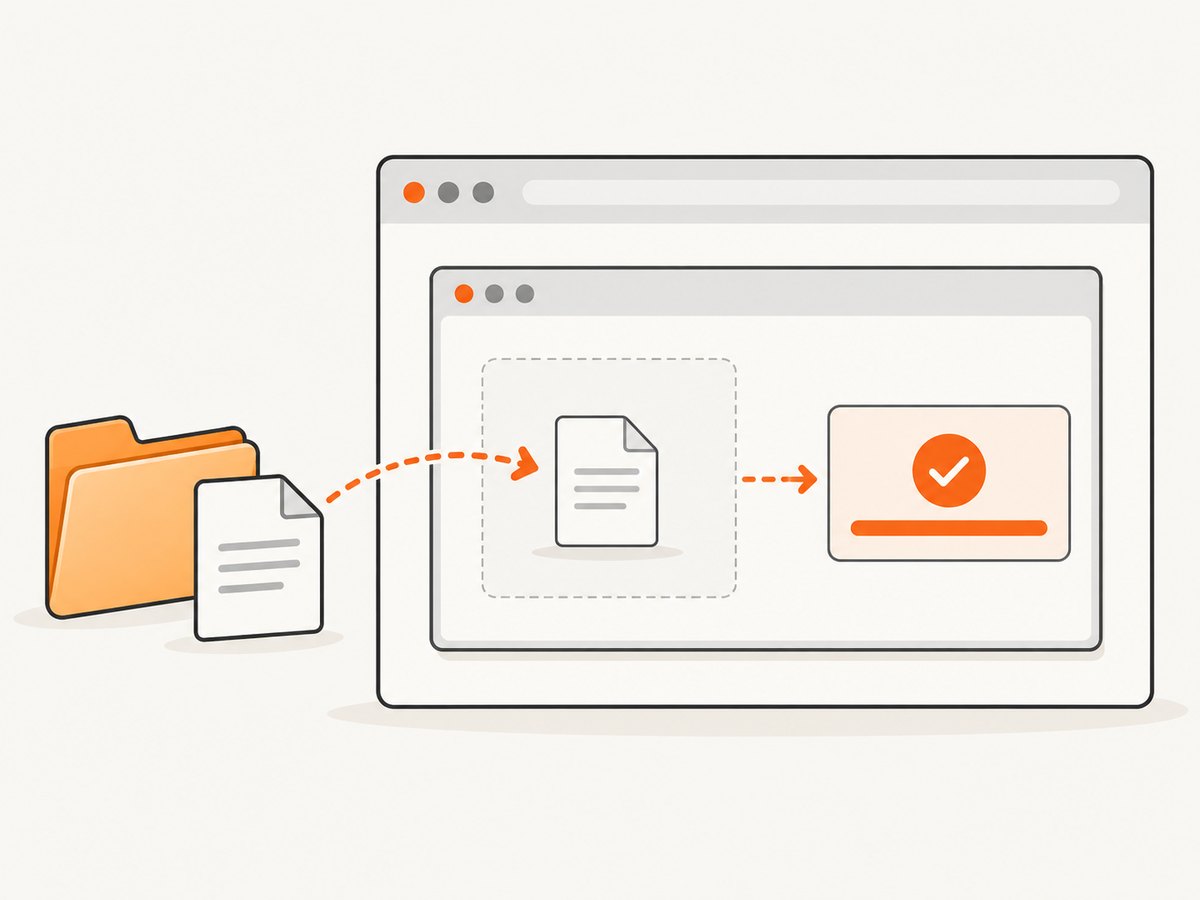
import { test, expect } from '@playwright/test';
import path from 'node:path';

 test('uploads a PDF inside an iframe', async ({ page }) => {
  const filePath = path.resolve('fixtures/invoice.pdf');

  await page.goto('https://example.test/account/documents', {
    waitUntil: 'domcontentloaded'
  });

  const frame = page.frameLocator('iframe[name="upload-frame"]');
  const fileInput = frame.getByLabel('Upload file');

  await fileInput.setInputFiles(filePath);

  // Setting the input is not proof that the server accepted the file.
  await expect(frame.getByText('Upload complete')).toBeVisible({
    timeout: 30_000
  });
});
If there is no label, narrow the input with attributes such as name, accept, or a frame-specific container:
await page
  .frameLocator('iframe[name="upload-frame"]')
  .locator('form#attachments input[type="file"][accept="application/pdf"]')
  .setInputFiles('/absolute/path/to/file.pdf');
Run it with your normal Playwright command, for example npx playwright test. Keep fixture files in the test runner’s filesystem and resolve paths explicitly so local and CI working directories do not change the result.
Multiple files, memory payloads, and clearing input
setInputFiles accepts one path, an array of paths, or an in-memory payload. It also clears a previous selection with an empty array.
const input = page.frameLocator('iframe#upload').locator('input[type="file"]');

await input.setInputFiles([
  '/absolute/path/to/photo-a.jpg',
  '/absolute/path/to/photo-b.jpg'
]);

await input.setInputFiles({
  name: 'notes.txt',
  mimeType: 'text/plain',
  buffer: Buffer.from('Generated by the test fixture')
});

await input.setInputFiles([]);
Relative paths resolve from the current working directory. For webkitdirectory inputs, the API supports one directory path; verify the behavior for the language binding and Playwright version used by your project.
3. Dynamic inputs and the file chooser event
Some upload widgets create the file input only after a click. In that case, wait for the chooser before triggering the action. The wait must be started first, otherwise a fast chooser event can be missed.
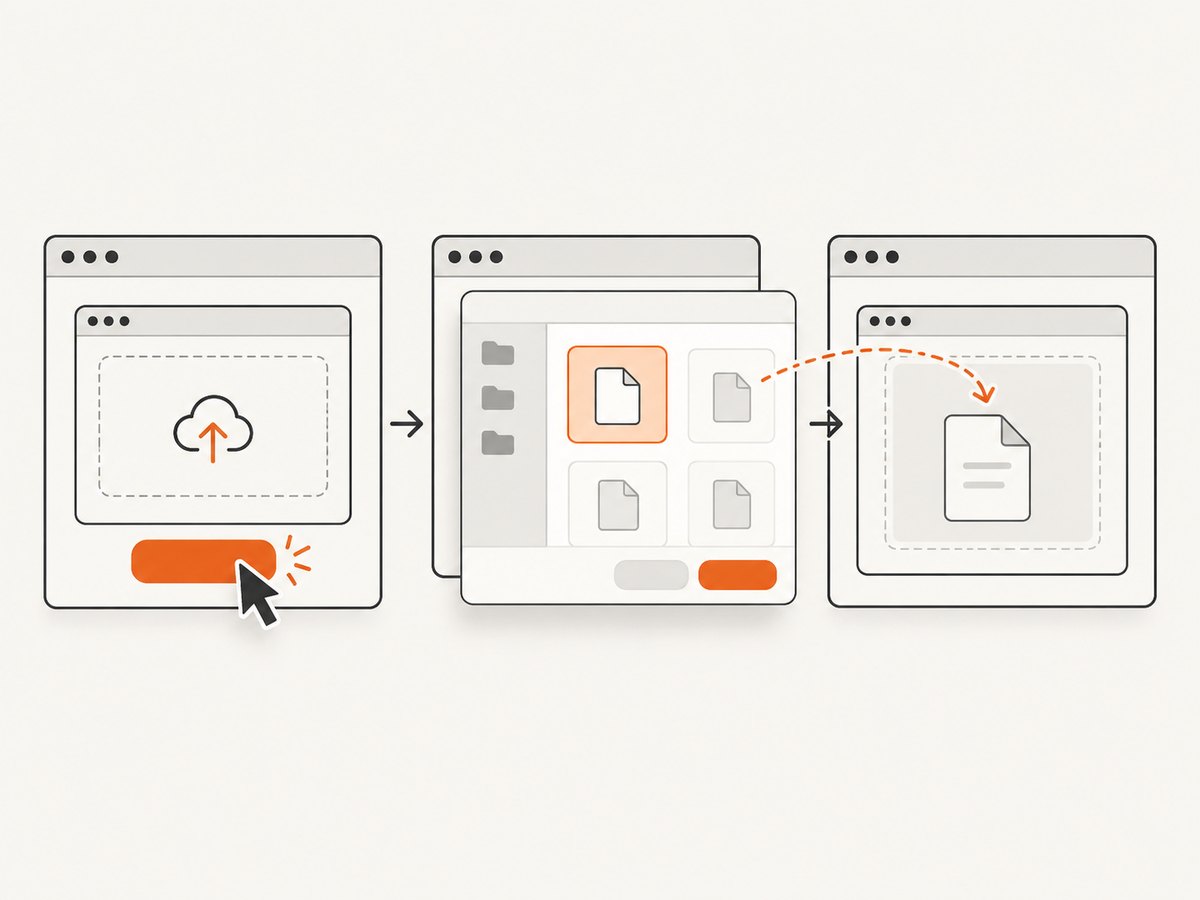
const chooserPromise = page.waitForEvent('filechooser');

await page
  .frameLocator('iframe[name="upload-frame"]')
  .getByRole('button', { name: 'Upload file' })
  .click();

const chooser = await chooserPromise;
await chooser.setFiles('/absolute/path/to/file.pdf');
The chooser event belongs to the page that owns the interaction. With an iframe, capture it from the top-level page while clicking the button through the frame locator. Validate this flow against the target widget because some libraries attach a native input to a different document or replace it after the click.
If the control opens a custom dialog rather than a native file chooser, inspect the DOM and locate the generated input instead. Playwright cannot upload through an operating-system dialog by typing into the dialog; it assigns files through the page’s file input or chooser API.
4. Using Stagehand with Playwright
Stagehand v3 documents iframe traversal for browser interactions. This is useful when the action is easier to describe in natural language, such as finding an upload control whose wording changes between deployments. The cited Stagehand documentation does not specify a dedicated method for attaching a local file payload, so keep the final assignment explicit with Playwright.
import { Stagehand } from '@browserbasehq/stagehand';

const stagehand = new Stagehand({
  env: 'LOCAL'
});
await stagehand.init();

const page = stagehand.page;
await page.goto('https://example.test/upload');

// Stagehand can navigate the embedded UI.
await stagehand.act({
  action: 'Open the upload control inside the document uploader iframe'
});

// Use Playwright for the file payload.
await page
  .frameLocator('iframe[name="upload-frame"]')
  .locator('input[type="file"]')
  .setInputFiles('/absolute/path/to/file.pdf');

await stagehand.close();
Depending on your Stagehand setup, the page object and initialization options can differ. Keep the iframe selector and file-input locator in a small adapter so a Stagehand upgrade does not spread upload details through every test.
5. Python Playwright equivalent
The Python binding exposes the same frame-locator and file-assignment concepts:
from pathlib import Path
from playwright.sync_api import sync_playwright, expect

with sync_playwright() as p:
    browser = p.chromium.launch()
    page = browser.new_page()
    page.goto('https://example.test/account/documents', wait_until='domcontentloaded')

    frame = page.frame_locator('iframe[name="upload-frame"]')
    frame.get_by_label('Upload file').set_input_files(
        str(Path('fixtures/invoice.pdf').resolve())
    )

    expect(frame.get_by_text('Upload complete')).to_be_visible(timeout=30_000)
    browser.close()
Use the exact method names from the installed Python package and pin Playwright in CI so an API change does not silently alter your test.
6. Inspecting frames and choosing robust selectors
- List the frame structure. In a diagnostic run, inspect
page.frames, their URLs, and names. This reveals whether the uploader is nested or loaded at a different URL. - Prefer accessibility. Use
getByLabel('Upload file')when the input has a reliable label. It is usually less brittle than generated class names. - Disambiguate. If several file inputs exist, constrain by
name,accept, a form, or a surrounding container. - Wait for the application state. After assignment, assert a filename, progress completion, enabled submit button, server response, or success message that proves the application processed the file.
A file input can be hidden with CSS and still be valid. Do not click the hidden input merely to make it visible; setInputFiles is designed to assign files directly.
7. Upload edge cases
Nested and late-loading frames
For a frame inserted after navigation, use a frame locator that can resolve when the element appears, then wait for the input with a meaningful timeout. For nested frames, chain frameLocator calls in document order. If the iframe is replaced after a route change, reacquire the locator after navigation rather than retaining a stale frame handle.
File type and size validation
The browser can assign a file that matches the input’s accept attribute, but server-side validation may still reject it. Test the MIME type, extension, byte size, filename rules, and duplicate behavior your application enforces. A successful setInputFiles call only means the browser input received the payload.
Remote runners and containers
The path must exist where Playwright runs. A path on your laptop is not available inside a container or hosted browser unless copied or mounted there. In-memory payloads avoid fixture-path problems for small deterministic files. For large files, provision a fixture directory and check its permissions before the test starts.
Drag-and-drop widgets
Many drop zones still contain a file input. Locate that input first. If the widget truly accepts only a drag event, inspect its implementation and use the documented browser event strategy; do not assume clicking a visual drop zone will expose a native chooser.
8. Troubleshooting checklist
| Symptom | Likely cause | Fix |
|---|---|---|
| Locator times out | Wrong iframe selector, frame not loaded, or input is in a nested frame | Inspect page.frames, verify the iframe attributes, and chain frame locators for each level. |
| No elements found inside frame | The upload control belongs to a different frame or was created later | Wait for the frame and input; confirm the frame URL and inspect the rendered DOM. |
| Several file inputs match | Hidden auxiliary inputs or multiple attachment controls | Use a label, name, accept, or a form-specific selector. |
| Chooser wait hangs | The wait started after the click, or the button does not open a native chooser | Create waitForEvent('filechooser') before clicking; otherwise locate the generated input. |
| Path works locally but fails in CI | Fixture is absent, relative directory differs, or permissions block access | Resolve an absolute path, copy fixtures into the runner, or use an in-memory payload. |
| Input has a file but upload never completes | Application validation, network failure, or missing submit action | Assert the application’s completion state, inspect network and console logs, and perform any required submit. |
Legacy frame.setInputFiles example |
Older API style | Use locator-based setInputFiles; the Frame API marks the older method discouraged. |
9. Reliability, performance, and cost considerations
Keep upload tests deterministic by using small fixtures, stable selectors, and explicit completion assertions. Avoid arbitrary long sleeps; wait for the frame, input, and application state that matter. Reuse a browser context when isolation rules allow it, but create a fresh context when cookies, permissions, or user data could affect the uploader.
Large files increase transfer and processing time. Set test timeouts around the actual server SLA, log the selected filename and resulting status, and collect a trace on failure. If the application uses antivirus scanning or asynchronous processing, distinguish “file selected,” “upload sent,” and “processing complete” in your assertions.
Playwright itself does not charge per file assignment; your costs come from browser infrastructure, storage, bandwidth, and any hosted browser provider. Stagehand’s documentation mentions Browserbase as an initialization environment, but the research does not establish pricing or an affiliate relationship. Check the provider’s current terms before choosing hosted execution.
10. Or skip the browser setup
If your goal is to capture the resulting upload page rather than automate the upload interaction itself, ScreenshotNeo provides a one-call website screenshot API. See the ScreenshotNeo documentation for the full parameter list.
curl -G "https://api.screenshotneo.com/v1/shot" -d access_key=YOUR_API_KEY --data-urlencode url=https://stripe.com -o shot.webpimport requests
r = requests.get("https://api.screenshotneo.com/v1/shot", params={"access_key": "YOUR_API_KEY", "url": "https://stripe.com"}, timeout=90)
open("shot.webp", "wb").write(r.content)const q = new URLSearchParams({ access_key: 'YOUR_API_KEY', url: 'https://stripe.com' });
const res = await fetch(`https://api.screenshotneo.com/v1/shot?${q}`);ScreenshotNeo accepts the cookie or consent banner like a visitor and removes more than 60 known consent platforms, newsletter popups, and chat widgets before capture; each cleanup step can be turned off. Bot checks, blank pages, timeouts, failed loads, and cache hits are not billed, and response headers identify the page verdict and whether the shot was billed. Its MCP server provides take_screenshot, get_page_info, and capture_pdf for Claude, Cursor, and other MCP clients. The free plan includes 1,000 screenshots per month with no card; paid plans start at $5 for 3,000 shots. Create a free ScreenshotNeo account.
11. Short FAQ
Can I upload directly to an iframe with a CSS selector?
Yes, once the selector is scoped through page.frameLocator(...). A top-level page.locator cannot cross into the iframe document.
Does the input need to be visible?
No. Playwright can assign files to a hidden file input. The locator still must resolve to the actual input or an associated label.
Should I use Stagehand or Playwright?
Use Stagehand when a natural-language action helps navigate a changing interface. Use Playwright’s locator-based setInputFiles for the file payload and deterministic assertions.
How do I prove the backend accepted the file?
Assert an application result such as a completed status, server-generated filename, success message, or API response. A successful input assignment alone does not prove persistence.
Can one test upload several files?
Pass an array of paths when the input supports multiple selection. Confirm that the application’s own validation and upload protocol also support multiple files.


