How to Upload Photos with Python Selenium
Upload photos with Python Selenium by sending an absolute path to an HTML file input, submitting the form, and verifying the result.

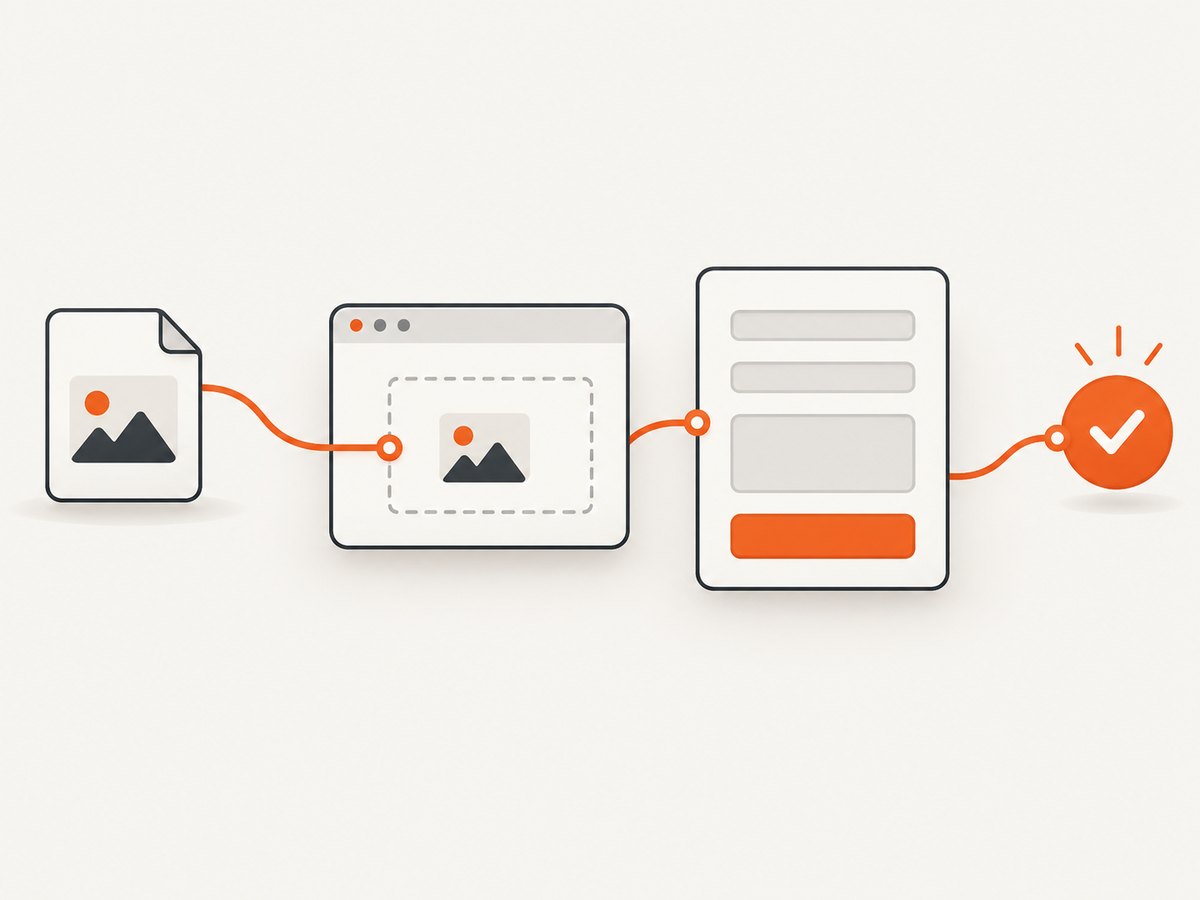
To upload a photo with Python Selenium, locate the page’s HTML <input type="file"> element and pass it an absolute file path with send_keys(). Selenium sends the path directly to the browser automation endpoint, so you do not need to open or control the operating system’s native file chooser. After selecting the file, submit the form and verify a visible result such as the uploaded filename.
This is the workflow documented by the Selenium project. The selectors and success message in the examples are placeholders; replace them with the selectors used by your page.
1. Install Selenium and prepare a photo
Install Selenium in the Python environment that will run your test:
python -m pip install -U seleniumModern Selenium versions can usually obtain a compatible browser driver automatically. You still need a supported browser, such as Chrome, Chromium, Firefox, or Edge, installed on the machine running the test.
Keep the image in a known location. Resolve it to an absolute path before calling send_keys:
from pathlib import Path

upload_file = Path("photos/example.jpg").resolve()
if not upload_file.is_file():
    raise FileNotFoundError(f"Photo does not exist: {upload_file}")
An absolute path is safer for test runners because the process working directory may differ between your laptop, CI, and an IDE. Selenium's Python API documentation also recommends an absolute path for cross-operating-system tests. See the Selenium Python WebElement API.
2. Complete upload example
The following script opens a test page, finds its file input, uploads a photo, submits the form, and checks the resulting filename. The example page IDs come from Selenium's documented file-upload example; change them for your application.
from pathlib import Path

from selenium import webdriver
from selenium.webdriver.common.by import By
from selenium.webdriver.support import expected_conditions as EC
from selenium.webdriver.support.ui import WebDriverWait

# Resolve a path that is readable by the process running Selenium.
upload_file = Path("photos/example.jpg").resolve()
if not upload_file.is_file():
    raise FileNotFoundError(f"Photo does not exist: {upload_file}")

options = webdriver.ChromeOptions()
# options.add_argument("--headless=new")  # Enable in CI if a visible browser is not needed.

driver = webdriver.Chrome(options=options)
wait = WebDriverWait(driver, 15)

try:
    driver.get("https://the-internet.herokuapp.com/upload")

    # This must be the real HTML input[type=file], not a styled text box.
    file_input = wait.until(
        EC.presence_of_element_located((By.CSS_SELECTOR, "input[type='file']"))
    )
    file_input.send_keys(str(upload_file))

    submit = wait.until(EC.element_to_be_clickable((By.ID, "file-submit")))
    submit.click()

    uploaded_name = wait.until(
        EC.visibility_of_element_located((By.ID, "uploaded-files"))
    ).text.strip()

    expected_name = upload_file.name
    if uploaded_name != expected_name:
        raise AssertionError(
            f"Expected {expected_name!r}, but page reported {uploaded_name!r}"
        )

    print(f"Uploaded successfully: {uploaded_name}")
finally:
    driver.quit()
Selenium's official guidance explains that sending the full path to a file input uploads the file without opening the native file chooser. The submit button, result element, and URL are page-specific and must match the target site.
3. Find the correct file input
Inspect the page and locate the actual file control. Common locators include:
# CSS type selector
(By.CSS_SELECTOR, "input[type='file']")

# ID
(By.ID, "photo-upload")

# Name
(By.NAME, "photo")

# Label relationship, when the input has a stable ID
(By.CSS_SELECTOR, "label[for='photo-upload']")
A visible “Choose photo” button may be a styled label or a JavaScript component. The underlying element still normally has type="file". Send the path to that hidden input rather than to a regular text field. Selenium can set a file input even when the page visually hides it; if the site replaces the input after selection, locate it again before interacting with the replacement.
4. Wait for the page state, not arbitrary sleeps
Upload pages often render controls asynchronously. Prefer explicit waits to a fixed time.sleep():
from selenium.webdriver.support import expected_conditions as EC
from selenium.webdriver.support.ui import WebDriverWait

wait = WebDriverWait(driver, 20)
file_input = wait.until(
    EC.presence_of_element_located((By.CSS_SELECTOR, "input[type='file']"))
)
file_input.send_keys(str(upload_file))

# Wait for a preview, enabled submit button, or other page-specific state.
wait.until(EC.element_to_be_clickable((By.CSS_SELECTOR, "button[type='submit']"))).click()
wait.until(EC.visibility_of_element_located((By.CSS_SELECTOR, ".upload-success")))
Use presence_of_element_located when the element only needs to exist in the DOM, visibility_of_element_located when a result must be visible, and element_to_be_clickable before clicking a submit control.
5. Upload multiple photos
If the input includes the multiple attribute, send several absolute paths separated by newlines:
from pathlib import Path

photos = [
    Path("photos/front.jpg").resolve(),
    Path("photos/back.jpg").resolve(),
]
for photo in photos:
    if not photo.is_file():
        raise FileNotFoundError(photo)

file_input = driver.find_element(By.CSS_SELECTOR, "input[type='file'][multiple]")
file_input.send_keys("\n".join(str(photo) for photo in photos))
Whether multiple files are accepted is controlled by the page and its server. A page can still reject a batch because of count, size, MIME type, dimensions, or account limits.
6. Confirm that the upload really succeeded
Setting the file input only selects a local file. It does not prove that the form was submitted or that the server accepted the image. Verify one or more page outcomes:
- A success message or status element becomes visible.
- The selected filename appears in the preview or result list.
- The browser navigates to a known result URL.
- An uploaded image or record appears in the page.
- A server-side status exposed by the UI changes to complete.
For a filename check, compare only the name when the page displays a basename:
import os

reported = driver.find_element(By.ID, "uploaded-files").text.strip()
assert reported == os.path.basename(upload_file)
For an asynchronous upload, wait for the final state rather than checking immediately:
status = WebDriverWait(driver, 30).until(
    EC.visibility_of_element_located((By.CSS_SELECTOR, "[role='status']"))
)
assert "complete" in status.text.lower()
7. Useful variations
Headless Chrome
options = webdriver.ChromeOptions()
options.add_argument("--headless=new")
options.add_argument("--window-size=1440,1000")
driver = webdriver.Chrome(options=options)
Firefox
from selenium import webdriver

options = webdriver.FirefoxOptions()
options.add_argument("-headless")
driver = webdriver.Firefox(options=options)
Changing the file input's value is not a substitute
Do not use JavaScript to assign an arbitrary local path to input.value. Browsers restrict local-file access for security reasons. Use Selenium's send_keys API for the file input.
Custom file names and generated images
If your test creates an image first, write it to disk, close the file handle, resolve the path, and then call send_keys. The browser process must be able to read the file at the time of selection.
from pathlib import Path

output = Path("artifacts/generated-photo.jpg").resolve()
output.parent.mkdir(parents=True, exist_ok=True)
# Write or export the image to output before this point.
file_input.send_keys(str(output))
8. Common errors and fixes
| Error or symptom | Likely cause | Fix |
|---|---|---|
ElementNotInteractableException |
You located a wrapper, text box, or a control that is not the file input. | Inspect the DOM and target input[type='file']. Wait for it to exist before calling send_keys. |
InvalidArgumentException or “path is not absolute” |
The path is relative, misspelled, or unavailable to the test process. | Use Path(...).resolve(), check is_file(), and print the resolved path. |
Nothing happens after send_keys |
The page requires a separate submit action or JavaScript change event. | Click the real submit control and wait for the page's success state. If the site uses a custom component, inspect its documented interaction. |
| Upload rejected by the page | Unsupported extension, MIME type, dimensions, file size, count, or authentication state. | Test with a valid image that meets the site's limits and verify that the correct account and page state are active. |
| Preview appears but no record is created | Previewing is client-side; the form was not submitted or the request failed. | Submit the form, wait for the server result, and assert a durable success indicator rather than only a preview. |
TimeoutException while waiting |
The selector is wrong, the page failed to load, or the operation takes longer than the timeout. | Capture a screenshot and page source on failure, verify selectors in the current DOM, and increase the timeout only after identifying the slow step. |
| Works locally but fails in CI | Different working directory, missing image fixture, headless differences, or browser version. | Resolve paths from a known project directory, package fixtures with the test, use headless options appropriate for CI, and log browser and Selenium versions. |
| Remote WebDriver cannot find the photo | The path exists on the client machine but not where the remote browser runs. | Use the remote setup's file-upload mechanism and confirm that the file is transferred to the remote end. The basic local-path example does not establish a remote transfer configuration. |
9. Reliability and test design
- Use stable IDs, names, or dedicated data attributes instead of long XPath expressions tied to layout.
- Keep a small fixture image in the test repository and validate its existence before starting the browser.
- Use one cleanup path with
driver.quit()so failed tests do not leave browser processes running. - Record the current URL, page source, and a diagnostic screenshot when an upload fails.
- Separate “file selected,” “upload request sent,” and “server accepted” assertions so failures identify the broken stage.
- Do not depend on a fixed sleep for network or image-processing time.
10. Performance and cost considerations
Selenium starts a browser and performs a full page interaction, so it is useful when you need to exercise the same upload flow a user sees. For a large test suite, reuse a driver per test class where isolation permits, avoid unnecessary navigation, and keep fixture files small while still covering validation cases. Server-side image processing and network speed usually dominate the time after the file is selected.

Selenium itself does not charge per upload. Your costs come from the machine or CI minutes, browser infrastructure, bandwidth, and the destination service's own storage or API limits. Respect the target site's authentication, rate limits, upload restrictions, and terms.
Or skip the browser setup
If your goal is a clean screenshot of an upload result or any other page, ScreenshotNeo provides a direct HTTP API. Its capture endpoint accepts a URL and returns PNG, JPEG, WebP, or PDF. See the ScreenshotNeo documentation for all options.
cURL
curl -G "https://api.screenshotneo.com/v1/shot" \
  -d access_key=YOUR_API_KEY \
  --data-urlencode url=https://stripe.com \
  -o shot.webp
Python
import requests

r = requests.get(
    "https://api.screenshotneo.com/v1/shot",
    params={"access_key": "YOUR_API_KEY", "url": "https://stripe.com"},
    timeout=90,
)
r.raise_for_status()
open("shot.webp", "wb").write(r.content)
Node.js
const q = new URLSearchParams({ access_key: 'YOUR_API_KEY', url: 'https://stripe.com' });
const res = await fetch(`https://api.screenshotneo.com/v1/shot?${q}`);
if (!res.ok) throw new Error(`Screenshot failed: ${res.status}`);
const buffer = Buffer.from(await res.arrayBuffer());
await import('node:fs/promises').then(fs => fs.writeFile('shot.webp', buffer));
ScreenshotNeo removes cookie and consent banners, newsletter popups, and chat widgets before capture. Bot checks, blank pages, timeouts, failed loads, and cache hits are not billed; response headers identify the page verdict and billing result. Its MCP server lets Claude, Cursor, and other MCP clients use take_screenshot, get_page_info, and capture_pdf. The free plan includes 1,000 screenshots per month with no card, and paid plans start at $5 for 3,000 shots.
Create a free ScreenshotNeo account and get 1,000 screenshots a month with no card.
FAQ
Can Selenium upload a file without opening the file chooser?
Yes. Send the full path to the HTML file input with send_keys. Selenium's documented workflow avoids automating the native chooser.
Does the path need to be absolute?
An absolute path is recommended because it removes ambiguity about the process working directory and is more portable across test environments.
Why does selecting a file not mean the upload succeeded?
Selection only updates the browser control. The page may still require a submit action, client-side validation, a network request, and server-side processing. Assert the final visible result.
Can I upload several photos at once?
Only when the input supports multiple files. Send absolute paths separated by newline characters and verify that the page accepts the count and sizes.
Can this exact code run against every website?
The send_keys technique applies to ordinary HTML file inputs, but every site's selectors, validation rules, authentication, custom JavaScript, and server limits are different. Inspect and adapt the page-specific parts.


