How to Upload Puppeteer Screenshots to Amazon S3
Upload Puppeteer screenshots straight to Amazon S3 from memory, or save them locally first. Includes AWS SDK v3 code, permissions, formats, retries, and troubleshooting.

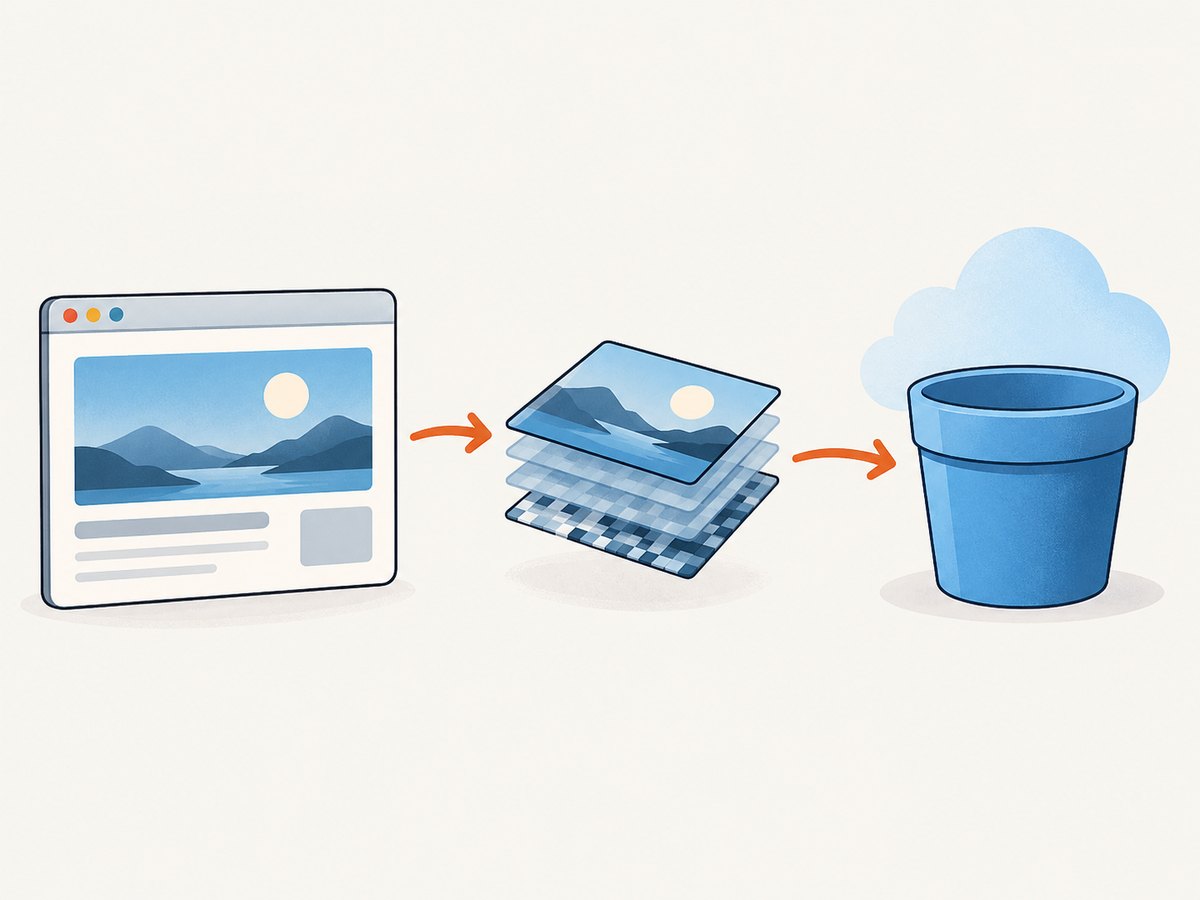
Short answer: Puppeteer’s page.screenshot() returns screenshot bytes as a Uint8Array. Pass those bytes as Body in an AWS SDK for JavaScript v3 PutObjectCommand; you do not need to write a temporary file first. The process needs AWS credentials, a region, the bucket name, and permission for s3:PutObject on the object key.
This guide shows a complete in-memory upload, a local-file alternative, format and key choices, error handling, and common fixes. Puppeteer and AWS document the capture and upload pieces separately; the combined flow below joins those documented interfaces. Puppeteer screenshot documentation · AWS SDK for JavaScript v3 S3 examples.
1. Prepare Puppeteer and AWS credentials
Use a current Node.js runtime with a project configured for ES modules. Install Puppeteer and the S3 client package:
npm install puppeteer @aws-sdk/client-s3Configure AWS credentials and a default region through the AWS SDK’s normal credential and region chain. In a deployed environment, prefer the environment’s role or credential provider. For local work, configure the AWS CLI profile rather than putting long-lived access keys into source code. Set the bucket name in the environment:
export AWS_REGION=us-east-1
export SCREENSHOT_BUCKET=my-screenshot-bucket
The example uses an existing bucket. The identity used by the program must be allowed to put objects at the selected bucket and key. Keep the objects private by default and grant read access through the bucket’s intended access controls if the application needs it.
2. Capture and upload bytes directly
Save the following as upload.mjs. It navigates to a page, captures a full-page PNG into memory, uploads the returned bytes, and closes the browser even if navigation or upload fails.
import puppeteer from 'puppeteer';
import { PutObjectCommand, S3Client } from '@aws-sdk/client-s3';

const bucket = process.env.SCREENSHOT_BUCKET;
if (!bucket) throw new Error('Set SCREENSHOT_BUCKET');

const s3 = new S3Client({});
const browser = await puppeteer.launch();

try {
  const page = await browser.newPage();
  await page.goto('https://example.com', { waitUntil: 'networkidle2' });

  const screenshot = await page.screenshot({
    type: 'png',
    fullPage: true,
  });

  const key = `screenshots/${new Date().toISOString().replaceAll(':', '-')}.png`;
  await s3.send(new PutObjectCommand({
    Bucket: bucket,
    Key: key,
    Body: screenshot,
    ContentType: 'image/png',
  }));

  console.log(`Uploaded s3://${bucket}/${key}`);
} catch (error) {
  console.error('Screenshot capture or S3 upload failed:', error);
  process.exitCode = 1;
} finally {
  await browser.close();
}
Run it with node upload.mjs. The screenshot is a binary value, not a base64 string. Pass it directly as Body; encoding it as text adds work and can corrupt the image if decoded incorrectly. The ContentType is object metadata and should describe the bytes actually produced.
waitUntil: 'networkidle2' is a navigation readiness choice, not a guarantee that every site has finished changing. Pages with long polling or continuously active requests may not reach network idle. In those cases, navigate using an appropriate lifecycle event and explicitly wait for a selector or application-ready condition before taking the screenshot.
3. Choose screenshot dimensions, format, and timing
Puppeteer’s screenshot defaults are PNG, binary output, and viewport-sized capture. fullPage is optional and defaults to false. A path option writes the screenshot to disk; Puppeteer can infer the image type from the path extension when a type is not specified. See the ScreenshotOptions reference for the complete options supported by the installed version.

| Need | Setting | Practical effect |
|---|---|---|
| Viewport shot | Omit fullPage or set it to false |
Captures the current viewport. |
| Whole document | fullPage: true |
Captures the full page; very long pages can produce large images and consume more browser memory. |
| PNG | type: 'png' |
Lossless image output; PNG ignores the JPEG quality setting. |
| JPEG | type: 'jpeg', quality: 80 |
Use a quality value supported by Puppeteer when smaller photographic output matters; match S3 metadata to image/jpeg. |
| File workflow | path: '/tmp/page.png' |
Writes a local artifact that can be used by another process or retained locally. |
Set the viewport before navigation or capture when the desired layout depends on viewport size:
await page.setViewport({ width: 1440, height: 1000, deviceScaleFactor: 1 });
await page.goto('https://example.com', { waitUntil: 'domcontentloaded' });
await page.waitForSelector('main');
const screenshot = await page.screenshot({ type: 'jpeg', quality: 82 });

await s3.send(new PutObjectCommand({
  Bucket: process.env.SCREENSHOT_BUCKET,
  Key: 'screenshots/example.jpg',
  Body: screenshot,
  ContentType: 'image/jpeg',
}));
For lazy-loaded content, scrolling through the page before capture may be necessary so images load; full-page capture alone should not be treated as proof that every site-specific lazy loader has run. Add a site-appropriate scroll or wait routine only when that content is required.
4. Use a local file when the workflow needs one
An in-memory upload is simpler for a direct capture-to-S3 path. A local file makes sense when another tool consumes it, local retention is required, or a separate upload process handles transfer. Set path, then read the file as binary and pass that buffer as Body:
import puppeteer from 'puppeteer';
import { readFile } from 'node:fs/promises';
import { PutObjectCommand, S3Client } from '@aws-sdk/client-s3';

const browser = await puppeteer.launch();
try {
  const page = await browser.newPage();
  await page.goto('https://example.com', { waitUntil: 'domcontentloaded' });
  const path = '/tmp/example.png';
  await page.screenshot({ path, fullPage: true });

  const s3 = new S3Client({});
  await s3.send(new PutObjectCommand({
    Bucket: process.env.SCREENSHOT_BUCKET,
    Key: 'screenshots/example.png',
    Body: await readFile(path),
    ContentType: 'image/png',
  }));
} finally {
  await browser.close();
}
Reading a file into memory still uses memory during upload. For ordinary screenshots, either approach is straightforward. For very large files or resumable transfer requirements, consider the multipart path described below.
5. Pick an S3 key and access policy deliberately
The key is the object name, including any prefix-like path. Use a predictable layout that supports the application’s lookup and retention needs, such as a date prefix plus a unique identifier. A repeated key replaces the existing object in an unversioned bucket. If overwrites would be harmful, use unique keys or an appropriate conditional-write strategy; bucket versioning may also affect what is retained.
Basic PutObject requires s3:PutObject on the target resource. Do not add ACL: 'public-read' as a generic upload fix. With bucket-owner-enforced Object Ownership, ACLs are disabled and do not control permissions. Configure access using the bucket’s supported controls and keep screenshot content private unless public delivery is explicitly needed. Refer to AWS’s conditional writes and Object Ownership guidance for those cases.
Screenshots can include signed-in account details, personal data, or secrets visible in the page. Treat bucket policy, retention, encryption, and logs as part of the application’s data handling design. Do not print credentials or screenshot bytes in error logs.
6. Handle retries and large objects
For a single ordinary screenshot, one PutObject is usually the simplest request. S3 does not expose a partial object as a successful completed object: the operation either completes or returns an error. The SDK handles request-level behavior according to its configuration, but your application should still report failures and decide whether a retry is appropriate.
Make retries safe. If each retry uses a new timestamp key, one logical capture can leave duplicate objects after an uncertain network outcome. If overwriting is acceptable, use a stable key; if it is not, generate an idempotency identifier for the logical capture or use conditional writes. Avoid retry loops with no limit. Record the capture ID, bucket, key, and error code so failures can be diagnosed without logging sensitive page contents.
Multipart upload is a separate option for large objects, interrupted transfers, independently retried parts, or pause/resume needs. It adds complexity and is rarely needed for normal screenshot images. AWS documents a 160 GB ceiling for uploads through the S3 console; that console limit is not a typical screenshot threshold and should not be confused with SDK/API upload behavior. See the S3 multipart upload overview.
7. Troubleshooting
| Symptom | Likely cause | Fix |
|---|---|---|
AccessDenied |
The active identity lacks s3:PutObject for the bucket/key, or a bucket policy denies it. |
Check which identity the runtime uses and grant the narrowly scoped permission required for the intended key prefix. |
| Bucket or region redirect/error | The client’s configured region does not match the bucket’s region, or the bucket name is wrong. | Confirm the bucket and configure the S3 client with the bucket’s region through the SDK configuration chain. |
| Invalid credentials or token error | Credentials are missing, expired, or unavailable to the process. | Refresh the configured profile or repair the runtime role/provider. Keep secrets out of code and logs. |
| Object exists but will not display as an image | Incorrect ContentType, wrong extension, or bytes encoded/handled as text. |
Keep the screenshot binary, align extension and metadata with the format, and inspect the downloaded object. |
| Screenshot is blank or incomplete | Capture ran before the relevant page content rendered, navigation timed out, or the page requires a different readiness condition. | Wait for a meaningful selector or app-ready signal, inspect the page’s navigation behavior, and capture again. |
TimeoutError from navigation |
The site never reaches the chosen lifecycle condition, often due to ongoing network activity. | Use a less restrictive navigation event such as domcontentloaded, then wait for the specific content needed. |
| Memory pressure on long pages | Full-page capture creates a large image while multiple browser pages or captures run concurrently. | Limit concurrent captures, use viewport captures where sufficient, or split the workflow into smaller units if the use case permits. |
| Upload appears duplicated after retry | A retry generated a new key after the first request may have succeeded but its response was lost. | Use a stable or idempotent key strategy and check object/versioning behavior. |
| ACL-related error | The request sends an ACL that conflicts with bucket-owner-enforced ownership. | Remove the ACL parameter and configure access through the bucket’s supported policy and ownership settings. |
8. Performance, reliability, and cost
For throughput, measure capture and upload separately in your own environment. Browser launch, navigation, page readiness, screenshot dimensions, and object transfer all affect elapsed time; this guide does not claim a benchmark. Reuse browser processes when building a worker that handles multiple jobs, but isolate pages and make sure a failed job cannot skip cleanup. Cap concurrency because browser rendering and full-page screenshots consume memory, then tune from observed resource use.
Smaller images generally transfer less data. Choose viewport capture when the full document is not needed; choose JPEG quality when lossy output is acceptable; retain PNG when lossless output is important. Those are format tradeoffs, not guarantees of a particular size reduction. S3 charges depend on the account’s applicable storage, request, transfer, and retention terms, which vary by configuration and region. Set lifecycle cleanup for temporary artifacts if the application does not need permanent retention, and check current AWS pricing for your deployment before estimating costs.
For reliability, distinguish capture failures from upload failures in logs and metrics. A page can fail before S3 is called; an S3 error can happen after a successful capture. Keep a job identifier and intended key so an upload can be retried without accidentally creating uncontrolled duplicates.
9. Or skip the browser setup
If the goal is a screenshot stored or returned by an API, [ScreenshotNeo](https://screenshotneo.com) can capture a URL with one request, without managing a Puppeteer browser. Its API returns PNG, JPEG, WebP, or PDF, and the response identifies page verdict and billing status in headers. See the ScreenshotNeo API documentation for request options.
curl -G "https://api.screenshotneo.com/v1/shot" \
  -d access_key=YOUR_API_KEY \
  --data-urlencode url=https://stripe.com \
  -o shot.webp
ScreenshotNeo removes cookie banners, newsletter popups, and chat widgets before the shot. Bot checks, blank pages, failed loads, timeouts, and cache hits are not billed. An MCP server gives AI agents tools to take screenshots, get page information, and capture PDFs. The free plan includes 1,000 screenshots a month with no card; paid plans start at $5 for 3,000. These screenshots are separate from your S3 workflow: upload the returned response bytes to S3 if you need your own bucket.
For a Python caller, the same endpoint can be requested with requests:
import requests

r = requests.get(
    "https://api.screenshotneo.com/v1/shot",
    params={"access_key": "YOUR_API_KEY", "url": "https://stripe.com"},
    timeout=90,
)
open("shot.webp", "wb").write(r.content)
In Node.js, fetch the response and then send its bytes to S3 with the same SDK command shown above:
const q = new URLSearchParams({ access_key: 'YOUR_API_KEY', url: 'https://stripe.com' });
const res = await fetch(`https://api.screenshotneo.com/v1/shot?${q}`);
if (!res.ok) throw new Error(`Screenshot request failed: ${res.status}`);
const bytes = new Uint8Array(await res.arrayBuffer());
await s3.send(new PutObjectCommand({
  Bucket: process.env.SCREENSHOT_BUCKET,
  Key: 'screenshots/stripe.webp',
  Body: bytes,
  ContentType: 'image/webp',
}));
Create a free ScreenshotNeo account for 1,000 screenshots a month with no card.
10. FAQ
Can Puppeteer upload a screenshot buffer directly to S3?
Yes. Use the binary return value from page.screenshot() as the Body in PutObjectCommand; no temporary file is required.
Does S3 need a public-read ACL for an upload?
No. Upload permission and public access are separate concerns. Grant s3:PutObject to the uploader and configure read access intentionally. ACLs may be disabled by the bucket’s Object Ownership setting.
Should I use multipart upload for screenshots?
Usually not for ordinary screenshot images. Consider it when the object is large enough that independent part retries or resumable transfer matter.
Will reusing an S3 key preserve the previous screenshot?
In an unversioned bucket, a new object at the same key replaces the current object. Use unique keys or appropriate versioning/conditional-write controls when prior captures must remain available.


