URL To Text: Complete Guide to Extracting Web Pages as Plain Text or Markdown
Learn how to turn any webpage URL into clean text or Markdown, automate extraction, handle JavaScript pages, and choose the right workflow.
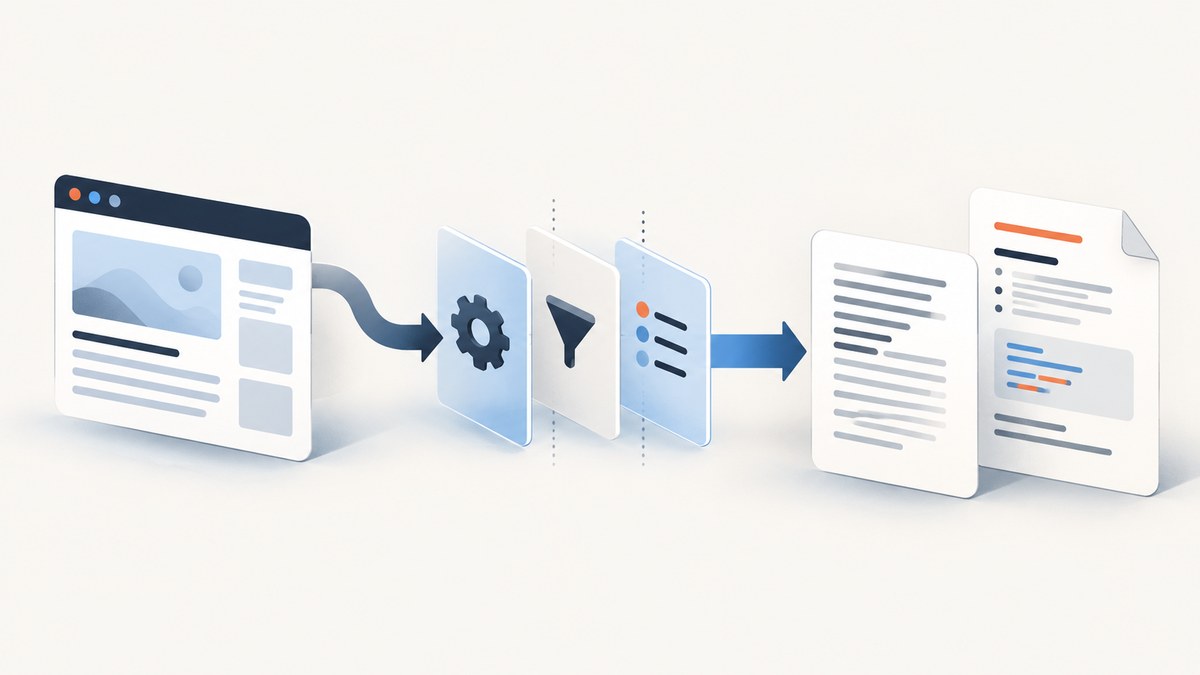
URL to text means taking a webpage address and converting the readable content into plain text or structured Markdown. You can do it manually with a web converter, fetch and parse the page in code, or call an extraction API when the workflow must run repeatedly.
This guide covers the complete process: one-off conversion, HTML parsing, JavaScript-rendered pages, selected article regions, Markdown output, failure diagnosis, privacy and cost considerations, and an alternative when what you actually need is a visual capture.
What URL-to-text conversion does
A converter receives a URL, downloads the page, identifies readable content, and returns a copyable result. Plain text removes most markup and is convenient for logs, search indexes, and simple prompts. Markdown preserves headings, lists, links, and emphasis, which makes it better for documentation and AI context.
URLtoText presents this workflow in a browser: paste a URL, choose an output or extraction option, run the conversion, and copy the result. Its site also describes YouTube transcript support. The available controls include an AI option for extracting main content. JavaScript rendering, residential IP choices, and other advanced controls are shown as account-gated options. Treat those as provider features, not a guarantee that every protected or dynamic page will work.
Fastest method: use a browser converter
- Copy the complete address, including
https://. - Paste it into the converter’s URL field.
- Choose plain text when you need a clean block, or Markdown when headings and lists matter.
- Enable main-content extraction if you want the article separated from navigation and boilerplate.
- Run the conversion and compare the output with the original page before quoting or publishing it.
This method is ideal for a single page. It avoids writing code, but it is not a repeatable pipeline and free access is rate-limited according to the service’s description. The page does not establish a universal success rate, current prices, or numerical quotas, so check the provider’s current terms before planning volume.
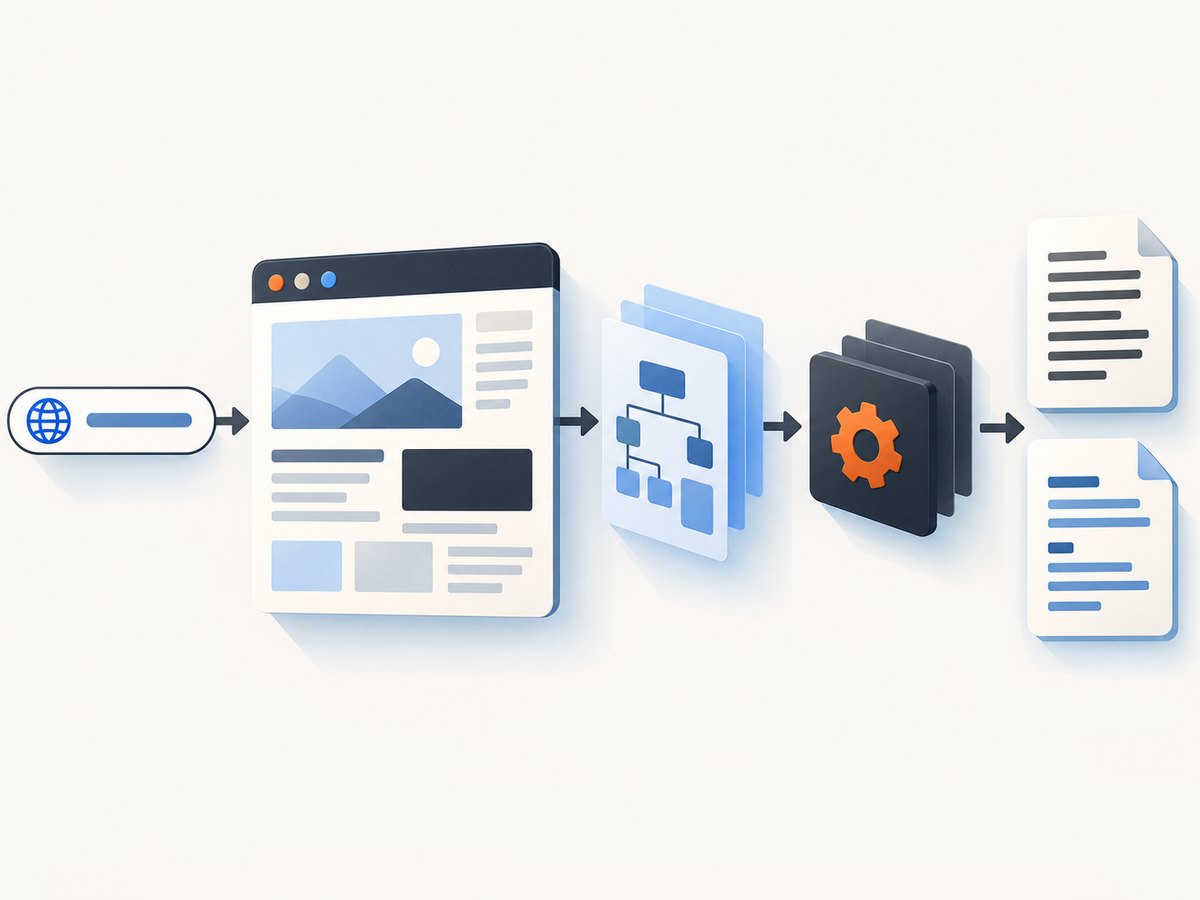
DIY URL-to-text extraction with command-line tools
For a predictable, inspectable workflow, download the HTML and parse it locally. The following commands remove scripts and styles, then print readable text. They are intentionally conservative: they do not claim to reproduce a publisher’s exact article extraction algorithm.
Fetch HTML with cURL
curl -L --fail --compressed \
  -A "url-to-text/1.0" \
  "https://example.com/article" \
  -o page.html
-L follows redirects, --compressed accepts gzip or Brotli responses when supported, and --fail returns a non-zero status for HTTP errors. Respect the site’s terms and robots policy, and do not send credentials unless you are authorized to access the page.
Python: HTML to plain text
#!/usr/bin/env python3
import sys
from urllib.parse import urlparse
import requests
from bs4 import BeautifulSoup

url = sys.argv[1] if len(sys.argv) > 1 else "https://example.com/article"
parsed = urlparse(url)
if parsed.scheme not in {"http", "https"}:
    raise SystemExit("URL must start with http:// or https://")

response = requests.get(
    url,
    headers={"User-Agent": "url-to-text/1.0"},
    timeout=30,
)
response.raise_for_status()

soup = BeautifulSoup(response.text, "html.parser")
for node in soup(["script", "style", "noscript", "template", "svg"]):
    node.decompose()

root = soup.find("article") or soup.find("main") or soup.body or soup
text = "\n".join(line.strip() for line in root.get_text("\n").splitlines() if line.strip())
print(text)
Install dependencies with python -m pip install requests beautifulsoup4, then run python extract.py https://example.com/article. Selecting article or main first reduces navigation noise, but some sites place the content elsewhere. Always inspect a sample before relying on the selector.
Python: preserve basic Markdown structure
import sys
import requests
from bs4 import BeautifulSoup
from markdownify import markdownify as to_markdown

url = sys.argv[1]
html = requests.get(url, headers={"User-Agent": "url-to-markdown/1.0"}, timeout=30).text
soup = BeautifulSoup(html, "html.parser")
for node in soup(["script", "style", "noscript", "template"]):
    node.decompose()
root = soup.find("article") or soup.find("main") or soup.body or soup
print(to_markdown(str(root), heading_style="ATX").strip())
Install the extra package with python -m pip install markdownify. Markdown conversion retains more structure than plain text, but it cannot recover content that was never present in the downloaded HTML.
Node.js: fetch and extract text
import * as cheerio from "cheerio";

const url = process.argv[2] || "https://example.com/article";
const response = await fetch(url, {
  headers: { "user-agent": "url-to-text/1.0" },
  signal: AbortSignal.timeout(30000)
});
if (!response.ok) throw new Error(`HTTP ${response.status}`);

const html = await response.text();
const $ = cheerio.load(html);
$("script, style, noscript, template, svg").remove();
const root = $("article").first().length ? $("article").first()
  : $("main").first().length ? $("main").first()
  : $("body");
console.log(root.text().replace(/\\s+/g, " ").trim());
Install Cheerio with npm install cheerio. For production, keep line breaks or convert selected headings and list elements explicitly instead of collapsing all whitespace.
When the page needs JavaScript
A normal HTTP client sees the server’s initial HTML. If the page fills its article after JavaScript runs, the downloaded document may contain only a shell. A rendering option can execute JavaScript before extraction, but rendering still does not guarantee success on pages that require authentication, challenge a non-browser client, or depend on unavailable APIs.
Use a real browser when you control the environment and need deterministic interaction. With Playwright, wait for a meaningful selector rather than an arbitrary long delay:
import { chromium } from "playwright";

const browser = await chromium.launch({ headless: true });
const page = await browser.newPage();
await page.goto(process.argv[2], { waitUntil: "networkidle", timeout: 60000 });
await page.waitForSelector("article, main", { timeout: 15000 });
const text = await page.locator("article, main").first().innerText();
console.log(text.trim());
await browser.close();
Install it with npm install playwright followed by npx playwright install chromium. Use network-idle waits carefully: analytics and streaming connections can prevent network idle forever. A selector wait plus a bounded timeout is usually more reliable.
API extraction and selected regions
For scheduled jobs, queues, or many URLs, an API avoids maintaining browser binaries. Microlink’s documentation describes an API that can return text, Markdown, or HTML and target a region such as main or article. The useful design choice is to request only the representation your downstream system needs and to constrain extraction to a semantic region when the page contains substantial navigation.
Keep the API response with the source URL, retrieval time, HTTP status, and extraction settings. That metadata makes later corrections possible when a page changes. Do not treat an AI “main content” option as proof of completeness; compare important output with the source page.
Plain text, Markdown, or HTML?
| Format | Best for | Trade-off |
|---|---|---|
| Plain text | Prompts, search, logs, simple storage | Heading and link structure is lost |
| Markdown | Documentation, AI context, reviewable files | Conversion may produce imperfect tables or links |
| HTML | Downstream rendering and custom parsing | Requires sanitization and more processing |
Edge cases to plan for
- Redirects: follow them and record the final URL.
- Encoding: trust the response charset where possible; malformed declarations can produce replacement characters.
- Cookie banners and popups: these can pollute extracted text. Remove known banner selectors or target
article. - Pagination: a “next” link may represent a separate page; extraction does not automatically combine a series.
- PDFs and scans: HTML parsers do not perform OCR. Use a document pipeline designed for PDFs or images.
- Authentication: send cookies or authorization only when you have permission, and keep secrets out of logs.
- Rate limits: add backoff, concurrency limits, and caching instead of repeatedly fetching unchanged pages.
- Robots and terms: comply with site rules and applicable law, especially for bulk collection.
Troubleshooting common failures
| Symptom | Likely cause | Fix |
|---|---|---|
| Empty output | Content is rendered by JavaScript or the selector matches nothing | Inspect initial HTML, use a browser renderer, and verify selectors |
| Navigation dominates | No semantic content root was chosen | Target article or main, then remove banners and menus |
| HTTP 403 or 429 | Access policy or rate limit | Slow requests, identify your client, cache results, and use an authorized access method |
| Timeout | Slow origin or never-ending network activity | Set a deadline, wait for a selector, and retry with exponential backoff |
| Broken characters | Charset mismatch | Check response headers and decode using the declared encoding |
| Missing images | Text extraction intentionally omits images | Store image URLs separately or capture the page visually |
Performance, reliability, and cost
Plain HTTP parsing is fast and inexpensive because it downloads one document and performs local string processing. Browser rendering costs more CPU and memory and should be reserved for pages that need it. Cache by canonical URL and content hash, set bounded concurrency, and retry only transient failures. Keep failed responses separate from successful empty documents so monitoring can distinguish an actual blank page from a parser bug.
Provider free tiers and paid quotas change. URLtoText describes a rate-limited free version and paid access with additional features and API capacity, but the research material does not establish current prices or exact quotas. Verify those details before committing to a volume forecast.
Or skip the browser setup
If your goal is a visual record rather than copyable words, ScreenshotNeo returns a screenshot or PDF from one GET request. Its API can wait for a selector, delay, or network idle, load lazy images, capture an element, apply custom CSS and JavaScript, set cookies and headers, choose a device or viewport, and cache with a TTL you choose. See the ScreenshotNeo documentation for the full option list.

curl -G "https://api.screenshotneo.com/v1/shot" -d access_key=YOUR_API_KEY --data-urlencode url=https://stripe.com -o shot.webpimport requests
r = requests.get("https://api.screenshotneo.com/v1/shot", params={"access_key": "YOUR_API_KEY", "url": "https://stripe.com"}, timeout=90)
open("shot.webp", "wb").write(r.content)const q = new URLSearchParams({ access_key: 'YOUR_API_KEY', url: 'https://stripe.com' });
const res = await fetch(`https://api.screenshotneo.com/v1/shot?${q}`);Cookie banners, newsletter popups, and chat widgets are removed before the shot. Bot checks, blank pages, failed loads, and cache hits are never billed, and response headers identify the page verdict and billing status. An MCP server lets Claude, Cursor, and other MCP clients take screenshots. The free plan includes 1,000 screenshots each month with no card; paid plans start at $5 for 3,000. Create a free ScreenshotNeo account.
FAQ
Can I convert a webpage to Markdown?
Yes. Use a converter’s Markdown option or transform the selected HTML region with a library such as markdownify. Review tables, links, and embedded content after conversion.
How do I extract only the article?
Prefer an article or main selector, then fall back to a readability algorithm or a provider’s main-content option. Validate the result against several pages from the same site.
Why does the browser show text that my script cannot find?
The browser executed JavaScript after the initial response. Fetch the page with a rendering browser and wait for a content selector.
Does URL-to-text extraction preserve images?
No. The URLtoText description distinguishes text and Markdown output from images. Save image URLs separately or use a screenshot or PDF workflow when visual fidelity matters.
Is extracted text automatically accurate?
No. Extraction can omit content, include boilerplate, or misread dynamic sections. Compare important passages with the source before publishing or quoting them.


