How to Use AI to Analyze Screenshots
Learn how to give screenshots to AI, ask precise questions, extract text, debug errors, improve results, and verify what the model sees.
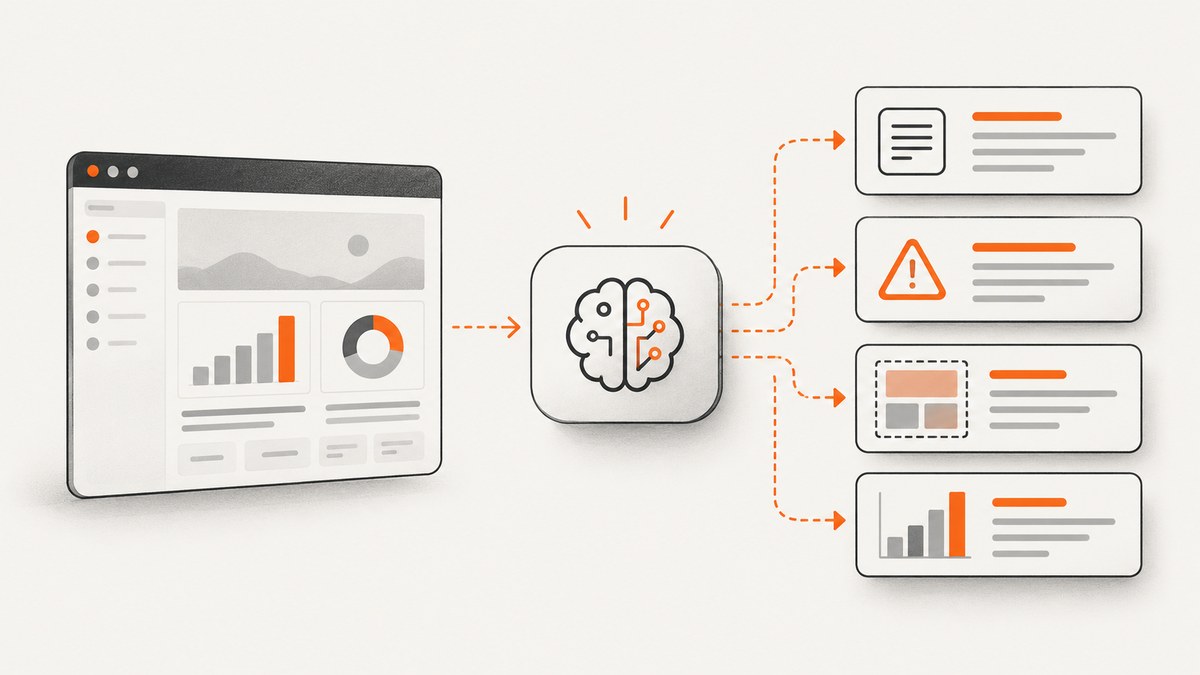
AI can read and explain many screenshots, but the quality of the answer depends on the image, the question and your verification process. Give the model a clear image, say exactly what to inspect, request an inspectable output, and check important claims against the original.
1. The direct answer
To use AI to analyze a screenshot:
- Capture a correctly oriented, readable image.
- Keep enough surrounding context to explain the part you care about.
- Upload the image to an image-capable assistant such as ChatGPT, Claude or Gemini.
- Ask one concrete question, such as “Read the visible error message and explain the likely cause.”
- Tell the model to separate visible facts from inferences and to mark unreadable text.
- Upload a clearer crop or a second image if the first result misses small details.
- Verify transcriptions, counts, coordinates and consequential conclusions against the source.
AI is useful for OCR-like transcription, interface explanation, visual comparison, chart summaries and debugging clues. It can misread small or rotated text, non-Latin text, charts, exact counts and precise locations. OpenAI says unclear images may produce less accurate results, and Anthropic recommends reviewing and verifying image interpretations, especially for high-stakes work (OpenAI image-input guidance; Anthropic Vision documentation).
2. Choose an image-capable AI tool
ChatGPT, Claude and Gemini all document image or file input, but access, limits and interfaces depend on the product surface and account.
| Tool | Useful documented details | Good first uses |
|---|---|---|
| ChatGPT | PNG, JPEG and non-animated GIF are listed, with a 20 MB per-image limit. Upload through the plus menu, drag and drop or paste. Plan-specific limits still apply. | Error screenshots, visible text, interface explanation and image comparison. |
| Claude | Claude documentation lists JPEG, PNG, GIF and WebP. It warns that resizing, cropping and compression can affect quality; counts and coordinates can be approximate. | Document reading, visual explanation and careful comparison. |
| Gemini Apps | The help page describes up to 10 supported files in one prompt, subject to availability, and up to 100 MB for supported non-video files. | Multiple screenshots, visual questions and document analysis. |
Check the current help page before building a workflow because limits and interface labels can change. Gemini’s consumer upload limits are separate from the Gemini API, which supports image input through a public URL, inline image data or the File API (Gemini Apps file uploads; Gemini API image understanding).
3. Prepare a screenshot the model can read
- Orient it correctly. Rotate sideways or upside-down captures before uploading.
- Preserve context. Keep the window title, nearby labels, timestamps or surrounding controls when they explain the target.
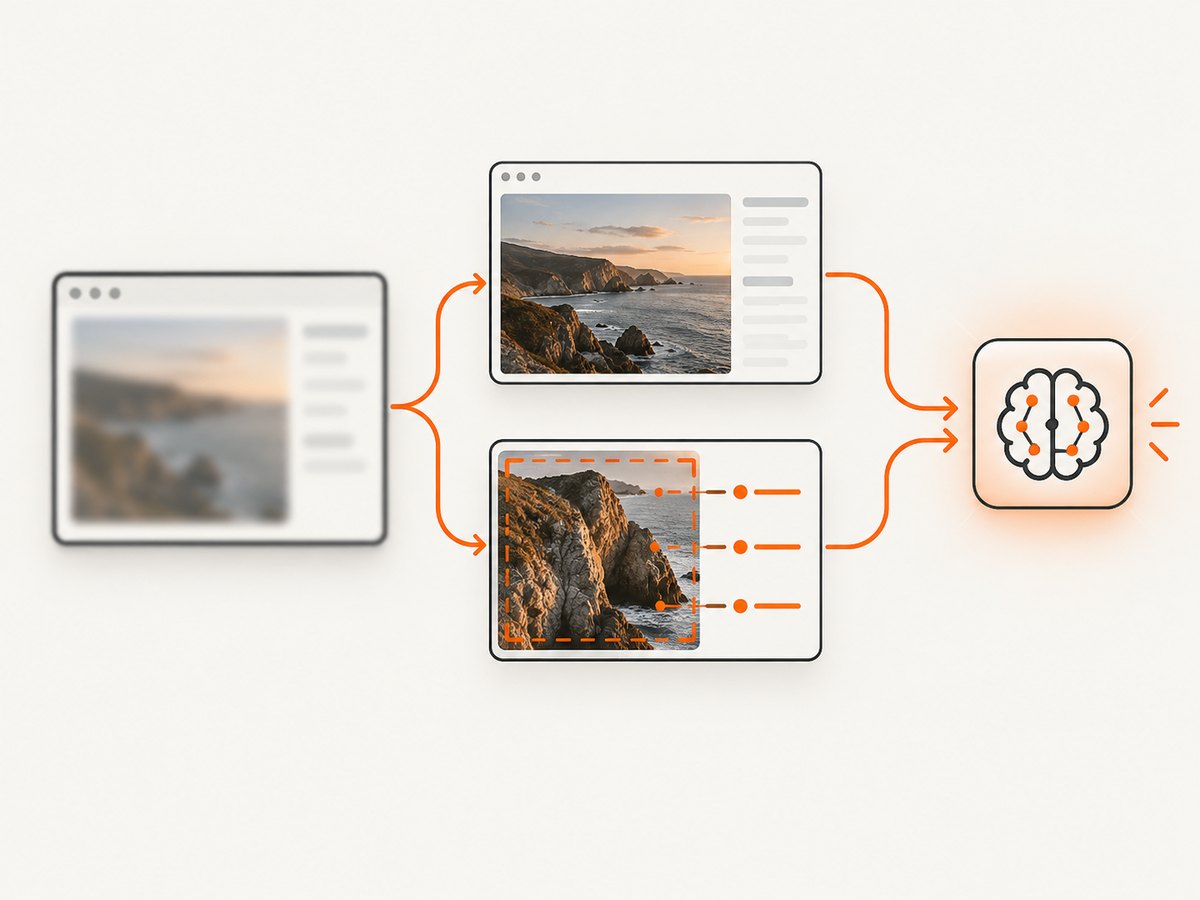
- Make small text readable. Export at a useful resolution. If the full image is too dense, provide the full screenshot plus a focused crop.
- Annotate attention areas. A box or arrow can tell the model where to look, but do not cover the text you want read.
- Use lossless or high-quality output. Repeated compression can turn small characters into artifacts.
- Remove secrets. Redact API keys, passwords, personal data and private URLs before upload.
Do not crop away information needed to answer the question. A crop that makes text larger can also remove the context needed to explain an error. OpenAI notes that resized images may lose detail, while Anthropic advises checking clarity, orientation, resizing and cropping before relying on an interpretation.
4. Upload the image
ChatGPT
Open a chat, select the plus icon and choose Add photos & files, or drag and drop or paste the image. Then send the question with the image attached. The exact label may change.
Gemini
Enter a prompt, choose Add files, select the screenshot and submit. For programmatic use, the Gemini API documentation describes public image URLs, inline image data and the File API.
Claude
Use the plus menu, drag and drop, or paste an image into the conversation. Claude’s documentation also describes image workflows in the Console and API.
5. Ask questions that produce inspectable answers
A vague request such as “What is this?” invites an unfocused description. State the target, output format and uncertainty rule.
Read the visible error message exactly as shown. Preserve line breaks where possible. Then explain what it usually means in two paragraphs. If any character is unclear, mark it as [unclear] instead of guessing.List every visible button and input in the dialog as a table with columns: label, control type, and apparent state. Do not infer behavior that is not visible.Compare these two screenshots. List only visible changes, grouped into added, removed and changed items. If a difference may be caused by viewport size or cropping, say so.Describe the chart's axes, series and visible trend. Quote only labels you can read. Identify unreadable labels and do not estimate exact values from pixels.Useful constraints include:
- “Separate observations from hypotheses.”
- “Return JSON with keys
visible_text,observations,uncertaintiesandnext_checks.” - “Do not identify a person or infer sensitive traits.”
- “Ask me one clarifying question if the screenshot does not contain enough evidence.”
6. Common screenshot-analysis tasks
Explain an error screenshot
Include the full dialog, the application or service name, the action that preceded the error and any visible request ID. Ask the model to transcribe first, then explain likely causes and propose checks. This prevents an explanation from silently changing the error text.
Extract text
Ask for an exact transcription, preserved line breaks and an uncertainty marker. For long pages, use several overlapping crops so that text near crop boundaries is not lost.
Compare releases or responsive layouts
Provide both images at comparable viewport sizes. Ask for visible differences only and have the model distinguish layout changes from content changes.
Understand a chart
Ask for axes, legend labels, series and qualitative direction separately. Do not rely on the model for exact values when tick labels are small or partially hidden.
Inspect a UI for accessibility clues
Ask what is visibly present: contrast problems, truncated labels, missing focus indicators or ambiguous controls. Treat the answer as a review aid, not as a complete accessibility audit.
7. Improve a weak result
- Ask the model which region or characters were unclear.
- Upload a higher-resolution version or a focused crop while retaining one contextual screenshot.
- Use an annotation to point at the target.
- Split a crowded screenshot into logical regions.
- Ask a narrower question and require uncertainty markers.
- Compare the answer with the original before accepting it.
Repeatedly asking the same broad question usually does not recover detail that is absent from the pixels. A better source image or a smaller target does.
8. Capture a clean screenshot for AI analysis
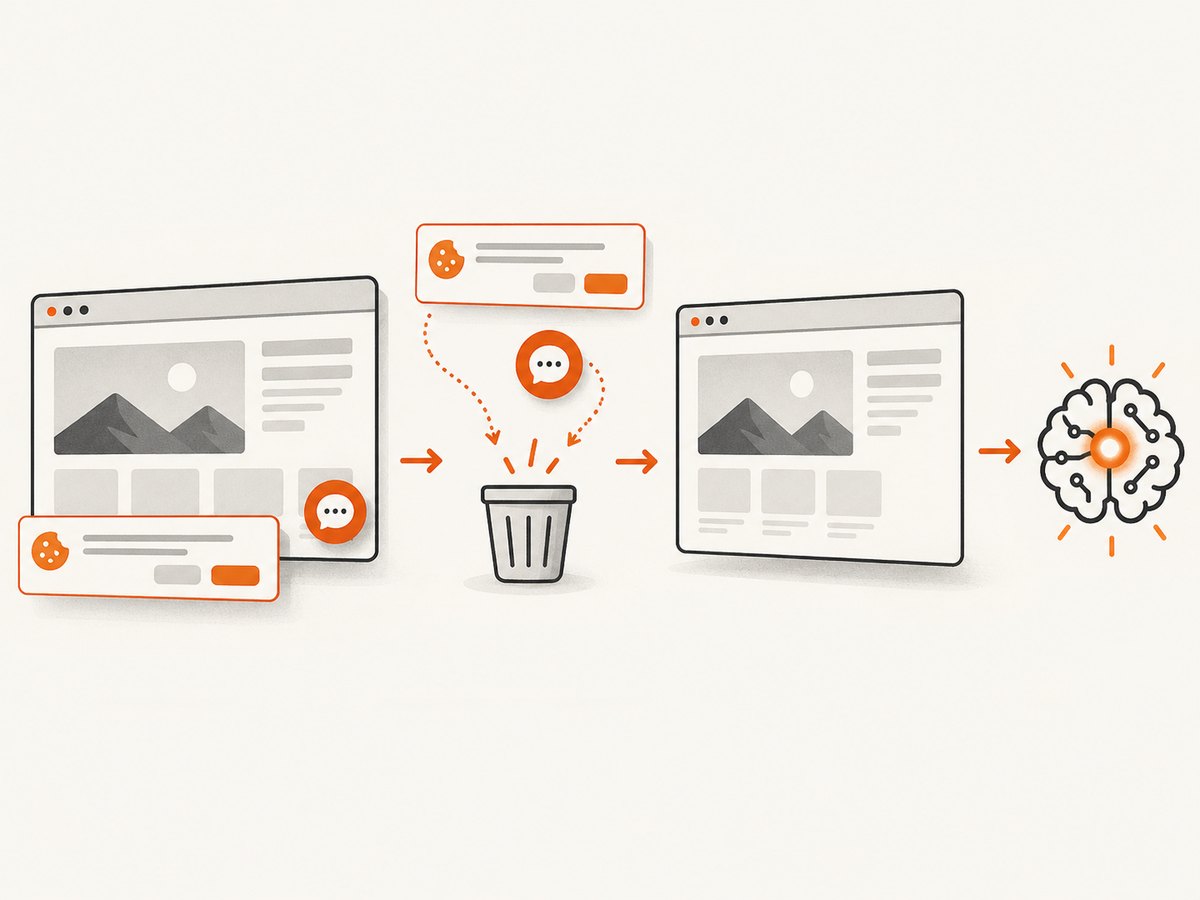
If the page is behind cookie banners, newsletter popups, chat widgets or lazy-loaded content, the image supplied to an AI model may contain distractions or miss the content you need. You can automate browser capture yourself, or use a screenshot API.
DIY browser workflow
- Launch a real browser in a controlled environment.
- Navigate to the URL and wait for the page or a target selector.
- Accept or remove consent UI where permitted.
- Wait for lazy content and fonts to finish loading.
- Hide overlays and capture the viewport, full page or selected element.
- Send the resulting PNG, JPEG or WebP to your image-capable AI tool.
For repeatable jobs, record the URL, viewport, user agent, wait condition, timestamp and any redactions. Do not send credentials or private page content to a third-party model without checking the applicable account and organizational policy.
9. Or skip the browser setup
ScreenshotNeo is a website screenshot API and MCP server. Its capture flow accepts cookie or consent banners like a visitor, then removes more than 60 known consent platforms, newsletter popups and chat widgets before the shot; each step can be turned off. Only clean shots are billed. Bot checks or CAPTCHAs, blank pages, timeouts, failed loads and cache hits cost nothing, and the response identifies the result with X-Page-Verdict and X-Billed headers.
See the ScreenshotNeo API documentation for all options. A direct request is:
curl -G "https://api.screenshotneo.com/v1/shot" -d access_key=YOUR_API_KEY --data-urlencode url=https://stripe.com -o shot.webpimport requests
r = requests.get(
"https://api.screenshotneo.com/v1/shot",
params={"access_key": "YOUR_API_KEY", "url": "https://stripe.com"},
timeout=90,
)
r.raise_for_status()
open("shot.webp", "wb").write(r.content)const q = new URLSearchParams({
access_key: 'YOUR_API_KEY',
url: 'https://stripe.com'
});
const res = await fetch(`https://api.screenshotneo.com/v1/shot?${q}`);
if (!res.ok) throw new Error(`Screenshot failed: ${res.status}`);
const image = Buffer.from(await res.arrayBuffer());Relevant capture controls include full-page shots with lazy images loaded, CSS-element capture, dark mode, device presets or custom viewports, retina scale, custom CSS and JavaScript, clicks, selector hiding, selector or network-idle waits, ad/tracker/request blocking, headers, cookies, user agents, Authorization, timezone, geolocation, transparent backgrounds, resizing, cache TTL, signed links, asynchronous jobs with signed webhooks, bulk capture for up to 100 URLs per call, usage reporting and an OpenAPI specification. An MCP server provides take_screenshot, get_page_info and capture_pdf for Claude, Cursor and other MCP clients.
There is a free allowance of 1,000 shots per month with no card. Paid plans start at $5 for 3,000 shots; every feature is available on every plan. Create a free ScreenshotNeo account.
10. Verify what the model says
Ask the model to distinguish what is plainly visible from what it infers. Independently check:
- Exact transcriptions, especially small text and non-Latin scripts.
- Counts of icons, rows, bars or objects.
- Coordinates, alignment and spatial relationships.
- Chart values, labels and trends.
- Whether an apparent cause is actually supported by the screenshot.
- Names or identities. Claude’s documentation says it cannot identify people in images.
Do not use general-purpose image analysis as a substitute for professional judgment on medical, legal, financial, security or other high-stakes material. OpenAI warns against medical advice and specialized medical-image interpretation; Anthropic gives a similar warning for complex medical imaging.
11. Troubleshooting
| Symptom | Likely cause | Fix |
|---|---|---|
| The upload is rejected | Unsupported format, size or account limit. | Use a supported PNG, JPEG, GIF or WebP format, reduce the file size, or check the current provider limits. |
| Text is hallucinated | Characters are too small, blurred, rotated or compressed. | Provide a higher-resolution crop, preserve context and require [unclear] markers. |
| The model misses the target | The screenshot is crowded or the prompt is broad. | Annotate the region and ask one focused question. |
| A comparison reports false differences | Different viewport, zoom, scroll position or crop. | Capture both states with the same dimensions and alignment. |
| A page screenshot contains a popup | Consent, newsletter or chat UI appeared before capture. | Dismiss or hide it in the browser workflow, or use ScreenshotNeo’s cleanup steps. |
| The screenshot is blank | Navigation, JavaScript, bot protection or a timeout failed. | Check the URL and wait condition, inspect response metadata, and retry with a realistic user agent or longer timeout. |
| AI gives confident causal advice | The image shows symptoms but not the underlying state. | Ask for observations and hypotheses separately, then inspect logs or the original application. |
12. Performance, reliability and cost
- Image size: Larger images preserve detail but consume upload and context budgets. Use the smallest image that keeps the relevant text readable.
- Multiple images: Use paired screenshots for comparisons and overlapping crops for long pages. Provider limits differ.
- Capture timing: Wait for a specific selector or network idle when possible. Fixed delays are less reliable on slow pages.
- Retries: Retry transient navigation or upload failures with bounded backoff. Do not blindly repeat a request that may submit sensitive content.
- Caching: Reuse an unchanged capture when the page state and viewport are identical. ScreenshotNeo supports a TTL you choose and does not bill cache hits.
- Cost: Consumer AI usage and API pricing depend on the provider, account and current terms. ScreenshotNeo charges only clean shots; failed loads, bot checks, blank pages, timeouts and cache hits are not billed.
- Privacy: Review account, workspace and API data controls. OpenAI says metadata and original file names are not processed in its image-input FAQ; Anthropic says API image uploads are ephemeral for the request and are not used to train its models. These statements do not automatically apply to every plan or product surface.
13. FAQ
Can AI read a screenshot?
Yes, image-capable models can answer questions about visible text, objects, documents and layouts, but readability and interpretation limits still apply.
How do I get AI to explain an error screenshot?
Ask for an exact transcription first, then a plain-language explanation, likely causes and next checks. Require uncertain characters to be marked.
How do I extract text from a screenshot?
Upload a clear image and request a verbatim transcription with preserved line breaks. Verify every important character against the image.
Can AI read tiny text?
Sometimes. A higher-resolution crop is more dependable than repeatedly asking about text that is not legible in the original.
Should I upload screenshots containing secrets?
No. Redact credentials, tokens, personal data and private URLs before sending an image to an external service.
Is screenshot analysis accurate enough for medical or legal decisions?
No general-purpose image model should replace an appropriate professional or authoritative source for high-stakes decisions.


