How to Use a Browser Automation SDK
Learn the reliable browser automation workflow: choose an SDK, wait for real page state, interact with locators, verify results, and capture output.

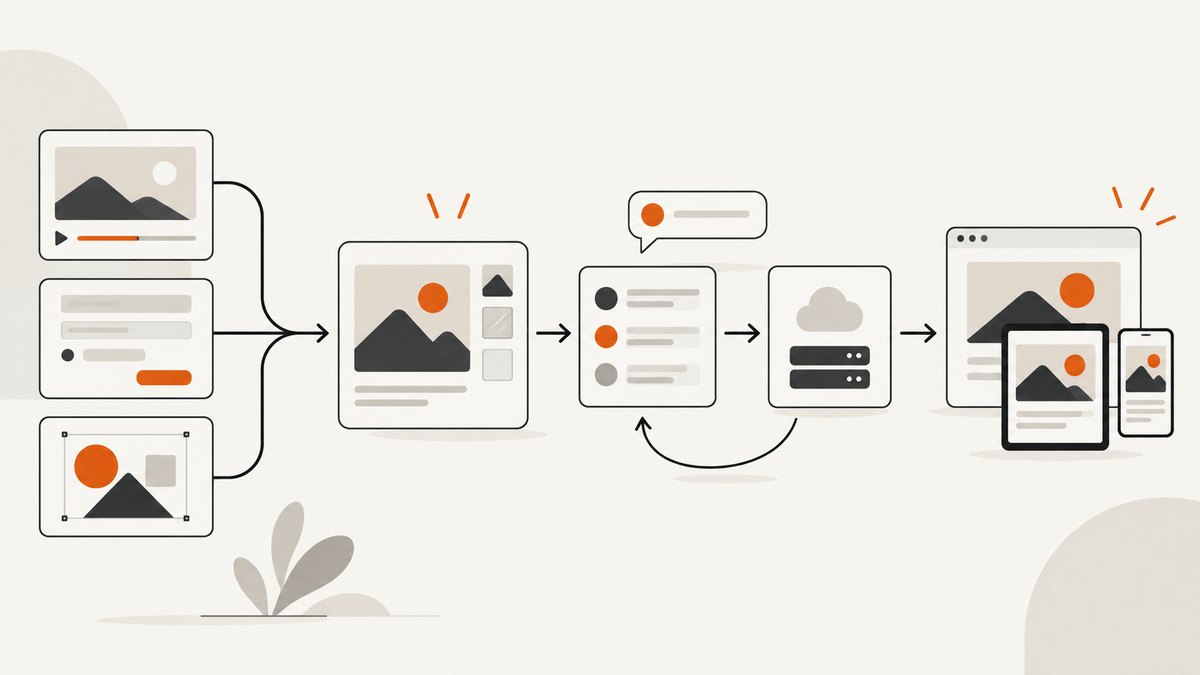
Direct answer: using a browser automation SDK means writing a repeatable lifecycle: launch or connect to a browser, create an isolated context and page, navigate, locate elements with reliable selectors, wait for the state you need, interact, verify the result, produce an artifact such as a screenshot or PDF, and close resources. The hard part is synchronization. Prefer locator APIs and state-based waits over arbitrary sleeps.
This guide shows that workflow with Playwright, Puppeteer and Selenium concepts, explains how to choose an SDK, and covers installation, dynamic pages, CI, failures, performance and cost.
1. Choose an SDK and runtime
Choose based on browser engines, programming language, interaction model and whether you need a general automation library or a complete end-to-end test runner.
| Question | What to check |
|---|---|
| Which browsers? | Playwright examples cover Chromium, Firefox and WebKit. Puppeteer documentation covers Chrome and Firefox automation. Confirm support for the exact version you install. |
| Which language? | Use the maintained binding that matches your application and team. Installation, browser management and APIs differ by language. |
| Automation or testing? | A library controls a browser. A test runner adds fixtures, reporters, parallelism and isolation. Playwright documents these as related but distinct layers. |
| How are waits handled? | Playwright and Puppeteer locators wait for actionability conditions. Selenium commonly uses explicit waits for a named condition. |
| Where will it run? | Verify operating-system support, browser binaries, sandbox requirements, fonts, display dependencies and CI configuration before committing to an SDK. |
2. Install the SDK and browser
Browser installation is part of setup. For Puppeteer, the standard package downloads a compatible Chrome browser; puppeteer-core is library-only. Package managers that block install scripts can prevent the download, so inspect the install output and follow the project’s documented browser-install or script-approval procedure. Always check current official instructions because package behavior changes.
Playwright (Node.js)
npm init -y
npm install playwright
npx playwright install
Puppeteer (Node.js)
npm init -y
npm install puppeteer
Selenium (Python)
python -m venv .venv
source .venv/bin/activate
pip install selenium
In a CI image, verify the browser executable is available before running jobs. A successful package install does not prove that a compatible browser binary, shared libraries or fonts are present.
3. The basic lifecycle
- Launch or connect to a browser.
- Create a browser context when you need isolated cookies, storage, locale or permissions.
- Create a page.
- Navigate to the target URL.
- Locate elements using stable selectors.
- Wait for the condition required by the next action.
- Interact, then assert the resulting state.
- Capture a screenshot, PDF or other artifact if needed.
- Close the page, context and browser in a
finallypath.
Complete Playwright example
This script uses a role locator, waits for a visible result and writes a screenshot. Save it as search.js and run it with node search.js.
const { chromium } = require('playwright');

(async () => {
  const browser = await chromium.launch({ headless: true });
  const context = await browser.newContext({
    viewport: { width: 1440, height: 900 },
    locale: 'en-US'
  });
  const page = await context.newPage();

  try {
    await page.goto('https://example.com', { waitUntil: 'domcontentloaded', timeout: 30000 });
    await page.getByRole('heading', { name: 'Example Domain' }).waitFor({ state: 'visible' });
    await page.screenshot({ path: 'example.png', fullPage: true });
  } finally {
    await context.close();
    await browser.close();
  }
})();
domcontentloaded only means the initial document was parsed. It does not mean an API request, animation or lazy component has finished. Add a wait for the actual result your workflow needs.
Complete Puppeteer example
const puppeteer = require('puppeteer');

(async () => {
  const browser = await puppeteer.launch({ headless: true });
  const page = await browser.newPage();
  await page.setViewport({ width: 1440, height: 900 });

  try {
    await page.goto('https://example.com', {
      waitUntil: 'domcontentloaded',
      timeout: 30000
    });
    const heading = page.locator('h1');
    await heading.wait();
    await page.screenshot({ path: 'example-puppeteer.png', fullPage: true });
  } finally {
    await browser.close();
  }
})();
Puppeteer’s locator API encapsulates selection and waits for presence and actionability. Use it when possible instead of manually querying an element and immediately clicking it.
Selenium example with an explicit wait
from selenium import webdriver
from selenium.webdriver.common.by import By
from selenium.webdriver.support.ui import WebDriverWait
from selenium.webdriver.support import expected_conditions as EC

options = webdriver.ChromeOptions()
options.add_argument('--headless=new')
driver = webdriver.Chrome(options=options)

try:
    driver.get('https://example.com')
    heading = WebDriverWait(driver, 30).until(
        EC.visibility_of_element_located((By.CSS_SELECTOR, 'h1'))
    )
    assert heading.text == 'Example Domain'
    driver.save_screenshot('example-selenium.png')
finally:
    driver.quit()
Selenium’s documentation describes race conditions between application state and automation commands. An explicit wait names the condition that must become true, which is more reliable than a fixed delay.
4. Select elements that survive UI changes
Prefer semantic and test-specific selectors: accessible roles and names, labels, stable IDs and dedicated data attributes. Avoid long CSS paths, generated class names and selectors tied to layout. A locator should describe what the user sees or the stable contract your application exposes.
- Use a role and accessible name for buttons, links, headings and form controls.
- Use a label for inputs when the page has an associated label.
- Add a dedicated attribute such as
data-testidwhen no user-facing identifier is stable. - Scope a locator to a component or dialog before selecting a child.
- After an action, assert a visible result, URL change, response-backed message or changed state.
When a page has repeated elements, express the intended item rather than relying on its position. If the page displays several “Delete” buttons, locate the row containing the record name and find the button inside that row.
5. Synchronize with page state
Do not make arbitrary pauses your primary synchronization strategy. A timeout can be too short on a busy runner and wasteful on a fast one. Wait for the condition required by the next operation:
- Visibility: a control is displayed and can be acted on.
- Attached: an element exists in the DOM when visibility is not required.
- Enabled/actionable: a button is ready to click.
- Network or URL state: navigation or an API-backed transition completed.
- Application state: a result row, toast, spinner disappearance or status value is present.
Use a short, deliberate delay only for behavior that has no observable state, such as allowing a known animation to finish. Keep that exception local and document why it exists.
6. Dynamic pages, authentication and isolation
Lazy content and infinite scroll
Scroll to the region that triggers loading, then wait for new content or a loading indicator to disappear. For a full-page artifact, confirm that the last expected section exists; a full-page screenshot does not guarantee that every lazy image has loaded.
Authentication
Prefer a dedicated test account or a stored authenticated context. Keep credentials outside source control, inject them through the CI secret store, and clear the context after the run. If login uses a one-time code, provide a test-only authentication path rather than scraping a personal inbox.
Popups, dialogs and permissions
Register handlers before the action that opens a dialog or new page. Grant only the permissions required for the scenario. A context per test prevents cookies and local storage from leaking between cases.
Frames and new tabs
Locate elements inside the correct frame instead of searching the top-level document. When an action opens a tab, wait for the new page event and then apply the same locator and state checks there.
7. Screenshots, PDFs and other artifacts
Set the viewport explicitly when pixel output matters. Decide whether you need the visible viewport or a full-page capture. Mask or remove volatile data such as timestamps and rotating ads before comparing images. Save a trace, console log and network log on failure so the artifact explains the error rather than merely recording it.
For visual regression, keep browser version, fonts, device scale factor, timezone and locale consistent. Compare images with a tolerance appropriate to anti-aliasing and animation, and disable transitions where the application permits it.
8. Troubleshooting common failures
| Symptom | Likely cause | Fix |
|---|---|---|
| Browser executable not found | Install script was blocked, or a library-only package was used. | Install the SDK’s compatible browser or set an explicit executable path according to its current documentation. |
| Element not found | The selector is brittle, the element is inside a frame, or the page has not reached the required state. | Use a role, label or stable attribute; select the frame; wait for the relevant condition. |
| Click intercepted | A modal, consent banner, animation or overlay covers the control. | Handle the overlay, wait for actionability, or close the modal through its user-facing control. |
| Timeout during navigation | The site is slow, a request never finishes, or the chosen load event is too strict. | Set a bounded timeout, wait for the specific result instead of global network idle, and inspect failed requests. |
| Flaky test | Fixed sleeps, shared state, random data or animations. | Use state-based waits, isolated contexts, deterministic fixtures and disabled motion. |
| Blank or incomplete screenshot | Lazy resources have not loaded, the viewport is wrong, or a bot check blocked content. | Wait for meaningful content, scroll if needed, set viewport and user agent deliberately, and record the page verdict. |
| Works locally but fails in CI | Different browser version, fonts, sandbox, CPU speed or environment variables. | Pin the runtime image, install dependencies, collect traces and run headed locally inside the same image. |
9. Performance, reliability and cost
- Reuse browsers carefully: launching a browser is expensive, while a context is cheaper. Reuse a browser across independent jobs only when contexts isolate state.
- Control concurrency: too many pages compete for CPU, memory and network bandwidth. Start with a small worker count and increase it while watching failures and resource usage.
- Bound every wait: navigation, locators, downloads and external calls need finite timeouts. On failure, capture diagnostics before closing.
- Reduce work: block nonessential third-party resources only when doing so cannot change the behavior under test. Avoid waiting for global network idle on pages with analytics or long polling.
- Make retries safe: retry transient navigation or infrastructure errors, but do not blindly repeat a non-idempotent purchase or delete action.
- Budget browser time: hosted runners, proxy traffic, storage and CI minutes can dominate cost. Cache browser downloads in CI and keep artifacts only as long as your debugging policy requires.
Reliability comes from making state observable: assert the result you need, record the URL and console errors, and preserve a trace or screenshot for failures. No SDK can infer that an arbitrary page has finished rendering without a condition from the application.
10. Or skip the browser setup
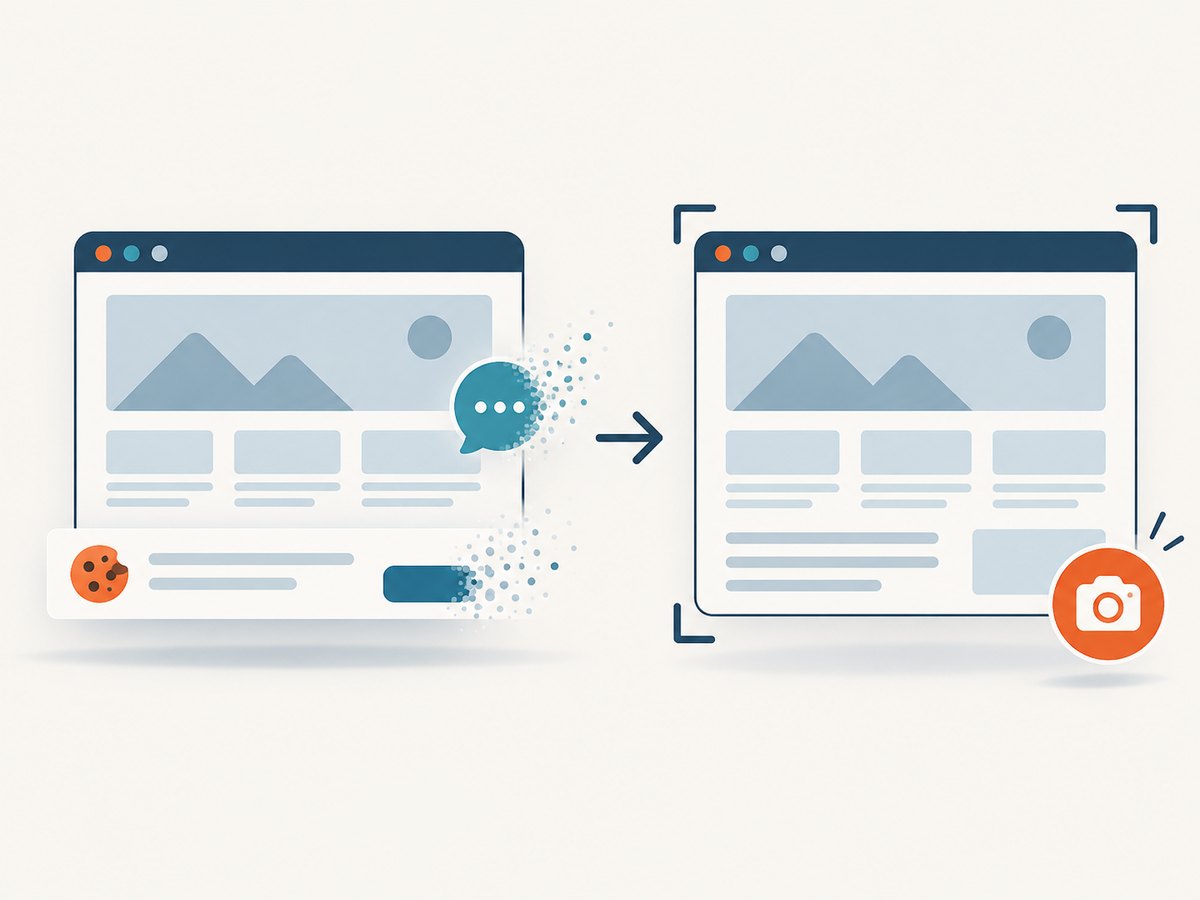
If your goal is a clean website screenshot rather than browser control, ScreenshotNeo provides a single HTTP request. The API accepts the URL and returns PNG, JPEG, WebP or PDF. See the ScreenshotNeo API documentation for the complete option list.
curl -G "https://api.screenshotneo.com/v1/shot" -d access_key=YOUR_API_KEY --data-urlencode url=https://stripe.com -o shot.webpimport requests
r = requests.get("https://api.screenshotneo.com/v1/shot", params={"access_key": "YOUR_API_KEY", "url": "https://stripe.com"}, timeout=90)
open("shot.webp", "wb").write(r.content)const q = new URLSearchParams({ access_key: 'YOUR_API_KEY', url: 'https://stripe.com' });
const res = await fetch(`https://api.screenshotneo.com/v1/shot?${q}`);It removes cookie and consent banners, newsletter popups and chat widgets before capture; bot checks, blank pages, failed loads and cache hits are not billed. Response headers identify the page verdict and whether the shot was billed. You can also use its MCP server with Claude, Cursor or another MCP client through take_screenshot, get_page_info and capture_pdf. There are 1,000 free shots each month with no card; paid plans start at $5 for 3,000 shots. Create a free ScreenshotNeo account.
11. A practical checklist
- Pin and document the SDK and browser versions.
- Verify the browser binary and OS dependencies in CI.
- Create an isolated context for each independent scenario.
- Use semantic or stable locators.
- Wait for application state, not arbitrary time.
- Assert the result after every important interaction.
- Set viewport, locale, timezone and permissions explicitly when output depends on them.
- Capture diagnostics on failure and close resources in cleanup code.
- Limit concurrency and make retries safe.
FAQ
Should I use Playwright, Puppeteer or Selenium?
Match the SDK to your language, browser coverage, existing ecosystem and synchronization model. The official documentation does not establish one universal winner.
Is a browser automation SDK only for testing?
No. The same lifecycle can drive data collection, authenticated workflows, screenshots, PDFs and performance analysis. Apply the target site’s terms and access rules.
Why is a fixed sleep unreliable?
It guesses how long a page will take. A condition-based wait adapts to the actual state and exposes a useful failure when that state never occurs.
When should I use an API instead of browser automation?
Use an API when you need a rendered artifact and do not need to interact with the page. Use an SDK when you must click, type, authenticate interactively or inspect application state between actions.


