How to Use a Chrome Page Screenshot Plugin
Capture a visible area or an entire webpage in Chrome, choose a safe extension, fix common failures, and automate screenshots with ScreenshotNeo.
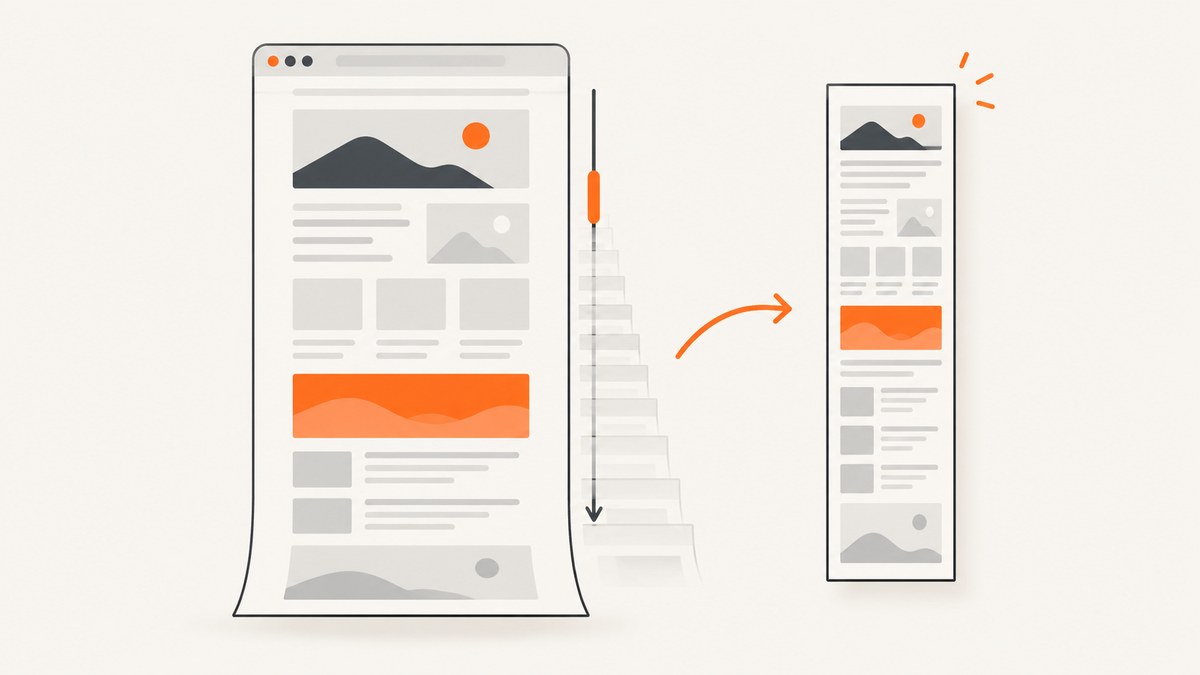
Short answer: install a reputable Chrome screenshot extension, review its permissions and privacy disclosure, open the page, click the extension, choose a full-page or visible-area capture, wait for the page to be scanned, then export the image or PDF. Always inspect the result because sticky headers, lazy-loaded content, very long pages and protected pages can produce gaps or duplicates.
1. Choose a Chrome screenshot plugin
Chrome extensions differ in what they capture and what data they can access. Before installing one, compare:
- Capture area: visible viewport, selected rectangle, or the complete page.
- Output: PNG, JPG, PDF, or an editor project.
- Editing: annotations, redaction, cropping and blur.
- Permissions: request only the access needed for the advertised feature.
- Privacy: read the publisher’s data-collection and retention disclosure.
Chrome Web Store policy guidance says extensions should request the narrowest permissions necessary for their current features. Products handling user data must disclose relevant collection and use practices and handle that data securely. Treat those statements as publisher disclosures, not as an independent security audit.
2. Install and verify the extension
- Open the extension’s Chrome Web Store listing.
- Review the publisher, permissions and privacy practices.
- Click Add to Chrome, then approve the installation prompt.
- Pin the extension from Chrome’s puzzle-piece menu so its icon is easy to reach.
- Open a non-sensitive test page and take a small capture first.
Do not install an extension from an unknown download page when the official store listing is available. Remove extensions you no longer use and revisit permissions after major updates.
3. Take a visible-area screenshot
- Open the page and scroll to the exact viewport you want.
- Click the screenshot extension icon.
- Select Visible area or the equivalent option.
- Drag a selection if the extension supports a custom rectangle.
- Use the editor to crop, annotate or redact sensitive data.
- Export as PNG, JPG or PDF, depending on the extension.
A visible-area capture is the most predictable option for dashboards, dialogs and pages with fixed toolbars. It also avoids the long-page stitching problems described below.
4. Capture the entire page
- Navigate to the page and wait until its initial content appears.
- Click the extension icon and choose Full page.
- Keep the tab active while the extension scrolls through the page and assembles sections.
- Wait for processing to finish; do not close or refresh the tab.
- Review the assembled image from top to bottom.
- Download the image or PDF.
GoFullPage’s Chrome listing documents a full-page workflow, image and PDF export, and the Alt+Shift+P shortcut. It also notes that exceptionally large pages may be split into separate images or tabs. Other extensions expose similar controls, but names and shortcuts vary.
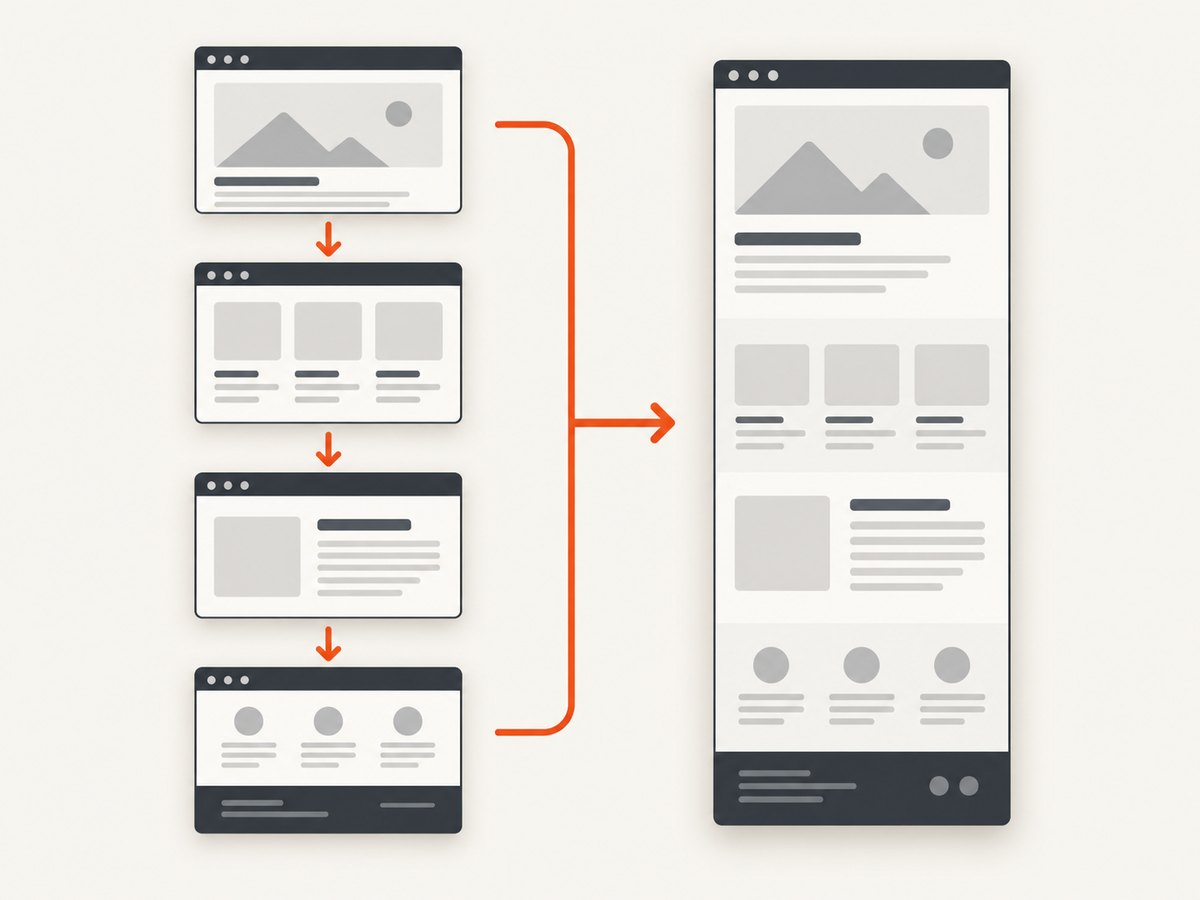
What the extension is doing
A full-page plugin normally captures several viewport-sized sections while scrolling, then stitches them together. It is not necessarily one instantaneous screenshot. A page that changes while it is being scrolled can therefore show repeated, missing or inconsistent content.
5. Handle lazy loading, sticky elements and dynamic pages
Lazy-loaded images
Scroll slowly through the page once before starting the capture if images appear only after entering the viewport. This primes the browser cache and gives image requests time to finish.
Sticky headers and chat widgets
Fixed headers, cookie bars and chat bubbles can appear in every stitched section. If the extension has an element-hiding tool, hide those controls first. Otherwise use a custom-area capture or crop the repeated strip afterward.
Animations and changing content
Pause carousels and videos where possible. Capture after the page reaches a stable state. A live feed, countdown or rotating ad can never be represented consistently across a tall image.
Infinite scroll
Full-page capture may stop at the initially available content. Load the required items manually, then capture. For an unbounded feed, define a stopping point and use several bounded captures.
6. Export, redact and share safely
Check the top, middle and bottom of every long capture. Look for duplicated navigation, blank bands, cut-off images, missing fonts and private data. Use built-in redaction when available, or edit a copy before sharing. Remember that a screenshot can contain account names, email addresses, tokens, order numbers and internal URLs even when the page itself is not downloadable.
7. Troubleshooting
| Problem | Likely cause | Fix |
|---|---|---|
| The extension icon is missing | It is installed but not pinned, or Chrome has disabled it. | Open the puzzle-piece menu, pin the extension and check chrome://extensions. |
| Only the visible viewport is captured | The visible-area mode was selected. | Run the extension again and choose full-page capture. |
| The page has blank sections | Lazy resources, blocked requests or a timeout during scrolling. | Pre-scroll the page, wait for images, disable aggressive blocking, and retry with fewer tabs open. |
| Sections are duplicated | A sticky element or layout shifted while stitching. | Hide fixed elements, pause animations and capture after the page stabilizes. |
| The bottom is missing | The page uses infinite scroll, an internal scroll container or an extension size limit. | Load more content manually, capture the scroll container separately, or split the page into sections. |
| Login content is absent | The extension cannot access the page, the session expired, or a new tab lost authentication. | Confirm you are signed in, allow the extension on the site, and avoid sharing the resulting image publicly. |
| A CAPTCHA or bot-check page appears | The site challenged automated or unusual scrolling. | Complete the check in the browser, slow down, or use a server-side capture service that reports failed loads instead of returning a misleading image. |
| PDF text looks blurry | The extension rasterized a very tall image before placing it in a PDF. | Use the extension’s native PDF mode if available, reduce the capture area, or generate a PDF with a dedicated renderer. |
| The browser becomes slow | A very tall bitmap consumes substantial memory. | Close other tabs, split the capture, reduce device scale, or use an API job. |
8. Performance, reliability and privacy checklist
- Capture after fonts, images and critical scripts finish loading.
- Use visible-area mode for repeatable viewport evidence.
- Split exceptionally long pages into logical sections.
- Keep the extension updated and review permission changes.
- Never include secrets in a screenshot that will leave your device.
- For scheduled or high-volume work, prefer an API with explicit timeouts, retries, caching and job status.
Browser extensions are convenient for one-off work because they share your current session. Their output depends on the local browser, installed fonts, viewport, network and page state. An API is easier to run consistently in CI or a backend, but you must manage authentication and request limits.
9. Alternatives for automation
If you need repeatable captures, run a browser with Playwright or Puppeteer and wait for a selector, a delay or network idle before taking a screenshot. That approach gives you control over headers, cookies, viewport and scripts, but it also means maintaining browser binaries, handling consent banners and diagnosing bot checks.

Or skip the browser setup
ScreenshotNeo is a website screenshot API and MCP server. It accepts one GET request and returns PNG, JPEG, WebP or PDF. Before capture it accepts cookie and consent banners and removes more than 60 known consent platforms, newsletter popups and chat widgets; each step can be turned off. Bot checks, blank pages, timeouts, failed loads and cache hits are not billed, and response headers report the page verdict and whether the request was billed.
See the ScreenshotNeo API documentation for all options, including full-page capture with lazy images loaded, CSS-selector element capture, dark mode, device presets, custom viewports, retina scale, PDF paper size and margins, custom CSS and JavaScript, clicks, wait conditions, blocking rules, headers, cookies, user agents, authorization, timezone, geolocation, transparent backgrounds, resizing, TTL caching, signed links, async webhooks, bulk capture and usage reporting.
cURL
curl -G "https://api.screenshotneo.com/v1/shot" -d access_key=YOUR_API_KEY --data-urlencode url=https://stripe.com -o shot.webpPython
import requests
r = requests.get("https://api.screenshotneo.com/v1/shot", params={"access_key": "YOUR_API_KEY", "url": "https://stripe.com"}, timeout=90)
open("shot.webp", "wb").write(r.content)
Node.js
const q = new URLSearchParams({ access_key: 'YOUR_API_KEY', url: 'https://stripe.com' });
const res = await fetch(`https://api.screenshotneo.com/v1/shot?${q}`);
An MCP server provides take_screenshot, get_page_info and capture_pdf tools for Claude, Cursor and other MCP clients. The free plan includes 1,000 shots per month with no card; paid plans start at $5 for 3,000 shots. Create a free ScreenshotNeo account.
10. FAQ
Can a Chrome plugin capture a page I cannot scroll?
Usually it captures the visible viewport, but full-page mode may fail when content is inside a nested scroll container. Capture that container or use an API with element selection.
Does full-page capture include content below the fold?
That is the purpose of full-page mode, but the extension must scroll and stitch the page. Lazy, protected or infinite content can still be absent.
Which format should I use?
PNG is best for crisp UI text, JPG is smaller for photographs, and PDF is convenient for documents and review workflows.
Should I use an extension for automated nightly screenshots?
Use an API or controlled browser job. Extensions depend on an interactive desktop session and are harder to monitor and retry.


