How to Use clipRect in PhantomJS Screenshots
Use PhantomJS’s clipRect to capture a precise rectangle of a webpage. Learn how it differs from viewportSize, set it up, and troubleshoot common issues.

page.clipRect sets the rectangular portion of a PhantomJS page that page.render() rasterizes. Give it four numbers: top, left, width, and height. The coordinates select a region of the rendered page; they do not change how the page lays itself out. For layout dimensions, set page.viewportSize separately. If you leave clipRect unset, PhantomJS renders the entire page.
1. What clipRect does
PhantomJS exposes clipRect on a page object. When page.render() runs, this property defines the rectangular region to rasterize. The rectangle is represented by an object with these properties:
| Property | Meaning |
|---|---|
top |
Vertical position of the rectangle’s top edge. |
left |
Horizontal position of its left edge. |
width |
Width of the output region. |
height |
Height of the output region. |
For example, the rectangle below starts 14 units down and 3 units from the left, and covers an area 400 by 300:
page.clipRect = {
  top: 14,
  left: 3,
  width: 400,
  height: 300
};
The rectangle is a crop of the page rendering. It does not select a DOM element, scroll the page to an element, or resize the viewport. If you need an element-specific screenshot, determine the element’s position and dimensions, then use those values to define the rectangle; account for the page’s coordinate system and any scrolling involved.
2. clipRect versus viewportSize
These two properties answer different questions:

| Property | Controls | Use it when |
|---|---|---|
viewportSize |
The dimensions PhantomJS uses to lay out the page, simulating a browser window. | You need a particular responsive breakpoint or page layout. |
clipRect |
The rectangle rasterized by page.render(). |
You want only a region of the rendered page in the output. |
Set both when both layout and output bounds matter. For example, a 1024-by-768 viewport can lay out the page at that size, while a 400-by-300 clip can capture just a portion of it. If the page must render at a mobile breakpoint, changing only the clip will not create a mobile layout; set the viewport width accordingly.
3. Complete PhantomJS example
Save this as capture.js. It sets a viewport, applies a clip rectangle, opens a page, and saves the result as a PNG:
var page = require('webpage').create();

page.viewportSize = {
  width: 1024,
  height: 768
};

page.clipRect = {
  top: 0,
  left: 0,
  width: 400,
  height: 300
};

page.open('https://example.com/', function(status) {
  if (status !== 'success') {
    console.error('Could not load the page.');
    phantom.exit(1);
    return;
  }

  page.render('capture.png');
  phantom.exit();
});
Run it with the PhantomJS command-line application:
phantomjs capture.jsThe output file is written to the current working directory. Use an absolute path if you need to control exactly where the file goes. The callback checks the page load status so a failed navigation does not silently produce a misleading capture.
Set the rectangle for a region below or beside the origin
To capture a region that begins farther down or to the right, increase top or left. Keep the desired output dimensions in width and height:
page.clipRect = {
  top: 120,
  left: 80,
  width: 600,
  height: 400
};
Coordinates describe the crop’s location in the rendered page, not a CSS selector. A rectangle that extends beyond the area you intended may include unexpected content or blank space. Verify the page dimensions and coordinates for the particular page before relying on a crop in a batch job.
4. Choose output format and file name
page.render() saves the rendered page to the filename you provide. PhantomJS chooses the output format from the extension unless you specify a format. The documented formats are PDF, PNG, JPEG, BMP, and PPM; GIF support depends on the Qt build. For the example above, capture.png produces PNG output.
page.render('capture.jpg');
page.render('capture.pdf');
Choose an extension that matches the intended output. PNG is a straightforward choice for sharp interface captures. JPEG is useful when a lossy image is acceptable; PDF is a document output rather than a raster image. Format support can depend on the PhantomJS and Qt build, especially for GIF, so check the environment if a particular format fails.
5. Set up and run a capture reliably
- Create a page. Use the PhantomJS
webpagemodule to create the page object. - Set the layout viewport. Assign
viewportSizewith both width and height if the page needs a defined browser-window size. - Set the capture rectangle. Assign
clipRectwith numerictop,left,width, andheight. - Open the target. Call
page.open()and inspect its status in the callback. - Render after opening. Call
page.render()after the page has loaded, then exit PhantomJS. - Check the output. Confirm the file exists, has the expected format, and contains the intended region.
This order follows the documented screenshot workflow: configure the page, open the URL, render the output, and exit. For pages that populate content after initial navigation, a successful open alone may not mean the final content is ready. A fixed delay or page-specific readiness check may be necessary, but account for the tradeoff between waiting long enough and keeping the capture process fast.
6. Edge cases to account for
Rectangle and viewport do not match
A clip wider or taller than the viewport does not change the page’s layout width or height. The layout still comes from viewportSize. Set the viewport to control responsive behavior and the clip to control capture bounds.
Negative, zero, or unexpected dimensions
Use sensible numeric values for all four rectangle fields. A zero-sized region cannot produce the intended image; negative coordinates or dimensions are unlikely to represent a useful crop. If output is empty or surprising, start with top: 0, left: 0 and a small positive width and height, then adjust one property at a time.
Dynamic pages
Content can appear after the initial page load due to scripts, delayed requests, or animation. If the capture misses it, render after the relevant content is ready. Avoid relying on an arbitrary long sleep for every URL if a page-specific condition can tell you when the needed content exists.
Long pages
A clip selects a rectangle; it is not a request to capture each page section independently or to stitch a page. Choose the bounds you need. If you intend to capture a region far down a long page, confirm the page has rendered that content and that the coordinates correspond to the desired position.
Device pixel ratio assumptions
The supplied PhantomJS documentation describes the rectangle in terms of page coordinates and does not specify a separate high-density scaling option in this workflow. If exact output pixel dimensions matter, inspect the resulting image in the PhantomJS version and environment you run rather than assuming a device scale factor.
7. Troubleshooting
| Symptom | Likely cause | Fix |
|---|---|---|
| The image shows the whole page. | clipRect was not set on the page being rendered, or was assigned after rendering. |
Assign it to the page object before calling page.render(). |
| The crop is at the wrong size or position. | top, left, width, or height is incorrect, or you expected the clip to control layout. |
Check each value and set viewportSize separately for the desired page layout. |
| The page looks like a desktop page despite a narrow image. | The clip is narrow, but the viewport remains wide. | Set a narrow viewportSize.width to trigger the intended responsive layout. |
| The output is blank or incomplete. | The page failed to load, content is delayed, or the crop points at an empty region. | Check page.open()‘s status, confirm the coordinates, and wait for the page-specific content before rendering. |
| No output file appears. | The script exited before render completed or the path is not where expected. | Render in the page-open callback, use a known output path, and inspect the command’s exit status. |
| A requested format does not work. | The extension or the build’s format support is the issue; GIF depends on Qt build. | Try a documented format such as PNG or JPEG and verify the runtime build for other formats. |
phantomjs is not found. |
The executable is not installed or is not on the shell’s PATH. | Install or locate the PhantomJS command-line application and invoke its full path. |
8. Performance, reliability, and cost
A local PhantomJS capture uses the browser process and the time needed to load and render the target page. The main practical performance choices are viewport size, how much of the page you rasterize, and how long you wait for dynamic content. A smaller clip reduces the requested capture region, but it does not necessarily avoid the cost of loading and laying out the page. Do not treat cropping as a substitute for controlling page readiness.
For repeatable captures, make the viewport and rectangle explicit, check the navigation status, wait for content that matters, and use deterministic output filenames or paths. Web pages can change over time, and network failures or bot checks can affect what the browser receives. The research sources do not provide PhantomJS maintenance or current support status, so verify that the runtime fits your environment before choosing it for a new production workflow.
There is no per-shot service charge in the local workflow shown here, but operating it still uses compute, storage, and engineering time. Account for retries and failed navigations in your own job design. Keep timeouts bounded, record the URL and capture settings for failures, and avoid blindly retrying a page that consistently returns the same error.
9. Or skip the browser setup
If you need a screenshot without maintaining a local PhantomJS capture script, ScreenshotNeo is a website screenshot API and MCP server from Yorker Media. It accepts one GET request with a URL and returns a PNG, JPEG, WebP, or PDF. Its request parameter names also work with those used by other screenshot APIs, which can make switching easier. The ScreenshotNeo API documentation lists the request options.
curl -G "https://api.screenshotneo.com/v1/shot" -d access_key=YOUR_API_KEY --data-urlencode url=https://stripe.com -o shot.webpimport requests
r = requests.get(
"https://api.screenshotneo.com/v1/shot",
params={"access_key": "YOUR_API_KEY", "url": "https://stripe.com"},
timeout=90,
)
open("shot.webp", "wb").write(r.content)const q = new URLSearchParams({ access_key: 'YOUR_API_KEY', url: 'https://stripe.com' });
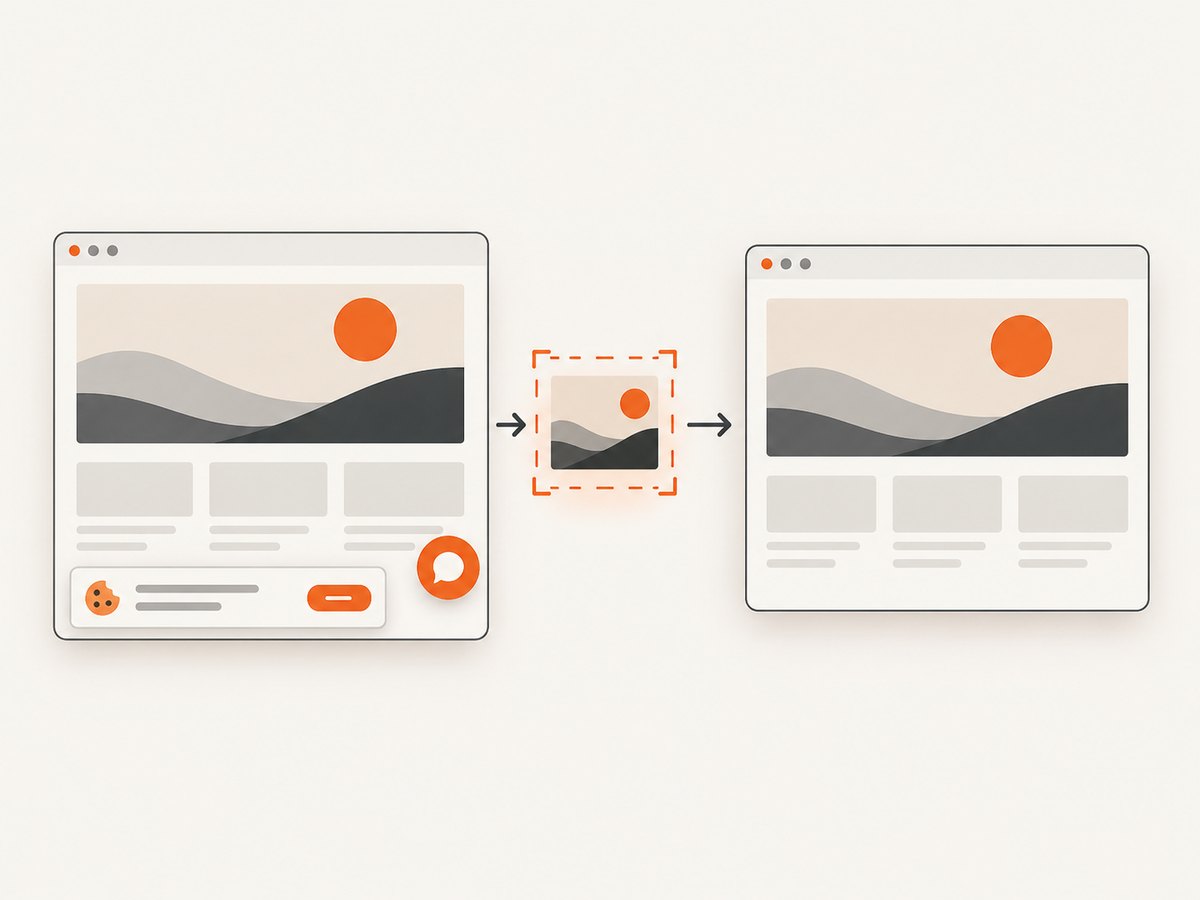
const res = await fetch(`https://api.screenshotneo.com/v1/shot?${q}`);ScreenshotNeo accepts cookie and consent banners as a visitor and removes more than 60 known consent platforms, newsletter popups, and chat widgets before capture; each step can be turned off. Bot checks and CAPTCHAs, blank pages, timeouts, failed loads, and cache hits are not billed, and response headers report the page verdict and billing status. Its MCP server gives AI agents tools named take_screenshot, get_page_info, and capture_pdf. The free plan includes 1,000 screenshots a month with no card; paid plans start at $5 for 3,000 shots.
Sign up for ScreenshotNeo’s free 1,000 screenshots a month, with no card required.
10. FAQ
Does clipRect crop a DOM element by selector?
No. It defines a rectangular page region. To capture an element, find its position and dimensions and use those as the rectangle, or use a tool with element capture support.
Can I set clipRect without viewportSize?
The documented crop property is separate from the viewport. Set viewportSize when the page needs a particular layout size; set clipRect for the rasterized bounds.
What happens when clipRect is omitted?
page.render() processes the entire webpage when no clipping rectangle is set.
Can page.render save a PDF?
Yes. The documented output formats include PDF; use a filename with a PDF extension.


