How to Use GoFullPage to Capture a Full-Page Screenshot
Capture an entire webpage with GoFullPage, save it as PNG, JPEG, or PDF, and fix common problems with tall pages and custom scrolling.
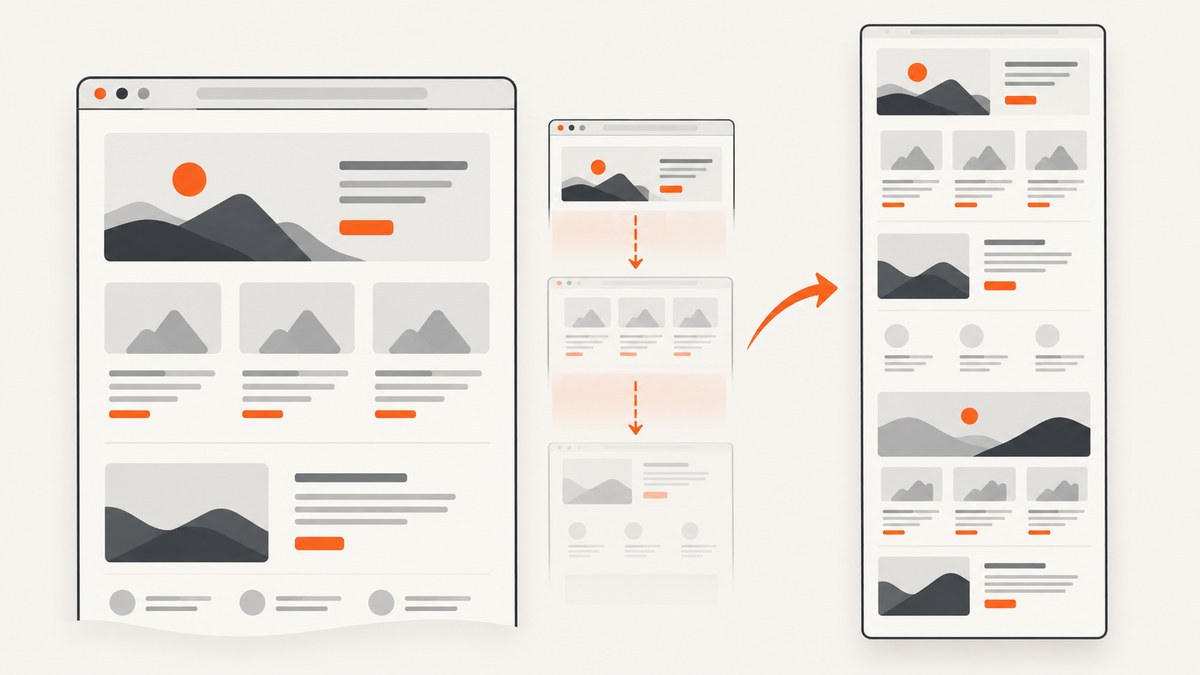
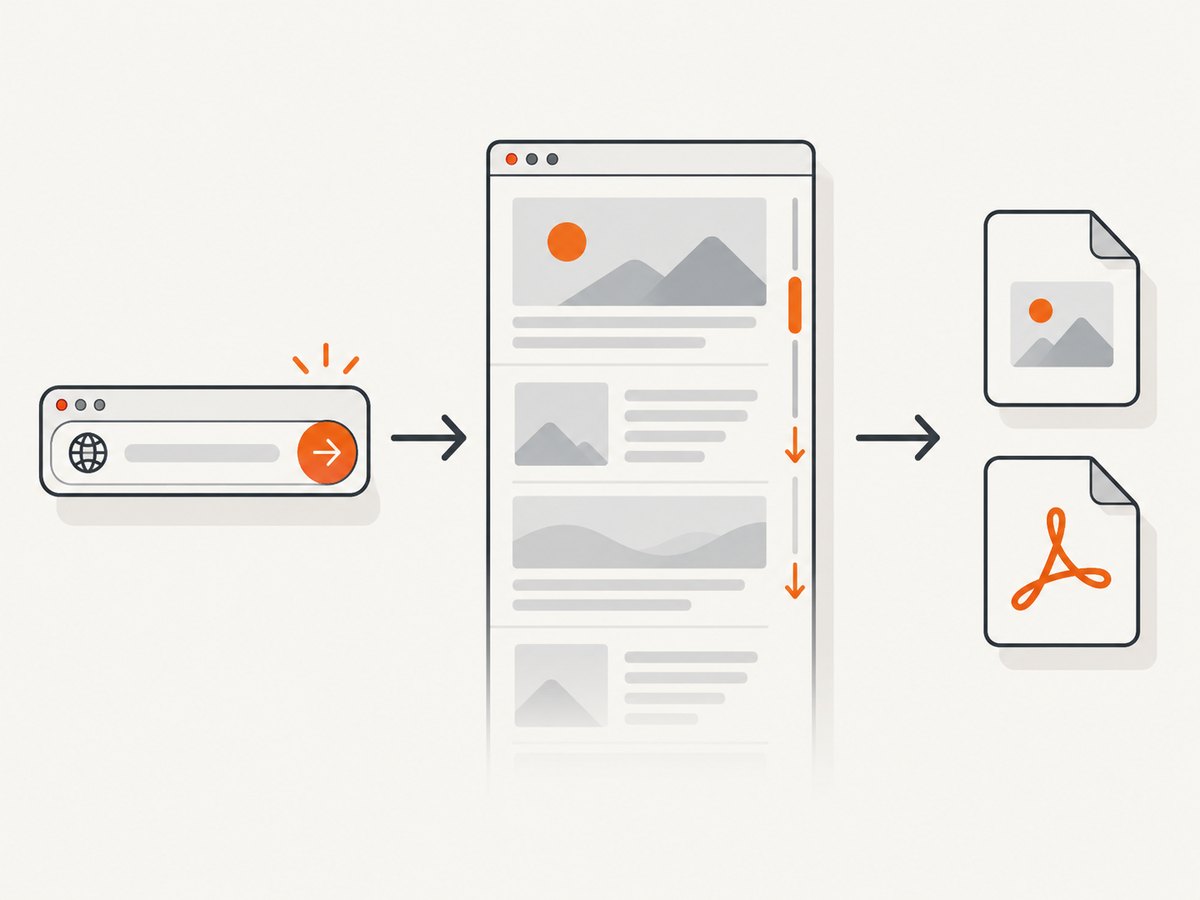
Direct answer: Open the webpage you want to save, click the GoFullPage extension icon, or press Alt+Shift+P. GoFullPage scrolls through the page, captures each visible section, assembles the sections into one long image, and opens the result in a new tab. From there, download the result as an image or PDF. The same shortcut is documented in the Chrome Web Store and Firefox Add-ons listings. Chrome listing · Firefox listing
What GoFullPage captures
A normal browser screenshot records only the current viewport. GoFullPage captures the page by scrolling through its visible sections and stitching those sections together. This makes it useful for documentation, bug reports, design reviews, archiving a landing page, or sharing a long article with someone who does not need an interactive page.
The finished capture opens in a new tab. You can save an image file or export a PDF. The store listings describe PNG/JPEG image output and PDF export, while cropping, annotation, and emoji editing are associated with the Premium editor. Choose an image when you need a direct screenshot asset; choose PDF when the recipient expects a document-style file.
Install GoFullPage safely
- Open the official Chrome Web Store listing or Firefox Add-ons listing.
- Check the extension name and developer details before installing. The vendor FAQ warns that copycat extensions exist, so use official browser-store channels.
- Choose Add to Chrome or Add to Firefox, then approve the browser permission prompt.
- Pin the extension if you want its icon to remain visible in the browser toolbar.
Version numbers and update dates change. The listings checked for this guide showed version 8.9, with Chrome updated September 25, 2026 and Firefox updated September 24, 2026. Recheck the store listing when you install because those details are time-sensitive.
Step-by-step: capture a complete webpage
1. Open the page
Navigate to the exact URL you want to capture. Wait for the main content, images, fonts, and client-rendered sections to finish loading. If the page has a cookie dialog or sign-in wall, handle it before starting the capture. GoFullPage works with a regular webpage that the browser can display; it does not turn a PDF document into a scrollable webpage capture.
2. Start GoFullPage
Use either method:
- Click the GoFullPage icon in the browser toolbar.
- Press Alt+Shift+P.
The extension takes control of the page and scrolls through its sections. Do not scroll manually while it is working. Keep the tab open until the capture finishes.
3. Wait for assembly
GoFullPage captures each viewport-sized section and assembles them into one result. A long page takes longer because the extension has more sections to process. Pages with lazy-loaded images can also change while the extension scrolls. Wait for the completed result to open in a new tab before closing the source tab.
4. Review the result
Inspect the top, middle, and bottom of the assembled image. Look for duplicated sections, missing lazy-loaded images, fixed headers appearing repeatedly, or content that changed during scrolling. If the result is correct, use the download controls to save an image or PDF.
5. Crop or annotate when needed
The official listings describe cropping, annotation, and emoji editing as Premium editor features. If you need a marked-up bug report or a cropped panel, use the editor controls shown after capture and check the current Premium terms before purchasing.
Output choices: image or PDF
| Output | Use it when | Check before sharing |
|---|---|---|
| PNG or JPEG | You need a screenshot for a ticket, design review, article, or image archive. | Very tall images can be awkward to view and may be large. |
| You need a document-like deliverable or want to print the page. | Confirm paper size, page breaks, and margins in the available export controls. |
A PDF is not the same as a browser-native webpage archive. It represents the captured visual output and may paginate a very long page across multiple sheets.
Important limitations and edge cases
Exceptionally tall pages
Browsers have practical limits on the size of a single image. The Firefox listing says GoFullPage reports the problem and splits an exceptionally tall capture into multiple images in separate tabs. If you receive several tabs, save each part and name the files in order.
PDF documents
The vendor FAQ cautions that the extension cannot access PDF documents for scrolling capture. If the address opens a PDF viewer, download the PDF itself or use the viewer’s own export and print controls instead of expecting GoFullPage to stitch it.
Custom scrolling regions
Some applications scroll an inner panel while the browser window stays fixed. Other sites replace normal scrolling with custom JavaScript. The FAQ notes that these designs can prevent normal capture. Try scrolling the page manually first: if only an inner panel moves, GoFullPage may not be able to drive that panel as a normal document.
Dynamic and lazy-loaded content
Because the extension scrolls to reveal sections, lazy content may load during the process. A page can also show different content after each scroll, such as rotating recommendations or an expanding navigation bar. For a stable record, wait for content to settle, disable animations if the site provides that option, and review the assembled result.
Sticky headers, banners, and overlays
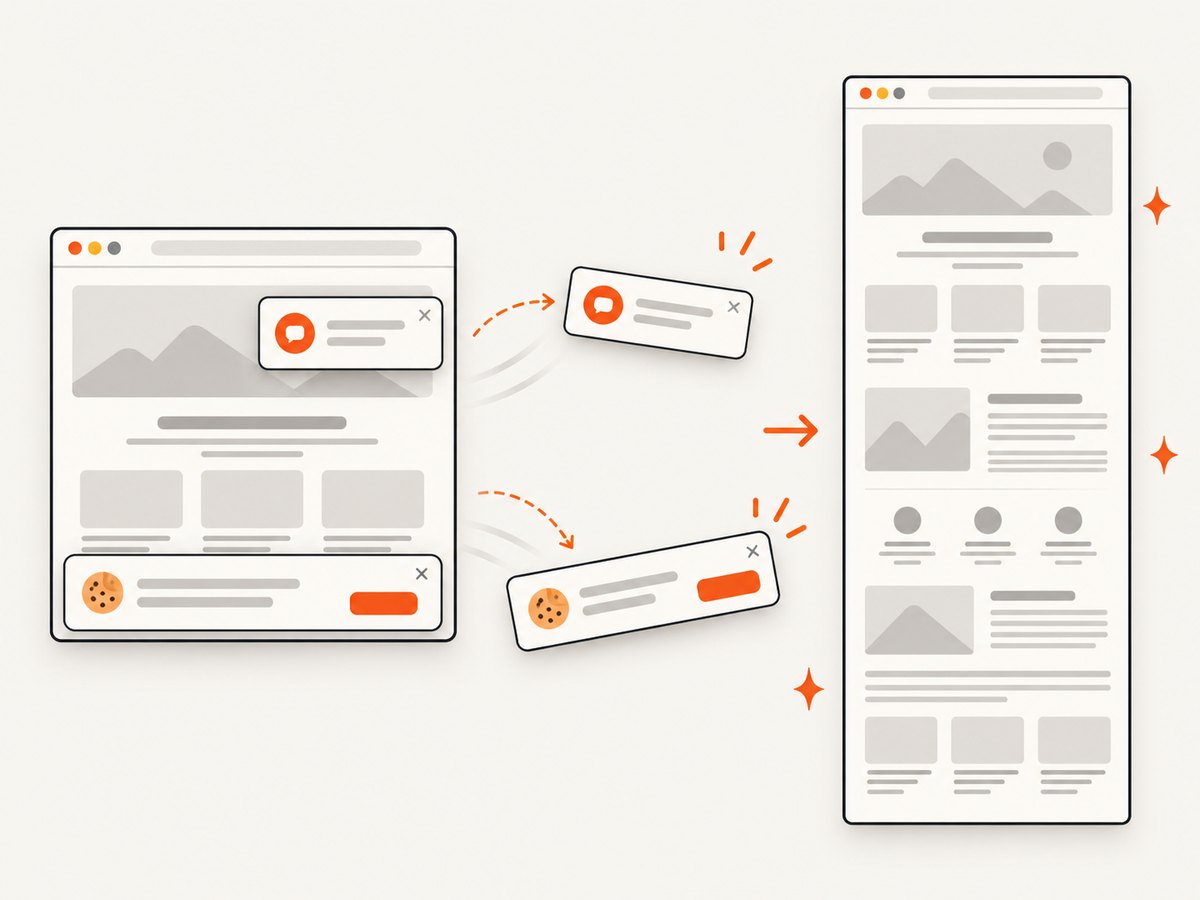
A fixed header can appear in every captured section, making the final image look repetitive. A newsletter popup, chat widget, or cookie banner can cover content. Close overlays before capture when possible. If a banner returns on each navigation or scroll event, the extension may not be able to remove it automatically.
Troubleshooting GoFullPage
| Symptom | Likely cause | What to do |
|---|---|---|
| The icon does nothing | The extension is not installed, disabled, or the current tab is restricted. | Confirm the official extension is enabled, reload the page, and try the toolbar icon again. Test on a normal webpage rather than a browser settings or store tab. |
| The shortcut does not start capture | Another extension or browser shortcut has taken the key combination. | Click the GoFullPage icon directly. If that works, inspect browser and extension shortcut settings. |
| The result is blank or incomplete | The page has not finished loading, requires authentication, or renders content after interaction. | Wait for the page, sign in if appropriate, close overlays, then retry. Scroll manually once to confirm content can render. |
| Only part of an app is captured | The site uses an inner scrolling container or custom JavaScript scrolling. | Check whether the browser window itself scrolls. If only a panel scrolls, the extension may not control it; use the application’s export function or a targeted capture method. |
| A PDF will not capture | GoFullPage cannot scroll PDF documents as webpages. | Save the original PDF or use the PDF viewer’s print/export workflow. |
| The image is split into multiple tabs | The page exceeds the browser’s single-image size. | Save every part in order. If you control the page, capture a shorter route or divide the content into sections. |
| Images are missing | Lazy loading, blocked resources, or a slow network prevented them from loading during the scroll. | Wait longer, confirm the images appear when scrolling manually, and retry. Check privacy, ad-blocking, and network extensions if resources remain blocked. |
| Sections repeat or overlap | Sticky elements, animations, or layout changes occurred between scrolls. | Close fixed overlays, pause animations if possible, return to the top, and run a fresh capture. |
For Firefox, the listing directs users to report issues through the support flag icon on the capture page. Include the page type, browser, extension version, and a description of where the capture diverged.
Performance and reliability checklist
- Prepare the page: wait for fonts, images, and client-rendered data before starting.
- Reduce changes: close popups and pause animations where the site allows it.
- Keep the tab active: do not navigate away or close it while GoFullPage is assembling the result.
- Check long pages: expect more processing time and possible splitting as height increases.
- Review three points: inspect the top, a middle section, and the bottom before distributing the file.
- Keep originals: save the first export before editing or annotating it.
GoFullPage is a client-side browser workflow, so capture reliability depends on the page, browser memory, extension permissions, network-loaded resources, and the site’s scrolling implementation. There is no universal guarantee that every web application can be stitched correctly.
Or skip the browser setup
For repeatable captures in scripts, CI jobs, backend services, or AI workflows, ScreenshotNeo provides a website screenshot API and MCP server. One GET request returns a PNG, JPEG, WebP, or PDF. Its full-page mode loads lazy images, and you can also capture one element by CSS selector, set a device or custom viewport, use dark mode and retina scale, add custom CSS or JavaScript, click an element, wait for a selector, delay, or network idle, and block ads, trackers, requests, or resource types.
Cookie and consent banners are accepted like a visitor and more than 60 known consent platforms, newsletter popups, and chat widgets are removed before the shot; each step can be turned off. Bot checks and CAPTCHAs, blank pages, timeouts, failed loads, and cache hits are not billed. Responses identify the result with X-Page-Verdict and X-Billed headers. An MCP server provides take_screenshot, get_page_info, and capture_pdf tools for Claude, Cursor, and other MCP clients.
See the ScreenshotNeo documentation for the complete option list and authentication details.
cURL
curl -G "https://api.screenshotneo.com/v1/shot" -d access_key=YOUR_API_KEY --data-urlencode url=https://stripe.com -o shot.webpPython
import requests

r = requests.get(
    "https://api.screenshotneo.com/v1/shot",
    params={"access_key": "YOUR_API_KEY", "url": "https://stripe.com"},
    timeout=90,
)
r.raise_for_status()
open("shot.webp", "wb").write(r.content)
Node.js
const q = new URLSearchParams({ access_key: 'YOUR_API_KEY', url: 'https://stripe.com' });
const res = await fetch(`https://api.screenshotneo.com/v1/shot?${q}`);
if (!res.ok) throw new Error(`Screenshot failed: ${res.status}`);
const file = Buffer.from(await res.arrayBuffer());
await import('node:fs/promises').then(fs => fs.writeFile('shot.webp', file));
ScreenshotNeo includes caching with a TTL you choose, signed links for public image tags, asynchronous jobs with signed webhooks, bulk capture of up to 100 URLs per call, a usage API, and an OpenAPI specification. It accepts parameter names used by other screenshot APIs, which can simplify migration. Plans include 1,000 shots per month free with no card, then Starter at $5 for 3,000, Growth at $15 for 15,000, Pro at $39 for 60,000, Scale at $99 for 250,000, and Business at $249 for 1,000,000. Yearly billing gives two months free, and every feature is available on every plan.
Create a free ScreenshotNeo account to get 1,000 screenshots each month with no card.
FAQ
Can GoFullPage capture a page that is taller than one browser image?
Sometimes. Firefox’s listing says exceptionally tall captures can be split into multiple images in separate tabs. Save and combine those parts if necessary.
Does GoFullPage work on Firefox?
Yes. GoFullPage has a Firefox Add-ons listing documenting the Alt+Shift+P shortcut and the same scroll-and-assemble workflow.
Can I capture only one section?
GoFullPage is designed for a full-page result. Use its editor to crop the output when available, or use a browser or API tool that supports element selection for a precise CSS selector.
Why is a custom web app harder to capture?
Single-page applications may scroll an inner container or use custom JavaScript instead of normal document scrolling. The extension may not be able to control those regions, so the app’s own export function or an element-specific capture can be more reliable.
Is the extension’s privacy statement an independent audit?
No. The Chrome listing says the developer disclosed that it will not collect or use user data, while Mozilla’s listing reports no required data collection and separately identifies optional technical and interaction data. Treat these as developer and store disclosures, not as an independent security audit.
When should I use an API instead of a browser extension?
Use an API when captures must run unattended, be repeatable across many URLs, integrate with a backend, or be triggered by an AI agent. A browser extension is convenient for an occasional manual capture in the page you are viewing.


