How to Use GoFullPage for Full-Page Screenshots
Capture a complete webpage with GoFullPage, export it as an image or PDF, and troubleshoot permissions, large pages, and missing content.

GoFullPage captures a webpage beyond the visible browser window and opens the stitched result in a new tab. Install it from the official browser store, open the page, click the extension icon, wait for capture to finish, then download the result as an image or PDF. In Firefox, the extension also supports Alt+Shift+P. If you want a single continuous PDF page, set PDF Size to “full image” in GoFullPage’s settings.
This guide covers the browser workflow, exports, permissions, large pages, troubleshooting, and when a browser extension is the right fit. Store listings and extension behavior can change, so use the official links below rather than third-party downloads.
1. Install GoFullPage from an official listing
GoFullPage is a browser extension for capturing an entire webpage, including content below the visible viewport. The official Chrome Web Store and Firefox Add-ons listings are the safest places to check availability and install it. GoFullPage says the extension also continues to work on Microsoft Edge.
Availability can change by browser and date. Before installing, confirm that the listing is the official GoFullPage extension and that it is offered for your browser. Avoid repackaged downloads from unrelated sites.
Install checklist
- Open the official store listing for the browser you use.
- Review the publisher and permissions shown by the store.
- Choose the browser’s add or install control and accept the browser’s confirmation.
- If the icon is hidden in the toolbar, open the browser’s extensions menu and pin it for easier access.
For Edge, check the current GoFullPage site guidance and the browser’s extension store before installing. The official site says it works on Edge, but the exact store route and browser prompts may differ.
2. Capture a complete webpage
- Open the page you want to capture and wait for its main content to appear.
- Click the GoFullPage toolbar icon. In Firefox, you can instead press Alt+Shift+P.
- Keep the tab open while the extension scrolls through and captures the page.
- When processing finishes, GoFullPage opens the screenshot in a new tab.
- Choose an image or PDF download option in that result tab.
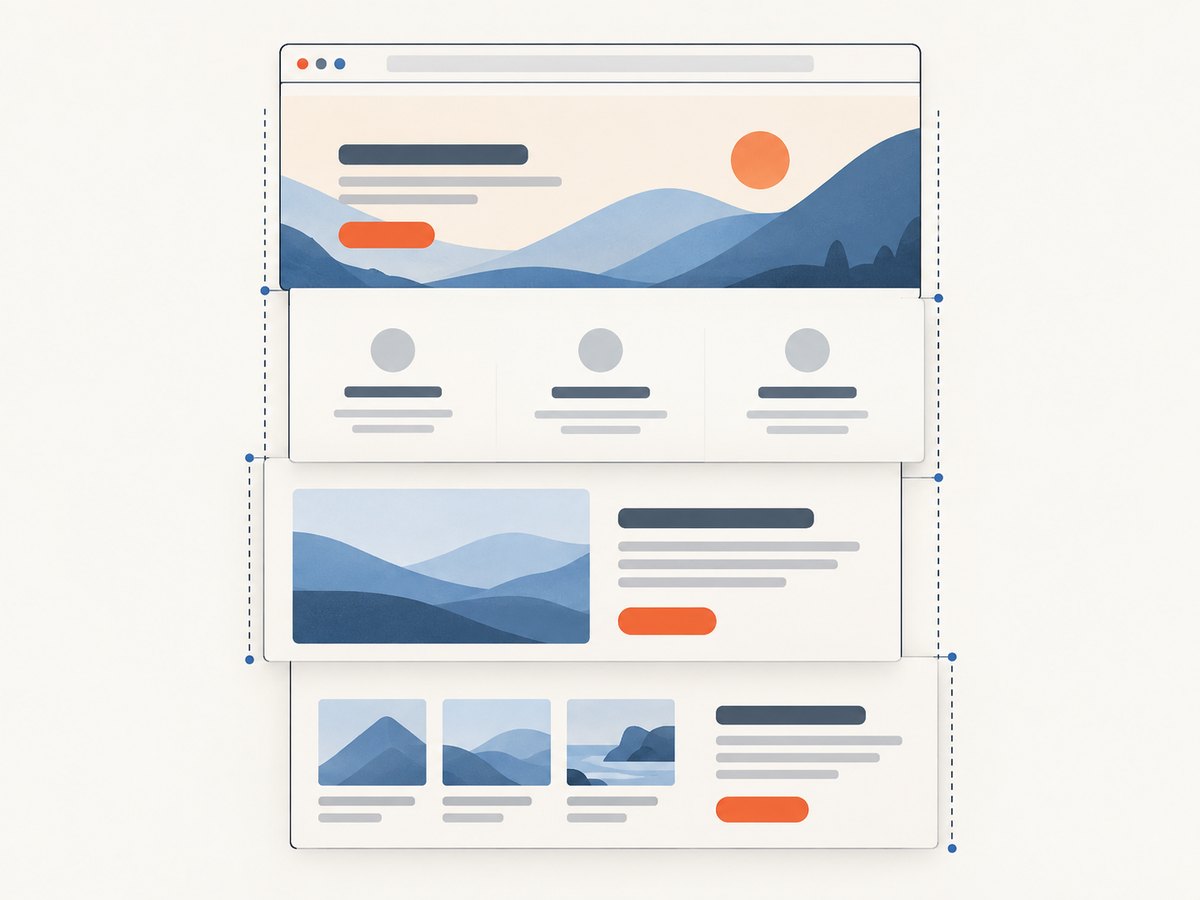
The extension captures page sections and stitches them into a long image. This is useful for articles, receipts, dashboards, and pages whose lower sections are outside the initial viewport. The result reflects what the browser could render while the capture ran; it is not a guarantee that every site, embed, or changing page will produce an identical image.
Before you start
- Scroll the page once if important sections load only when they approach the viewport. Lazy-loaded images and content may otherwise appear late or remain absent.
- Wait for animations, loading indicators, and network-dependent content to settle where practical.
- Close menus or dialogs that you do not want in the screenshot.
- For private or authenticated pages, sign in in the same browser profile first. Treat the resulting file as sensitive if the page contains private information.
- Do not navigate away or close the target tab while capture is in progress.
3. Choose an image or PDF export
GoFullPage’s official listings describe image and PDF output. The Chrome listing identifies PNG and JPG images, continuous single-page PDFs, and paginated paper-size PDFs. The Firefox listing describes PNG/JPEG and configurable PDF paper sizes. The controls and labels can vary by browser version and extension settings.
| Output | Useful when | Consider |
|---|---|---|
| PNG | You want a lossless image for review, documentation, or sharing. | Long pages can create large image files. |
| JPG/JPEG | You want a broadly compatible image format. | Compression can affect fine text and edges. |
| Continuous PDF | You want one tall page that follows the full screenshot. | It may be awkward to print or read at normal paper scale. |
| Paginated PDF | You want the content broken across paper-size pages. | Page breaks may split sections or images. |
To make one continuous PDF page, the official FAQ says to set PDF Size to “full image” in extension settings. If you need a document that prints on standard paper, choose a paper-size layout instead and inspect the page breaks before sharing.
4. Understand permission prompts and privacy
A browser may ask for a permission when you install the extension or when a feature needs it. GoFullPage’s permissions guide explains that some access is needed to save files from the extension’s Files page and to scroll and capture content inside iframes. Its FAQ says permissions cannot be granted in advance of a specific page or action that needs them.
The permissions guide says screenshots are stored locally within the extension. Treat that as a description of the documented behavior, not a universal guarantee across every browser version or all processing. Review the current official permission guidance and the exact browser prompt before granting access.
- Grant a permission only when the requested feature and prompt make sense for the action you initiated.
- If a prompt appears while saving or capturing iframe content, consult the GoFullPage permissions guide.
- Use official browser listings and keep the browser and extension updated.
- Remember that a screenshot file can expose account details, customer information, or other page content. Store and share it accordingly.
5. Handle very long or changing pages
Very long pages use more browser memory and can take longer to capture and save. The Firefox listing says that, in the rare case where a page is too large for Chrome to store as one image, GoFullPage will notify you and split the result into images in separate tabs.
Pages may also change while being captured: feeds can update, animations can move, lazy content can load after the extension passes it, and embedded frames may behave differently from ordinary page content. There is no documented guarantee that every site or page state will be captured the same way.
Ways to get a more predictable result
- Wait for the page’s initial loading state to finish before starting.
- Scroll through the page manually once to encourage lazy content to load, then return to the top and capture.
- Close overlays that change the layout or obscure content.
- For a huge page, capture smaller sections separately if one full-length image exceeds browser storage or memory limits.
- Check all generated tabs or files if the extension splits a large capture.
- Keep the tab in the foreground if the browser suspends inactive work or the page depends on active rendering.
6. Troubleshooting common problems
| Problem | Likely cause | What to try |
|---|---|---|
| No result tab appears | Capture is still running, the tab was closed, or the browser extension did not complete. | Wait, keep the target tab open, and retry from the page. If it repeats, reload the page and restart the browser before another attempt. |
| Some images or sections are missing | Content loaded lazily or changed while the extension scrolled. | Scroll the page manually first, wait for media to load, return to the top, and capture again. |
| An iframe is blank or incomplete | Embedded content can have separate access or rendering behavior. | Check whether the browser requests permission for iframe capture and consult the official permissions guide. Some embeds may remain outside the extension’s practical reach. |
| Capture becomes several images | The page may be too large for the browser to store as one image. | Download each resulting image, or capture smaller sections. The Firefox listing documents splitting in this large-page case. |
| PDF is a very tall page | PDF Size is set to full image. | Choose a paper-size PDF layout if you want conventional pages. Use full image when one continuous page is the goal. |
| Browser asks for a permission | A particular action, such as saving files or accessing iframe content, requires it. | Read the prompt and the permission guide, then grant only if it matches the action you started. Some permissions are requested when needed rather than beforehand. |
| Extension is missing from toolbar | It may be installed but hidden in the extensions menu. | Open the browser’s extensions menu and pin the GoFullPage icon. |
| Store listing is unavailable | Availability can change by browser or region. | Check the official GoFullPage site and official store listings again. Do not use third-party installers as a workaround. |
7. Performance, reliability, and cost considerations
GoFullPage runs in the browser, so capture time and file size depend on the page, its length, the amount of loaded media, and the browser’s available resources. A long page with many images can consume more memory than a short text page. PDF pagination and image encoding also affect the size and usability of the downloaded result.
For reliability, prepare a stable page state, avoid navigating while the capture is running, and inspect the output before relying on it as a record. If the page is dynamic, a second capture may differ because the underlying content changed. Keep the source URL and capture time with the file when the screenshot is used for review or documentation.
The research sources for this procedure do not establish a complete pricing schedule, performance benchmark, or guarantee that every page will capture successfully. Check the current official product listing for any premium access or pricing details relevant to your browser.
8. When a browser extension is not the right capture path
A browser extension is convenient when you are capturing a page manually in your own browser. For repeatable developer workflows, automated services can accept a URL and return an image or PDF without requiring a person to open the page and operate a browser extension. The right path depends on whether you need a one-off browser capture, scripted output, or an agent-driven workflow.

Or skip the browser setup
ScreenshotNeo is a website screenshot API and MCP server for developers. One GET request takes a URL and returns a PNG, JPEG, WebP, or PDF. Its capture flow accepts cookie banners like a visitor and removes 60+ known consent platforms, newsletter popups, and chat widgets before the shot; each step can be turned off. Bot checks/CAPTCHAs, blank pages, timeouts, failed loads, and cache hits cost nothing, and the response reports the page verdict and billing status in headers.
Here is a runnable cURL example that saves a WebP screenshot:
curl -G "https://api.screenshotneo.com/v1/shot" \
  -d access_key=YOUR_API_KEY \
  --data-urlencode url=https://stripe.com \
  -o shot.webp
For the complete parameter reference, see the ScreenshotNeo API documentation. ScreenshotNeo also provides an MCP server with take_screenshot, get_page_info, and capture_pdf tools for Claude, Cursor, and other MCP clients. It includes full-page capture, selector capture, device presets, custom waits, PDF settings, and other capture options.
1,000 screenshots a month are free with no card; paid plans start at $5 for 3,000. Cookie banners, popups, and chat widgets are removed before the shot; bot checks, blank pages, and failed loads are never billed; the MCP server lets AI agents take screenshots. See ScreenshotNeo and the docs, then sign up for 1,000 free screenshots a month with no card.
9. Frequently asked questions
Does GoFullPage capture content below the fold?
Yes. Its purpose is to capture the full webpage, including content beyond the visible viewport, by scrolling and stitching page sections.
Can I use GoFullPage in Firefox?
The official Firefox Add-ons listing provides the extension and documents both the toolbar icon and Alt+Shift+P shortcut. Check the listing for current availability.
Can I use it in Microsoft Edge?
GoFullPage says its extension continues to work on Edge. Check the official site and browser store for the current installation route.
How do I make a one-page PDF?
In extension settings, set PDF Size to “full image,” as described in the official FAQ.
Where are screenshots stored?
GoFullPage’s permissions guide describes screenshots as stored locally within the extension. Review the current guide for details about permissions and storage behavior.


