Can You Use Google Images on Your Website?
Google Images is a search tool, not a license. Learn how to verify image rights, attribution, commercial use, and safer alternatives before publishing.
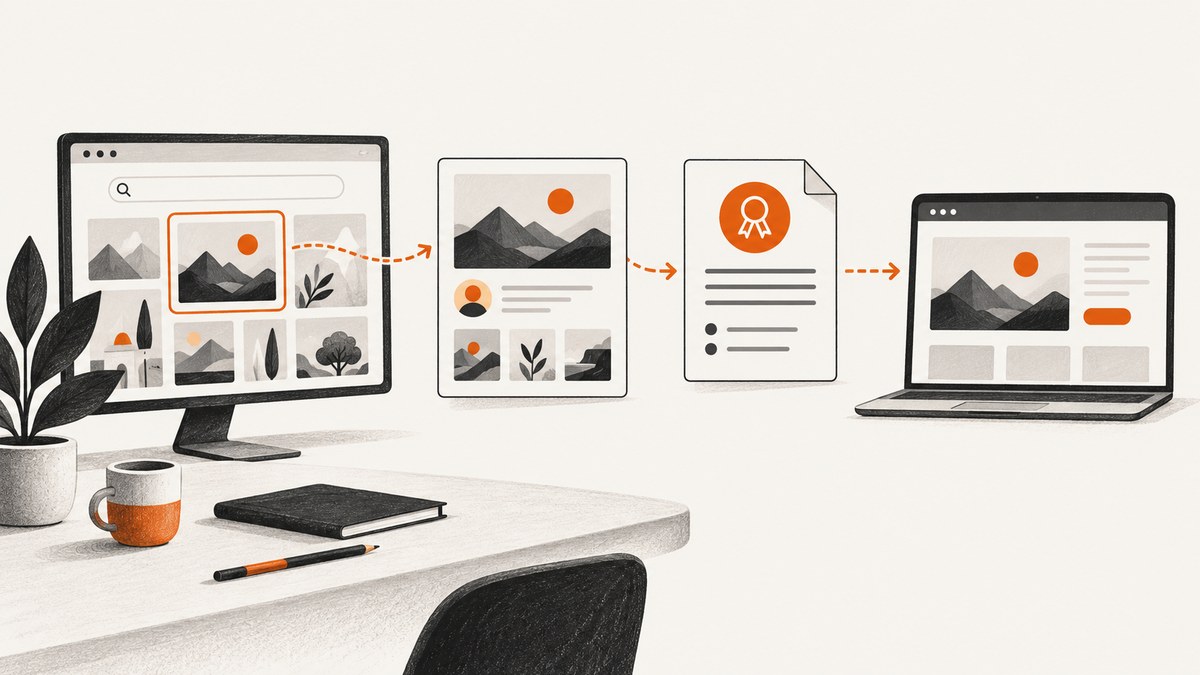
Usually, you cannot assume you may use an image just because you found it in Google Images. Google Images helps you discover pictures; it does not grant permission to republish them. Before adding an image to your website, follow it to the original publisher or creator, read the actual license, confirm that the license covers your intended use, and keep evidence of that permission.
Google says it cannot determine whether an image is lawfully licensed for your use. Rights depend on the image, the rights holder, the license terms, and the law that applies to your situation. Google’s web and stock media guidance explains this distinction.
What Google Images does and does not give you
| Action | What it means |
|---|---|
| Finding an image in search | Discovery only. It does not create a license. |
| Viewing or downloading an image | Technical access, not permission to republish. |
| Seeing a usage-rights label | A lead supplied by the host or provider. Verify the original terms. |
| Giving the creator credit | Required by some licenses, but attribution alone does not replace permission. |
| Buying or requesting a license | Permission may be available from the rights holder or an authorized licensing service. |
How to check whether an image is usable
1. Start with Google’s usage-rights controls
Use the usage-rights filter when it is available to narrow results to images that include licensing information. Google says this information comes from image-hosting sites or image providers, so treat the filter as a discovery aid rather than final proof. See Google’s instructions for finding images you can use and share.
2. Open the original source
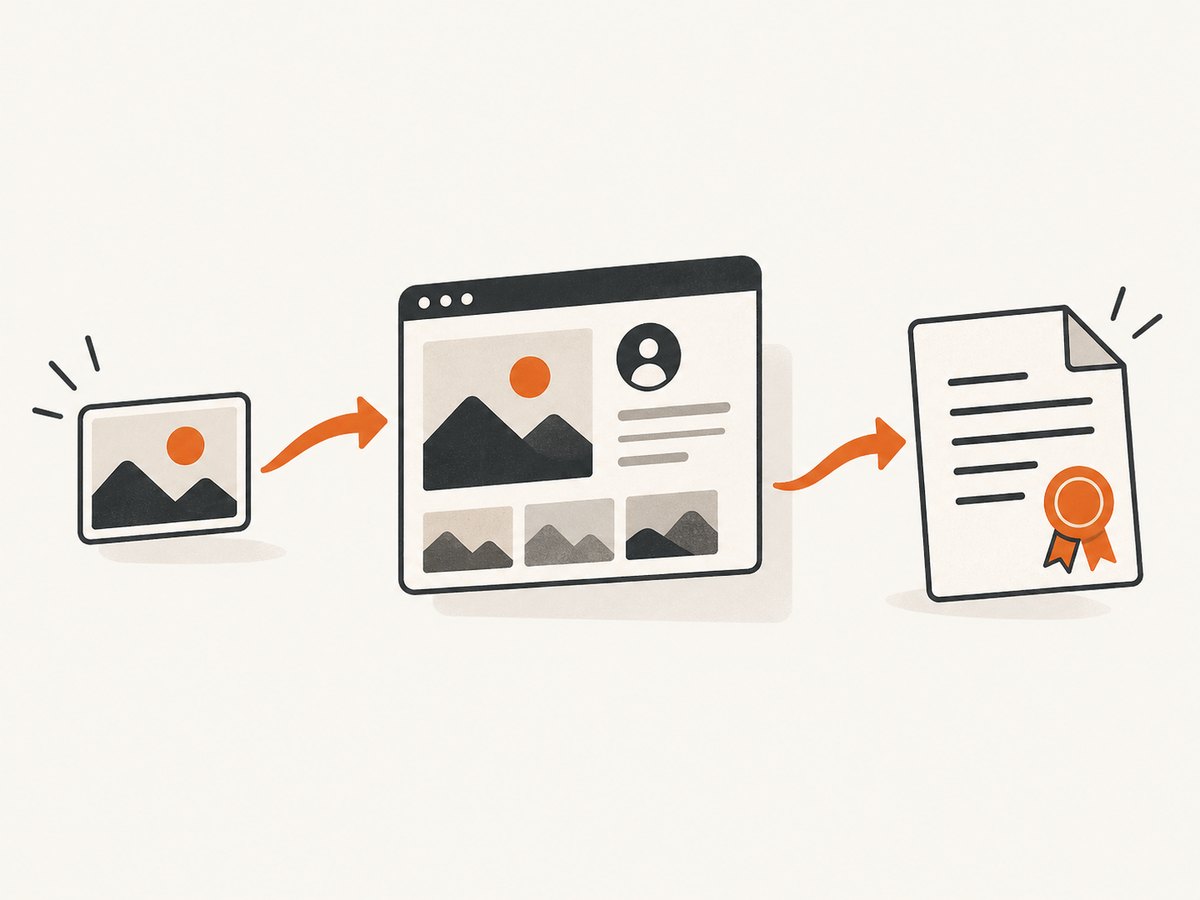
Do not rely on the thumbnail, filename, or search-result snippet. Open the page where the image is hosted and identify the creator, rights holder, stock provider, or organization that claims to license it. Google describes license details and, for some results, links to a page where you can purchase or license the image. Google’s licensing-information guide explains this flow.
3. Read the complete license
Check every condition that matters to your publication:
- Website use: Does the license permit publication on a website?
- Commercial use: If your site sells products, runs ads, promotes a business, or supports an organization, confirm that commercial use is allowed.
- Modification: Verify whether cropping, resizing, color changes, overlays, or other edits are permitted.
- Attribution: Record the required name, link, license title, and any notice text.
- Redistribution: Make sure you are allowed to publish the image itself, rather than merely view it inside a service.
- People, brands, and property: A copyright license may not cover publicity, trademark, privacy, or model-release issues.
- Expiration or limits: Note territory, duration, audience, page-view, print-run, or other restrictions.
4. Save evidence
Keep the source URL, creator name, license URL, the date you checked it, a copy of the license text or receipt, and the attribution you used. Pages can change, so saving a PDF or screenshot of the relevant terms can make later verification easier.
5. Stop when the terms are unclear
If the source does not identify a rights holder or the license does not clearly cover your intended use, do not infer that the image is free. Ask the rights holder for permission or choose an image with clear terms. The Intellectual Property Office of Singapore gives similar practical guidance for contacting owners when portal terms do not address the proposed use; that is jurisdiction-specific context, not a universal legal rule. Read the IPOS answer.
Attribution: what to include
When attribution is required, follow the license wording exactly. A useful record normally includes the creator, image title if supplied, source link, license name and link, and a note about modifications. Place the credit where visitors can find it, such as a caption, image-credit page, or footer, when the license permits that format.
Attribution is not a substitute for permission. You need both a license that covers the use and the credit required by that license. Google explicitly advises checking the exact reuse terms and providing appropriate attribution where required. Google’s guidance summarizes this principle.
Common situations and the safer decision
| Situation | Decision |
|---|---|
| The result says “free” but has no original license | Do not publish until the rights holder confirms permission. |
| The license allows personal use only | Do not use it on a commercial or business website unless you obtain a broader license. |
| The license requires attribution | Use the exact credit format and keep a record of it. |
| The image is marked public domain or CC0 by an authoritative source | Verify that the source is authorized and check for separate trademark, privacy, or publicity concerns. |
| You found the same image on many sites | Locate the creator or authorized agency; duplication does not prove permission. |
| You want to edit the image | Confirm that adaptations are allowed and that your changes do not violate stated conditions. |
| You cannot identify the owner | Ask for permission or select another image. |
Documenting a rights check
- Copy the original image URL and the creator or provider name.
- Save the license page or purchase receipt.
- Write down whether commercial use and modifications are allowed.
- Record the required attribution text.
- Save the date and the person who approved publication.
- Recheck the license when replacing, redesigning, or materially changing the page.
Capturing a source or license page for your records
A screenshot can preserve what a license page said when you reviewed it, but it does not create permission. Store the capture with the source URL and license record. For a do-it-yourself capture, a browser automation tool can load the page, wait for its content, and save a PNG or PDF. Make sure your process respects the site’s terms and does not bypass access controls.
Typical browser workflow
- Open the original publisher or creator page.
- Wait for the license section to render.
- Capture the relevant section or the full page.
- Save the URL, timestamp, and license evidence together.
Or skip the browser setup
ScreenshotNeo provides a website screenshot API and MCP server. One GET request can return a PNG, JPEG, WebP, or PDF, with options for full-page capture, a CSS-selected element, custom waiting, cookies, headers, user agents, JavaScript, and more. The API can remove cookie banners, newsletter popups, and chat widgets before capture. Bot checks, blank pages, failed loads, timeouts, and cache hits are not billed, and the response reports the result through X-Page-Verdict and X-Billed headers.
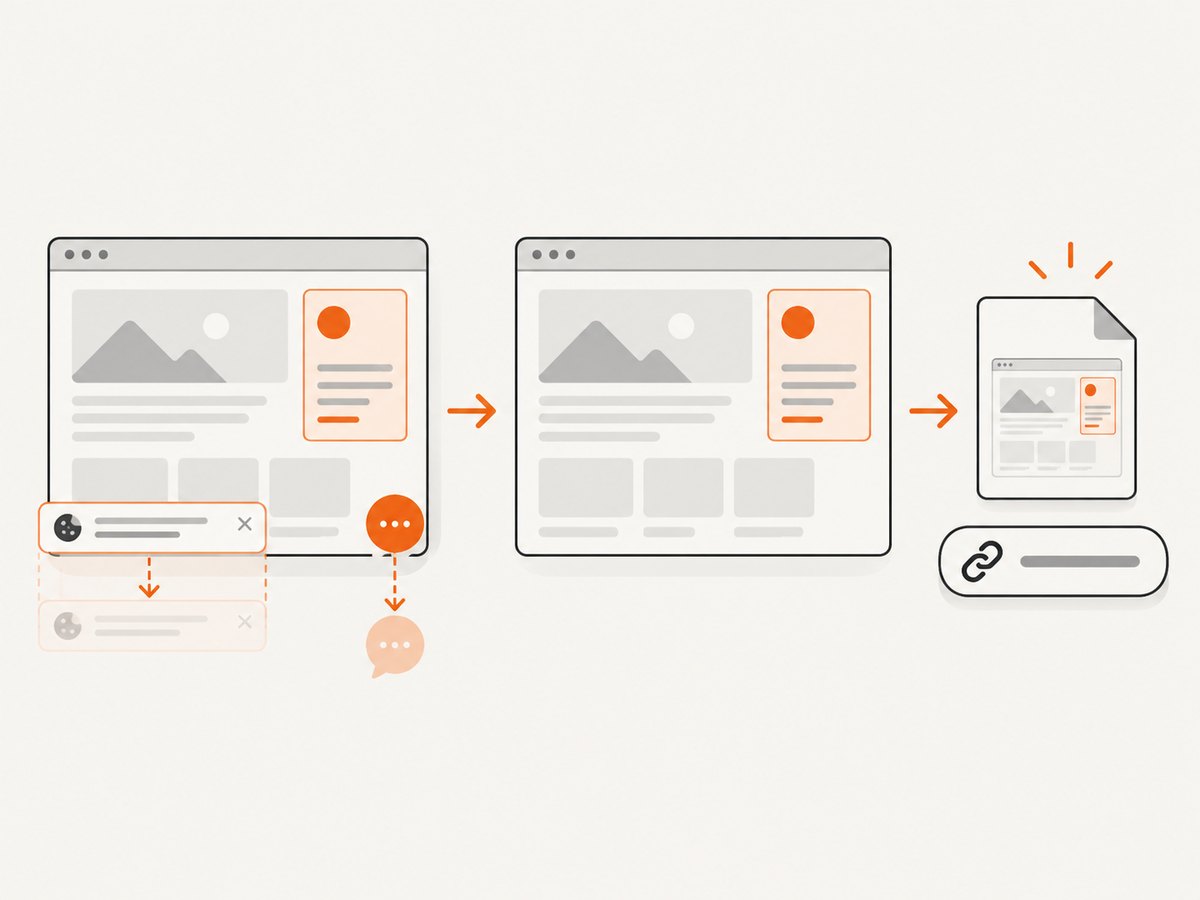
See the ScreenshotNeo API documentation for the complete option list.
cURL
curl -G "https://api.screenshotneo.com/v1/shot" \
  -d access_key=YOUR_API_KEY \
  --data-urlencode url=https://stripe.com \
  -o shot.webp
Python
import requests

r = requests.get(
    "https://api.screenshotneo.com/v1/shot",
    params={"access_key": "YOUR_API_KEY", "url": "https://stripe.com"},
    timeout=90,
)
r.raise_for_status()
open("shot.webp", "wb").write(r.content)
Node.js
const q = new URLSearchParams({
  access_key: 'YOUR_API_KEY',
  url: 'https://stripe.com'
});
const res = await fetch(`https://api.screenshotneo.com/v1/shot?${q}`);
if (!res.ok) throw new Error(`HTTP ${res.status}`);
const fs = await import('node:fs/promises');
await fs.writeFile('shot.webp', Buffer.from(await res.arrayBuffer()));
ScreenshotNeo includes an MCP server with take_screenshot, get_page_info, and capture_pdf tools for Claude, Cursor, and other MCP clients. It offers 1,000 screenshots per month free with no card; paid plans start at $5 for 3,000 shots. Create a free ScreenshotNeo account.
Troubleshooting rights checks
The result has no license information
Cause: The host did not provide structured licensing data or Google could not surface it.
Fix: Open the source page, identify the rights holder, and request permission or choose another image.
The source says “free,” but the terms are missing
Cause: “Free” may describe viewing, a limited plan, or personal use.
Fix: Find the complete license. Do not publish until the permitted use is explicit.
You have attribution but no permission
Cause: Credit was treated as a license.
Fix: Establish permission first, then add the required credit.
The license permits use but not your planned edit
Cause: Some licenses restrict adaptations or require you to share changes under specified terms.
Fix: Follow the adaptation clause or select an image with suitable permissions.
A screenshot of the license page is incomplete
Cause: Content loaded after the capture, or a cookie banner covered the terms.
Fix: Wait for a specific selector or network idle, dismiss consent where permitted, capture the relevant element, and save the source URL with the file.
Performance, reliability, and cost notes for evidence captures
- Capture only the license section when a full-page image is unnecessary; smaller captures are easier to review and store.
- Use a wait-for-selector condition for pages that render license text with JavaScript.
- Keep the original URL and timestamp beside every capture so the image remains evidence rather than an unexplained file.
- Retry transient network failures, but do not treat a successful screenshot as proof that the image itself is licensed.
- For repeated checks, caching can reduce duplicate captures; choose a TTL that matches how often the source terms change.
- ScreenshotNeo bills only clean shots. Failed loads, blank pages, bot checks, timeouts, and cache hits are not billed, with the verdict exposed in response headers.
FAQ
Can I use an image if Google labels it “licensable”?
Not automatically. Follow the result to the source, read the license, and confirm that it covers your website and intended use.
Is an image legal to use if I crop it and add attribution?
Only if the license permits the use and the modification. Attribution does not cure a missing or insufficient license.
What if I cannot find the original creator?
Do not assume permission. Contact the likely rights holder if you can identify one, or use an image with clear licensing.
Does taking a screenshot change copyright ownership?
No. A screenshot records what appeared on a page; it does not transfer rights or authorize republication.
Are copyright rules identical everywhere?
No. Rules vary by jurisdiction and by the individual image license. This guide is practical source-checking guidance, not a legal determination for a specific image.


