How to Use the ImageCapture API in Vue.js
Capture webcam photos and live frames in Vue with ImageCapture, handle permissions and cleanup, and avoid common browser and device errors.

Direct answer: The ImageCapture API is a browser API that captures images from a live MediaStreamTrack. In Vue, request a camera stream with navigator.mediaDevices.getUserMedia(), select its video track, create new ImageCapture(track), then call takePhoto() for an encoded still image or grabFrame() for an ImageBitmap of the current video frame. Stop every track and revoke object URLs when the component closes or unmounts.
This guide shows a complete Vue 3 Composition API implementation, explains both capture methods, covers permissions, browser support, fallbacks, device capabilities, performance, privacy, troubleshooting, and includes a ScreenshotNeo option when you need website screenshots rather than camera images.
1. What the ImageCapture API does
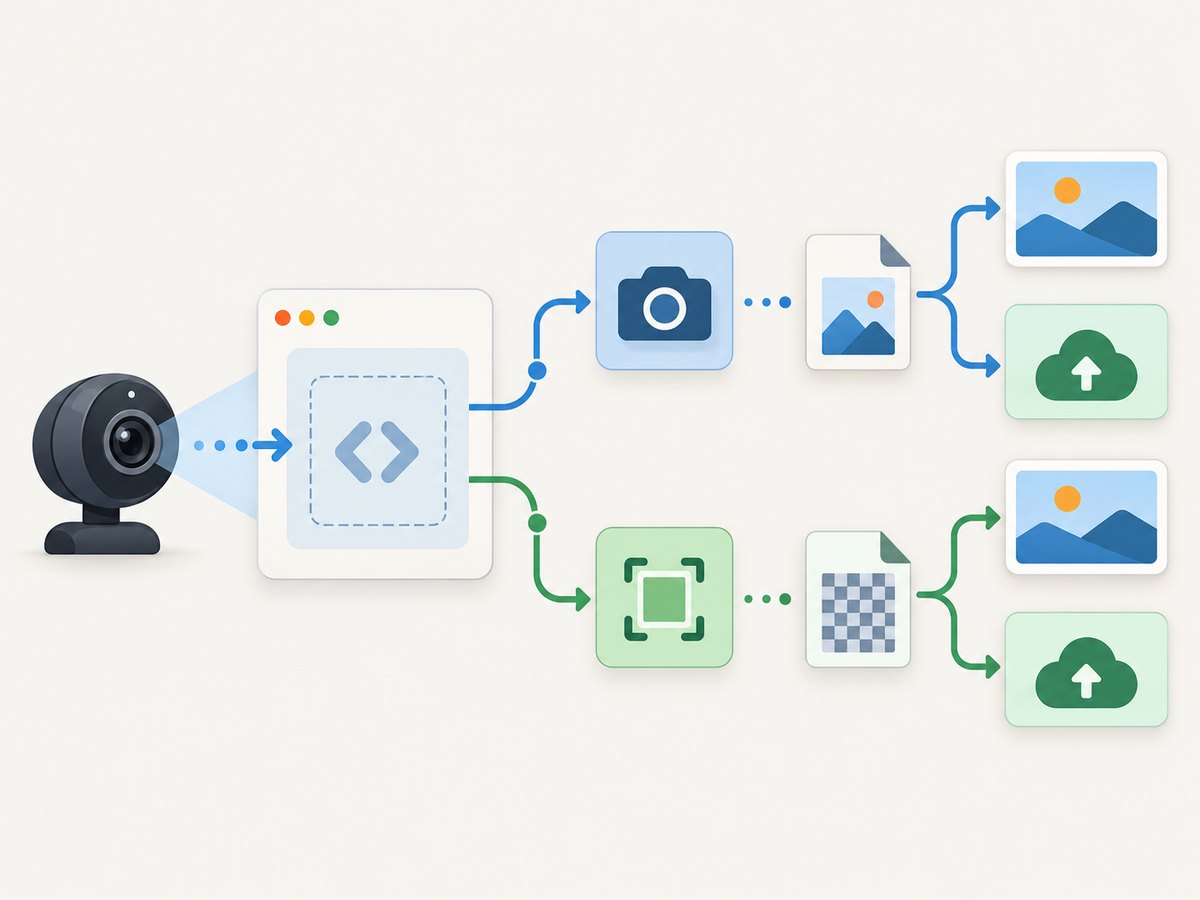
ImageCapture connects to a video-kind MediaStreamTrack. The track normally comes from a stream returned by getUserMedia({ video: true }). The API has two different capture paths:
| Method | Result | Best for |
|---|---|---|
takePhoto() |
Blob containing a photographic exposure |
Saving, previewing, or uploading a still image |
grabFrame() |
ImageBitmap containing a frame from the live track |
Canvas processing, computer vision, or a quick snapshot |
takePhoto() can accept optional settings such as desired width, height, fill-light mode, and red-eye reduction. Hardware may approximate or ignore these requests. grabFrame() reflects the live track and does not produce an encoded file by itself.
The current W3C MediaStream Image Capture document is a Working Draft dated 23 April 2025, so check compatibility for the browsers and devices you support before relying on it in production. See the W3C specification and MDN ImageCapture documentation.
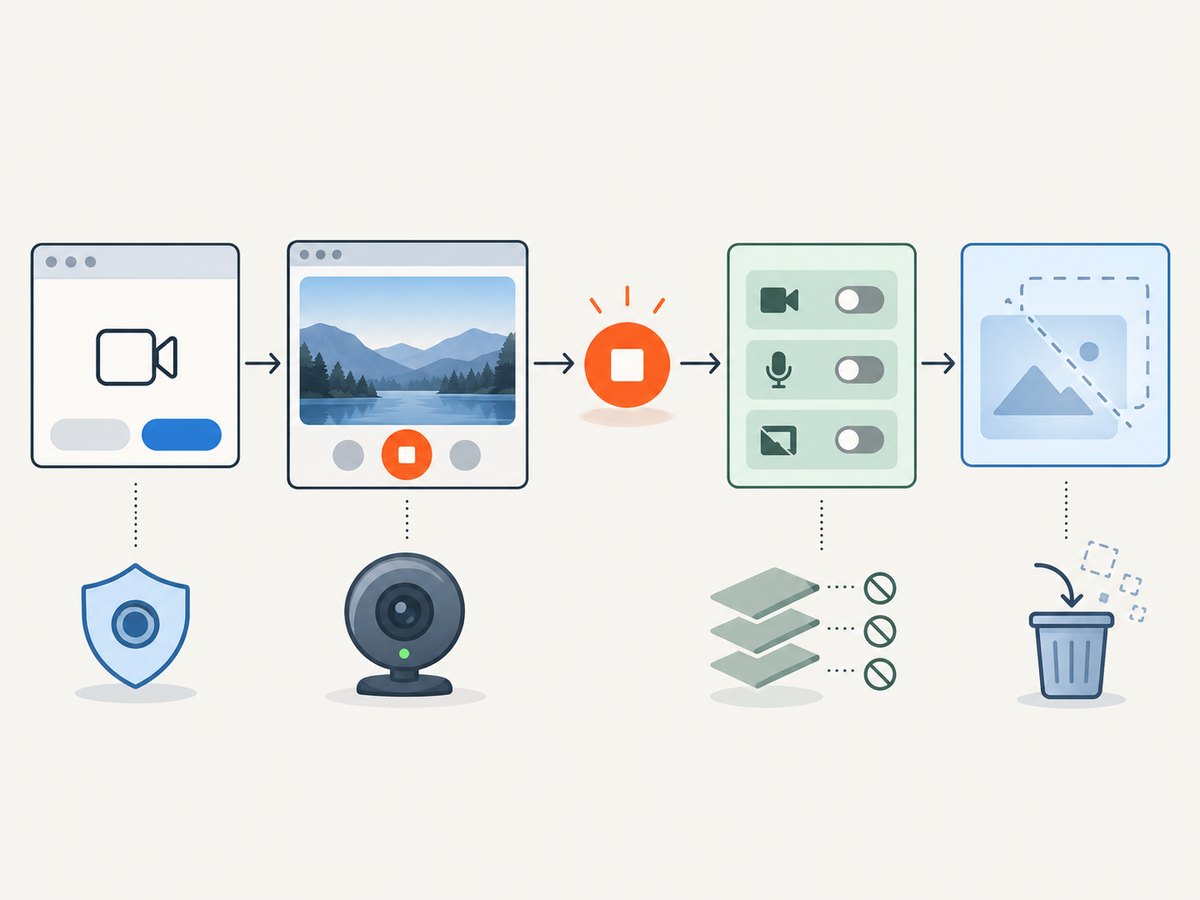
2. Requirements and secure-context setup
- Serve the page from HTTPS.
localhostis normally treated as a secure development origin. - Ask for permission from a user action such as a “Start camera” button.
- Feature-detect
navigator.mediaDevicesandwindow.ImageCapture. - Use a browser and camera combination that you have tested; the API and optional controls are not uniform across hardware.
- Explain how captured images are stored or uploaded. Image metadata, including EXIF location in some workflows, can reveal sensitive information; the W3C draft calls out this privacy concern.
3. Complete Vue 3 example
The following single-file component starts the camera, previews the stream, captures a photo, captures a live frame, handles errors, and releases resources. It is a runnable starting point; adapt the template and styling to your application.
<script setup>
import { onBeforeUnmount, ref } from 'vue'

const videoEl = ref(null)
const photoUrl = ref('')
const error = ref('')
const isStarting = ref(false)
const isRunning = ref(false)
const isCapturing = ref(false)

let stream
let imageCapture
let frameBitmap

function setError(value) {
  error.value = value instanceof Error ? value.message : String(value)
}

async function startCamera() {
  error.value = ''
  if (!window.isSecureContext) {
    setError('Camera access requires HTTPS or localhost.')
    return
  }
  if (!navigator.mediaDevices?.getUserMedia) {
    setError('This browser does not expose getUserMedia().')
    return
  }
  if (!window.ImageCapture) {
    setError('This browser does not expose the ImageCapture API.')
    return
  }

  isStarting.value = true
  try {
    // Stop an earlier stream before starting another one.
    stopCamera()
    stream = await navigator.mediaDevices.getUserMedia({
      video: {
        facingMode: { ideal: 'user' },
        width: { ideal: 1280 },
        height: { ideal: 720 }
      },
      audio: false
    })

    const [track] = stream.getVideoTracks()
    if (!track) throw new Error('The camera returned no video track.')

    imageCapture = new ImageCapture(track)
    videoEl.value.srcObject = stream
    await videoEl.value.play()
    isRunning.value = true
  } catch (err) {
    if (err?.name === 'NotAllowedError') {
      setError('Camera permission was denied. Allow camera access and try again.')
    } else if (err?.name === 'NotFoundError') {
      setError('No camera was found.')
    } else if (err?.name === 'NotReadableError') {
      setError('The camera is busy or could not be read.')
    } else {
      setError(err)
    }
    stopCamera()
  } finally {
    isStarting.value = false
  }
}

async function takePhoto() {
  if (!imageCapture) {
    setError('Start the camera first.')
    return
  }
  isCapturing.value = true
  error.value = ''
  try {
    const blob = await imageCapture.takePhoto()
    if (photoUrl.value) URL.revokeObjectURL(photoUrl.value)
    photoUrl.value = URL.createObjectURL(blob)
  } catch (err) {
    if (err?.name === 'InvalidStateError') {
      setError('The video track is no longer live. Restart the camera.')
    } else {
      setError(err?.name === 'UnknownError' ? 'The camera could not produce a photo.' : err)
    }
  } finally {
    isCapturing.value = false
  }
}

async function grabFrameToCanvas() {
  if (!imageCapture) {
    setError('Start the camera first.')
    return
  }
  error.value = ''
  try {
    frameBitmap?.close?.()
    frameBitmap = await imageCapture.grabFrame()

    const canvas = document.createElement('canvas')
    canvas.width = frameBitmap.width
    canvas.height = frameBitmap.height
    const context = canvas.getContext('2d')
    context.drawImage(frameBitmap, 0, 0)

    // Use the canvas result for processing or upload.
    const frameBlob = await new Promise((resolve, reject) =>
      canvas.toBlob((blob) => blob ? resolve(blob) : reject(new Error('Canvas encoding failed')), 'image/jpeg', 0.9)
    )
    if (photoUrl.value) URL.revokeObjectURL(photoUrl.value)
    photoUrl.value = URL.createObjectURL(frameBlob)
  } catch (err) {
    setError(err)
  }
}

function stopCamera() {
  stream?.getTracks().forEach((track) => track.stop())
  stream = undefined
  imageCapture = undefined
  isRunning.value = false
  frameBitmap?.close?.()
  frameBitmap = undefined
  if (videoEl.value) videoEl.value.srcObject = null
}

onBeforeUnmount(() => {
  stopCamera()
  if (photoUrl.value) URL.revokeObjectURL(photoUrl.value)
})
</script>

<template>
  <section>
    <video ref="videoEl" autoplay muted playsinline></video>
    <div>
      <button type="button" @click="startCamera" :disabled="isStarting || isRunning">
        {{ isStarting ? 'Starting…' : 'Start camera' }}
      </button>
      <button type="button" @click="takePhoto" :disabled="!isRunning || isCapturing">
        {{ isCapturing ? 'Capturing…' : 'Take photo' }}
      </button>
      <button type="button" @click="grabFrameToCanvas" :disabled="!isRunning">
        Grab live frame
      </button>
      <button type="button" @click="stopCamera" :disabled="!isRunning">Stop
Keep video.autoplay, muted, and playsinline on mobile browsers. The playsinline attribute prevents some browsers from forcing a full-screen video player.
4. Start the camera safely
Request constraints
The simplest request is getUserMedia({ video: true, audio: false }). You can provide preferences such as facingMode, width, and height. These are constraints, not guarantees. Use ideal values when a fallback is acceptable; use exact only when you are prepared for an OverconstrainedError.
const stream = await navigator.mediaDevices.getUserMedia({
  video: {
    facingMode: { ideal: 'environment' },
    width: { ideal: 1920 },
    height: { ideal: 1080 }
  },
  audio: false
})
Select and inspect the track
const [track] = stream.getVideoTracks()
if (!track) throw new Error('No video track')

console.log(track.getSettings())
console.log(track.getCapabilities?.())
const capture = new ImageCapture(track)
The constructor requires a video track. Passing an audio track, an ended track, or an undefined value is a common reason that new ImageCapture(track) fails.
Handle permission and lifecycle races
Permission requests can remain pending while a user decides. A component can unmount during that time, so check that your video element still exists before assigning srcObject. If your UI allows rapid start/stop or camera switching, serialize those operations or use a generation counter so an older asynchronous request cannot replace a newer stream.
5. Take a photo with takePhoto()
takePhoto() asks the camera for a photographic exposure and resolves with a Blob. That blob can be previewed with an object URL, uploaded with FormData, or converted to another format.
const blob = await imageCapture.takePhoto({
  imageWidth: 1280,
  imageHeight: 720,
  fillLightMode: 'auto',
  redEyeReduction: 'never'
})

const previewUrl = URL.createObjectURL(blob)
imageElement.src = previewUrl
// Later, when the image is no longer displayed:
URL.revokeObjectURL(previewUrl)
Optional settings are device-dependent. A camera can return a different size, ignore flash-related requests, or reject a setting. Treat requested dimensions and lighting behavior as preferences. If the track is no longer live, the promise can reject with InvalidStateError; capture failures can surface as UnknownError. Always catch the promise.
Upload the resulting blob
const form = new FormData()
form.append('photo', blob, 'camera-photo.jpg')

const response = await fetch('/api/photos', {
  method: 'POST',
  body: form
})
if (!response.ok) throw new Error(`Upload failed: ${response.status}`)
6. Grab a live frame with grabFrame()
grabFrame() resolves with an ImageBitmap representing the current live track. It is useful for computer-vision preprocessing, thumbnails, or drawing into a canvas. It is not an encoded JPEG or PNG.
const bitmap = await imageCapture.grabFrame()
try {
  canvas.width = bitmap.width
  canvas.height = bitmap.height
  canvas.getContext('2d').drawImage(bitmap, 0, 0)
} finally {
  bitmap.close?.()
}
Use canvas.toBlob() when you need an uploadable file. Close each ImageBitmap after processing so image memory is released promptly.
7. Fallback when ImageCapture is unavailable
Feature detection is essential because the W3C document is still a Working Draft and captured compatibility details vary by browser and platform. If ImageCapture is missing but camera streaming works, draw the current video frame to a canvas:
function captureVideoFrame(video) {
  const canvas = document.createElement('canvas')
  canvas.width = video.videoWidth
  canvas.height = video.videoHeight
  canvas.getContext('2d').drawImage(video, 0, 0)
  return new Promise((resolve, reject) => {
    canvas.toBlob((blob) => blob ? resolve(blob) : reject(new Error('Could not encode frame')), 'image/jpeg', 0.9)
  })
}
This fallback captures the displayed video frame. It may not provide the camera’s photographic exposure controls, flash behavior, or full sensor resolution. Use it when a frame is sufficient, and test image quality on your target devices.
8. Cleanup and privacy
- Call
stop()on every track when the user closes the camera or the component unmounts. - Set
video.srcObject = nullafter stopping. - Revoke every object URL created with
URL.createObjectURL(). - Close
ImageBitmapobjects after canvas or processing work. - Do not keep camera streams alive in hidden routes or inactive tabs.
- Decide whether uploads retain EXIF metadata and remove metadata server-side when location or device details are not needed.
- Tell users when the camera is active and provide a visible stop control.
9. Troubleshooting
| Error or symptom | Likely cause | Fix |
|---|---|---|
navigator.mediaDevices is undefined |
Insecure origin or unsupported browser | Use HTTPS or localhost, then feature-detect and provide a fallback. |
NotAllowedError |
User denied permission, or a policy blocked the camera | Explain how to allow the camera in browser settings; check iframe permissions and site policy. |
NotFoundError |
No camera matches the request | Use a looser constraint such as video: true and show a device-unavailable message. |
NotReadableError |
Another application or tab owns the camera, or the device failed | Close other camera users, retry after a short delay, and let the user select another device. |
OverconstrainedError |
An exact constraint cannot be met |
Inspect error.constraint, remove the exact requirement, or retry with ideal values. |
new ImageCapture(track) fails |
The value is missing, ended, or is not a video track | Use stream.getVideoTracks(), verify a track exists, and check track.readyState === 'live'. |
takePhoto() rejects with InvalidStateError |
The track stopped or ended between setup and capture | Stop stale resources and restart the camera before capturing. |
| Photo preview disappears or leaks memory | Object URLs were never revoked | Revoke the previous URL before replacing it and on unmount. |
| Video is black on mobile | Playback policy or missing inline playback | Use a user gesture, autoplay muted playsinline, and await video.play(). |
| Requested size or flash is ignored | Hardware does not support the requested capability | Read capabilities where available and treat settings as best-effort. |
10. Performance and reliability
- Request the smallest resolution that meets the product requirement; large frames increase memory, encoding, and upload time.
- Do not call
grabFrame()on every animation frame unless the processing pipeline can keep up. Throttle capture to the rate your model or encoder needs. - Move expensive image processing to a worker when possible, using transferable
ImageBitmapobjects. - Reuse a canvas for repeated frame conversion instead of allocating one per frame.
- Pause capture when the page is hidden and resume only after confirming that the track remains live.
- For long-running sessions, listen for
track.onendedand show a restart action. - Log error names and constraint details without recording camera content or permission-sensitive data.
11. Choosing takePhoto() or grabFrame()
| Requirement | Choose | Reason |
|---|---|---|
| Save a still image directly | takePhoto() |
Returns an encoded Blob. |
| Use the current preview in a canvas | grabFrame() |
Returns an ImageBitmap ready for drawing. |
| Use photographic exposure controls | takePhoto() |
Supports optional dimensions, fill light, and red-eye settings where hardware allows. |
| Run repeated computer-vision analysis | grabFrame() |
Avoids encoding a file for every frame. |
| Support browsers without ImageCapture | Canvas fallback | Draw the video element to a canvas when a live frame is enough. |
12. Or skip the browser setup
If your goal is a screenshot of a website rather than a photo from a user’s camera, ScreenshotNeo provides a GET endpoint that returns a PNG, JPEG, WebP, or PDF. It handles the browser session for you.
Cookie and consent banners, newsletter popups, and chat widgets are removed before the shot. Bot checks, blank pages, failed loads, timeouts, and cache hits are not billed, and the response reports the result with X-Page-Verdict and X-Billed headers. ScreenshotNeo also provides an MCP server so Claude, Cursor, and other MCP clients can call take_screenshot, get_page_info, and capture_pdf.
cURL
curl -G "https://api.screenshotneo.com/v1/shot" \
  -d access_key=YOUR_API_KEY \
  --data-urlencode url=https://stripe.com \
  -o shot.webp
Python
import requests

r = requests.get(
    "https://api.screenshotneo.com/v1/shot",
    params={"access_key": "YOUR_API_KEY", "url": "https://stripe.com"},
    timeout=90,
)
r.raise_for_status()
open("shot.webp", "wb").write(r.content)
Node.js
const q = new URLSearchParams({ access_key: 'YOUR_API_KEY', url: 'https://stripe.com' });
const res = await fetch(`https://api.screenshotneo.com/v1/shot?${q}`);
if (!res.ok) throw new Error(`Screenshot failed: ${res.status}`);
const data = Buffer.from(await res.arrayBuffer());
await import('node:fs/promises').then(fs => fs.writeFile('shot.webp', data));
See the ScreenshotNeo API documentation for all options, including full-page and element capture, dark mode, device presets, custom CSS and JavaScript, waits, request blocking, headers and cookies, geolocation, caching, signed links, asynchronous jobs, bulk capture, PDFs, and usage reporting.
The Free plan includes 1,000 screenshots per month with no card. Paid plans start at $5 for 3,000 shots, and every feature is available on every plan. Create a free ScreenshotNeo account.
13. Frequently asked questions
Does Vue provide the ImageCapture API?
No. Vue manages component state and lifecycle; MediaDevices, MediaStreamTrack, and ImageCapture are browser APIs.
Can I use ImageCapture without showing a video preview?
Usually yes, but you still need a live video track and user permission. A visible preview and stop control make camera use clear to users.
Is takePhoto() always higher quality than a canvas frame?
Not universally. It can request a photographic exposure and device-specific controls, while a canvas frame is limited to the current video track. Compare the output on the cameras you support.
Why does the API work locally but fail after deployment?
Camera access requires a secure context. Deploy over HTTPS and check the browser’s permission and embedding policies.
Should I keep the stream in a Vue ref?
It is usually enough to keep the stream and capture object in component-owned variables because they are not rendered directly. A ref is useful when another component must control the camera.
Can I capture a website with ImageCapture?
No. ImageCapture reads a camera track. Use a browser screenshot workflow such as ScreenshotNeo when the input is a URL.
14. Production checklist
- HTTPS or localhost is configured.
- Feature detection and a canvas fallback are implemented where needed.
- Permission denial, missing devices, busy devices, ended tracks, and unsupported constraints have clear messages.
- Start and stop actions are serialized to avoid stale-stream races.
- All tracks stop on close and component unmount.
- Object URLs and
ImageBitmapobjects are released. - Requested dimensions and photo controls are treated as best-effort.
- Uploads protect image data and account for metadata privacy.
- Target browsers and camera hardware are tested with the exact constraints used in production.
With those pieces in place, Vue supplies the interface and lifecycle while the browser’s ImageCapture API supplies the camera still or live frame.


