How to Use Playwright in Node-RED
Install Playwright in Node-RED, build a reliable browser automation flow, fix missing browsers and selectors, and learn when ScreenshotNeo is simpler.
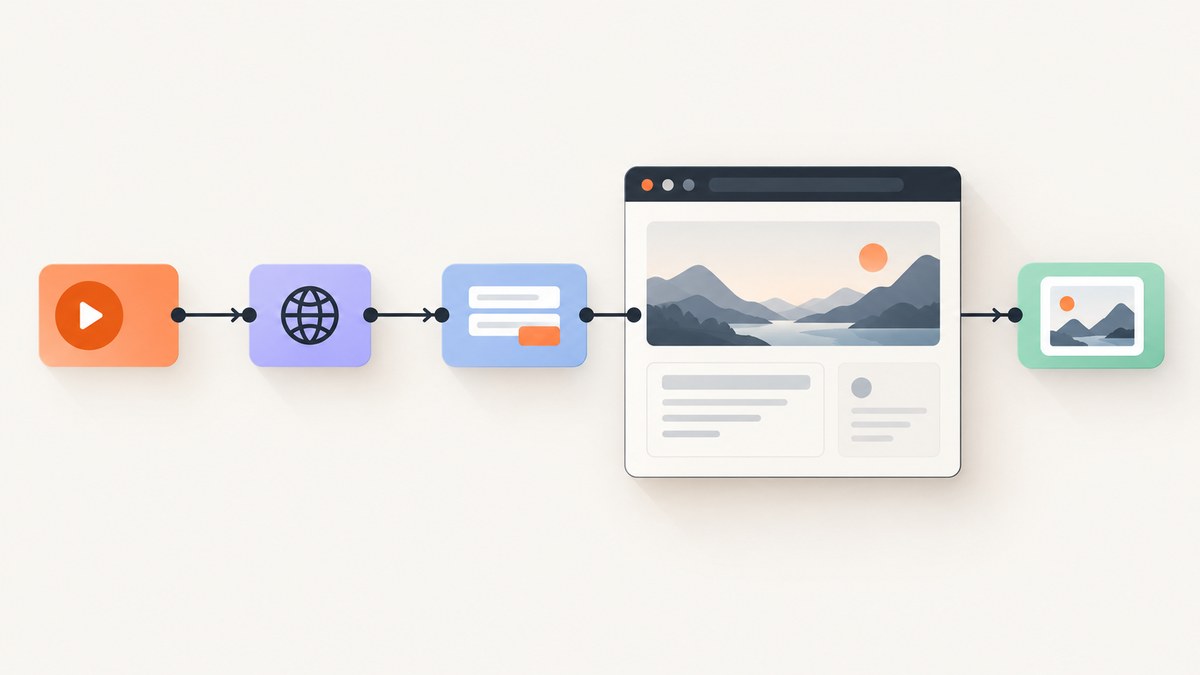
Direct answer: Node-RED does not include Playwright as a built-in node. Install a community palette package such as node-red-contrib-playwright-automation or node-red-contrib-playwright, install the Playwright browser binaries that match the installed library version, restart Node-RED, and connect nodes for navigation, waiting, clicking, filling, evaluation, and screenshots.
A production flow normally receives a URL or input data, launches a headless browser, navigates to the page, waits for a page state or selector, performs one or more actions, captures a result, and routes success and errors separately. The exact fields differ between palette packages, so use the installed node’s Help panel for the current property names.
1. What you need before installing
- A Node-RED runtime with permission to install npm packages in its user directory, normally
~/.node-red. - A supported Node.js runtime for the Node-RED version you operate.
- Enough memory and CPU for a browser process. Each concurrent page consumes substantially more resources than an ordinary function node.
- Outbound network access from the Node-RED host to the sites you will automate.
- A plan for browser binaries and Linux system libraries when running in Docker, a VPS, or CI.
Playwright versions are tied to specific browser binaries. Updating the npm package without installing its matching browsers is a common cause of launch failures. The official library documentation describes installing Playwright with npm or Yarn and launching Chromium, Firefox, or WebKit from Node.js: Playwright library documentation.
2. Install a Playwright palette package
Option A: Node-RED Manage Palette
- Open the Node-RED editor.
- Open the menu and choose Manage palette.
- Use the Install tab to search for
node-red-contrib-playwright-automationornode-red-contrib-playwright. - Install the package and restart the Node-RED runtime.
Node-RED’s documentation explains that the Palette Manager searches the catalog and that npm-installed nodes require a restart before the runtime loads them: Adding nodes to Node-RED.
Option B: npm from the Node-RED user directory
cd ~/.node-red
npm install node-red-contrib-playwright-automation
# or
npm install node-red-contrib-playwright
Install one package first so you know which node set you are configuring. Having several similarly named community packages can make it harder to identify which properties and outputs your flow uses. Restart Node-RED after installation:
node-red-restartIf your operating system does not provide that command, restart the service, container, or process using the method used by your deployment.
3. Install Playwright and browser binaries
Some palette packages bring their own Playwright dependency. For custom JavaScript in a Function node or a package that expects a direct Playwright installation, install the library in the Node-RED user directory:
cd ~/.node-red
npm install playwright
npx playwright install chromium firefox webkit
You can install only the browser you need. Chromium is usually the smallest operational choice for a screenshot or form workflow:
npx playwright install chromiumOn Linux, the browser may start but fail when a shared system library is missing. Install the dependencies with the Playwright-provided command:
npx playwright install-deps
# or, for one browser
npx playwright install --with-deps chromium
Run the browser-install command again whenever you upgrade Playwright. The version-specific browser guidance is documented in the Playwright browser documentation.
4. Build the Node-RED flow
The most portable flow pattern is:
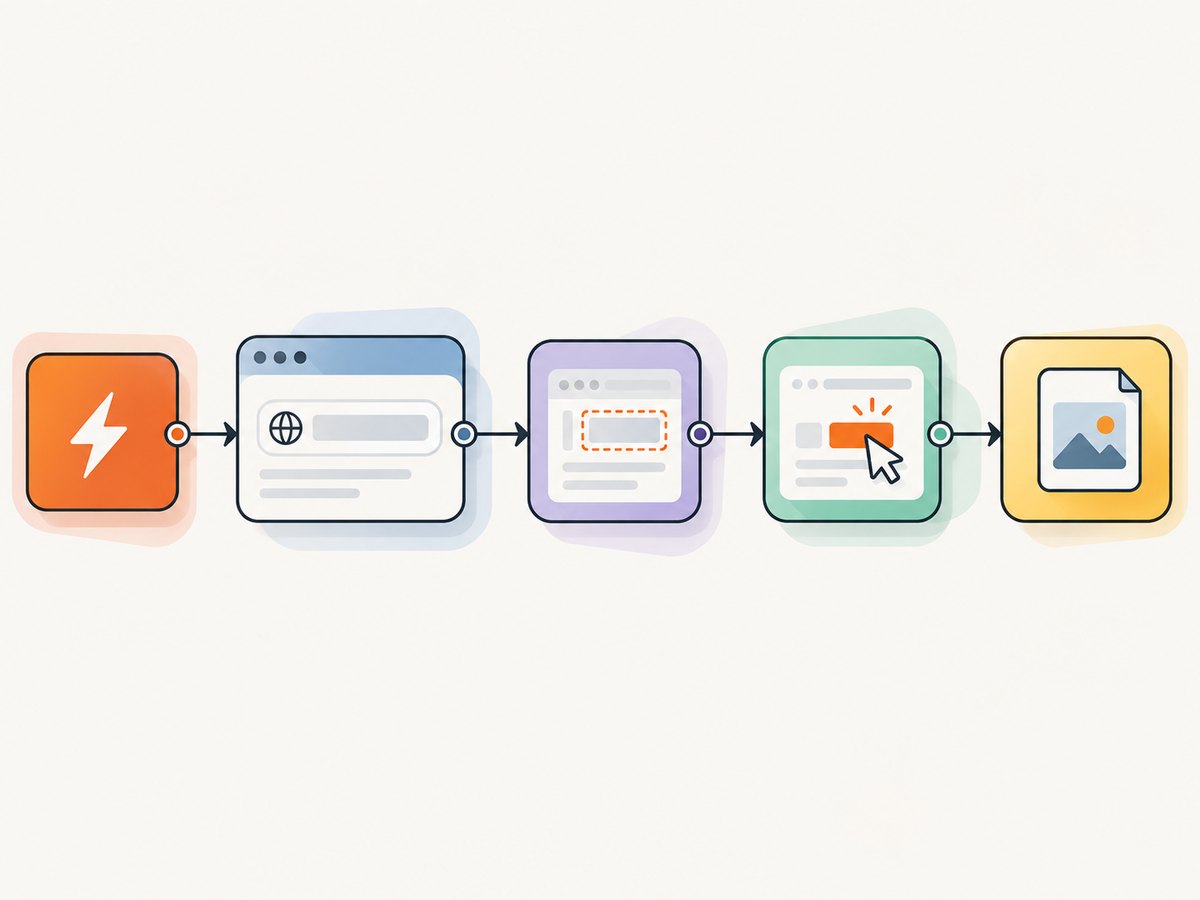
- Inject: provide a URL and any input values.
- Browser configuration: select Chromium, Firefox, or WebKit and headless mode.
- Navigate: open the URL from a node property or a message property.
- Wait: wait for a page state, selector, or deliberate delay.
- Interact: click a control or fill a form field.
- Capture: take a screenshot, evaluate JavaScript, or extract text.
- Route: send success to Debug, storage, an HTTP Response node, or the next stage; send timeout and browser errors to a separate error path.
The community catalog entries document navigation, click, form-fill, screenshot, and JavaScript-evaluation actions, plus passing URLs, selectors, and values through message properties. Some versions also expose the underlying Playwright page reference for advanced Function-node work.
A reusable message
Use a Function node before the Playwright nodes to normalize inputs. This keeps the flow independent of editor fields that may change between package versions:
msg.url = msg.url || 'https://example.com';
msg.selector = 'input[name=email]';
msg.value = msg.value || 'reader@example.com';
msg.waitFor = 'body';
return msg;
Configure the navigation node to read msg.url. Configure click or fill nodes to read msg.selector and msg.value when those options are available. If a node only accepts literal values, set them in the node editor and keep the Function node for validation.
Wait before interacting
Dynamic pages often render the HTML shell before the control you need exists. Prefer a selector wait or a page-state wait over an arbitrary long delay:
if (!msg.url || !/^https?:\/\//i.test(msg.url)) {
    node.error('msg.url must be an http or https URL', msg);
    return null;
}
return msg;
Then configure the Playwright wait action for a selector such as form, button[type=submit], or a stable application-specific data attribute. Use a short delay only when the page has a known animation or client-side transition that cannot be represented by a selector.
Use separate success and failure paths
Connect the node’s error output to a Catch node or an error-handling branch. Include the URL, action name, and a correlation identifier in logs, but do not log passwords or authorization headers. A useful status object for downstream nodes is:
msg.result = {
  url: msg.url,
  action: 'screenshot',
  completedAt: new Date().toISOString()
};
return msg;
Send binary screenshots to a file, object store, or HTTP Response node. Avoid converting large images to base64 unless the next system requires it; binary message payloads use less memory and avoid an extra encoding step.
5. Browser configuration that matters
| Setting | When to use it | Operational guidance |
|---|---|---|
| Headless | Servers, Docker, and scheduled flows | Use headless mode unless a display is available for debugging. |
| Browser engine | Compatibility testing | Chromium is common; use Firefox or WebKit when the target behavior requires it. |
| Viewport | Responsive layouts and screenshots | Set it explicitly so captures are reproducible. |
| Timeout | Navigation, selectors, and actions | Choose a bounded timeout and handle it as a normal failure. |
| Context data | Sessions and authentication | Use a controlled context for cookies, headers, locale, and user agent. |
Do not enable headed mode on a server merely to work around a selector problem. A headed browser needs a functioning display; switch back to headless mode or provide a virtual display only when visual debugging is necessary.
6. Forms, clicks, and JavaScript evaluation
For a form flow, navigate, wait for the form, fill fields, click submit, then wait for the result selector. Prefer stable selectors such as data-testid attributes over generated CSS classes.
// Conceptual values passed between nodes
msg.url = 'https://example.com/login';
msg.emailSelector = 'input[name=email]';
msg.passwordSelector = 'input[name=password]';
msg.submitSelector = 'button[type=submit]';
return msg;
Configure the palette’s fill nodes with the selectors and values, then configure a click node for the submit control. After clicking, wait for a URL change, a success panel, or an error message. A fixed delay alone can produce intermittent results when network speed changes.
JavaScript evaluation is useful for reading a title, extracting structured data, or checking a page condition. Keep evaluation small and deterministic, and pass the result to a downstream Change or Function node. Never evaluate untrusted strings as code.
7. Docker and always-on deployment
Node-RED documents a Docker image named nodered/node-red and the standard editor URL http://localhost:1880: Node-RED Docker documentation. A container running Playwright must also contain the browser binaries and Linux libraries required by those binaries.
A practical image-build pattern is:
FROM nodered/node-red
USER root
RUN cd /data && npm install playwright node-red-contrib-playwright-automation \
    && npx playwright install --with-deps chromium
USER node-red
Adapt the package list to the palette you selected and verify that the image’s Node.js version is supported by that Playwright release. Persist the Node-RED user directory so flows and credentials survive container replacement. Before production use, verify CPU, memory, sandboxing, DNS, outbound access, and the ability to launch Chromium under the container user.
8. Performance, reliability, and cost considerations
Performance
- Reuse a browser process or context when the palette supports it instead of launching a new browser for every message.
- Limit concurrency. A queue of controlled jobs is safer than starting unlimited pages when a burst arrives.
- Wait for the smallest reliable selector rather than using an unnecessarily long network-idle wait.
- Capture only the required result. Full-page screenshots and large downloads consume more memory and bandwidth.
- Keep image payloads binary through the flow and write them directly to storage where possible.
Reliability
- Set explicit navigation and action timeouts.
- Retry transient network failures with a small bounded retry count, but do not blindly retry invalid selectors or authentication failures.
- Record the Playwright version and browser revision with your deployment so upgrades are reproducible.
- Close pages and contexts on every success and failure path when using custom code.
- Use a dead-letter or error queue for messages that repeatedly fail.
Cost
Self-hosted Playwright has no per-screenshot API fee, but it consumes the resources of the Node-RED host and your engineering time. Budget for browser upgrades, container image builds, storage, outbound bandwidth, and monitoring. If you need occasional screenshots without maintaining browser binaries, a hosted screenshot API can be simpler.
9. Troubleshooting common errors
| Symptom | Likely cause | Fix |
|---|---|---|
| Playwright node is missing | The package was installed in a different directory or Node-RED was not restarted. | Install from the active ~/.node-red, restart the runtime, and inspect the startup log. |
| Executable doesn’t exist | The matching browser binary was never downloaded or the Playwright version changed. | Run npx playwright install for the installed version. |
| Missing shared library on Linux | Browser OS dependencies are absent. | Run npx playwright install-deps or npx playwright install --with-deps chromium. |
| Headed browser fails on a server | No display server is available. | Use headless mode or provide a functioning display for debugging. |
| Selector timeout | The selector is wrong, the page is still loading, or the element is inside an iframe. | Check the URL, wait for the correct selector or state, and inspect iframe boundaries. |
| Click has no effect | An overlay, disabled control, or wrong locator blocks the click. | Wait for the overlay to disappear, use a stable locator, and confirm the control is enabled. |
| Works locally but fails in Docker | Different browser revision, missing libraries, permissions, or network policy. | Install browsers in the image, run as the intended user, and test outbound DNS and HTTPS. |
| Credentials appear in logs | Secrets were placed in Function-node code or debug output. | Use environment variables or Node-RED credential features and redact debug messages. |
10. When to choose a different integration
Compare palette packages on maintenance activity, the number of exposed Playwright actions, browser-engine support, deployment effort, and the clarity of timeout and browser-launch errors. A package that exposes the underlying page gives advanced users more control, while a package with dedicated action nodes is easier for visual flow authors.
Choose self-hosted Playwright when you need arbitrary browser interaction, authenticated sessions, or custom JavaScript. Choose a hosted API when your main requirement is a repeatable screenshot or PDF and you do not want to maintain browsers, operating-system libraries, and concurrency controls.
11. Or skip the browser setup
ScreenshotNeo provides a website screenshot API and MCP server. One GET request returns a PNG, JPEG, WebP, or PDF. Before capture, it accepts cookie and consent banners like a visitor and removes more than 60 known consent platforms, newsletter popups, and chat widgets; each step can be turned off. Bot checks, CAPTCHAs, blank pages, timeouts, failed loads, and cache hits are not billed, and each response identifies the result with X-Page-Verdict and X-Billed headers.

See the complete parameter list in the ScreenshotNeo API documentation. The same endpoint supports full-page capture with lazy images loaded, CSS-selector element capture, dark mode, device presets and custom viewports, retina scale, PDF paper sizes and page ranges, custom CSS and JavaScript, clicks, selector or network-idle waits, request blocking, custom headers and cookies, user agents, timezone and geolocation, transparent backgrounds, resizing, TTL caching, signed links, asynchronous jobs with signed webhooks, bulk capture for up to 100 URLs per call, usage reporting, and an OpenAPI specification.
cURL
curl -G "https://api.screenshotneo.com/v1/shot" -d access_key=YOUR_API_KEY --data-urlencode url=https://stripe.com -o shot.webpPython
import requests
r = requests.get("https://api.screenshotneo.com/v1/shot", params={"access_key": "YOUR_API_KEY", "url": "https://stripe.com"}, timeout=90)
open("shot.webp", "wb").write(r.content)
Node.js
const q = new URLSearchParams({ access_key: 'YOUR_API_KEY', url: 'https://stripe.com' });
const res = await fetch(`https://api.screenshotneo.com/v1/shot?${q}`);
ScreenshotNeo includes an MCP server with take_screenshot, get_page_info, and capture_pdf tools for Claude, Cursor, and other MCP clients. The Free plan includes 1,000 shots per month with no card; paid plans start at $5 for 3,000 shots. Create a free ScreenshotNeo account.
12. FAQ
Does Node-RED ship with Playwright?
No. Install a community palette package and restart Node-RED before the nodes appear.
Do I need every browser engine?
No. Install only Chromium, Firefox, or WebKit required by your flow. Install all three when cross-browser behavior is part of the requirement.
Why does a selector work in a browser but not in Node-RED?
The automated page may load at a different speed, use an iframe, or show an overlay. Add a selector or state wait, verify the frame, and use a stable locator.
Can I run Playwright in Node-RED Docker?
Yes, provided the image includes matching browser binaries and Linux dependencies and the container user can launch them.
How should secrets be stored?
Use environment variables or Node-RED credential features. Keep passwords, tokens, and authorization headers out of Function-node source and Debug output.


