How to Use Puppeteer with React
Run Puppeteer from Node.js to test a React app in a real browser. Learn setup, runnable examples, CI configuration, troubleshooting, and screenshot options.
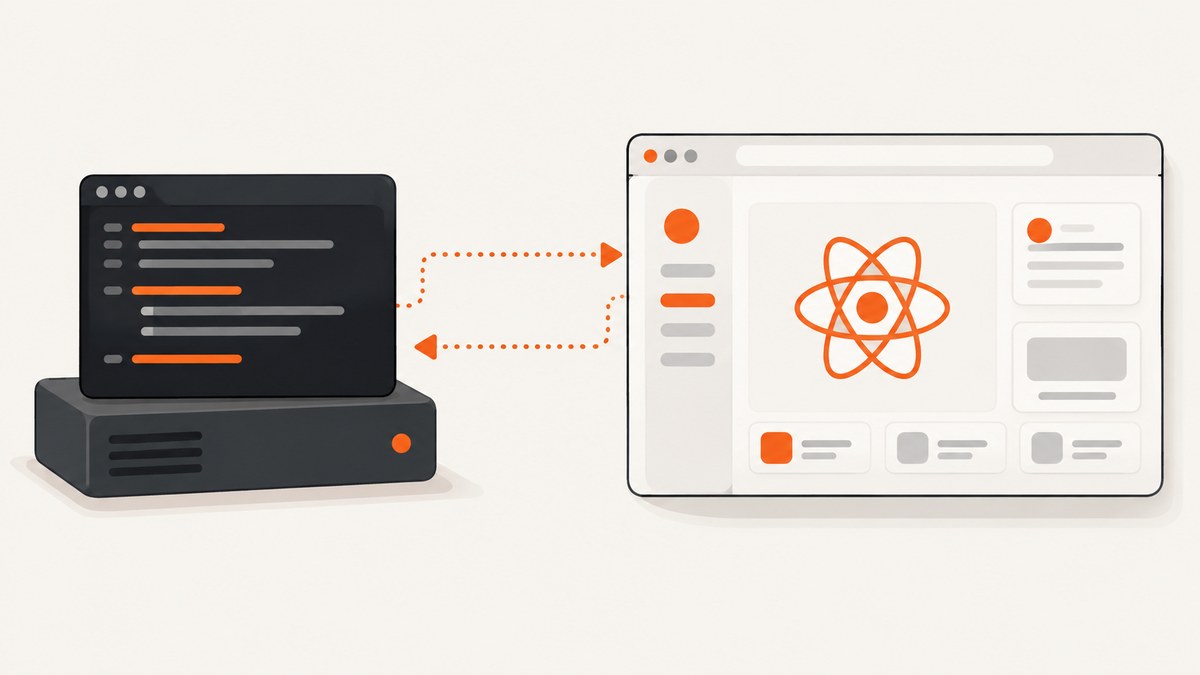
Puppeteer works with React by driving the app from a separate Node.js process. Start your React app at a reachable URL, launch Puppeteer in a script or test runner, and use a browser page to navigate, interact, and inspect it. Puppeteer does not run inside React’s client bundle.
Install puppeteer for the simplest setup: it downloads a compatible Chrome for Testing browser. Use puppeteer-core when your environment supplies its own browser. Keep component tests for component behavior and add Puppeteer for real browser flows such as login redirects, keyboard input, navigation, screenshots, and downloads.
1. Understand where Puppeteer fits
Puppeteer is a Node.js library that controls Chrome or Firefox through browser automation protocols. It runs headless by default. React renders the application; Puppeteer runs outside it and interacts with the rendered page as a browser user would. See the Puppeteer documentation.
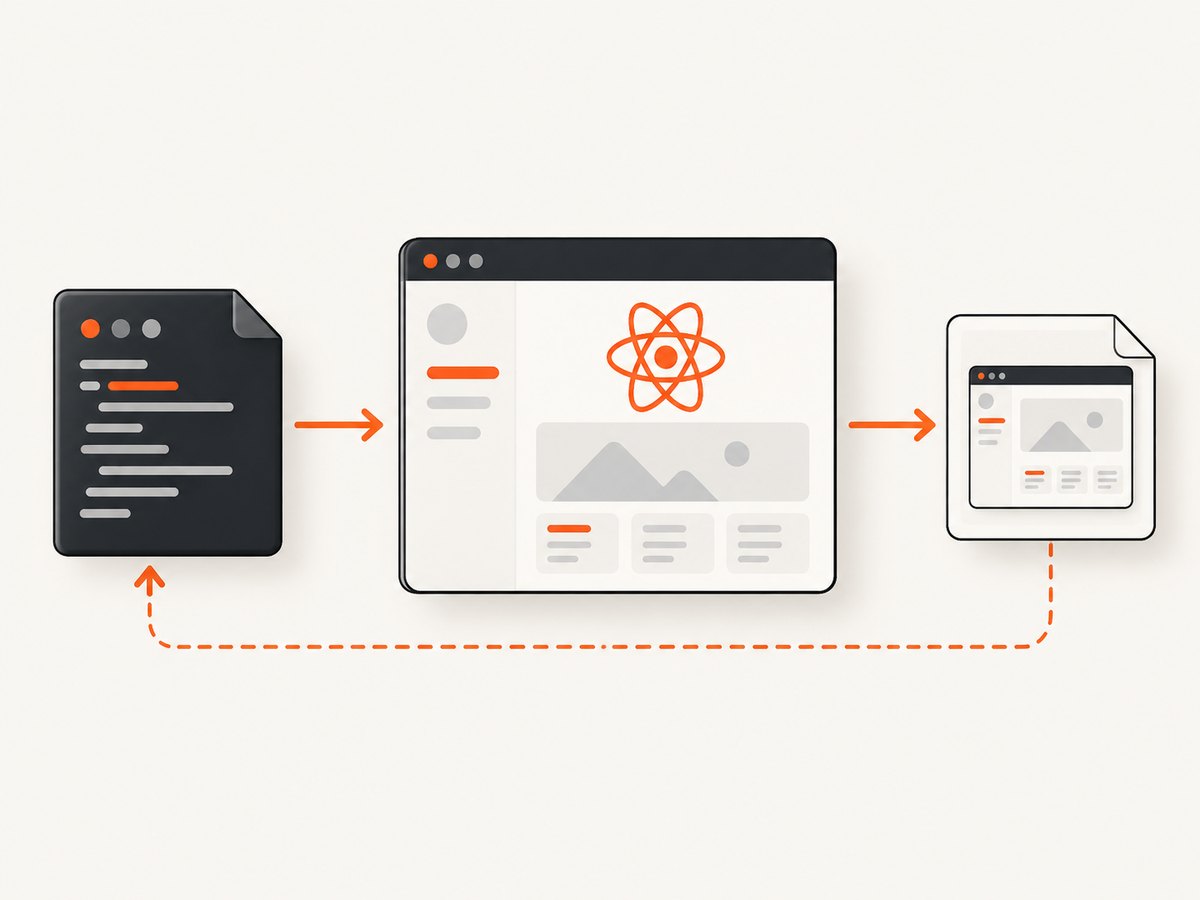
The basic sequence is:
- Start the React development server or serve a production build.
- Wait until its URL responds.
- Run a Node.js script or test that launches a browser.
- Navigate to the React URL and interact with accessible, stable page elements.
- Close the page and browser, including when an assertion or navigation fails.
A useful project split is src/ for React code, tests/unit/ for component tests, tests/e2e/ for browser tests, and scripts/ for server startup or test helpers. The exact tooling depends on the app; the important boundary is that browser-driving code runs under Node, not in the browser bundle.
2. Install Puppeteer and choose a browser strategy
npm install --save-dev puppeteerThe puppeteer package manages a compatible browser download and is the straightforward choice for local work and many CI jobs. puppeteer-core omits the managed browser download. Pick it when you explicitly provide an executable path, use a system-installed browser, or connect to a browser managed by your organization. With puppeteer-core, your setup must ensure the browser exists and is compatible.
If a package manager blocks install scripts, the package may be present while its browser download is missing. Install the browser explicitly:
npx puppeteer browsers installPuppeteer configuration supports settings such as executablePath, cacheDirectory, defaultBrowser, and skipDownload. The default browser cache is ~/.cache/puppeteer; see the configuration guide for supported configuration files and environment variables. In CI, make the browser cache persistent where useful, or install the browser as part of the image or job setup.
3. Run a React app and capture a page
First start the React app. For example, if the project’s package script starts its development server on port 3000, run that command in one terminal. Then create scripts/smoke.mjs:
import puppeteer from 'puppeteer';

const url = process.env.APP_URL ?? 'http://localhost:3000';
const browser = await puppeteer.launch({ headless: true });

try {
  const page = await browser.newPage();
  await page.setViewport({ width: 1365, height: 900 });
  await page.goto(url, { waitUntil: 'networkidle0', timeout: 30_000 });
  console.log('Page title:', await page.title());
  await page.screenshot({ path: 'react-home.png', fullPage: true });
} finally {
  await browser.close();
}
Run it with node scripts/smoke.mjs. Set APP_URL to target a different local, staging, or deployed instance. The finally block ensures the browser process is closed even when navigation or screenshot capture throws.
For a development server that does not settle network activity because of polling or live reload connections, networkidle0 may wait too long. Use domcontentloaded and then wait for the application-specific element that proves it is ready. Avoid arbitrary long sleeps where a selector or explicit readiness signal can be used.
4. Interact with the page using stable locators
Prefer a role, accessible name, label, or deliberate test ID over selectors coupled to generated classes or internal component markup. Locator APIs vary by Puppeteer version, so use the APIs documented for the version pinned in your lockfile. This example uses the locator API in current Puppeteer releases:
import puppeteer from 'puppeteer';

const browser = await puppeteer.launch({ headless: true });
try {
  const page = await browser.newPage();
  await page.goto('http://localhost:3000', { waitUntil: 'domcontentloaded' });

  await page.locator('::-p-aria(Email)').fill('dev@example.com');
  await page.locator('::-p-aria(Password)').fill('example-password');
  await page.locator('::-p-aria(Sign in)').click();
  await page.locator('::-p-text(Welcome)').wait();

  console.log('Signed-in page:', await page.title());
} finally {
  await browser.close();
}
Adjust locator syntax to the Puppeteer version you use and to the accessible labels in the app. If the application has no useful accessible names, improving its labels helps both users and test reliability. A test ID can be appropriate for a control that has no stable user-facing identifier.
For diagnosis, attach browser console and page error listeners:
page.on('console', message => console.log('browser:', message.type(), message.text()));
page.on('pageerror', error => console.error('page error:', error));
page.on('requestfailed', request =>
  console.error('request failed:', request.url(), request.failure()?.errorText));
5. Add Puppeteer to a test workflow
Jest and React rendering tools are useful for fast component tests. Puppeteer complements them with a real browser for route transitions, authentication redirects, form submission, focus and keyboard behavior, layout-dependent rendering, downloads, PDFs, and cross-component flows. The React documentation recommends starting new apps with a framework; regardless of how the app is built, the browser test targets the running app URL.
A compact Node test can run as a separate end-to-end command:
import assert from 'node:assert/strict';
import puppeteer from 'puppeteer';

const browser = await puppeteer.launch({ headless: true });
try {
  const page = await browser.newPage();
  await page.goto(process.env.APP_URL ?? 'http://localhost:3000', {
    waitUntil: 'domcontentloaded'
  });
  await page.locator('::-p-aria(Get started)').wait();
  assert.match(await page.title(), /React/i);
} finally {
  await browser.close();
}
In a Jest setup, put browser creation and cleanup in suite lifecycle hooks or a dedicated environment, and make sure teardown closes resources even when tests fail. Decide whether to share one browser across a suite or create one per worker based on isolation and the memory available to the runner. Give each test its own page or browser context when cookies and local storage must not leak between tests.
Keep the React server lifecycle explicit: start it before the browser tests, wait for its readiness, pass its actual URL through an environment variable, and stop it after the suite. A test that races server startup can fail intermittently with connection errors despite valid browser code.
6. Configure CI and Linux runners
CI needs a compatible browser, the libraries that browser needs, a writable or restored cache, and resource limits that match the runner. Puppeteer’s troubleshooting guide documents common Linux and container concerns. A dependable job generally does the following:
- Install Node dependencies from the lockfile.
- Ensure Puppeteer’s install script ran, or run
npx puppeteer browsers install. - Install required Linux system libraries for the runner image when they are not already present.
- Start the React app and wait for the HTTP endpoint to respond.
- Run browser tests with an appropriate worker count.
- Collect screenshots, logs, or traces on failure, then close browser processes.
Constrained machines may need fewer parallel Jest workers because each browser consumes memory and process capacity. Reduce worker count when parallel browser jobs cause crashes or resource exhaustion. Keep the cache location consistent with the configured cache directory and the CI cache policy.
Do not add --no-sandbox as a routine fix. Puppeteer documents it as a workaround for environments without a usable sandbox, and it has security implications. Only consider it when the host setup requires it and the pages being opened are trusted; otherwise fix the runner’s sandbox configuration.
7. Common errors and fixes
| Symptom | Likely cause | Fix |
|---|---|---|
| “Could not find Chrome” or executable missing | Install scripts were blocked, browser download was skipped, or the cache is absent. | Run npx puppeteer browsers install; check skipDownload, the cache directory, and CI cache restoration. |
| Browser launch fails on Linux | Missing shared libraries, incompatible container setup, or sandbox restrictions. | Install the libraries required by the browser image and follow Puppeteer’s Linux troubleshooting guidance; assess sandbox configuration before any workaround. |
| Navigation reports connection refused | The React server is not running, is on another port, or is not reachable from the test process/container. | Start the server first, verify its listening address, and pass the reachable URL in APP_URL. |
| Navigation times out waiting for network idle | Polling, analytics, or persistent connections keep the page active. | Wait for domcontentloaded and then a meaningful app selector; set a timeout appropriate to the environment. |
| Locator never matches | Wrong route, delayed rendering, inaccessible name mismatch, or brittle selector. | Log the final URL and page errors, verify the accessible name, and wait for a stable role, label, or test ID. |
| Tests pass alone but fail in parallel | Memory pressure, port collisions, shared state, or cross-test browser data. | Lower worker count, isolate contexts and test data, and allocate unique ports or URLs. |
| Browser remains after a failed test | Cleanup was skipped after an exception. | Use finally for scripts and guaranteed teardown hooks for test runners. |
8. Screenshots, PDFs, performance, and reliability
Puppeteer is useful when a screenshot is part of a browser test or when you need custom control over a local browser session. A screenshot can use fullPage: true; PDF generation is available from a page in supported browser contexts. Use a fixed viewport and wait for the particular content under test so visual output is repeatable. Disable animations or wait for fonts and images when those affect assertions. Avoid assuming that identical screenshots will result across different operating systems, fonts, browser revisions, or device scale factors.
Browser startup is the expensive part of a small test. Reuse a browser across related tests when isolation permits, but create separate pages or contexts for independent state. Limit parallelism to what the runner can sustain. Pin dependencies through the lockfile, keep browser installation aligned with the Puppeteer version, use explicit readiness conditions, and preserve diagnostic output on failure. These choices reduce flaky tests and make CI failures easier to explain.
For cost, a self-managed Puppeteer run consumes your development or CI compute and storage for dependencies and browser artifacts; there is no Puppeteer API request fee described by the project. The practical cost is runner time, browser downloads, and maintenance of the environment. A managed screenshot API changes that tradeoff: it avoids running browser infrastructure for simple captures, while offering less direct control over an interactive test session. Compare the actual workload rather than treating the two approaches as interchangeable.
Or skip the browser setup
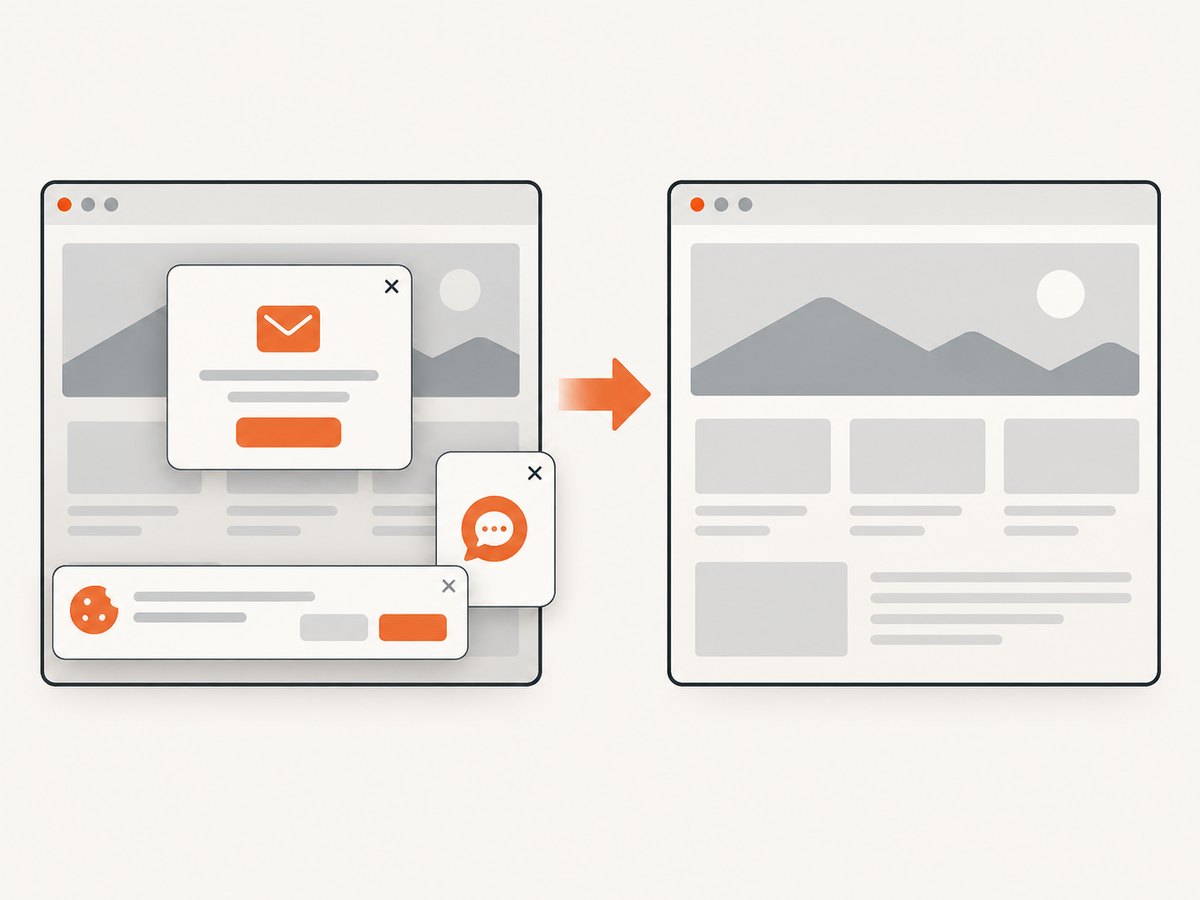
If the task is to capture a page rather than exercise a full interaction flow, ScreenshotNeo returns an image or PDF from one GET request. Its API accepts cookie and consent banners before capture and removes 60+ known consent platforms, newsletter popups, and chat widgets. Bot checks, blank pages, timeouts, failed loads, and cache hits cost nothing; response headers identify the page verdict and billing status. Its MCP server provides take_screenshot, get_page_info, and capture_pdf for Claude, Cursor, and other MCP clients. Read the API documentation.
curl -G "https://api.screenshotneo.com/v1/shot" \
  -d access_key=YOUR_API_KEY \
  --data-urlencode url=https://stripe.com \
  -o shot.webp
import requests
r = requests.get(
"https://api.screenshotneo.com/v1/shot",
params={"access_key": "YOUR_API_KEY", "url": "https://stripe.com"},
timeout=90,
)
r.raise_for_status()
open("shot.webp", "wb").write(r.content)const q = new URLSearchParams({
access_key: 'YOUR_API_KEY',
url: 'https://stripe.com'
});
const res = await fetch(`https://api.screenshotneo.com/v1/shot?${q}`);
if (!res.ok) throw new Error(`Screenshot request failed: ${res.status}`);
await import('node:fs/promises').then(({ writeFile }) =>
writeFile('shot.webp', Buffer.from(await res.arrayBuffer())));Use the API key as a secret; do not place it in browser-side React code. The free plan includes 1,000 screenshots a month with no card. Paid plans start at $5 for 3,000 screenshots, and every feature is available on every plan. Create a free ScreenshotNeo account.
9. FAQ
Can Puppeteer test a React app?
Yes. Start the app and use Puppeteer from Node.js to test it in a real browser. Keep fast component behavior tests in the component test layer and use browser tests for integrated user flows.
Where does Puppeteer code go in a React project?
Put it in a Node script, test directory, or CI command outside the client source bundle. It can live in the same repository, but it is not imported by the React application for production browser execution.
Can I use Puppeteer in Jest?
Yes. Use Jest lifecycle hooks or a browser test environment, and ensure the browser is closed during teardown. Configure worker count based on runner resources.
Why can’t Puppeteer find Chrome?
The browser may not have downloaded because install scripts were blocked, the download was skipped, or CI restored a different cache path. Install the browser explicitly and check Puppeteer’s configured cache.
Should I use Puppeteer or React component tests?
Use component tests for isolated rendering and interaction logic; use Puppeteer where real browser behavior, routing, layout, or end-to-end integration matters.
Primary references
- Puppeteer documentation, including installation and browser automation.
- Puppeteer configuration.
- Puppeteer troubleshooting.
- React documentation.
- Jest React testing guide.


