How to Use a Screenshot Service to Capture Websites
Capture a website as a viewport, full-page, or element screenshot. Learn the browser workflow, runnable Playwright code, settings, fixes, and a hosted API option.
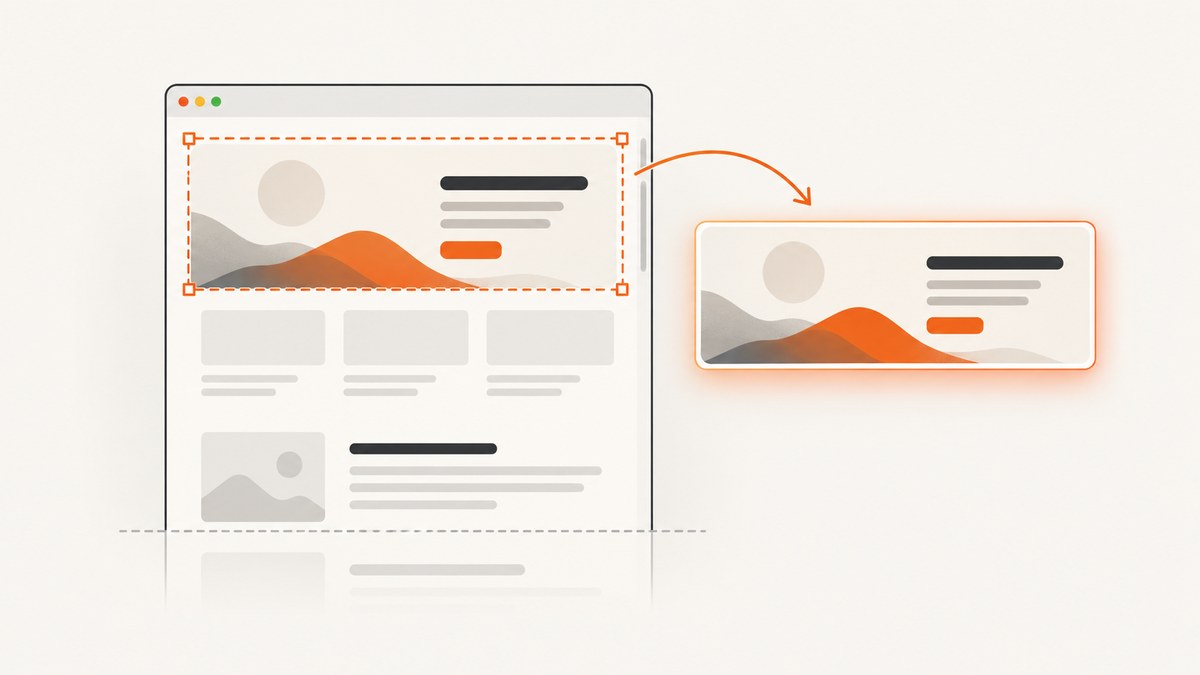
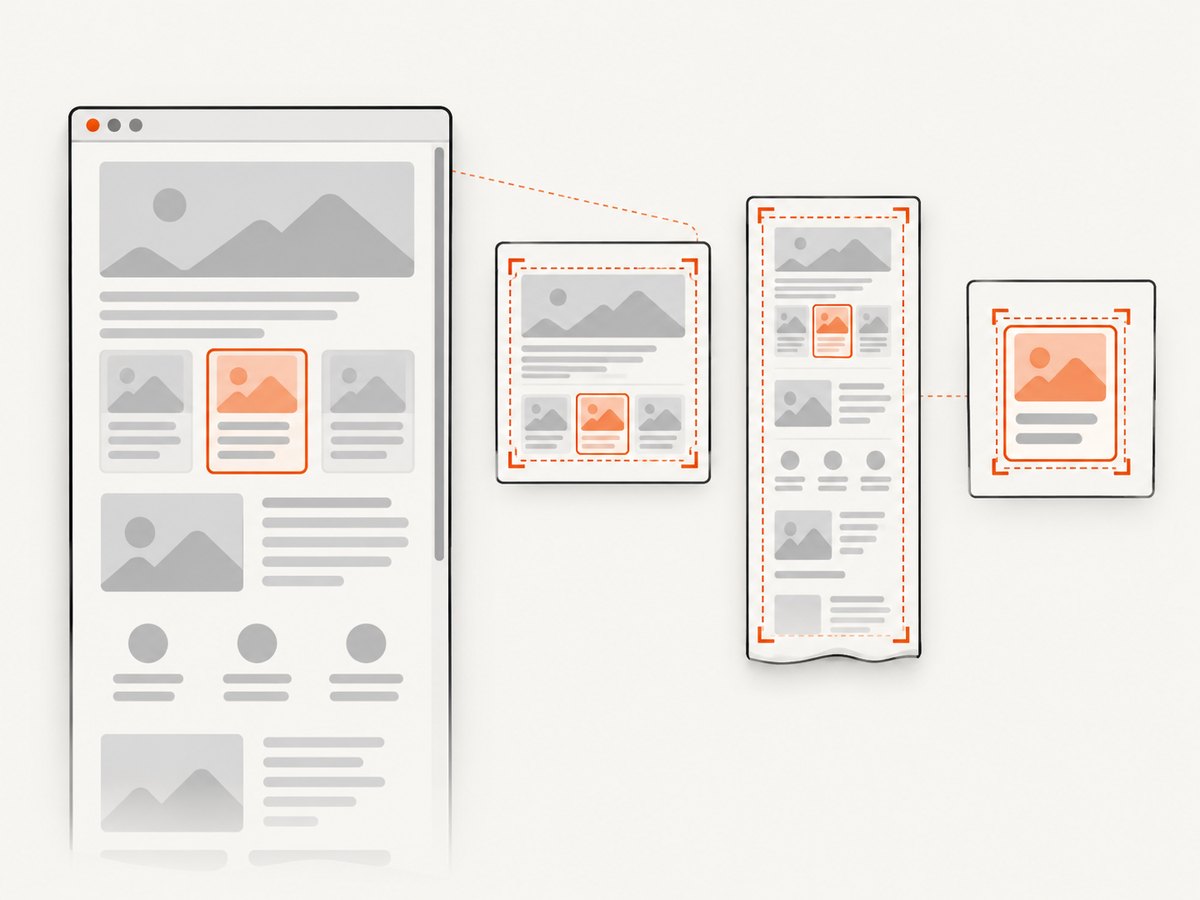
A screenshot service turns a website URL into an image you can save, share, review, or use in an automated workflow. Choose a viewport capture for the visible screen, a full-page capture for content below the fold, or an element capture for a component such as a chart or form. For repeatable results, set the viewport before navigating, choose an output format and scale, then inspect the saved image.
This guide shows the browser automation route with Playwright, then an API alternative. The examples use pages you can access; capture behavior, available options, privacy terms, limits, and pricing vary by service, so check the current documentation for whichever service you choose.
1. Choose what to capture
| Mode | What it includes | Good for |
|---|---|---|
| Viewport | The currently visible browser area | A first-screen review, a specific responsive state, or a quick shareable image |
| Full page | The full scrollable page in one image | Documentation, landing pages, and long-form content |
| Element | A selected component on the page | A form, chart, card, or other region under review |
Playwright supports page screenshots and element screenshots through a locator. Its full-page option captures the full scrollable page rather than only the visible viewport. [Playwright screenshot guide; Page API]
2. Capture a website with Playwright
Playwright drives a real browser, which is useful when you need control over viewport dimensions, page readiness, or the exact element. The following Node.js example is runnable on a machine with Node.js installed.
Install the browser automation package
npm init -y
npm install playwright
npx playwright install chromium
Save a viewport screenshot
Create capture.mjs. The viewport is configured before navigation so responsive sites render at the intended width and height.
import { chromium } from 'playwright';

const browser = await chromium.launch({ headless: true });
const page = await browser.newPage({
  viewport: { width: 1440, height: 1000 },
  deviceScaleFactor: 1,
});

try {
  await page.goto('https://example.com', {
    waitUntil: 'domcontentloaded',
    timeout: 30_000,
  });
  await page.screenshot({ path: 'viewport.png', type: 'png' });
} finally {
  await browser.close();
}
Run it with node capture.mjs. Playwright can write a screenshot to a path or return image bytes for further processing. The documented API also includes clipping, masking, image quality, transparency behavior, and scale controls; check the API details when using those options. [Playwright Page API]
Capture the full scrollable page
Use fullPage: true when the image should include content below the fold. Some pages load images or sections only as the user scrolls. Playwright documents full-page capture, but a site’s own lazy-loading behavior can affect what has loaded by capture time. For those pages, scroll through the document before taking the image and verify the result.
import { chromium } from 'playwright';

const browser = await chromium.launch({ headless: true });
const page = await browser.newPage({ viewport: { width: 1365, height: 900 } });

try {
  await page.goto('https://example.com', { waitUntil: 'domcontentloaded' });
  await page.screenshot({ path: 'full-page.png', fullPage: true });
} finally {
  await browser.close();
}
Capture one element
Use a locator for a stable CSS selector or other locator strategy. The selector below is an example; replace it with one that exists on the target page. Waiting for the locator makes the intended target explicit and gives a clear failure if it never appears.
import { chromium } from 'playwright';

const browser = await chromium.launch({ headless: true });
const page = await browser.newPage({ viewport: { width: 1280, height: 900 } });

try {
  await page.goto('https://example.com', { waitUntil: 'domcontentloaded' });
  const target = page.locator('main');
  await target.waitFor({ state: 'visible', timeout: 10_000 });
  await target.screenshot({ path: 'main-element.png' });
} finally {
  await browser.close();
}
3. Set the options that affect the result
Viewport dimensions
Viewport width changes responsive layout: navigation may collapse, columns may stack, and text wrapping may change. Set the target width and height before loading the page when that layout matters. Playwright specifically recommends setting viewport size before navigation when a site may react to a phone-sized screen. [Playwright Page API]
For a mobile capture, choose dimensions that represent the intended screen and set a device scale factor if you need higher-density pixels. A device scale factor can increase output pixel dimensions without changing the CSS layout width. Keep CSS viewport size and output pixel size conceptually separate.
Format, quality, and scale
- PNG: a lossless choice for text, interface details, and visual review.
- JPEG: often suitable for photographic content when smaller files matter; quality controls are format-specific.
- WebP: a modern compact image format where your downstream tools support it.
Check the chosen tool’s supported formats and quality ranges. Playwright’s screenshot API documents format-related options, image quality and scale behavior. Higher scale can produce more pixels and larger files, which may increase transfer and storage cost. [Playwright Page API]
Readiness and dynamic content
A page can finish initial navigation and still update later because of client-side rendering, fonts, ads, animation, or data requests. Use the lightest reliable readiness condition for the page. A fixed delay is easy but can waste time or still be too short; waiting for a known selector is more targeted. Network-idle waits can be unsuitable for pages that keep long-lived connections active.
For screenshots used in visual comparison, keep the browser version, viewport, operating system, and capture settings consistent. Browser rendering can vary across operating systems, versions, settings, hardware, power source, and headless mode. [Playwright visual comparisons]
4. Check and use the output
- Open the image and confirm that the expected page and responsive layout appear.
- For full-page shots, inspect the lower sections for missing lazy-loaded images or cut-off content.
- For an element capture, check that the selected region is the intended component and includes necessary context.
- Confirm image dimensions, file size, and format fit the destination, such as a report, issue, or visual test.
- For repeated comparisons, capture the baseline and later image under the same conditions.
A screenshot is useful for visual inspection. If your task is to read page structure or interact with controls, a semantic or accessibility snapshot is usually a more suitable representation than an image. [Playwright MCP screenshot tools]
5. Common problems and fixes
| Symptom | Likely cause | Fix |
|---|---|---|
| Screenshot has the wrong layout | Viewport was set after navigation, or width differs from the intended device | Set viewport dimensions before goto; capture again and verify the CSS layout width. |
| Page is blank or partly rendered | Capture happened before client-side content appeared, navigation failed, or a bot check blocked the page | Check navigation errors and response state; wait for a page-specific selector. A screenshot cannot make blocked content available. |
| Lower-page images are missing | Images load lazily only as they approach the viewport | Scroll through the page in increments, wait for images to load, then capture full page and inspect. |
| Element capture times out | Selector is wrong, element is hidden, or content has not rendered | Inspect the DOM, use a stable selector, and wait for the element to become visible before capture. |
| Output is unexpectedly large | Full-page dimensions, device scale, or lossless format creates many pixels | Use viewport or element capture if sufficient, lower scale, or choose a supported lossy format when appropriate. |
| Visual diffs are noisy | Browser or environment differs, or dynamic regions changed | Keep browser and execution environment fixed; mask or otherwise control volatile regions where supported. |
| Navigation times out | Slow site, third-party requests, or a page that never reaches the selected load condition | Choose a suitable readiness condition, set a realistic timeout, and wait for the specific content required. |
6. Reliability, performance, and cost
Browser-based capture gives control over the environment, but each job must start or use a browser, navigate, wait, render, encode, and save the image. Reuse a browser process for batches rather than launching one for every URL, close pages when finished, and set timeouts so stalled pages do not hold workers indefinitely. Limit concurrency according to available memory: full-page images and high device scales consume more resources than small viewport captures.
For reliable visual records, make the URL, viewport, browser version, readiness condition, and capture time part of the job metadata. Sites can change between captures, and their content may vary by location, login, cookies, or personalization. If you need repeatable authenticated views, configure session state carefully and keep credentials out of source control.
Costs depend on where the browser runs and how often you capture. A self-managed browser shifts cost to compute, maintenance, and operations. A hosted service may charge by successful capture, request, or plan; its current billing rules and data handling should be checked before sending sensitive URLs or page content. Image size also affects storage and transfer, so capture only the dimensions and page area the job needs.
Or skip the browser setup
ScreenshotNeo is a website screenshot API and MCP server for developers. It accepts a URL in one GET request and returns PNG, JPEG, WebP, or PDF. Its website screenshot API handles the browser capture workflow; see the API documentation for parameters.
curl -G "https://api.screenshotneo.com/v1/shot" -d access_key=YOUR_API_KEY --data-urlencode url=https://stripe.com -o shot.webpimport requests
r = requests.get("https://api.screenshotneo.com/v1/shot", params={"access_key": "YOUR_API_KEY", "url": "https://stripe.com"}, timeout=90)
open("shot.webp", "wb").write(r.content)const q = new URLSearchParams({ access_key: 'YOUR_API_KEY', url: 'https://stripe.com' });
const res = await fetch(`https://api.screenshotneo.com/v1/shot?${q}`);
if (!res.ok) throw new Error(`Screenshot request failed: ${res.status}`);
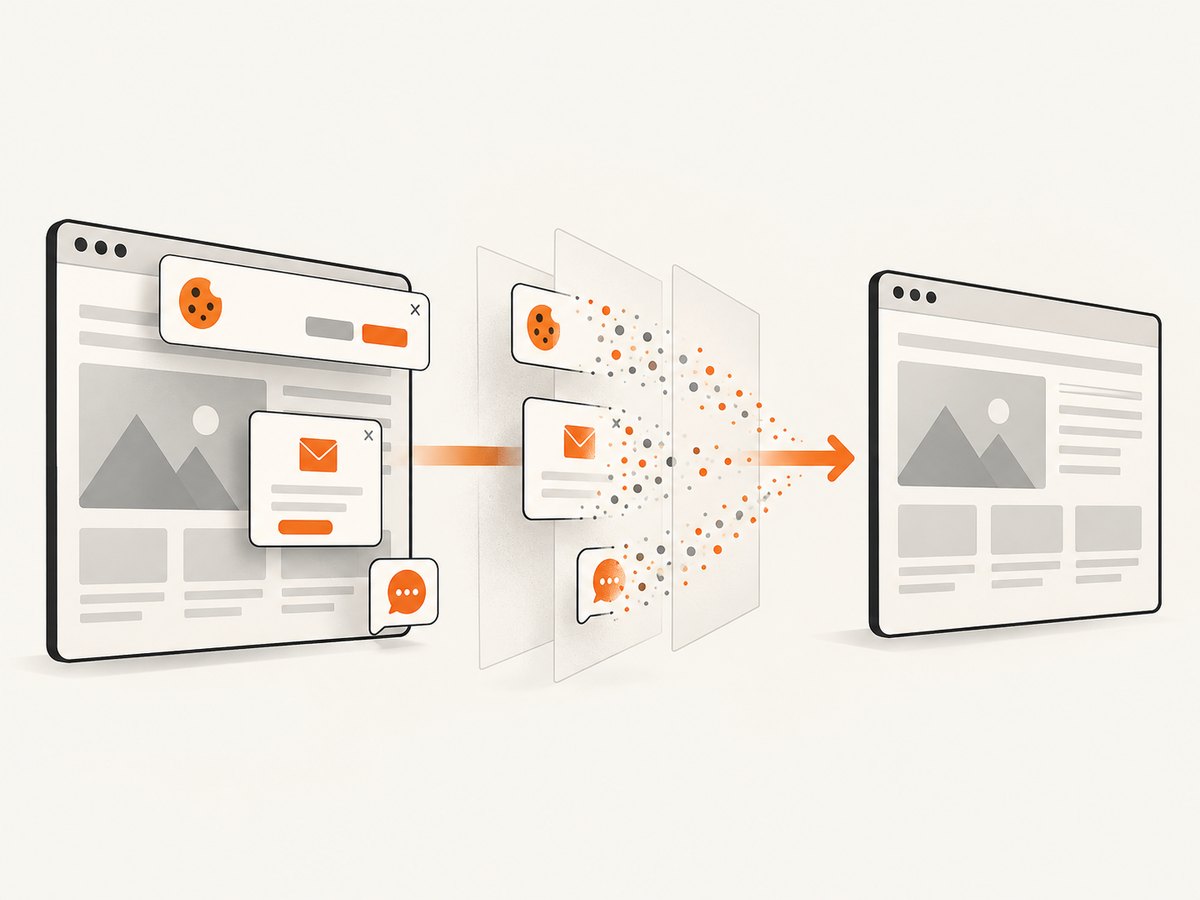
await Bun.write('shot.webp', res);The Node.js example uses Bun’s file writer to save the response body; with Node.js, use Buffer.from(await res.arrayBuffer()) and writeFile from node:fs/promises. ScreenshotNeo removes cookie and consent banners, newsletter popups, and chat widgets before capture; each cleanup step can be turned off. Bot checks and CAPTCHAs, blank pages, timeouts, failed loads, and cache hits are not billed, and response headers report the page verdict and billing status. Its MCP server gives AI agents tools for taking screenshots, getting page information, and capturing PDFs. The free plan includes 1,000 shots per month with no card; paid plans start at $5 for 3,000 shots.
Sign up for 1,000 free screenshots a month, with no card required.
Frequently asked questions
Can I capture a website I do not own?
You can capture publicly accessible pages, subject to the site’s access controls and applicable terms. A screenshot does not grant access to private or restricted content.
Should I use a screenshot or an accessibility snapshot?
Use a screenshot when visual appearance is the goal. Use a structural or accessibility snapshot when you need to inspect text, roles, and page relationships or interact with the page.
Why do two screenshots of the same URL differ?
The page, browser, viewport, fonts, dynamic content, and execution environment may differ. Fix the capture environment and control changing page regions for useful comparisons.
Does full-page mean a single screenshot includes every interactive state?
No. It captures the scrollable document at a point in time. Menus, dialogs, tabs, and other states that require interaction must be opened or triggered separately.


