How to Use Wget on Windows
Install GNU Wget on Windows with MSYS2, download files, and avoid PowerShell’s wget alias trap. Learn the options, fixes, and when a screenshot API fits better.
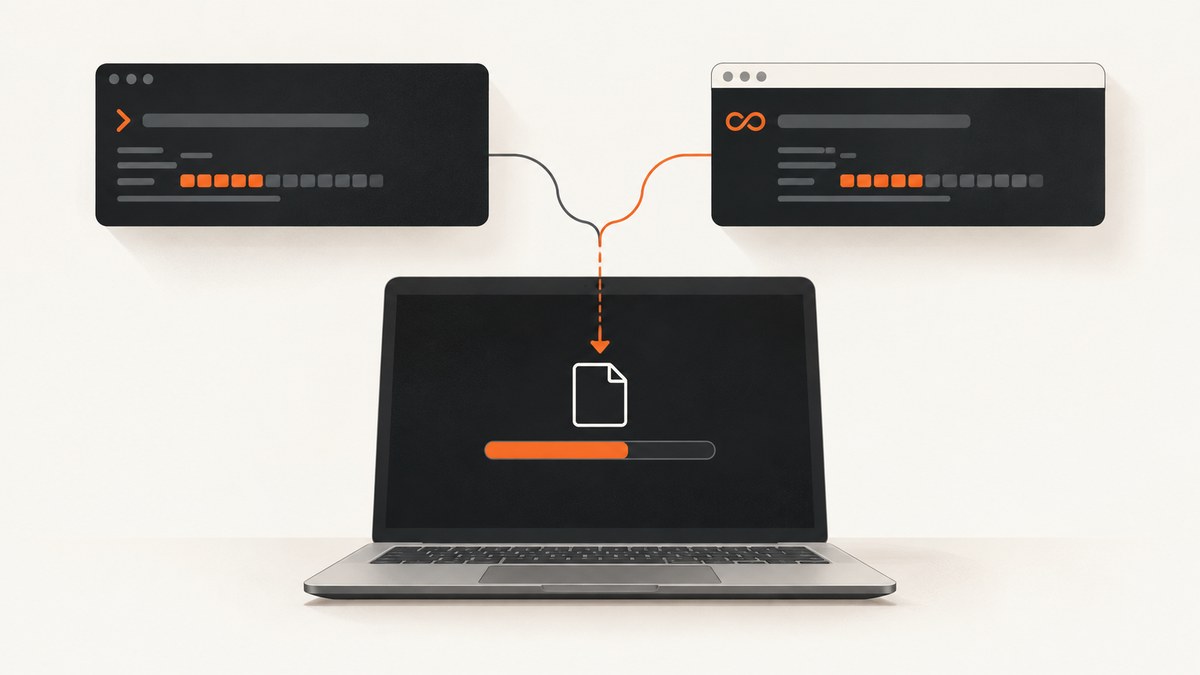
To use GNU Wget on Windows, install it through MSYS2, open the MSYS2 MinGW 64-bit shell, and run wget URL. For example, wget https://example.com/file.zip downloads a file into the current directory. In Windows PowerShell 5.1, the command name wget is an alias for Invoke-WebRequest, so check which command your shell resolves before troubleshooting Wget options.
This guide installs GNU Wget, shows common download workflows, explains the PowerShell distinction, and covers failures and performance choices. GNU Wget is a non-interactive network retrieval tool that supports HTTP, HTTPS, FTP, and FTPS. GNU Wget project page · GNU Wget manual.
1. Install GNU Wget on Windows with MSYS2
MSYS2 provides a documented package for its MinGW 64-bit environment. The package record lists Wget 1.25.0-2 and the executable path /mingw64/bin/wget.exe. Package versions can change, so use the package record to check the current details when installing.
- Follow the official MSYS2 installation instructions to install MSYS2.
- From the Start menu, open the MSYS2 MinGW 64-bit shell. The exact label can vary across MSYS2 releases; choose the shell for the MinGW 64-bit environment.
- Install the Wget package:
pacman -S mingw-w64-x86_64-wget- Check that the executable is available, then try a download:
wget --version
wget https://example.com/file.zip
The download is saved in the shell’s current working directory. To check the directory, run pwd. To see the files in it, run ls.
The MSYS2 package index identifies the executable as /mingw64/bin/wget.exe. You can use Wget from the MSYS2 shell without changing Windows PATH. Calling it from PowerShell or Command Prompt may require its Windows filesystem path or an appropriate PATH entry; those paths depend on where MSYS2 was installed. If you need Wget outside MSYS2, locate the installed executable first and test command resolution with Get-Command wget in PowerShell. MSYS2 Wget package record.
2. Download a file and choose its name
Wget’s basic form is wget [option]... [URL].... Use the URL as the final argument. By default, Wget uses the remote filename in the current directory. Use -O when you want to specify the output path or name.
# Download using the name from the URL
wget https://example.com/file.zip

# Save under a chosen name
wget -O release.zip https://example.com/file.zip
In the second command, release.zip is the local output file. -O directs output to that file; it is not a flag to resume a download. If you are downloading multiple URLs, avoid assigning the same output filename to all of them unless overwriting is intentional.
Use a quoted URL if it contains characters your shell might interpret, such as &. In MSYS2 Bash, quote it like this:
wget 'https://example.com/download?file=report&format=zip'PowerShell uses different quoting and parsing rules than Bash. Its single-quoted string is also a practical way to pass a URL containing ampersands:
wget.exe 'https://example.com/download?file=report&format=zip'The PowerShell command above assumes wget.exe resolves to GNU Wget. If it does not, use the full executable path or run the command from the MSYS2 MinGW shell.
3. Common Wget workflows
Resume a partial download
Use -c to ask Wget to continue a partial download:
wget -c https://example.com/large-file.zipResume depends on the server supporting the required range behavior and the partial file matching the same resource. If the remote file has changed, or the server does not support resuming, a continuation may fail or be inappropriate. When in doubt, remove or rename the partial file and start again.
Download a list of URLs
Put one URL per line in a text file such as urls.txt, then pass it to -i:
wget -i urls.txtKeep the file’s contents to URLs in the form expected by Wget. If a URL contains shell characters, the shell does not parse lines read from the file in the same way it parses a command you typed, but the URL still needs to be valid for Wget and the server.
Retrieve a limited section of a site
Wget supports recursive retrieval. This can fetch many linked pages, so scope it carefully. For example:
wget -r -l 2 -np https://example.com/archive/-renables recursive retrieval.-l 2limits recursion depth to two levels.-npprevents ascending to parent directories while retrieving.
Use recursion only when you intend to retrieve linked content. It is not needed for a direct file download. Wget’s manual documents additional mirroring and filtering options, including accept patterns such as -A. Review the manual before using a recursive command on a large site, because scope, depth, and accepted file patterns affect what gets retrieved. GNU Wget manual: recursive retrieval.
4. Know which command PowerShell will run
In Windows PowerShell 5.1, wget is an alias for the PowerShell cmdlet Invoke-WebRequest. That alias is not GNU Wget, and its parameters differ. A Wget flag such as -O can therefore produce an unexpected parameter error when PowerShell sends the command to the cmdlet instead of wget.exe.
Check resolution before diagnosing command options:
Get-Command wgetIf the result identifies Invoke-WebRequest as an alias, you have two clear options:
- Run GNU Wget in the MSYS2 MinGW 64-bit shell where you installed it.
- Call the GNU executable explicitly as
wget.exe, or use its full Windows path if needed.
Windows also includes curl.exe, a separate transfer program with its own options. In Windows PowerShell 5.1, use curl.exe explicitly where a curl alias could be selected instead. Do not copy Wget flags into a curl command. Microsoft documents both the Windows curl executable and the PowerShell alias consideration at curl on Windows.
If you choose the PowerShell cmdlet rather than GNU Wget, treat its behavior and syntax as PowerShell behavior. Microsoft notes that after the December 9, 2025 security update, Windows PowerShell 5.1 may show a script-execution warning when Invoke-WebRequest parses web content; the documented recommendation is -UseBasicParsing. That warning belongs to the cmdlet, not GNU Wget. See Microsoft’s Invoke-WebRequest documentation.
5. Wget, PowerShell, or curl.exe?
| Choice | What runs | Installation | Best fit |
|---|---|---|---|
| GNU Wget through MSYS2 | GNU Wget with Wget’s own options | Install the MSYS2 package | Wget workflows such as resume, URL lists, retries, or scoped recursive retrieval |
wget in Windows PowerShell 5.1 |
An alias for Invoke-WebRequest |
Built into that PowerShell environment | PowerShell scripts already written for the cmdlet; use cmdlet syntax |
curl.exe |
The Windows curl executable with curl options | Included with Windows | A straightforward transfer when curl syntax suits the task |
The deciding question is whether your instructions or script need GNU Wget’s specific options. If so, confirm that the executable is GNU Wget. For one uncomplicated transfer, the built-in curl executable may avoid installing a separate package. Microsoft’s page covers the Windows curl availability; the GNU manual is the reference for Wget syntax.
6. Troubleshoot common problems
| Symptom | Likely cause | What to do |
|---|---|---|
wget reports an unknown parameter or behaves unlike the manual |
PowerShell resolved its wget alias to Invoke-WebRequest. |
Run Get-Command wget. Use the MSYS2 shell or explicitly call GNU wget.exe. |
wget: command not found in MSYS2 |
The package is not installed in the shell environment, or the wrong MSYS2 shell is open. | Open the MinGW 64-bit shell and run pacman -S mingw-w64-x86_64-wget. Then check wget --version. |
PowerShell says wget.exe is not recognized |
The executable directory is not on PATH, or the command is being run outside the environment where it is available. | Use the MSYS2 shell, locate the installed executable, or invoke it using its full Windows path. The package’s MSYS2 path is /mingw64/bin/wget.exe; the Windows path depends on the installation location. |
| The file is saved somewhere unexpected | Wget writes to the current working directory unless given an output path. | Check pwd in MSYS2, change directory before downloading, or use -O path\name.zip as appropriate for the shell. |
| A resumed download fails or produces an unusable result | The server may not support resuming, or the partial file may not match the current remote file. | Retry without -c after moving or removing the partial file. Verify the downloaded file and source URL. |
| A recursive command downloads too much | Recursion followed links beyond the intended scope. | Stop the job and narrow the starting URL. Set a depth with -l, use -np to avoid ascending, and review accepted patterns before retrying. |
Invoke-WebRequest shows a script parsing warning |
This is PowerShell 5.1 cmdlet behavior after the security update documented by Microsoft, not a GNU Wget message. | If using the cmdlet, follow Microsoft’s guidance and add -UseBasicParsing. If you intended Wget, check command resolution instead. |
7. Performance, reliability, and cost
For a single file, a direct Wget request is usually the simplest workflow: it avoids the extra traffic and storage a recursive retrieval can generate. Use -c for a large transfer that was interrupted only when resume is supported and the partial file is valid. A URL list is useful for repeated downloads, while recursive retrieval needs explicit boundaries and can consume far more time and bandwidth than one file.

Wget is free software; MSYS2 distributes it as a package. Your practical costs are the network transfer, destination storage, and any service or bandwidth limits imposed by the server or network. Wget itself cannot guarantee that a remote file will stay available, remain unchanged, or permit continuation. For reliable workflows, retain the source URL, check whether the output file exists and has a plausible size, and retry a failed transfer with the cause in mind rather than blindly repeating recursive commands.
Wget retrieves network files and linked content. If your actual goal is to create a visual record of a rendered webpage, a screenshot workflow solves a different task: it captures the page as an image or PDF instead of saving the linked file. That distinction matters for dynamic pages, whose visible content may not exist as a downloadable file at a simple URL.
8. Or skip the browser setup
If the job is a webpage screenshot rather than a file download, ScreenshotNeo is a website screenshot API and MCP server. One GET request returns a PNG, JPEG, WebP, or PDF. Its API supports full-page capture, CSS element selection, dark mode, device presets, custom CSS and JavaScript, wait conditions, request blocking, and more. See the ScreenshotNeo API documentation for request options.
Here is a runnable cURL request:
curl -G "https://api.screenshotneo.com/v1/shot" -d access_key=YOUR_API_KEY --data-urlencode url=https://stripe.com -o shot.webpEquivalent Python:
import requests

r = requests.get(
    "https://api.screenshotneo.com/v1/shot",
    params={"access_key": "YOUR_API_KEY", "url": "https://stripe.com"},
    timeout=90,
)
open("shot.webp", "wb").write(r.content)
Equivalent Node.js:
const q = new URLSearchParams({ access_key: 'YOUR_API_KEY', url: 'https://stripe.com' });
const res = await fetch(`https://api.screenshotneo.com/v1/shot?${q}`);
Replace YOUR_API_KEY with your key. These examples save or fetch the response; use the documented output and format parameters when you need a different image format or PDF. ScreenshotNeo accepts cookie or consent banners before capture and removes more than 60 known consent platforms, newsletter popups, and chat widgets; each of those steps can be turned off. Bot checks, blank pages, timeouts, failed loads, and cache hits cost nothing, with response headers indicating the page verdict and billing status. Its MCP server provides take_screenshot, get_page_info, and capture_pdf for Claude, Cursor, and other MCP clients.
The free plan includes 1,000 screenshots per month with no card. Paid plans start at $5 for 3,000 shots; every feature is available on every plan. Sign up for ScreenshotNeo’s free plan and try a screenshot request.
9. Frequently asked questions
Is GNU Wget available for Windows?
Yes. This guide uses the MSYS2 MinGW 64-bit package, which provides a Windows executable. Install it in the matching MSYS2 environment with pacman.
Why does PowerShell treat wget differently?
Windows PowerShell 5.1 defines wget as an alias for Invoke-WebRequest. Check with Get-Command wget; use GNU Wget explicitly when you need GNU Wget’s options.
Can Wget download a whole website?
It can retrieve pages recursively, but that is a broader operation than downloading one file. Set depth and scope deliberately, and consult the GNU manual for mirror and filtering options.
Should I use Wget or curl on Windows?
Use the tool whose syntax and workflow fit your task. GNU Wget is useful when you need its options; Windows includes curl.exe for transfers using curl syntax. In PowerShell 5.1, spell the executable curl.exe explicitly.


